You can update your Billing Address details whenever necessary to ensure that your invoices, tax documents, and payment records reflect the correct information. Keeping your billing details up to date helps prevent transaction issues and ensures compliance with tax regulations.
To make changes, use the Billing Address option. This feature allows you to:
- Edit your billing address to reflect recent changes in your business or personal information.
- Ensure that invoices and payment records display the correct address.
- Update your address for all linked subscriptions to maintain consistency across services.
- Submit Tax Exemption documents (if applicable) to adjust your tax status accordingly.
Steps to Update Your Billing Address
Navigate to the Manage Subscription Page:
- Open the product page - Navigate to the product you wish to upgrade for.
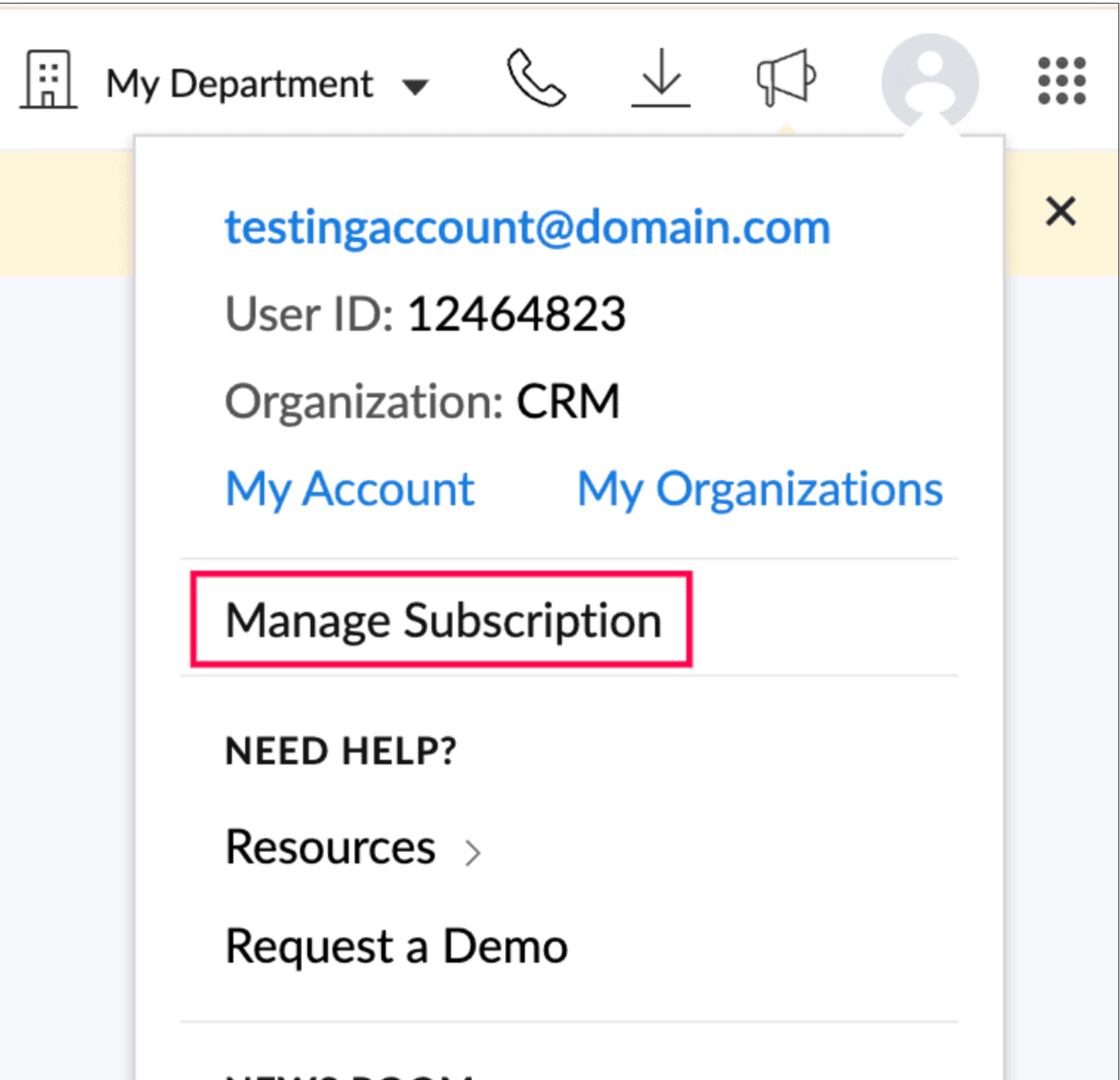
- Access Subscription Option: Click on your profile icon in the top-right corner of the page.
Select Manage Subscription - Click the Upgrade/Manage Subscription option located below your profile details.
From the Your Store Details tab, choose the Billing Address option.
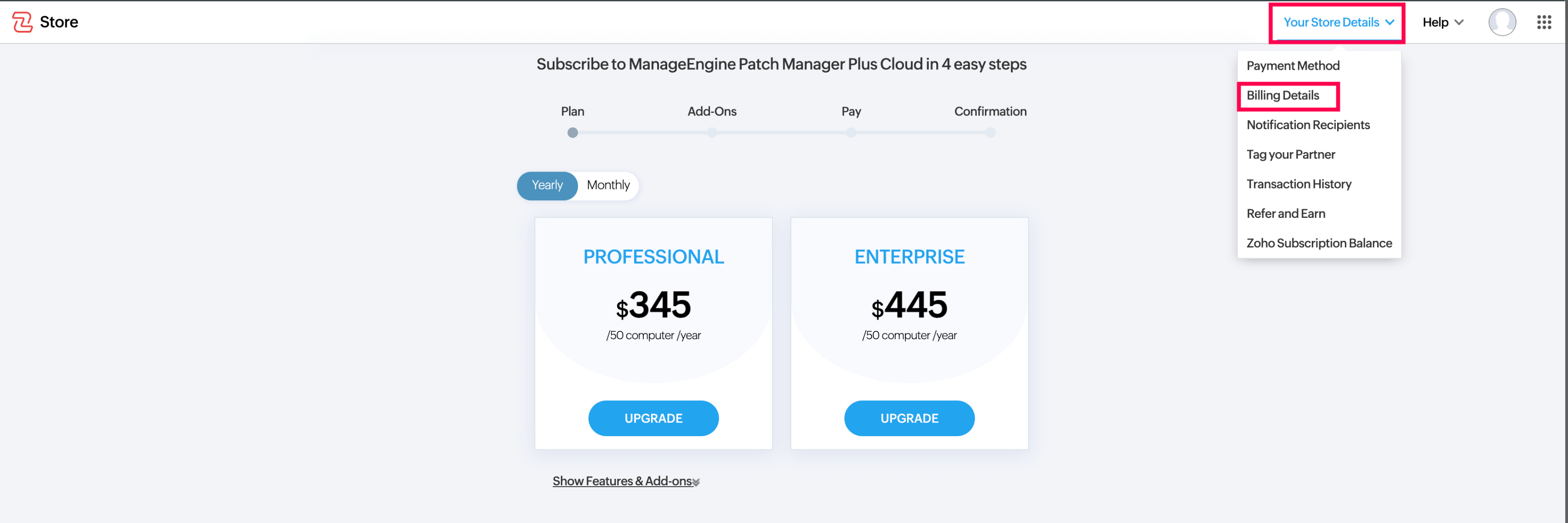
- You will be redirected to the Billing Address & Other Info page.

When clicking on the Change Billing Address option, you will be redirected to the Billing Address & other info page.
- Click on the change button to update your Billing Address Details.

Enter the necessary details and click Update.

Grouping of Subscriptions Based on Billing Address
- Your services are grouped based on the addresses provided at the time of sign-up.
- To view the subscriptions associated with a specific address, click on View Subscriptions.

- You can filter and switch between Monthly and Yearly subscription views.
- When updating your Billing Address, the change will apply to all subscriptions linked to that address.

Providing Tax Exemption Details
If you are eligible for Tax Exemption, you can submit the necessary documentation while updating your billing address.
What is Tax Exemption?
Tax exemption allows individuals or businesses to be relieved from paying specific taxes. By default, Zoho applies relevant taxes based on the country where it is registered. However, customers can provide legal certificates to qualify for tax exemption.
Required Tax Documentation
Depending on your country, you will need to provide the appropriate tax documentation:
- For the United States: A Tax Exemption Certificate is issued by the government.
- For other countries: A valid tax identification number such as VAT ID, GSTIN, HST ID, ABN Number, RFC Number, CNPJ Number, NPWP/SSN, etc.
Approval Process for Tax Exemption
- The documents submitted will be reviewed by the Finance (Tax) Team.
- Once approved, your tax status will be updated to Exempted, and no taxes will be applied to future transactions.
- For US customers: The tax exemption certificate has an expiry date. If the certificate expires, you must upload a new one to maintain exemption.
How to Submit a Tax Exemption Certificate
- Check the Eligible for Tax Exemption box.

- Select your business type from the options provided.
- Upload the Tax Exemption Certificate.
- Click on Update to submit the information.

A confirmation message will appear once your details have been successfully updated.

Deleting a Billing Address
You can remove a billing address using the Delete option. However, deletion is not possible if the address is linked to active subscriptions.
Steps to Delete a Billing Address
- Navigate to the Billing Address & Other Info page.
- Click on the Delete option below the address you wish to remove.

If the address is associated with active subscriptions, you must first cancel those subscriptions.

Once the subscriptions are inactive, the billing address can be deleted from the Inactive Billing Address section.
