If certain add-ons are no longer necessary for your current usage, you have the flexibility to downgrade them at any time. This allows you to optimize your subscription by removing unused features while ensuring cost efficiency. Downgrading add-ons can help streamline your plan, preventing unnecessary chanrges and keeping your subscription aligned with your evolving needs. Follow the steps below to seamlessly reduce or remove add-ons from your subscription while maintaining uninterrupted access to essential services.
Navigate to the Manage Subscription page:
- Access the Manage Subscription Page - Navigate to the product you wish to downgrade for.
- Access Subscription Option - Click on your profile icon in the top-right corner of the page.
- Select Manage Subscription - Click the Upgrade/Manage Subscription located below your profile details.

Steps to Downgrade Add-ons
- Access the Manage Subscription Page - Navigate to the Manage Subscription section in the product page.
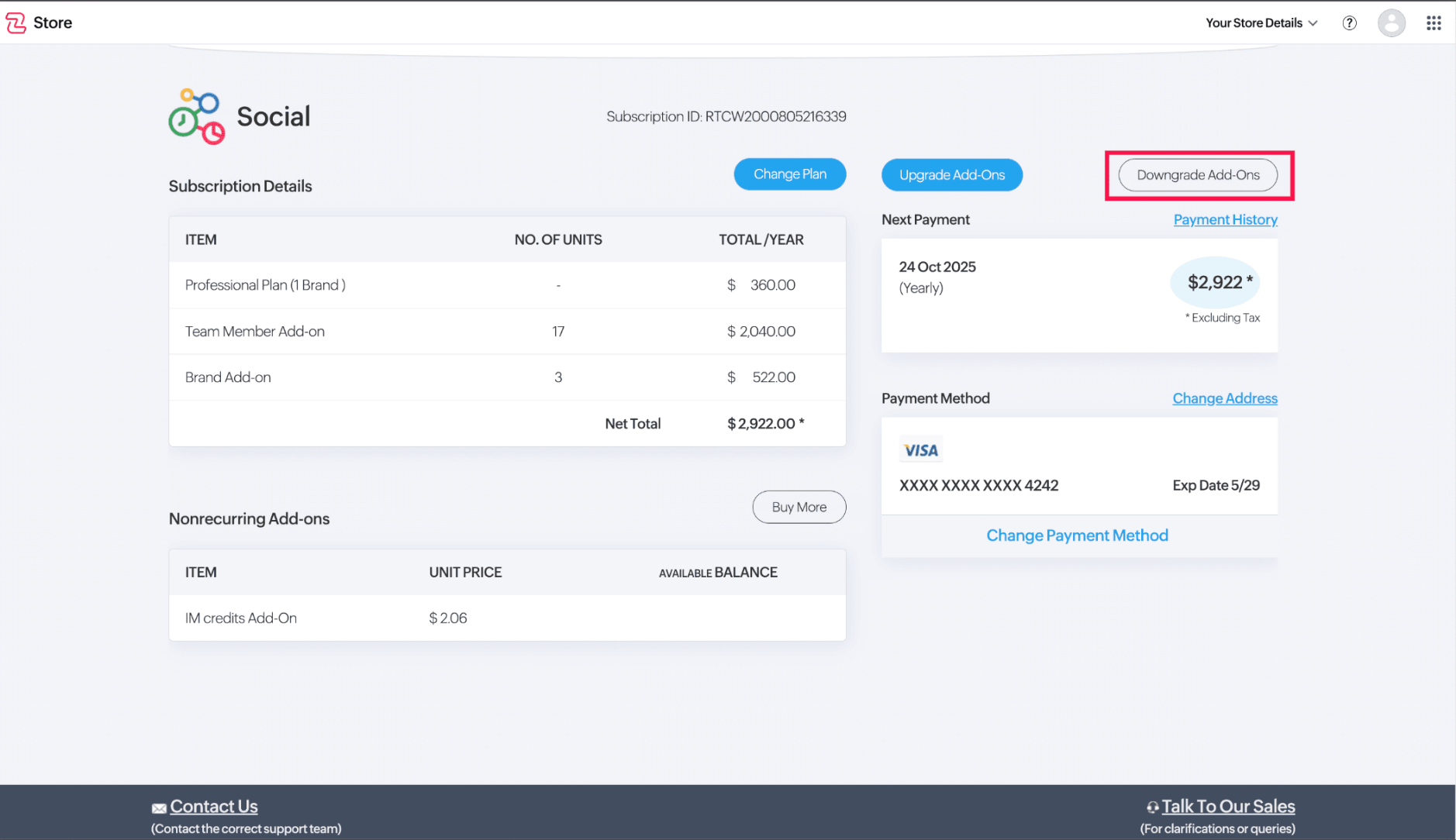
- Click "Downgrade User/Add-ons" - Locate the Downgrade User/Add-ons button on the right side of the page and click on it.
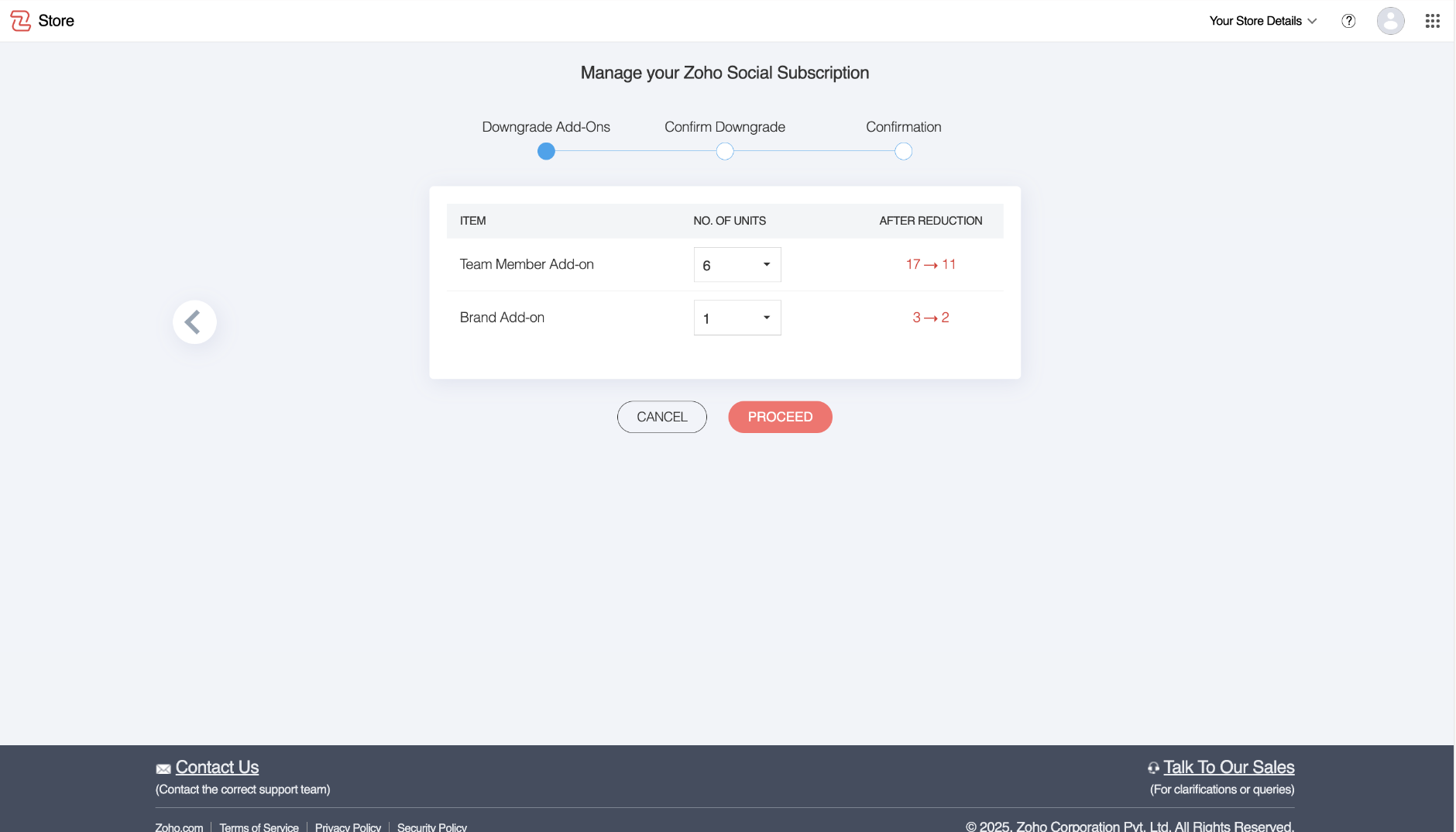
- Specify the Number of Add-ons to Downgrade - Enter the number of add-ons you wish to remove and click Proceed to continue.
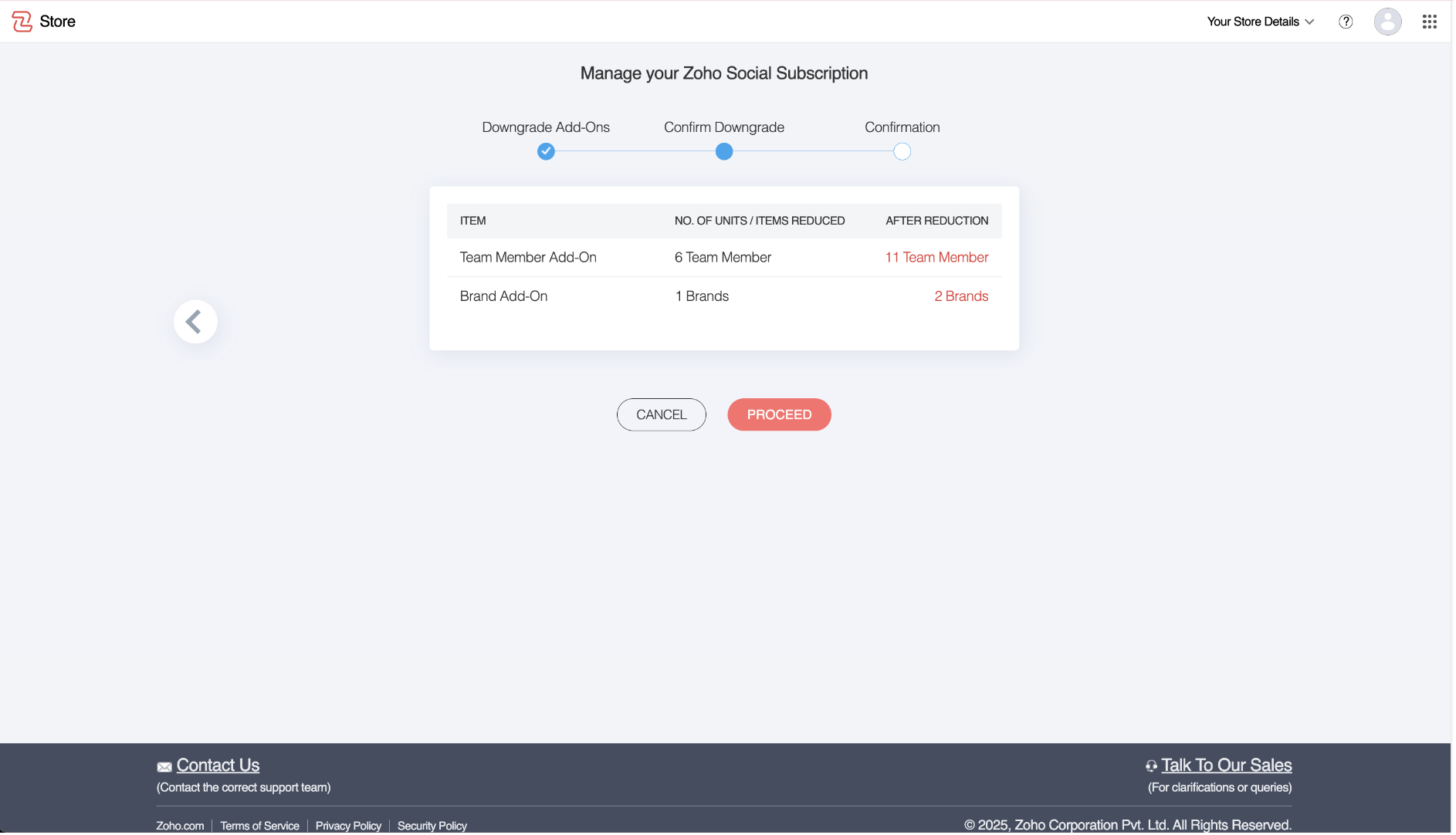
- Confirm Changes - Review the downgrade request to ensure the correct number of add-ons has been selected, then click Proceed again.
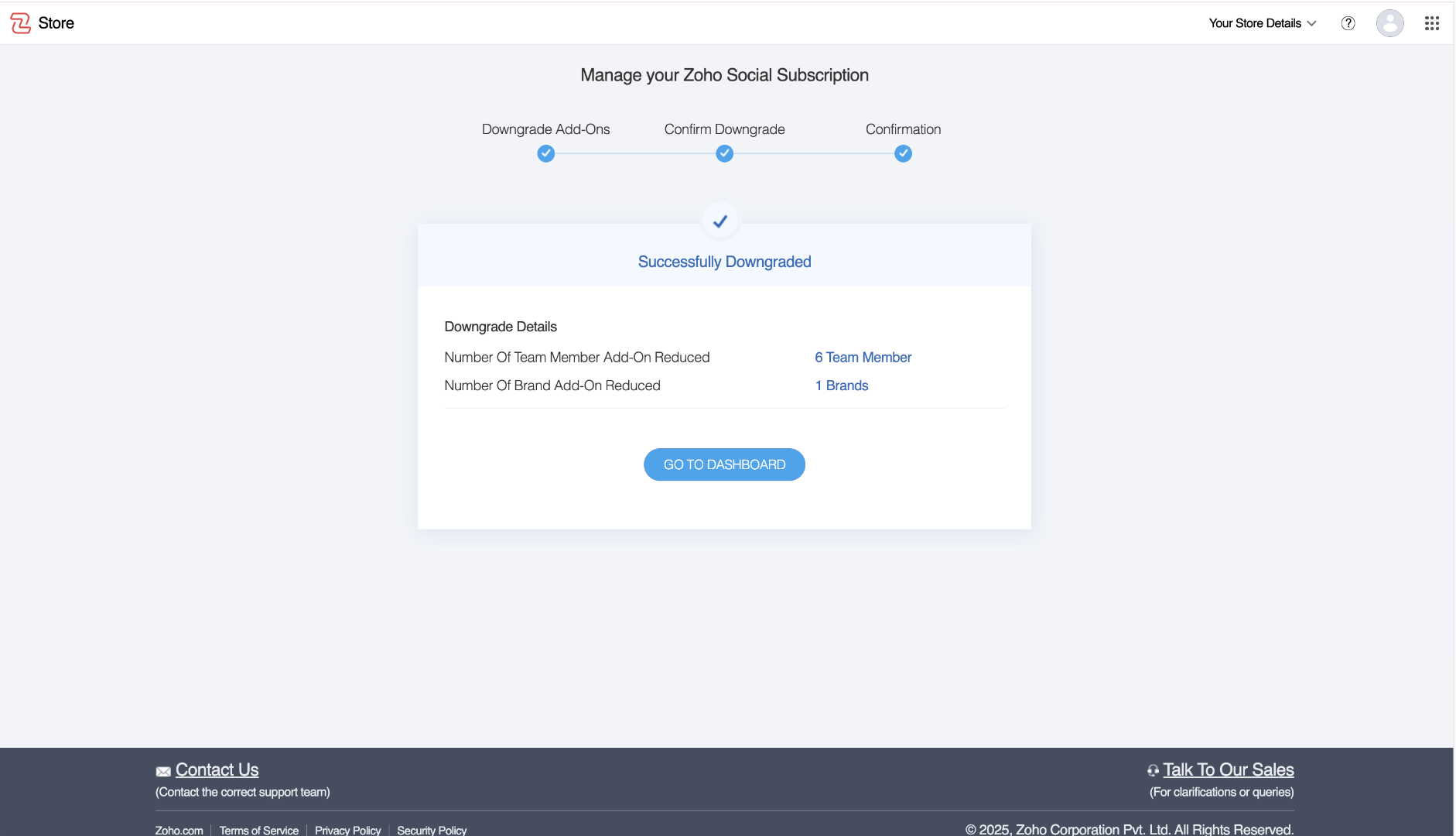
- Receive Confirmation - Once the downgrade is successfully processed, you will receive a confirmation message indicating that the add-ons have been removed from your subscription.