

Inventory Adjustments

Sometimes, the quantity or value of your items could change without creating any sales or purchases transactions.
Let us understand this with the help of two scenarios:
Scenario 1
Some of your items are damaged due to mishandling or while shipping. In this case, the available stock has to be reduced without creating a sales transaction.
You could sometimes get additional items from your vendors as incentives. Here, your available stock has to be increased without creating a purchase transaction.
In Zoho Books, these scenarios are accommodated using Quantity Adjustment.
Scenario 2
Let’s say you purchase 10 mobile phones at a certain rate. After an year or so, its value decreases and its price comes down. Now, you have to decrease its value accordingly.
In another case, let’s say you’ve purchased steel. In the near future, its value increases and its price goes up. You have to increase its value accordingly.
In Zoho Books, these scenarios can be accommodated using Value Adjustment.
Create Inventory Adjustment
To create an inventory adjustment in Zoho Books:
- Go to Items > Inventory Adjustments.
- Click + Make an Adjustment.
- Select Quantity Adjustment or Value Adjustment as per your requirement.
- Select the Account in which you would like to track the adjustments and the Reason for making the inventory adjustment.
- Click Save.
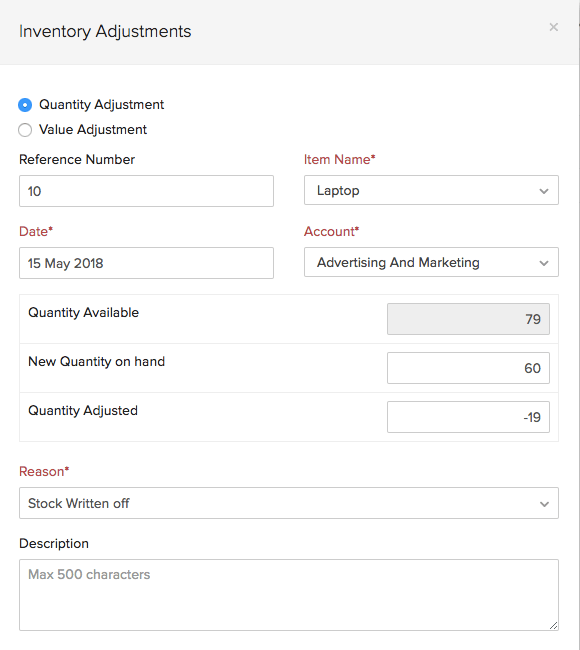

Note: Fields in red are mandatory, others are optional.
Bulk Actions in Inventory Adjustments
You can perform the following bulk actions on inventory adjustments directly from the list page: Submit for Approval, Approve, and Convert to Adjusted.
Note: You can perform bulk actions on a maximum of 25 inventory adjustments at a time.
Submit Inventory Adjustments for Approval in Bulk {submit-inventory-adjustments-in-bulk}
Note: Only users with permission to create inventory adjustments can submit records for approval. To configure approval flows, see Transaction Approval. To set up approver roles, see Users and Roles in Transaction Approval.
When the approval flow is enabled for Inventory Adjustments, you can submit multiple adjustments for approval at once.
To submit inventory adjustments for approval in bulk:
- Go to Inventory in the left sidebar and select Inventory Adjustments.
- Select the checkboxes next to the inventory adjustments you want to submit for approval.
- Click Submit for Approval at the top of the list.
The selected inventory adjustments will be submitted for approval and their status will change to Pending Approval.
Approve Inventory Adjustments in Bulk
Users who have approval permission can approve multiple inventory adjustments at once.
Note: The Approve option is available only when the approval flow is enabled for Inventory Adjustments, and only to users who have the approval permission. To configure approval permissions, see Users and Roles in Transaction Approval. To set up condition-based approval flows, see Custom Approvals.
To approve multiple inventory adjustments:
- Go to Inventory and select Inventory Adjustments in the left sidebar.
- Select the checkboxes next to the inventory adjustments in Pending Approval status that you want to approve.
- Click the dropdown arrow next to Submit for Approval and select Approve.
The selected inventory adjustments will be approved.
Convert Inventory Adjustments to Adjusted in Bulk
You can convert multiple inventory adjustments to Adjusted status at once. This option is available regardless of whether the approval flow is enabled or disabled.
To convert multiple inventory adjustments to Adjusted:
- Go to Inventory and select Inventory Adjustments in the left sidebar.
- Select the checkboxes next to the inventory adjustments you want to adjust.
- Click Convert to Adjusted at the top of the list.
The selected inventory adjustments will be marked as Adjusted and your stock levels will be updated.
Delete Inventory Adjustment
To delete an inventory adjustment that you’ve created in Zoho Books:
- Go to Items > Inventory Adjustments.
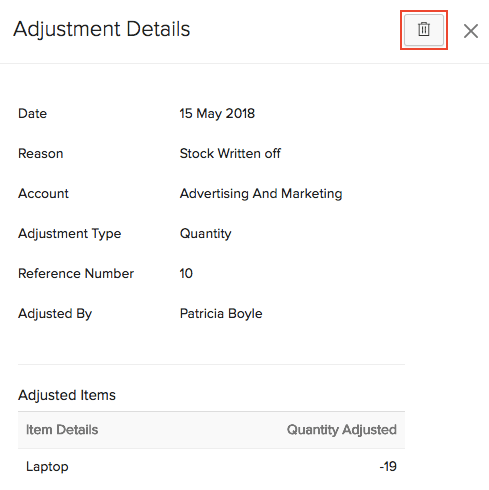
- Select the inventory adjustment and click the Delete icon on the right side of the page.
- Click Delete to confirm.
 Yes
Yes