


Functions
Functions in Zoho Expense allow you to automate business processes by writing simple program scripts in the low-code language Deluge. You can use Functions to update data in a related record or in a third-party application, call APIs, validate values, and more.
Once a function is associated with a workflow rule, it executes automatically whenever the workflow rule is triggered.
Scenario: Zylker uses a fleet of company vehicles, and employees can claim mileage expenses for the vehicles assigned to them. The Travel Admin wants to prevent mileage expenses from being created for vehicles whose registration has expired, so approvers don’t have to reject these reports manually. Using Functions, the admin writes a Deluge script that checks the vehicle’s expiry date and blocks the mileage expense if the vehicle is expired. The admin then associates this function with a workflow rule on the Expense Reports module.
Create Functions
To create a function:
- Go to Settings on the left sidebar.
(OR)
Click Settings in the top right corner of the page. - Select Workflow Actions under Automation.
- Click Functions from the Workflow Actions pane.
- Click + New Function in the top right corner.
- On the New Function page, fill in the following fields:
- Function Name: Enter a name for the function.
- Description: Enter a short description of what the function does, if required.
- Module: Select the module for which the function should be triggered. You can create functions for Expense Reports, Employee Advances, Employee Advance Refunds, Trips, Users, and Custom Modules.
- Click Proceed.
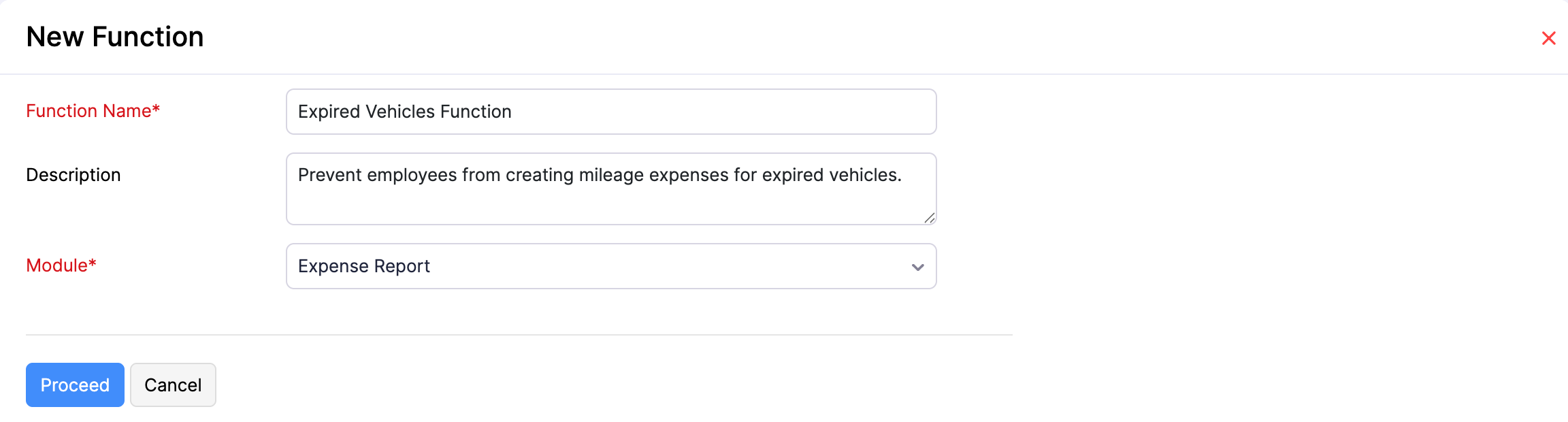
- Write your function logic in the Deluge script editor.
- Click Save to save the function. Click Save and Execute to save the function and test it with sample data.
Pro Tip: You can quickly access support and guides related to Deluge by clicking the More icon in the top right corner of the Deluge script editor.
Custom Execution Status
When a function runs, the script can return a status code that explains what happened during execution. This helps the admin and the user understand why a workflow was executed, blocked, or partially executed.
To view or define these codes, click Custom Execution Status in the Deluge editor. The following status codes are supported:
| Code | Meaning |
|---|---|
| 1000 | Success. The function executed and the workflow continues. |
| 1001 | Failure. The function executed but the workflow is treated as failed. |
| 1002 | Cancelled. The workflow action was cancelled by the function. |
| 1003 | Invalid input. One or more inputs to the function were not valid. |
| 1004 | Validation failed. A business validation inside the function did not pass. |
| 1005 | External service error. A call to an external service did not succeed. |
| 1006 | Permission denied. The function does not have the required permission to complete the action. |
| 1007 | Record not found. The record referenced by the function could not be located. |
| 1008 | Limit exceeded. A configured limit, such as API or Deluge component usage, was reached. |
| 1009 | Unknown error. The function failed for a reason not covered by the other codes. |
Note: To use custom execution status codes, your function should return a map that includes a status code and an optional message. The returned message is shown to the user when the workflow is blocked or fails.
View Deluge Components Usage
Functions are built using Deluge components, and each component has a daily usage limit set by Zoho Expense. To check how much of each component your organisation has used so far, click View Deluge Components Usage in the Deluge editor.
The Deluge Components Usage (per Day) panel lists each component with its Total, Used, and Remaining counts for the current day. The components tracked are:
| Component | Description |
|---|---|
| invoke_url_api | Number of invokeurl calls made from your functions to external APIs. |
| webhook | Number of webhook calls triggered from your functions. |
| Number of emails sent from your functions using the sendmail task. |
Connections
Connections let you authenticate calls from your Deluge script to Zoho services and third-party applications without storing credentials inside the script. To manage connections used by your functions, click Connections in the Deluge editor header. You can create new connections, edit existing ones, and use them inside your script using the standard Deluge connection syntax.
Associate Functions to a Workflow Rule
A function executes only when it is associated with a workflow rule and the rule is triggered. To associate a function to a workflow rule:
- Go to Settings on the left sidebar.
(OR)
Click Settings in the top right corner of the page. - Select Workflow Rules under Automation.
- Create a new workflow rule or edit an existing one.
- Under Add Actions, select Functions as the Type and choose the function you want to associate from the Name dropdown.
- Click Associate, and then click Save to save the workflow rule.
Edit Functions
To make changes to a function:
- Go to Settings on the left sidebar.
(OR)
Click Settings in the top right corner of the page. - Select Workflow Actions under Automation.
- Click Functions from the Workflow Actions pane.
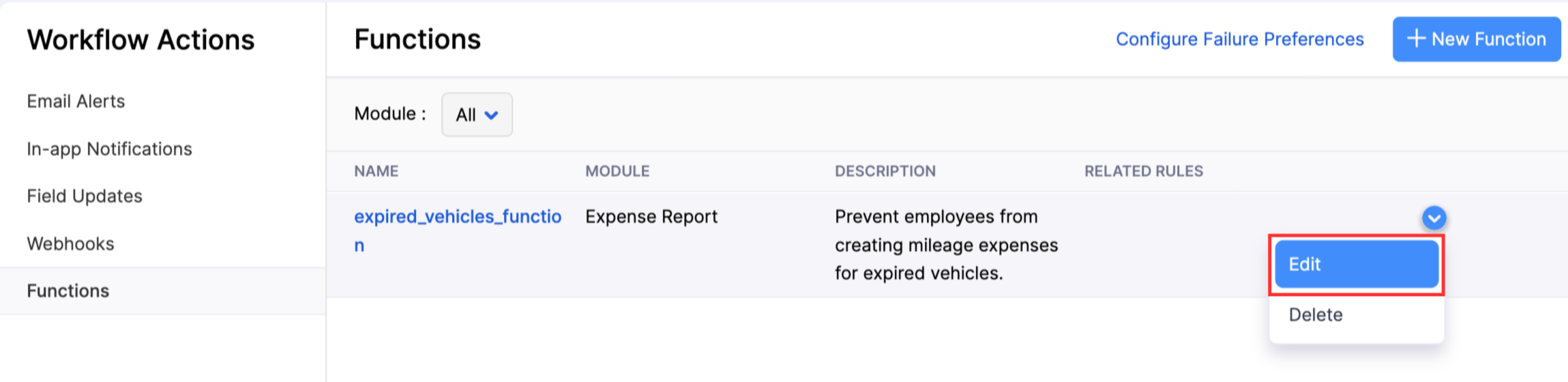
- Hover over the function you want to edit, click the Dropdown icon, and select Edit.
- Make the required changes and click Save.
Delete Functions
When you delete a function, any workflow rule it is associated with will no longer execute this action.
- Go to Settings on the left sidebar.
(OR)
Click Settings in the top right corner of the page. - Select Workflow Actions under Automation.
- Click Functions from the Workflow Actions pane.
- Hover over the function you want to delete, click the Dropdown icon, and select Delete.
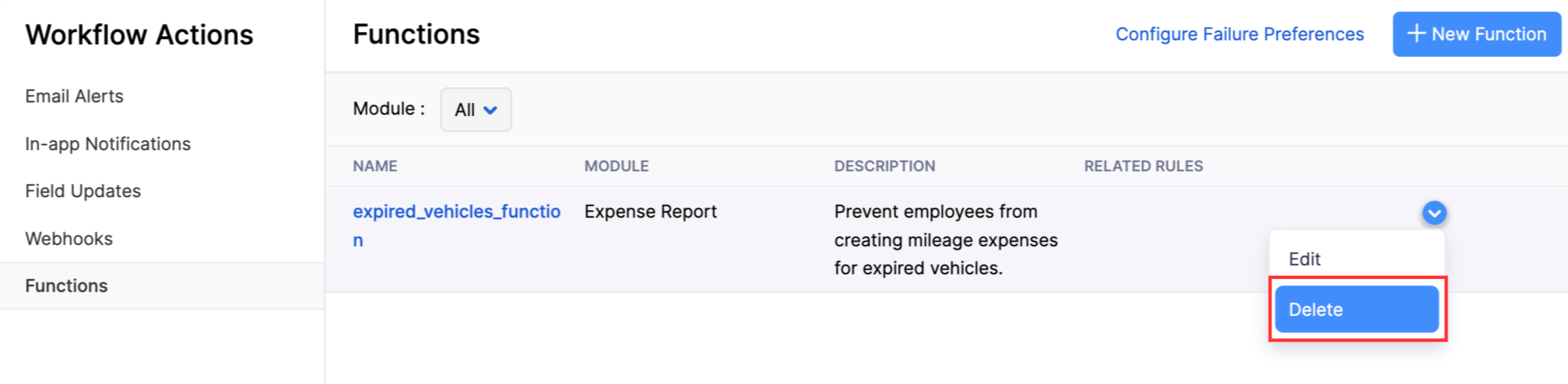
- Click Yes in the pop-up to confirm your action.
Related Topics