

How do I sync only specific accounts or contacts from Zoho CRM to Zoho Books instead of syncing all the records?

To sync only specific accounts or contacts from Zoho CRM to Zoho Books, first create a custom checkbox field in the Accounts or Contacts module. This field acts as a filter to identify the records that should be synced. Select the checkbox only for the accounts or contacts that you want to sync to Zoho Books. Then, create a custom view that includes only these records. During the integration setup in Zoho Books, you can configure this custom view to sync only the accounts or contacts in it.
To create a custom field in Zoho CRM to filter records during the sync:
- Log in to your Zoho CRM account.
- Go to Setup.
- Select Modules and Fields under Customization.
- From the Modules tab, select the Accounts or Contacts module.
- In the next page, click Standard under the Layouts tab.
- Drag and drop the Checkbox field from the New Fields pane, then rename it to Zoho Books.
- Click Save.
Once you’ve created the custom field, a custom checkbox field named Zoho Books will appear when you create or edit an account or contact in Zoho CRM. Check the field for the accounts or contacts that you want to sync to Zoho Books.
Next, you need to create a custom view that includes only the accounts or contacts you want to sync from Zoho CRM to Zoho Books. Here’s how:
Log in to your Zoho CRM account.
Go to Sales on the left sidebar and select Accounts or Contacts.
Click the More Custom View icon next to the All Accounts filter, then select New Custom View from the dropdown.
Enter a name for the custom view and select Zoho Books in the first dropdown, is in the second dropdown and selected in the third dropdown.
Click Save.
All the accounts or contacts with the custom checkbox field selected will appear in this view. To sync only the Accounts or Contacts in this view:
- Go to Settings.
- Select Zoho Apps under Integrations.
- In the Zoho Apps page, click Show Details next to Zoho CRM.
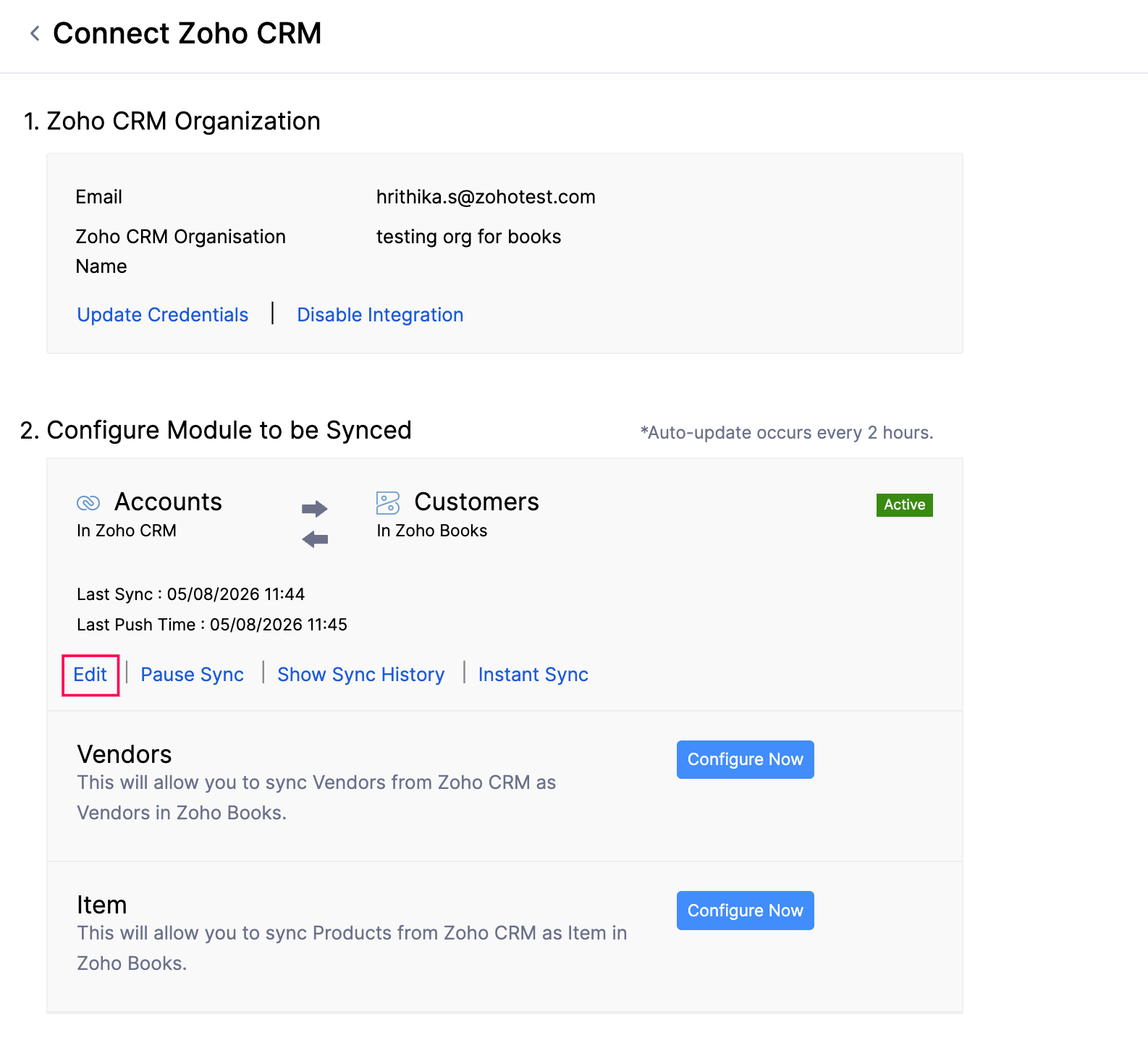
- In the Connect Zoho CRM page, navigate to the Configure Modules to Be Synced section, and click Edit for the Accounts or Contacts module.
In the Connect - Accounts/Contacts in Zoho CRM page, navigate to the Select the view to be synced section.
Click the dropdown and select the custom view that you created in Zoho CRM.
Click Save and Sync.
During the sync, only the accounts, contacts, or accounts and their associated contacts included in the selected custom view will be synced from Zoho CRM to Zoho Books.
 Yes
Yes