


Reverse Journals

If you record a journal entry for an accrual or temporary adjustment, you can reverse the entry to cancel it on a future date. This prevents the original entry from affecting your organization’s balances in the next accounting period. The reverse journals also prevents duplicate entries and helps you maintain accurate financial records.
To create a reverse journal entry:
- Go to Accountant on the left sidebar and select Manual Journals.
- Click + New in the top right corner.
- In the New Journal page, fill in the required details.
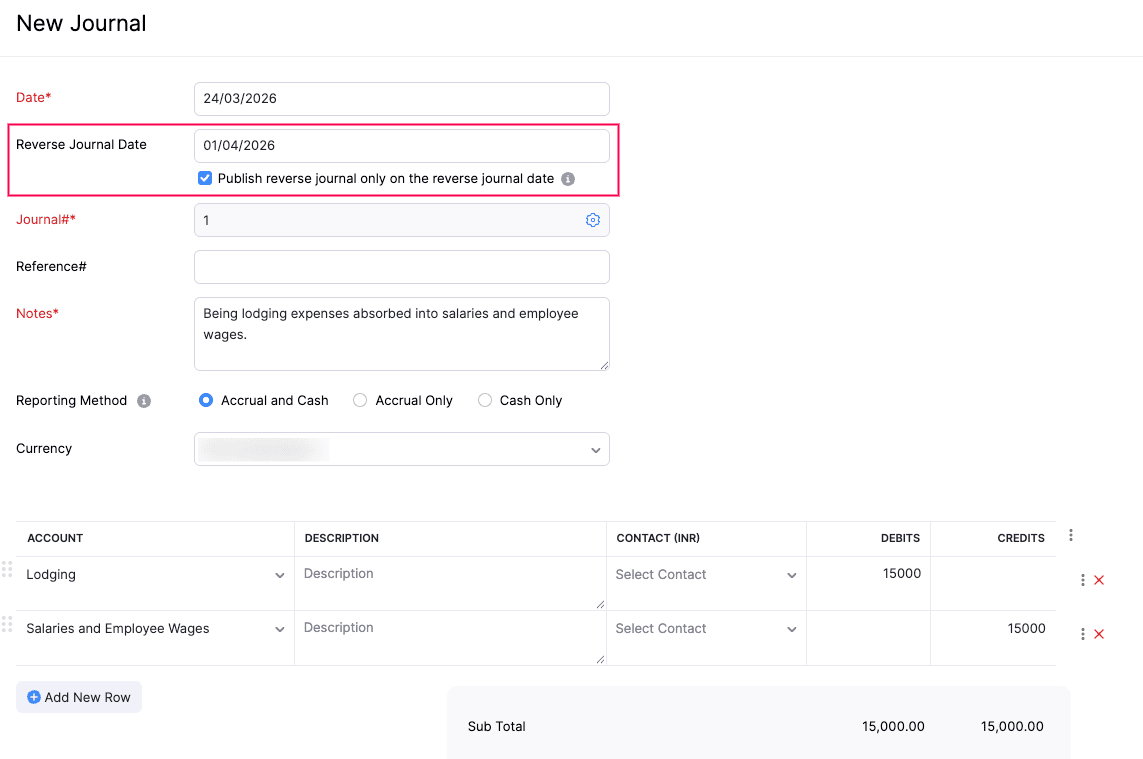
- Select the Reverse Journal Date when you want the reverse journal to be posted for the associated manual journal.
- Check Publish reverse journal only on reverse journal date if you want to post the reverse journal only on the Reverse Journal Date.
- If not, the reverse journal will be created along with the associated manual journal.
- Once done, click Save and Publish or Save as Draft and publish it later.
The reverse journal will be created.
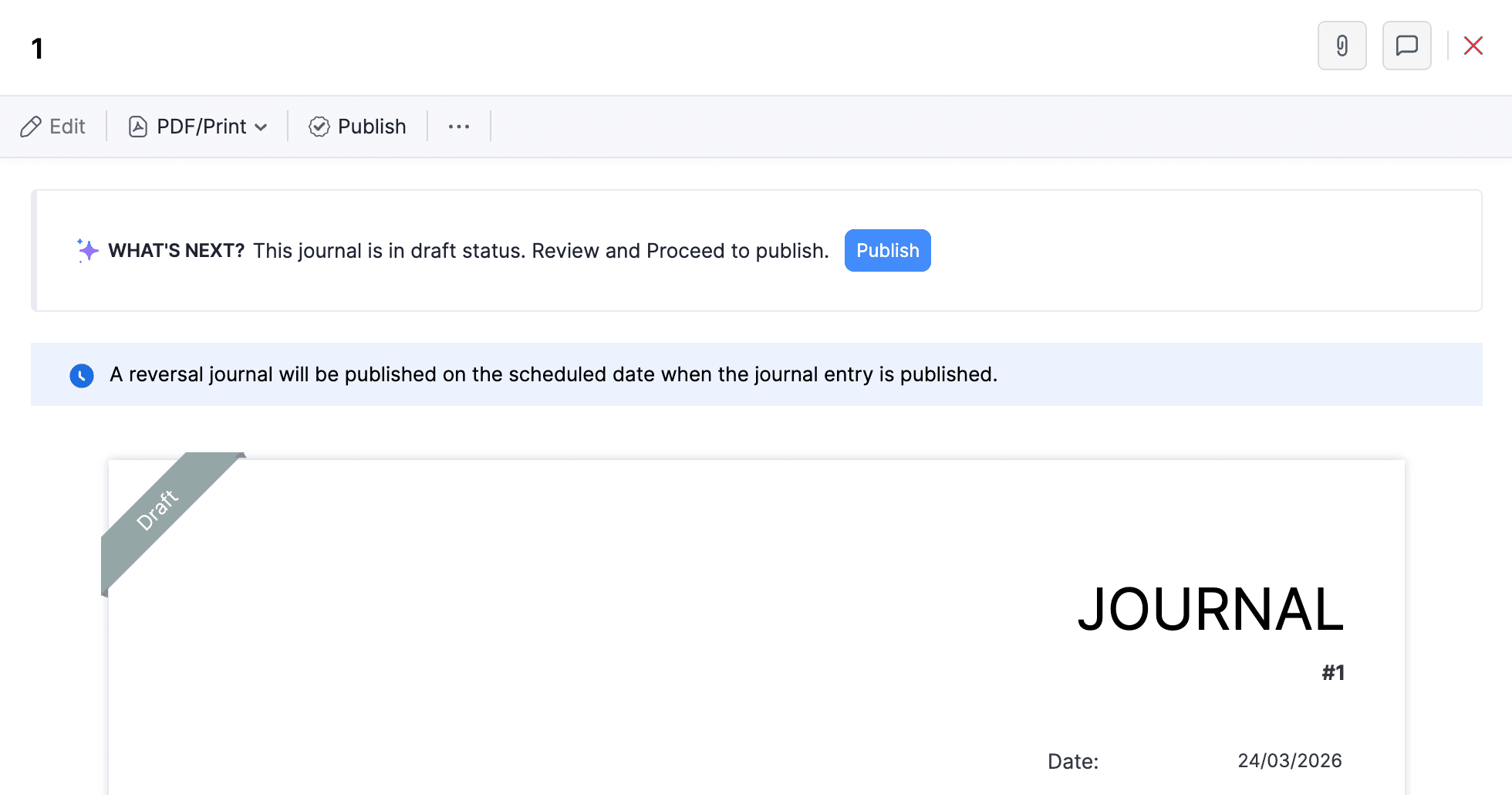
Note: The reverse journal will be recorded once the journal is marked as Published.
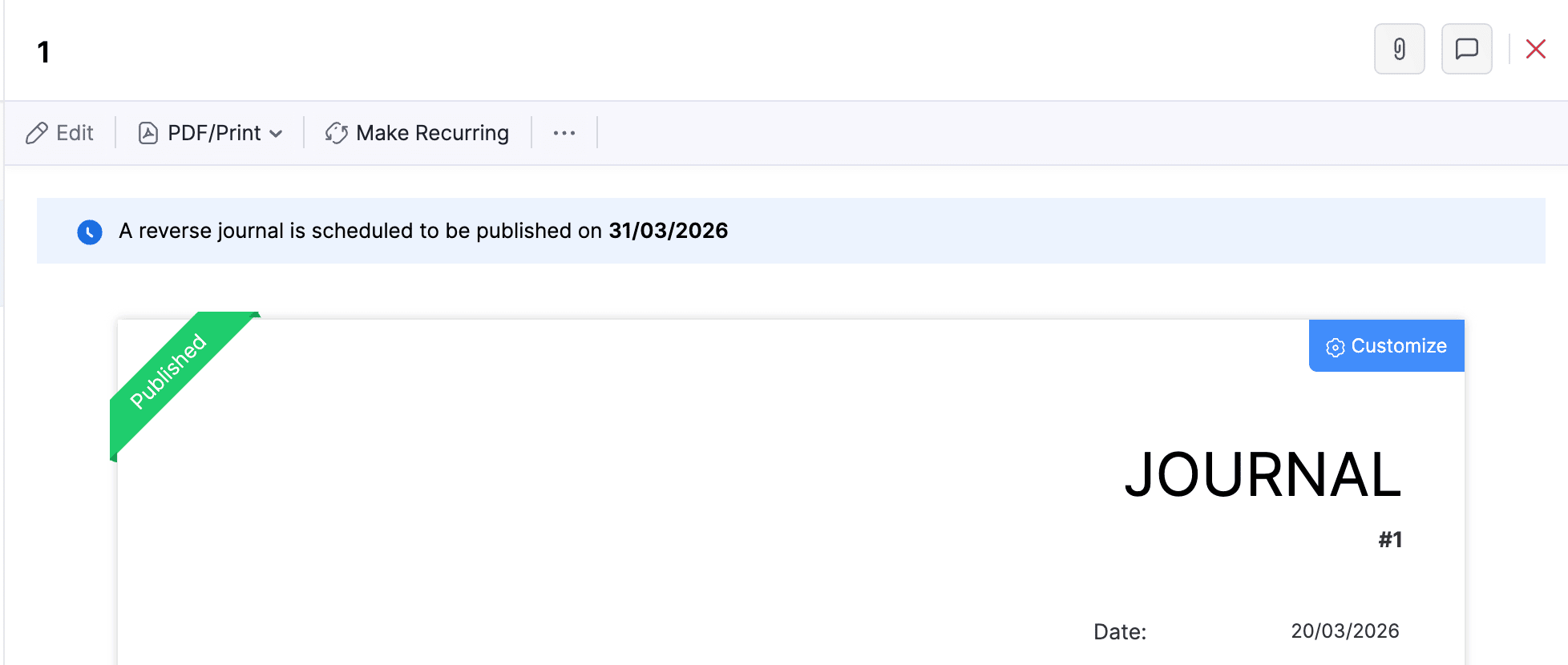
If you schedule the reverse journal for a future date, it will be displayed at the top of the associated manual journal’s Details page.
Note: If you schedule a reverse entry for a journal, and mark it as Published or get it approved after the scheduled date, the scheduled date will be automatically removed. You’ll be notified about this via an email and in-app notification. Next, edit the journal and schedule a new date to generate the reverse journal.
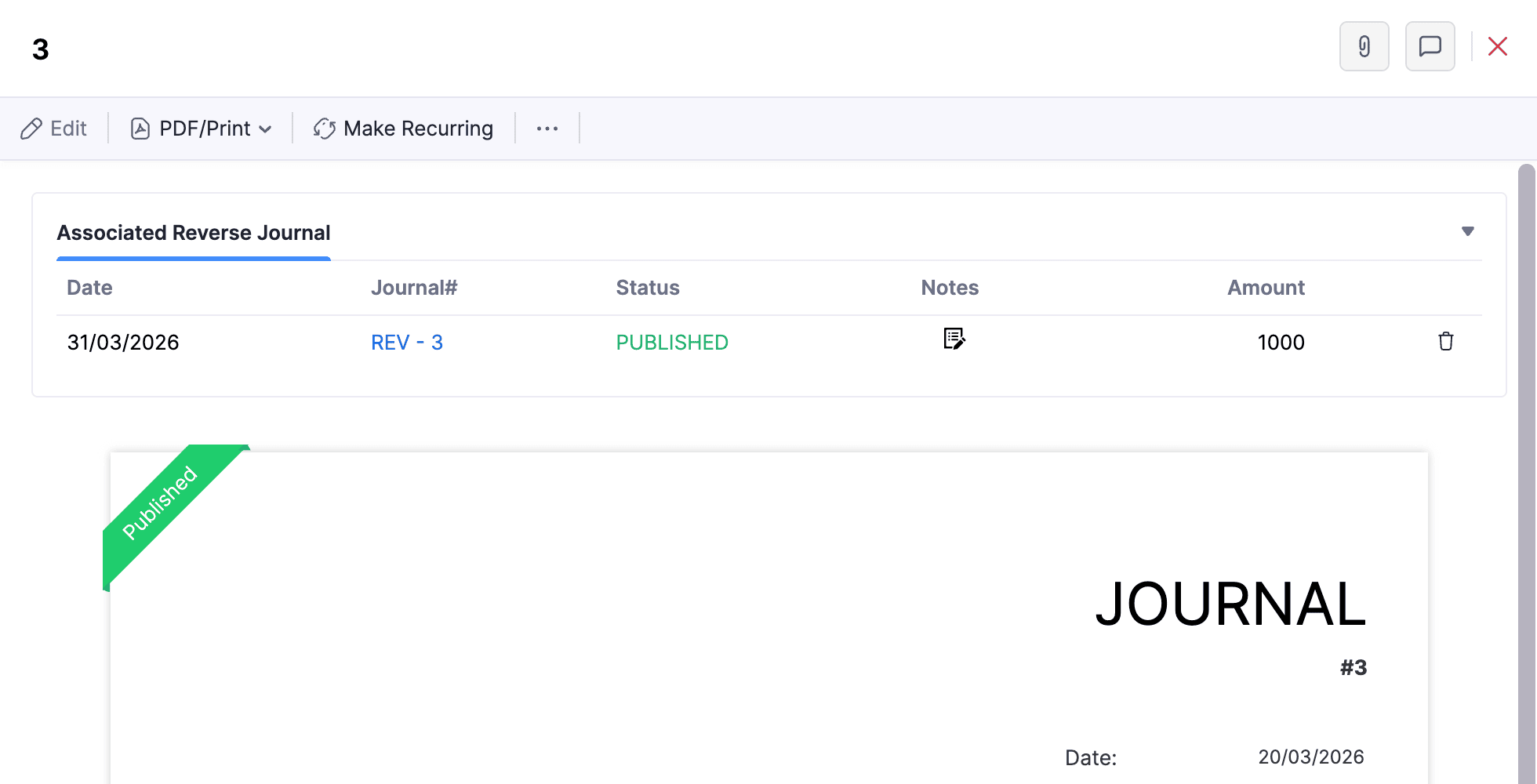
When you open a reverse journal, you can see the associated manual journal displayed at the top of the Details page.
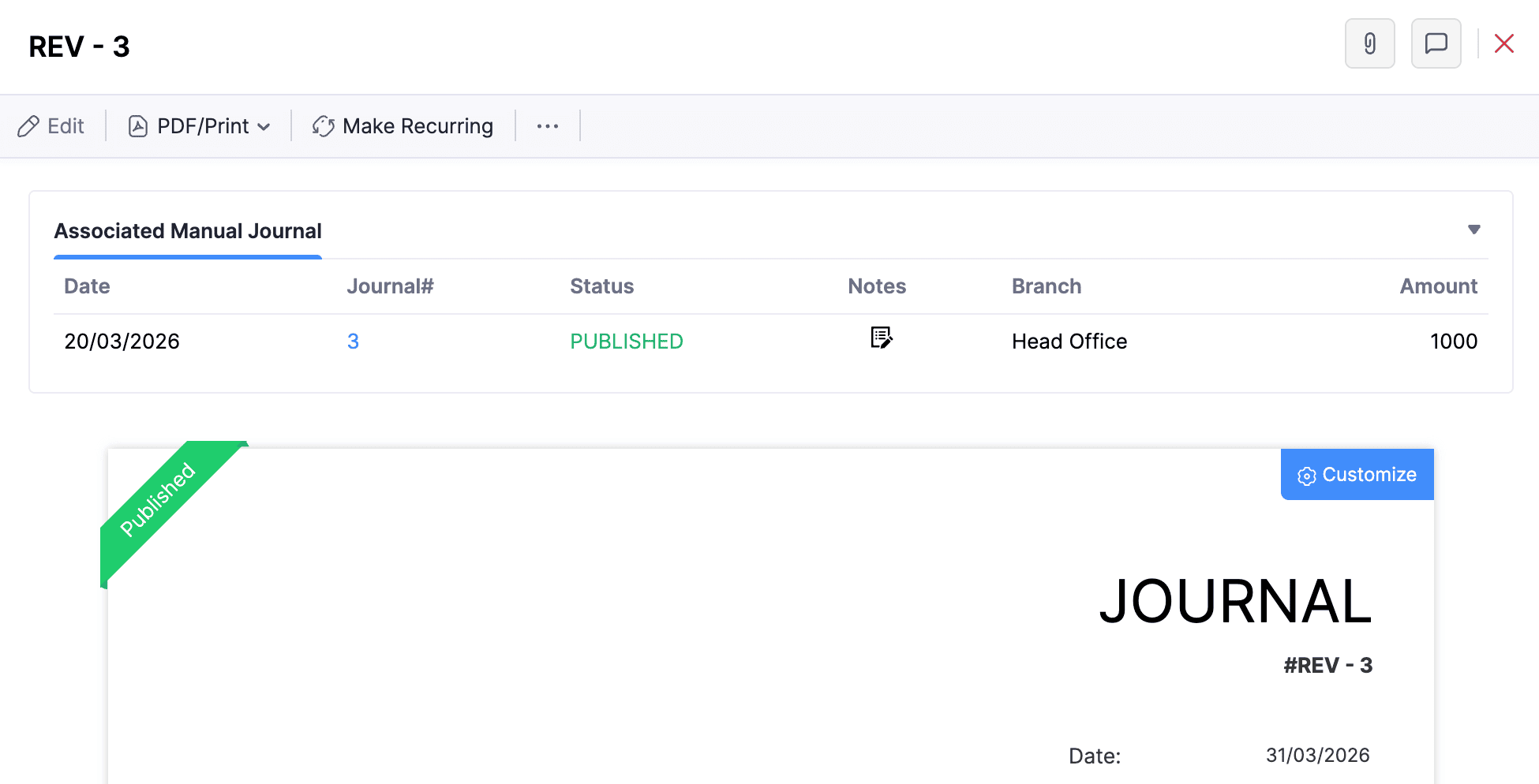
Note: You cannot edit a reverse journal or the manual journal. To make changes, delete the reverse journal first, update the manual journal, and then create a new reverse journal if needed.
If you’ve created a journal without specifying the reversal details, you can specify it directly from the manual journal’s Details page. Here’s how:
- Go to Accountant on the left sidebar and select Manual Journals.
- Select the journal for which you want to create a reverse journal.
- Click the More icon at the top of the journal’s Details page, and select Create Reverse Journal from the dropdown.
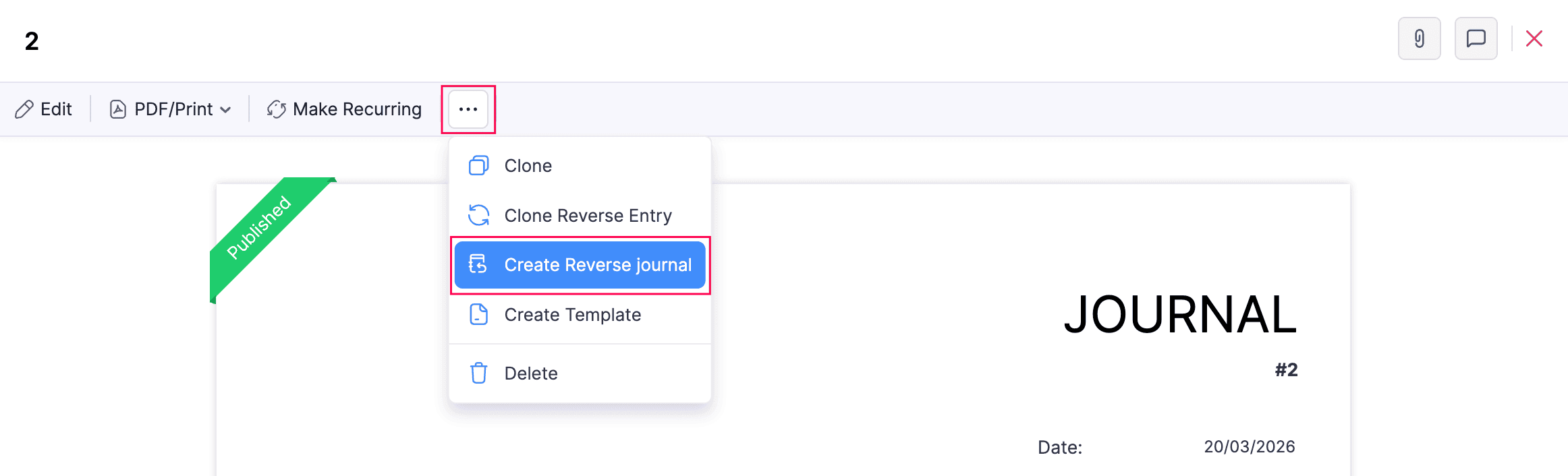
- In the pop-up that appears, enter the required details.
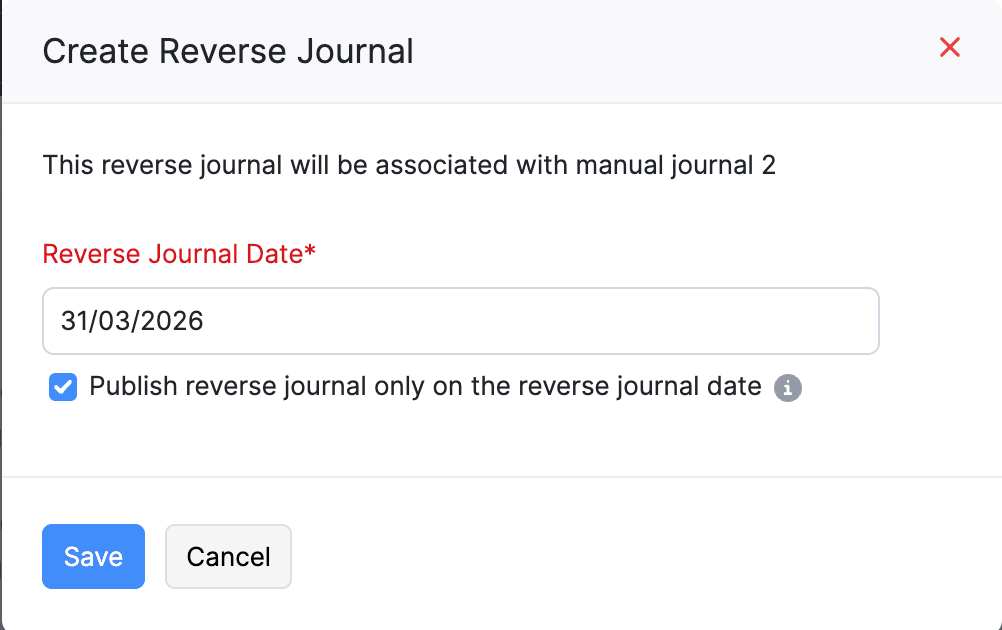
- Click Save.
The reverse entry will be created, based on the specified date.
 Yes
Yes