Simplifying sales, amplifying impact
Free up your sales team's time by automating tedious, mundane tasks like contact tracking, follow-ups, and updates. Enable them to focus on what they do best: selling. Make sales smoother, simpler, and more impactful - just as they should be.
Sign Up For Free
Instant Quotes, Flawless Pricing
Simplify the entire quoting process. Generate accurate quotes instantly, automate pricing, and tailor proposals to each client's unique needs. No more manual calculations or guesswork—just quick, reliable quotes that move deals forward.
Explore CPQ

Smart boundaries, bigger wins
Tailor your territories to match specific products, regions, or sales processes. Watch as your team operates with purpose and maximizes every opportunity using Zoho CRM. Territory management, streamlined for success.
Learn more about territory management

Data-driven, future ready
Get the clarity to make timely decisions and keep your sales trajectory on track. Gain clear insights into your team's projected performance with data-driven accuracy. No guesswork here, just reliable data guiding your next move.
Learn more about sales forecasting


Pipelines that power growth
Is your sales pipeline driving growth or slowing you down? With Zoho CRM, you can manage deals, accounts, and contacts all in one view to ensure seamless coordination across your team. Turn complex processes into smooth workflows, boost productivity, and make your pipeline truly work for you.
Explore sales pipeline management

Automated tasks for accelerated sales
Sales are built on a bedrock of tedious, but crucial and essential tasks. Zoho CRM's Workflows takes over these necessary operations - automating everything from sending emails and follow-ups, to data management - so that your team can focus better on closing more deals, and creating more value.
Explore workflow automation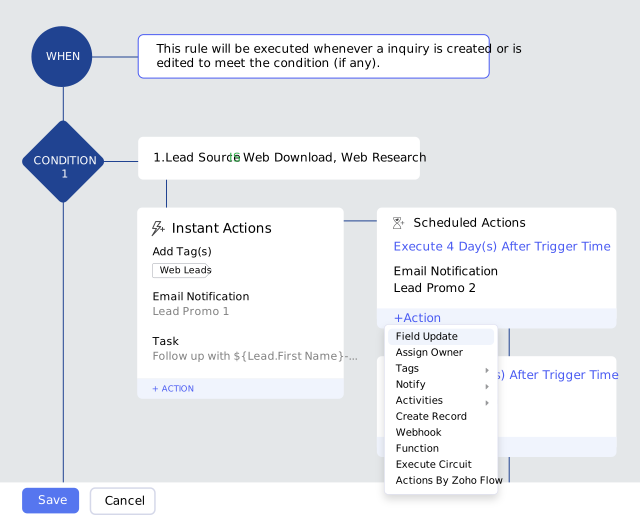

All your sales collateral is a click away
Ensure your team has access to all possible sales collateral inside the product through Zoho CRM's document library. Upload documents, extend access to the right people, track changes, and win deals—all from inside Zoho CRM.

Gamify sales and inspire healthy competition
Foster friendly competition and channel your sales reps' inherent competitiveness with Motivator. Gamify goals and watch together your sales progress with a refreshing change from the mundane. Everyone wins.
