Users
Users are members of your organization who have been authorized to access Mail360. The users have varied levels of access depending on their roles and privileges.
In Mail360, there are two types of roles that a user can hold. They are
- Admin
- Viewer
Note:
In Mail360, "users" refer to members within your organization who have the authorization to utilize your Mail360 application for administrative tasks, whereas "accounts" in Mail360 represent the mailboxes you want to synchronize and utilize within your Mail360 application. The subscription billing is only based on the number of accounts you have, and not on the number of users.
Table of Contents
Roles and Access Privileges
| Module Name | Allowed Actions | Viewer | Admin |
| Dashboard | View the dashboard | ✔ | ✔ |
| Authentication | Generate client ID and client secret /refresh token for an application |  | ✔ |
| View the list of generated refresh tokens for an application | ✔ | ✔ | |
| Domains | View all domains | ✔ | ✔ |
| Add a domain | | ✔ | |
| Edit a domain name | | ✔ | |
| Delete a domain | | ✔ | |
| Verify CNAME, SPF, DKIM, MX records | | ✔ | |
| Accounts | View the list of All/Native/IMAP accounts | ✔ | ✔ |
| View the details of an account | ✔ | ✔ | |
| Check the mailbox storage of an account | ✔ | ✔ | |
| View an email's content | ✔ | ✔ | |
| Add an account (Native/IMAP) | | ✔ | |
| Delete an account | | ✔ | |
| Logs | Get logs for the given mailbox | ✔ | ✔ |
| Connectors | View all the connector service data | ✔ | ✔ |
| Add a connector service data | | ✔ | |
| Update a connector service data | | ✔ | |
| Delete a connector service data | | ✔ | |
| Webhooks | View the list of webhooks | ✔ | ✔ |
| Add a webhook | | ✔ | |
| Update a webhook | | ✔ | |
| Delete a webhook | | ✔ | |
| Manage Users | View the list of All/Active/Invited users | ✔ | ✔ |
| Add a new user | | ✔ | |
| Update the role of an active user. | | ✔ | |
| Delete an existing user | | ✔ | |
| Subscription | Change plan and upgrade account | | ✔ |
Manage Users
The Manage Users section lists all the users of your Mail360 application along with their roles. Only the Admin can add other users, change other user's roles and remove users from the Mail360 account.
The following actions are performed in the Manage Users section:
Invite a New User to your Mail360 Account
- Log in to your Mail360 account.
- Navigate to Settings >> Manage Users in the left pane.
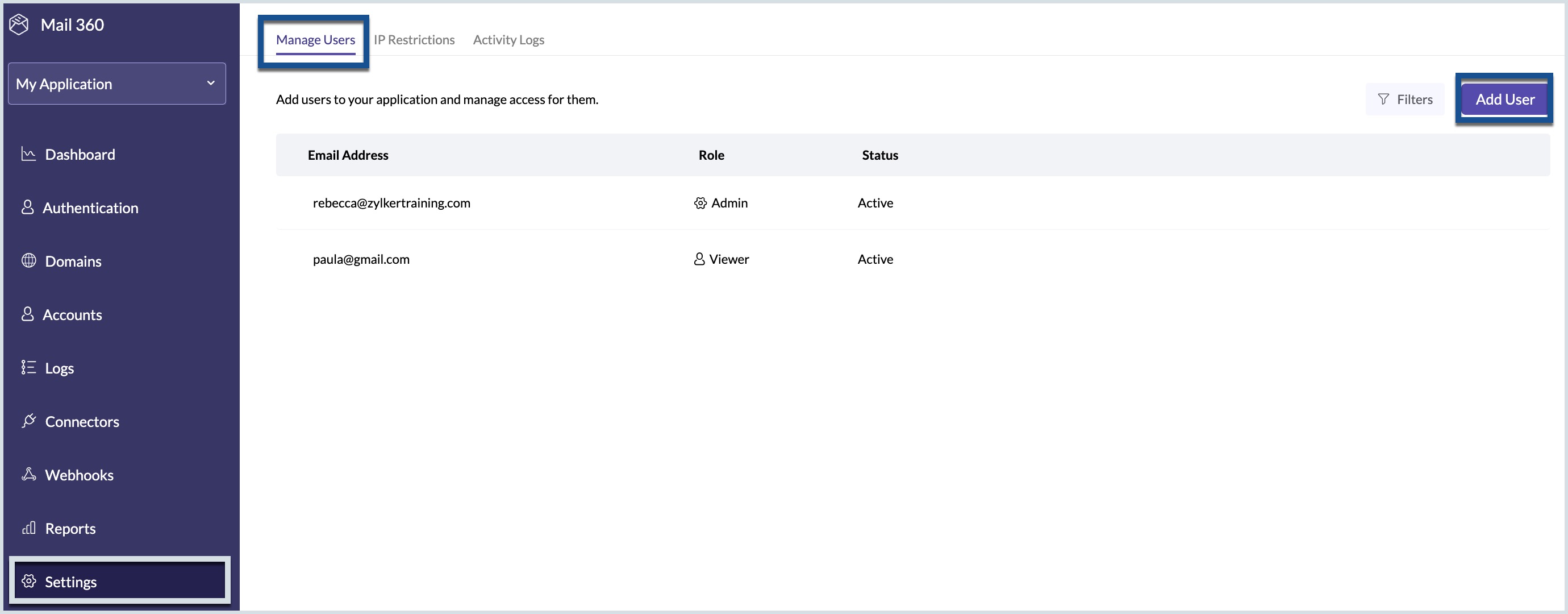
- Click on the Add User button on the left-hand top corner of the page.
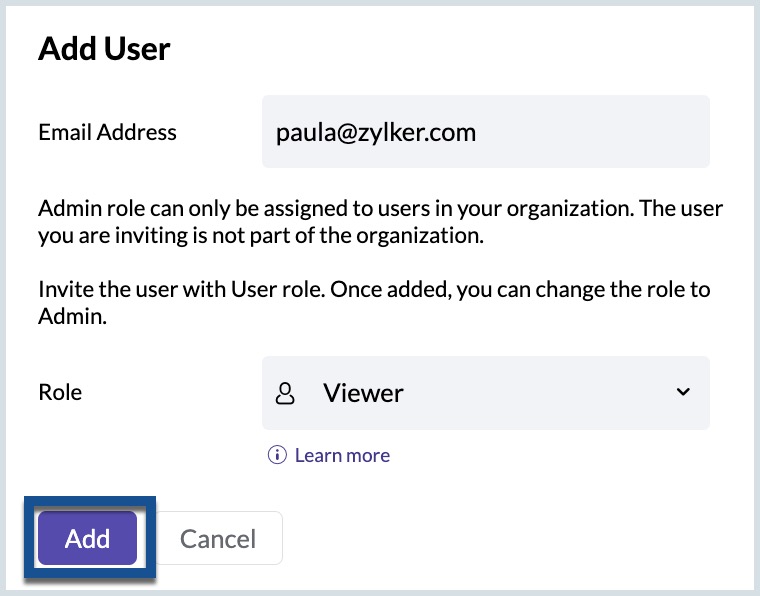
- In the pop-up window, enter the email address you want to invite as a user to the Mail360 account. An invited user's role will be Viewer, by default. Click Add.
- If the invited email address is outside the organization, an invite will be sent to it. Once the invite is accepted, the user will become an Active User.
- If the invited email address is inside in the organization, the user will be directly added and become an Active User.
Change User Role
Only Admin can change the role of a user. To change the role of an active user:
- Hover over the user for whom you like to change the role and click the Edit Role option.
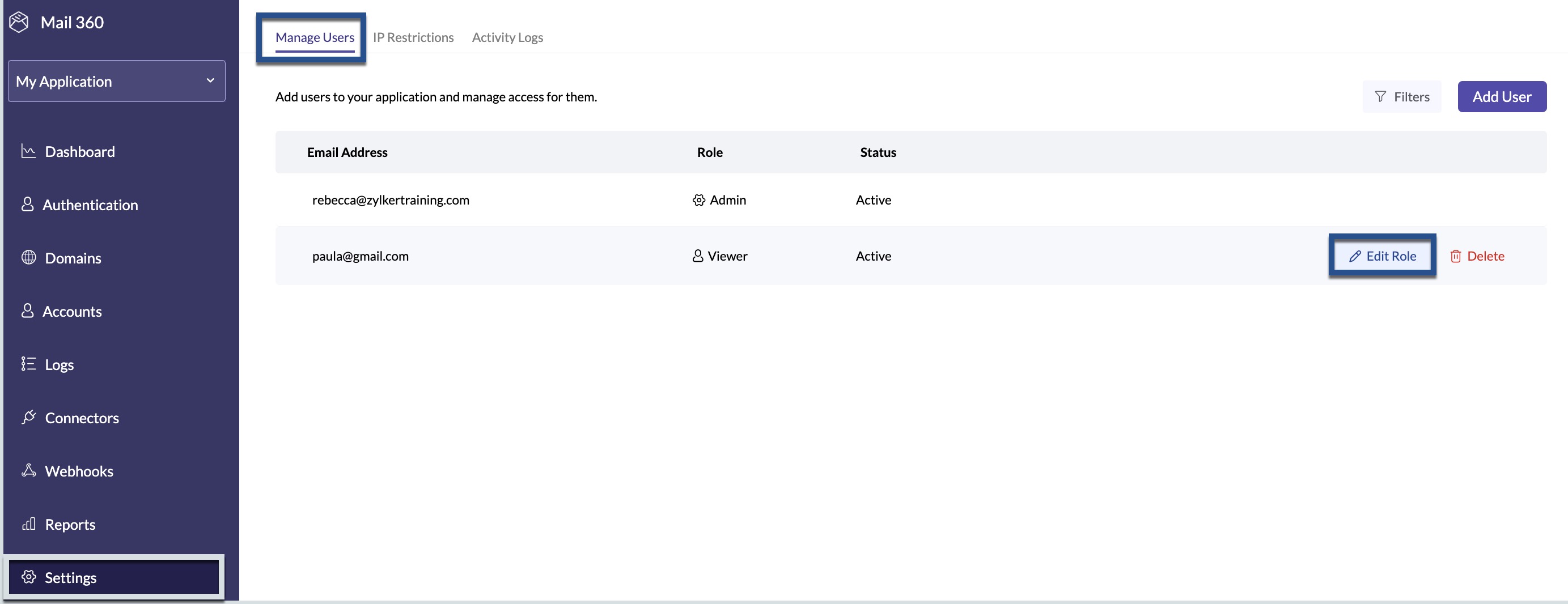
- Choose the role you would like to assign in the Change Role pop-up window. The role will be assigned to the user.
Apply Filters
You can filter the users based on their roles and status using the Filter.
Remove users from your Mail360 account
- Hover over the user you wish to delete and click the Delete icon.
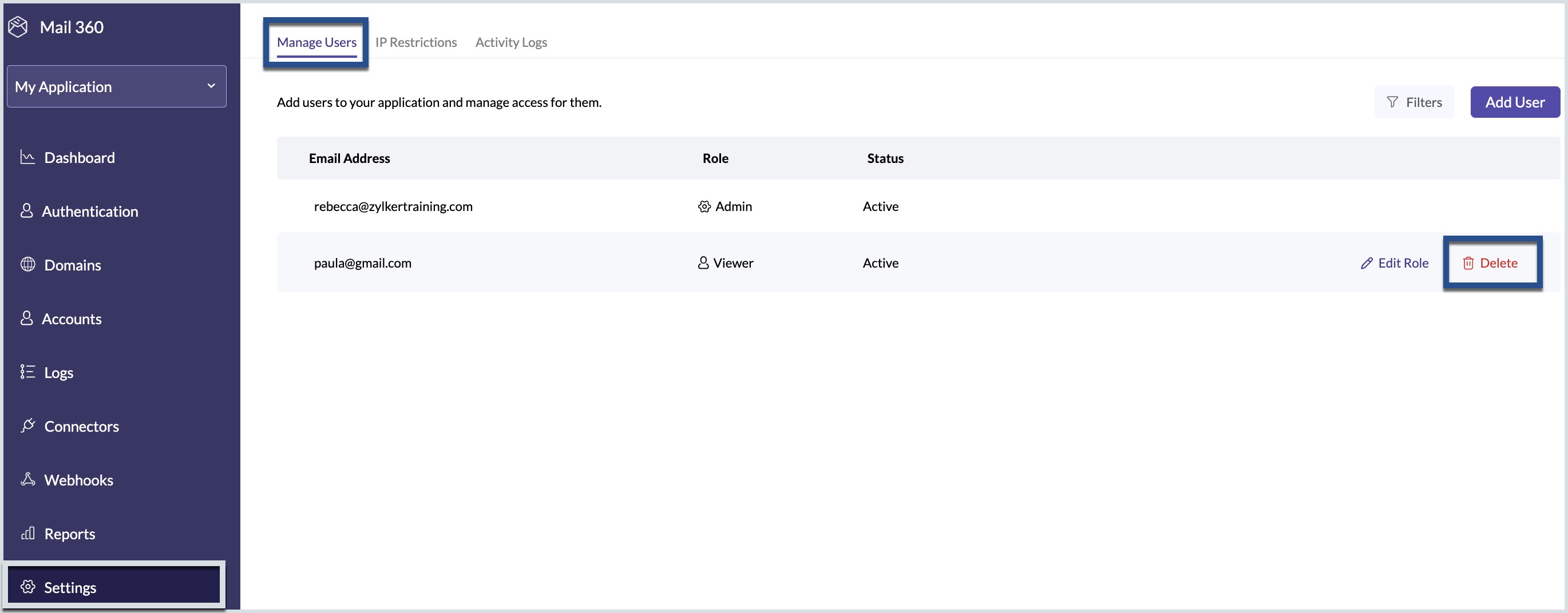
- In the Delete User pop-up window, click Delete to delete the user.
