Use Client Scripts in Zoho Mail
Once client scripting is enabled by an administrator, users with Marketplace Developer/ Client Script Administrator/ Administrator/ Super Administrator role in the organization can create client scripts. They can use these scripts in their own mailboxes. They can also share the scripts with the organization. After administrator approval, other users in the organization can use these scripts in their mailboxes.
Different types of client scripts available in Zoho Mail
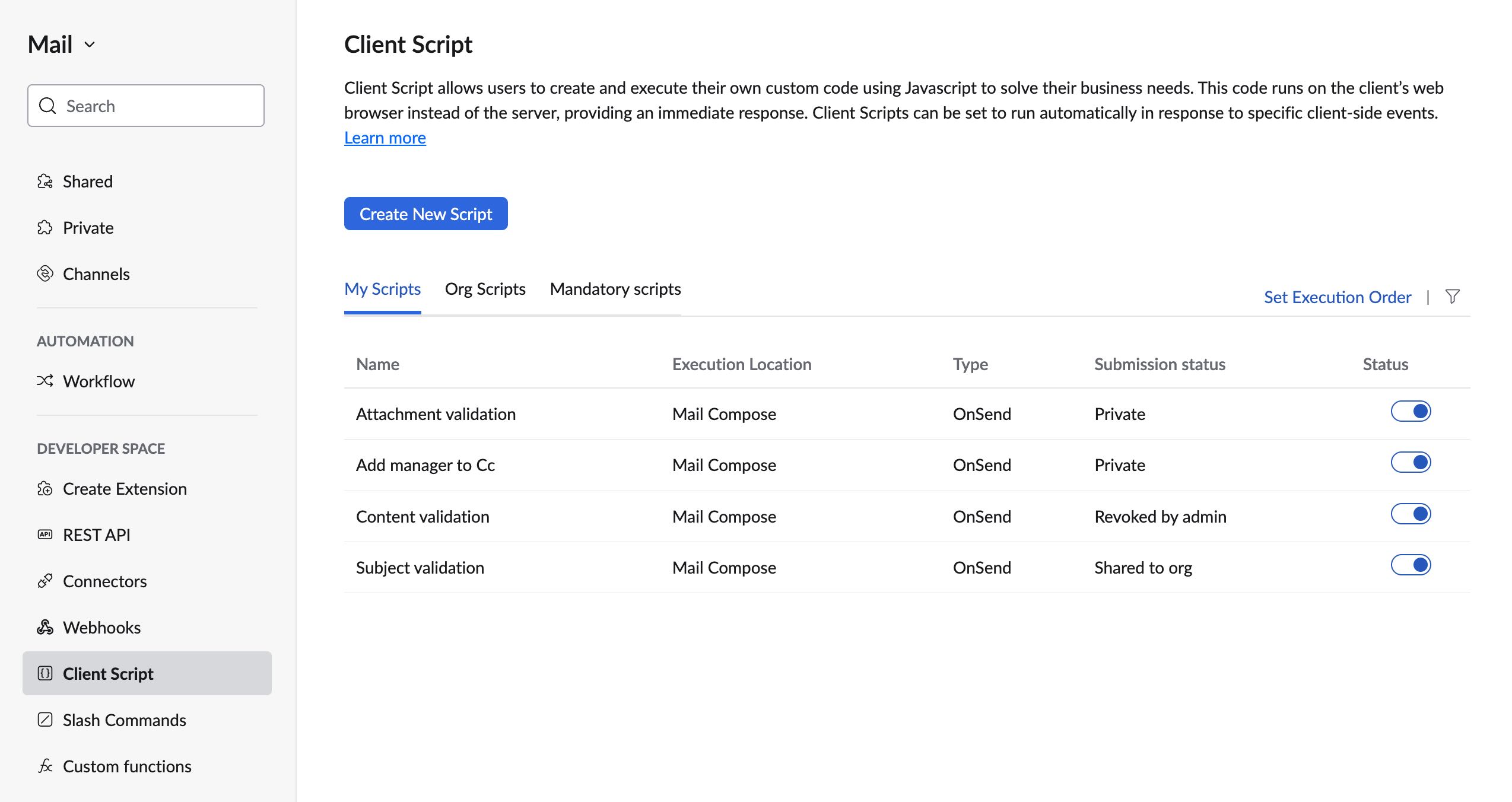
- My scripts - These are the scripts created by an user with the privilege of creating client scripts and used within their mailbox. These scripts are not shared to organization users. The user can choose to enable/ disable these scripts based on their preferences.
- Org scripts - These are the scripts shared to the organization and approved for usage for all the users in the organization.
- Mandatory scripts - These are the organization scripts that are marked mandatory by the script creator and approved by the Super Administrator or the Client Script Administrator. These scripts are by default enabled and cannot be disabled by the users.
Supported ZDKs in Zoho Mail to create Client Scripts
- Show alert messages in the Mail UI
- Fetch email content by message ID
- Compose a new email
- Set recipient field values (To/ Cc/ Bcc) or subject content in the email compose window (To/ Cc/ Bcc/ Subject)
- Show/ hide email summary content in the email
- Display a dialog box for any action performed in the mailbox
- Trigger an HTTP request
- Fetch contact details of email address(es)
Sample client scripts to use in Zoho Mail
- Fill the reporting manager's email address in Cc based on the email address added in To field
- Email content validation for attachments
- Stop an email from being sent
Enable/ Disable Client Scripts in Zoho Mail
Once the client scripts are created, shared with the organization, or mandated by the Administrators, they'll be listed in the Settings > Integrations > Developer Space > Client Script section in Zoho Mail.
You can choose to enable/ disable the scripts from the My Scripts/ Org Scripts sections. Mandatory scripts can be disabled only by the Client Script Administrator/ Super Administrator in the organization.
To enable/ disable a script:
- Log in to your Zoho Mail account.
- Navigate to Settings > Integrations > Developer Space > Client Script.
- Navigate to My Scripts or Org Scripts section based on which script you want to enable/ disable for your account.
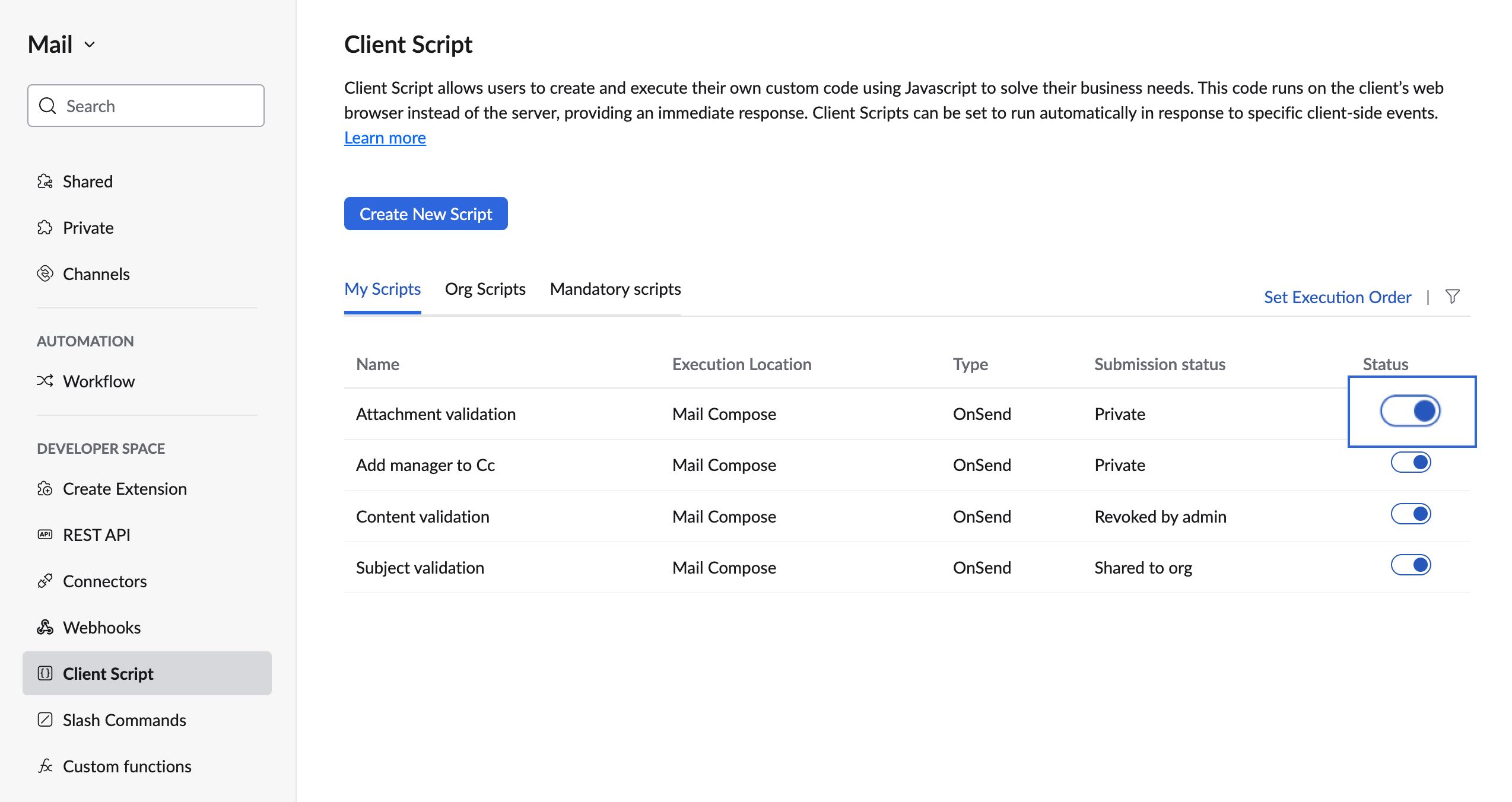
- From the listing, use the toggle button under the Status section to enable/ disable the script.
Set Execution Order for the scripts
When you have multiple scripts (My Scripts/ Org Scripts) enabled in your account, you will have the privilege of setting the execution order of the scripts. This defines the order in which the scripts should be executed.
While the users with Super Admin/ Administrator/ Marketplace Developer/ Client Script Administrator roles will be able to have access to both My Scripts and Org Scripts, the other users can only change the execution order of the scripts under the Org Scripts section.
To change the execution order:
- Log in to your Zoho Mail account.
- Navigate to Settings > Integrations > Developer Space > Client Script.
- Navigate to My Scripts, Org Scripts, or Mandatory Scripts section based on for which script you want to change the execution order.
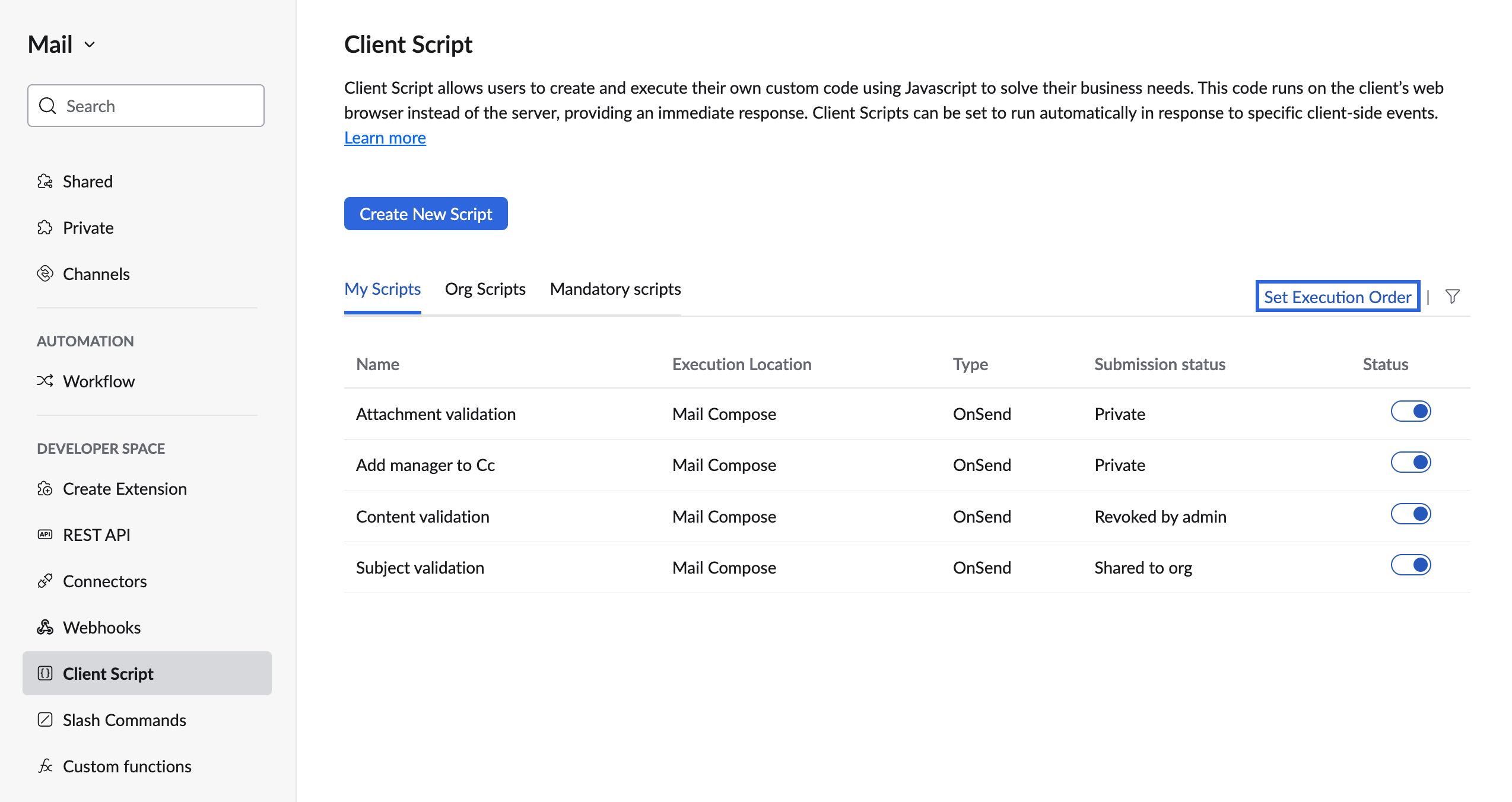
- Click on Set Execution Oder and choose the Location and Trigger.
- Click Search. The list of scripts available from the chosen location and trigger will be listed.
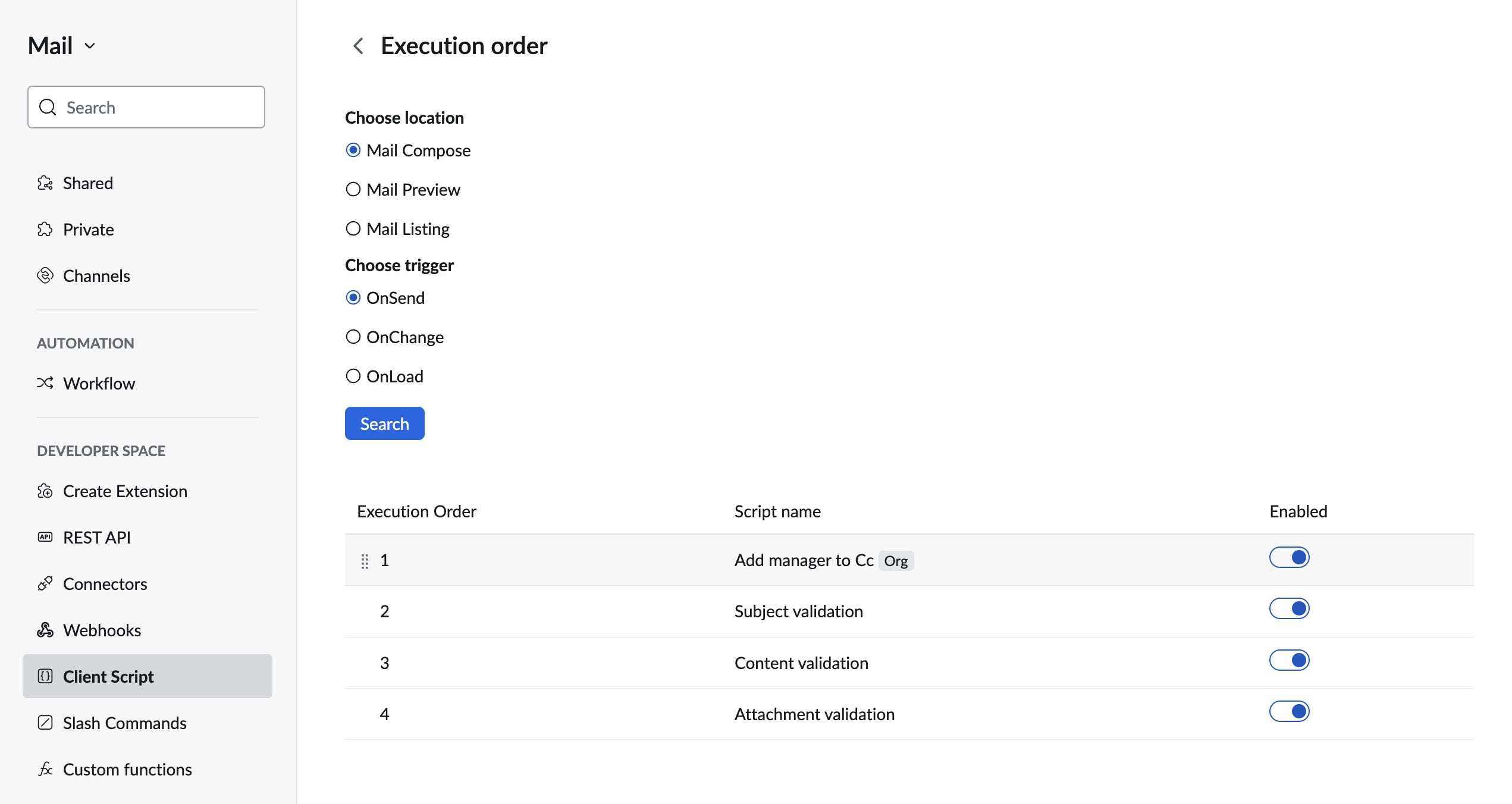
- Hover over the script that you want to rearrange, click on the drag indicator, move the script to the desired position
The execution order of the scripts will be changed and the same will be reflected the next time the script is triggered.
Note
The execution order of mandatory scripts can be changed only the Administrator or Super Administrator.
Client Scripts widget in Zoho Mail
The Client Script widget in Zoho Mail will help you to view the scripts that are available based on the trigger location. You can choose to enable or disable the scripts for a particular instance alone from the widget.
For example, when you open the compose window, all the scripts that are configured to be run in the Mail compose location will be shown for you to view them. The same will happen for the Mail Preview and Mail Listing scripts when the event is triggered. You can choose to enable or disable the scripts based on your preference.
To view scripts in action based on the location:
- Log in to your Zoho Mail account.
- Open the email compose window, email listing, or an email preview.
- Click on the Client Script widget icon on the right pane.
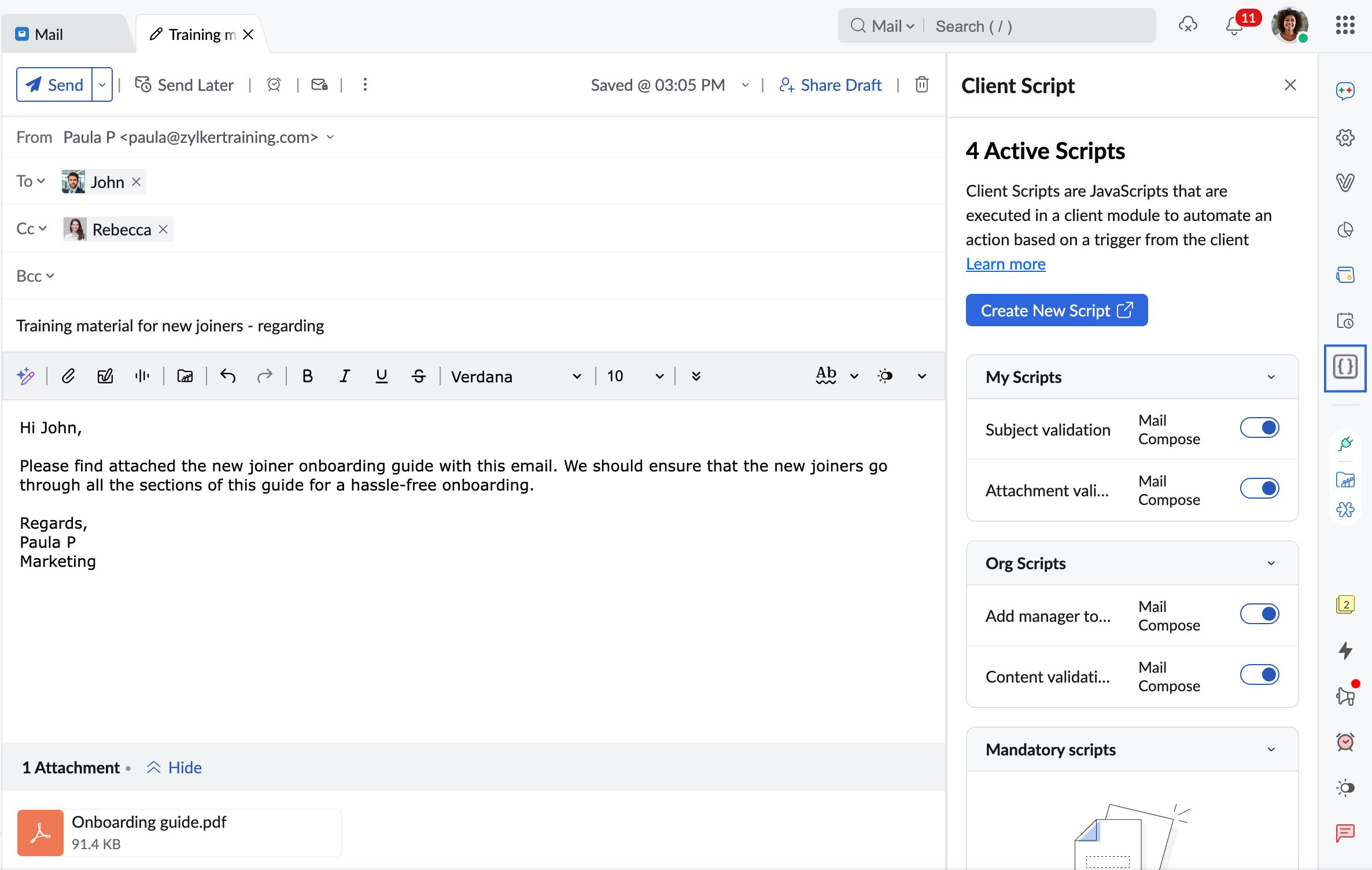
- You'll be shown the active scripts configured to run across My Scripts, Org Scripts, and Mandatory Scripts.
- You can choose to enable/ disable them from the widget for that particular instance based on your preference.
