Steps to connect Zoho Mail MCP with Cline AI
Cline is an open-source AI coding assistant that is available as an extension in VS Code, enabling you to interact with your codebase. It can read, edit, and manage code, all within your development environment.
Prerequisite
To configure Cline in VS Code, you need to install Cline in your VS Code account.
Table of Contents
Steps to install Cline
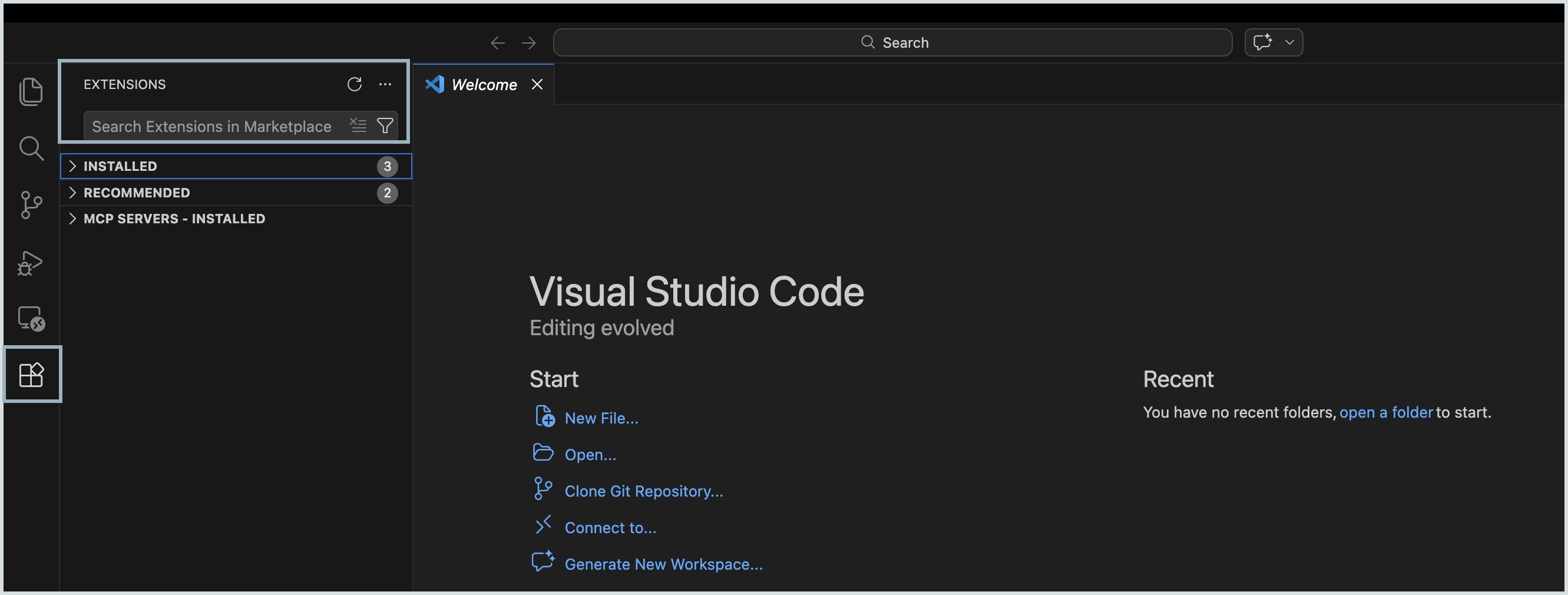
- Login to your VS Code account and navigate to Extensions on the left pane.
- Type "Cline" and click Install button that appears.
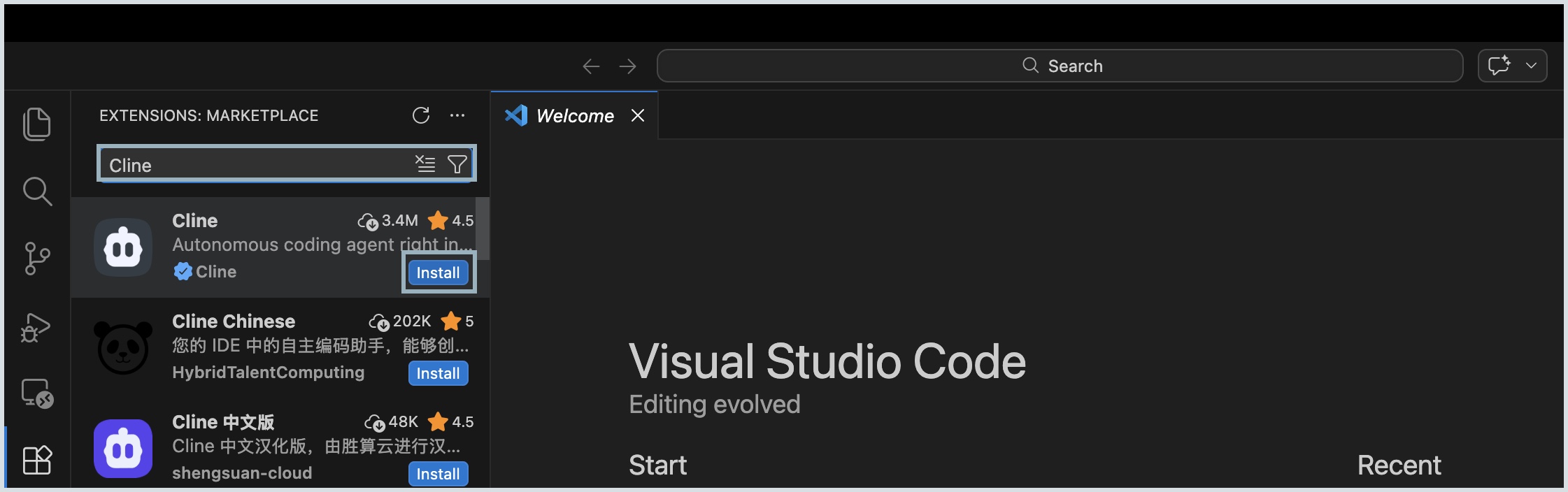
Now, Cline is successfully installed in to your VS Code.
Steps to configure Cline
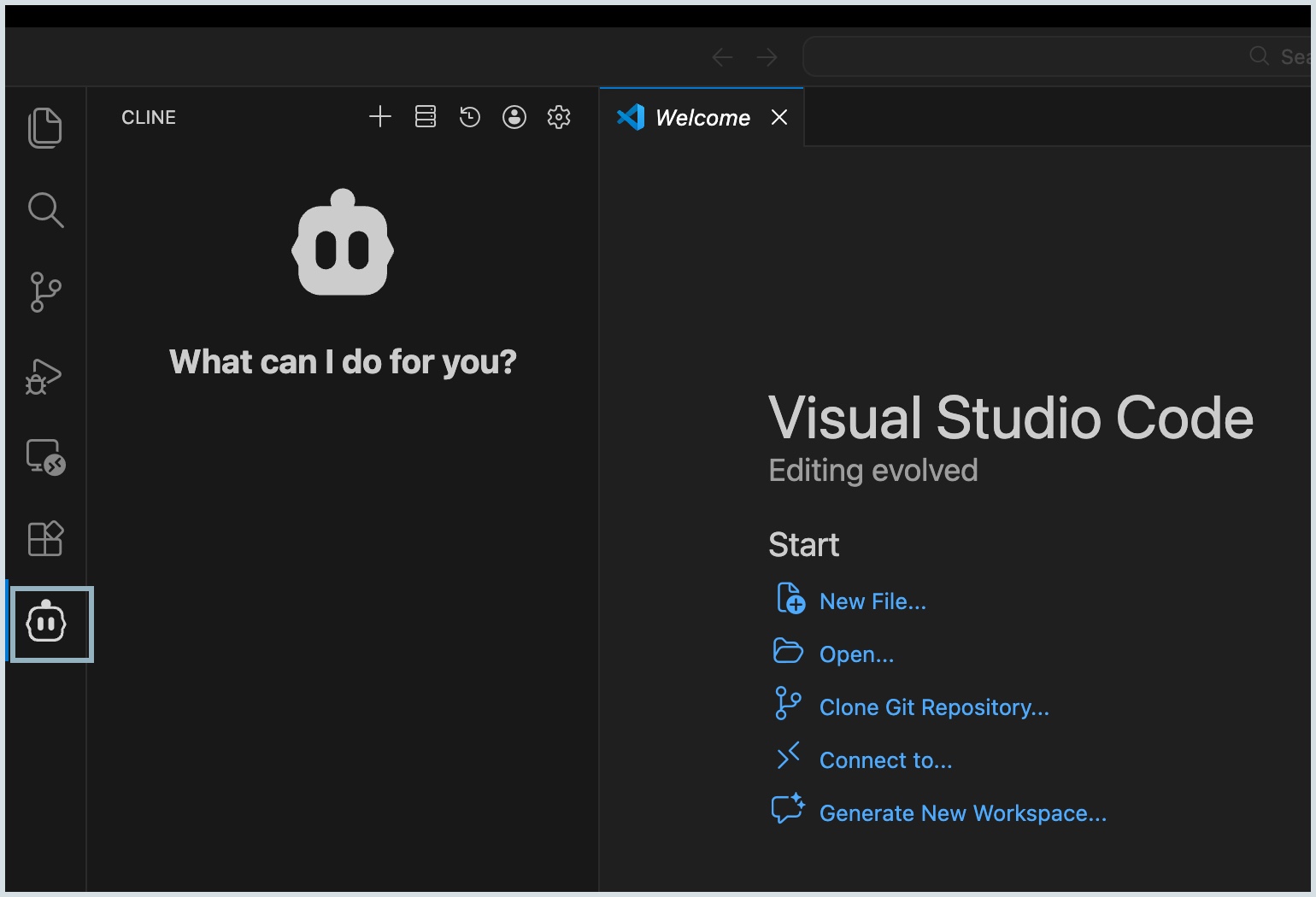
- Open your VS Code application and select the Cline icon from the left pane.
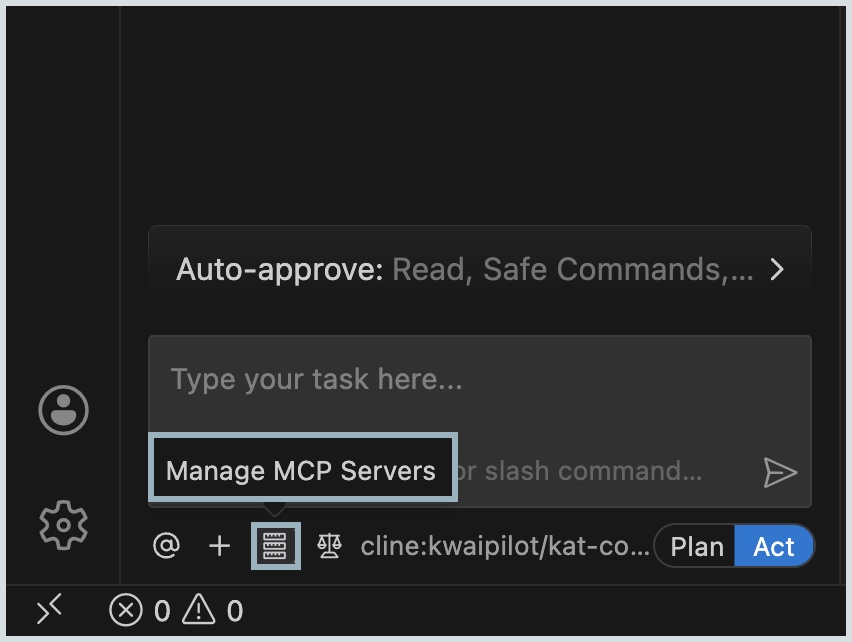
- Select the Manage MCP Servers icon from the bottom left pane.
- Click the Settings icon and select Configure MCP Servers. The cline_mcp_settings.json file is displayed on the right pane.
- Copy the JSON configuration code snippet available under the Connect > MCP Clients > Windsurf tab from the Zoho MCP server console.
- Now paste this copied code snippet to the cline_mcp_settings.json file and click Save.
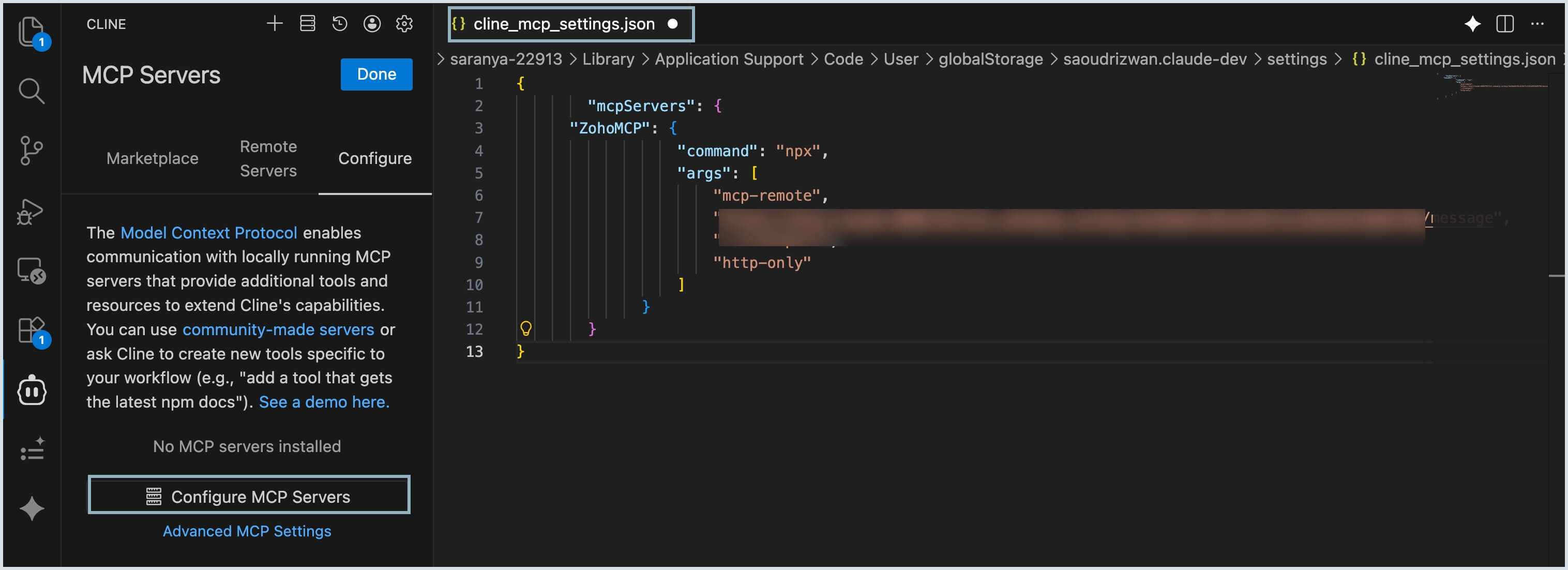
Now, the Zoho MCP server is configured successfully in Cline and enabled.
