Steps to connect Zoho Mail MCP with ChatGPT
Note:
- The steps mentioned below are for the ChatGPT Plus or higher plan users.
- Developer mode should be enabled to establish an MCP connection. The free and Go plans do not support this mode.
- In Plus and Pro plans, individual users can enable developer mode themselves. Enabling this in higher plans may need additional setup or permissions. For detailed information, please refer to the OpenAI specification documentation.
- Open ChatGPT in any browser and log in.
- Enable Developer mode under Settings > Apps > Advanced settings.
Once enabled, Create App button will appear.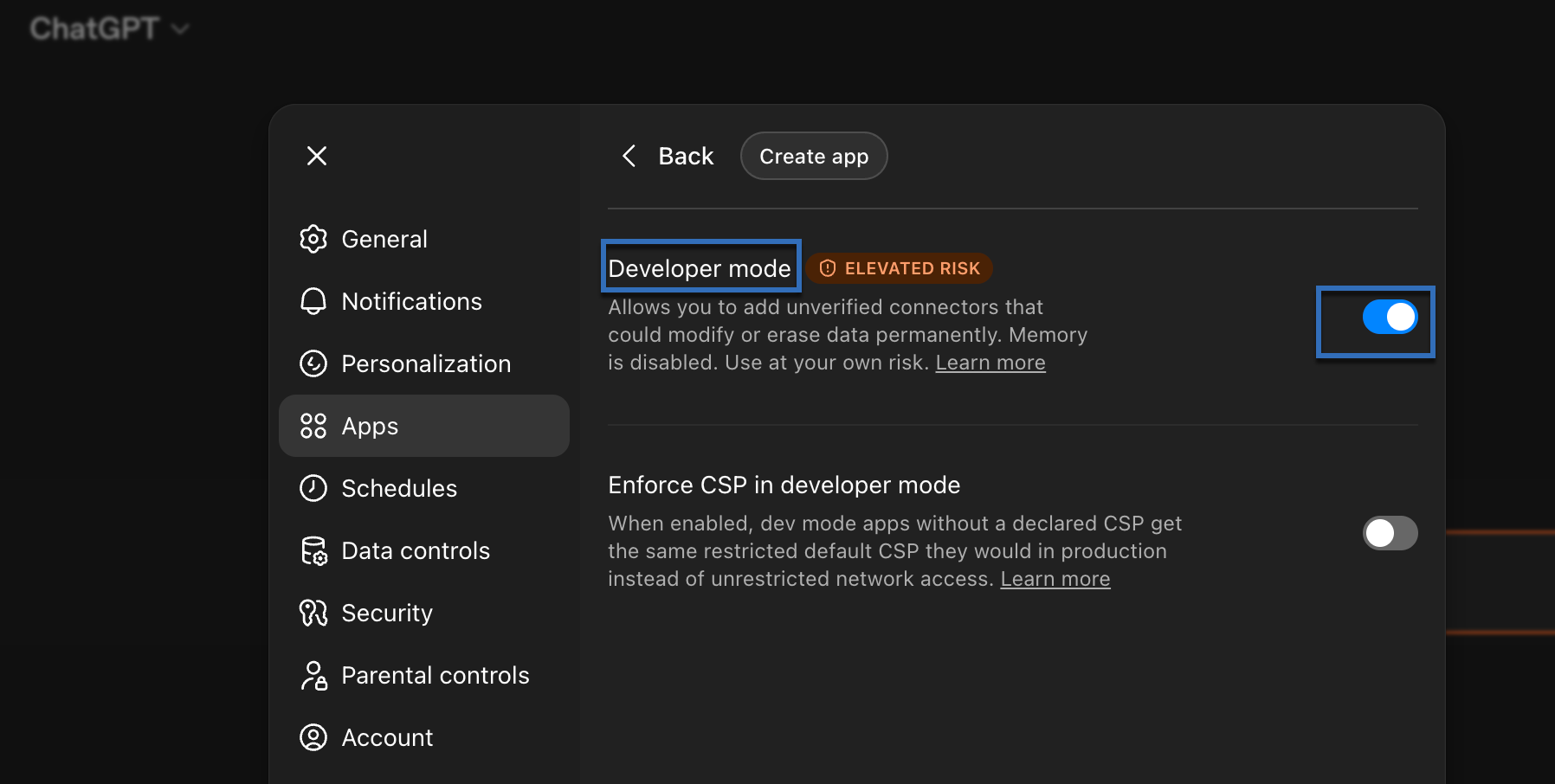
- Click Create App and the New App pop-up will appear.
- Enter the connection name, description if required, provide the MCP Server URL and select the authentication method as OAuth.
To get the MCP Server URL, login to Zoho MCP console and follow the steps mentioned in the Zoho MCP setup document.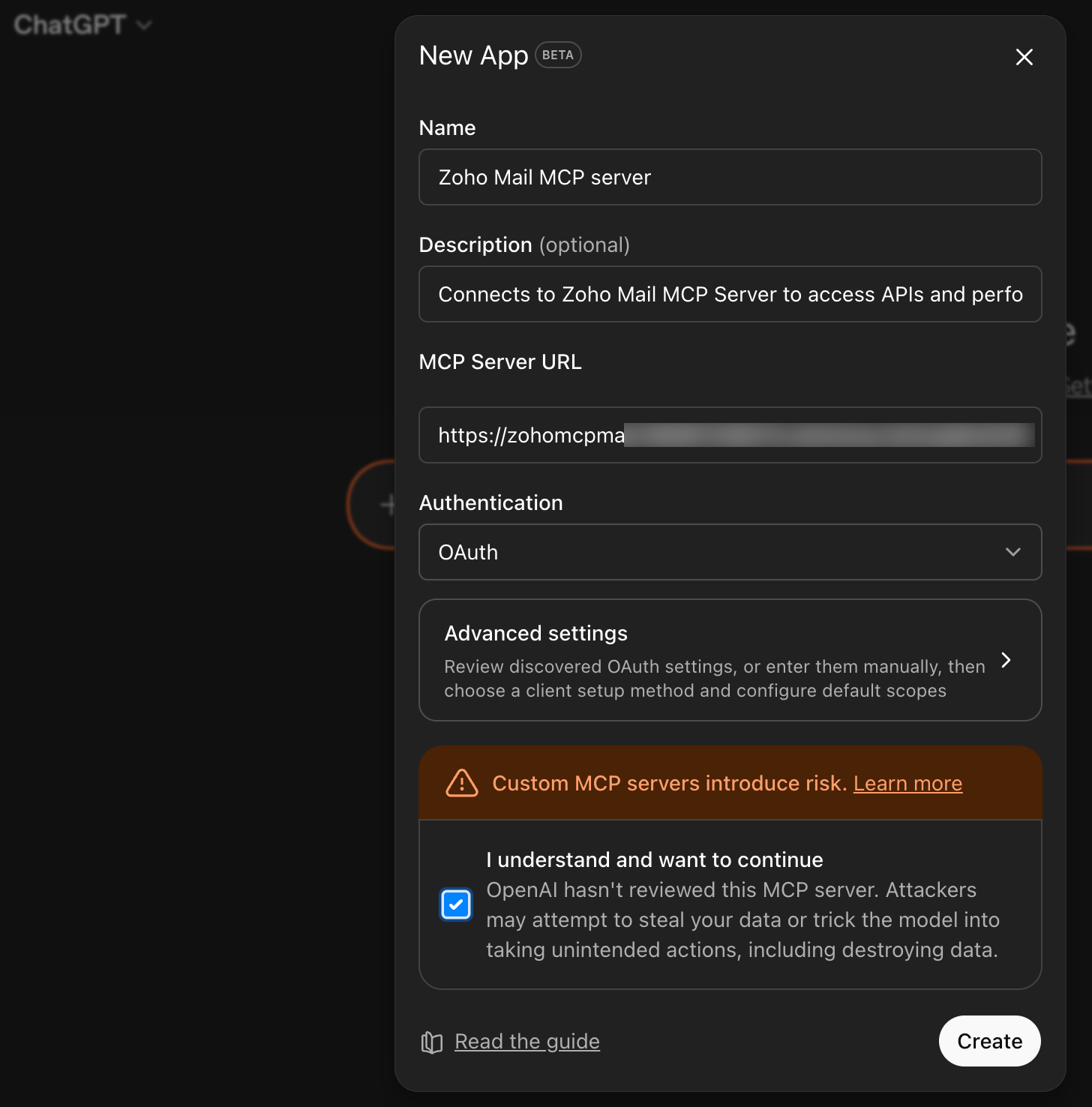
- Select the checkbox I understand and want to continue and click Create.
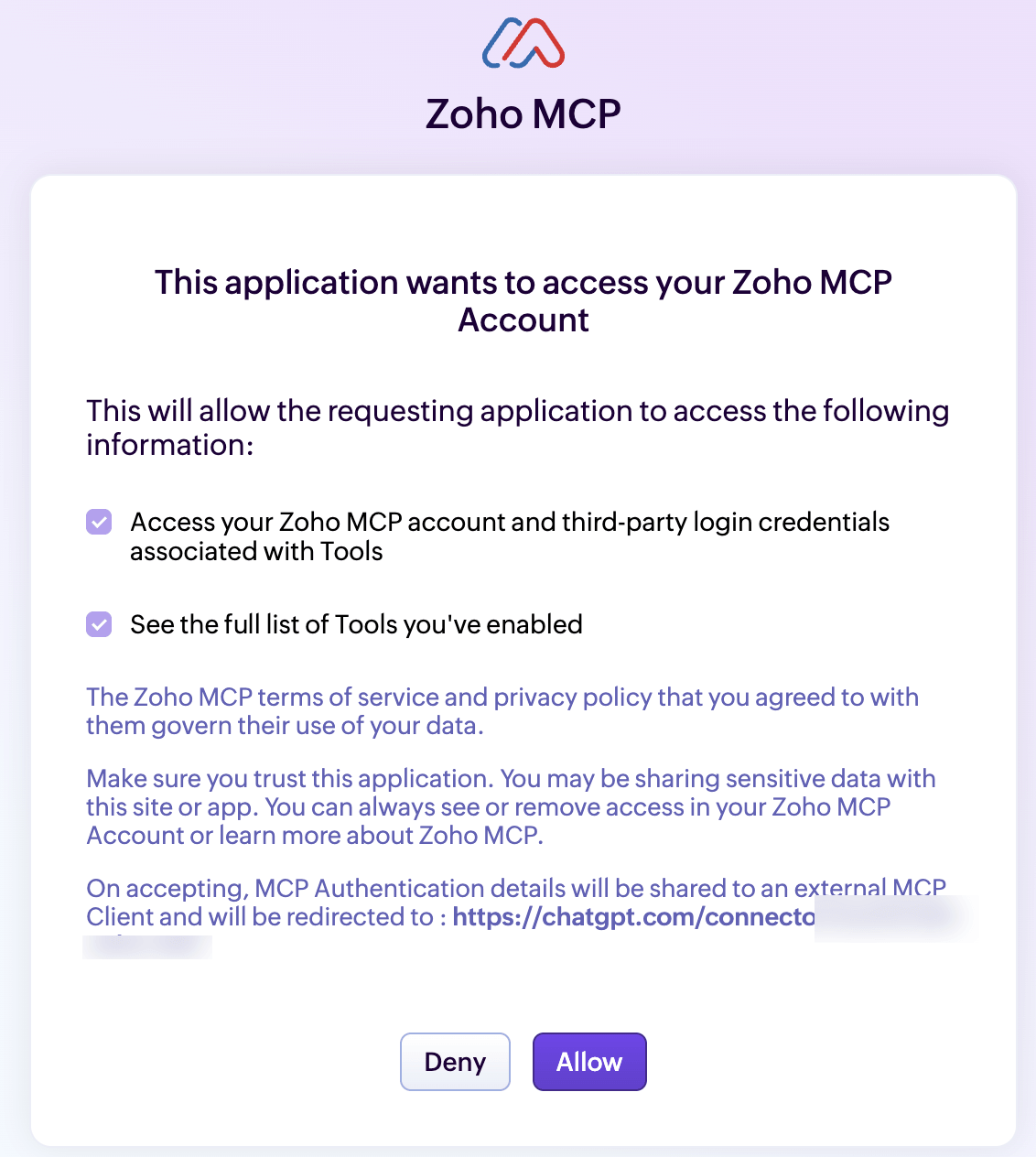
- Once you click Save, you will be directed to the Zoho MCP authorization screen in your local host. Click Allow.
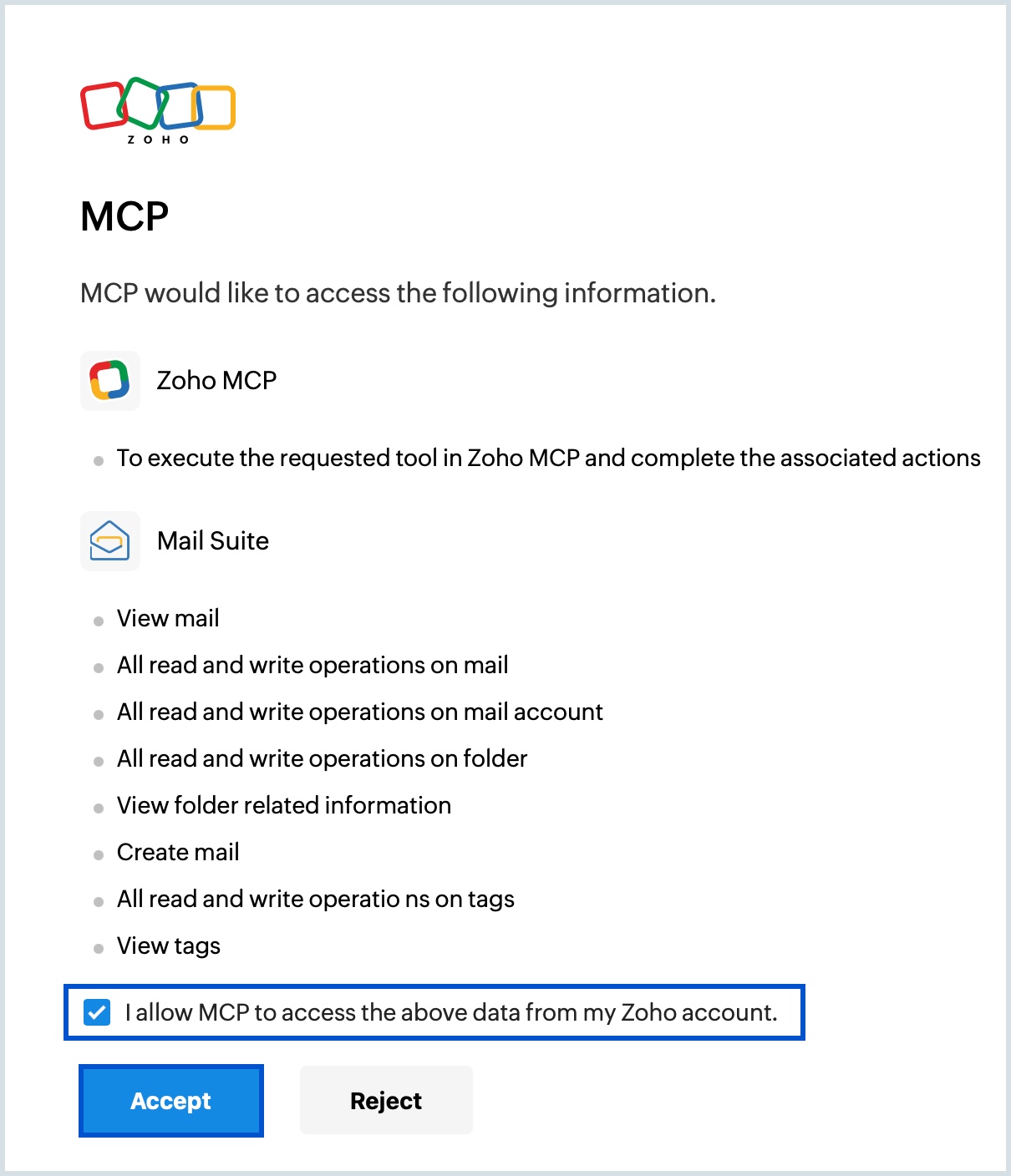
- Select the check box to grant permission and click Accept in the MCP authentication page. The MCP server is now connected.
- Click on the created app name to view the selected tools list under Actions.
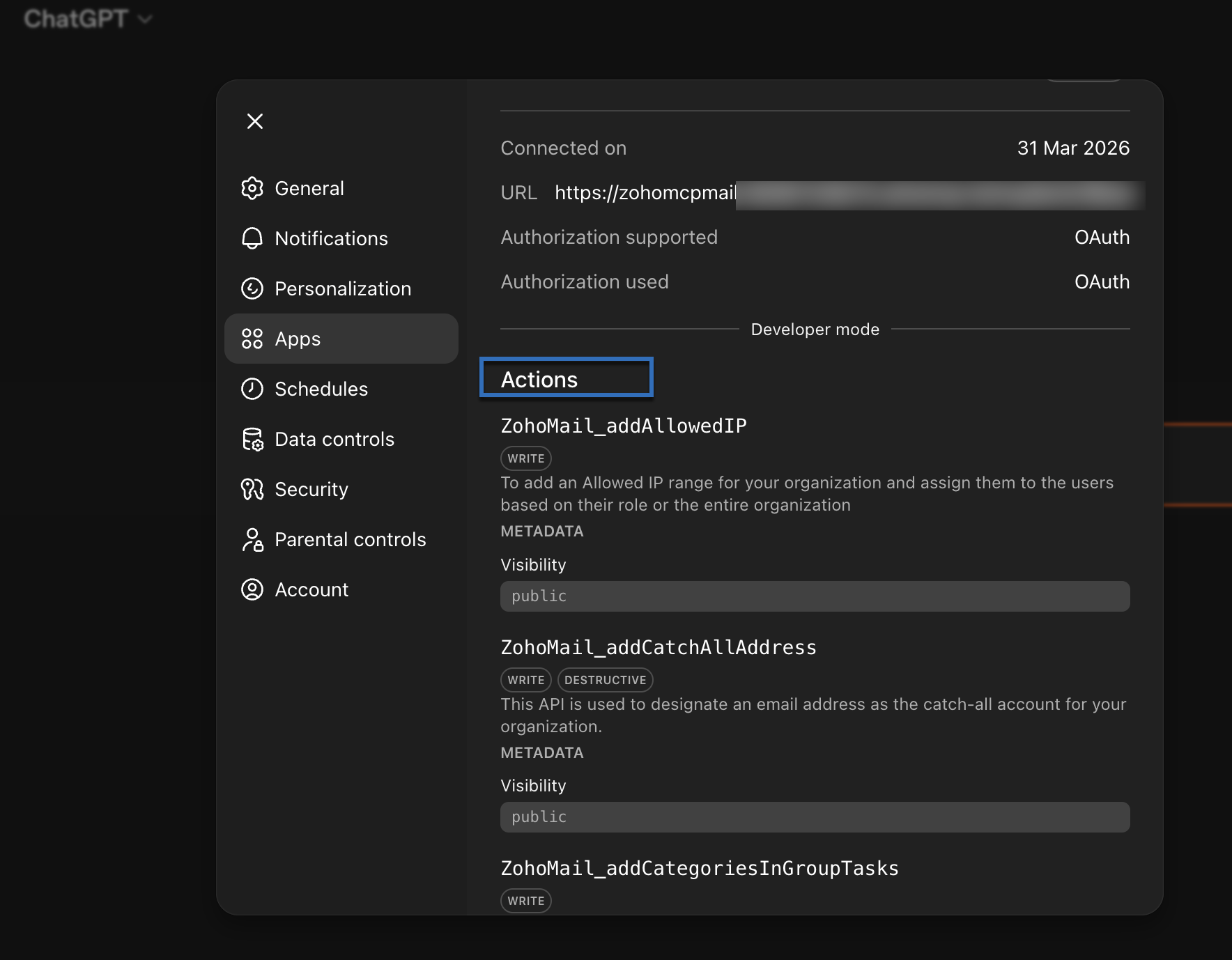
- Quit to view the configured Zoho MCP from ChatGPT console.
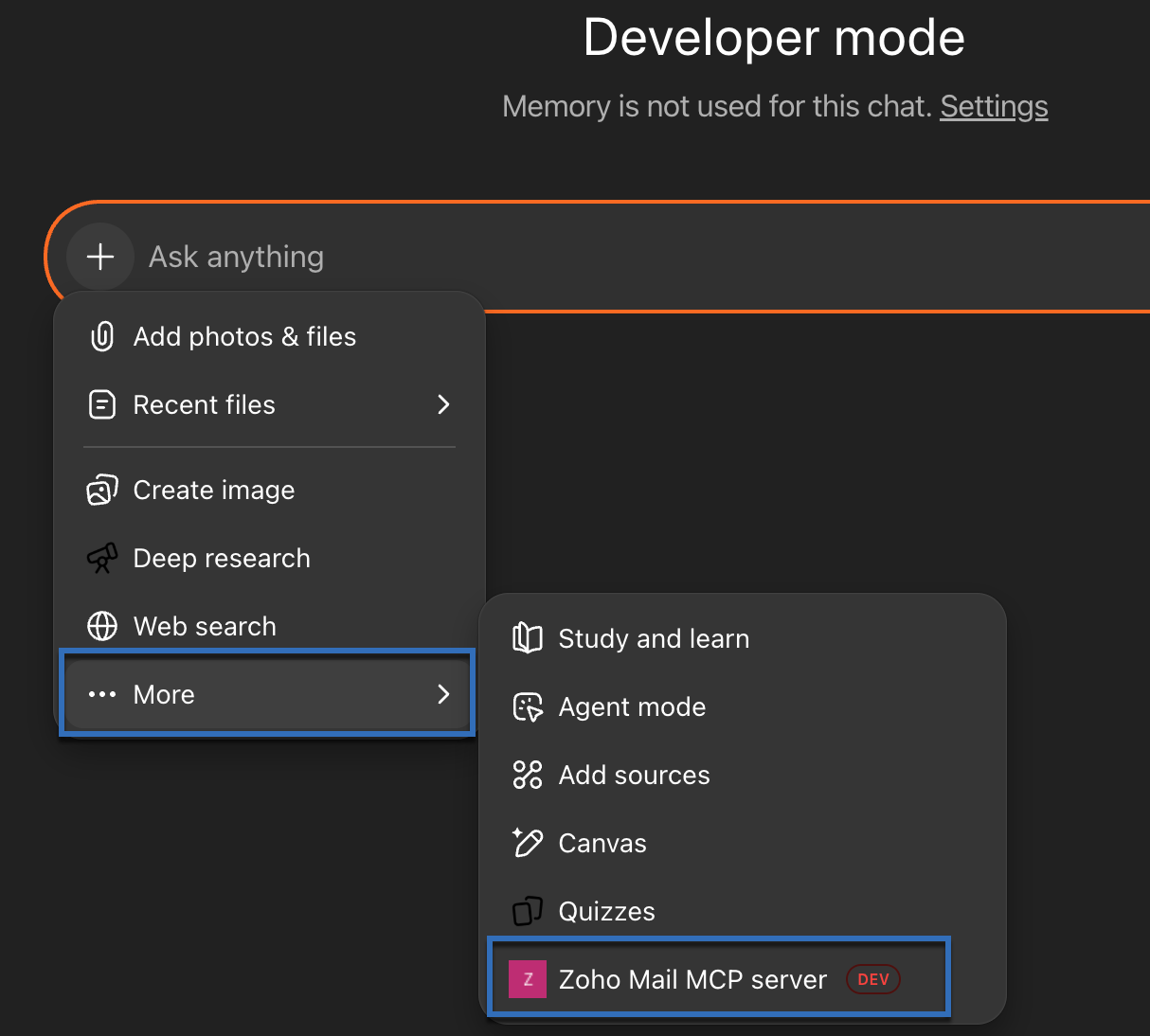
Now, you will be able to invoke your configured Zoho MCP server with ChatGPT acting as the MCP client.