Data Loss Prevention
Overview
Email has become the most common communication medium for businesses these days, and each organization often deals with a high volume of sensitive information. Sensitive information including financial data (employee salary, credit/debit card details, etc.), personal identification number (social security number), health records, etc., must be shared via email with designated users/teams for various purposes. However, when users do not share them through appropriate mediums or send them to unintended recipients by mistake, the outcome of the sensitive data leak can be unimaginable.
Data Loss Prevention (DLP) is an important security measure that prevents users from sharing sensitive information via email with unintended recipients. Most compliance and regulatory authorities mandate organizations to comply with industry-specific standards while sharing such sensitive information via email.
Note
The DLP feature is currently available in select regions for organizations using the Mail Premium or Workplace Professional plans, and will be rolled out to other regions in phases. For more details, please contact us at support@zohomail.com.
DLP in Zoho Mail
Zoho Mail's Data Loss Prevention (DLP) feature is designed keeping in mind the security of your organization's user data without compromising their privacy. It is each user's responsibility to understand DLP and the importance of sensitive data. This is vital to prevent the threat of data leaks when users share sensitive information via email.
Note
Zoho Mail's DLP engine detects sensitive information sent/ received by users via email and logs them in the DLP Activity Logs. Admins can review these logs for a period of 30 days.
Protected identifiers
Protected Identifiers are the list of information types (predefined and custom) that can be associated with a DLP policy to identify whether sensitive information is shared by users via email and take appropriate action. Zoho Mail supports:
- Predefined Protected Identifiers
- Custom Protected Identifiers
Admins can associate these identifiers with DLP policies based on organizational security requirements.
Predefined protected identifiers
The Predefined Protected Identifiers available in Zoho Mail cater to organizations having business in different parts of the world. When an identifier is associated with a DLP policy, Zoho Mail scans the emails that match the policy parameters and takes the action defined in the policy (reject the email, quarantine for moderation, and so on).
Some of the predefined identifiers supported by Zoho Mail are IPv4, IPv6, credit/debit card details, email address detection, etc. Refer to our DLP policy creation help Annexure I for a list of predefined identifiers supported by Zoho Mail.
Custom protected identifiers
The requirements to detect sensitive information might vary from one organization to another as per the industry that the organization belongs to. If the Predefined Protected Identifier list does not match your organization's DLP policy requirements you can create a custom identifier.
For example, the social security identification number will be different in India when compared to the United States of America (the format of the sensitive information, number of strings associated, etc).
In such cases, admins can create custom protected identifiers with the appropriate confidence levels and the criteria to match (primary element and supporting elements) when sensitive information is detected in an email.
Confidence levels
Confidence Level is one of the measures with which a DLP policy gets processed when sensitive information is detected in an email. The Predefined Protected Identifiers in Zoho Mail have a default confidence level associated with them. However, if your organization requires a different confidence level for a specific identifier, you can create custom protected identifiers and associate the desired confidence level.
The Custom Protected Identifiers can have a combination of one primary element and one or more secondary elements. For all three Confidence levels (low, medium, and high), the identifier's primary element should match to process a DLP policy. For details on how a DLP gets processed, refer to the table below:
| Confidence level | Criteria for a DLP policy to be processed |
| Low | The sensitive information in the email content should match the primary element in order to process the DLP policy. |
| Medium | In addition to the primary element, at least one of the supporting elements should match the sensitive information defined in the policy. |
| High | In addition to the primary element, more than one supporting element should match the sensitive information defined in the policy. |
Primary and secondary elements
Primary elements
Admins can decide the primary criteria based on which the email content should be scanned to match their organization's DLP policy. Select the preferred primary element with which you wish to detect sensitive information in the email:
| Primary element | Description |
| Regular expression | A regex (regular expression) is used to match a sequence of strings/ characters against a search pattern. Once done, select a Validator with which you want to match the sensitive information. |
| List of keywords | As the name indicates, the keyword is any technical word specific to the industry your organization belongs to (such as healthcare, finance, etc.). |
| Predefined functions | The predefined functions supported by Zoho Mail's DLP are listed in our DLP policy creation help, Annexure I. |
Validators
Validators act as another additional check to boost the confidence level of the Custom Protected Identifier whenever "Regex" is chosen as the primary element. Zoho Mail supports a wide range of information types which can be added as a second level of validation.
Refer to our DLP policy creation help Annexure I for more details.
Secondary elements
Secondary elements or Supporting Matches are an additional level of screening with which sensitive information within an email can be detected. Adding a supporting match is an optional step. Review the available options and add the secondary element if required.
Adding secondary elements can also be any word that can be matched using regular expressions, a list of keywords, and predefined functions.
Additional checks
The Custom Protected Identifier can be configured to perform additional checks such as "excluding specific values" that are allowed to be shared via email. Such as a piece of sensitive information that is permitted as per your organization's email policy.
DLP policy
Admins can create a Data Loss Prevention (DLP) Policy and associate it with the users in their organization. You can use one of Zoho Mail's predefined templates or create a custom policy from scratch.
Refer to our Create DLP policy help page for more details.
Roles and permissions
Admins can assign different levels of access to users for effective DLP management. Zoho Mail supports two types of roles:
System role (Predefined)
System roles are predefined and cannot be modified. It has full permissions to:
- Manage DLP policies.
- Create and manage protected identifiers.
If the admin wants other users to manage your organization’s Data Loss Prevention policies and protected identifiers with full administrative permissions, they can assign those users to a relevant predefined system role. Once assigned, the users will have full access to manage DLP.
To associate users with the system role, follow the below steps:
- Log in to Zoho Mail Admin Console.
- Choose Security & Compliance and select Data Loss Prevention.
- Navigate to DLP on the left pane and select Roles & Permissions.
- Navigate to System Role tab.
- Select the desired predefined system role.
- Go to the Associated User tab.
- Click + Add Users.
- Enter at least 3 characters of the user’s name or email.
- Select the user from the suggestions.
- Click Add.
Custom roles
If you need to delegate DLP management responsibilities more selectively, you can create custom roles tailored to your organization’s needs and associate them to specific users. For each custom role, you can:
- Define specific permissions (View, Create, Update, Delete).
- Associate users to these roles.
If a user is associated with multiple roles, they will inherit all permissions granted by each associated role.
To create a custom role, follow the below steps:
- Log in to the Zoho Mail Admin Console.
- Choose Security & Compliance and select Data Loss Prevention.
- Navigate to DLP on the left pane and select Roles & Permissions.
- Navigate to Custom Role tab.
- Click + Add Custom Role.
- Enter the role name and description.
- Select permissions by checking the boxes.
- Click Save.
To associate users with a custom role, follow the below steps:
- Log in to the Zoho Mail Admin Console.
- Choose Security & Compliance and select Data Loss Prevention.
- Navigate to DLP on the left pane and select Roles & Permissions.
- Navigate to Custom Role tab.
- Choose the role to assign users to.
- Go to the Associated User tab.
- Click + Add Users.
- Enter at least 3 characters of the user’s name or email.
- Select the user from the suggestions.
- Click Add.
To update custom role permissions, follow the below steps:
- Log in to the Zoho Mail Admin Console.
- Choose Security & Compliance and select Data Loss Prevention.
- Navigate to DLP on the left pane and select Roles & Permissions.
- Navigate to Custom Role tab.
- Select the role to update.
- Go to the Permissions tab.
- Modify permissions as needed.
- Click Save.
Settings
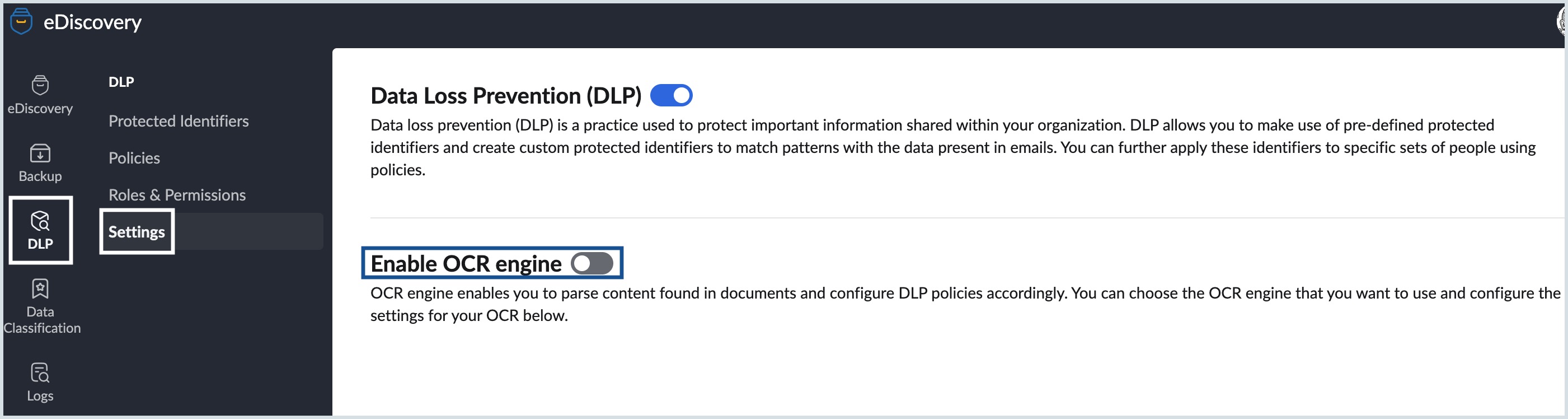
The Settings section allows admins to enable or disable theData Loss Prevention (DLP) and configure Optical Character Recognition (OCR) Engine for the organization.
To enable/disable DLP, follow the below steps:
- Log in to the Zoho Mail Admin Console.
- Choose Security & Compliance and select Data Loss Prevention.
- Navigate to DLP on the left pane and select Settings.
- Use the toggle to enable or disable Data Loss Prevention (DLP) for your organization.
Note
Disabling DLP will turn off all associated policies and protections.
OCR engine for DLP in Zoho Mail
Zoho Mail's OCR engine lets DLP detect sensitive information embedded in images by scanning image-based content and applying your DLP policies to the extracted text.
Note
The DLP feature is currently available only in select regions and can be enabled for organizations upon request. To enable this feature for your organization or to learn more, please contact us at support@zohomail.com.
To enable and configure the OCR engine, follow the below steps:
- Log in to the Zoho Mail Admin Console.
- Choose Security & Compliance and select Data Loss Prevention.
- Navigate to DLP on the left pane and select Settings.
- Turn on the Enable OCR Engine toggle.
- Once OCR is enabled, the Zoho OCR engine will be available as your default OCR engine.
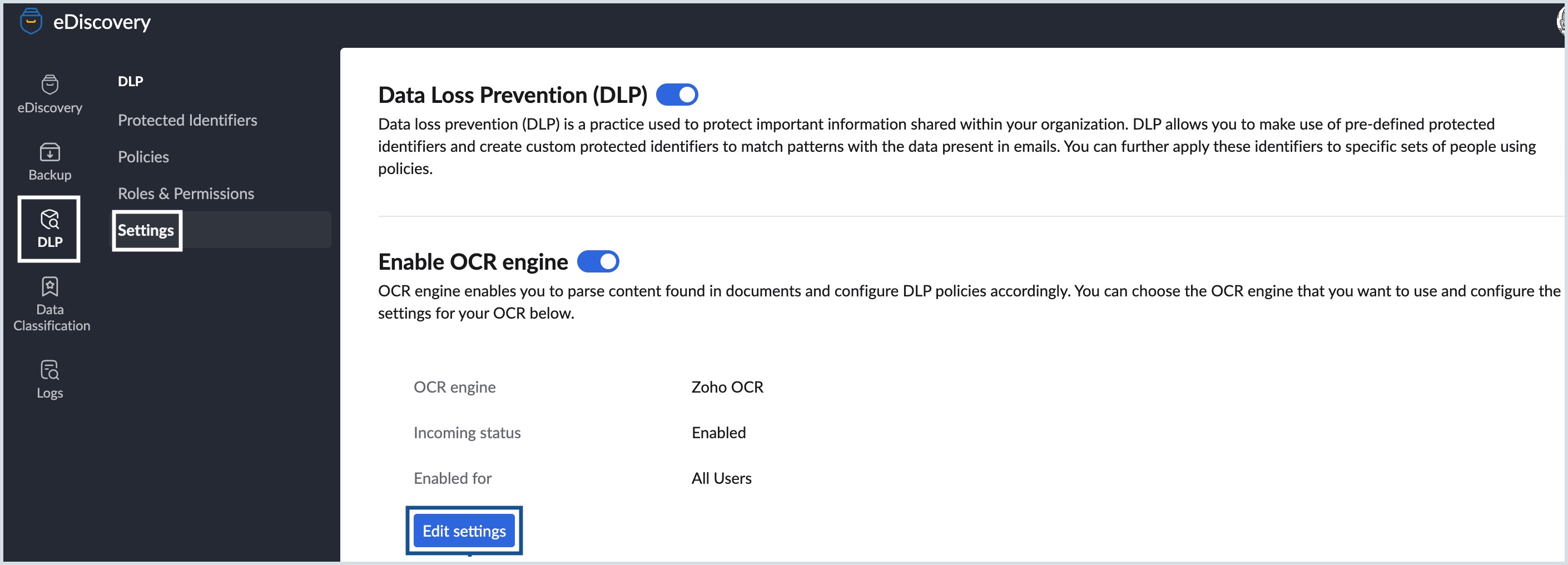
- To use a different OCR engine, click Edit settings.
Choose your preferred OCR engine from the Select an engine dropdown
- Zoho OCR : Selected by default. No credentials required.
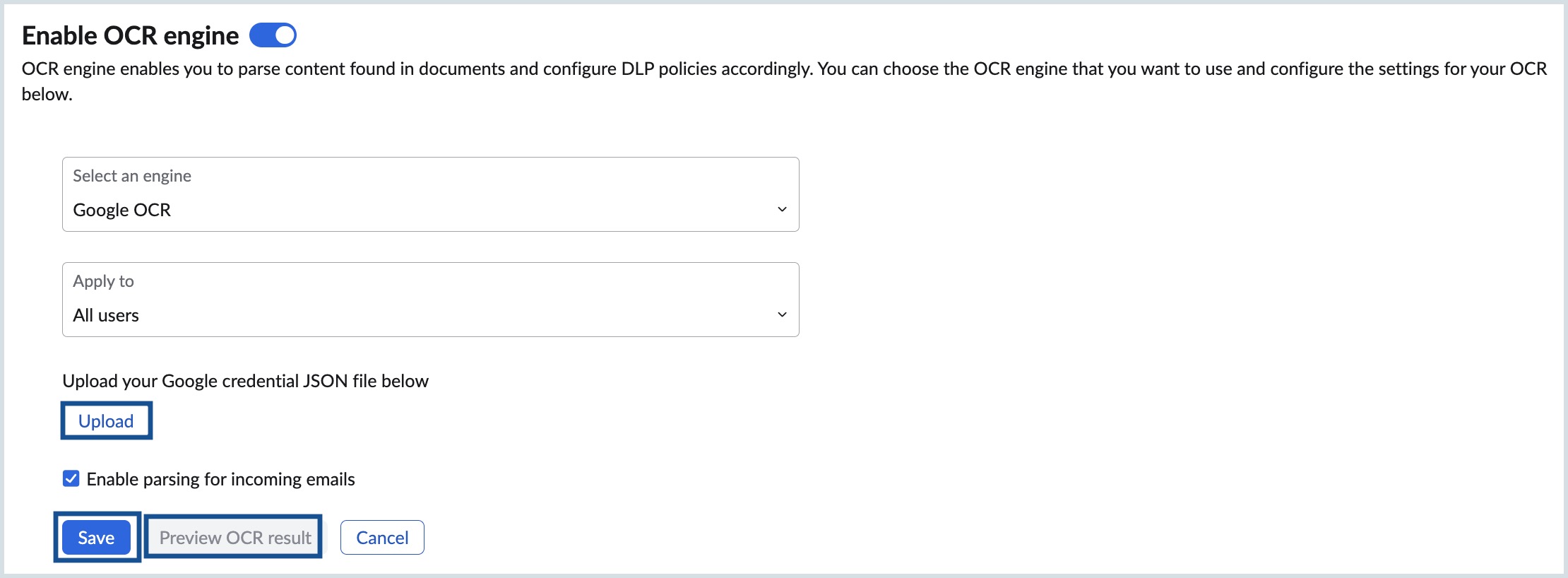
- Google OCR: Click Upload and select your Google service account JSON file. Ensure the service account has Cloud Vision API permissions.
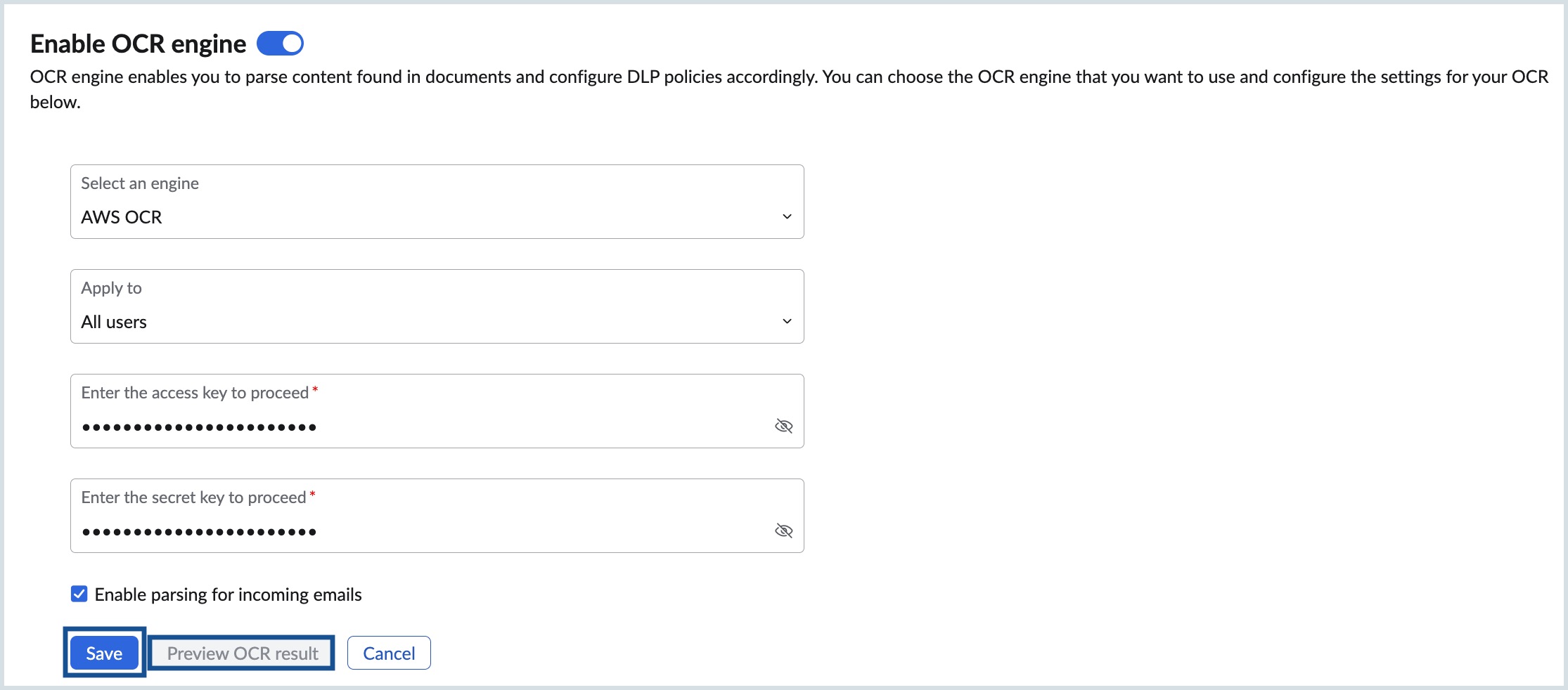
- AWS OCR: Enter your AWS Access Key ID and Secret Access Key. Ensure your AWS account has Amazon Textract permissions.
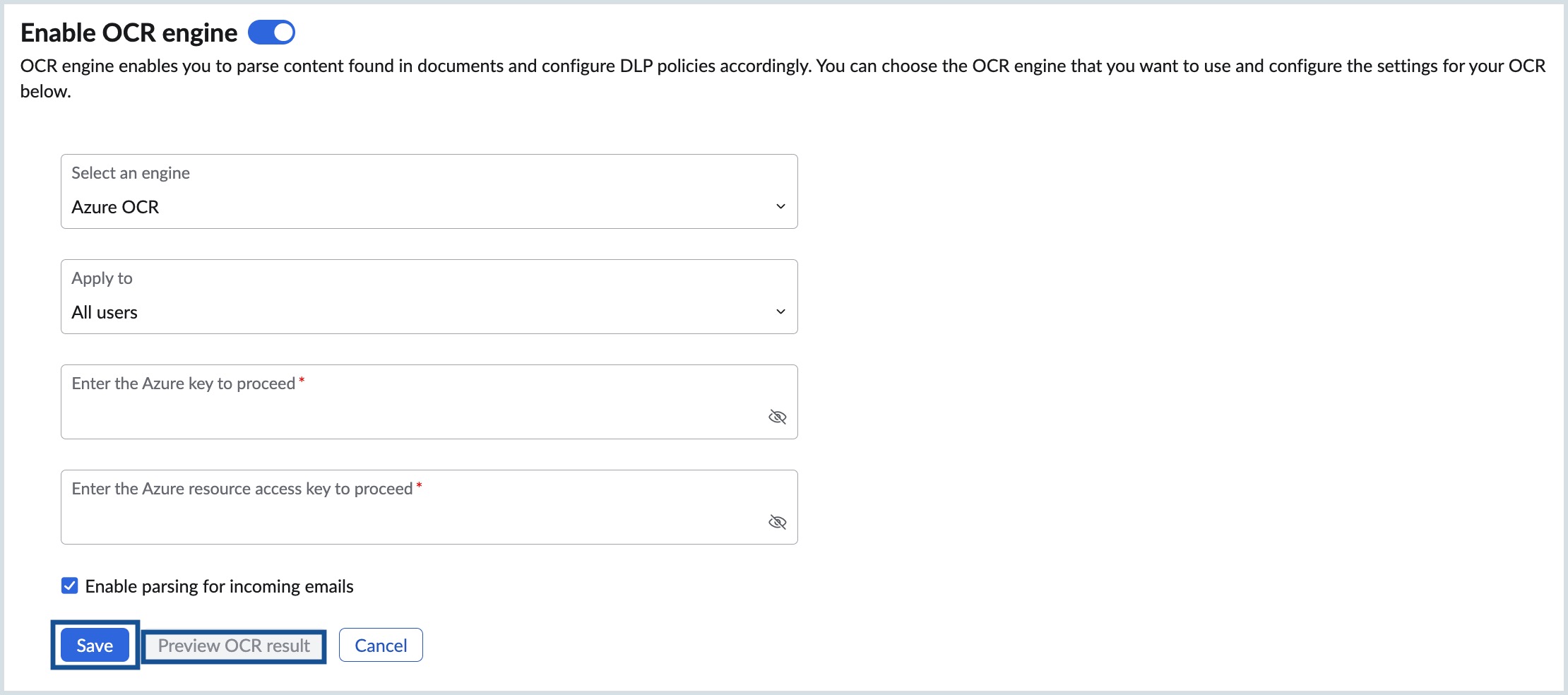
- Azure OCR: Enter your Azure Subscription Key and Azure Resource Endpoint Key. Ensure your Azure account has Computer Vision API permissions.
Note
After saving, click Preview OCR Result to upload a sample image and verify how accurately the selected engine extracts text.
- Select which users should be subject to OCR-based DLP scanning from the Apply to dropdown:
- All users - Applies OCR scanning across the entire organization.
- Selected users - Applies OCR scanning only to specific users.
- All users except specific users - Enables OCR scanning for all users while excluding selected users. At least one user must be excluded. If you do not want to enable OCR for any users, disable OCR instead.
Select Enable parsing for incoming emails to apply OCR scanning to incoming emails.
Note
By default, OCR scanning applies to outgoing emails only.
- Click Save.
To disable the OCR engine, follow the below steps:
- Log in to the Zoho Mail Admin Console.
- Choose Security & Compliance and select Data Loss Prevention.
- Navigate to DLP on the left pane and select Settings.
- Turn off the Enable OCR Engine toggle.