関連リスト
関連リスト機能を使用すると、アプリ内や他の外部サービスからデータを取得して表示できます。異なるデータ間で相互参照したい場合に便利です。
メモ:この機能は、Zoho Booksの一部のプランでのみ利用できます。現在のプランで利用できるかどうかは、料金ページで確認してください。
関連リストは、次の対象に作成できます。
- 商品
- 顧客と仕入先
- 売上-見積書、請求書、受注書、前受金請求書、クレジットノート
- 購入-経費、受取請求書、発注書、仕入先のクレジット
- プロジェクト
参考:各タブに最大10件の関連リストを作成できます。たとえば、請求書に10件、見積書に10件、というように作成できます。
関連リストの作成
関連リストを作成する方法は2つあります。
ルックアップカスタム項目の使用
ルックアップカスタム項目を使用すると、あるタブのデータを取得し、Zoho Books内の別のタブでアクセスできます。あるタブでルックアップ項目を作成すると、それに関連する詳細が別のタブの関連リストとして表示されます。
シナリオ1:パトリシアは、組織内のユーザーの効率を追跡したいと考えています。そこで、営業チームが顧客向けに作成する受注書を追跡することにしました。このため、受注書タブに、アクセスしたいデータがあるタブ(この場合はユーザー)を参照するルックアップカスタム項目を作成します。
Delugeスクリプトの使用
Delugeスクリプトを使用すると、Zoho Booksを他の外部サービスと連携し、そのデータにアクセスできます。
シナリオ2:ジルカーは、売上と購入の管理にZoho Booksを使用し、顧客からの問い合わせ対応にZoho Deskを使用しています。この場合、管理者はDelugeスクリプトを作成して実行し、Zoho Deskから顧客満足度評価を取得して、Zoho Booksの各顧客の下に集計データを表形式で表示できます。
Delugeを使用して関連リストを作成するには:
- 画面右上の[設定]に移動します。
- 関連リストを作成するタブに移動します。この例では、[顧客と仕入先]です。
- [関連リスト]タブに移動します。
- 画面右上の[+ 新しい関連リスト]をクリックします。
- [関連リスト名]を入力します。
- [この関連リストを表示できるユーザーは?]を選択します。[自分のみ]または[全員]から選択できます。
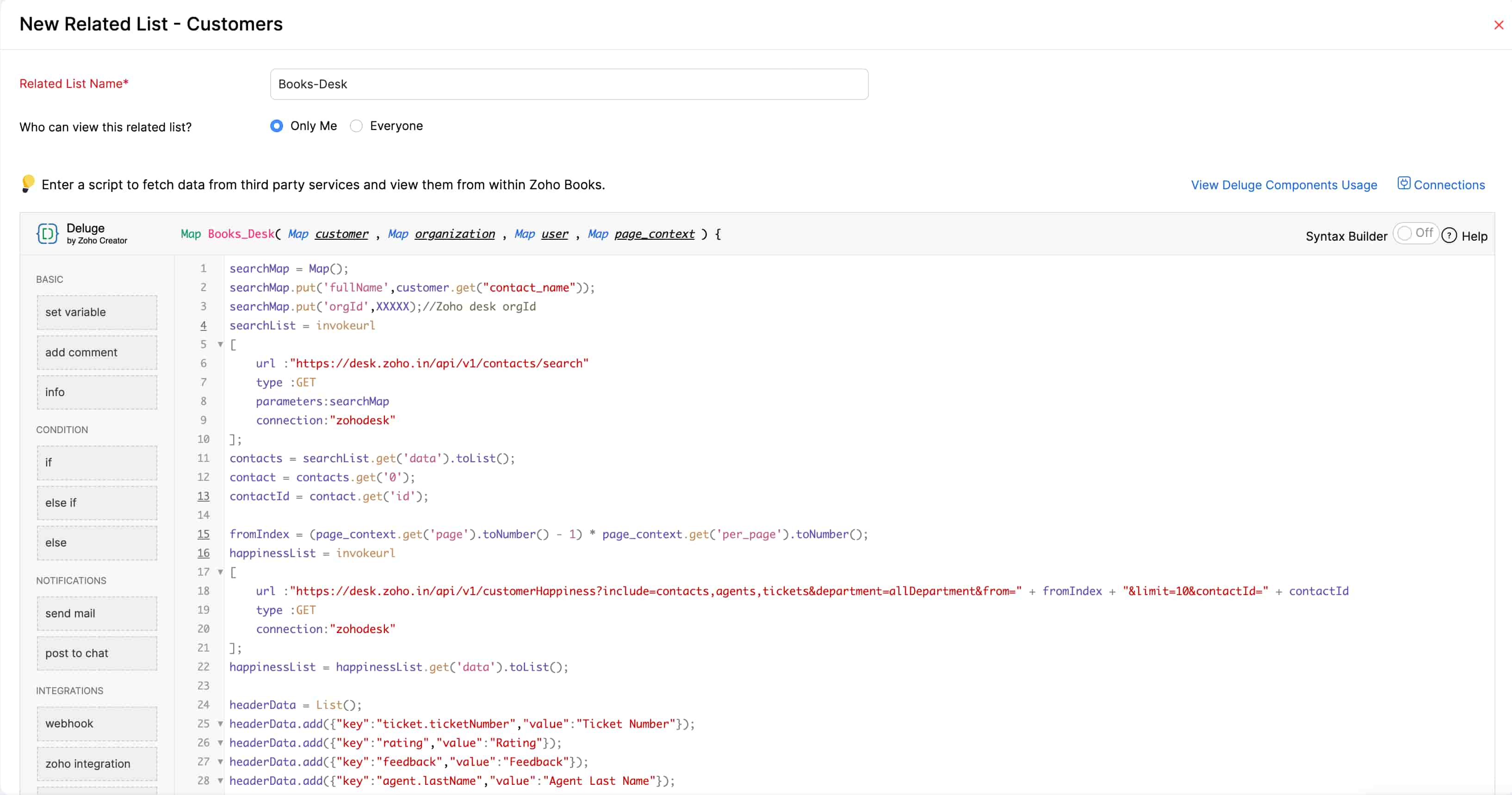
- 連携している外部サービスからデータを取得するDelugeスクリプトを作成します。この例では、Zoho Deskから取得します。
- [保存]をクリックするか、関数を実行する場合は[保存して実行]をクリックします。
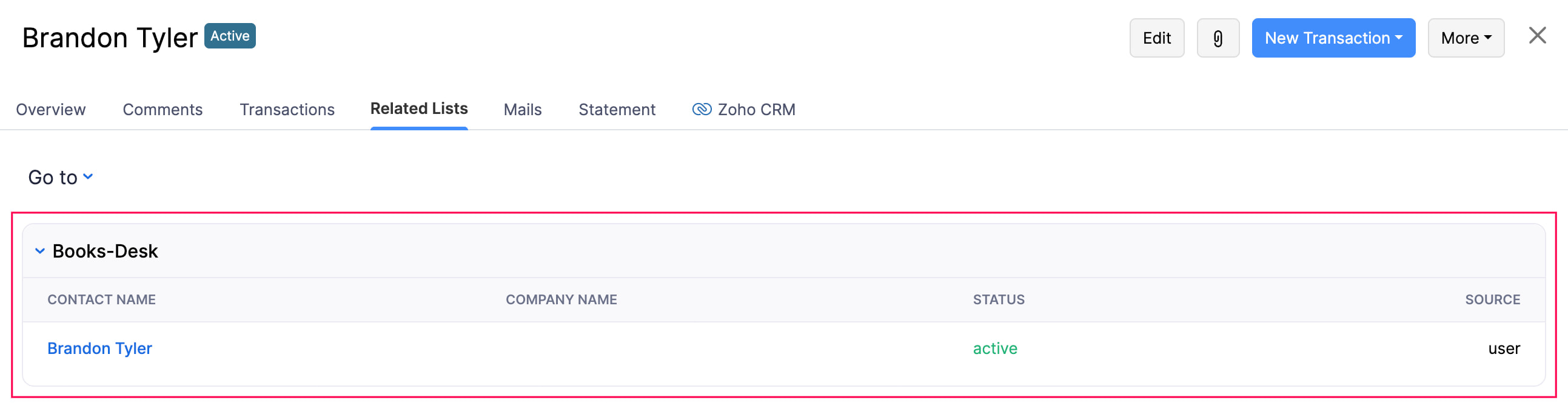
作成したリストは、それぞれのタブの関連リストタブに表示されます。
メモ:
- Delugeスクリプトは、次の形式で'header_context'と'data'を含むマップを返す必要があります。
{ header_context:[ { key: 'customer_name', value: 'Customer Name' }, { key: 'invoice_number', value: 'InvoiceNumber } ], data:[ { customer_name: <customer_name>, invoice_number: <invoice_number> } ] } - dataノードの値を指定する方法は2つあります。
- 文字列として表示:
customer_name: <customer_name> - ハイパーリンクとして表示:
customer_name:{ 'value': <customer_name>, 'isExternal':true, // To open the link in separate tab. 'link': <web_url_path>
}
- 文字列として表示:
- Delugeスクリプトは、'page_context'を含むマップを返すこともできます。すべての取引レコードを一度に取得しようとすると、ページの応答時間が長くなる場合があります。この問題を解決するには、'page_context'を使用してレコードをページごとに分割し、より速く取得できます。たとえば、顧客の取引レコードが50件ある場合、1ページあたり10件のレコードに分割し、page_contextを使用して必要なデータをより速く取得できます。
- Delugeスクリプトを使用してページ単位でレコードを取得する場合は、Delugeスクリプトの戻り値に'page_context'を追加する必要があります。また、次のプロパティが必要です。
- page: string
- per_page: string
- has_more_page: boolean(最後のデータセットに達したらfalseに設定する必要があります)
{ header_context:[{...}, {...}], data:[{...}], page_context:{ per_page: '10', page: '1', has_more_page: true/false
} }
関連リストの編集
メモ:編集できるのは、Delugeスクリプトを使用して作成した関連リストのみです。ルックアップカスタム項目を使用して作成した関連リストを編集するには、ルックアップ項目を編集する必要があります。
関連リストを編集するには:
- 画面右上の[設定]に移動します。
- 関連リストがあるタブを選択します。
- [関連リスト]タブをクリックします。
- 編集するリストにカーソルを合わせます。
- [ドロップダウン]アイコンをクリックし、[編集]を選択します。

関連リストの無効化
関連リストを無効として設定すると、一時的に無効にできます。手順は次のとおりです。
- 画面右上の[設定]に移動します。
- 関連リストがあるタブを選択します。
- [関連リスト]タブをクリックします。
- 無効化する関連リストにカーソルを合わせます。
- [ドロップダウン]アイコンをクリックし、[無効化]を選択します。

関連リストの有効化
無効な関連リストを有効化するには:
- 画面右上の[設定]に移動します。
- 関連リストがあるタブを選択します。
- [関連リスト]タブをクリックします。
- 有効化する無効な関連リストにカーソルを合わせます。
- [ドロップダウン]アイコンをクリックし、[有効化]を選択します。

関連リストの削除
メモ:削除できるのは、Delugeスクリプトを使用して作成した関連リストのみです。ルックアップカスタム項目を使用して作成した関連リストを削除するには、ルックアップ項目を削除する必要があります。
関連リストを削除するには:
- 画面右上の[設定]に移動します。
- 関連リストがあるタブを選択します。
- [関連リスト]タブをクリックします。
- 削除するリストにカーソルを合わせます。
- [ドロップダウン]アイコンをクリックし、[削除]を選択します。

- ポップアップで[OK]をクリックし、操作を確定します。
サンプル関数
シナリオ2で、Zoho BooksのユーザーがZoho Deskの顧客詳細にアクセスできるようにするサンプル関数を次に示します。
 searchMap = Map(); searchMap.put('fullName',customer.get('contact_name')); searchMap.put('orgId',XXXXX);//Zoho desk orgId searchList = invokeurl
[ 	url :'https://desk.zoho.in/api/v1/contacts/search'
	type :GET
	parameters:searchMap
	connection:'zohodesk'
]; contacts = searchList.get('data').toList(); contact = contacts.get('0'); contactId = contact.get('id');
fromIndex =(page_context.get('page').toNumber() - 1) * page_context.get('per_page').toNumber(); happinessList = invokeurl
[ 	url :'https://desk.zoho.in/api/v1/customerHappiness?include=contacts,agents,tickets&department=allDepartment&from=' + fromIndex + '&limit=10&contactId=' + contactId
	type :GET
	connection:'zohodesk'
]; happinessList = happinessList.get('data').toList();
headerData = List(); headerData.add({'key':'ticket.ticketNumber','value':'Ticket Number'}); headerData.add({'key':'rating','value':'Rating'}); headerData.add({'key':'feedback','value':'Feedback'}); headerData.add({'key':'agent.lastName','value':'Agent Last Name'});
happinessCount = invokeurl
[ 	url :'https://desk.zoho.in/api/v1/customerHappiness/count?department=allDepartment&contactId=' + contactId
	type :GET
	connection:'zohodesk'
]; happinessCount = happinessCount.get('allDepartment'); totalCount = happinessCount.get('okay') + happinessCount.get('bad') + happinessCount.get('good');
pageContext = Map(); pageContext.put('page',page_context.get('page')); pageContext.put('per_page',page_context.get('per_page')); pageContext.put('has_more_page',false); if(totalCount >= page_context.get('page').toNumber() * page_context.get('per_page').toNumber()) { 	pageContext.put('has_more_page',true); }
resultMap = Map(); resultMap.put('header_context',headerData); resultMap.put('data',happinessList); resultMap.put('page_context',pageContext); return resultMap;