OAuth 2.0 Authentication Process

To access the Zoho IoT REST APIs, authentication is performed using an OAuth Client. An OAuth Client in Zoho represents an application that requests access to Zoho’s APIs on behalf of a user, acting as a secure intermediary between your application and Zoho’s authorization servers. 

Zoho REST APIs use the OAuth 2.0 protocol, an industry-standard framework that allows third-party applications to obtain delegated access to protected data without requiring users to share their credentials each time. This ensures secure, token-based access while maintaining user privacy. Follow the steps provided here to authenticate and access Zoho APIs using OAuth 2.0.
 

Note:  OAuth 2.0 is the standard authentication mechanism used across all Zoho services to access APIs securely. It enables applications to obtain authorized access to Zoho resources without requiring users to repeatedly share their credentials. 

For detailed information on OAuth authentication and how it works across Zoho services, refer to the Zoho OAuth Documentation
 

Zoho Data Centers

Data protection and privacy laws in multiple countries state that user data can only be stored in data centers located on that country's soil. In compliance, Zoho has set up data centers in multiple countries for storing Zoho IoTs data. Using the below domain references, you can make further API calls to the server URL corresponding to the concerned user's location. 

Zoho IoT Data Center at various locations and its domains.

Data Center                                    Domain                           Base API URI                           
United States .comhttps://accounts.zoho.com/
Europe.euhttps://accounts.zoho.eu/
India.inhttps://accounts.zoho.in/
Saudi Arabia.sahttps://accounts.zoho.sa/
Australia.auhttps://accounts.zoho.au/

Note: Replace your location's Base API URI when accessing Zoho Account's developer console using https://accounts.zoho.in/developerconsole 

In all other references in the document, if your Base API URI is different from in as given in the samples urls, use your own Base API URI  (.com, .eu, .sa, or .au) instead of in.
 

OAuth 2.0 Authentication Flow   

The following steps provide a high-level overview of the process involved in authenticating and establishing a secure connection using OAuth 2.0. Each process is explained with step-by-step procedure later in this document.
 

Step 1: Registering New Client

The first step in using OAuth authentication is registering your client (application) with the Zoho API console. Once you register your client, you will get a Client ID and Client secret for your application. This Client ID and Client secret are used to authorize your app's OAuth requests.

Step 2: Generating Grant Token

The grant token acts as a bridge between user authorization and secure access for your application.

Step 3: Generate Access And Refresh Token

The next step is to generate the access and refresh tokens using an HTTP request.

Step 4: Generate Access Token From Refresh Token

Access tokens have limited validity, i.e., their lifetime is only 1 hour, post which they expire and cannot be used to access the resources any longer.

Step 5: Revoking A Refresh Token

To revoke a refresh token, call the following POST URL with the given params.

If a refresh token is no longer required or appears to be compromised, it can be revoked and made invalid.


Now lets proceed with registering the client following the below step-by-step implementation.
 

Step 1: Registering New Client

The first step in using OAuth authentication is registering your app with the Zoho API console. Once you register your client(app), you will get a Client ID and Client Secret for your application. This Client ID and Client Secret are used to authorize your app's OAuth requests.

Client ID is a unique identifier for your application which you can receive when registering your application in the Zoho API console.

Client Secret is a unique secret key for your application which you can receive when registering your application in the Zoho API console. Client secret is known only between your application and Zoho, therefore, must be kept confidential. (Client secret is not needed for client-based applications and will not be provided). 
 

1. To register your application, go to https://accounts.zoho.in/developerconsole.

Here, Replace your location's Base API URI (.com, .eu, .sa, .in, or .au) when accessing Zoho Account's developer console using https://accounts.zoho.in/developerconsole. For example, for india data center, use Base API URI in.

2. Click GETTING STARTED. (If applications are already registered, the applications page will be listed with the ADD CLIENT button.)

3. Click ADD CLIENT in the resultant screen. 

4. In Choose a Client Type screen, select Server Based Applications for Zoho IoT based authentication.

Refer to the Client Types document to understand other client types.


The Server based application option can be used to make the REST API calls from any of the below features:

  •  From Zoho IoT custom functions

  • From other Zoho Services

  • From third party Applications

  • From Gateways and Servers 

  • From Sigma code 


5. Provide the required details in the Create New Client form to register your application.

  • Client Name:  Provide any desired name. Recommended to provide the name that is to be used as the user name during login.
  • Homepage URL: Your application's home page. e.g. https://www.zylker.com
  • Authorized Redirect URL:  The URL to be called after confirming during authentication. (When completing Step 2: Generating Grant Token and pressing the SUBMIT and Accept button, you will be redirected to the URL provided here. The code value will be appended to this URL and displayed in the browser url.

6. The Client ID and Client Secret is generated and displayed. 

Together, the Client ID and Client Secret are used in the OAuth flow to obtain secure access tokens. These tokens allow your Zoho IoT application to access data or perform actions in the connected service without exposing or storing user credentials. 

Step 2: Generating Access Token

The access (grant) token acts as a bridge between user authorization and secure access for your application.

To generate the grant token,

1. Open the browser and login using your application account.

2. Provide the authorization URL (https://accounts.zoho.in/oauth/v2/auth) appended with the given params in the browser in which you have logged in using your account to generate the grant token. 

Note: Use your location's Base API URI  (.com, .eu, .in, .sa, .au) in the request URL.

Parameter                              Description                                                                                        
scope *SCOPE for which the token to be generated. Multiple scopes can be given which has to be separated by commas. Ex : ZohoIOT.modules.devices.ALL,ZohoIOT.modules.assets.ALL
client_id *Client ID obtained during Client Registration
stateAn opaque string that is round-tripped in the protocol; ie., whatever value given to this will be passed back to you.
response_type *code
redirect_uri *One of the redirect URI given in above step. This param should be same redirect url mentioned while registering the Client
access_typeThe allowed values are offline and  online  access_type gives your application only the access_token which is valid for one hour. The   offline access_type will give the application an access_token as well as a refresh_token. By default it is taken as  offline  
promptPrompts for user consent each time your app tries to access user credentials. Ex:  consent 

Note: Fields with * are mandatory

3. On providing the authorization URL with the given params in the browser and pressing Enter. The ORG selection screen is displayed.


4. Choose the required ORG, and click Submit.

  • On this request, you will be shown with a "user consent page".

  • Click Accept, and Zoho will redirect to the given redirect_uri with the grant token (code).

  • Copy the code value from the browser URL as shown above. 

    Note: This code value is mandatory to get the access token in the next step and this code is valid for 60 seconds only. 

Sample Request

CopiedGET
https://accounts.zoho.in/oauth/v2/auth?scope=ZohoIOT.modules.devices.ALL&client_id=1000.4DY*************&response_type=code&redirect_uri=https://www.zylker.com

Step 3: Generate Access And Refresh Token

The next step is to generate the access and refresh tokens using an HTTP (POST) request.

To generate access and refresh token,

1. Open any developer tool such as Postman.

2. Provide the authorization URL (https://accounts.zoho.in/oauth/v2/token) appended with the given params to generate the access and refresh token.

Parameter                           Description                                                                                        
code *code which is obtained in the above step
client_id *Client ID obtained during Client Registration
client_secret *Client secret obtained during Client Registration
redirect_uri *This param should be same redirect url mentioned while adding Client
grant_type *authorization_code 
scopeSCOPE for which token to be generated. E.g. :  ZohoIOT.iotfullaccess.ALL. Multiple scopes has to be separated by commas.
stateAn opaque string that is round-tripped in the protocol; that is to say, value will be passed back to you.

Note: Fields with * are mandatory

3. In the response, you will get bothaccess_token and refresh_token.

1. The access_token will expire after a particular period (as given in expires_in param the response).

2. The  refresh_token  is permanent and will be used to regenerate new access_token  if the current access token is expired.

3. Each time a re-consent page is accepted, a new refresh token is generated. The maximum limit is 20 refresh tokens per user. If this limit is crossed, the first refresh token is automatically deleted to accommodate the latest one. This is done irrespective of whether the first refresh token is in use or not.


Sample Request

CopiedPOST
https://accounts.zoho.in/oauth/v2/token?code=1000.******e&client_id=1000.****FF5M&client_secret=******&redirect_uri=https://www.zylker.com&grant_type=authorization_code&access_type=offline

Sample Response

Copied{
    "access_token": "1000.*********a3",
    "refresh_token": "1000.*********27",
    "scope": "ZohoIOT.modules.devices.ALL",
    "api_domain": "https://www.zohoapis.in",
    "token_type": "Bearer",
    "expires_in": 3600
}


Step 4: Generate Access Token From Refresh Token

Access Tokens have limited validity. In most general cases the access tokens expire in one hour. Until then, the access token has unlimited usage. Once it expires, your app will have to use the refresh token to request for a new access token.

To generate access from refresh token,

1. Open any developer tool such as Postman.

2. Provide the authorization URL (https://accounts.zoho.in/oauth/v2/token) appended with the given params to generate the access token.

Parameter                           Description                                                                                        
refresh_token *REFRESH TOKEN which is obtained in the above step
client_id *Client ID obtained during Client Registration
client_secret *Client secret obtained during Client Registration
redirect_uri *This param should be same redirect url mentioned while adding Client
grant_type *refresh_token 

3. In the postman response, you will get the access_token as shown in the right panel.

Note:  The access_token will expire after a particular period (as given in expires_in param in the response). 

Sample Request

CopiedPOST
https://accounts.zoho.in/oauth/v2/token?refresh_token=1000.******e&client_id=1000.****FF5M&client_secret=******&redirect_uri=https://www.zylker.com&grant_type=refresh_token

Sample Response

Copied{
    "access_token": "1000.c2cff9d7a7a2fe8017c6d5f50368c890.5931d26d47d91430b54c8e2e8fb65280",
    "scope": "ZohoIOT.modules.devices.ALL",
    "api_domain": "https://www.zohoapis.in",
    "token_type": "Bearer",
    "expires_in": 3600
}

Step 5: Revoking A Refresh Token

To revoke a refresh token, call the following POST URL with the given params.

To revoke a refresh token,

1. Open any developer tool such as Postman.

2. Provide the authorization URL (https://accounts.zoho.in/oauth/v2/token/revoke) appended with the given params to revoke the refresh token.

Parameter                           Description                                                                                        
tokenREFRESH TOKEN which is to be revoked

In the postman response, you will get the success as shown in the right panel.

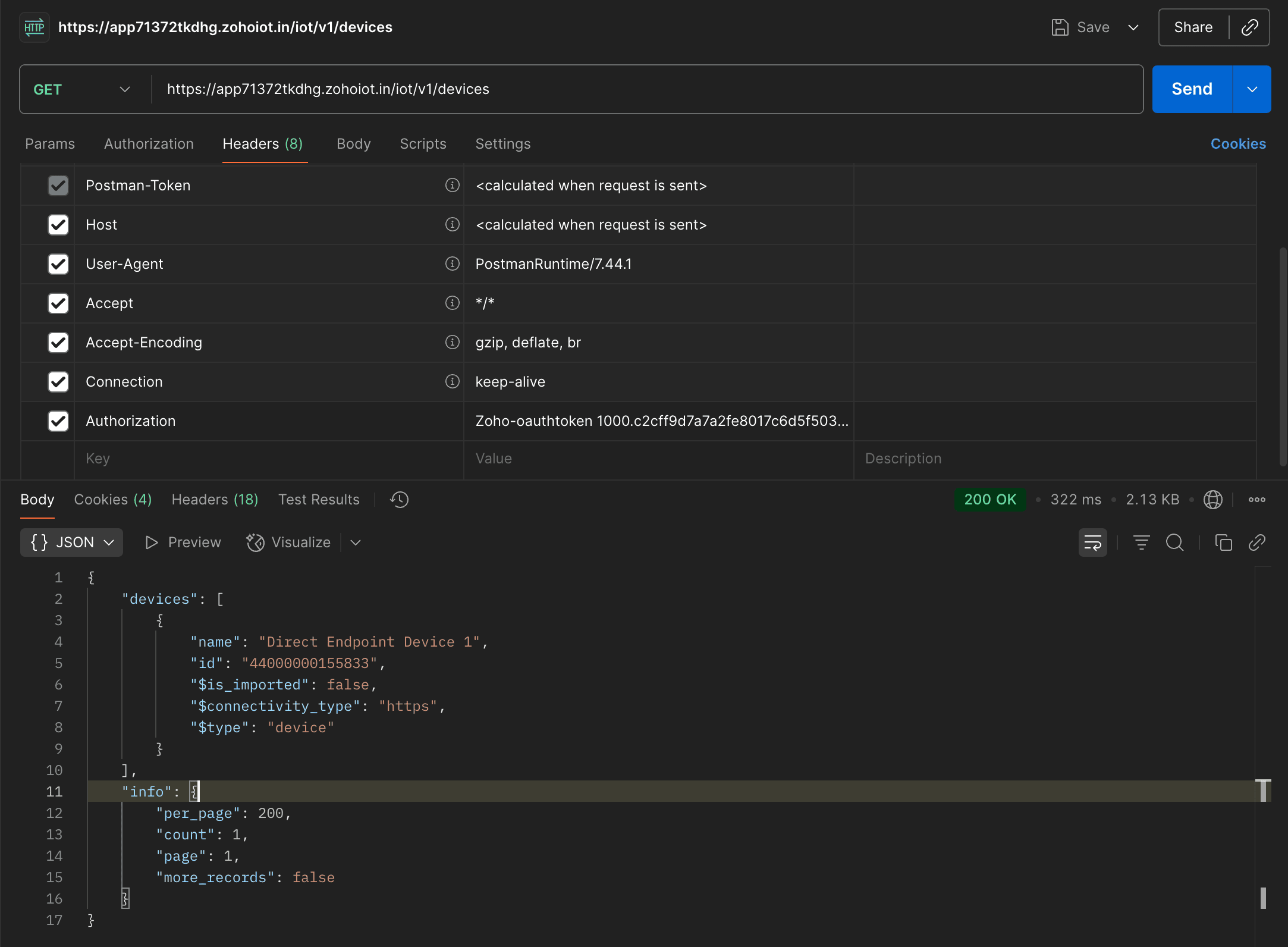
Step 6: Accessing IoT API Using Access Token

In the below sample implementation on generating Access Token we have used the scope ZohoIOT.modules.devices.ALL. Using this access_token, you can access the device information available in the application.  

  • Header name should be  Authorization
  • Header value should be   Zoho-authtoken {access_token}
Sample Request

Copiedhttps://accounts.zoho.com/oauth/v2/token/revoke?token=1000.8ecdxxxxxxxxxxxxxxxxxxxxxxxx5cb7.4638xxxxxxxxxxxxxxxxxxxxxxxxebdc 

Sample Response

Copied{"status":"success"}