



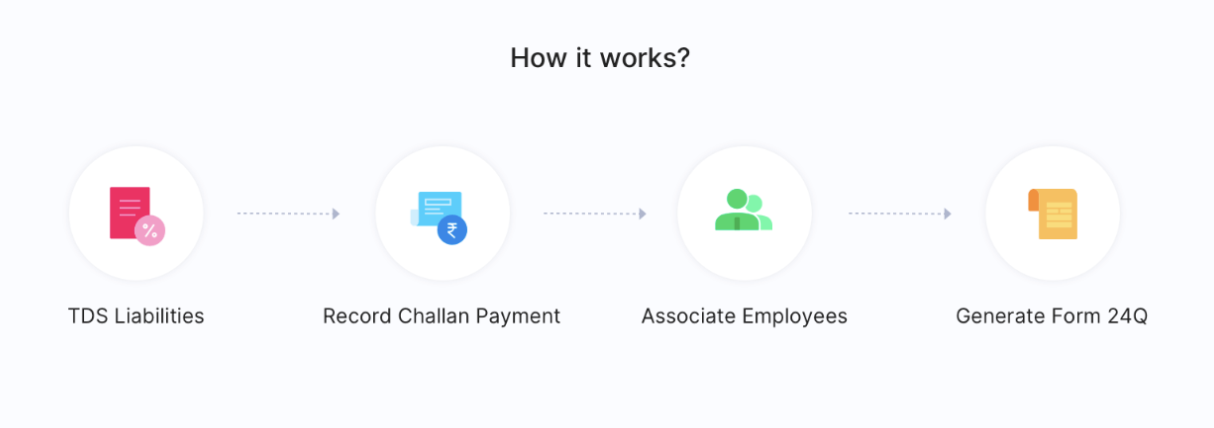
TDS Liabilities
TDS (Tax Deducted at Source) is the tax deducted from an individual’s income at the time of salary payment. In India, TDS is governed by the Income Tax Act and is administered by the Central Board of Direct Taxes (CBDT).
TDS liabilities are calculated based on the salary and other income earned by an employee during a particular period and the applicable TDS rate as per the Income Tax Act. It is the employer’s responsibility to ensure that their employees’ TDS liabilities are paid on time to avoid any penalties.
You can view the TDS liabilities of all your employees in Zoho Spend. In Zoho Spend, TDS liabilities are generated after you approve the pay run. This includes the amount of TDS that needs to be paid by the employee, the TDS rate applicable, and the due date for payment of TDS.
Once you view the TDS liability details, you can view the TDS breakdown for all employees for whom you’ve approved the pay run and record the challan in Zoho Spend for these liabilities.
View TDS Liabilities
Prerequisite: You will only be able to view the TDS liabilities if you have submitted and approved your pay run.
Here’s how you can view the TDS liabilities:
- Go to Filing and Compliance on the left sidebar.
- Click TDS Liability.
- Click View Details.
You can to view the Total TDS, Period, Amount Due, and Due Date.
Record Challan
If you’ve paid the TDS to the authorities for this liability, you can record the details in Zoho Spend. Here’s how:
- Go to Filing and Compliance on the left sidebar.
- Click TDS Liability.
- Click Record Challan.
- Enter the amount you’ve paid for this liability.
- Click + Add Interest if you’ve failed to deduct TDS for this liability or to pay whole or part of the tax to the Government after deducting, if any.
- Click + Add Penalties for any delay in TDS Return filing.
- Enter the Challan Number, BSR Code (Branch Code) of the challan, and the date on which you paid the amount.
- Select Auto-allocate Employees if you want to automatically associate the payment amount of this challan to the TDS Liabilities of all employees for this month.
Note: The auto-allocate feature will be available only if the payment amount exceeds the liability amount.
- Select the Paid Through Account.
- Click Save.
Insight: You can associate unused challans by clicking the Associate button. These are challans that have amounts that have not been fully associated.
To associate the payment amount to the employees manually:
- Select the employee and enter the amount you want to associate. You can view the balance TDS under this field.
- Click Associate.
If you have any pending TDS liability that is yet to be associated to the employee, you can associate it later.