


Items

Items are either goods that you purchase from your vendors and sell to your customers, or, services that you provide for which you get paid. In Zoho Inventory, you can add these items with ease and manage their inventory such that, every time you create a purchase request to your vendor, its stock increases and when you sell the items, its stock decreases automatically.
The upcoming sections will guide you in detail on the various ways in which you can add your items and manage them in Zoho Inventory.
Create Item
You can create items to track and manage your inventory effectively.
To create a new item:
- Go to the Items module under Items from the left sidebar.
- Click + New in the top right corner.
You can also create an item while creating a transaction:
- Open a new sales or purchase transaction.
- Click inside Item Details in the item table.
- Click + Add New Item from the dropdown.
Primary Details
In the item creation page, enter the required details:
- Enter the Name of the item.
- Select the Type of item:
- Goods: Physical items that can be stored, picked, packed, and shipped.
- Service: Non-physical offerings such as services or subscriptions that do not require inventory handling.
Pro Tip: Service items can be used for packing costs, labor costs, and similar services. These items are not shown while creating packages and shipments, and inventory cannot be tracked for them.
Insight: Manufacturer and Brand can be selected only for goods.
- Select an existing brand or create a new one.
- Select an existing manufacturer or add a new one.
- Enter the HSN or SAC Code. If you do not know it, click the Search icon next to the field.
- Upload Front, Rear, and Other images. You can add up to 15 images, each not exceeding 5 MB.
- Select the Item Type:
- Single Item: A standalone item with no variations (color, size).
- Contains Variants: An item with multiple variations (for example, size, color, or style), managed under a parent item. Learn More
- Choose the appropriate Unit. To create a new unit, click Configure Unit.
- Click + Add Identifier to add additional product codes such as UPC, EAN, MPN, and ISBN.
Insight: UPC and EAN fields are numeric. MPN and ISBN fields are alphanumeric and support letters, numbers, spaces, and hyphens.
- If you want to track the sales history of this item, enable the Sales Information section and enter the details below,
- Enter the Selling Price for the item.
- Select the Account to track the sales performance of the item.
- Enter the Default Unit. This should be applied for the item in all the sales transactions.
- Add Description, if required.
- If you want to track the purchase history of this item, enable the Purchase Information section and enter the details below,
- Enter the Purchase Price for the item.
- Select the Account to track the purchase expenses for the item.
- Enter the Default Unit. This will be applied for the item in all your future purchase transactions.
- Add Description, if required.
- Choose the Preferred Vendor for the item. This vendor selected here will be suggested by default when you create a new purchase order for this item.
- If you select the item type as Service, the Receivable Item checkbox will be available. Enabling this option allows the service item to be purchased and tracked in Purchase Receives.
Note: Inventory tracking is available only for goods, not for services.
By enabling Track Inventory for this item, you can manage the stock of the item in your Zoho Inventory organization. Once enabled you can track additional options below,
- Bin Location Tracking - If you wish to track bin details for the item, select Yes. If not, choose No. If you have enabled Advanced Inventory Tracking, choose whether you want to track your items by Serial numbers or by Batch. If you want neither, choose None and proceed.
- Select the Inventory Account to track the inventory for your items.
- FIFO (First In, First Out): In this method, the inventory gets tracked based on the First In, First Out system, which lets you assess the value of your inventory. This simply means the oldest inventory items recorded are sold first.
- WAC (Weighted Average Costing): In this method, the average cost of all the inventory items will be calculated. The average cost is then used to determine the Cost of Goods Sold (COGS) and the value of your remaining inventory.
- Enter the Reorder Point. You will receive an in-app notification to help you monitor stock levels and ensure your items never run out.
- Select Yes for the Returnable Item if you accept sales returns for this item. Sales Returns can be created only for those items you qualify as returnable.
- Enter the Dimensions and Weight for the item, if required.
- If you have created any reporting tags or custom fields, you can enter them under Additional Information
- Once done, click Save.
Create Brand
To create a new brand from the item creation page:
- Click the Brand dropdown.
- Click the Gear icon below the dropdown.
- Click + New Brand.
- Enter the name and click Save and Select.
Create Manufacturer
To create a new manufacturer from the item creation page:
- Click the Manufacturer dropdown.
- Click the Gear icon below the dropdown.
- Click + New Manufacturer.
- Enter the name and click Save and Select.
Create Items with Variants
Items with Variants help you manage different versions of the same item while keeping them grouped under a single product record. Variants can differ based on attributes such as size, color, model, or configuration.
Insight: Items with variants can be managed as independent items. You can record and track opening stock separately for each variant.
Scenario: Jason runs a textile showroom where he sells a variety of T-Shirts. Let’s say the T-Shirts available in the colors Blue, White, Red and in sizes S, M and L. So the variants would be T-Shirt/Blue/S, T-Shirt/Blue/M and T-Shirt/Blue/L. Likewise, there can be six more variants. To add these items one at a time into Zoho Inventory would be a tedious and repetitive task. However, using the Item Variants feature, he can add any number of such items in the time of adding just one.
To create variants,
- Go to Items in the left side bar under Items.
- Click the + New icon in the top right corner.
- In the Item Type, select Contain Variants.
- In the Variations section, add the required Attributes and Options. To add more attributes, click + Add More Attributes.
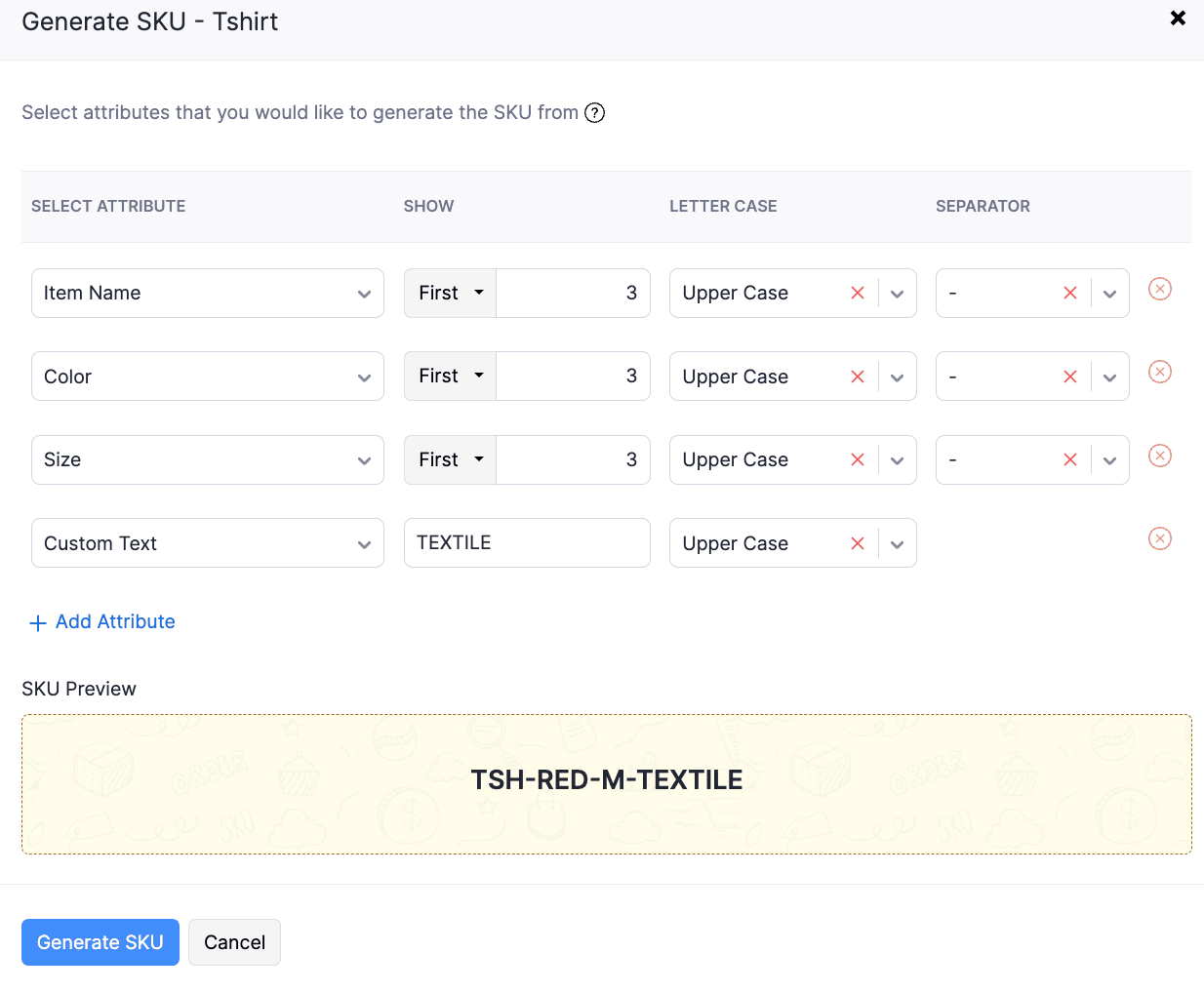
- You can either manually enter SKU or automatically generate. To generate automatically,
- Click the Generate SKU option under the SKU column.
- Add or remove the Attributes.
- Under the Show field, specify the number of letters to display for each attribute. You can choose to display the letters from the First or Last part of the attribute value.
- Select the preferred letter case (Uppercase or Lowercase) from the drop down under Letter Case.
- Choose a separator for the SKU, such as -, /, :, ., #, or ×.
- To add custom text to the SKU, under the Select Attribute column click the dropdown and select Custom Text. Enter the required text.
- To remove an attribute from the SKU pattern, click the ⓧ icon next to the separator field.
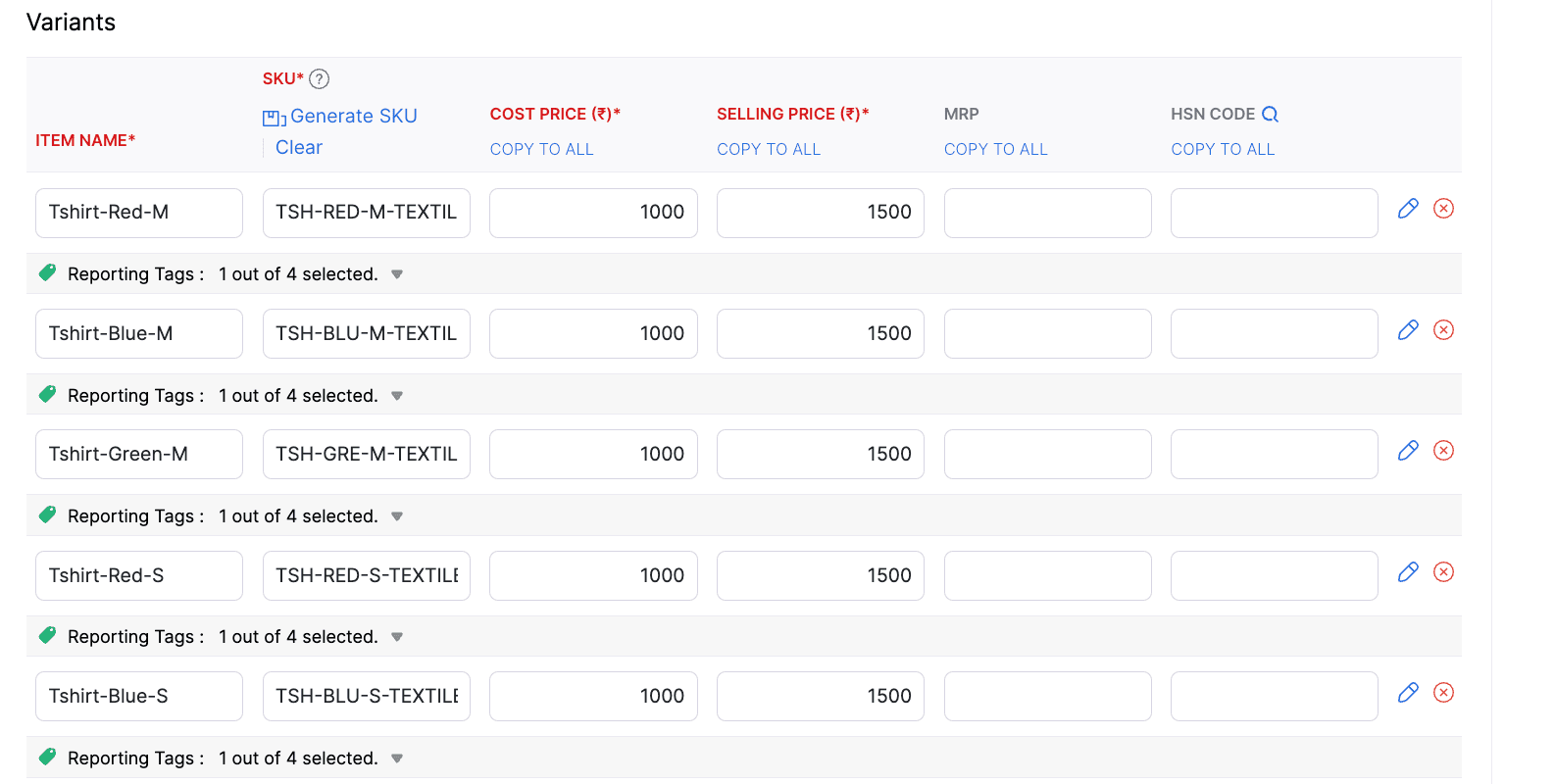
- Once you have configured the pattern, click Generate SKU to create SKUs for all variants.
- Enter the Cost Price and Selling Price for each variant.
Insight: If the Cost Price or Selling Price is the same for all variants, enter the value for one variant and click Copy to All to apply it to all variants at once.
- Click the Pencil icon to add identifier details. You can also view the custom fields and enter their values. Click Save.
- To rename a variant, click its name field and edit it as required.
- To remove a variant, click the x icon next to the Pencil icon.
- You can add Reporting Tags for each variant item in the section below.
- Once done, click Save.
Collapased View
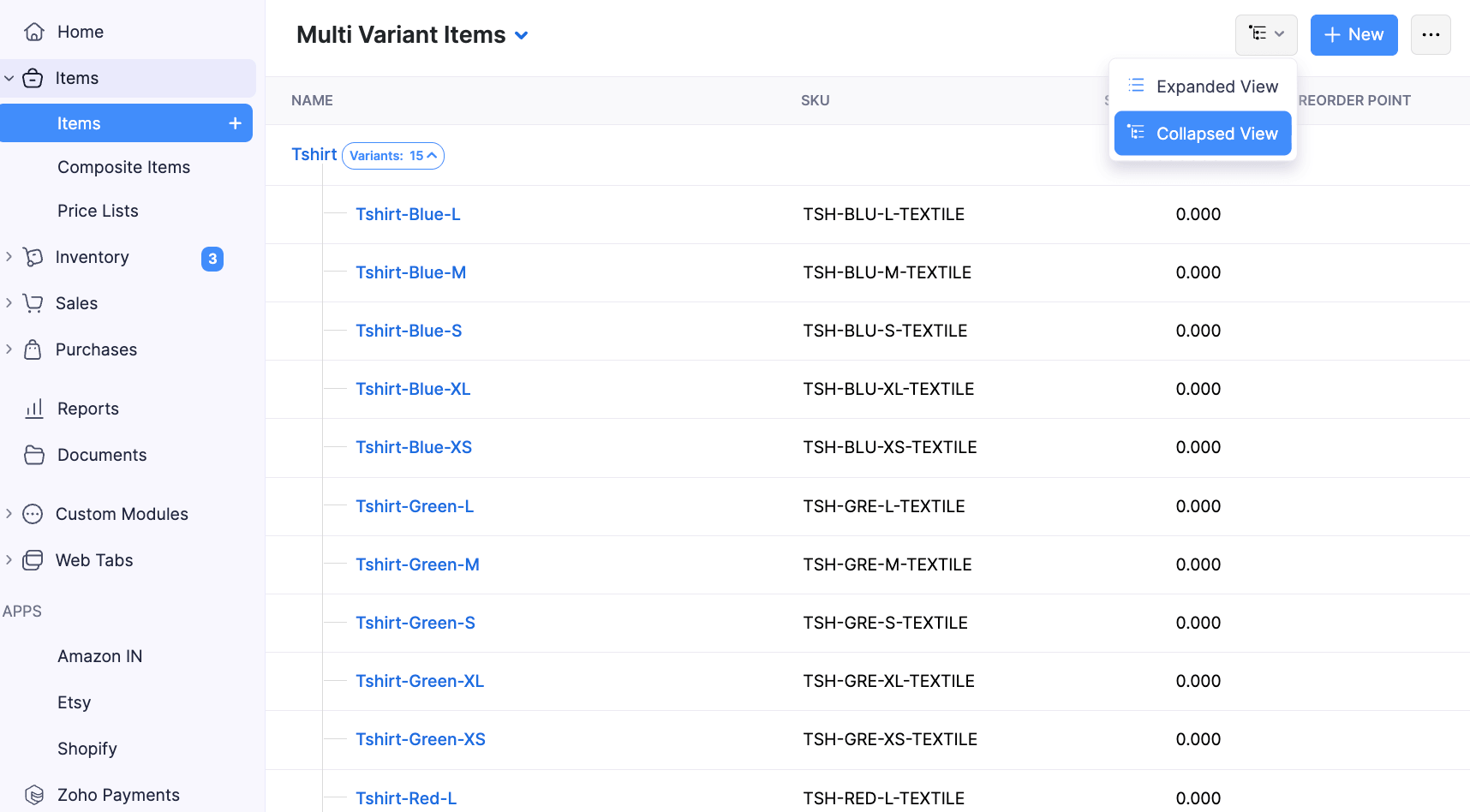
To view the associated variants of the item in the items list view page,
- Navigate to Items under Items the left sidebar.
- Click the View icon in the top right corner.
- Select Collapsed View from the dropdown.
Advance Inventory Tracking
Zoho Inventory provides two advance features to track your stock flow accurately. But first, make sure to enable Advance Inventory Tracking in your item preferences and check the Track Inventory option in the New Item page to access the advanced inventory tracking options for your item.
Insight:
- Your current subscription plan in Zoho Inventory must allow you to access the advanced inventory tracking features.
- Each item can be tracked either by serial numbers or by batch numbers, but not both.
Track Serial Numbers
To track your item by serial numbers:
Open the new item page and fill in the necessary details.
Choose the Track Serial Number option under Advanced Inventory Tracking.
If you’ve entered an opening stock, you can add serial numbers for the given opening stock in the field below.
If you have enabled multi-warehouse in your organization, click the ellipsis icon at the end of each warehouse row and click Add Serial Numbers.
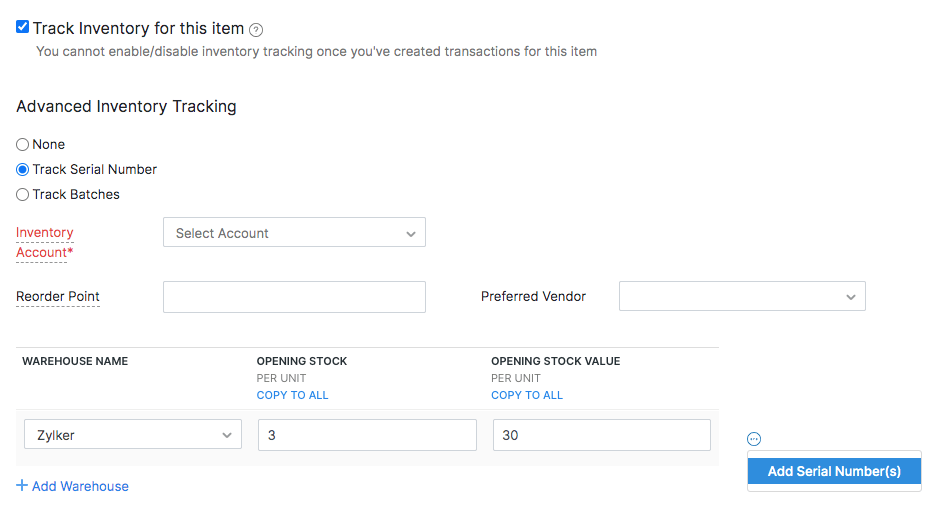
Enter the serial number for the opening stock given in each warehouse.
Insight:
- You can enter up to 200 serial numbers for an opening stock.
- You can either enter the serial numbers manually or scan the barcode of the item.
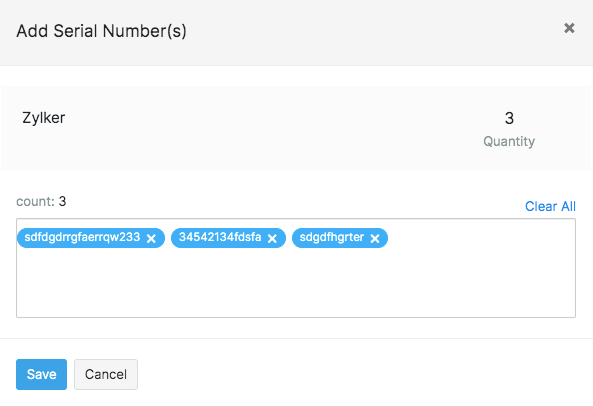
Click Save. The serial numbers will now be available for your sales transactions. You can also choose to save the item and enter the serial numbers at a later point while creating a bill.
Pro Tip: You can also add serial numbers to composite items.
Track Batch Numbers
Open the new item page and fill in the necessary details.
Choose Track Batches under Advanced Inventory Tracking.
If you’ve entered an opening stock, you can add batch details for the given opening stock in the fields below.
If you have enabled multi-warehouse in your organization, click the ellipsis icon at the end of each warehouse row and click Add Batches.
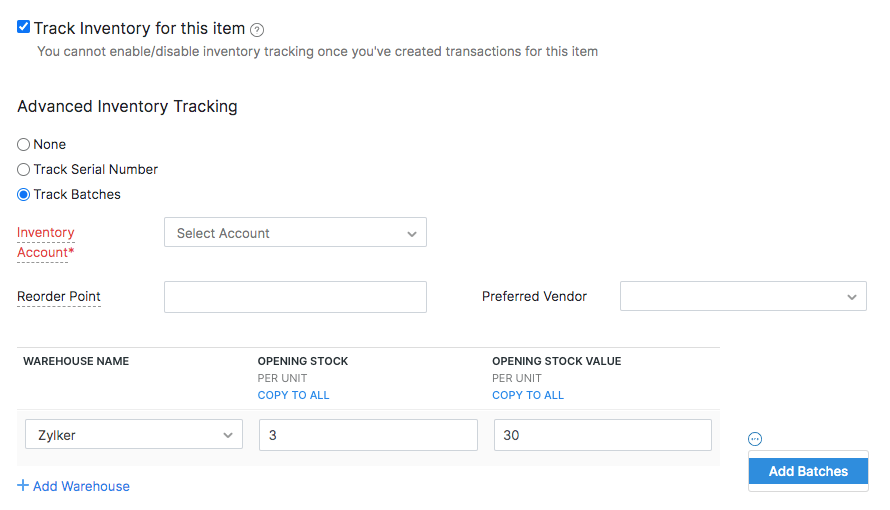
Enter the batch details for the opening stock given in each warehouse.
Insight: You can enter up to 100 batch numbers for an opening stock.
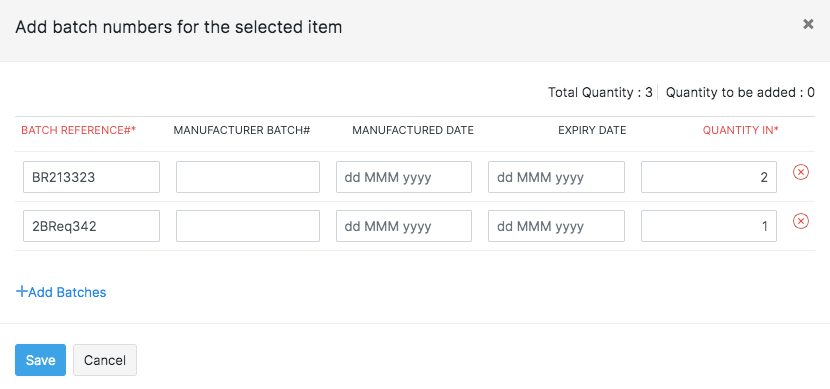
| Field Name | Description |
|---|---|
| Batch Reference# | A unique number which will serve as a reference for you to save and track your batches in Zoho Inventory. This is not the manufacturer batch number. |
| Manufacturer Batch# | Batch number provided by your manufacturer. |
| Manufactured Date | The date on which the item was manufactured. |
| Expiry Date | The date until which the item is consumable. |
| Quantity in | Quantity of the item that you wish to add in each batch. |
Insight: You can enter decimal quantity (up to 6 decimal places) for batches. For instance, a certain quantity of milk has to be divided into batches. In Zoho Inventory, you will be able to add 1.91L in batch 1 and 3.560L in batch 2 and so on.
- You’ll also be able to enter batch numbers for items while recording a new bill.
Import Items
To import items into your Zoho Inventory account:
Go to the Items module under Items from the left sidebar.
Click on the
 icon.
icon.Select the Import Items option.
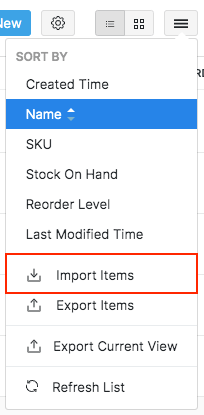
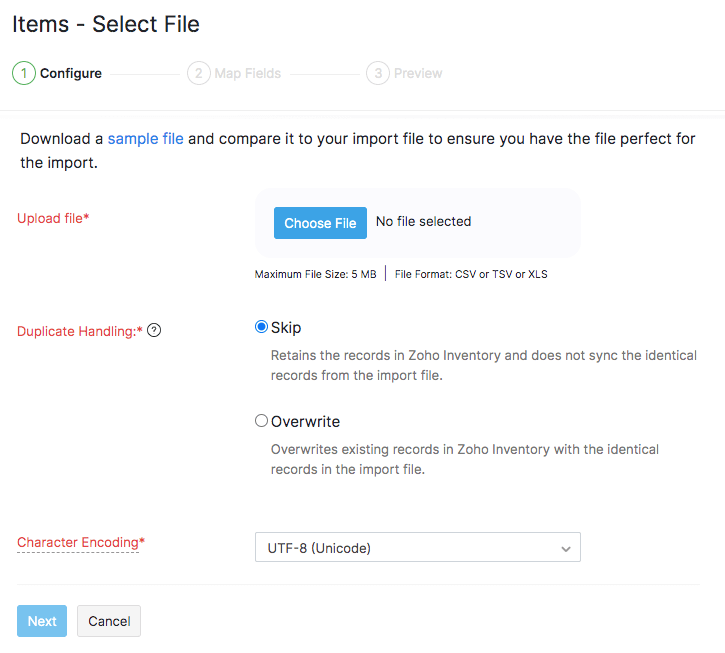
Click Upload File to browse and select the file to upload from your device.
To update the details of all your items at one go, you can choose the overwrite option while importing. Learn how.
Choose the character encoding involved from the dropdown. By default, the character encoding is UTF-8(Unicode).
Choose the File Delimiter(comma or semicolon). By default it will be comma for a .csv type file.
Click Next to proceed to mapping the fields.
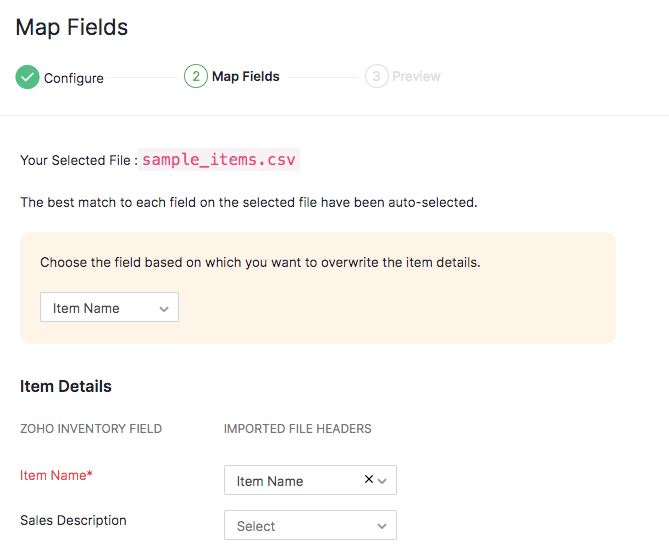
To overwrite duplicate records, you must choose a unique field (Item Name, Item ID or SKU) which will be mapped with the equivalent field from the import file. If the values match, then its corresponding records will be overwritten with the data in the import file. For example, if you want to update item names, you can choose Item ID or SKU as the unique field. If the SKU/Item ID that you’re trying to import exists, then its corresponding item name and other details will get updated.
Zoho Inventory finds similar fields and maps them automatically. You can make changes, if needed.
Check the box near the Save these selections for use during future imports option to automate mapping for future imports.
Click Next to proceed to the Preview window.
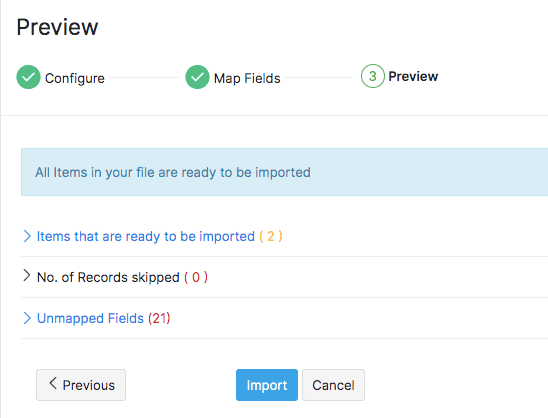
View a summary of the number of invoices ready for import, number of skipped records and unmapped fields will be shown.
Click Previous to make any changes. If everything is ready, click Import.
Import Items from Zoho Books
Zoho Books is an in-house accounting platform that is built to seamlessly integrate with Zoho Inventory. This means that all your customer information, item information, transactions etc., entered in one of these platforms will automatically be available in the other, thus, preventing double entry.
If you already have an organization in Zoho Books, learn how you can integrate it with Zoho Inventory.
Import Products from Zoho CRM
You can pull the items into Zoho Inventory from Zoho CRM. Learn more about:
- Integrating Zoho Inventory with Zoho CRM.
- Configuring your product sync.
- Triggering an instant sync between Zoho Inventory and Zoho CRM.
Pro Tip: The items synced from Zoho CRM will only have sales information. To enable inventory tracking for these items, you must first edit them and enable purchase information.
Curate your own kits and sell them in special prices with item grouping