


Digital Signature

A digital signature authenticates the documents you send to your customers, ensuring they can trust that the document originated from you and prevents unnecessary tampering.
How Does Digital Signature Work in Zoho Inventory?
The Digital Signature feature in Zoho Inventory allows you to apply digital signatures to transactions such as invoices, purchase orders, and credit notes. Let’s understand this better with a scenario.
Scenario: Zylker is a wholesale distributor that sends hundreds of invoices and purchase orders every month. Patricia Boyle, the finance head, wants every document leaving the organisation to be authentic and impossible to alter once issued. She enables Digital Signature in Zoho Inventory and signs each invoice with the company’s USB token before it’s sent. Now, when her customer, Charles Stone, receives an invoice, he can verify that it genuinely came from Zylker and was not tampered with along the way.
Prerequisites:
- Signing transactions with a digital signature is supported only on the Zoho Inventory Windows app (India Edition). You can enable the feature from the web app or the Windows app.
- You must have an active Zoho Inventory subscription plan that supports digital signatures. To check if this feature is available in your plan, visit our pricing page.
- You must have a USB token or a USB device containing your digital signature certificate.
Enable Digital Signature
To use the Digital Signature feature in Zoho Inventory, you must first enable it. Choose your platform and follow the steps to enable Digital Signature:
- Log in to your Zoho Inventory account on a web browser.
- Go to Settings in the top right corner of the page.
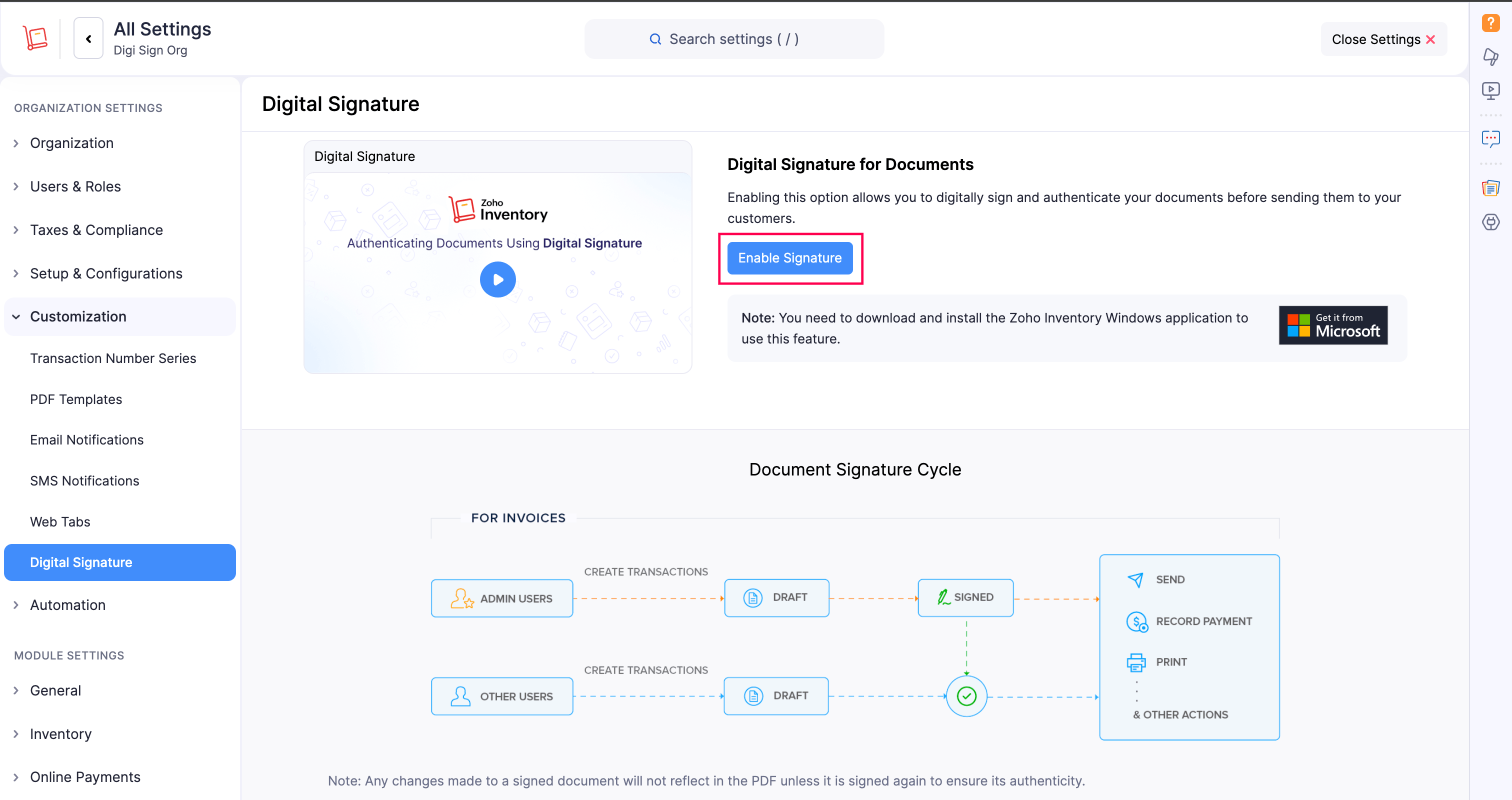
- Select Digital Signature under Customisation.
- Click Enable Signature.
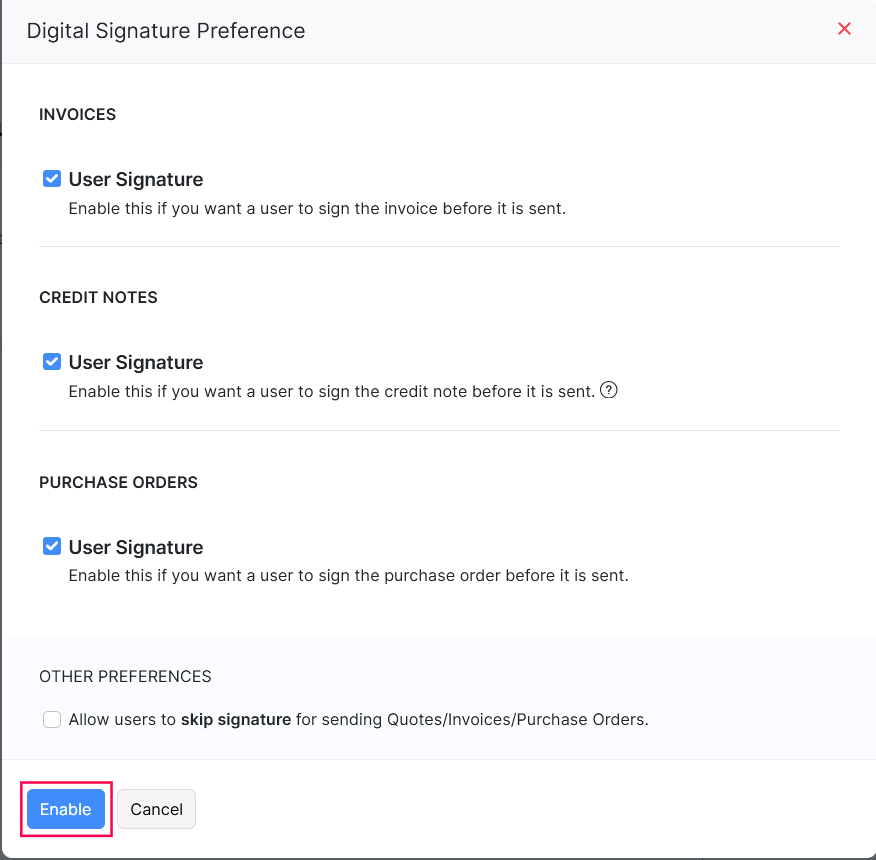
- In the following pop-up, configure the Digital Signature Preference.
- Check User Signature under Invoices, Credit Notes, and Purchase Orders to enable digital signature for the respective modules.
- Under Other Preferences, check Allow users to skip signature for sending Quotes/Invoices/Purchase Orders if you want your users to send transactions without a digital signature.
- Click Enable.
- Log in to your Zoho Inventory account in the Windows application.
- Go to Settings in the top right corner of the page.
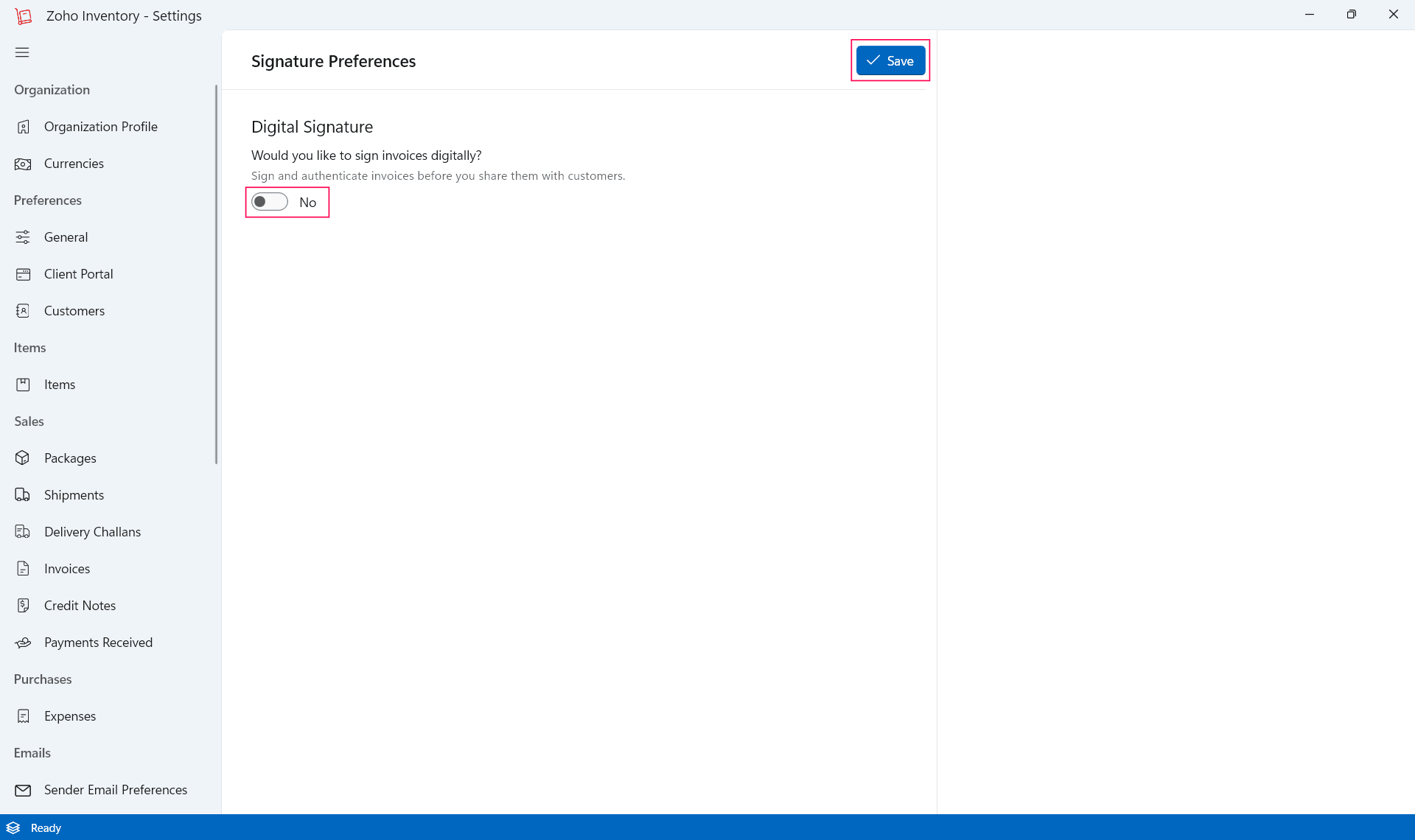
- In the Settings window that opens, click Signature on the left sidebar.
- Click the toggle button next to No.
- Select the Make digital signatures mandatory for all transactions option if you want to make digital signatures mandatory for all transactions.
- Select the entities for which you want to enable digital signature under the Entities Supported section.
- Configure how your signature must appear on the transaction PDFs by selecting the required placeholders under the Signature Format section.
- Click Save in the top right corner.
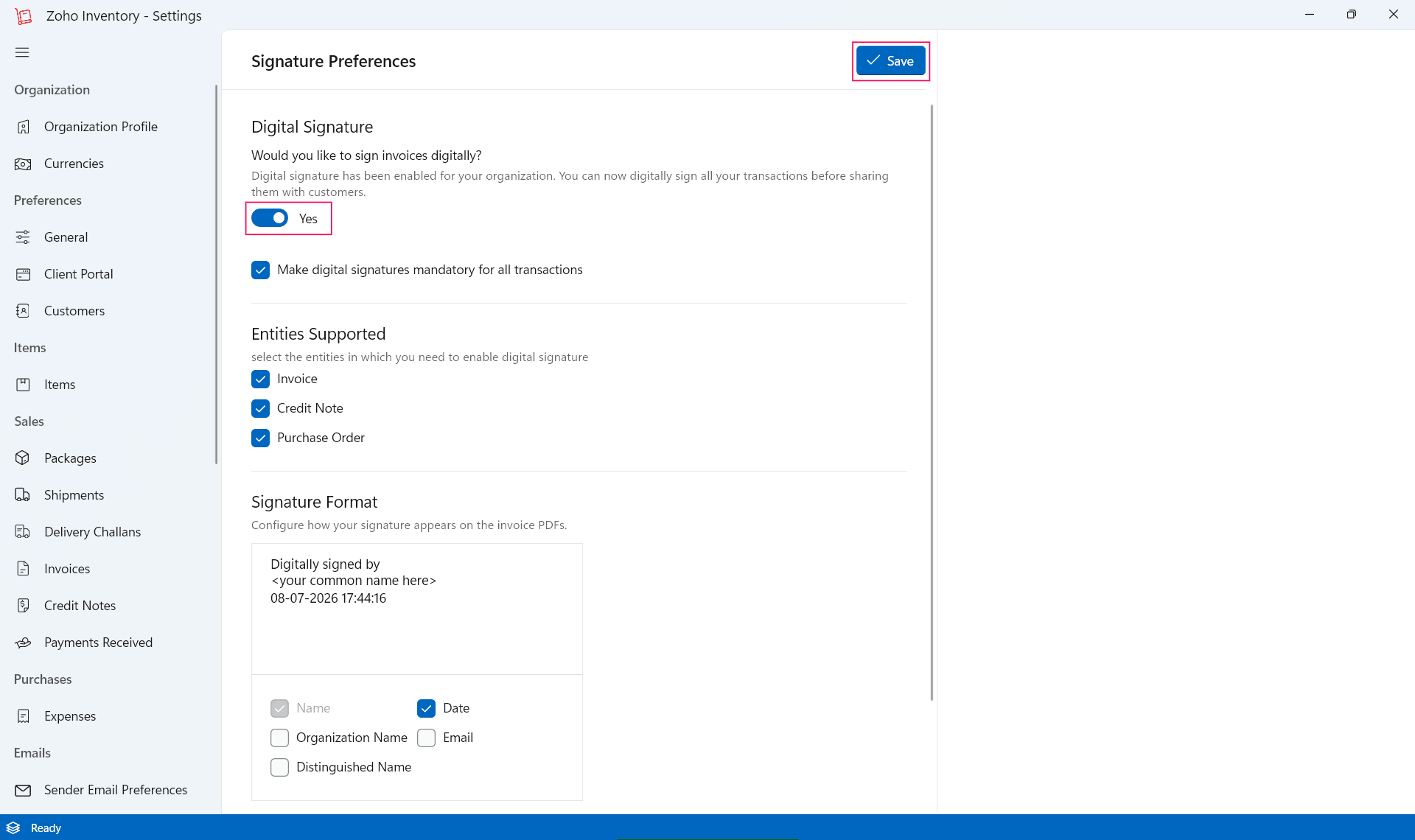
Now, digital signature will be enabled for your Zoho Inventory organisation.
Apply Digital Signatures
Once enabled, sign transactions in the Zoho Inventory Windows application.
To apply a digital signature:
- Log in to your Zoho Inventory account in the Windows application.
- Connect your USB token to your Windows device.
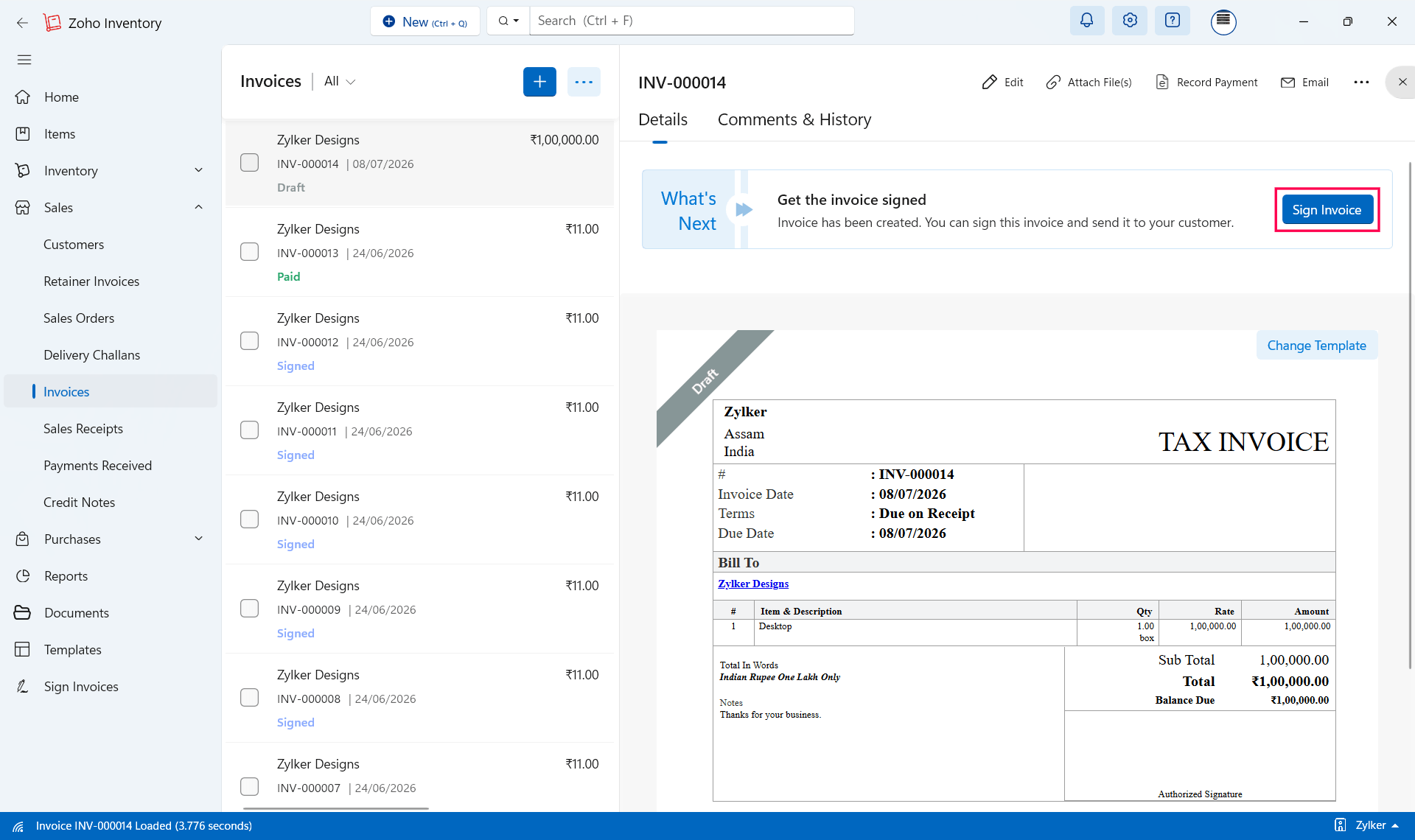
- Go to Sales on the left sidebar and select Invoices.
- Select an invoice for which you want to apply digital signature.
- Click the Sign Invoice button on the What’s Next banner. Otherwise, click the More icon in the top right and select Sign.
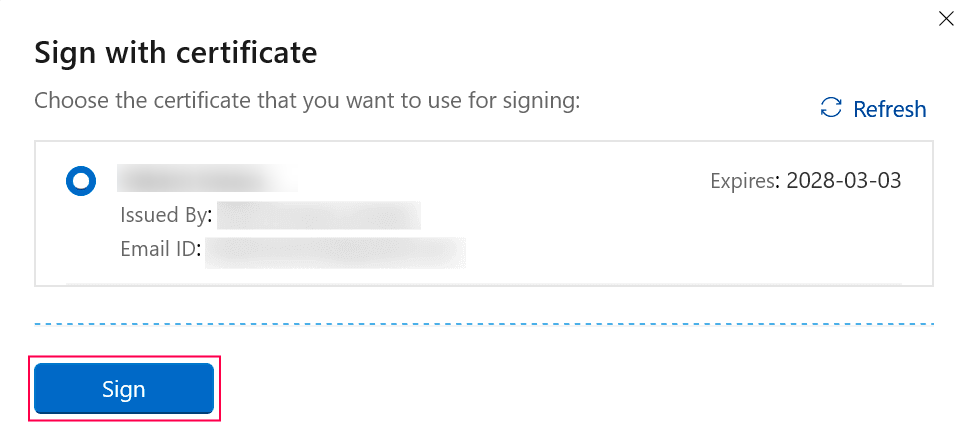
Note: A pop-up named Sign with certificate will appear. If your USB token (certificate) is currently connected to your Windows device, Zoho Inventory will list the certificate in this pop-up. Else, connect it now and click Refresh for Zoho Inventory to list that certificate in the pop-up.
- Select the certificate in the Sign with certificate pop-up and click Sign.
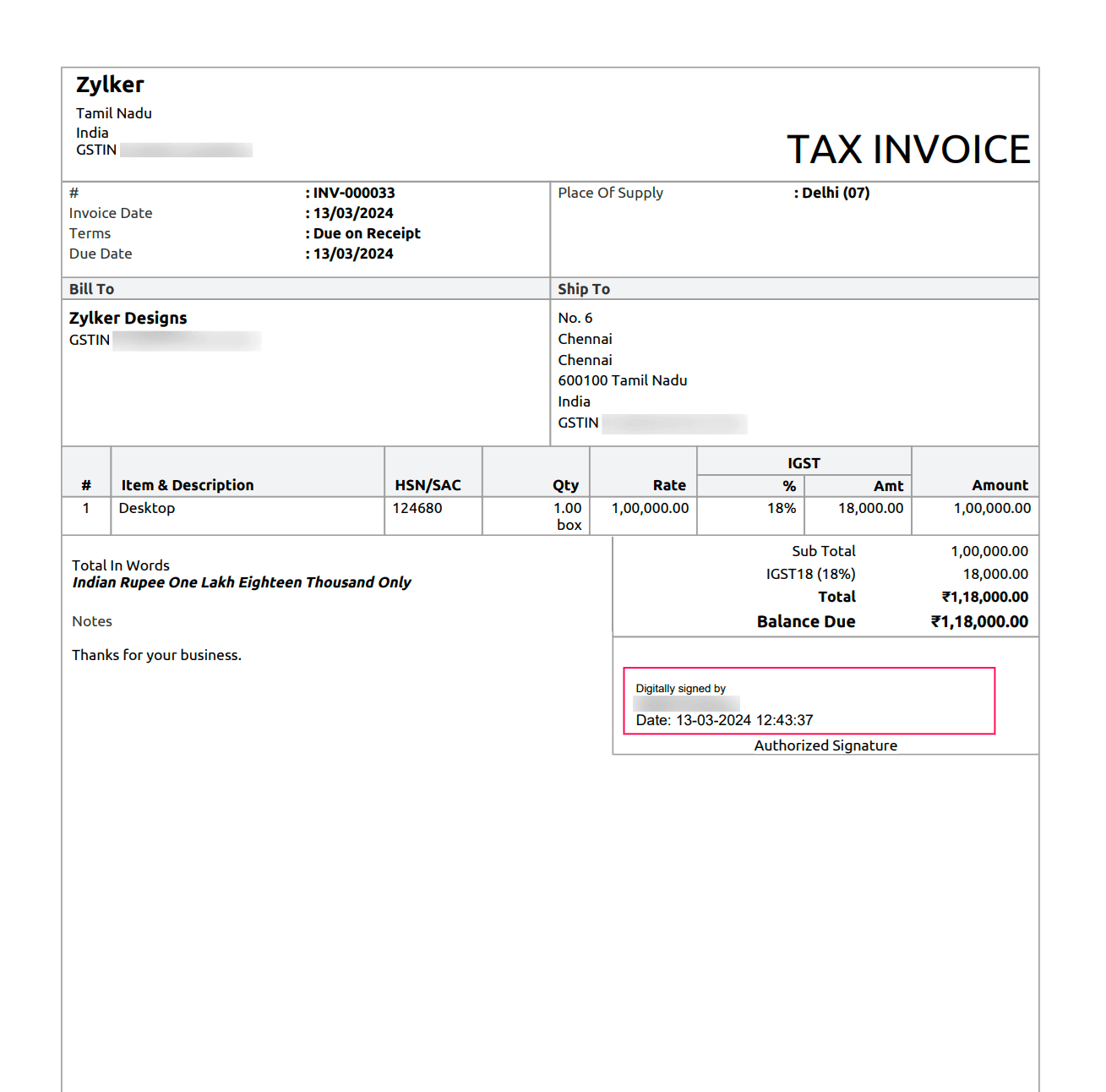
Once you click Sign, your invoice will be marked as Signed in Zoho Inventory and will open in the default PDF reader on your Windows device. The digital signature will be displayed at the bottom of your invoice PDF.
Notes:
- You can sign only approved transactions (invoices, credit notes, and purchase orders), if you have enabled Approvals.
- You can send transactions to your customer only after signing them digitally.
- The signed version of the transactions will be available only as PDFs.
- If you edit a digitally signed transaction, you must sign it again after editing. Only then will the changes reflect in the PDF. The changes will also reflect in the customer portal automatically. If you haven’t enabled the customer portal, you must sign the invoice again and resend the PDF to your customer.
- In the Windows application, digitally signed documents will not be listed in the Signature module.