


Manage Booking Process
If your organisation’s Travel Desk books tickets for employee business trips, Trip Options in Zoho Expense helps you manage the booking process and keep travellers updated.
Trip Options are the different options that the Travel Desk provides for flights, hotels, trains, buses, or other travel modes for an employee’s business trip.
The Travel Desk can provide travellers with multiple options for flights and hotels based on the trip date, schedule of meetings, and other requirements. Once the traveller selects an option, the Travel Desk can book the tickets and upload the booking information to Zoho Expense. This enables the Travel Desk to handle the booking process while travellers track the booking status from Zoho Expense.
Let’s take a look at how the Travel Desk can manage the booking process in Zoho Expense.
Add Trip Options
Once the trip request is approved, you can add options for flights, trains, buses, and hotels.
Note: This feature is currently available in early access. Write to us at support@zohoexpense.com to enable it for your organisation.
Let’s take a look at the different types of trips and learn how to add options for each trip.
One-way trip
John is a salesperson at Mathew & Co. He has been transferred from New Delhi to Kuala Lumpur. In this case, you can add options for the itinerary from New Delhi to Kuala Lumpur.
Round trip
John wants to take a round trip between New Delhi and Kuala Lumpur. In this case, there are two itineraries for which a single ticket can be booked. The two itineraries are:
- New Delhi to Kuala Lumpur
- Kuala Lumpur to New Delhi
You can bulk add options by selecting both itineraries.
Multi-city trip
Say John has travelled from New Delhi to Kuala Lumpur. From Kuala Lumpur, he wants to go to Layang Island and travel back to New Delhi from Layang Island. In this case, you can bulk add options to the three itineraries for which a single ticket can be booked. The three itineraries are:
- New Delhi to Kuala Lumpur
- Kuala Lumpur to Layang Island
- Layang Island to New Delhi
Add Options
To add options for an itinerary:
- Click Admin View.
- Go to Trips.
- Click the trip for which you want to add options.
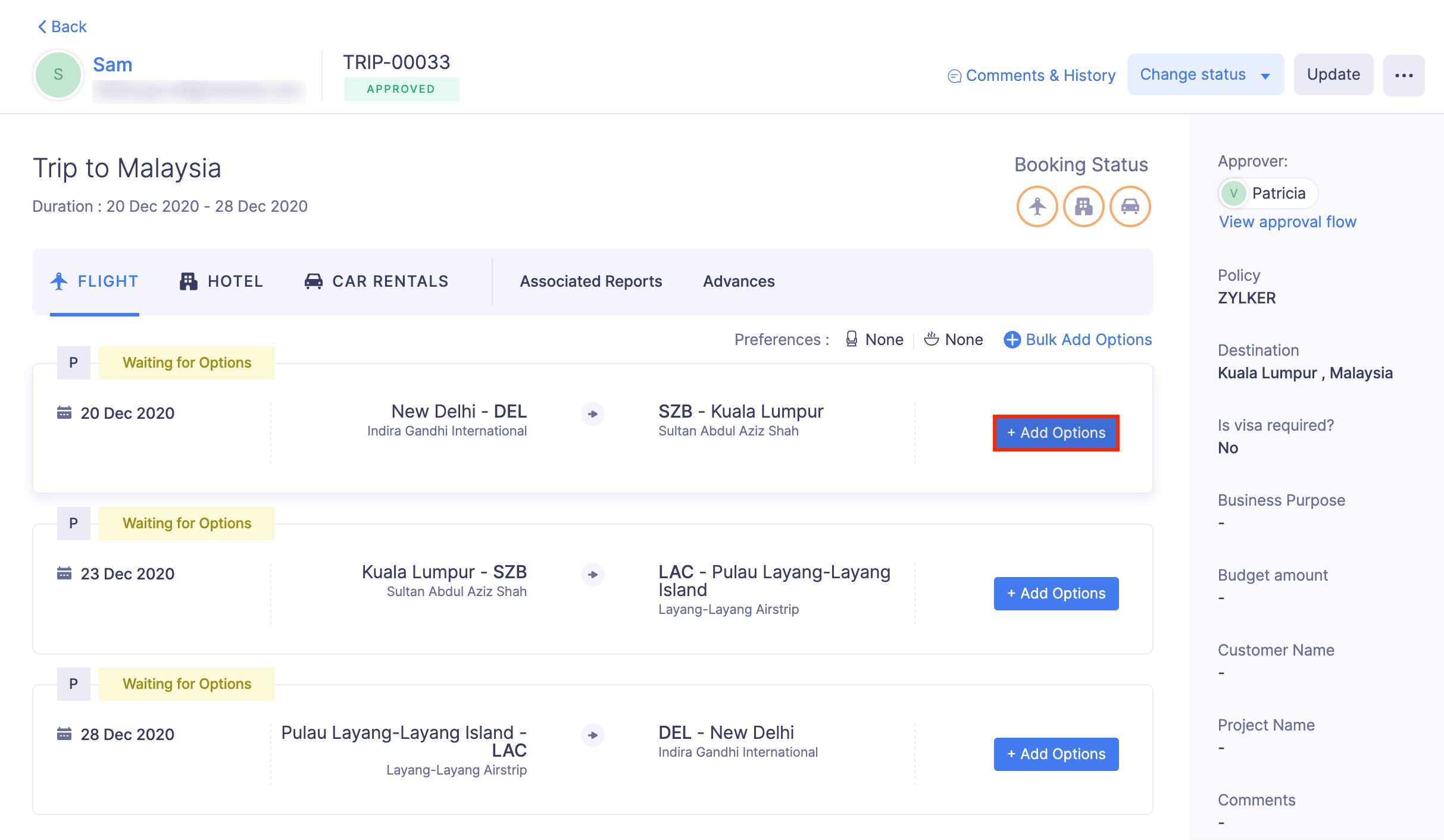
- If you want to add options for a flight, navigate to the Flight tab. Click + Add Options at the right corner of the itinerary for which you want to add options.
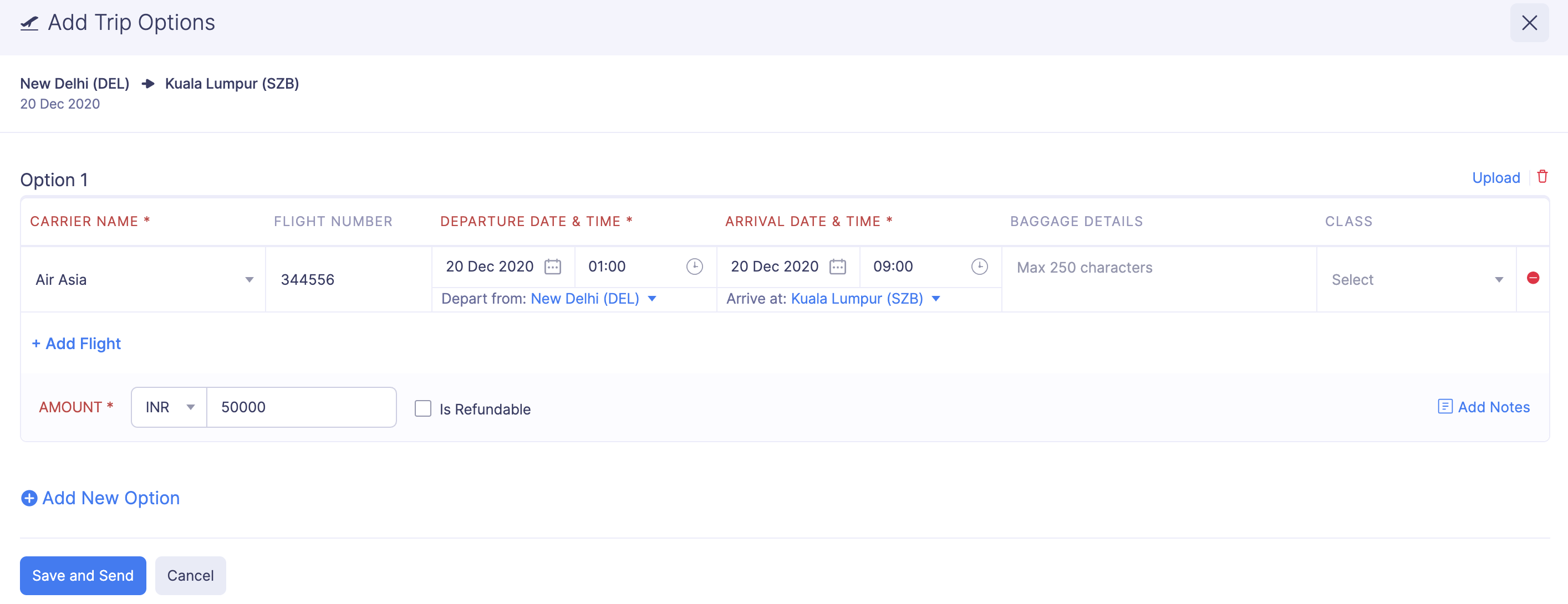
- Fill in the following flight details in the Add Options page:
- Carrier Name
- Flight Number
- Departure Date & Time
- Depart from
- Arrival Date & Time
- Arrive at
- Baggage Details
- Class
- Amount
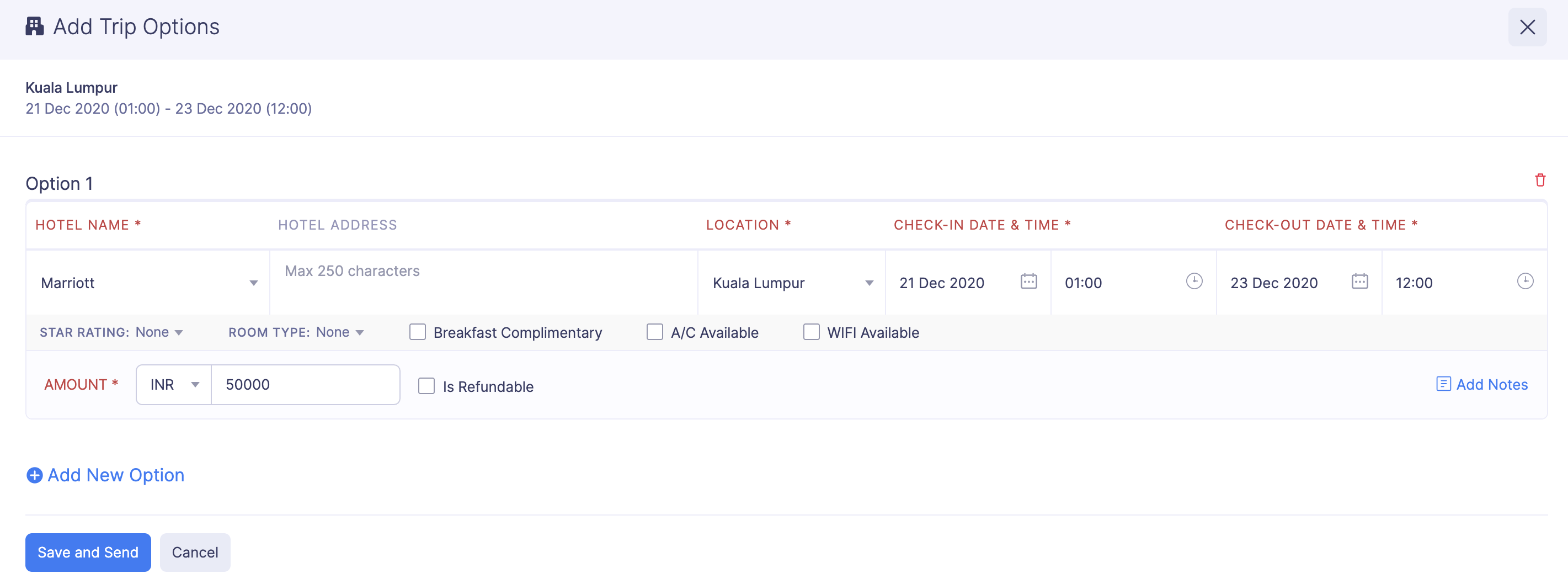
- If you want to add options for a hotel, navigate to the Hotel tab. Click + Add Options at the right corner of the itinerary for which you want to add options. Fill in the following hotel details in the Add Options page:
- Hotel Name
- Hotel Address
- Location
- Check-in Date & Time
- Check-out Date & Time
- Star Rating
- Room Type
- Amount
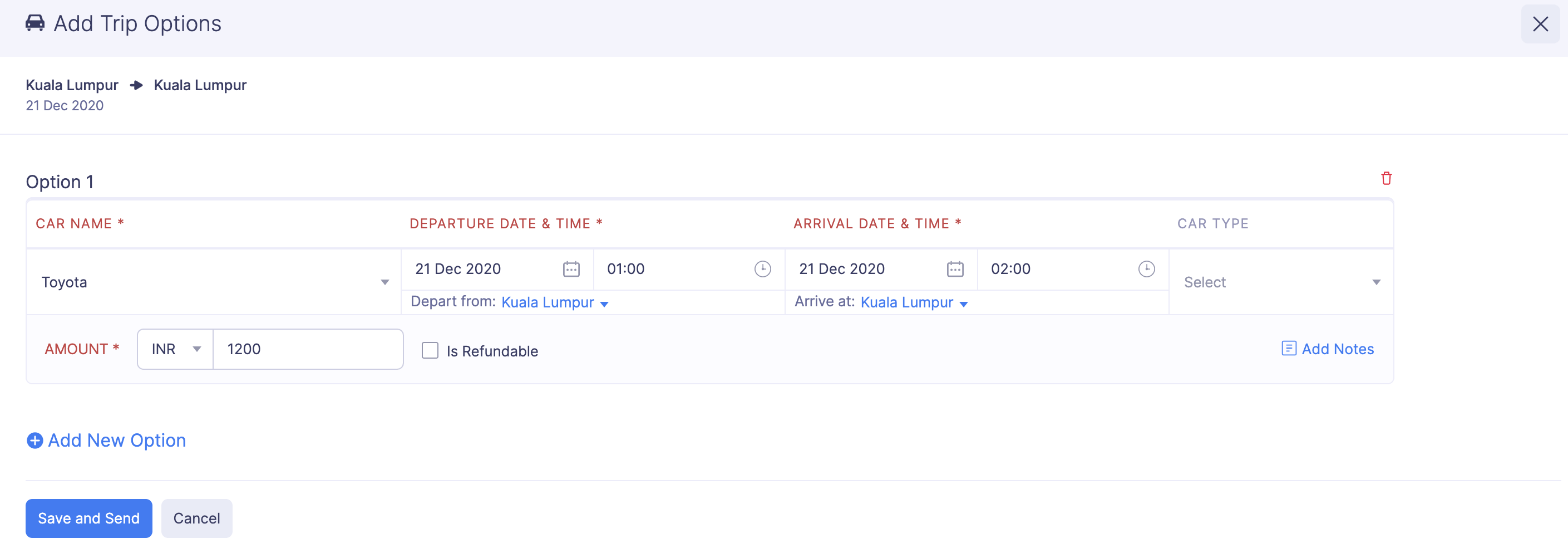
- If you want to add options for a car rental, navigate to the Car Rental tab. Click + Add Options at the right corner of the itinerary for which you want to add options. Fill in the following car rental details in the Add Options page:
- Car Name
- Departure Date & Time
- Depart from
- Arrival Date & Time
- Arrive at
- Car Type
- Amount
- If you want to add options for a bus, train, or ferry, navigate to the respective tab. Click + Add Options at the right corner of the itinerary for which you want to add options. Fill in the following details in the Add Options page:
- Carrier Name
- Flight Number
- Departure Date & Time
- Depart from
- Arrival Date & Time
- Arrive at
- Amount
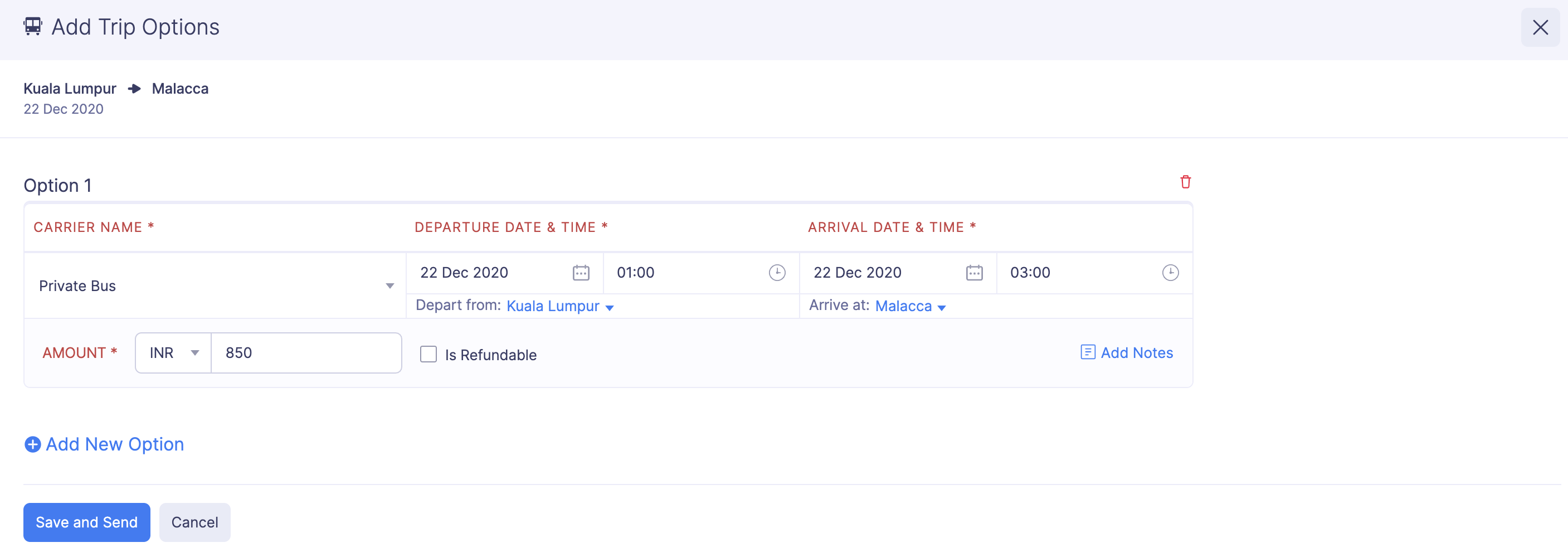
- To add a new option, click + Add New Option and fill in the required fields.
- Click Save and Send.
Note: Mark the Is Refundable option if the booking cost can be refunded on cancellation.
Bulk Add Options
Prerequisite: You can bulk add options only for itineraries that have the same travel mode.
To add options in bulk to more than one itinerary that has the same travel mode:
- Click Admin View.
- Go to Trips.
- Click the trip for which you want to bulk add options.
- Click + Bulk Add Options in the top right corner of the itinerary.
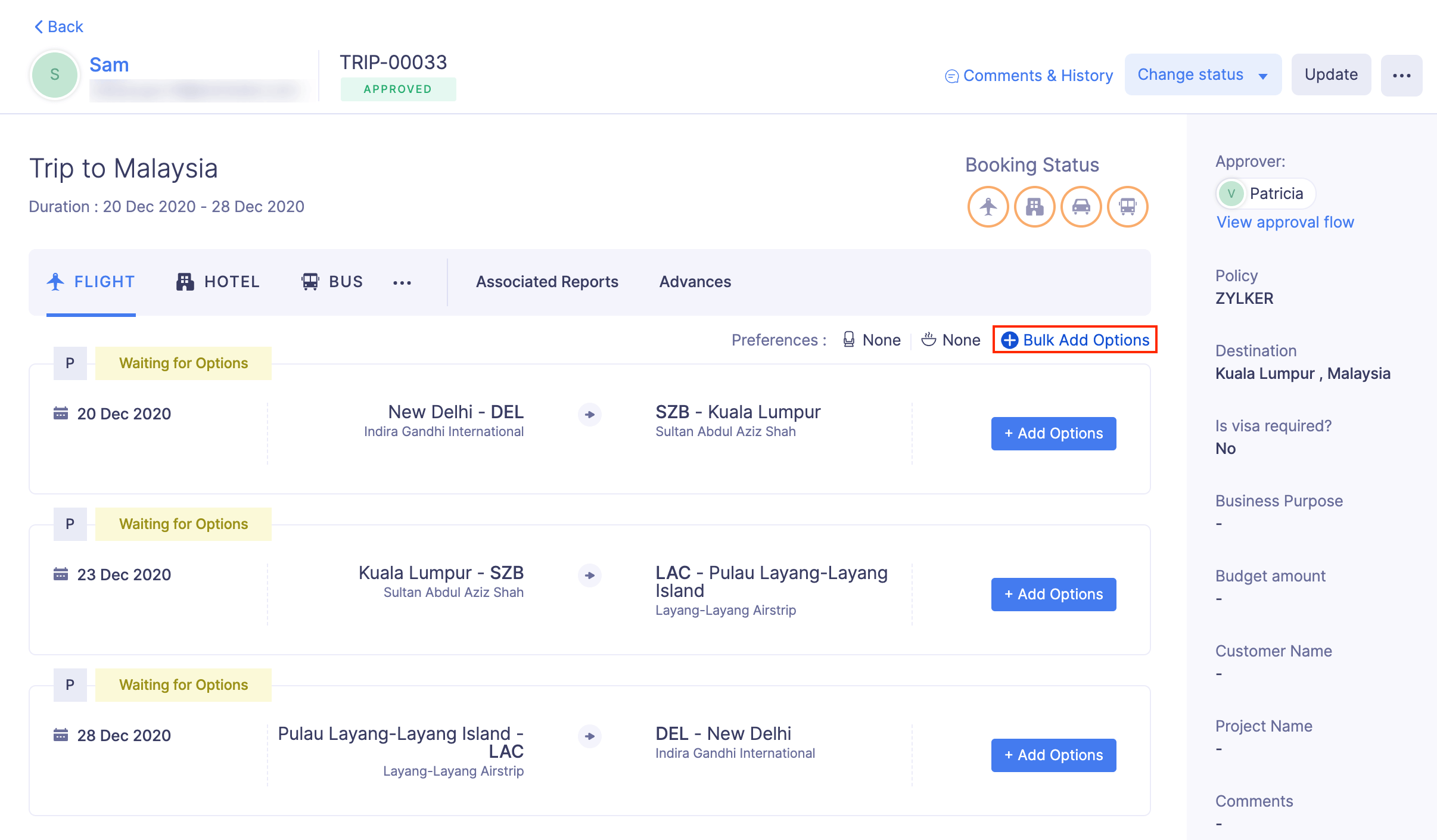
- Select the itineraries for which you want to bulk add options and click Next.

- Fill in the relevant details.
- Click Save and Send.
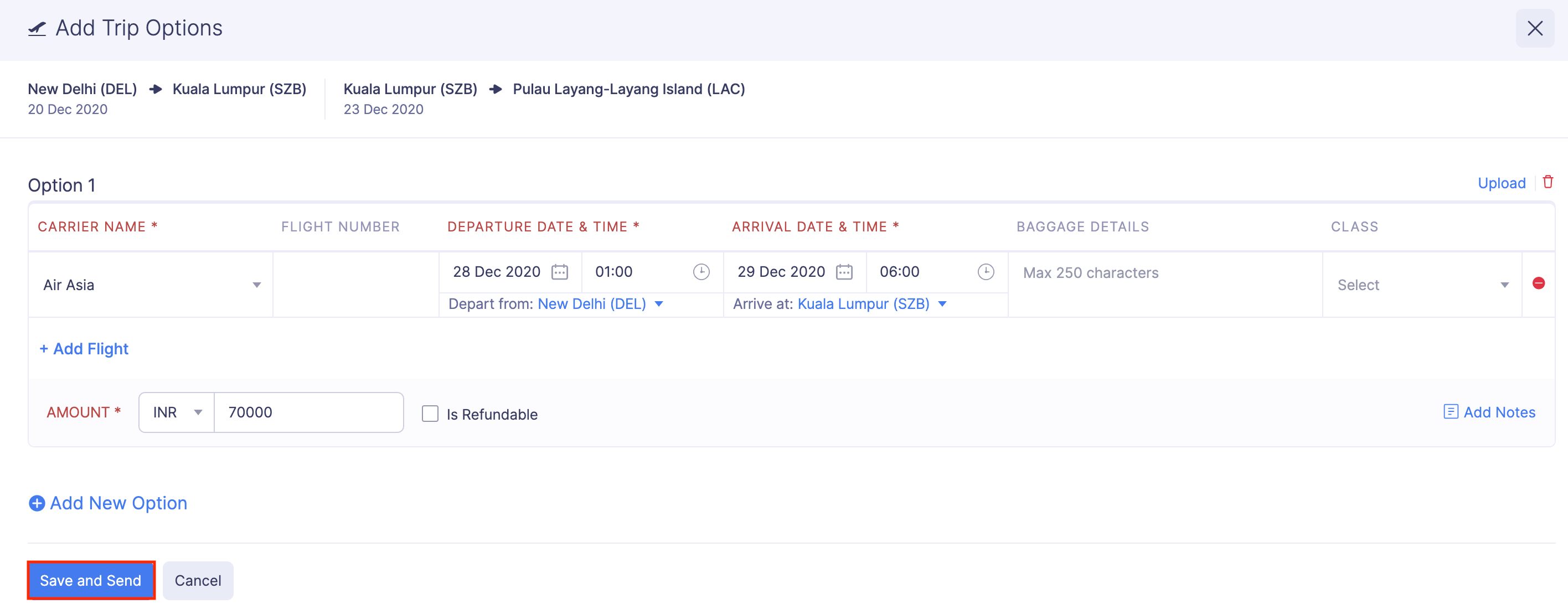
- Once this is done, the trip options you’ve added will be sent to the traveller, and they can select the preferred option.
Edit Options
If you want to make any changes to the options added, you can edit them. To edit an option:
- Click Admin View.
- Go to Trips.
- Click the trip request for which you want to edit the options.
- Navigate to the itinerary for which you want to edit the options and click Edit Options.
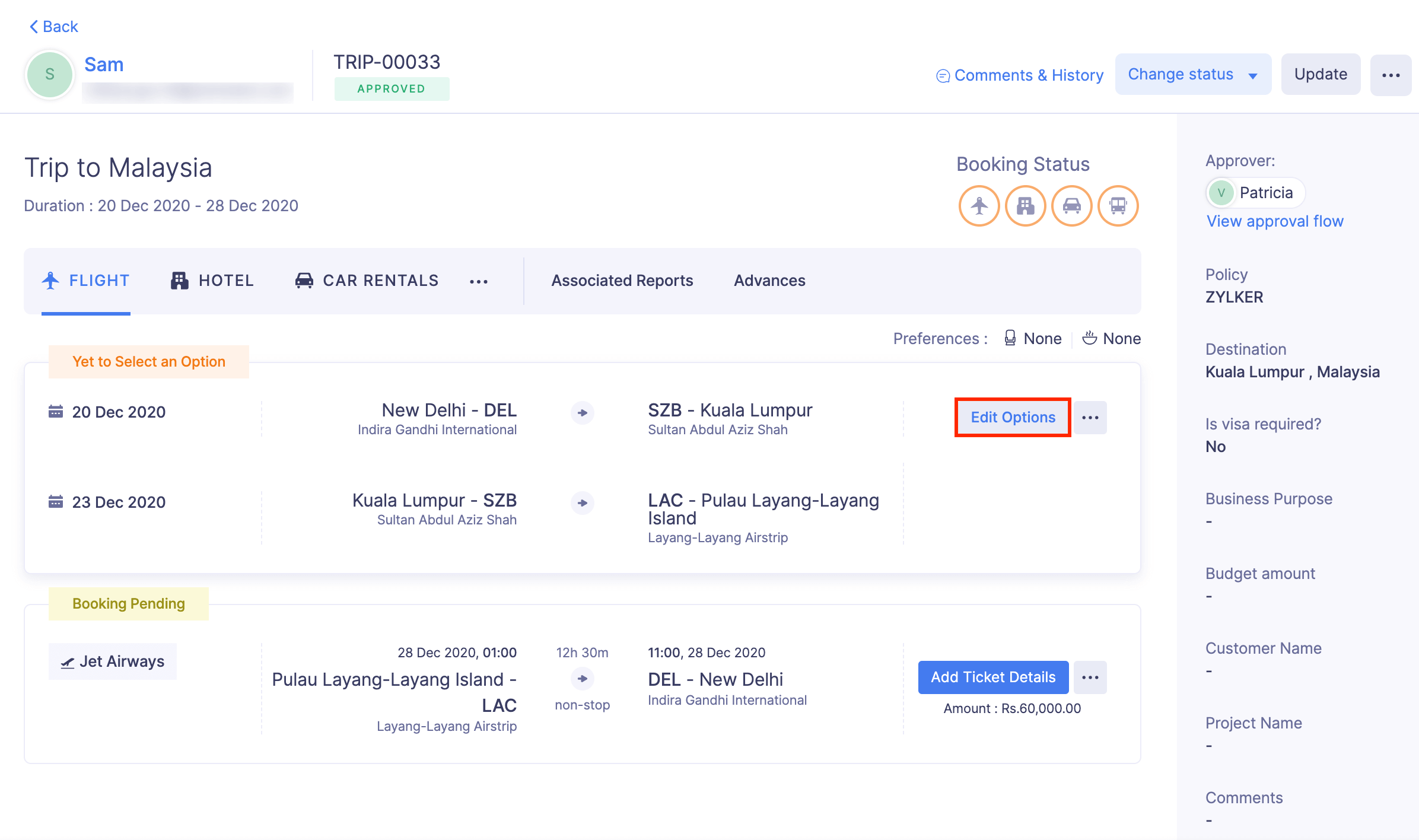
- Edit the required details.
- If you want to edit the options after the traveller has selected an option, click the More icon at the right corner of the itinerary and select Edit Options. You must also provide a reason for editing the options in the Reason for Editing box.
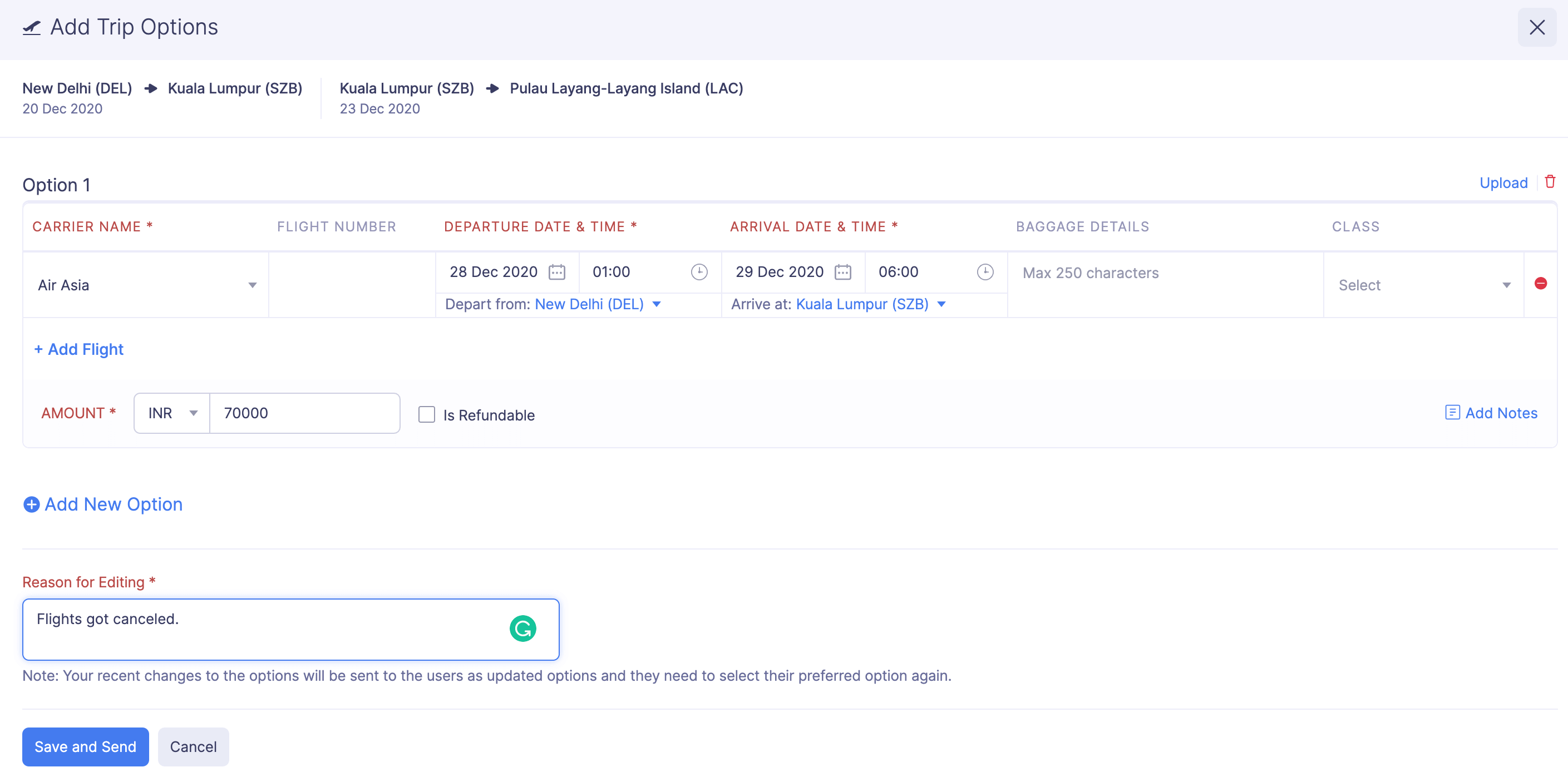
- Click Save and Send.
- Once this is done, the changes will be updated in the traveller’s trip itinerary. If you’ve provided a reason for editing, it will be shown when the traveller hovers over the Options Updated status in their trip itinerary.
Add More Options or Resend Same Options
If a traveller requests more options, the trip itinerary will be labelled as More Options Requested. You can add more options or resend the same options, after which the traveller can select the preferred option.
To add more options:
- Click Admin View.
- Go to Trips.
- Click the trip request for which the traveller has requested more options.
- Click Add More Options at the right corner of the itinerary.
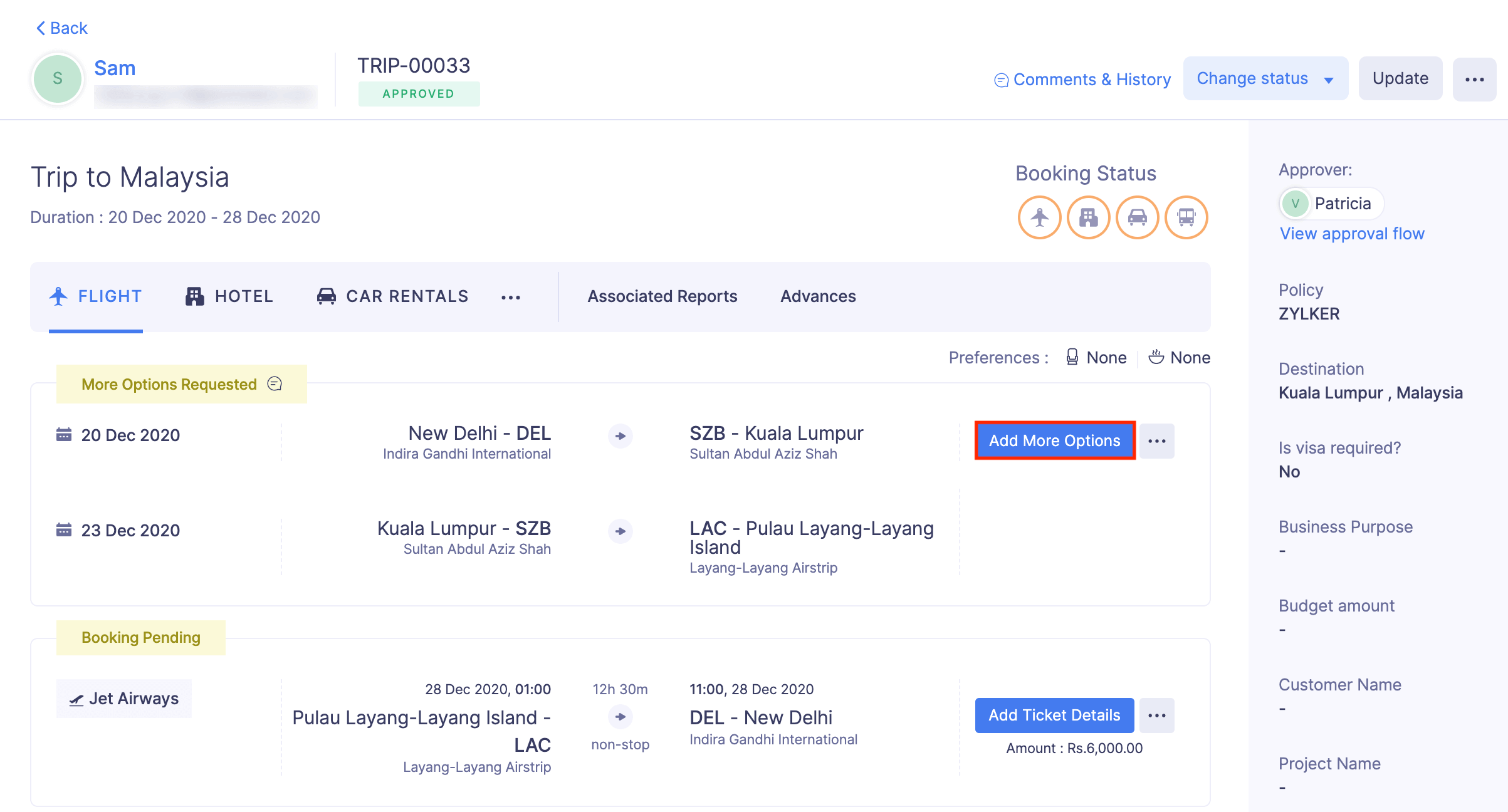
- Click + Add New Option and add the new options.
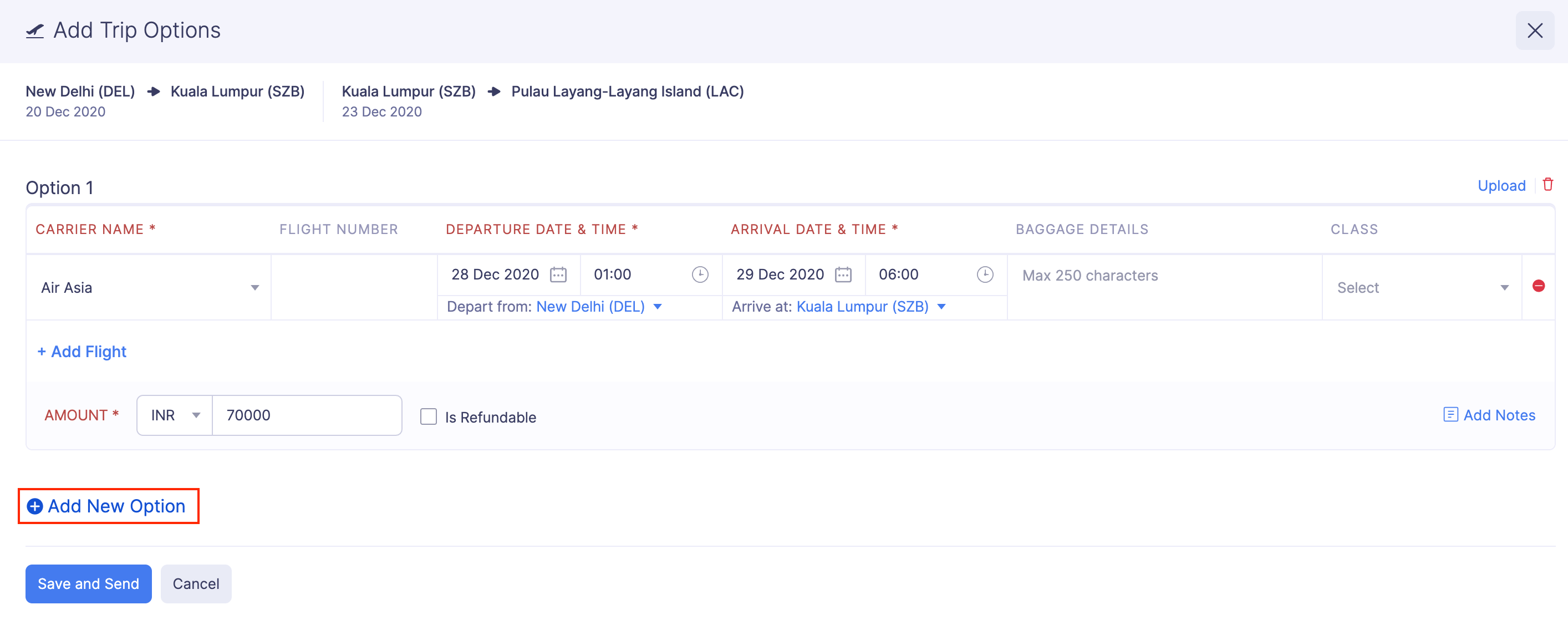
- Click Save and Send.
If the Travel Desk doesn’t have more options, they can resend the same options. To resend the same options:
- Click Admin View.
- Go to Trips.
- Click the trip request for which the traveller has requested more options.
- Click the More icon and select Resend Same Options.
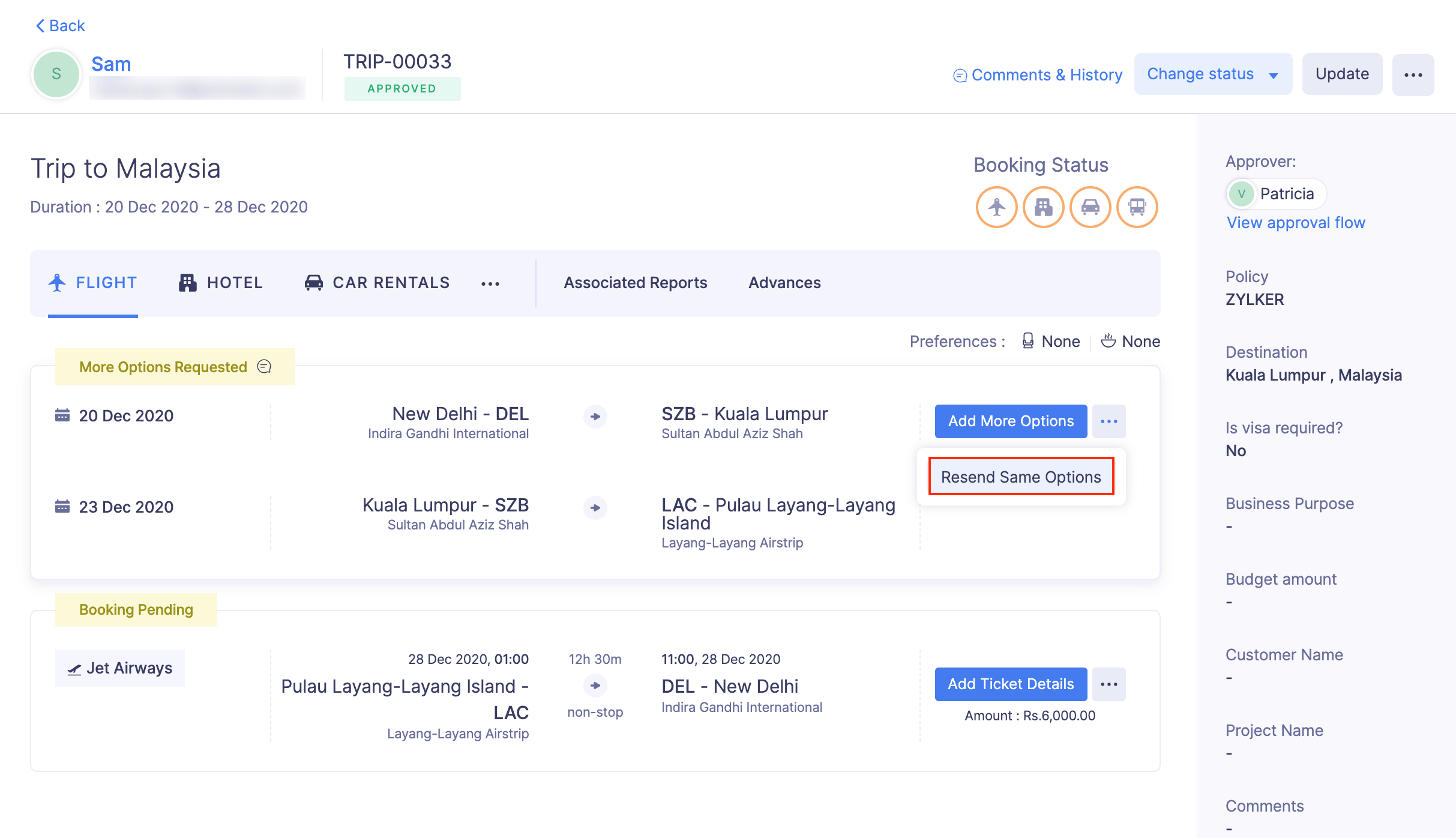
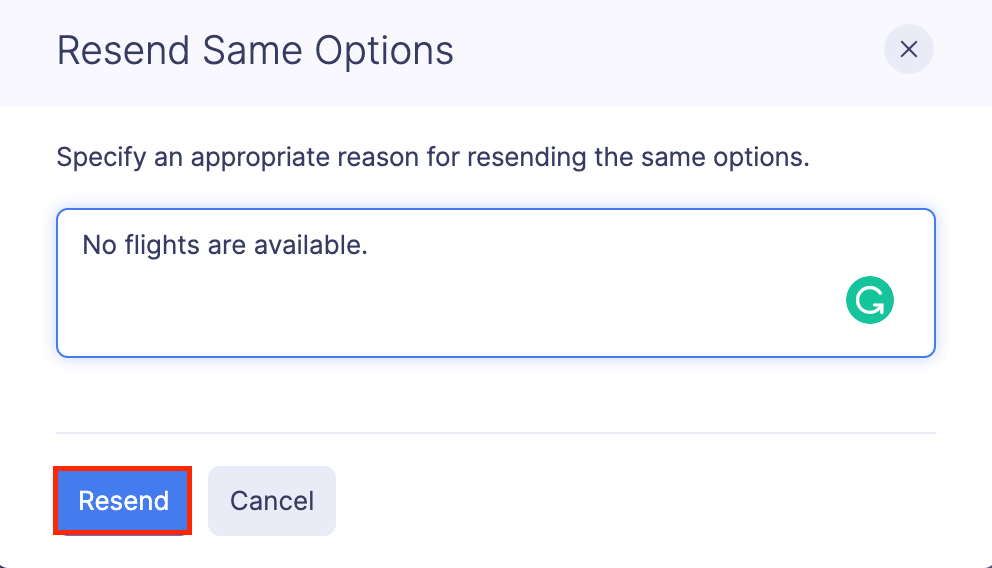
- Provide a reason for resending the options in the Resend Same Options box.
- Click Resend.
Add Ticket or Booking Confirmation
Once an option is selected, you can make the bookings and add the booking details to Zoho Expense. To add ticket or booking details:
- Click Admin View.
- Go to Trips.
- Click the trip request with the selected option to add ticket or booking details.
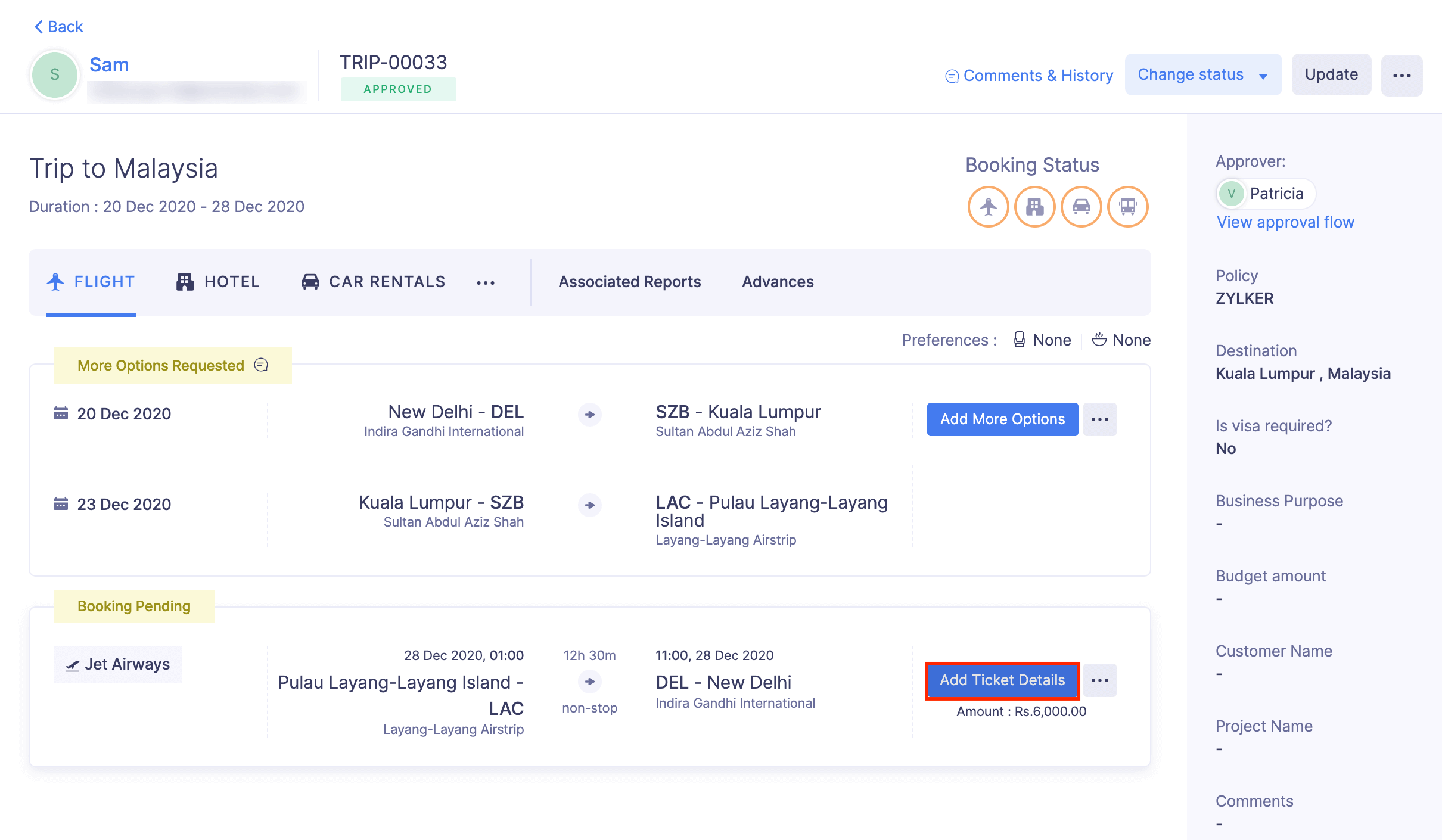
- Click Add Ticket Details or Add Booking Details at the right corner of the itinerary.
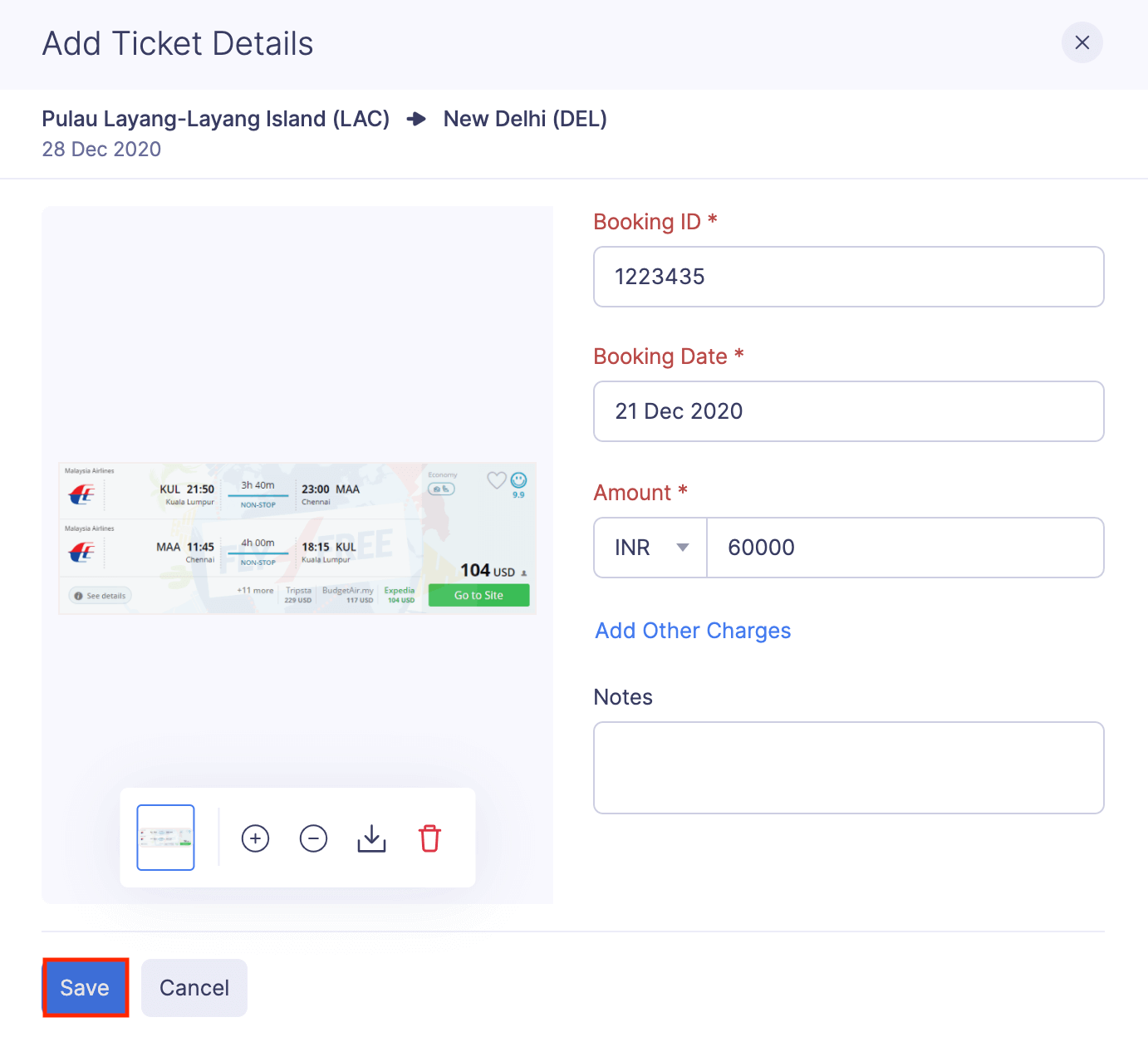
- Enter the following details in the Add Ticket Details or Add Booking Details page:
- Booking ID
- Booking Date
- Amount
- Notes
- Click Attach documents from computer and upload the ticket or booking confirmation.
- Click Save.
- Once you enter these details, the booking process will be completed and the traveller can download the ticket or booking confirmation.
Note: If the admin or policy admin has configured cost approval for bookings, the selected option will be sent for approval. After the selected option is approved, you can make the bookings.