


Export Trips
You can export trips to send data to other apps, such as your ERP or duty of care software.
You can export a trip in the following formats:
| CSV | XLS (XLSX) |
To export a trip:
- Click Admin View.
- Navigate to the Trips tab.
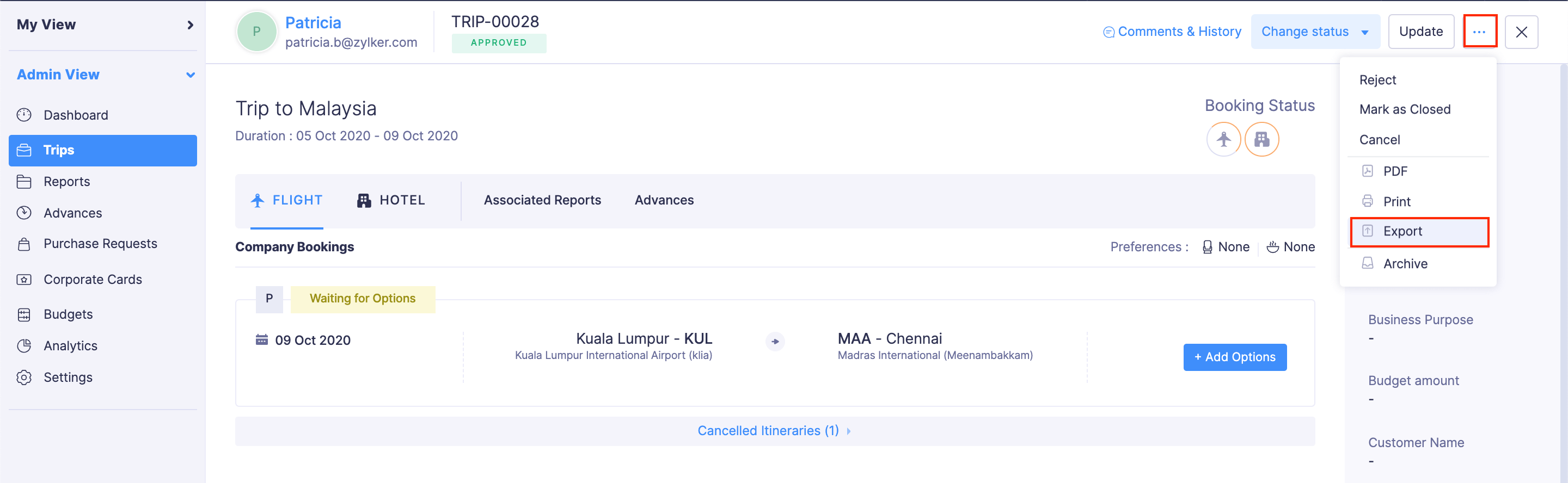
- Click the trip you want to export.
- Click the More icon at the top right corner of the trip.
- Select Export.
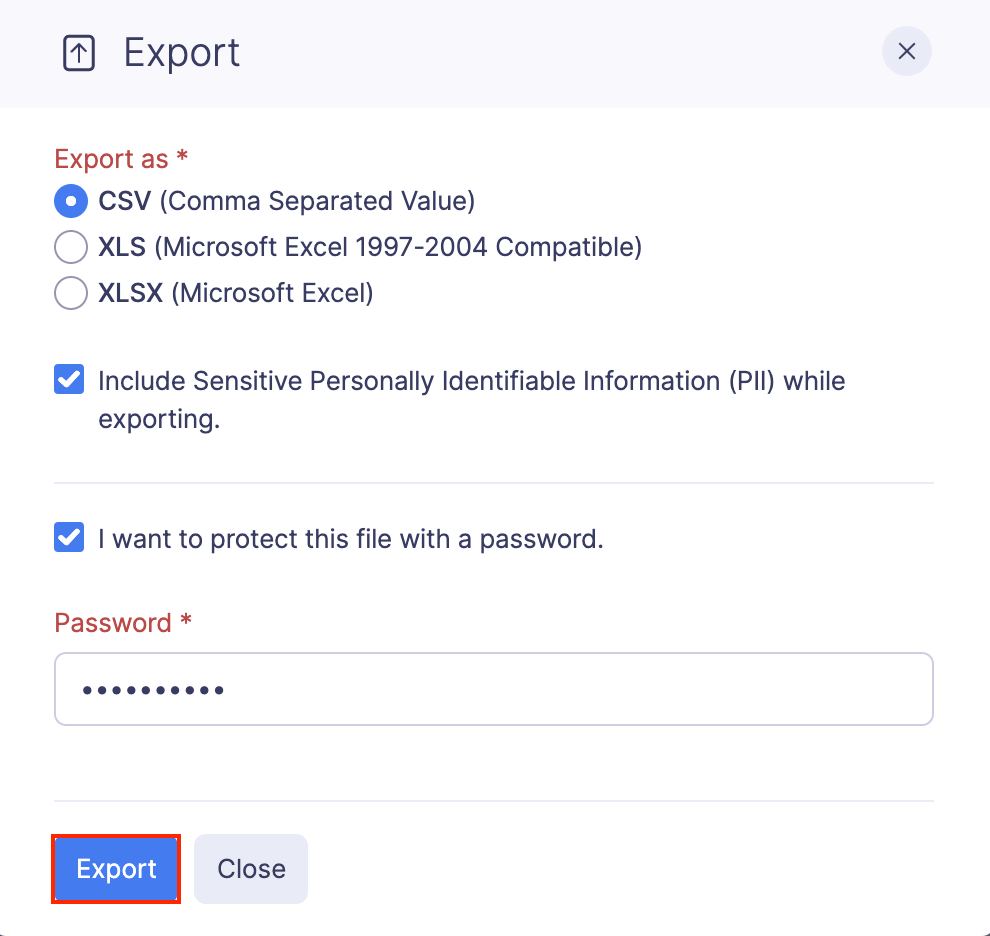
- Select the format, CSV or XLS (XLSX), in which you want to export your trip data.
- If you want to secure the trip with a password, mark the I want to protect this file with a password option and enter a password in the Password field.
- Click Export to download the data to your computer.
Export Trips in Bulk
You can export all trips or trips that were created during a particular period.
To export trips in bulk:
- Click Admin View.
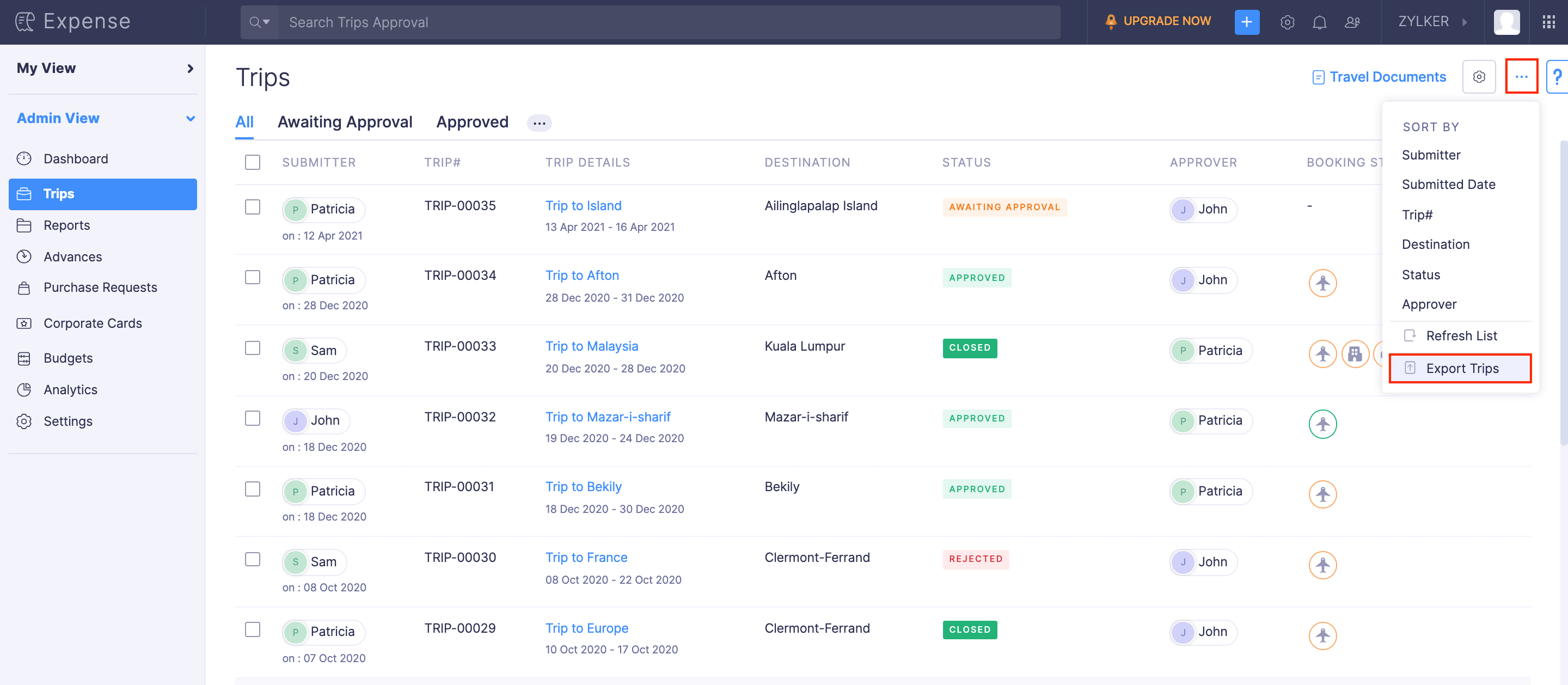
- Go to Trips.
- Click the More icon at the top right corner and select Export Trips.
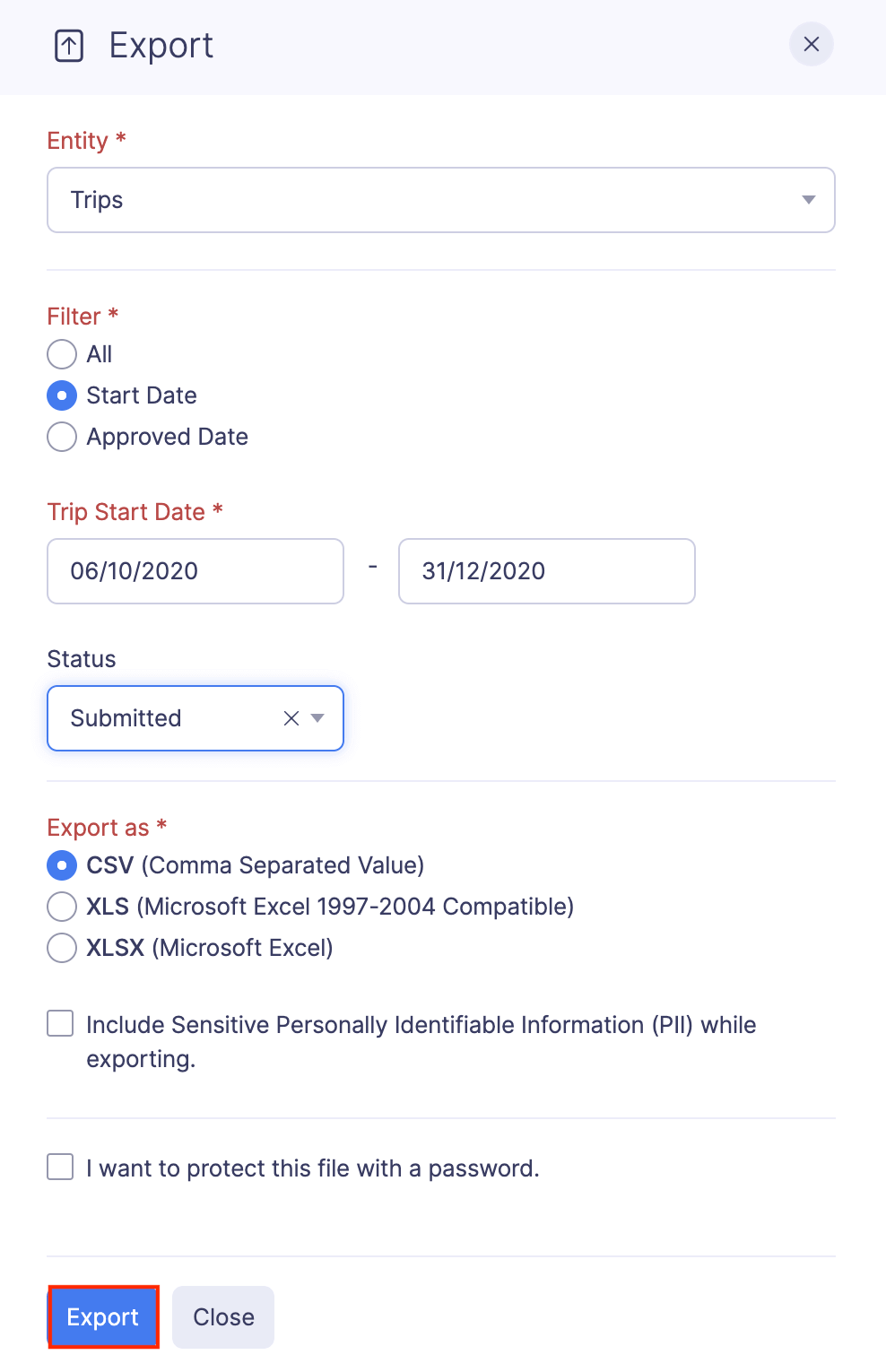
- Filter the trips you want to export. The available filters are:
- All: All trips will be downloaded.
- Start Date: Configure a start date and an end date. Trips that have a start date between the configured duration will be downloaded. Select the status of the trips you want to export from the Status dropdown.
- Approved Date: Configure a start date and an end date. Trips that were approved between the start date and end date will be downloaded. Select the status of the trips you want to export from the Status dropdown.
- Select the format, CSV or XLS (XLSX), in which you want to export your trip data.
- If you want to secure the trip with a password, mark the I want to protect this file with a password option and enter a password in the Password field.
- Click Export to download the data to your computer.
Alternatively, you can select a few preferred trips and export them by following the steps below:
- Click Admin View.
- Navigate to Trips.
- Select the trips you want to export.
- Click Export.
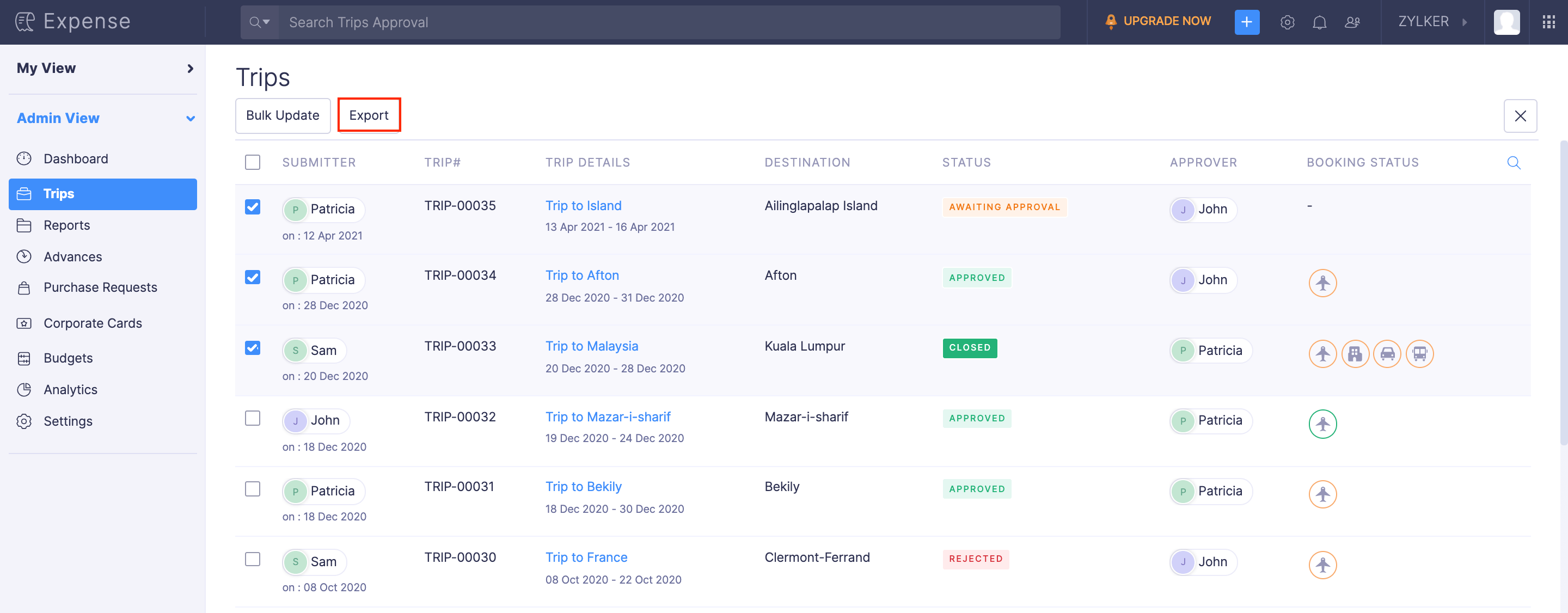
- Select the format, CSV or XLS (XLSX), in which you want to export your trip data.
- If you want to secure the trip with a password, mark the I want to protect this file with a password option and enter a password in the Password field.
- Click Export to download the data to your computer.