


Set Up MCP Server for Zoho Books

Introduction
Note: You can explore Zoho MCP to extend your capabilities. If you face any challenges, email us at support@zohomcp.com or support@zohobooks.com for assistance.
MCP (Model Context Protocol) is an open protocol that defines how various apps communicate with Large Language Models (LLMs). It provides AI models with clear instructions and context, allowing you to run your desired workflow on your preferred LLM.
You can use MCP when you want to:
- Connect your business applications directly to AI models (for example, ChatGPT, Claude, and more).
- Automate complex workflows and execute tasks without manual intervention.
- Build and instruct AI agents to interact with your Zoho or third-party apps.
How Zoho Books MCP Works
Zoho Books MCP connects your Zoho Books organisation to AI models using the Model Context Protocol (MCP). This protocol defines how AI agents can interact with business applications and data sources in a structured way.
Any AI model or agent can use the official Zoho Books MCP to access your data and perform the following actions:
- Record your finances: Create and send invoices, record expenses, or reconcile bank transactions with prompts like:
- Create an invoice for the customer ABC Corp for ₹5000
- Record an expense of ₹200 for office supplies under the Admin account
- Reconcile the bank transaction of ₹1500 received from XYZ Group
- Stay on top of your receivables: Track overdue invoices and follow up with customers instantly. For example:
- Send a payment reminder to all customers with invoices overdue by 30 days
- List all unpaid invoices for this month
- Show me the total outstanding amount due from ABC Corp
- Keep your business data up to date: Add and update customers, vendors, and items, such as:
- Add a vendor called Swift Logistics with email swiftlogistics@example.com
- Update the selling price of item Wireless Mouse to ₹50
- Add a new customer called Bright Solutions with Opening Balance ₹200
- Get instant business insights: Pull key financial data and reports without navigating through the app. Try asking:
- What is the total revenue for this quarter?
- Show me the profit and loss summary for last month
- What are my top 5 expenses for this financial year?
- Integrate Zoho Books with other applications: Use the MCP server to integrate your Zoho Books organisation with apps like Zoho CRM, and pull data across apps, from one place. For example:
- Fetch the list of leads from Zoho CRM and create invoices for the converted ones in Zoho Books
- Show the list of closed deals in Zoho CRM this month and fetch their corresponding invoice status in Zoho Books
- Sync the customer details of the new customer Aaron Brown added in Zoho CRM to Zoho Books
Note: Ensure that you get approval from the admin of your organisation before you perform any actions through the MCP server. Add or delete MCP tools only when required.
Next Steps
Connect Zoho Books With Claude Connectors
Zoho Books is available as a default connector in Claude, making it the easiest way to get started. To connect your Zoho Books organisation with Claude:
- Log into your Claude account.
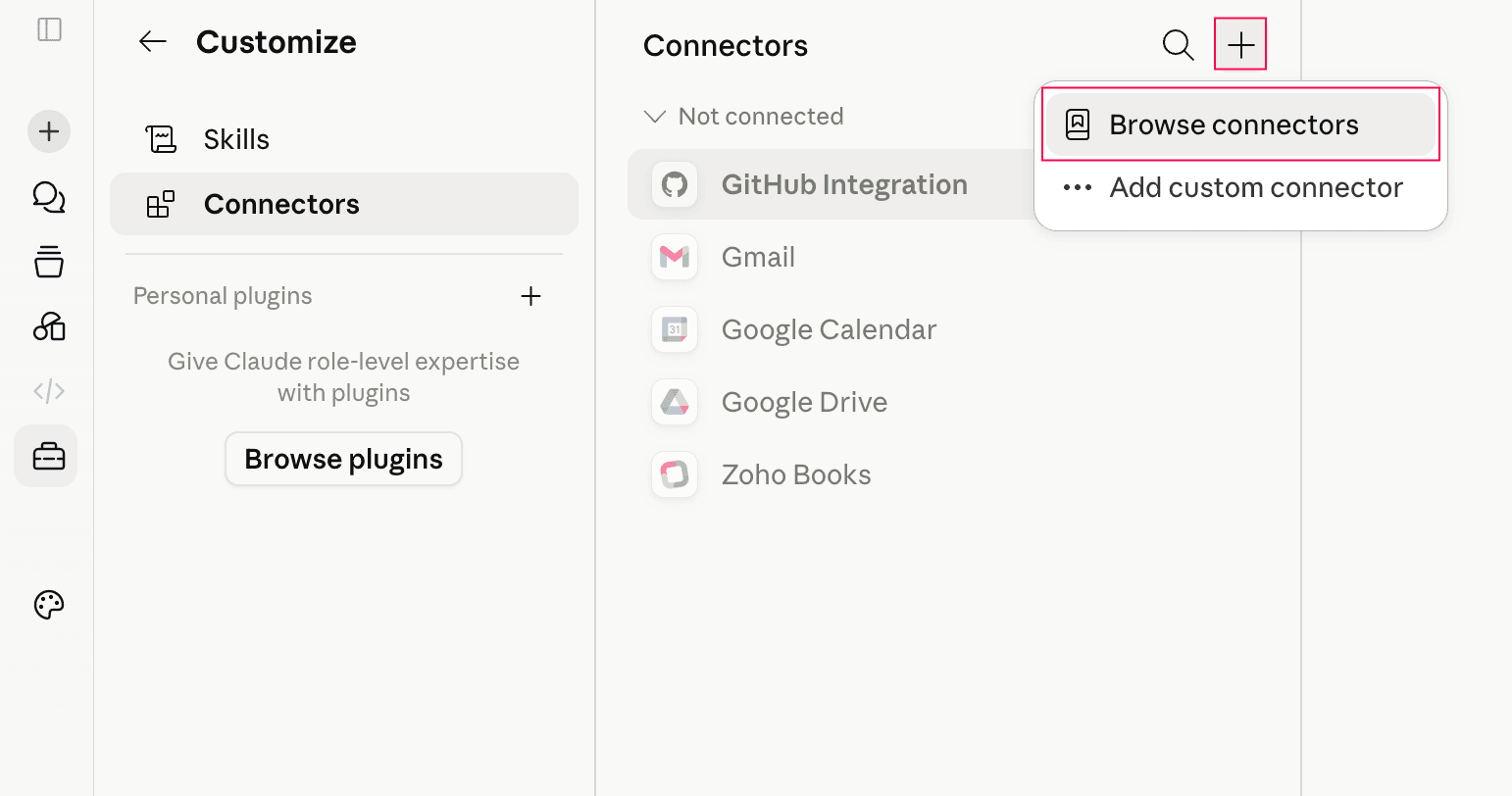
- Click Customize on the left sidebar.
- In the Customize Claude page, click Connectors on the left sidebar.
- Click the + icon next to Connectors, and select Browse connectors from the dropdown.
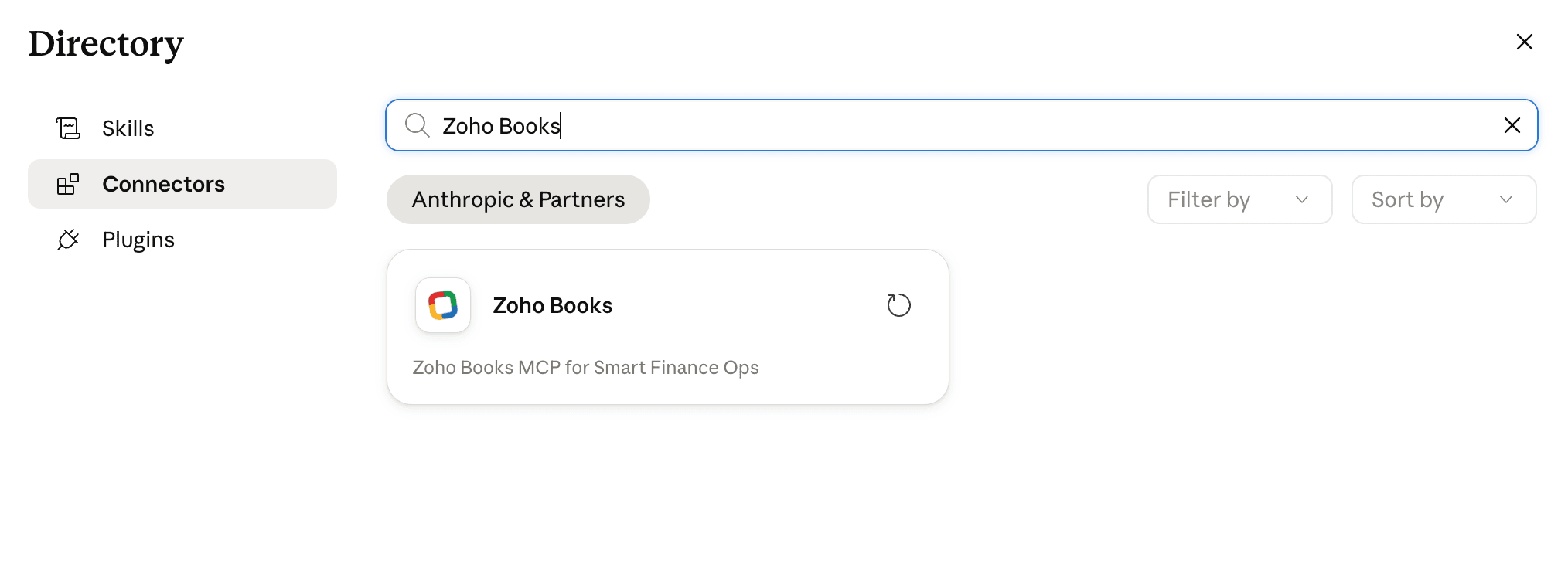
- In the Directory pop-up, search for Zoho Books and select it.
- Click Connect next to Zoho Books.
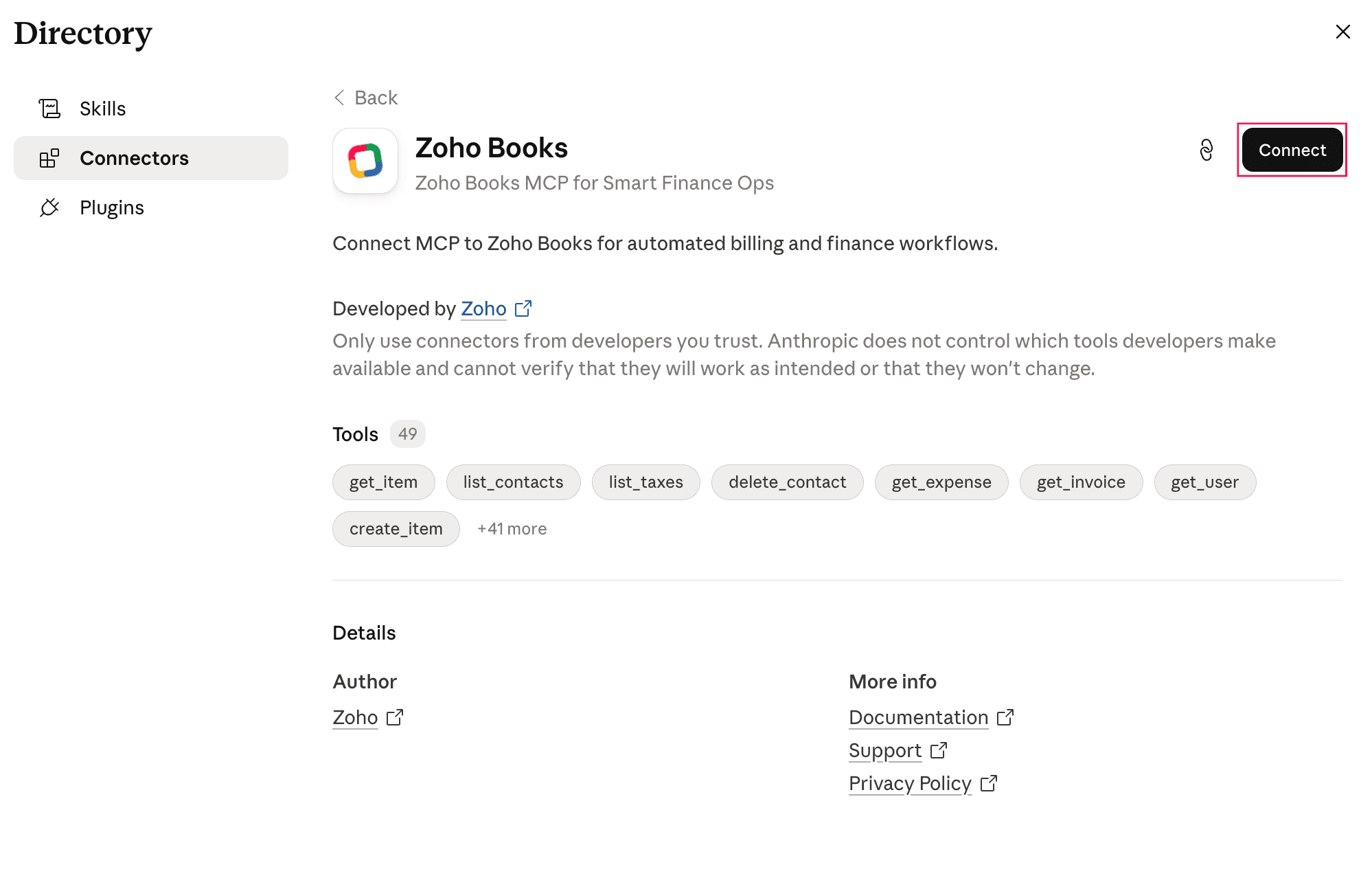
Note: The Claude default connector supports only the actions listed under Tools. To perform other actions, configure a custom connector using Zoho MCP, and connect your Zoho Books organisation to Claude.
- In the Install Zoho Books pop-up, select the region where your account is hosted, and click Continue.
Your Claude account will be connected to your Zoho Books organisation.
Connect to MCP Clients via Zoho MCP
Zoho MCP is a centralized hub that lets you connect your Zoho apps and third-party tools to any AI clients that supports MCP. Once connected, your AI client can access your business data, run workflows, and fetch insights on your behalf.
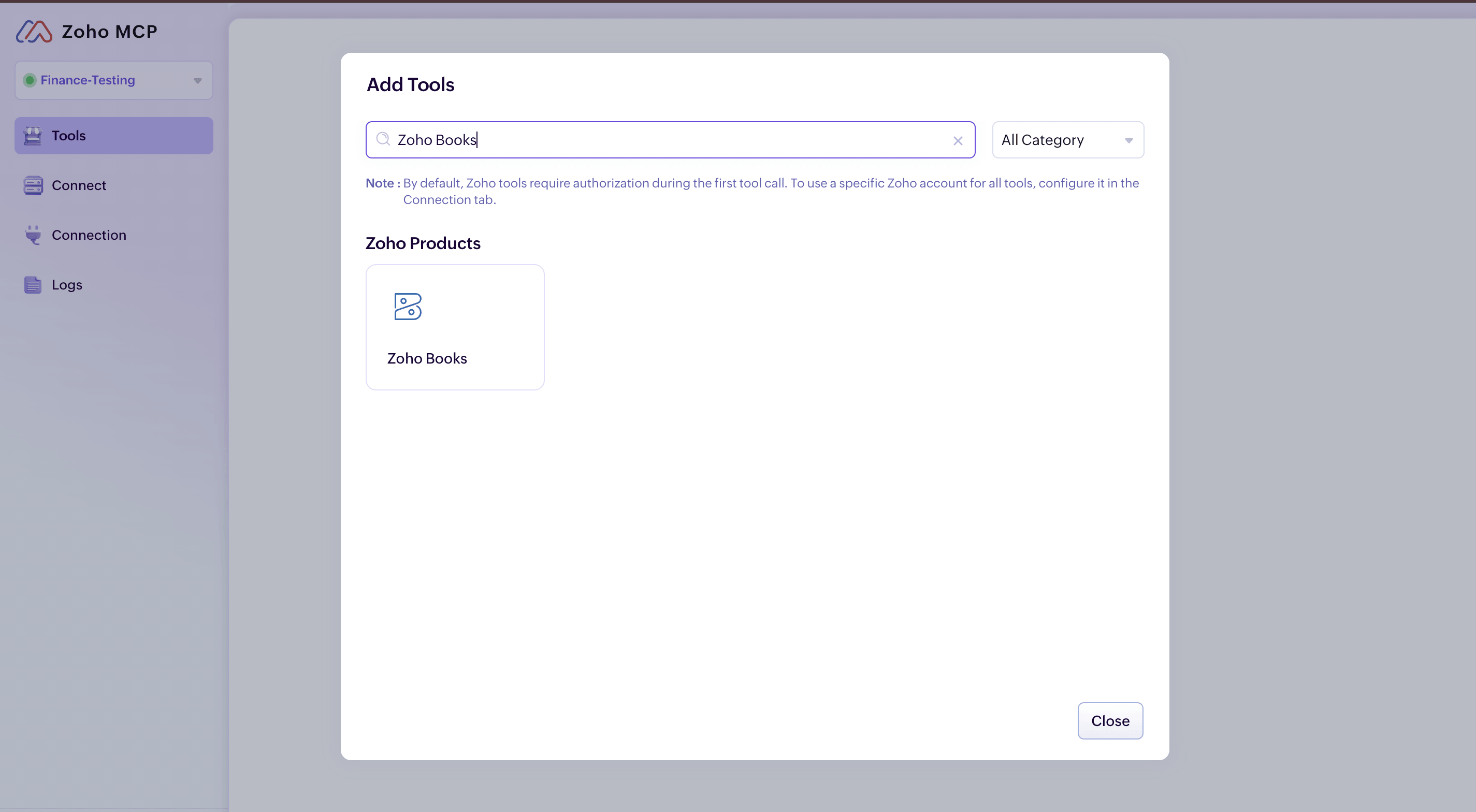
If you want to connect your Zoho Books organisation to other MCP clients (for example, ChatGPT, Cursor, and more) via Zoho MCP, you must first configure your MCP Server. You can configure it for Zoho Books alone, or combine it with other Zoho apps and third-party connectors. Once done, you can connect it to your preferred MCP Client, and start using it.
 Yes
Yes