


HSN and SAC Codes for Items

HSN Code (Harmonised System of Nomenclature) is a six-digit code that classifies more than 5000 products according to well established rules that are accepted worldwide. This code has been developed by the World Customs Organisation (WCO) to enable efficient international trade. Similarly, SAC (Service Accounting Code), specific to India, is a six-digit code used to classify different services for GST purposes.
The Central Board of Indirect Taxes and Customs (CBIC) made it mandatory to use HSN and SAC codes from April 1, 2021. This means that when you create a sales transaction and add taxable items, those items must have an HSN or SAC code associated with them.
The number of digits you need to use for these codes depends on your previous year’s annual turnover:
- Less than ₹5 crores: Use a 4-digit HSN code or SAC. This is mandatory for B2B, SEZ, Export, or Deemed Export tax invoices, and optional for B2C tax invoices.
- More than ₹5 crores: Use a 6-digit HSN code or SAC. This is mandatory for all tax invoices.
Assigning the right HSN or SAC to your transactions ensure accurate GST calculation, proper reporting, and compliance with tax regulations.
Configure HSN Code or SAC in Zoho Books
To configure HSN codes and SAC:
Go to Settings.
Under Module Settings, select Items under General.
Under HSN Code or SAC, check the Enable the HSN Code or SAC field option.
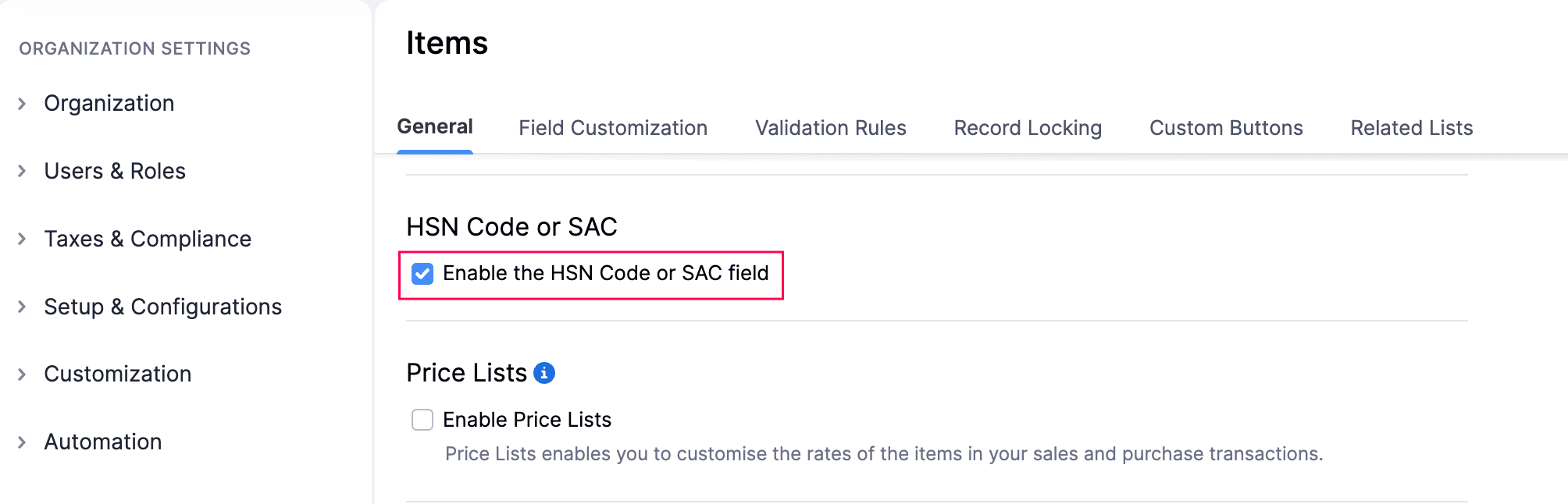
Click Save.
Once enabled, you can add HSN codes or SAC to your items. These codes will be automatically displayed for the corresponding items when you create transactions.
Note: If you have not provided HSN Code or SAC to an item, you’ll be asked to enter one while creating the transaction.
Validate HSN Codes or SAC in Bulk
You can verify whether the HSN code or SAC added to your item are correct, and update them if required. To do so:
Go to Items on the left sidebar and select Items.
Click the More icon in the top right corner, and select Validate HSN/SAC from the dropdown.
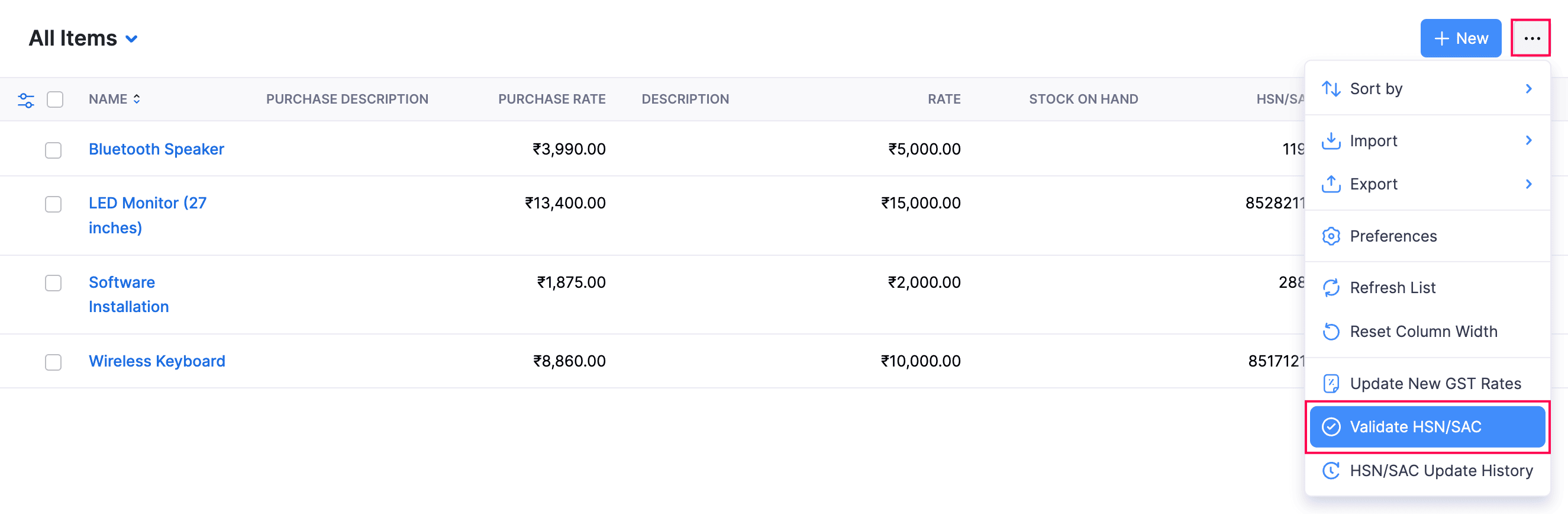
In the Validate HSN/SACs in Bulk pop-up, the list of items with incorrect or missing HSN or SAC will be displayed. Select the correct code for each item.
Click Save.
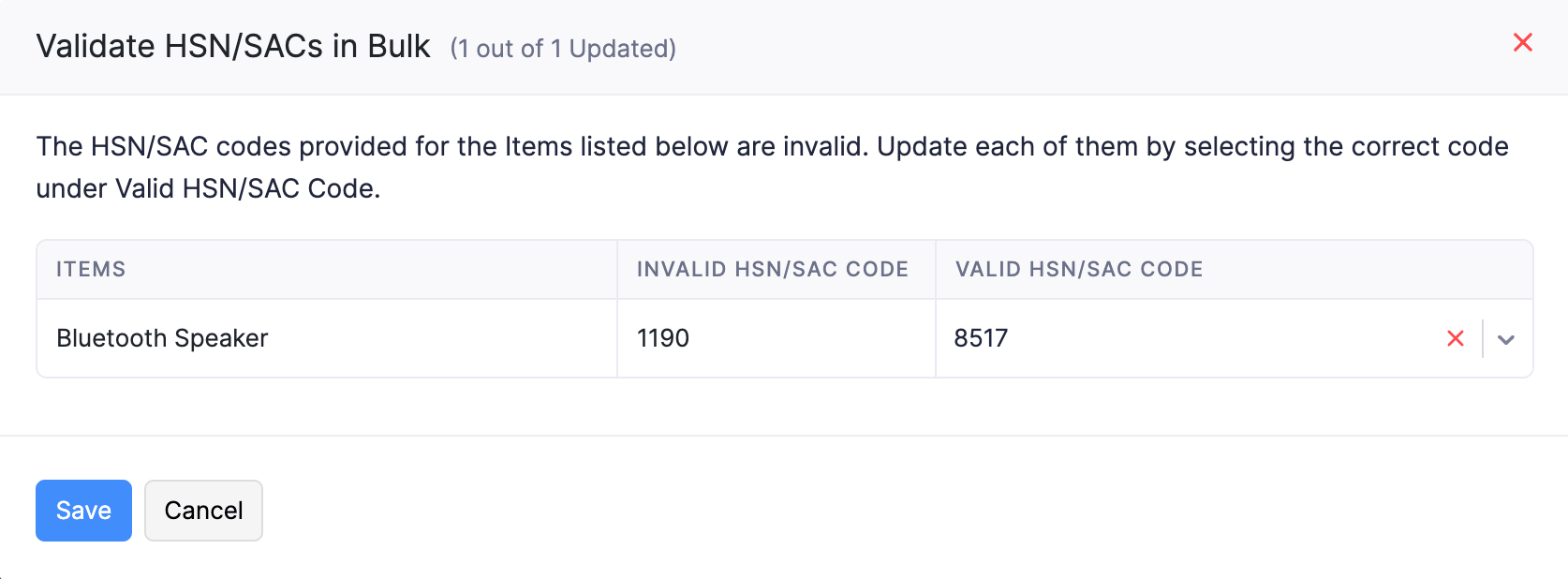
The HSN code or SAC for the respective items will be updated.
View HSN or SAC Update History
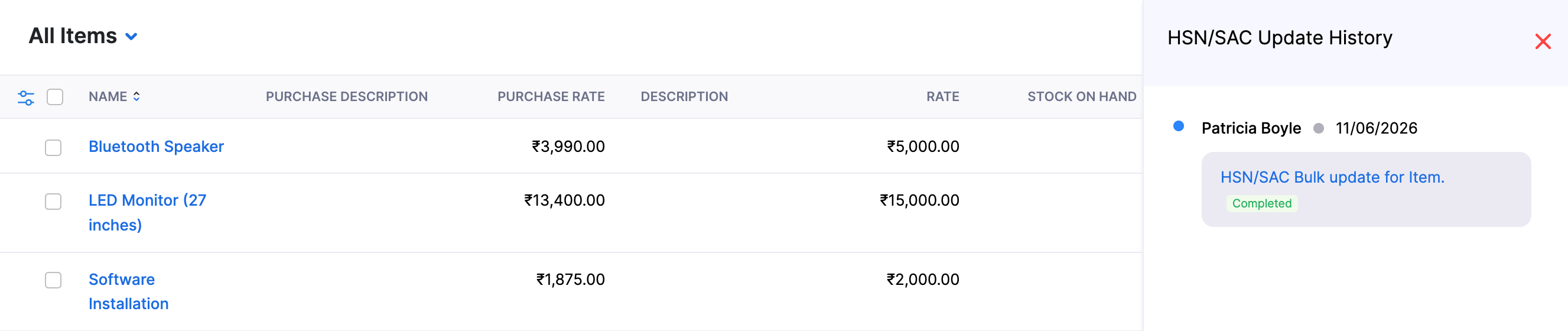
You can view a log of the recently updated HSN codes or SACs to keep track of any changes made to your items. Here’s how:
Go to Items on the left sidebar and select Items.
Click the More icon in the top right corner, and select HSN/SAC Update History from the dropdown.
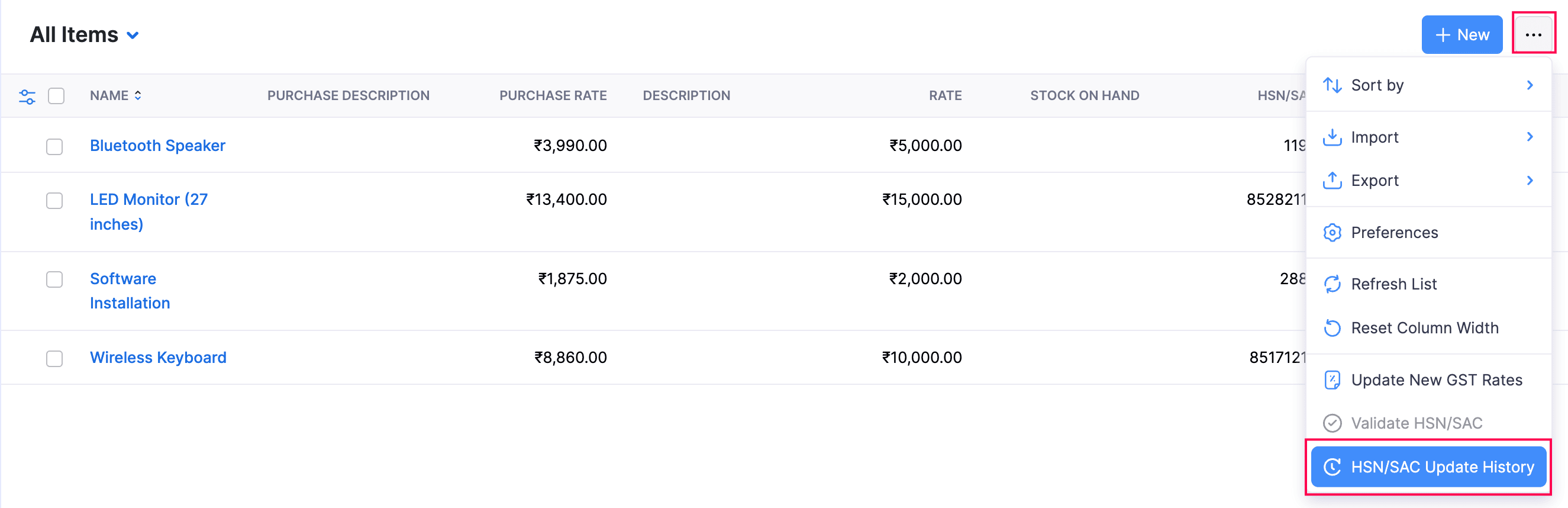
The items with updated HSN codes or SACs will be displayed.
 Yes
Yes