


Other Actions

Let’s take a look at some of the actions that can be performed on e-Way Bills.
Edit e-Way Bill Number
If you have accidentally entered the incorrect e-Way Bill Number, you can modify it. Here’s how:
- Go to Sales on the left sidebar and select e-Way-Bills.
- In the e-Way Bills page, click the dropdown next to e-Way Bill Status and select Generated.
- Select the Manually Generated e-Way Bill whose number you want to edit.
- Click Edit.
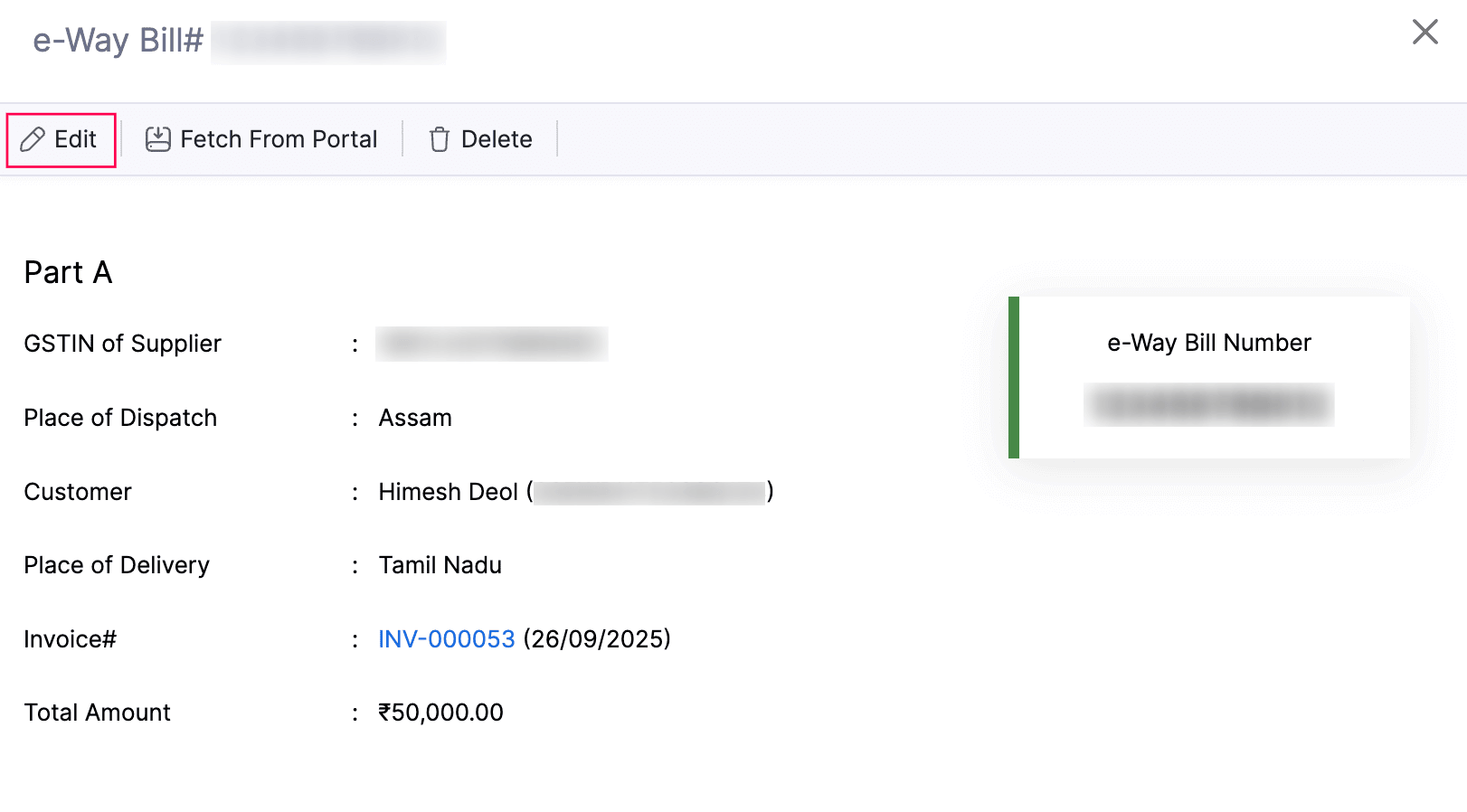
- Enter the correct e-Way Bill Number in the Edit e-Way Bill Number pop-up.
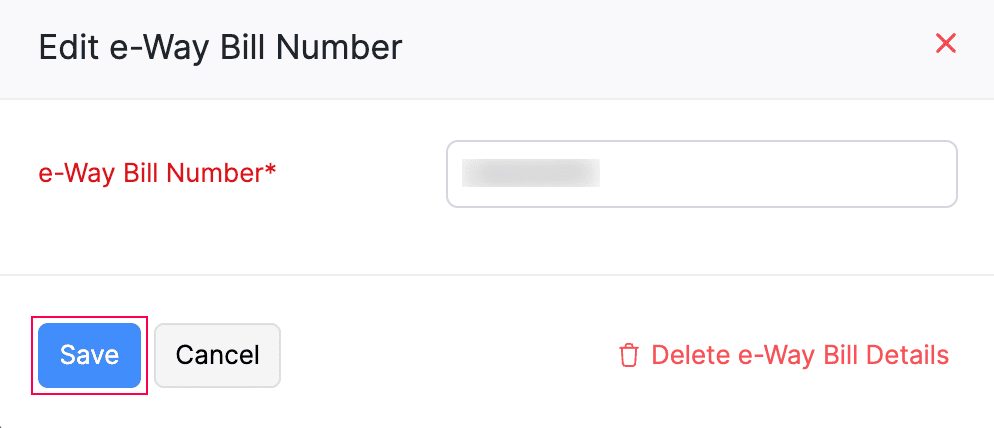
- Click Save.
Note: You cannot edit the e-Way Bill Number once the e-Way Bill details are fetched from the portal.
Exclude Transactions
For some transactions where there is no need to transport goods from one place to another, an e-Way Bill is not required, even if the invoice value exceeds ₹50,000. In such cases, you can exclude the transaction from e-Way Bill generation in Zoho Books. Here’s how:
- Go to Sales on the left sidebar and select e-Way Bills.
- In the e-Way Bills page, click the dropdown next to e-Way Bill Status and select Not Generated.
- Click the Actions dropdown next to the e-Way Bill that you want to cancel and select Exclude.

Note: You can exclude transactions in bulk. To do this, go to Sales > e-Way Bills. Select the transactions you want to exclude, and Click Exclude.
The transaction will be excluded.
Restore Excluded Transactions
Sometimes, you may create an invoice for a customer, but the delivery is scheduled for a later date. In such cases, listing all transactions together can be cumbersome. So, you can exclude the transactions where goods will be delivered later. Once you’re ready to transport the goods, you can restore those excluded transactions. Here’s how:
- Go to Sales on the left sidebar and select e-Way Bills.
- In the e-Way Bills page, click the dropdown next to e-Way Bill Status and select Excluded.
- Select excluded transactions you want to restore.

- Click Restore.
The excluded transactions will now be restored as Not Generated, and you can generate e-Way Bills for them.
Print e-Way Bills
You can print your e-Way Bills in either Simple or Detailed format if they are in the Generated, Part-A Generated, Cancelled, or Expired status. Here’s how:
- Go to Sales on the left sidebar and select e-Way Bills.
- Select the e-Way Bill that you want to print.
- Click PDF/Print and select Print from the dropdown.

- In the Print PDF Preferences pop-up, select the document type that you want to print:
- Select Simple e-Way Bill to print a shorter version of the e-Way Bill.
- Select Detailed e-Way Bill to print a detailed version of the e-Way Bill.
- Check the Include the associated invoice in the e-Way Bill PDF option to attach the related invoice, credit note or delivery challan along with the e-Way Bill.
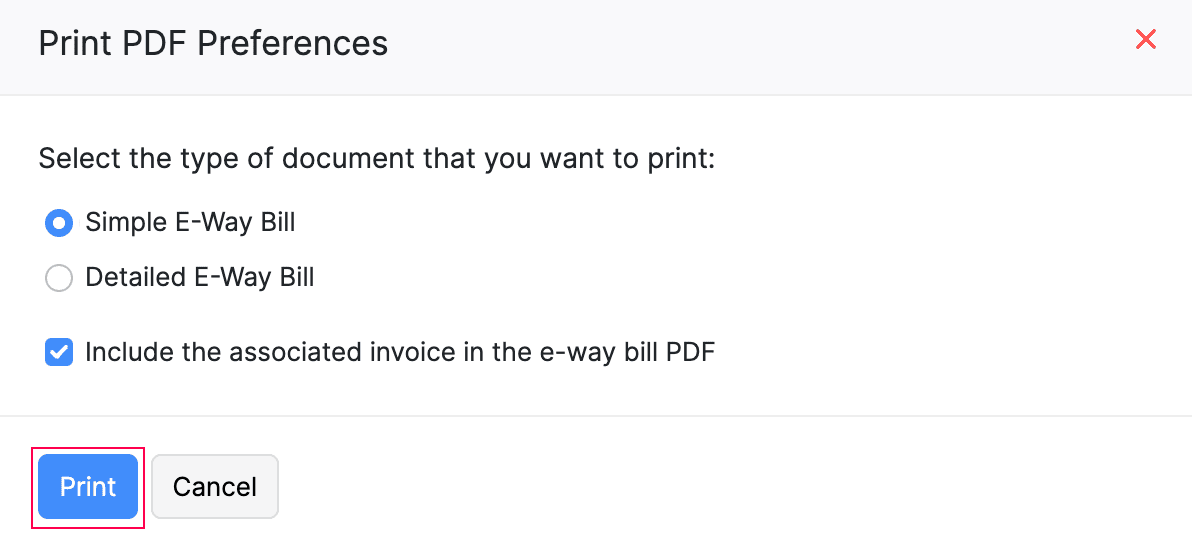
- Click Print.
- Check the Preview and click Print again. The PDF including the QR code is generated by Zoho Books. You can scan the QR code to view the e-Way Bill details.
Download e-Way Bills
You can download your e-Way Bills in either Simple or Detailed format, provided they are in the Generated status. Here’s how:
- Go to Sales on the left sidebar and select e-Way-Bills.
- Select the e-Way Bill that you want to download.
- Click PDF/Print and select PDF from the dropdown.
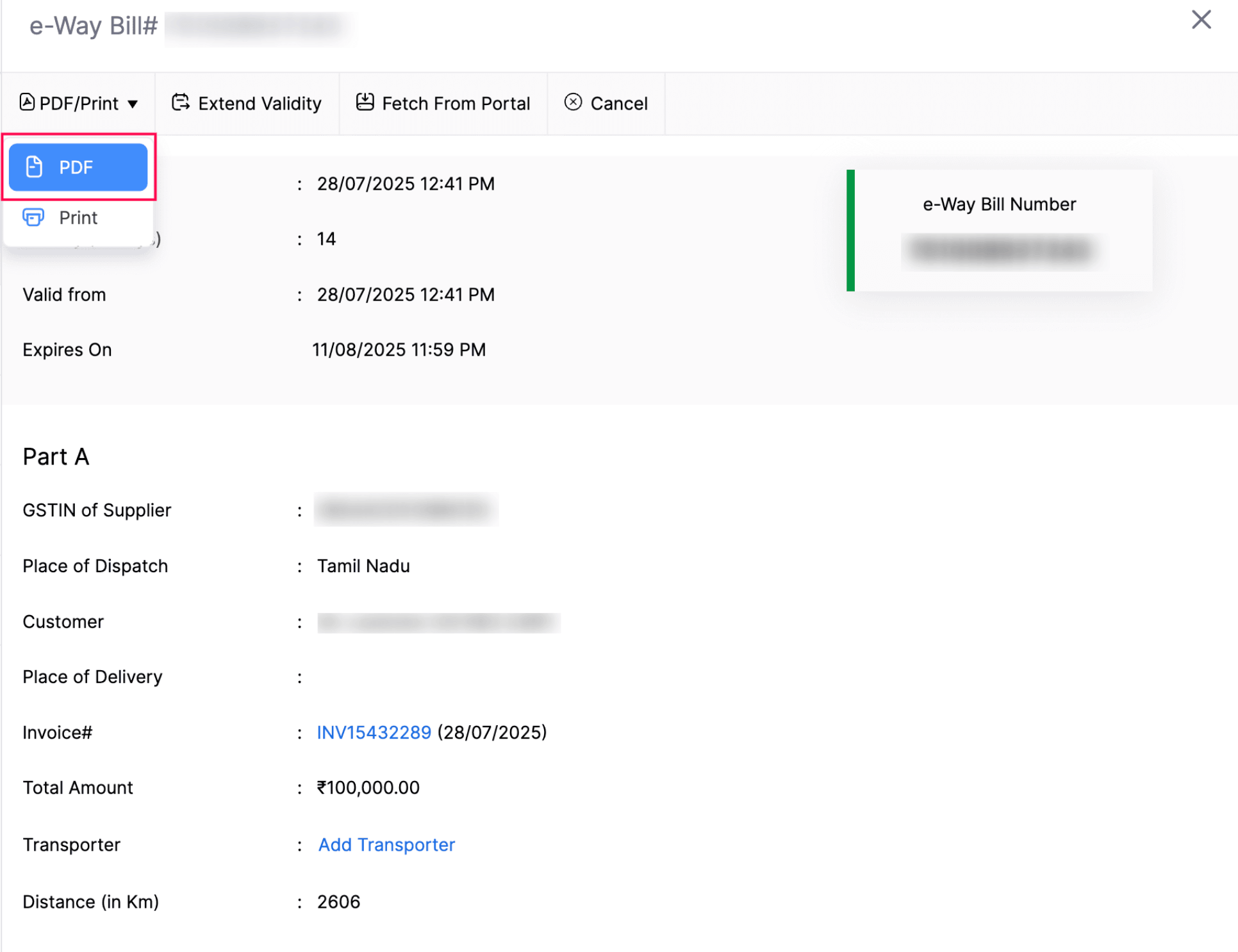
- In the Download PDF Preferences pop-up that appears, Select the document type that you want to download:
- Select Simple e-Way Bill to download a shorter version of the e-Way Bill.
- Select Detailed e-Way Bill to download a detailed version of the e-Way Bill.
- Check the Include the associated invoice in the e-Way Bill PDF option to attach the related invoice, credit note or delivery challan along with the e-Way Bill.
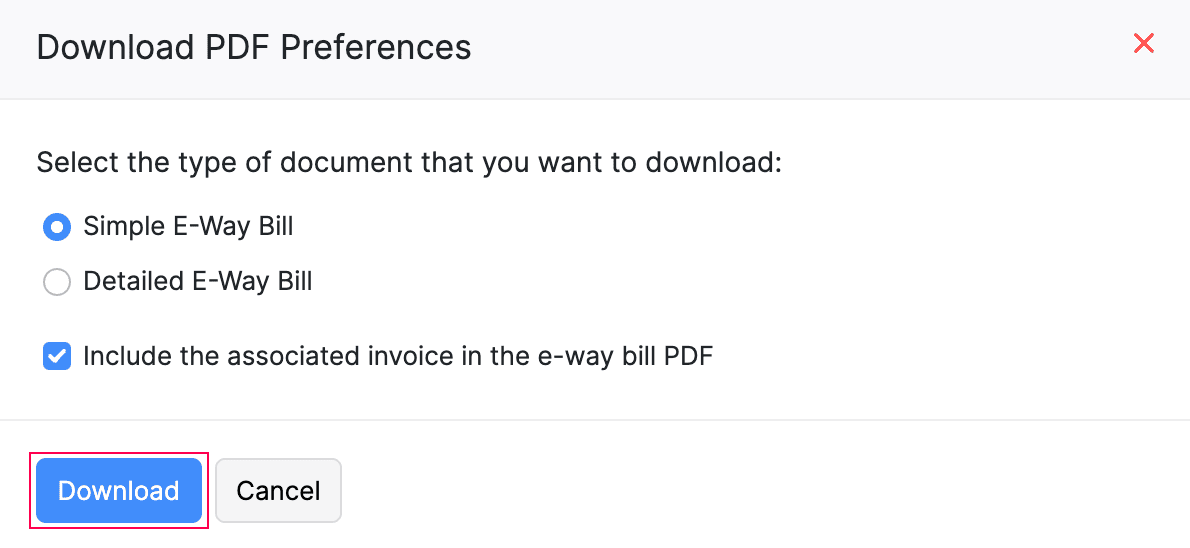
- Click Download.
The e-Way Bill will be downloaded in the selected format to your system.
Note: You can also update the transporter details if they were added while generating the e-Way Bill. To do this, go to e-Way Bills > Select an e-Way Bill > Click the Edit icon next to the Transporter field > Select a transporter from the dropdown > Click the Tick icon.
The transporter details will be updated in the e-Way Bill.
Attach e-Way Bill PDF to Emails
When sending invoices or credit notes by email, you can include the e-Way Bill PDF as an attachment. Here’s how to attach the e-Way Bill PDF to your email:
- Go to the respective module (for example, Invoices) and select the transaction for which you want to include the e-Way Bill PDF as an attachment.
- Click Send and select Send Email from the dropdown.
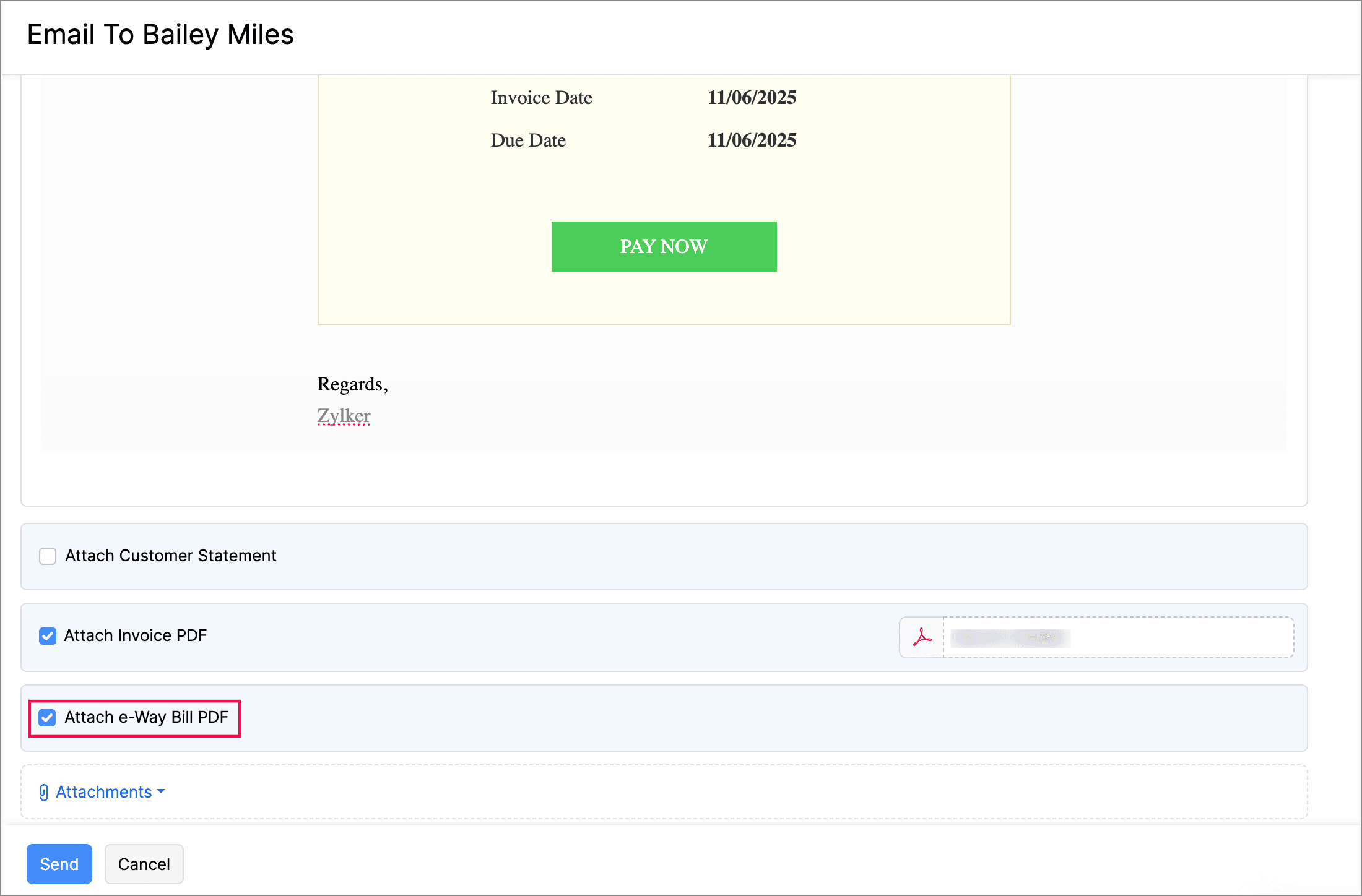
- Enable the Attach e-Way Bill PDF option in the Email to page.
- Click Send.
The e-Way Bill PDF will now be included as an email attachment.
Enable e-Way Bill Number in PDF Templates
It is mandatory to display the e-Way Bill number on the PDF of sales transactions such as invoices, credit notes, and delivery challans. Here’s how you can enable it:
- Go to Settings.
- Navigate to Organization Settings.
- Select PDF Templates under Customization.
- In the Templates tab, select the module in which you want to enable the e-Way Bill number.
- Hover over a template and click Edit.
- Navigate to Transaction Details
- Check the e-Way Bill Number checkbox under Document Details.
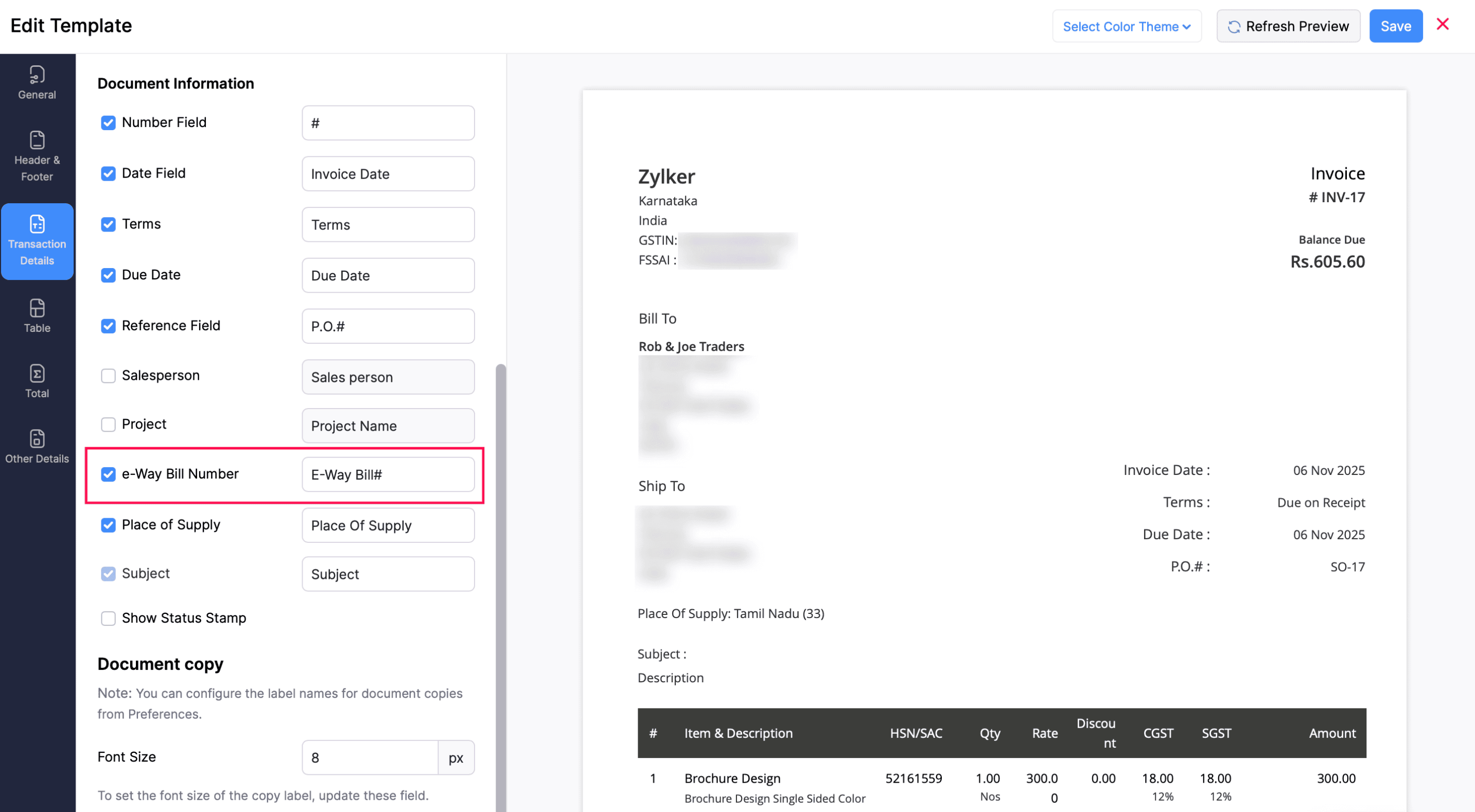
- Click Save.
Now the e-Way Bill Number will be displayed in PDF of sales transactions.
 Yes
Yes