


e-Way Bills for Multiple Vehicles

Your business may need to transport goods using more than one vehicle or mode of transport during a single journey. To do so, you can use multi-vehicle transportation to move goods across multiple vehicles under a single e-Way Bill, without generating a new one each time.
Use multi-vehicle transportation in the following situations:
- The goods reach an intermediate location and you need to transfer them to another vehicle or mode of transport.
- The original vehicle or transport becomes unavailable due to breakdown or operational issues.
- Road or geographical conditions (such as hilly terrain) don’t allow larger vehicles to operate.
- You need to use smaller vehicles to complete the final leg of the journey.
In Zoho Books, you can record this by creating a multi-vehicle group for the e-Way bill and adding the details of each vehicle used for transportation.
Scenario: Kumar generates an e-Way Bill to transport goods from Chennai to Munnar. He transports the goods from Chennai to Kochi by rail. From Kochi, he cannot use larger vehicles due to hilly terrain and road restrictions. He transfers the goods to smaller trucks to complete the journey from Kochi to Munnar. To record this in Zoho Books, he creates a multi-vehicle group and adds the details of each vehicle under the same e-Way bill.
Create Multi-Vehicle Group
To create a multi-vehicle group for the e-Way bill you had generated:
Go to Sales on the left sidebar and select e-Way Bills.
Select the e-Way bill for which you want to create a multi-vehicle group.
In the details page, click Initiate Multi-Vehicle Group.
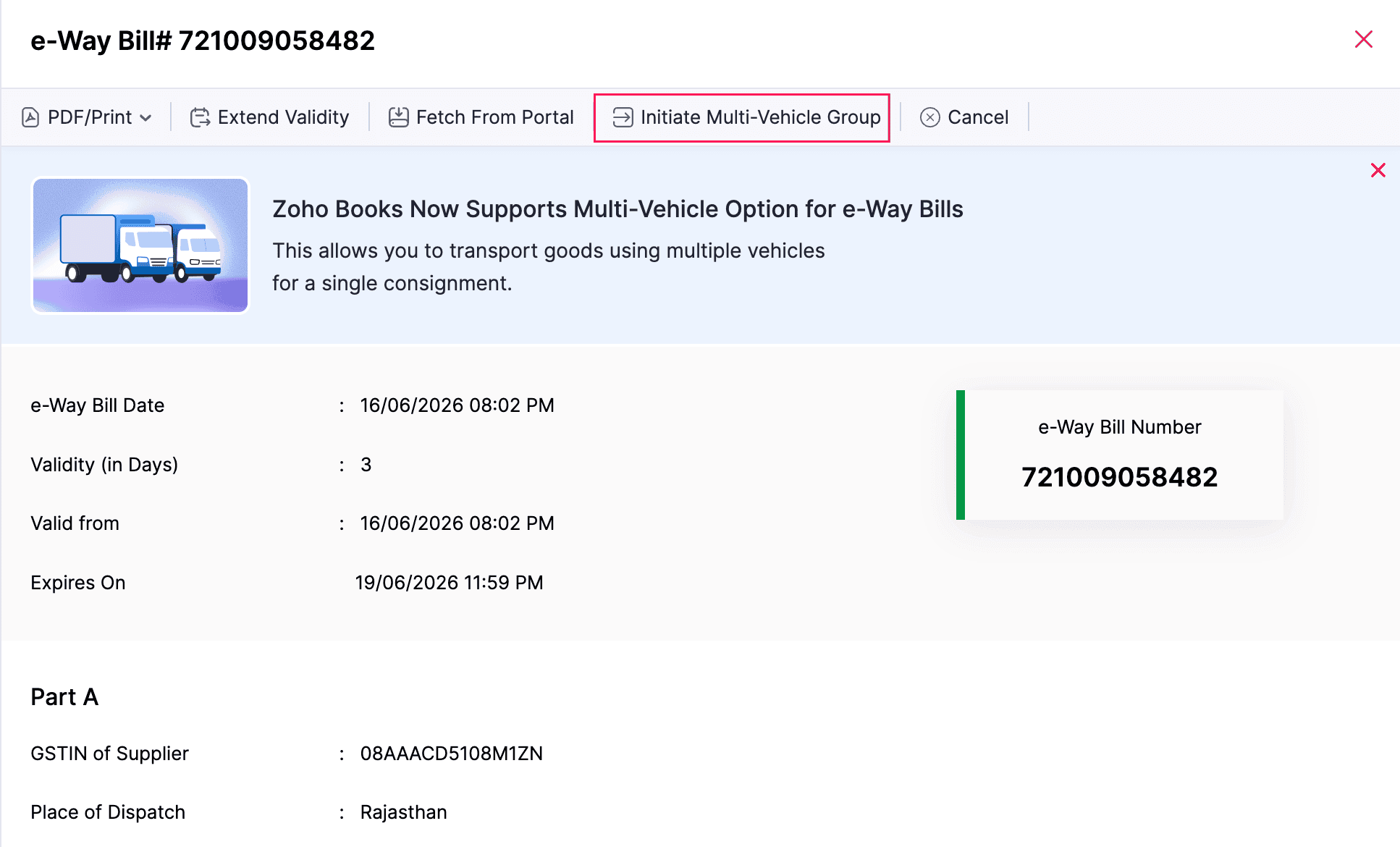
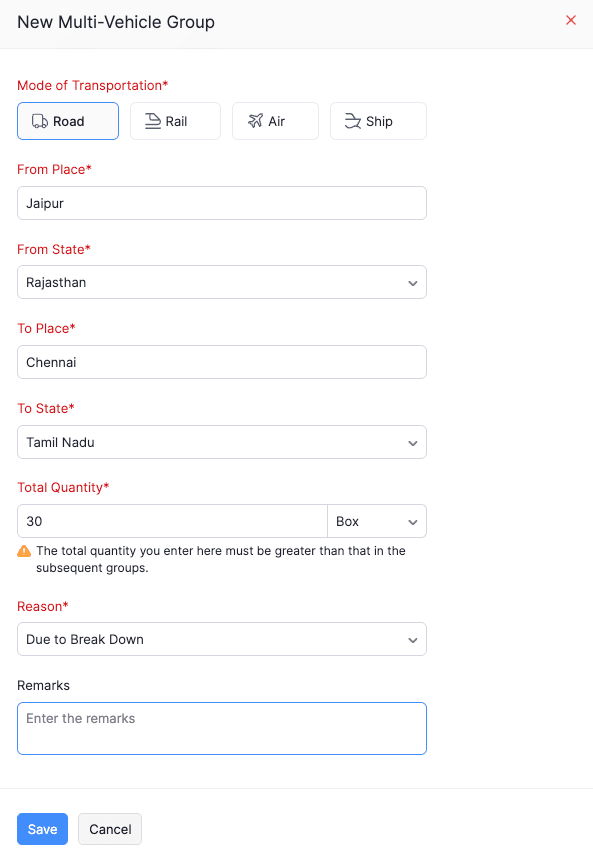
In the New Multi-Vehicle Group pop-up, fill in the following fields:
- Mode of Transportation: Select the preferred mode of transportation. The available options include: Road, Rail, Air, and Ship.
- From Place: Enter the location from where goods will be dispatched.
- From State: Select the goods from where goods will be transported.
- To Place: Enter the destination location where goods will be delivered.
- Total Quantity: Enter the total quantity of goods assigned to the vehicle. This quantity must be greater than the quantity assigned to each vehicle added under this group.
- Reason: Select the reason to create this group.
- Remarks: Enter additional notes, if required.
Click Save.
The multi-vehicle group will be created.
Insight: You may need to create more than one multi-vehicle group to meet your shipping requirements. To do so, go to the e-Way bill’s details page, and click + New Multi-Vehicle Group next to Multi-Vehicle under Part B.
Add Vehicles to a Multi-Vehicle Group
To add the details of each vehicle used for transporting goods:
Go to Sales on the left sidebar and select e-Way Bills.
Select the e-Way bill for which you want to add vehicle details.
In the details page, under Part B, click + New Vehicle under Multi-Vehicle.
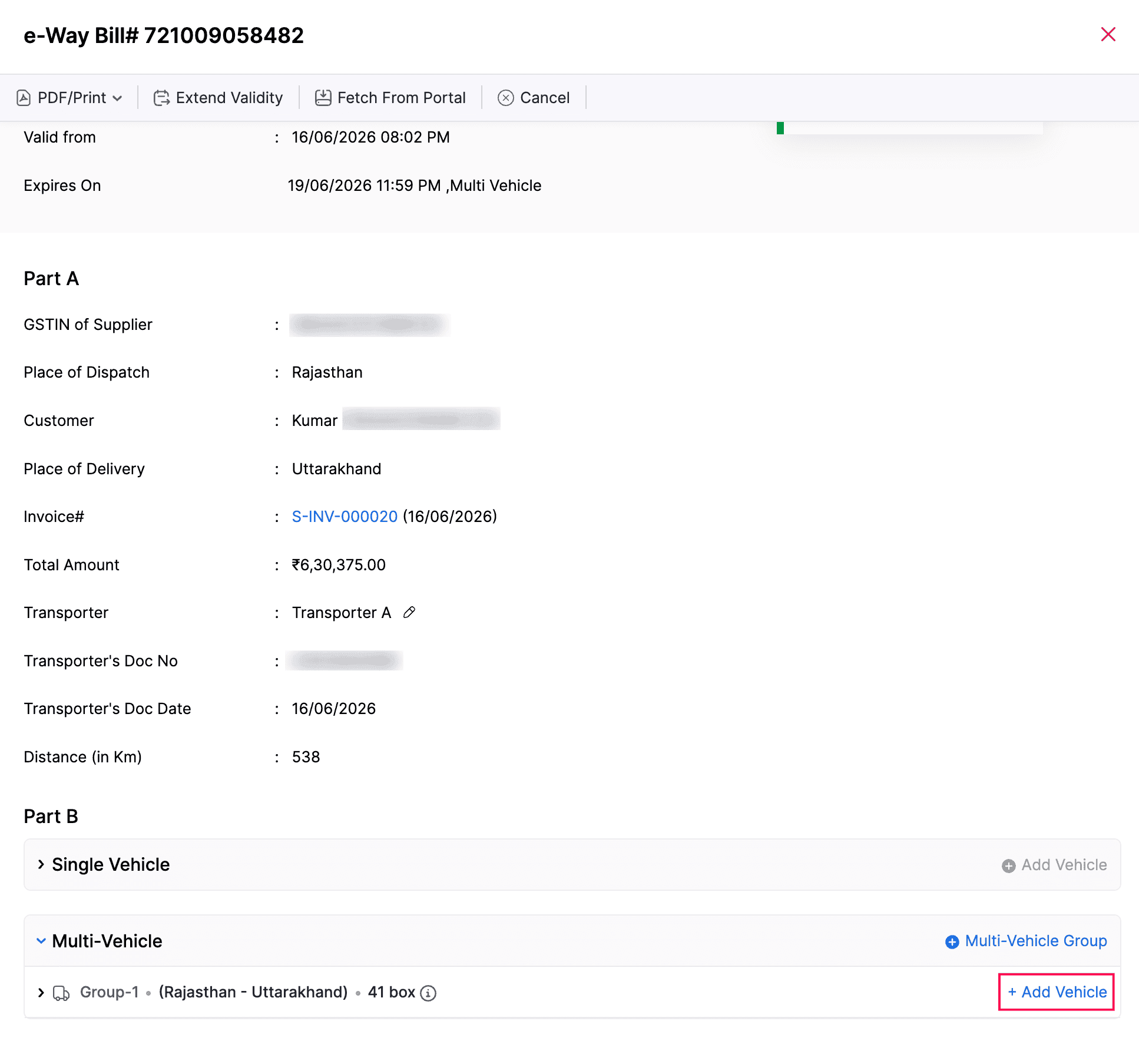
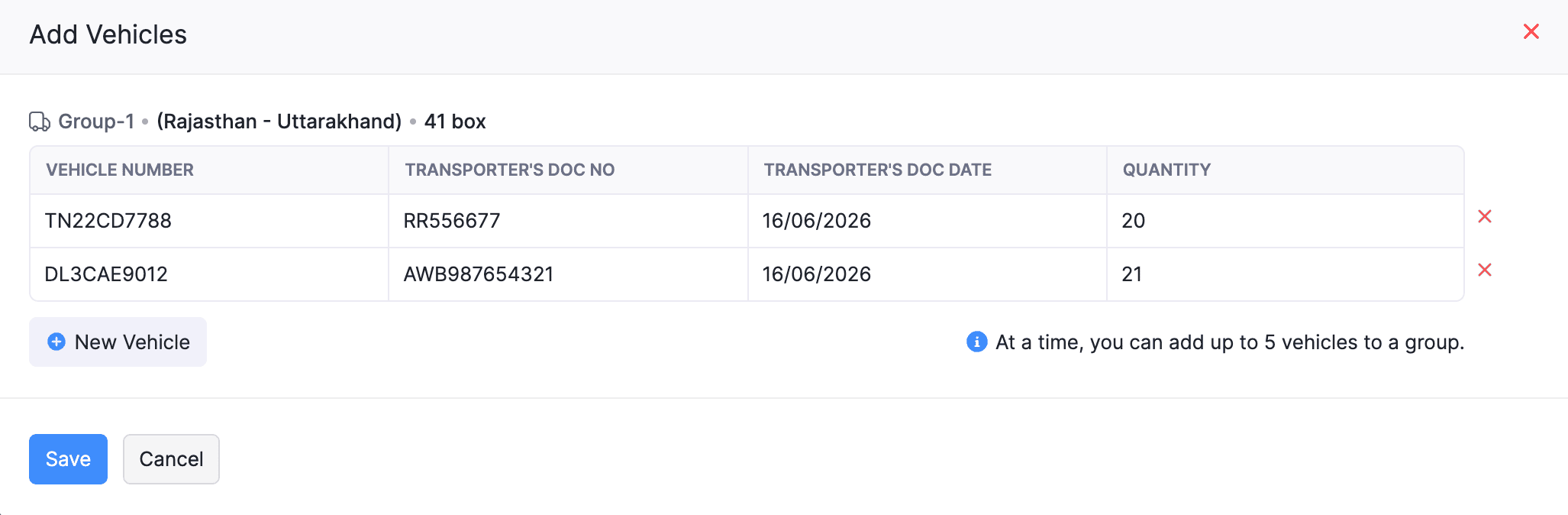
In the Add Vehicles pop-up, fill in the following details:
- Vehicle No: Enter the vehicle’s registration number.
- Transporter’s Doc No: Enter the transporter’s document number.
- Transporter’s Doc Date: Enter the date on the transporter’s document.
- Quantity: Enter the quantity of goods transported.
- Click + New Vehicle to include more vehicle details.
Click Save.
The vehicle details will be recorded.
Note: You can add up to five vehicles at a time to a group.
Update Vehicle Details
To update the vehicle information added to a multi-vehicle group:
Go to Sales on the left sidebar and select e-Way Bills.
Select the e-Way bill for which you want to update vehicle details.
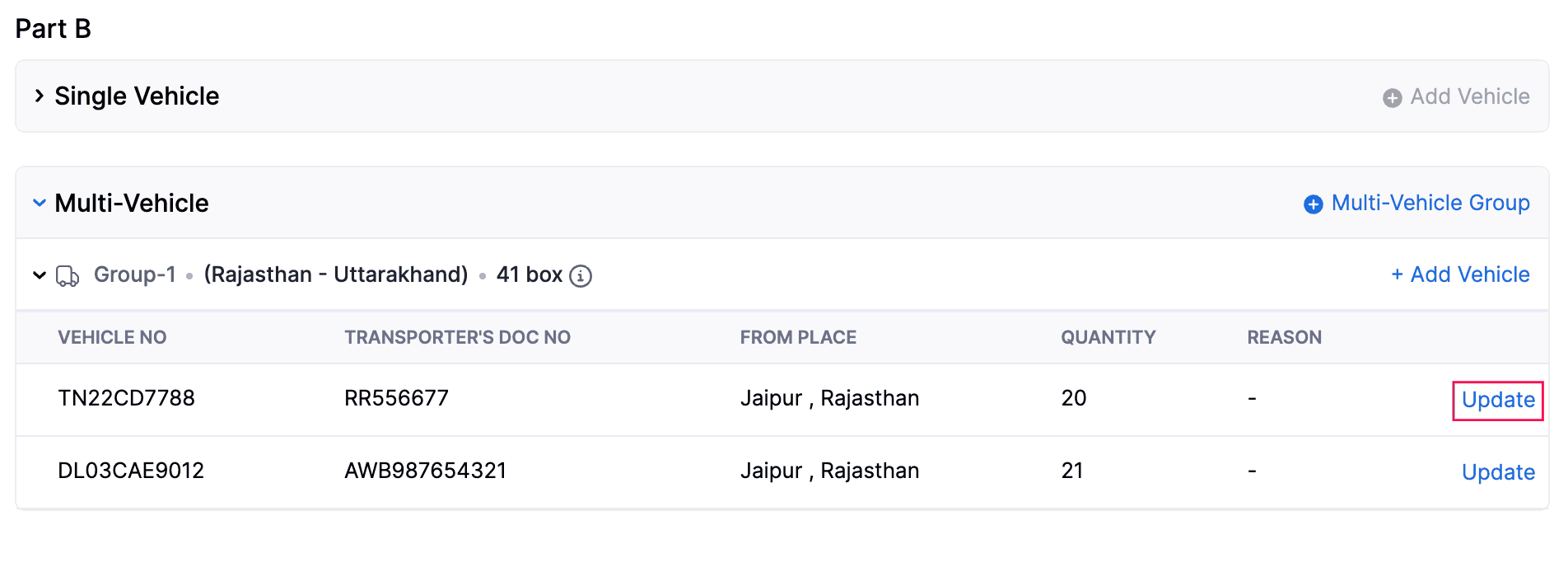
In the details page, under Part B, click Update next to the required vehicle.
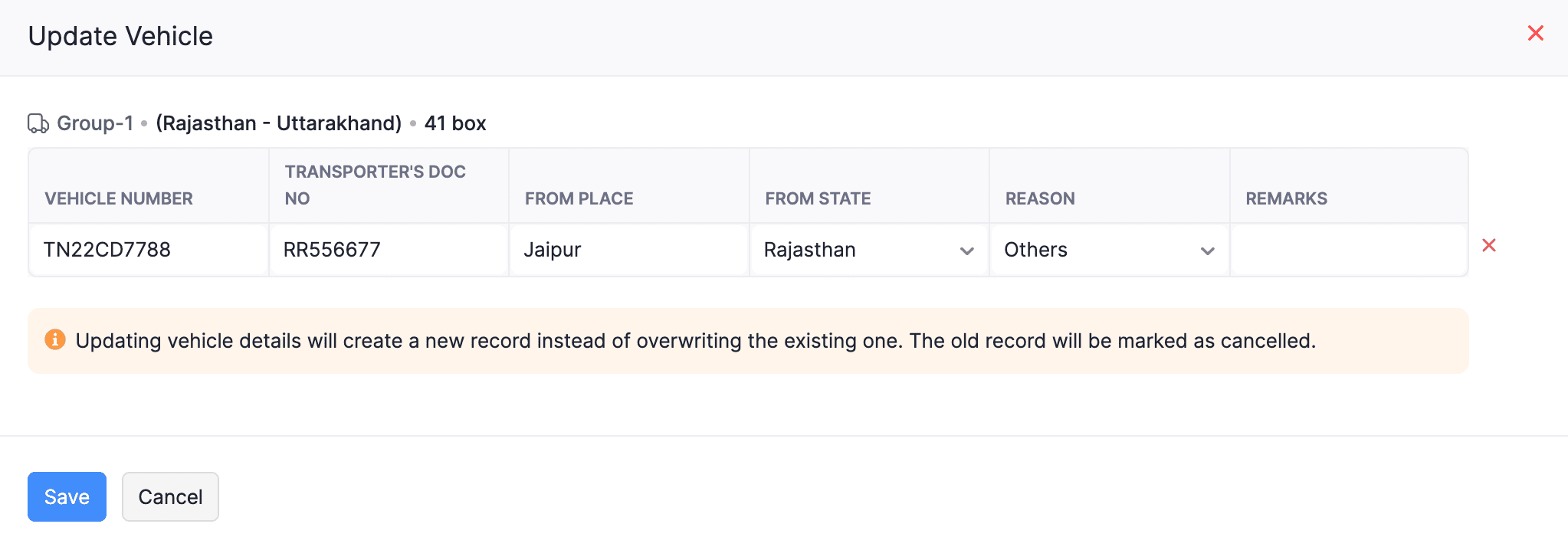
In the Update Vehicle pop-up, make the required changes.
Click Save.
The vehicle details will be updated.
Note: When you update vehicle details in a multi-vehicle group, a new record is created for the vehicle instead of overwriting the existing one. The original record will be marked as Cancelled.
 Yes
Yes