


Functions in e-Way Bills

Let’s take a look at some of the functions that can be performed on e-Way Bills in Zoho Books.
Create a New e-Way Bill
To create a new e-Way Bill:
- Go to Sales on the left sidebar and select e-Way Bills.
- Click + New.
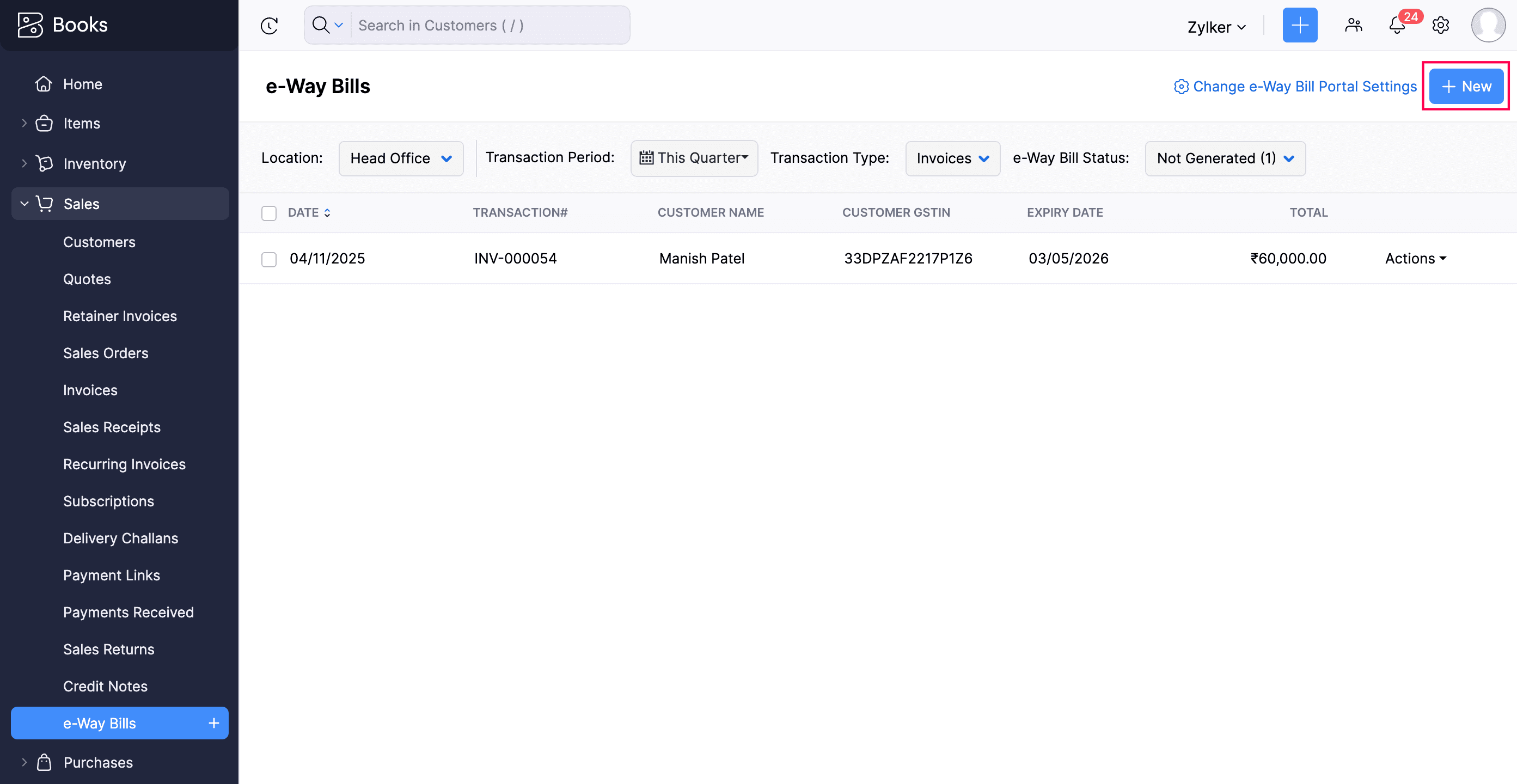
Enter all the necessary details.
Click Save to save the e-Way Bill as a draft, or click Save and Generate to generate the e-Way Bill immediately.
Add e-Way Bill Details to Transactions
If you have already generated an e-Way Bill in the EWB portal, you can associate it with your transactions. Here’s how:
- Go to the respective module for which you want to update the e-Way Bill details (for example, invoices).
- Select the transaction to which you want to associate the e-Way Bill details.
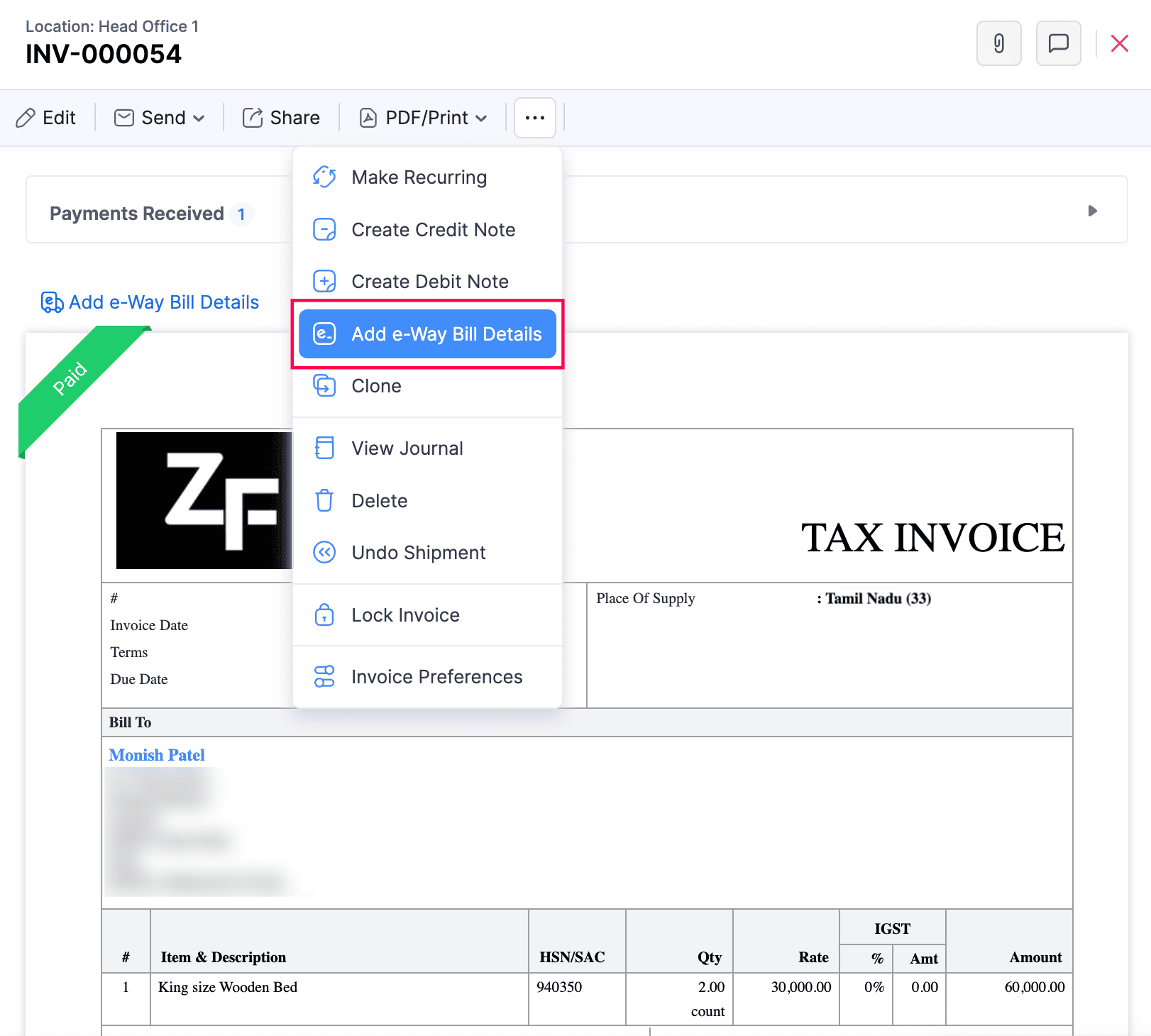
- Click the More icon.
- Select Add e-Way Bill Details.
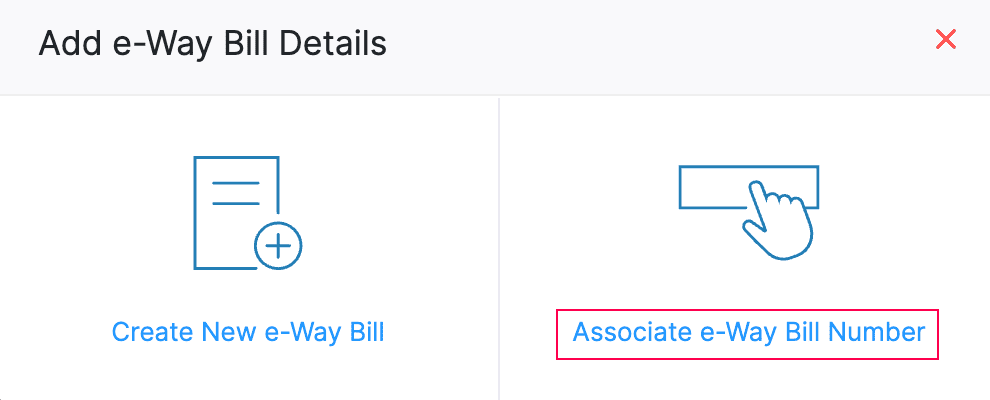
- In the Add e-Way Bill Details pop-up, select Associate e-Way Bill Number.
- Enter the e-Way Bill Number. Make sure there are no spaces between the numbers.
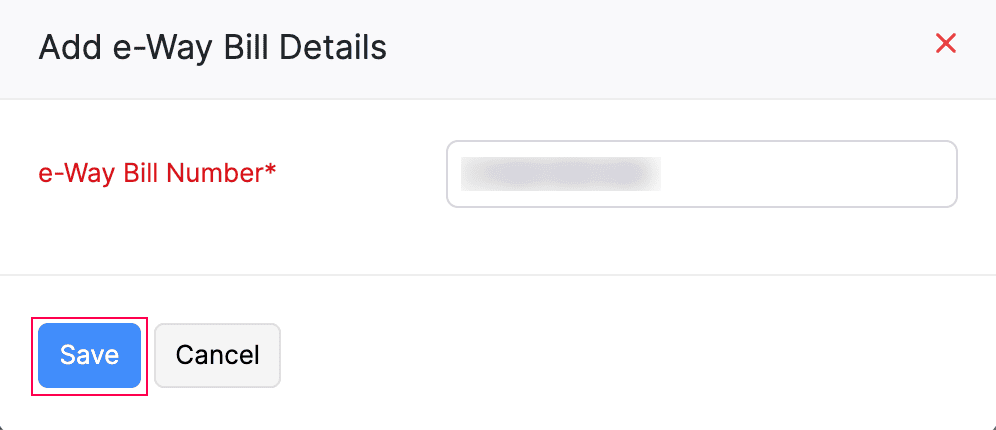
- Click Save.
The e-Way Bill number will be associated with the transaction. You must also fetch the details of the respective e-Way Bill from the portal to update all relevant information.
Fetch e-Way Bill Details From the EWB Portal
If you’ve generated an e-Way Bill directly in the EWB portal and manually associated the e-Way Bill number with a transaction in Zoho Books, you need to fetch the details from the EWB portal to accurately reflect the latest updates for that transaction. This ensures the e-Way Bill details in Zoho Books is up to date. To fetch data from the EWB portal into your organization:
- Go to Sales on the left sidebar and select e-Way Bills.
- In the e-Way Bills page, click the dropdown next to e-Way Bill Status and select Generated.
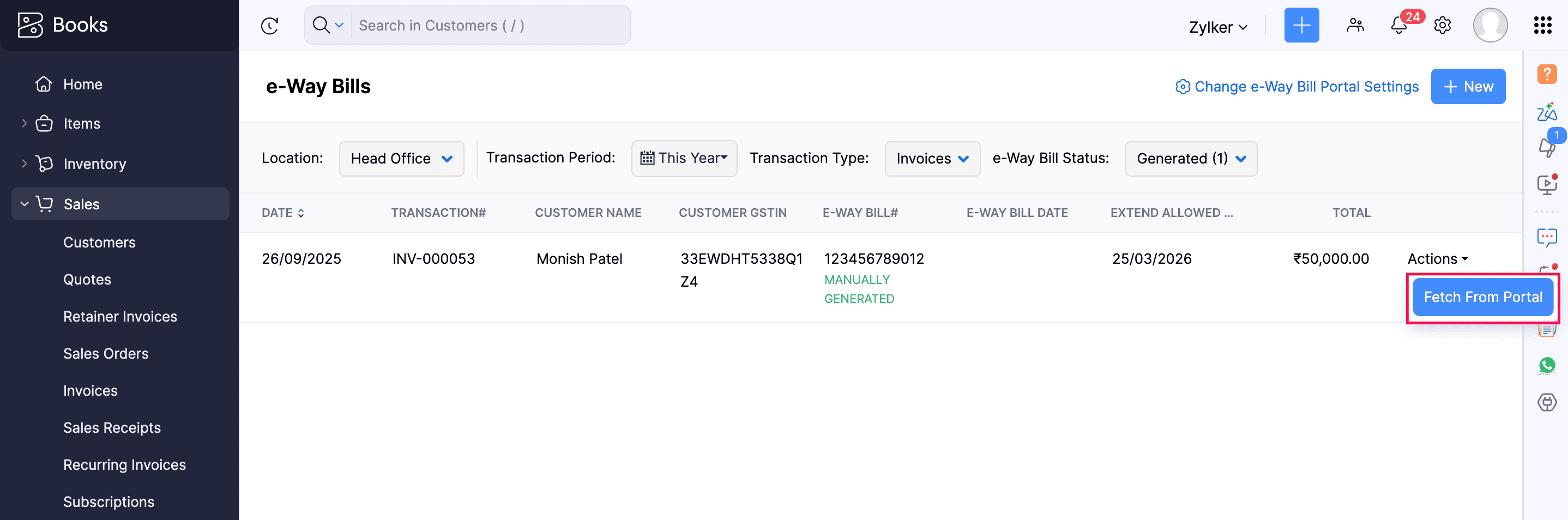
- Click the Actions dropdown next to the transaction for which you want to fetch e-Way Bill details, and select Fetch From Portal.
The e-Way Bill details will be updated for the transaction.
Cancel an e-Way Bill
Sometimes, your shipment may get cancelled, the destination might change, or there could be typing errors while creating an e-Way Bill. In such cases, you can cancel the existing e-Way Bill within 24 hours of its creation and generate a new one. However, if the e-Way Bill has already been verified by the authorities, it cannot be cancelled. To cancel an e-Way Bill:
- Go to Sales on the left sidebar and select e-Way Bills.
- Click the Actions dropdown next to the e-Way Bill you want to cancel, and select Cancel.
- In the Reason For Cancellation pop-up:
- Select the Reason for cancellation and enter the cancellation Remarks, if any.
- Click Confirm.
The e-Way Bill will be cancelled.
Regenerate a Cancelled e-Way Bill
You can regenerate a cancelled e-Way Bill. Here’s how:
- Go to Sales on the left sidebar and select e-Way Bills.
- Select the e-Way Bill that needs to be regenerated, and click Regenerate.
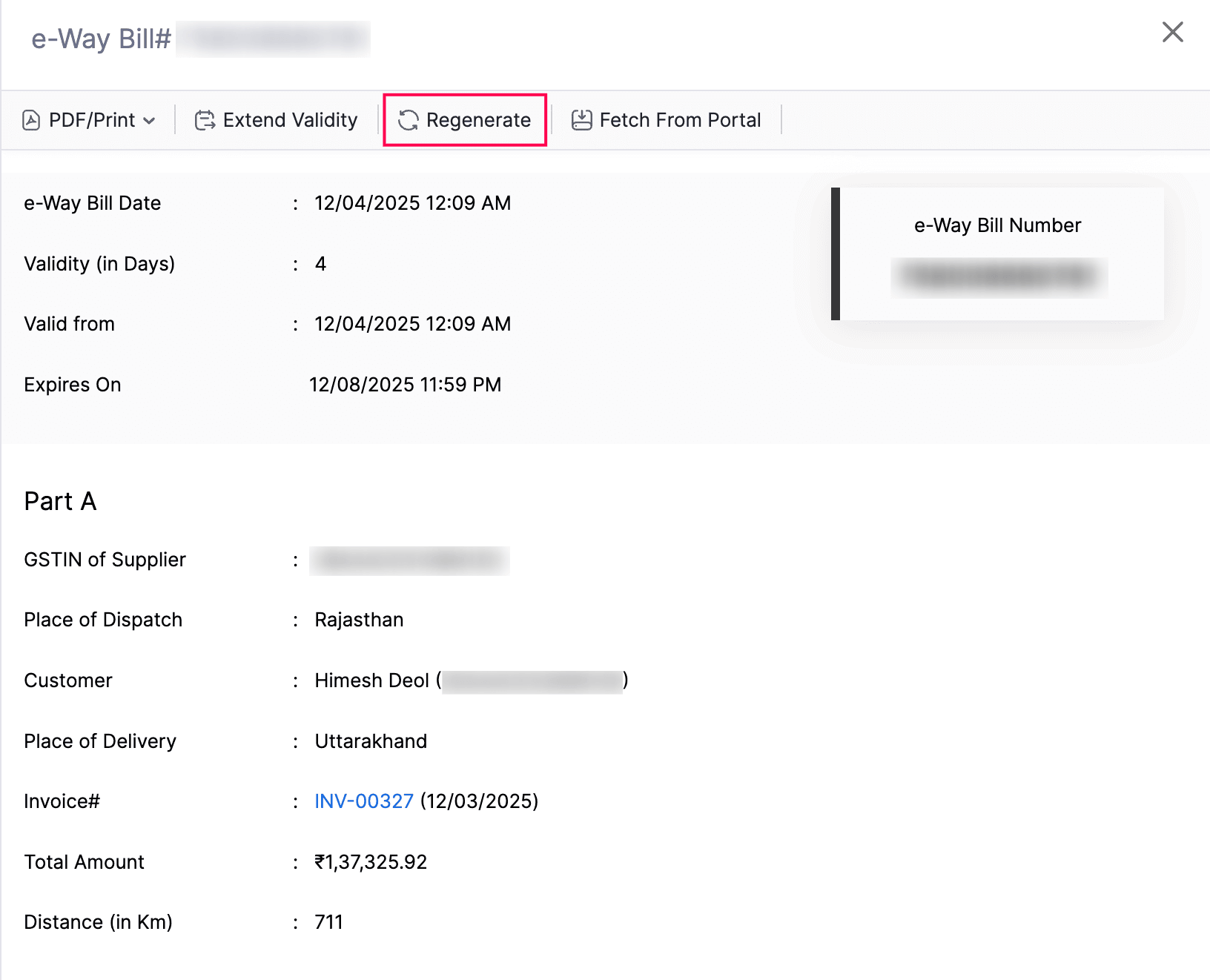
- On the Edit e-Way Bill page, update the required details.
- Click Save or Save and Generate to generate an e-Way Bill from Zoho Books.
Extend the Validity Period of e-Way Bills
The validity period of an e-Way Bill which is in the Generated or Expired status can be extended up to eight hours before or after it expires. For example, if there are unforeseen delays during transportation, such as vehicle breakdowns or traffic issues, you can extend the e-Way Bill’s validity. Here’s how:
- Go to Sales on the left sidebar and select e-Way Bills.
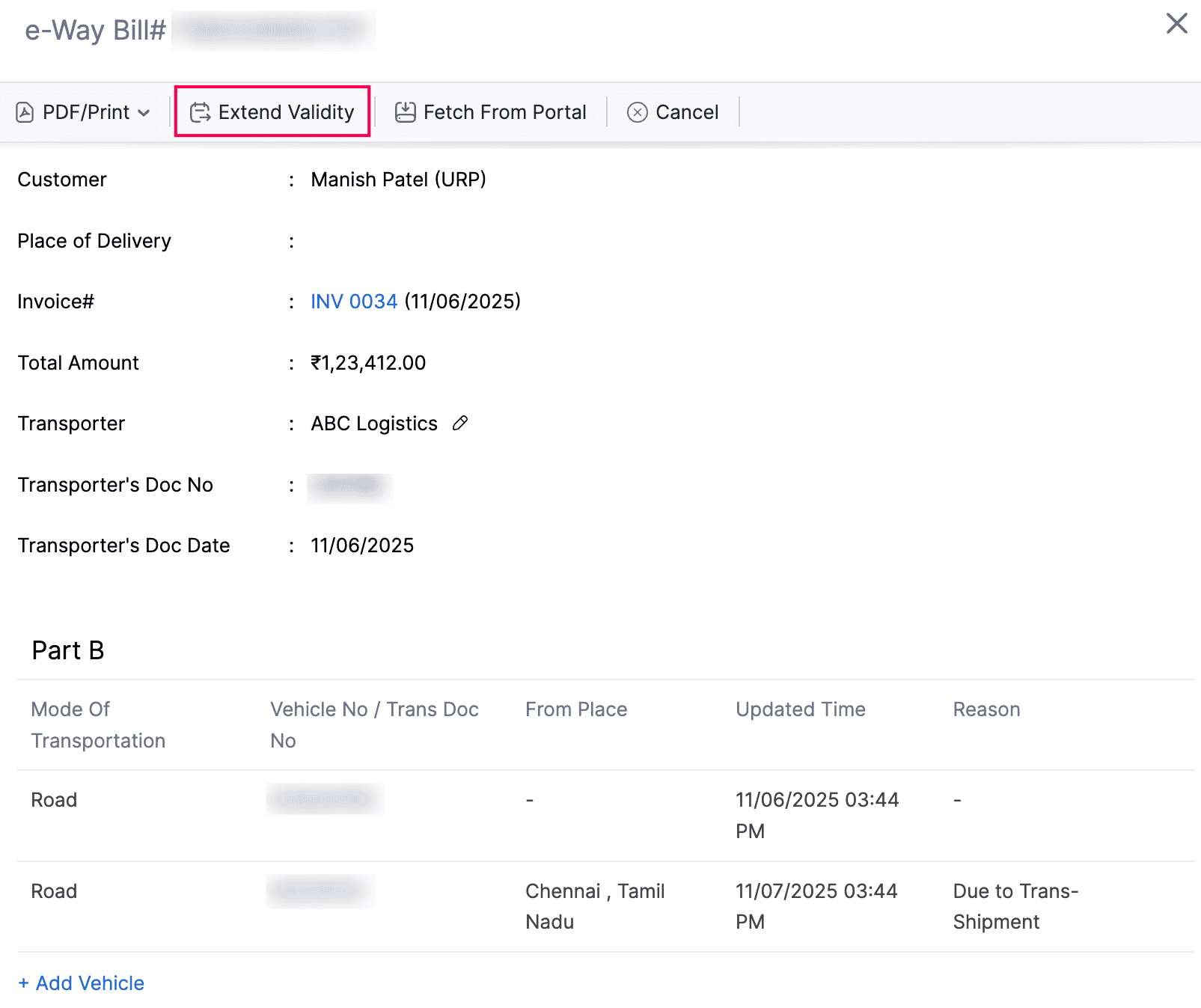
- Select the e-Way Bill for which you want to extend the validity period.
- Click Extend Validity.
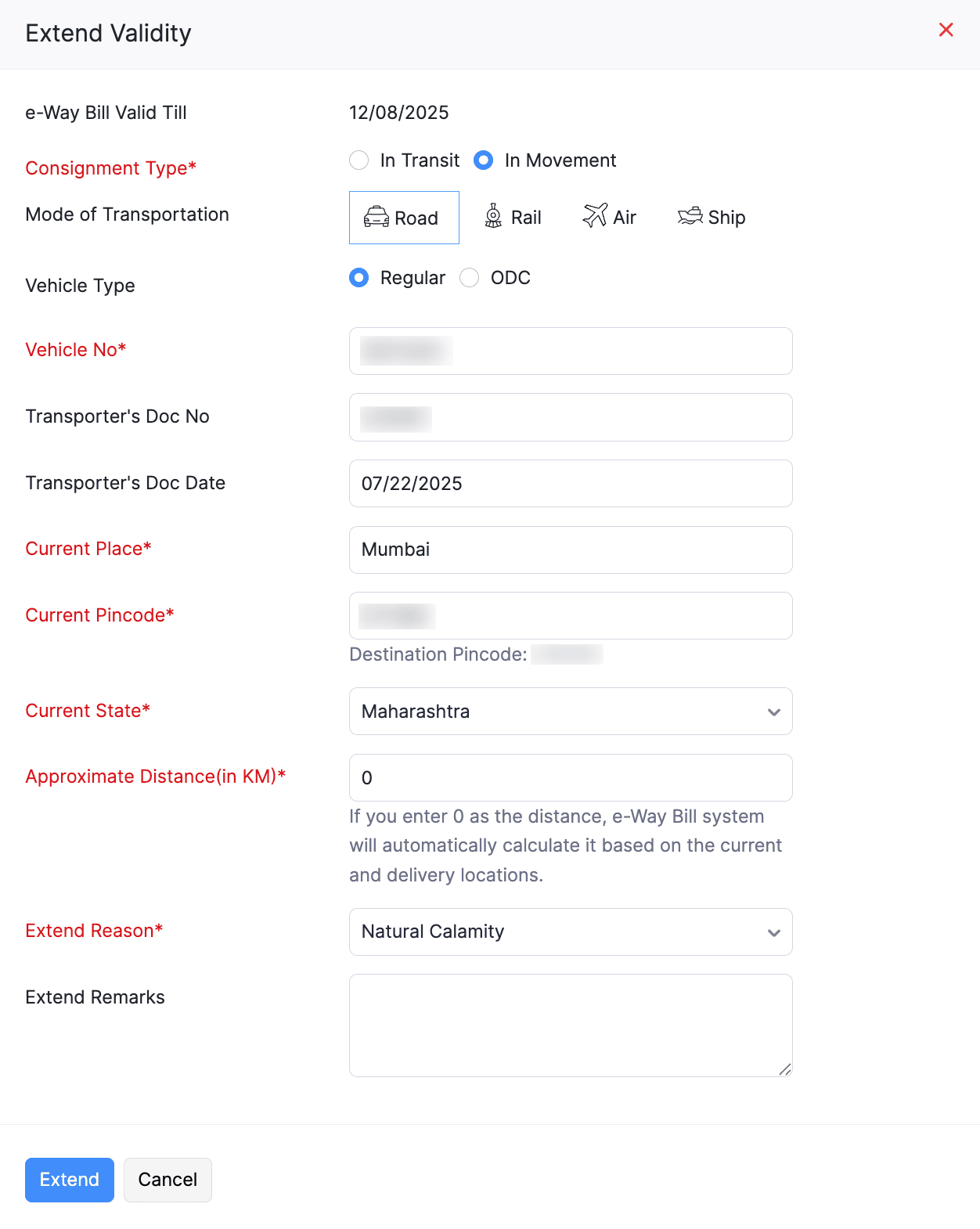
- In the Extend Validity pop-up:
- Select the Consignment Type as either In Transit or In Movement. You can select In Transit if your goods are in transit on the road or in a warehouse, and then select the Transit Type. If your goods are being transported, select In Movement, and then select the Mode of Transportation and Vehicle No.
- Enter the consignment’s Current Place, Current Pincode, and select the Current State.
- Enter the Approximate Distance (in KM) from your current consignment location to the destination. You can enter 0 if you want the e-Way Bill system to calculate the distance automatically.
- Select the Extend Reason.
- Click Save.
The validity period of the e-Way Bill will now be extended.
Note: From January 1, 2025, e-Way Bills cannot be extended beyond 360 days from their generation date.
Add Transporter Details
If you didn’t update the transporter details at the time of generation and have outsourced the transportation of goods, the transporter must furnish the Part-B details. These details can be updated for e-Way Bills in the Generated and Part-A Generated statuses. Here’s how:
- Go to Sales on the left sidebar and select e-Way Bills.
- Select the e-Way Bill that you want to update.
- Click Add Transporter on the details page of the e-Way Bill and select a transporter from the dropdown.
- Click the Tick icon.
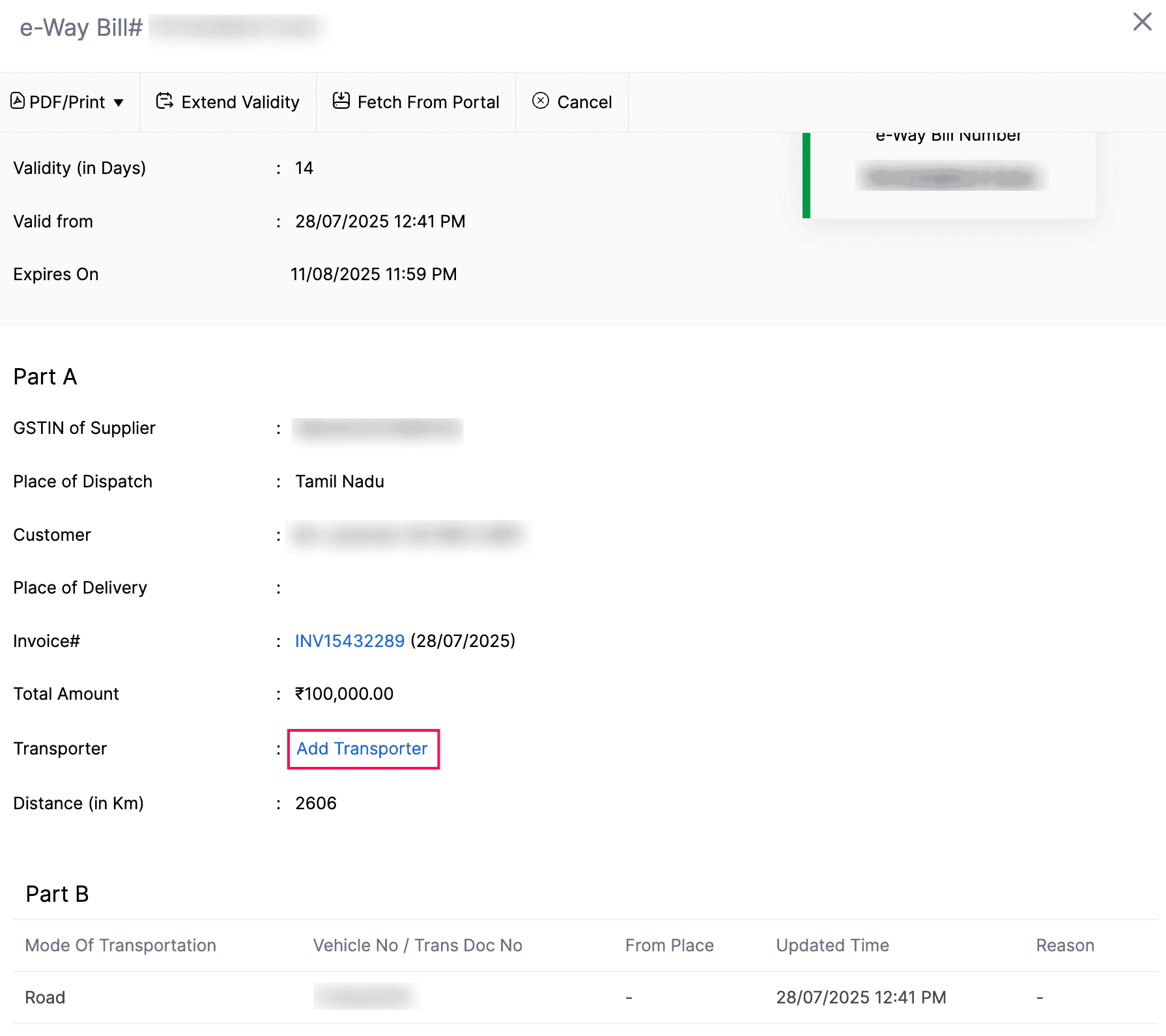
Note: You can also update the transporter details if they were added while generating the e-Way Bill. To do this, go to e-Way Bills > Select an e-Way Bill > Click the Edit icon next to the Transporter field > Select a transporter from the dropdown > Click the Tick icon.
The transporter details will be updated in the e-Way Bill.
Add New Vehicle
When goods are transshipped, or in other circumstances such as a change of transporter, there is no need to generate a new e-Way Bill each time. Instead, you can update the details of the new vehicle in the existing e-Way Bill. Here’s how:
- Go to Sales on the left sidebar and select e-Way Bills.
- Select the e-Way Bill that you want to update.
- Navigate to the Part B section on the e-Way Bill details page.
- Click + Add vehicle.
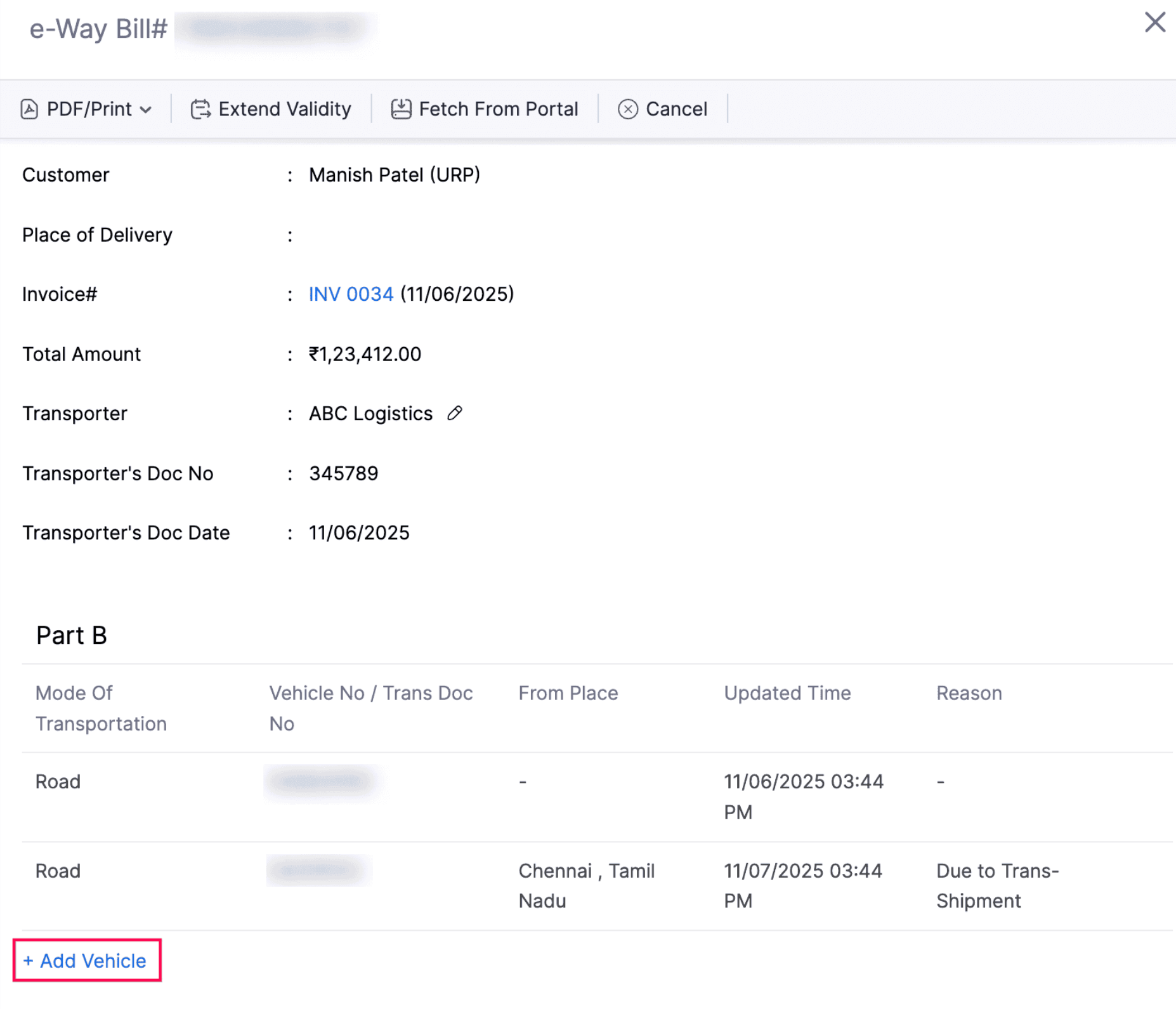
- In the Add Vehicle pop-up, enter the required details.
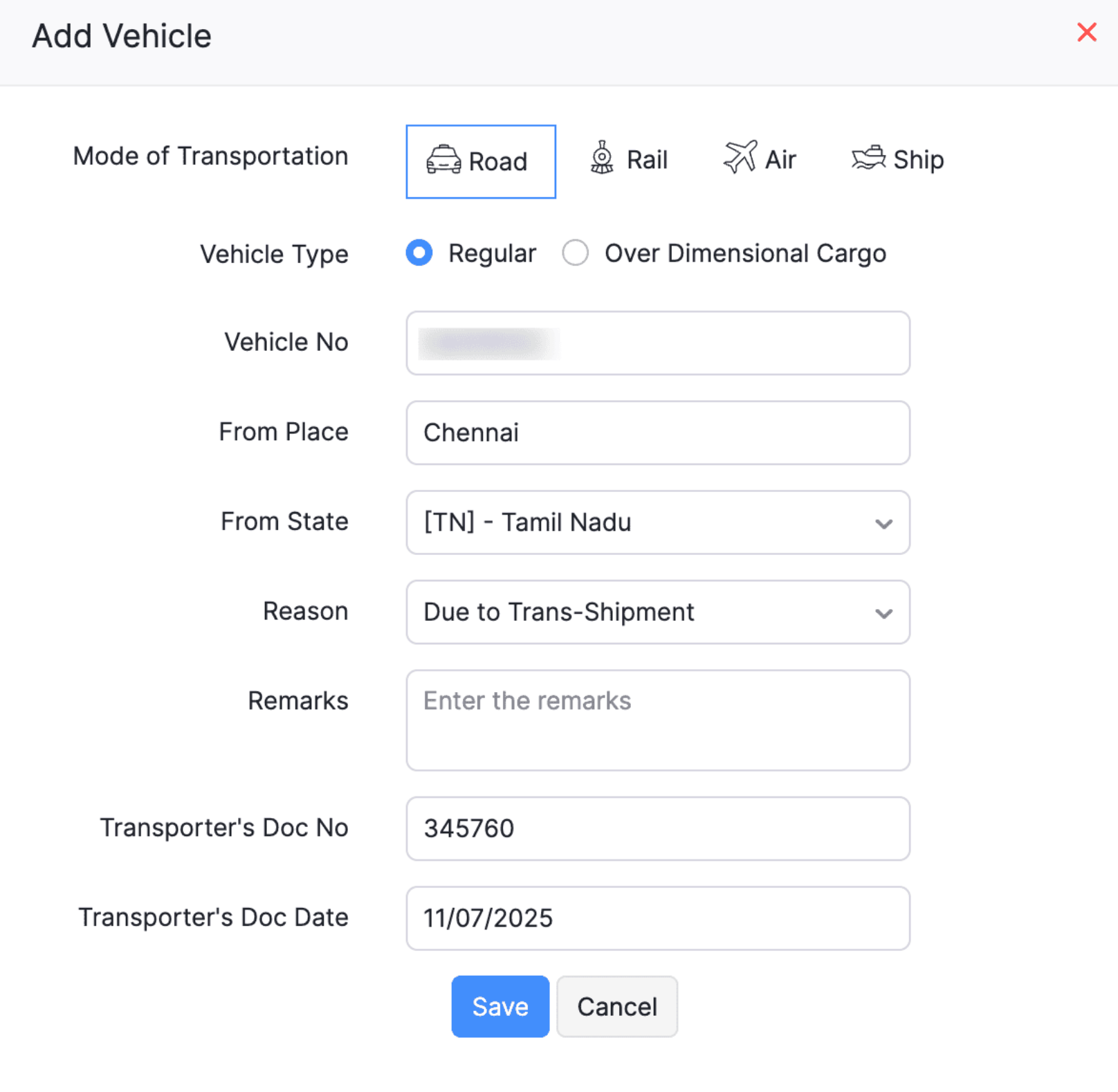
- Click Save.
The details of the new vehicle will now be updated in the Part B section of the e-Way Bill.
 Yes
Yes