


Notification Preferences

Admins can set up notification preferences such that the approvers will be notified after the submission of transactions by a submitter and submitters will be notified after the approval of a transaction.
Notify Approvers after the Submission of Transaction
Admins can set up preferences such that the approvers will be notified every time a transaction is created through email. Here’s how to notify your approvers:
Go to Settings.
Select a module, for example Invoices, under Sales.
Click the Approval tab at the top.
Mark Send email and in-app notifications when transactions are submitted for approval under Notification Preferences.
For Simple Approval, choose any one of the following options:
- Notify all approvers when a non-approver submits a transaction.
- Notify all approvers when an approver/non-approver submits a transaction.
- Notify a specific email address.
Click Save.

Notify Submitters after Approval
Here’s how to notify the submitter when a transaction is approved:
Go to Settings.
Select a module, for example Invoices, under Sales.
Click the Approval tab at the top.
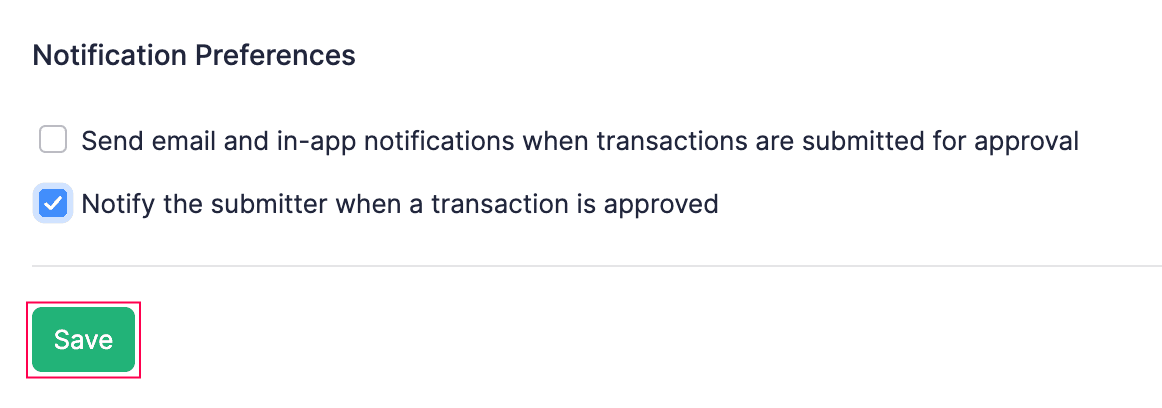
Mark Notify the submitter when a transaction is approved under Notification Preferences.
Click Save.


Ask Zia is powered by AI. Responses are helpful but not always perfect.
 Yes
Yes