

App Store Integration

To set up Omnichannel Subscriptions for your iOS app, you must first integrate App Store with Zoho Billing. This enables real-time synchronisation of subscription lifecycle events and keeps your subscription data up to date across channels.
Before You Begin
Ensure the following are in place:
- An active Apple Developer account with Admin or Account Holder access.
- Your app is registered in App Store Connect.
- In-app purchase products are configured in App Store Connect.
Integrate App Store with Zoho Billing
- Log in to your Zoho Billing organisation.
- Go to Settings in the top-right corner.
- Select Store Apps under Integrations & Marketplace.
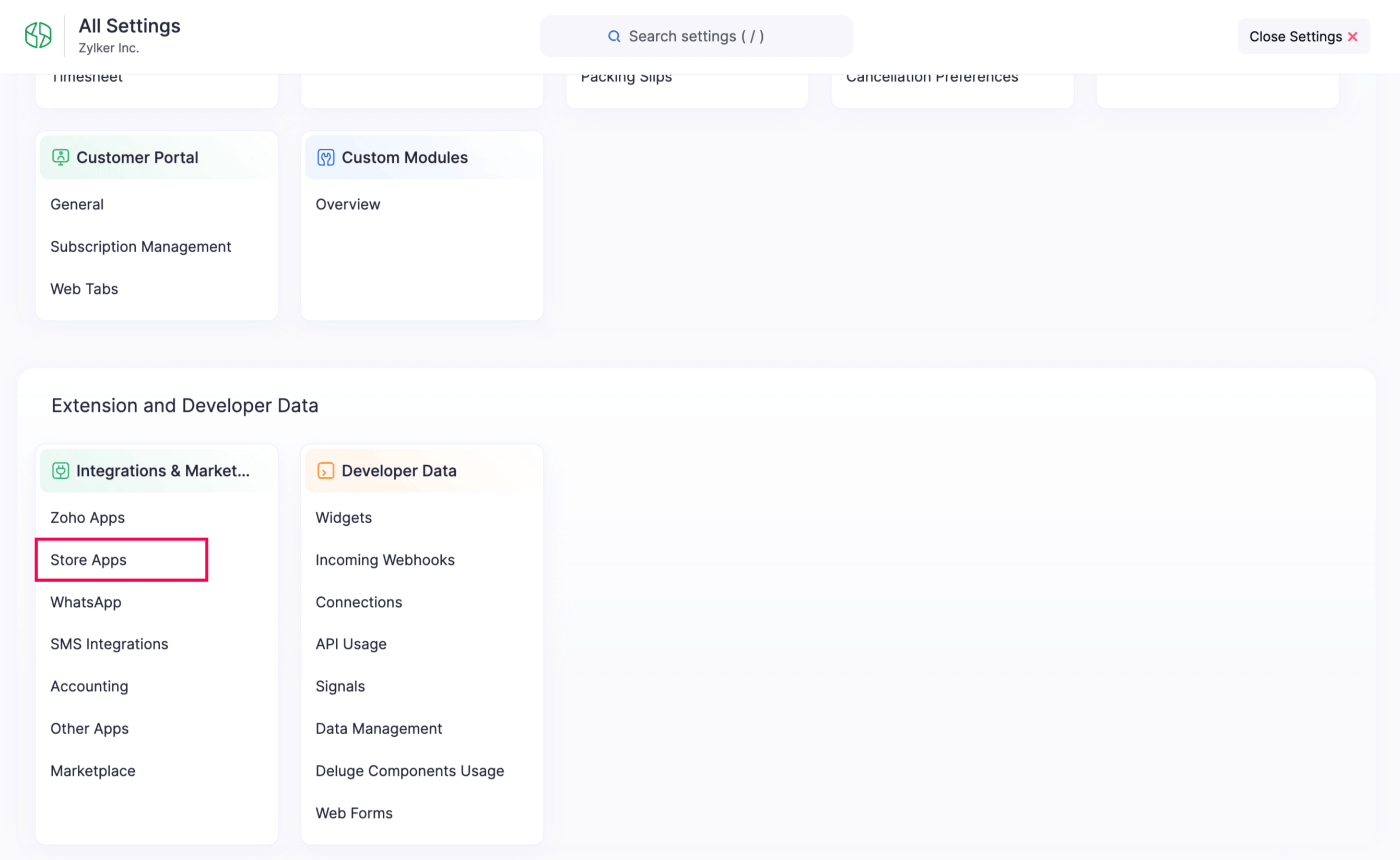
- In the Store Apps page, click Connect next to App Store.
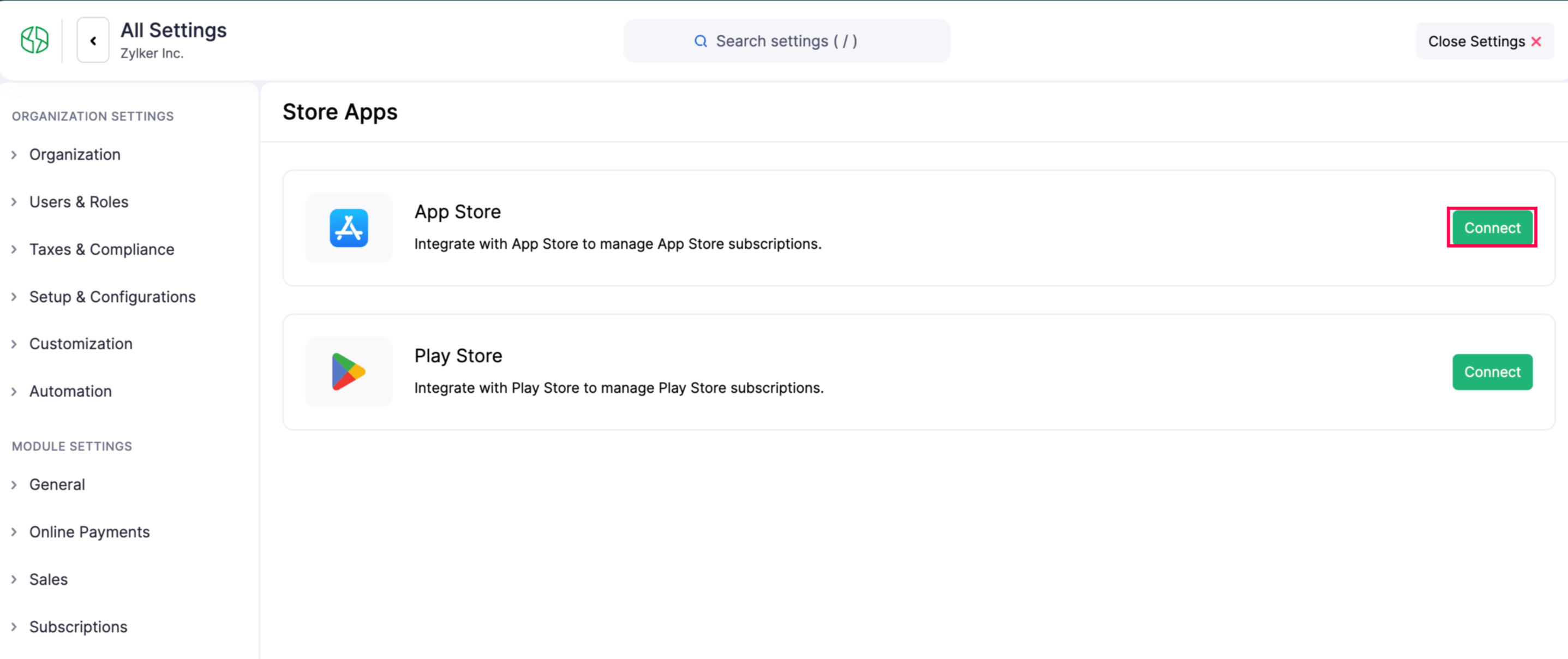
- Enter the required values in the integration configuration page.
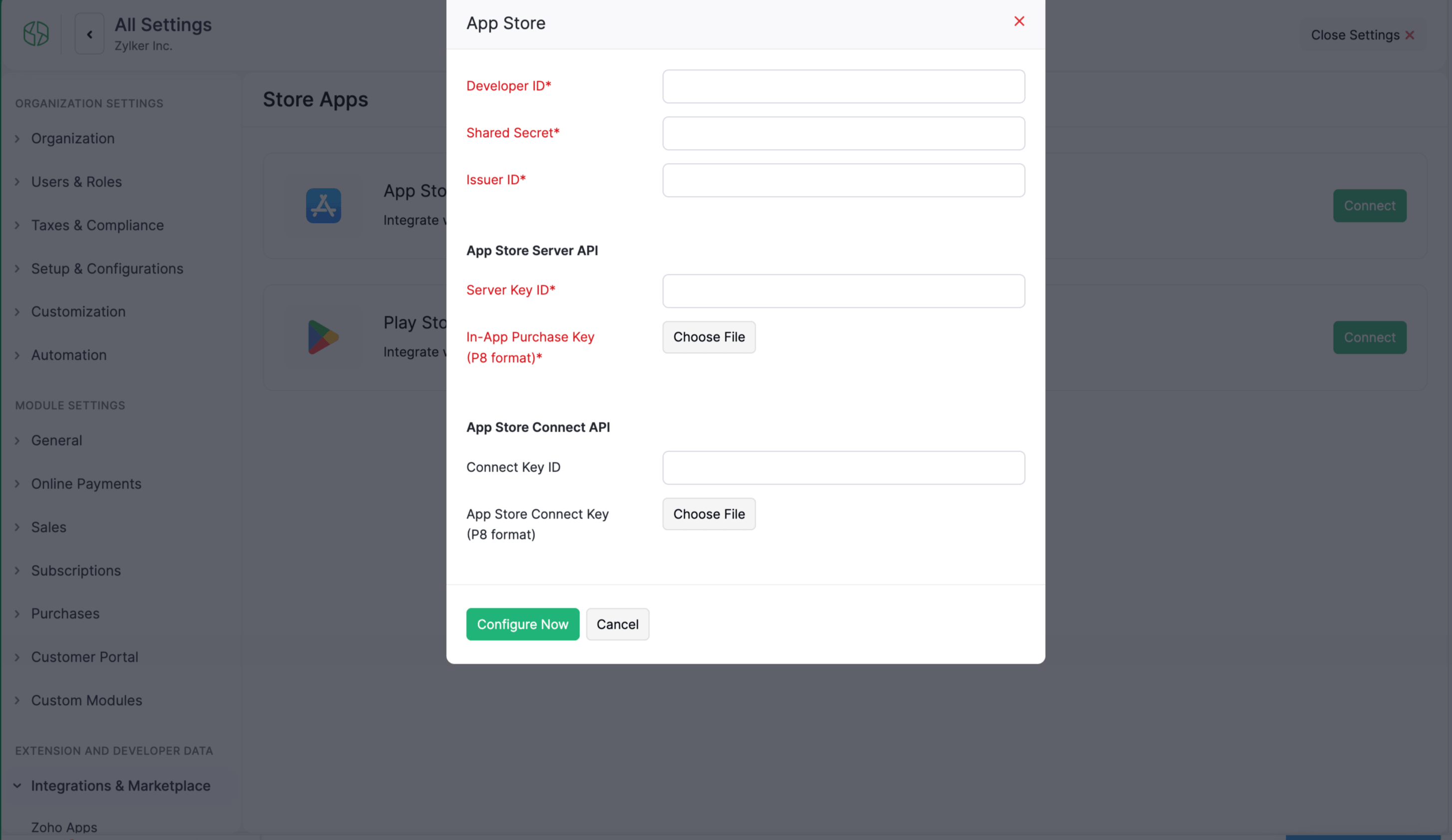
- Click Configure Now.
Your role must have access to the Settings module in Zoho Billing to configure integrations.
Use this reference while configuring the integration:
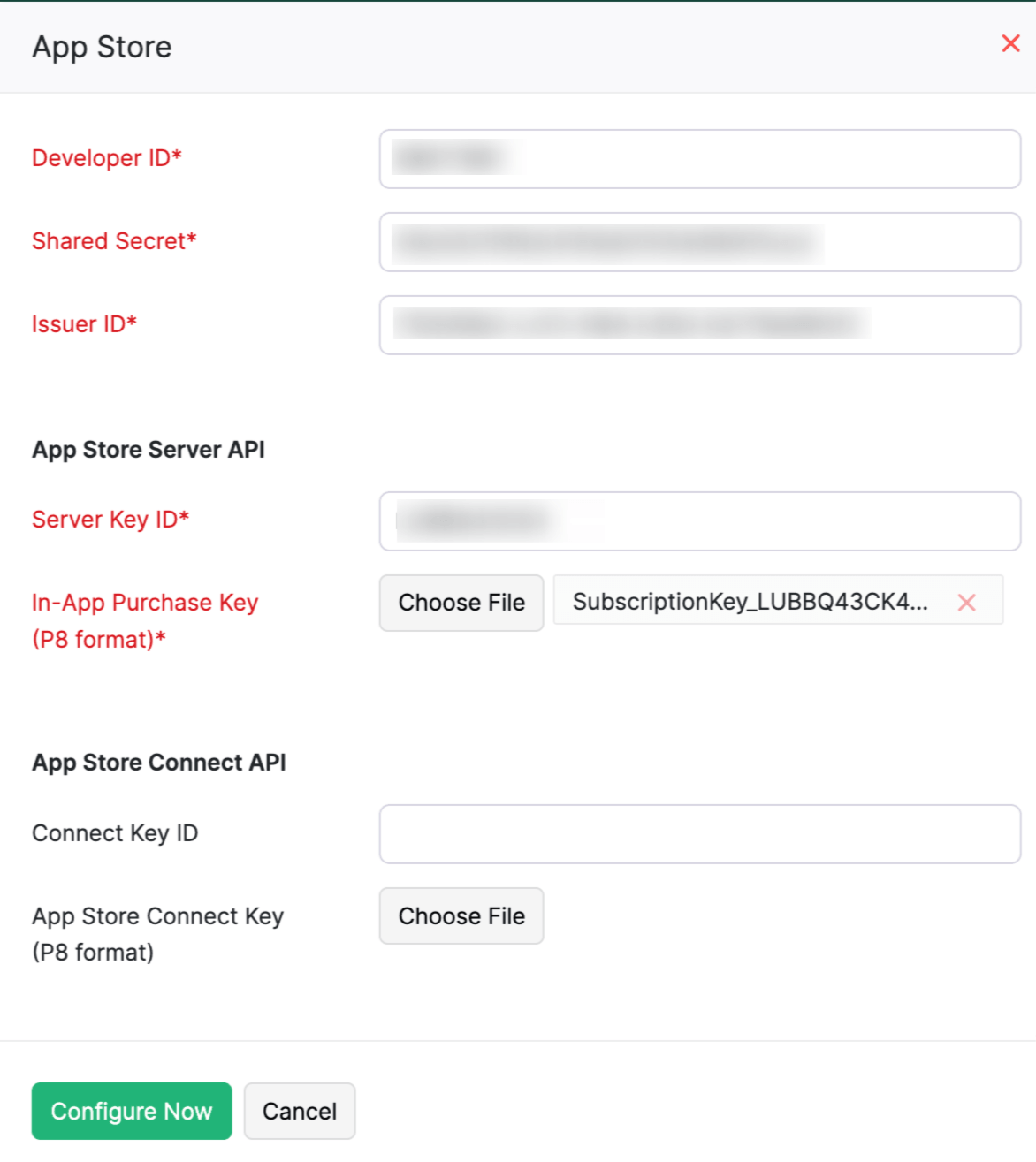
| Field | Description |
|---|---|
| Developer ID | Enter your Apple Developer account identifier. |
| Shared Secret | Enter the shared secret from App Store Connect used to validate and decode receipts. |
| Issuer ID | Enter the Issuer ID from App Store Connect for secure API authentication. |
| Server Key ID | Enter the key ID for your App Store Server API key. |
| In-App Purchase Key | Upload the .p8 private key generated for App Store Server API. |
| Connect Key ID | Enter the key ID for your App Store Connect API key. |
| App Store Connect Key | Upload the private key generated for App Store Connect API. |
Generate Required Credentials
Before completing the App Store integration, generate the required credentials from App Store Connect and provide them in Zoho Billing.
Copy the Developer ID
The Developer ID links your app to the correct Apple Developer account during integration.
- Log in to your App Store Connect account.
- Go to the Business section.
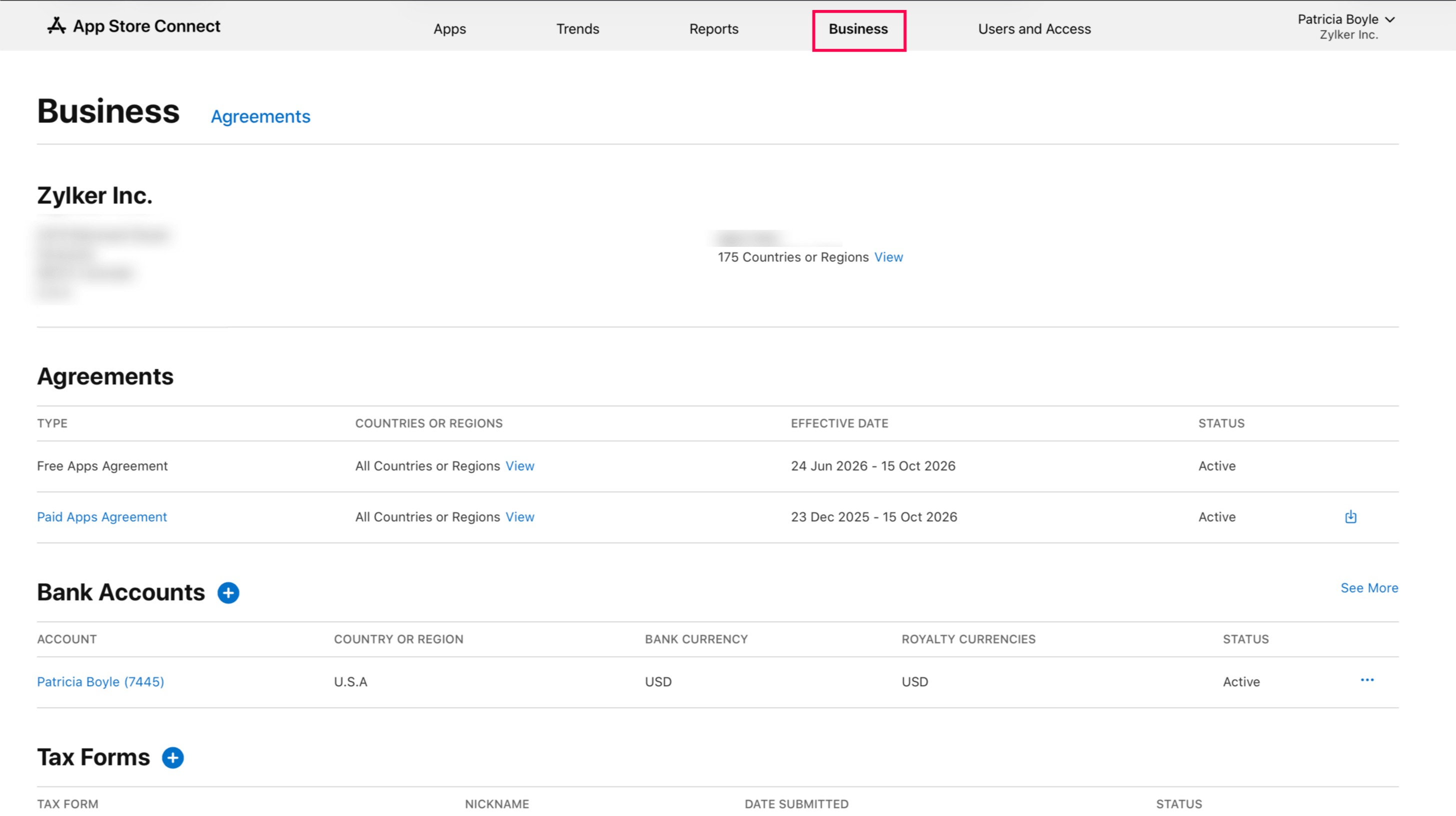
- Copy the Developer Account ID.
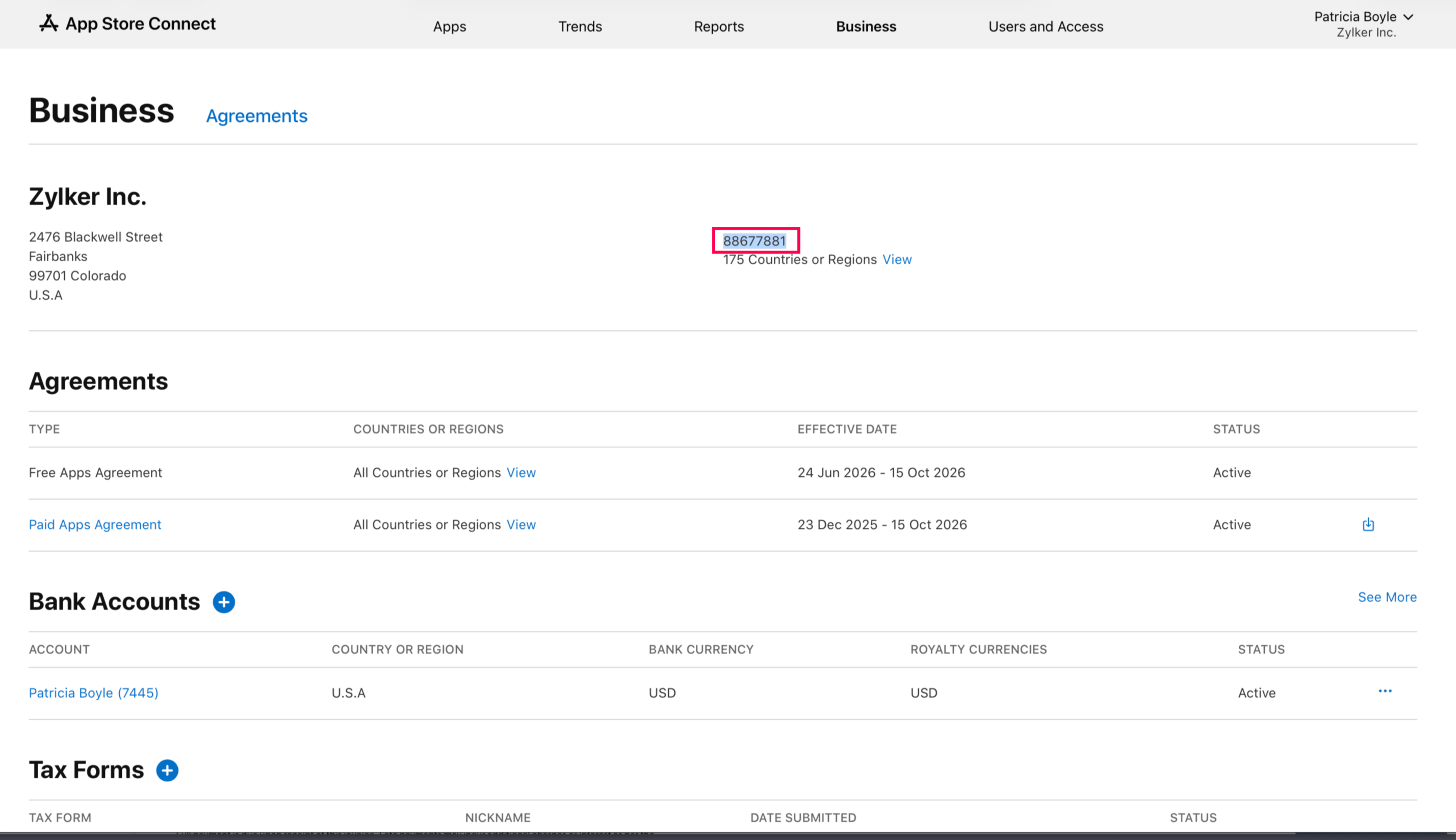
- Paste it into the Developer ID field in Zoho Billing.
Generate the Shared Secret
The Shared Secret validates and decodes App Store payment receipts.
- In App Store Connect, go to the Users and Access tab.
- Open the Integrations tab.
- Select Shared Secret under Keys.
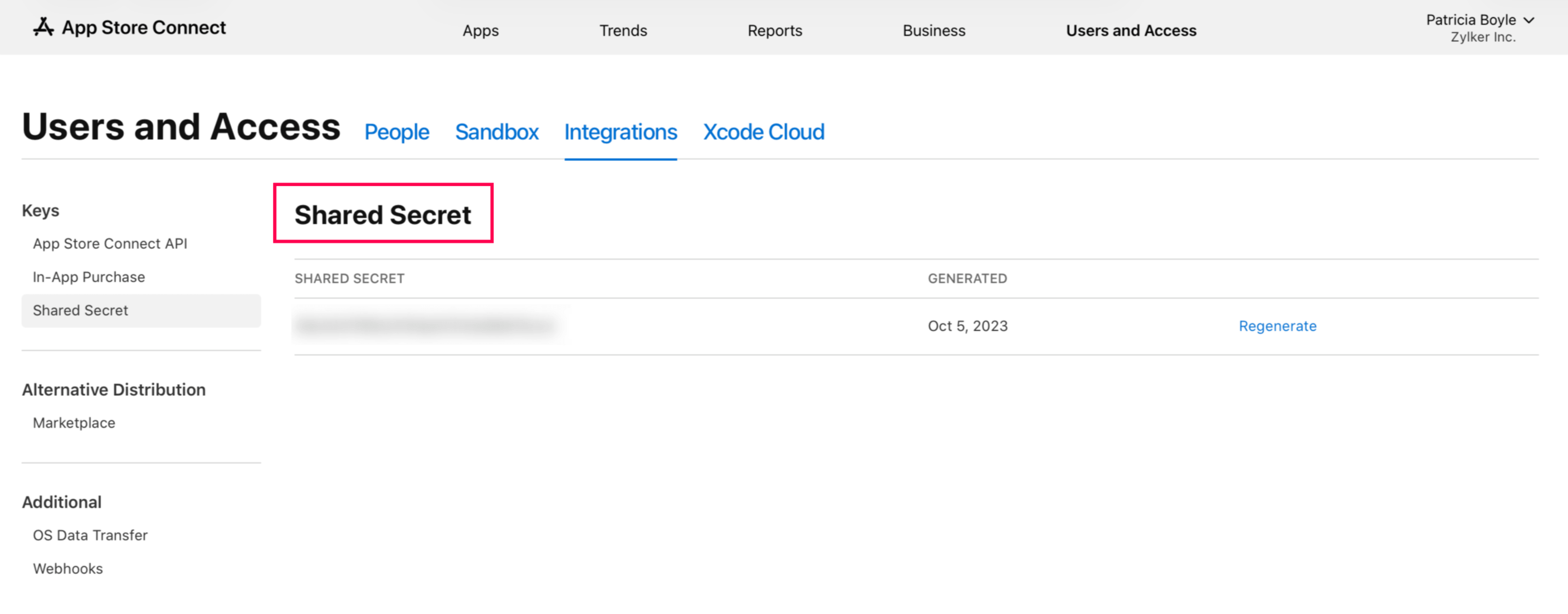
- Click the Add icon to create a new secret, or copy an existing one.
- Enter the secret in the Shared Secret field in Zoho Billing.
If you regenerate the secret, the current one becomes invalid. Replace it in required places with the new secret.
Generate the App Store Server API Key and Issuer ID
These credentials allow Zoho Billing to validate purchases and track subscription lifecycle events.
- In App Store Connect, open the Users and Access tab.
- Switch to the Integrations tab.
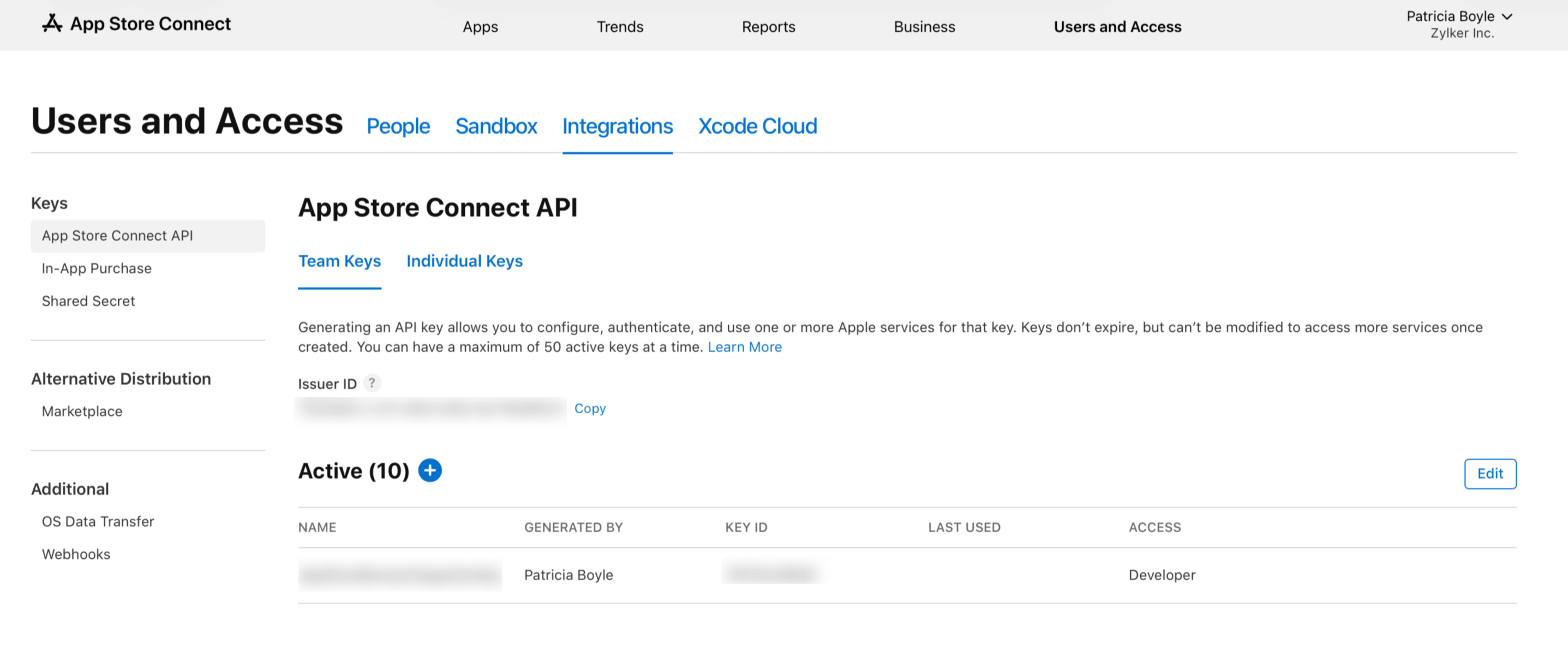
- Select In-App Purchase in the sidebar.
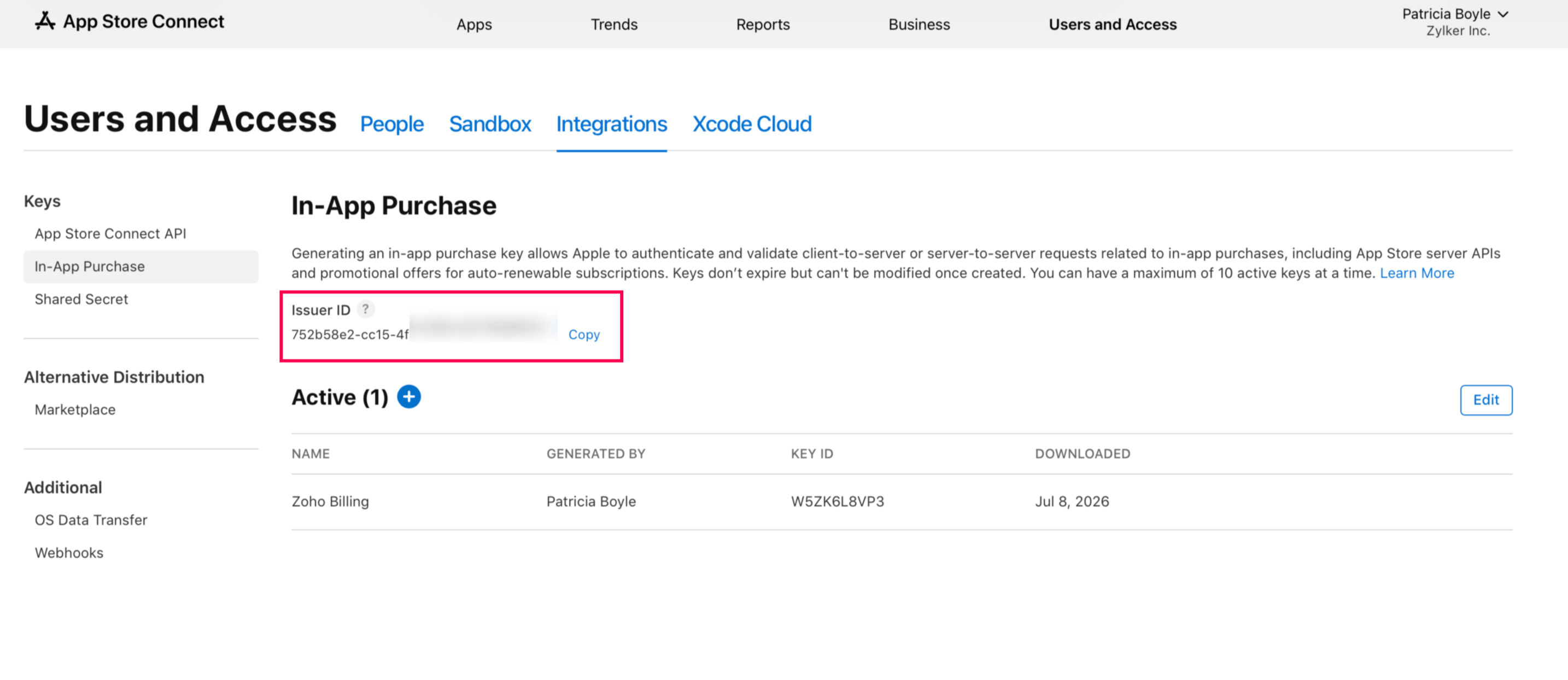
- Copy the Issuer ID and enter it in the Issuer ID field in Zoho Billing.
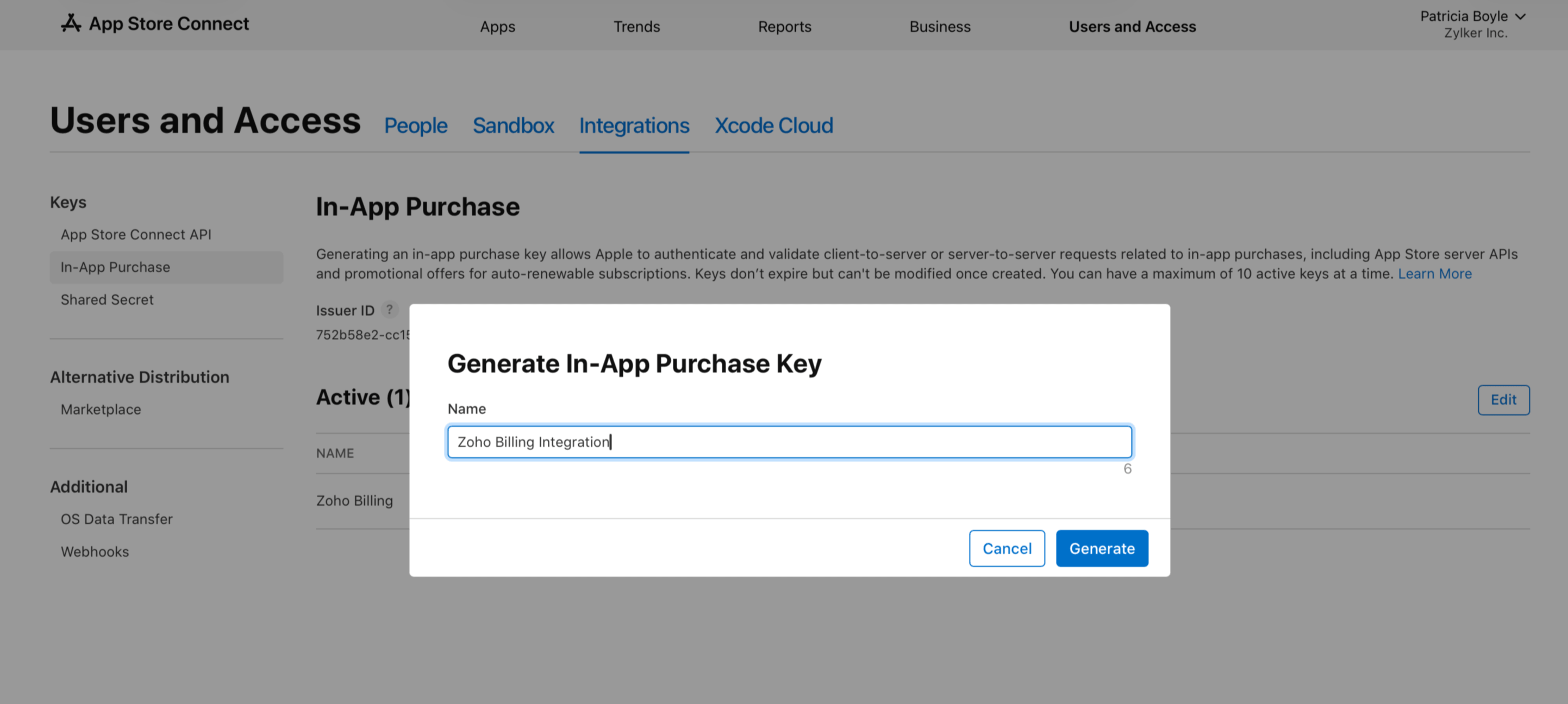
- Click the Add icon to create a new In-App Purchase key.
- Enter a key name and click Generate.
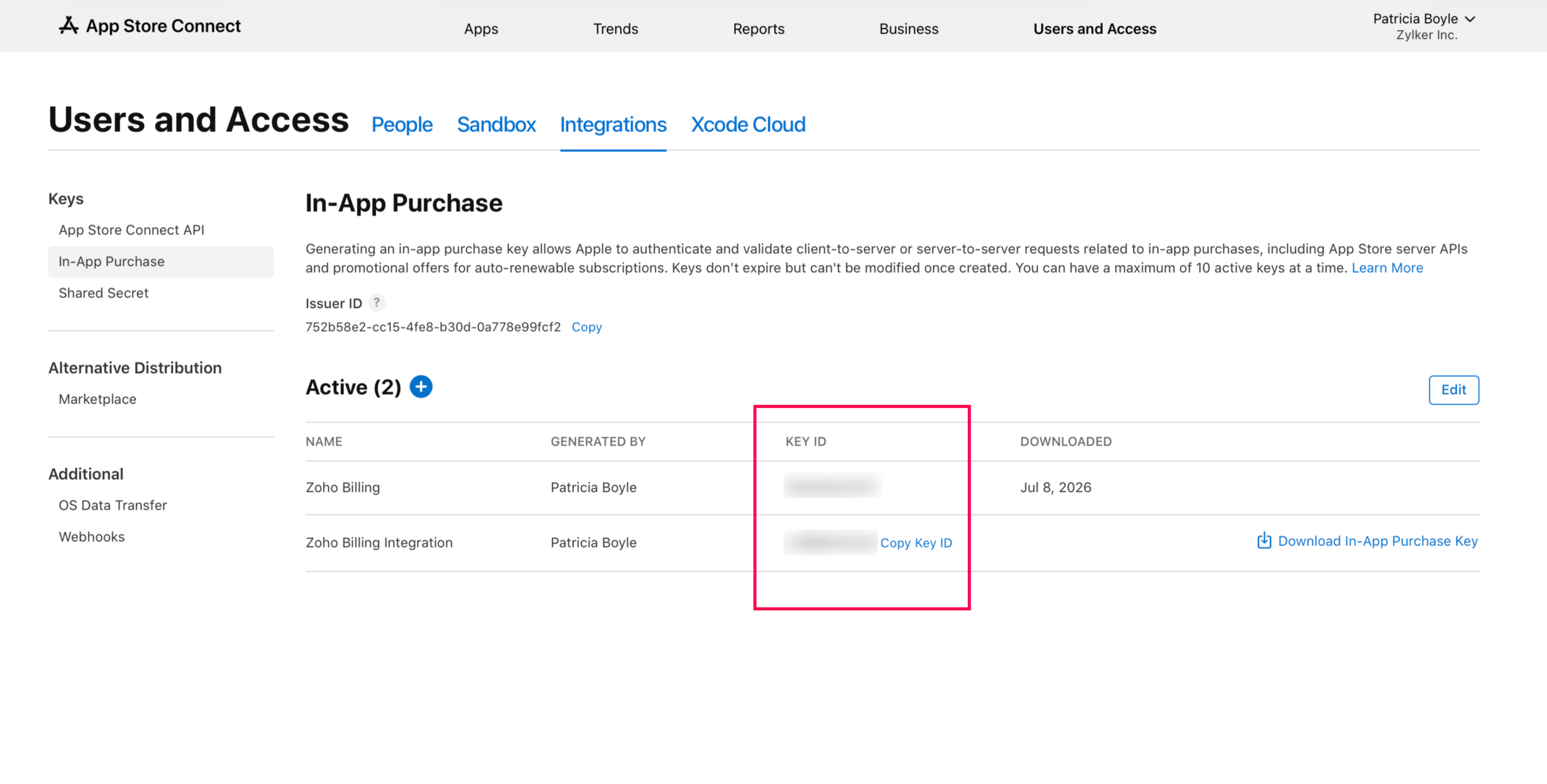
- Copy the generated Key ID and paste it into Server Key ID in Zoho Billing.
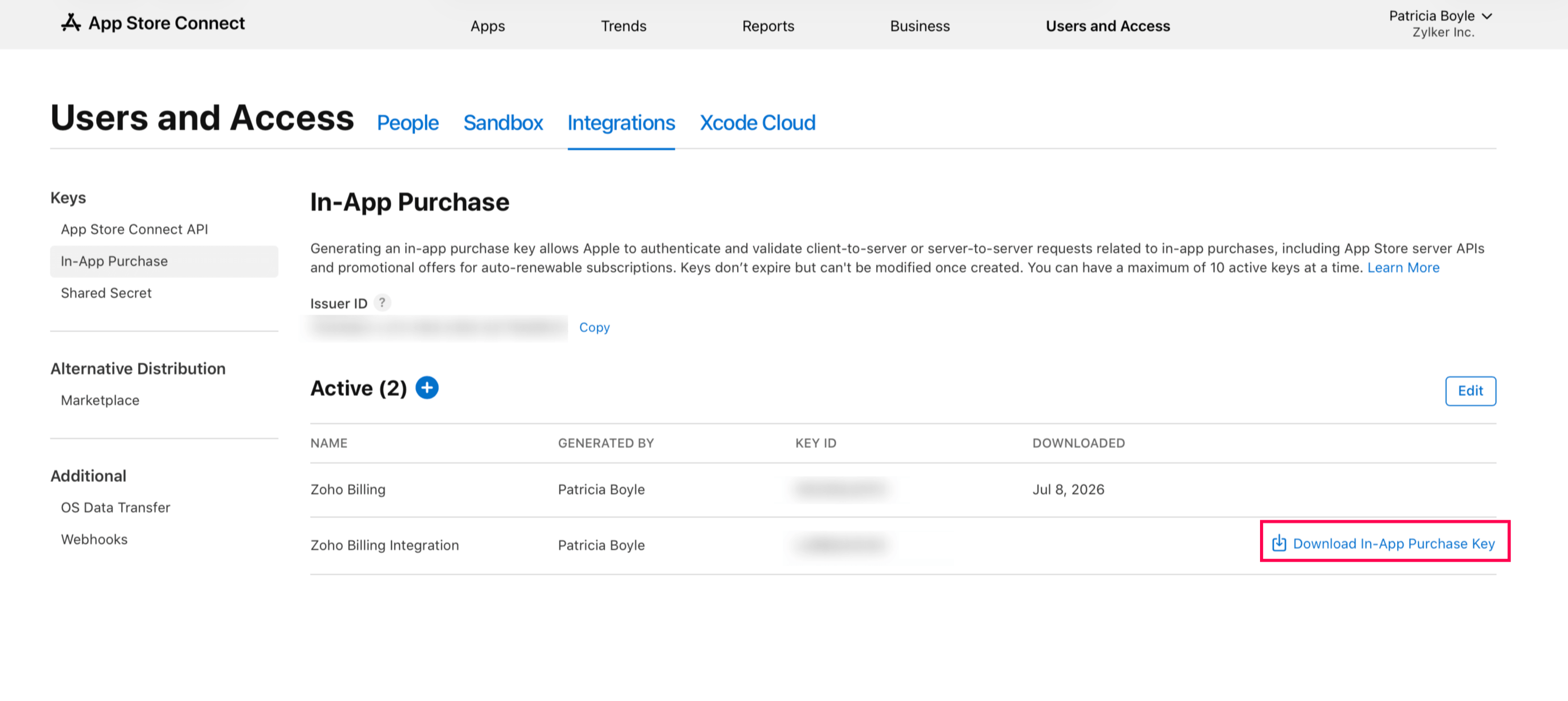
- Download the generated
.p8file and upload it into In-App Purchase Key in Zoho Billing.
- Enter all credentials in the Zoho Billing configuration form and click Configure Now.
After configuration, Zoho Billing displays the In-App API key. Use this key during SDK initialisation.


Ask Zia is powered by AI. Responses are helpful but not always perfect.
 Yes
Yes