

Play Store Integration

Connect Google Play Store with Zoho Billing to enable real-time synchronisation of subscription lifecycle events. The integration uses a Google Cloud service account for authentication and Cloud Pub/Sub notifications.
Before You Begin
Ensure the following are in place before you start the integration:
- An active Google Play Developer account.
- Your app is registered in Play Console.
- You have permission in Zoho Billing to set up integrations.
Integrate Zoho Billing With Play Store
Complete the connection so Zoho Billing can access Play Store subscription data.
- Log in to your Zoho Billing organisation.
- Go to Settings in the top-right corner.
- Select Store Apps under Integrations & Marketplace.
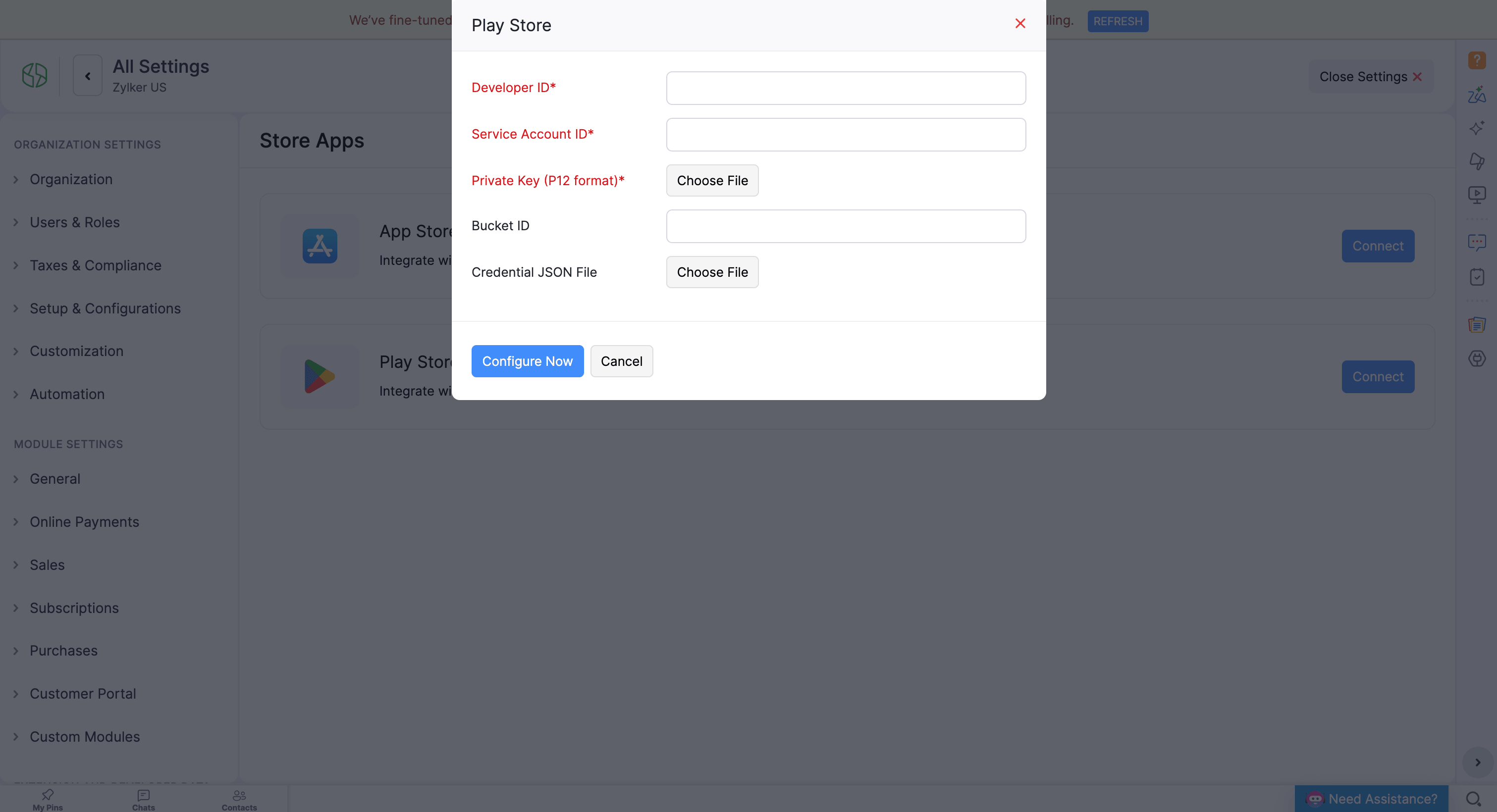
- Click Connect next to Play Store.
- Enter the required values using the reference below.
- Click Configure Now.
Generate Required Credentials
Copy the Developer Account ID
- Log in to Google Play Console.
- Select the developer account in which your app is published.
- Navigate to Home in the left side bar and copy the 19-digit Account ID from the top.
- Paste this in the Developer ID field in Zoho Billing.
Link Cloud Console and Play Console
Before you begin, you need to authorize communication between Zoho Billing and Google Play Store through the Google Cloud API. This step links your Google Cloud project to the Google Play Android Developer API so Zoho Billing can access the required subscription data.
To get started:
- Log in to Google Cloud Console.
- Create a project for this integration.
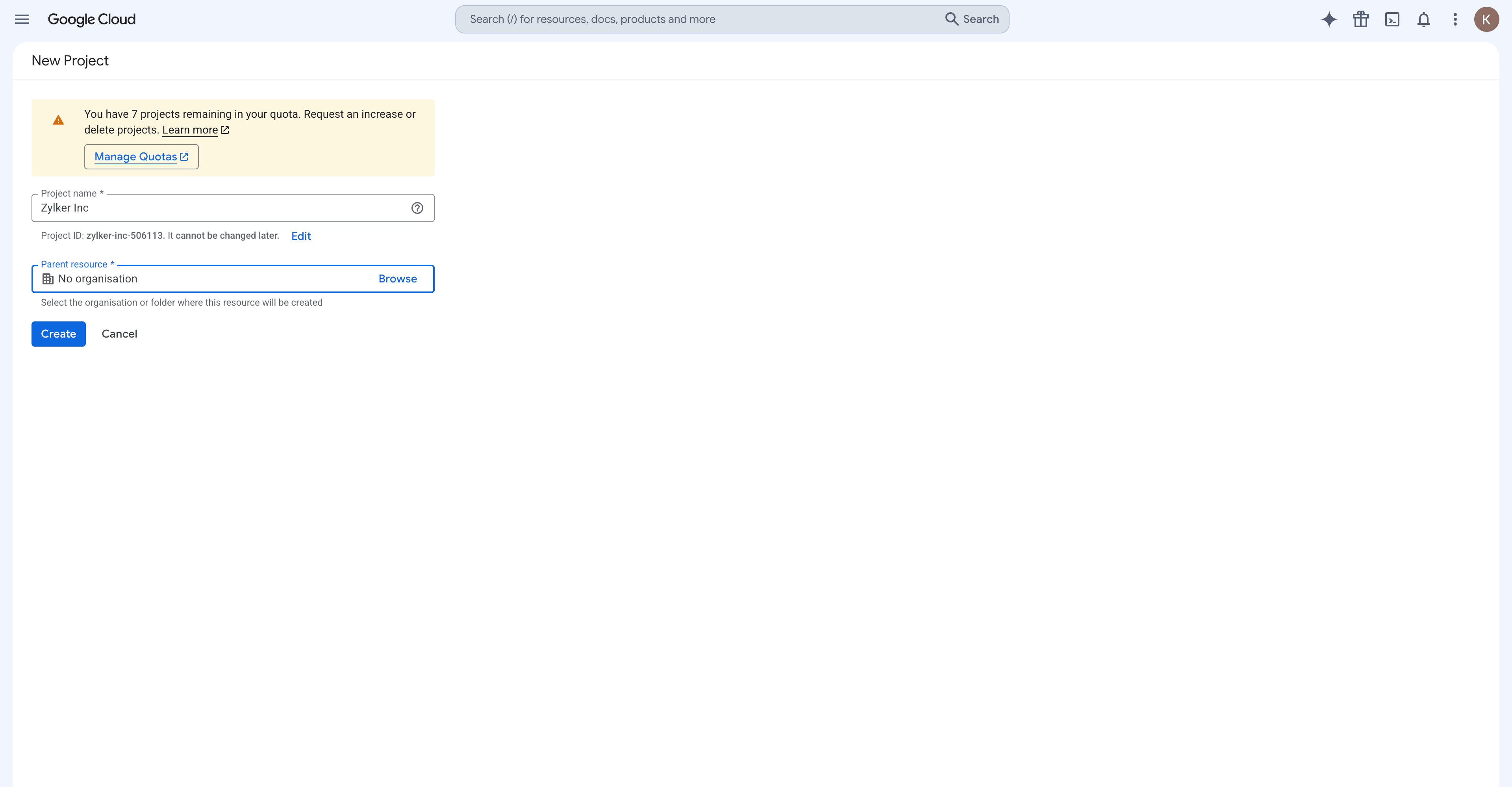
If you already have a Google Cloud project configured, you can reuse it.
- Navigate to Quick access and click APIs and services.
- Go to Library in the left side bar.
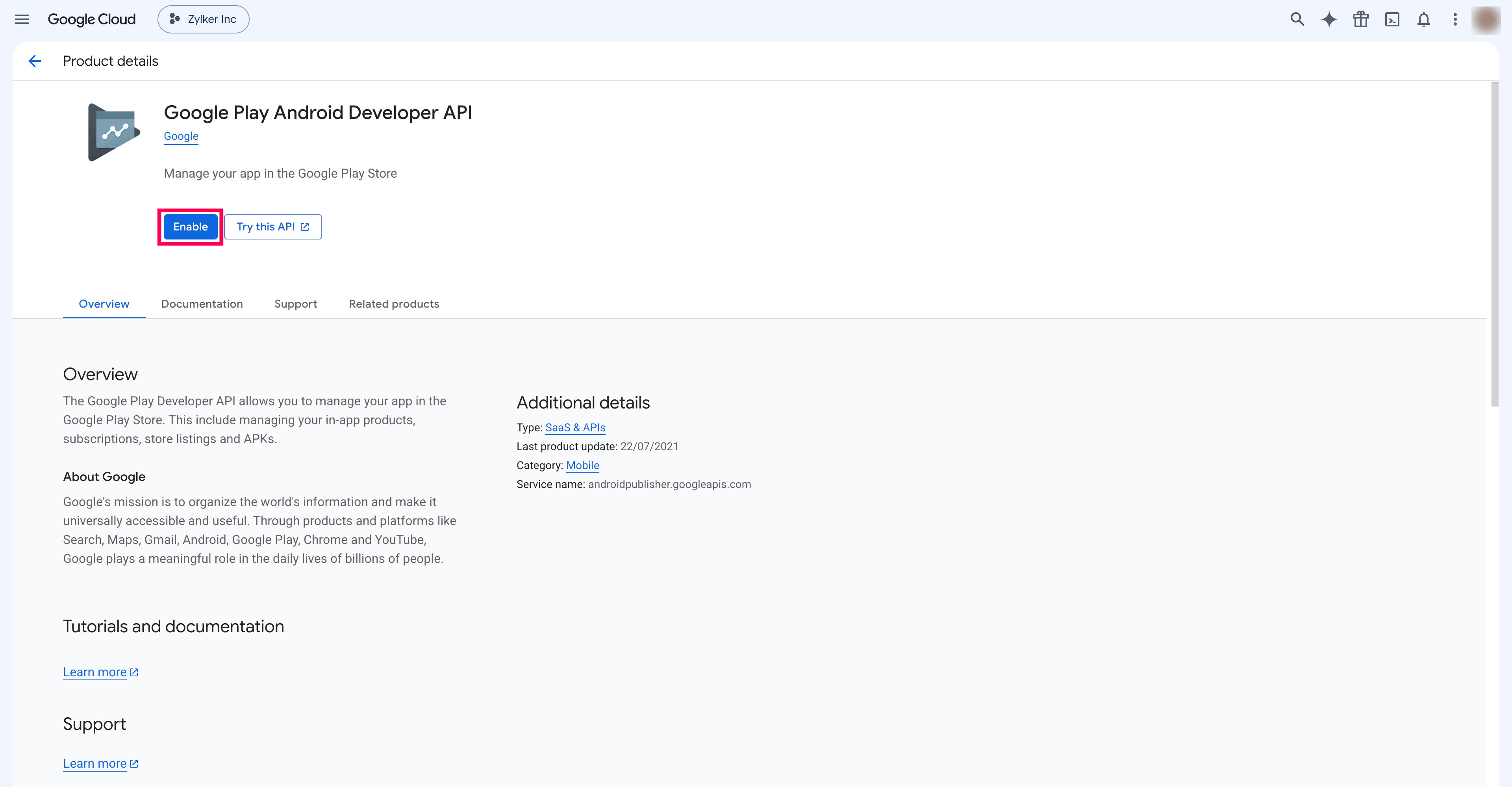
- In the API Library page, search for
androidpublisher.googleapis.comin the search bar. - Select Google Play Android Developer API.
- Select the project and click Enable.
Create a Service Account in Cloud Console
A service account provides secure API authentication credentials for Zoho Billing.
- Go to Google Cloud Console.
- Select the project.
- Click APIs & Services.
- Go to Credentials on the left side bar.
- Click + Create Credentials and select Service Account.
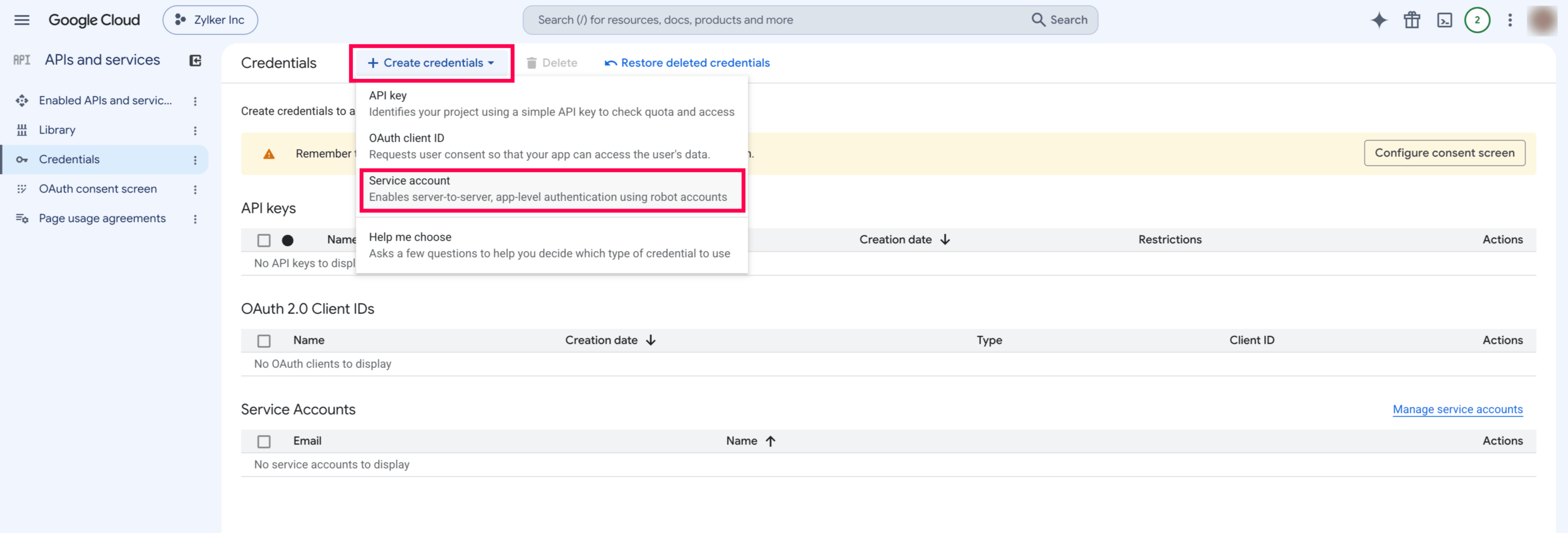
- Enter the service account details.
- Click Create and Continue.
- In the permissions step, add these roles:
- Pub/Sub Admin
- Monitoring Viewer
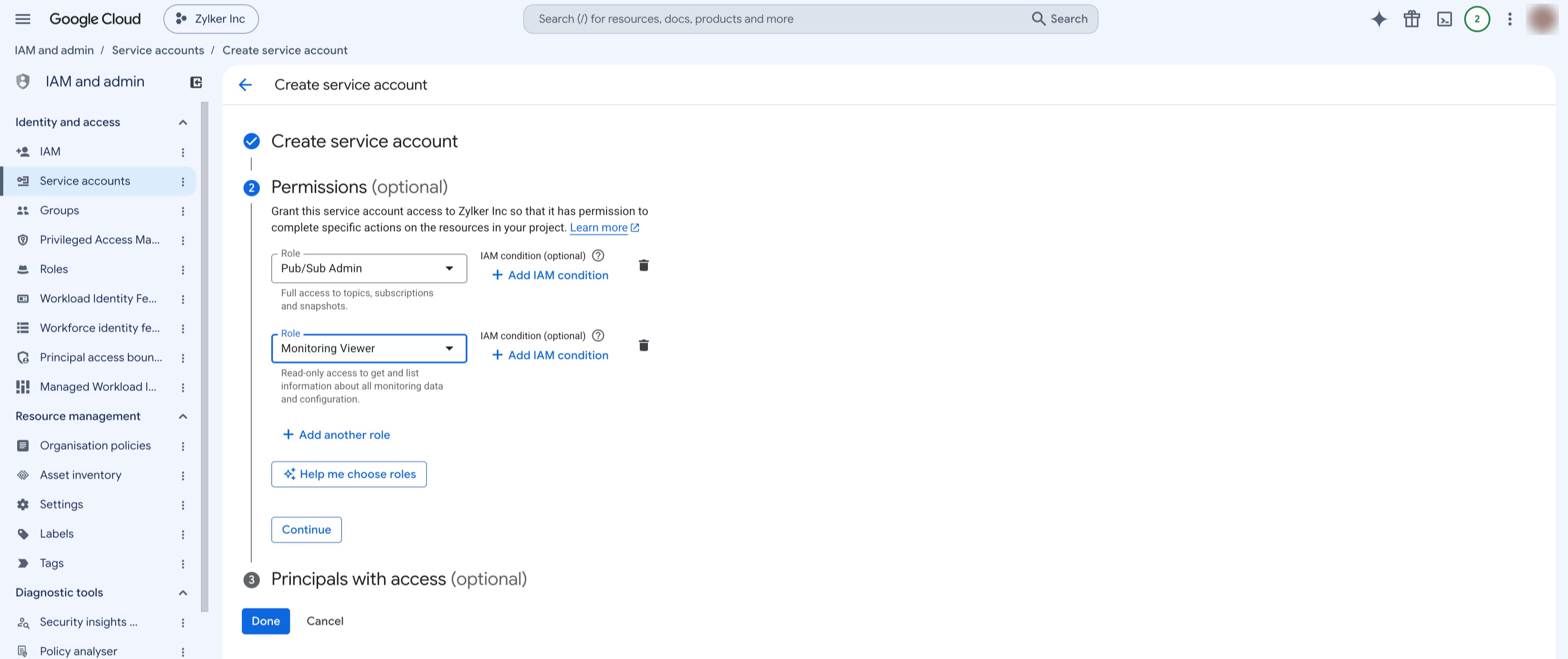
- Click Done.
- Copy the service account email address and paste it in the Service Account ID field in Zoho Billing.
Generate a Key for the Service Account
Generate a service account key to enable secure API access from Zoho Billing to your Google Cloud resources.
- Go to Google Cloud Console and click APIs & Services.
- Go to Credentials.
- Select your service account.
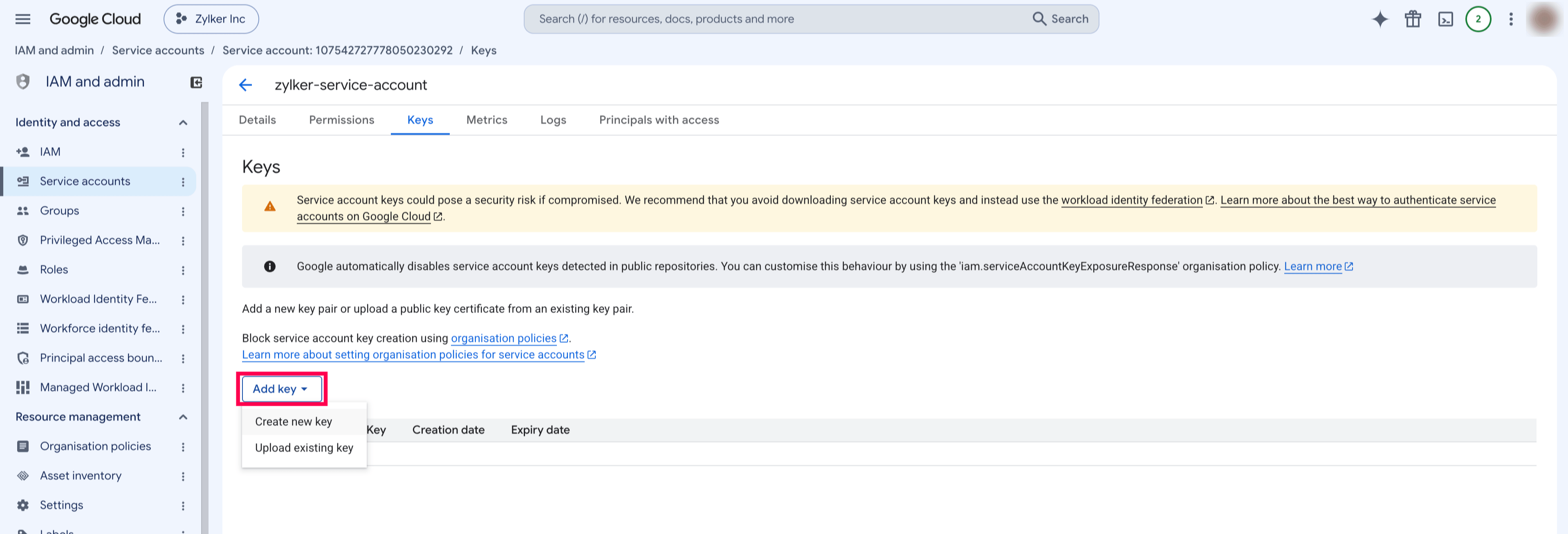
- Open the Keys tab.
- Click Add Key and select Create New Key.
- Select P12 and click Create.
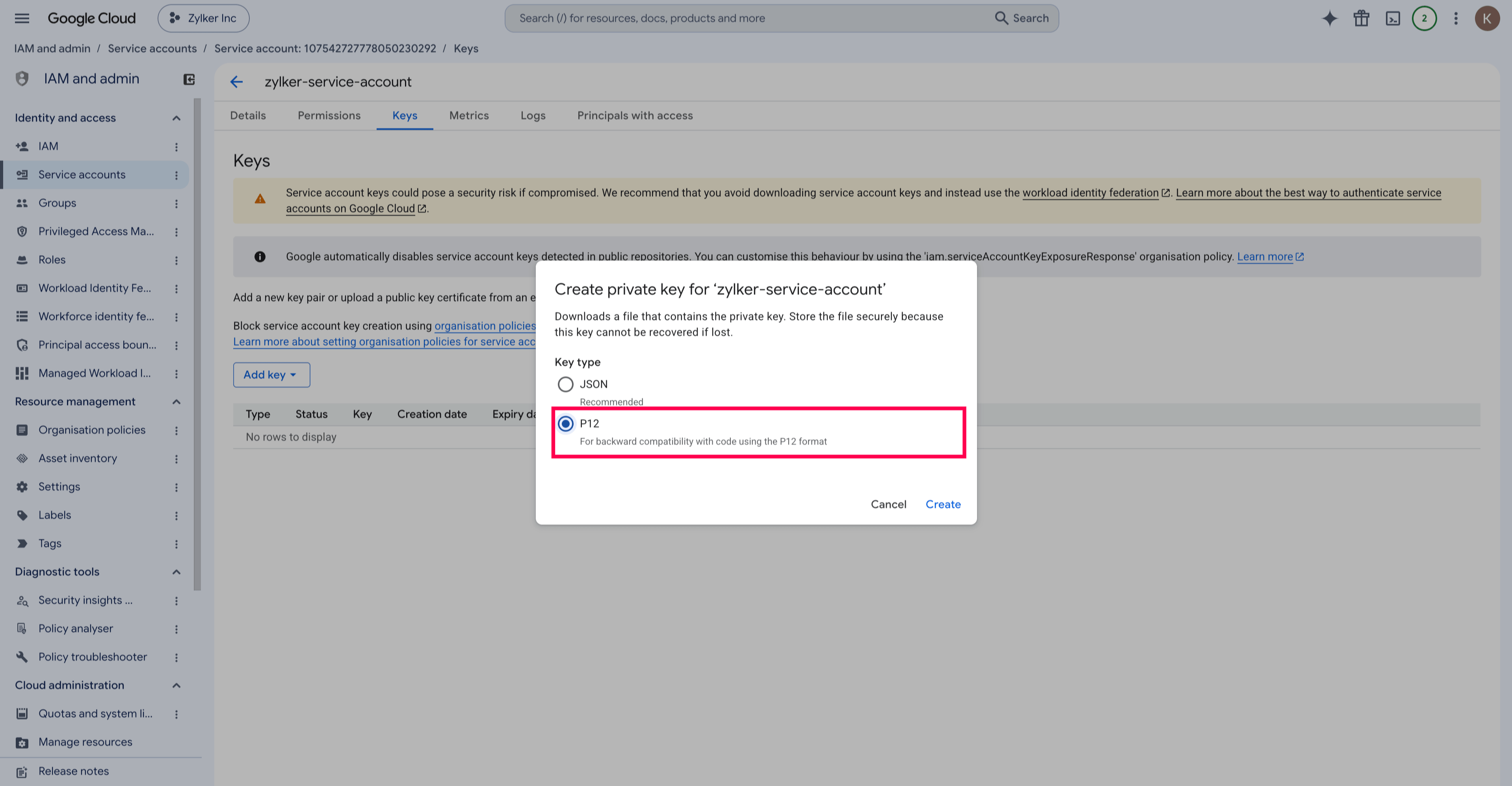
- Download the
.p12file and upload it into the Private Key field in Zoho Billing.
Finish Setup in Play Console
Grant the required permissions to allow the service account to read subscription data from your Play Store apps.
- Log in to Google Play Console.
- Go to Users and Permissions.
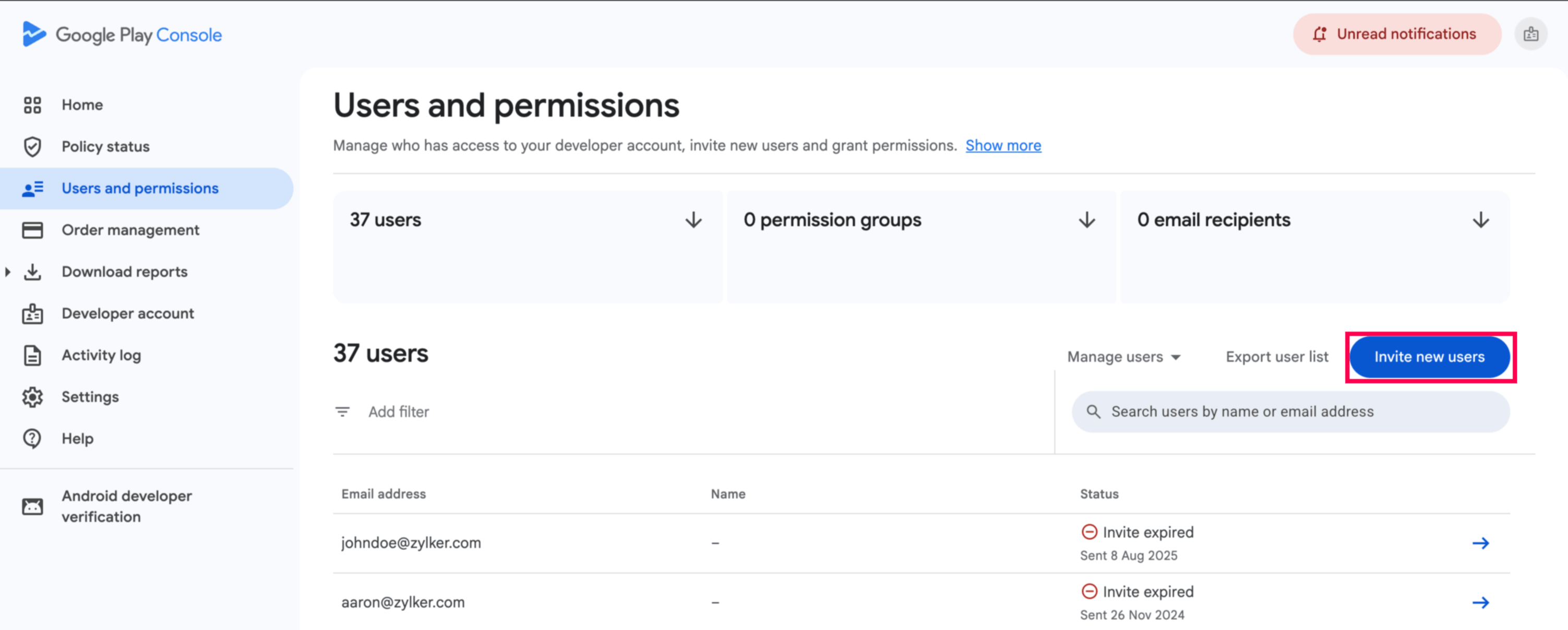
- Click Invite New Users.
- Enter the service account email address.
- Under App Permissions, add the apps to integrate.
- Under Account Permissions, enable:
- View app information and download bulk reports (read-only)
- View Financial Data
- Manage Orders and Subscriptions
- Click Invite User.
Integrate Zoho Billing With Play Store
Complete the connection so Zoho Billing can access Play Store subscription data.
- Log in to your Zoho Billing organisation.
- Go to Settings in the top-right corner.
- Select Store Apps under Integrations & Marketplace.
- Click Connect next to Play Store.
- Enter the required values using the reference below.
| Field | Description |
|---|---|
| Developer ID | Enter the account ID from your Google Cloud account. |
| Service Account ID | Enter the service account email address. |
| Private Key | Upload the .p12 file generated for the service account. |
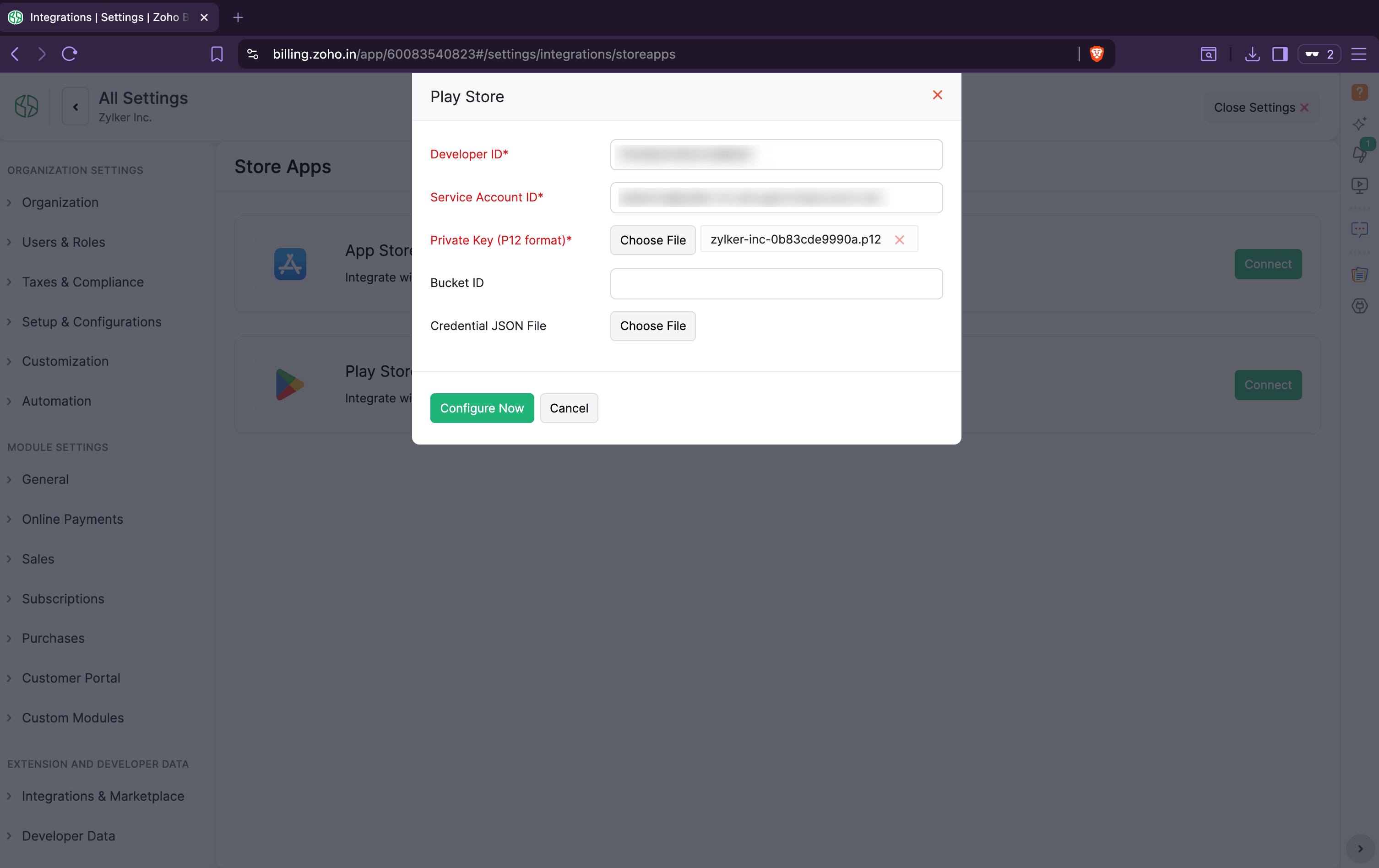
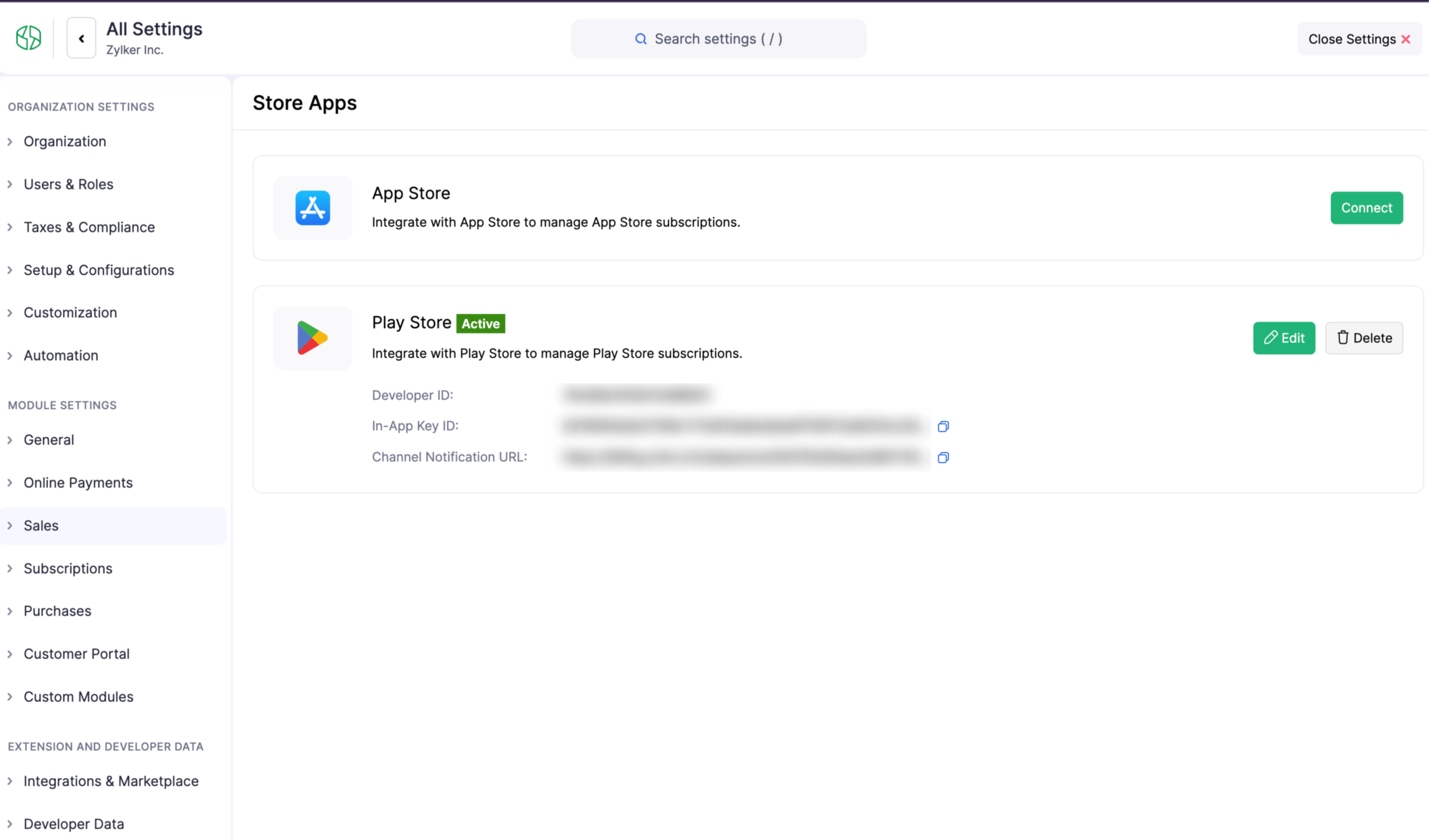
- Click Configure Now.


Ask Zia is powered by AI. Responses are helpful but not always perfect.
 Yes
Yes