Configure the Channel Notification URL

Configure Cloud Pub/Sub so Play Store subscription events are delivered to Zoho Billing through the Channel Notification URL in real time.
Before you begin, check whether a Pub/Sub topic has already been configured for your application. Here’s how:
- In Google Play Console, go to Select app > Monetise with Play > Monetisation setup.
- Check whether a Topic name is already configured for your app.
If a topic is already configured, you can skip creating and linking a new topic and proceed directly to Configure Topic Permissions and Create a Push Subscription.
Create a Pub/Sub Topic
A Pub/Sub topic is a named channel in Google Cloud that acts as the delivery point for Play Store subscription events. When Google Play sends a lifecycle event (such as a renewal or cancellation), it publishes the event to this topic. A push subscription attached to the topic then forwards that event to Zoho Billing’s Channel Notification URL in real time.
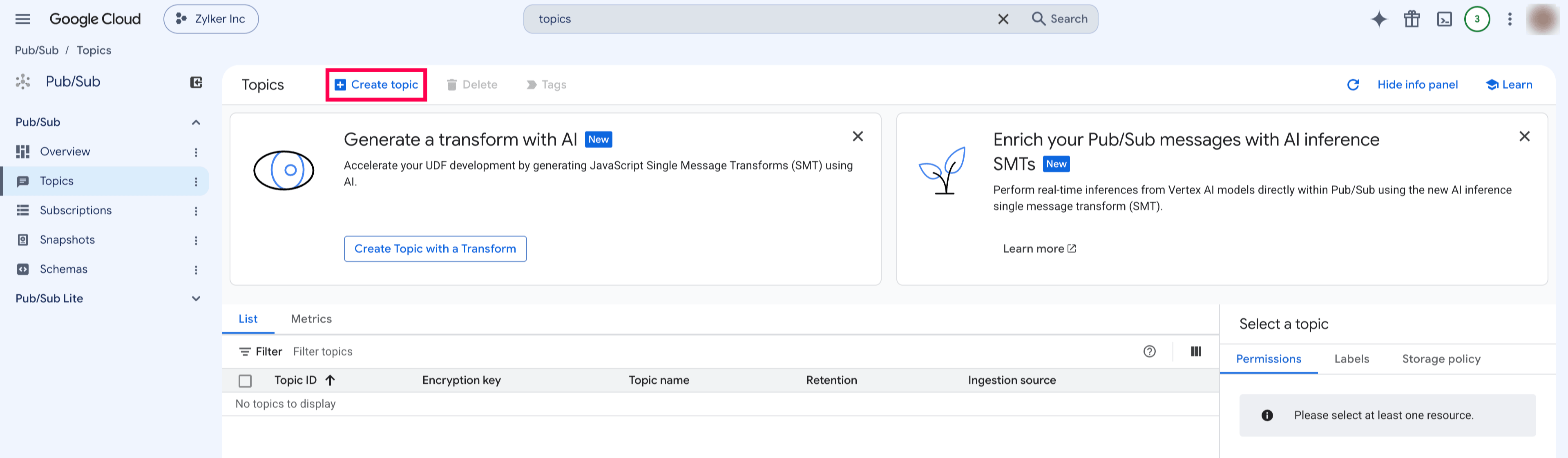
To create a pub/sub topic:
- Go to Google Cloud Console.
- Select the project.
- Open Pub/Sub.
- Go to Topics.
- Click + Create Topic, enter a Topic ID and save.
Configure Topic Permissions
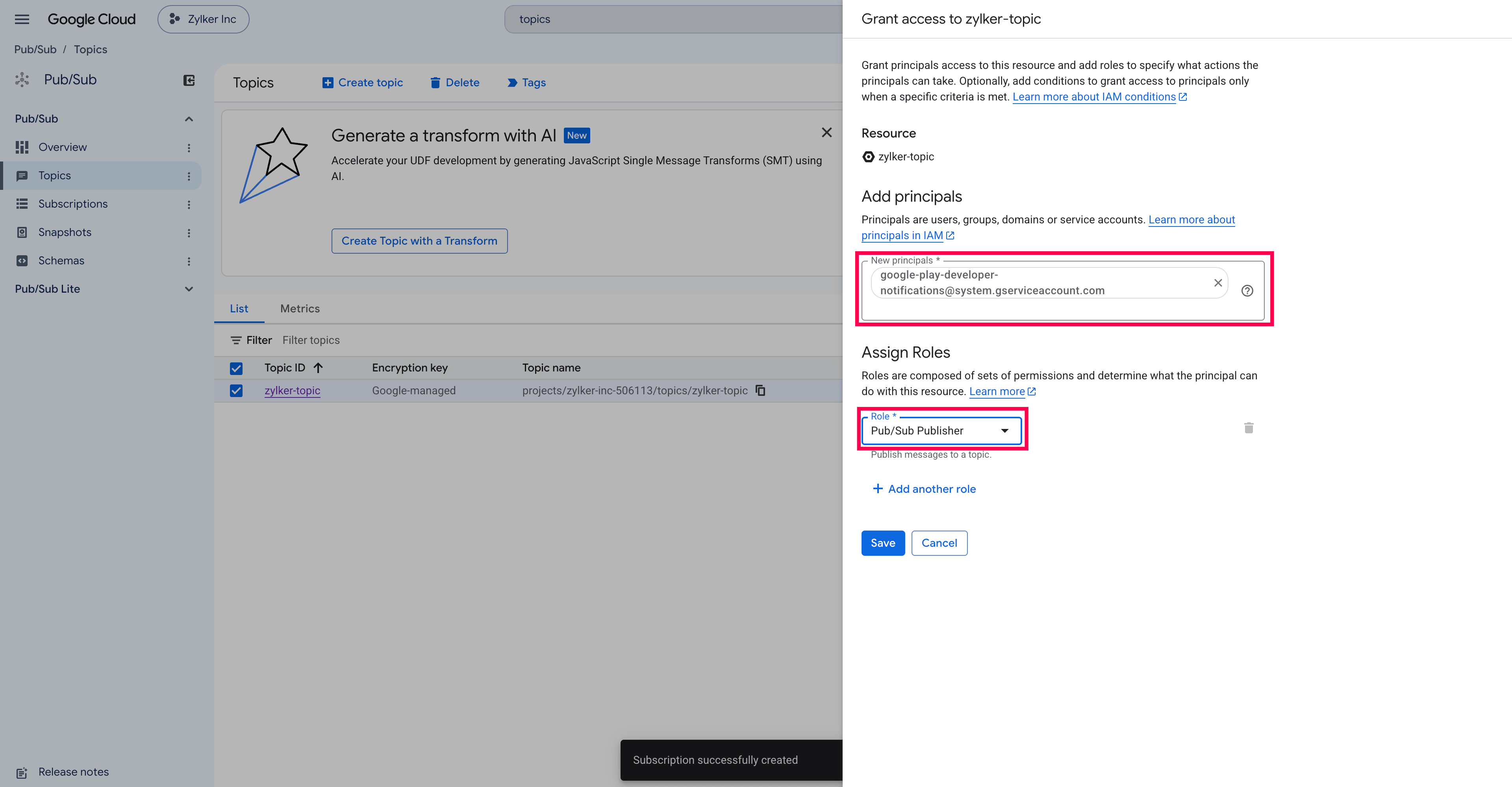
Google Play uses a dedicated service account to publish events to your Pub/Sub topic. Without granting it the Pub/Sub Publisher role, Google Play cannot write to the topic and no subscription events will be delivered. To configure topic permissions:
- Go to Google Cloud Console.
- Select the project and navigate to the topic you created.
- Open the Permissions tab and click Grant Access.
- Add
google-play-developer-notifications@system.gserviceaccount.com. - Grant the Pub/Sub Publisher role.
Create a Push Subscription
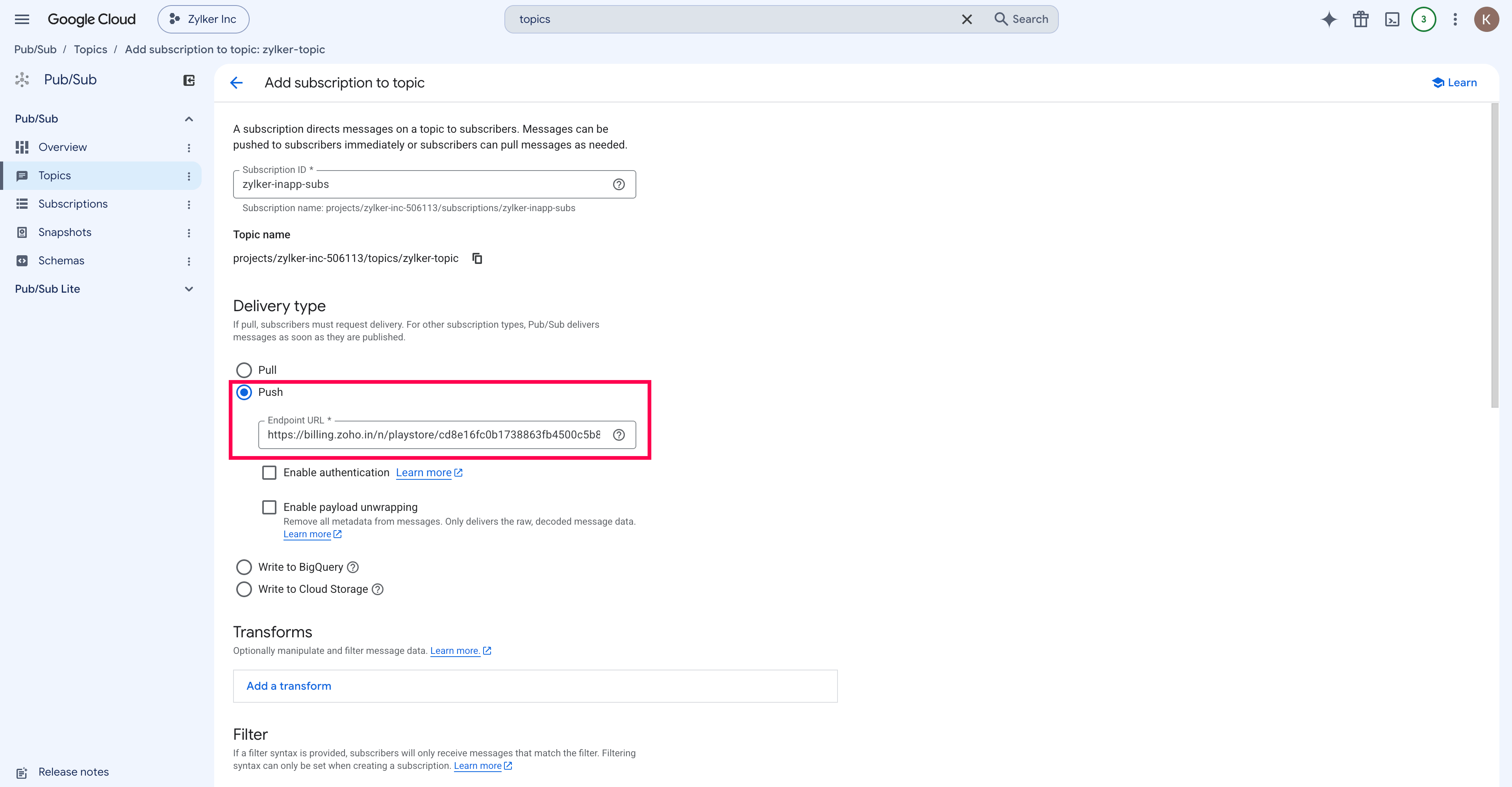
A push subscription tells Google Cloud to actively forward events from the topic to a specified URL as they arrive. Setting the expiration to Never Expires ensures delivery continues without interruption after your app goes live.
- Select the More icon on the topic and click Create Subscription.
- Enter a Subscription ID.
- Set Delivery Type as Push.
- Paste the Channel Notification URL from Zoho Billing into Endpoint URL.
- Set Subscription Expiration to Never Expires.
- Click Create.
Link the Topic in Play Console
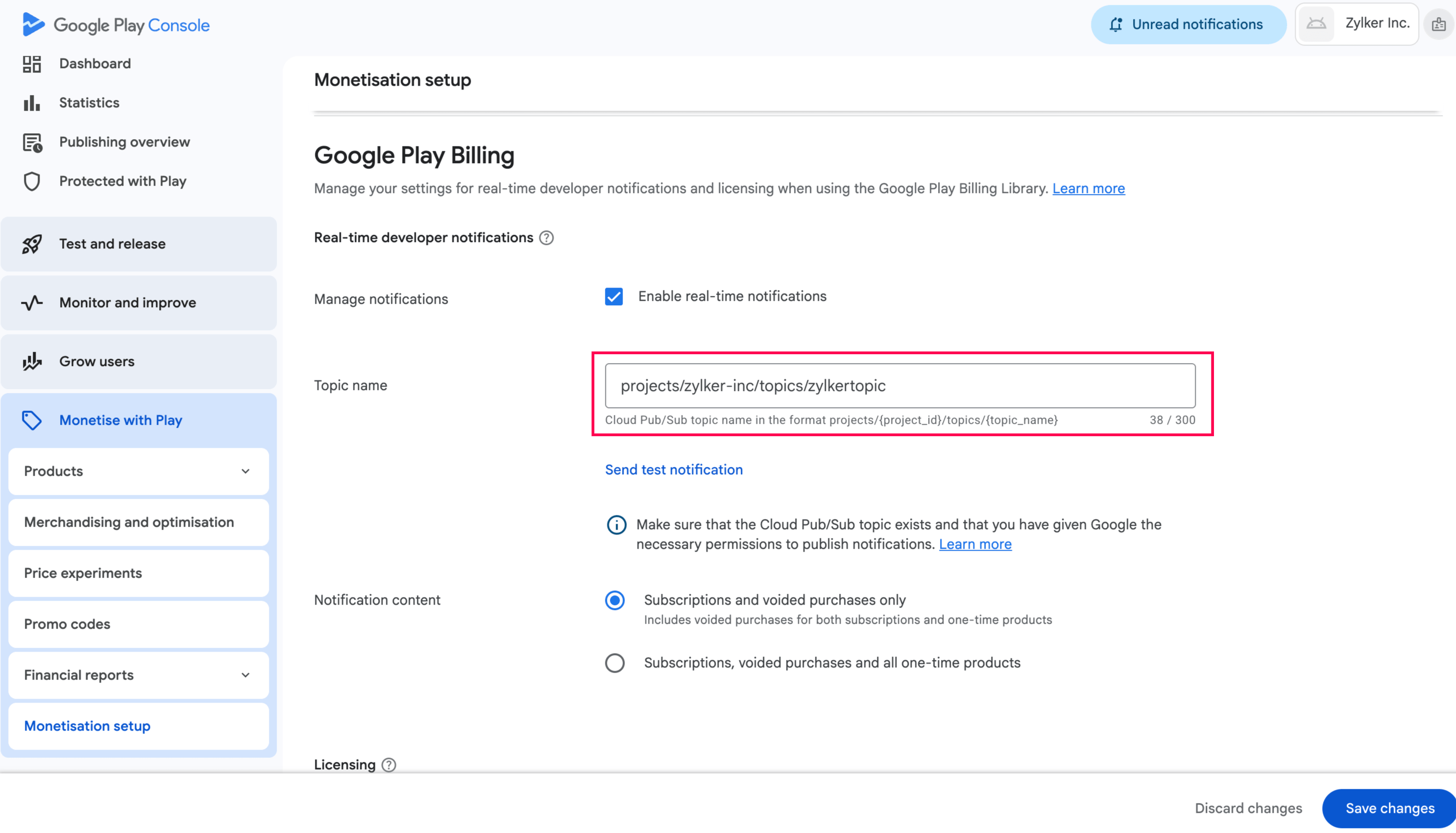
This is the step where Google Play is told which Pub/Sub topic to use for your app’s subscription events. Without this link, Play Store will not send any events to your topic. Use Send Test Notification to confirm the connection is working before saving.
- Open your app in Play Console.
- Go to Monetisation Setup.
- Enter the Pub/Sub topic URL.
- Click Send Test Notification and verify.
- Click Save.
Once configured, Play Store lifecycle events are pushed to Zoho Billing through Pub/Sub Topic.


Ask Zia is powered by AI. Responses are helpful but not always perfect.
 Yes
Yes