


Tally XML Exporter for Zoho Billing

If you are using Tally for accounting, you can now easily export your Zoho Billing data in Tally XML format and import it into your Tally account. With the Tally XML Exporter extension, you can easily generate Tally-compatible XML files for your invoices and other transaction data. Once installed, you can export master and transaction files from Zoho Billing and directly import them into Tally.
Install Tally XML Exporter Extension
To export transactions in Tally XML format, you have to install the Tally XML Exporter extension in your organization. Here’s how:
Log in to your Zoho Billing organization.
Go to Settings.
Select Marketplace under Integrations & Marketplace in the Extension and Developer Data pane.
Search and select Tally XML Exporter.
Click Install at the top band.
In the pop-up that appears:
- Verify your details in the Use of Personal Details section.
- Read and agree to the terms and conditions of your vendor and Zoho Marketplace.
- Click Install to proceed with the installation of the extension.
On the following page, select the organization for which you want to install the extension from the dropdown next to the Organization field.
Mark the I agree to the Terms and Conditions of the integration, and authorize Tally XML Exporter to access and process my data as needed option.
Click Install Extension.

The Tally XML Exporter extension will be installed in your Zoho Billing organization.
Export Tally XML Files from Zoho Billing
You can export invoices in Tally XML format. Here’s how:
- Go to Invoices under Sales.
- Select the invoices which you want to export.
- Click Export in Tally XML Format at the top.
Once exported, two XML files will be generated:
- Master XML file – Contains item, account, and customer details.
- Transaction XML file – Contains the invoice details.
Import Data in Tally
Here’s how you can import the generated XML files in Tally:
Log in to your Tally account.
To import master XML file:
- Click Import at the top.
- Select Masters under Company Data.

- Select the master XML file that you exported from Zoho Billing.
- Enter the other required details and press Enter.
To import transactions XML file:
- Click Import at the top.
- Select Transactions under Company Data.
- Select the transactions XML file that you exported from Zoho Billing.
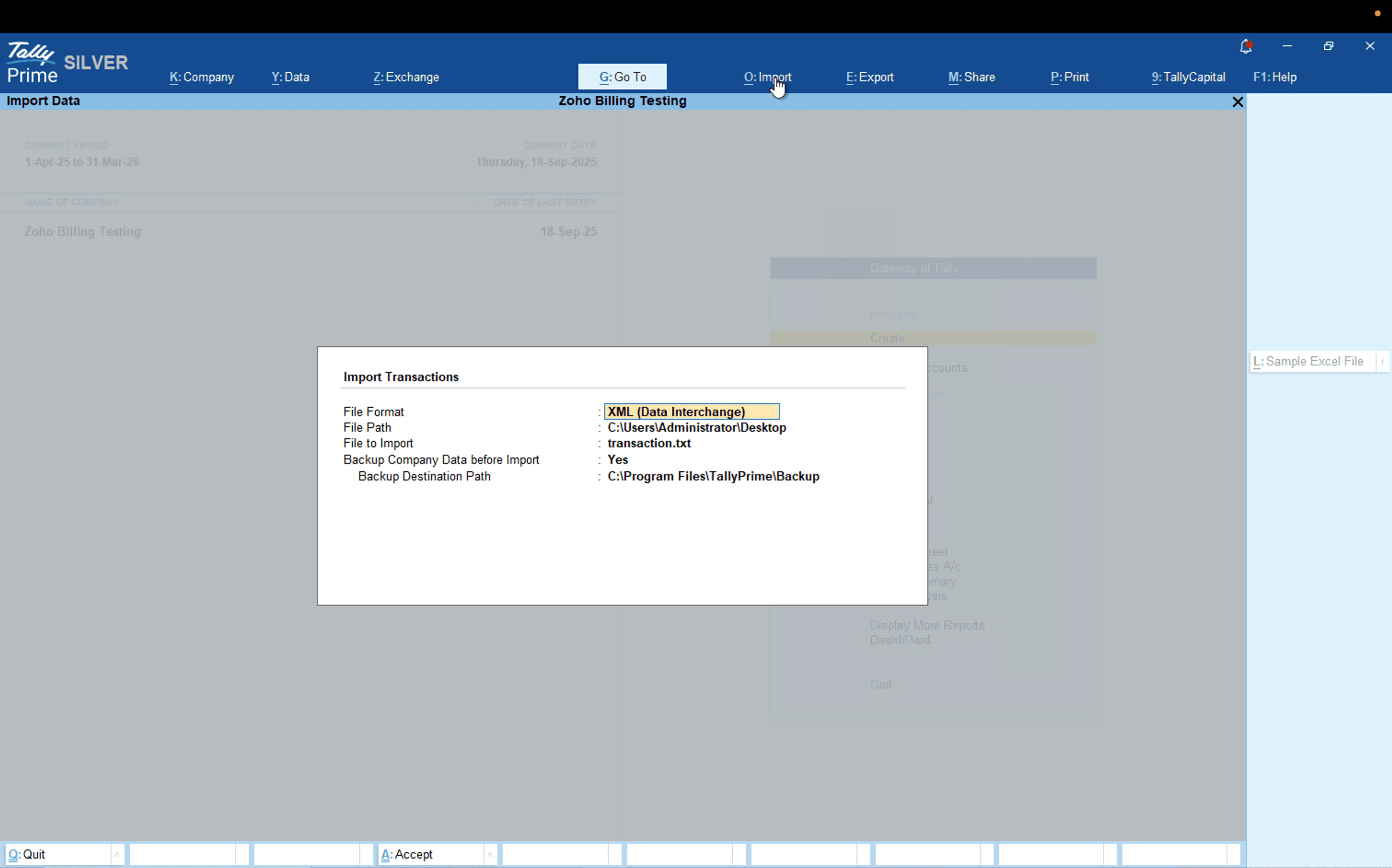
- Enter the other required details and press Enter.
Once completed, the data will be imported into Tally. Any missing records will be automatically created as new entities in their respective modules.
Uninstall Tally XML Exporter Extension
If you no longer want to Tally XML Exporter you can uninstall the extension. Here’s how:
- Go to Settings.
- Select Marketplace under Integrations & Marketplace in the Extension and Developer Data pane.
- Navigate to the Installed Extensions tab.
- Click View Details under Tally XML Exporter extension.
- Click Uninstall at the top.
- In the pop-up that appears, click Yes.
The extension will be uninstalled from your Zoho Billing organization.


Ask Zia is powered by AI. Responses are helpful but not always perfect.
 Yes
Yes