
What are grids?
Grids provide a powerful layout tool that allows you to organize your form fields side by side in columns, rather than stacking them vertically. This structure improves visual clarity, reduces friction, and helps increase completion rates by making your forms more compact and easier to navigate.
Choose from three Grid layouts
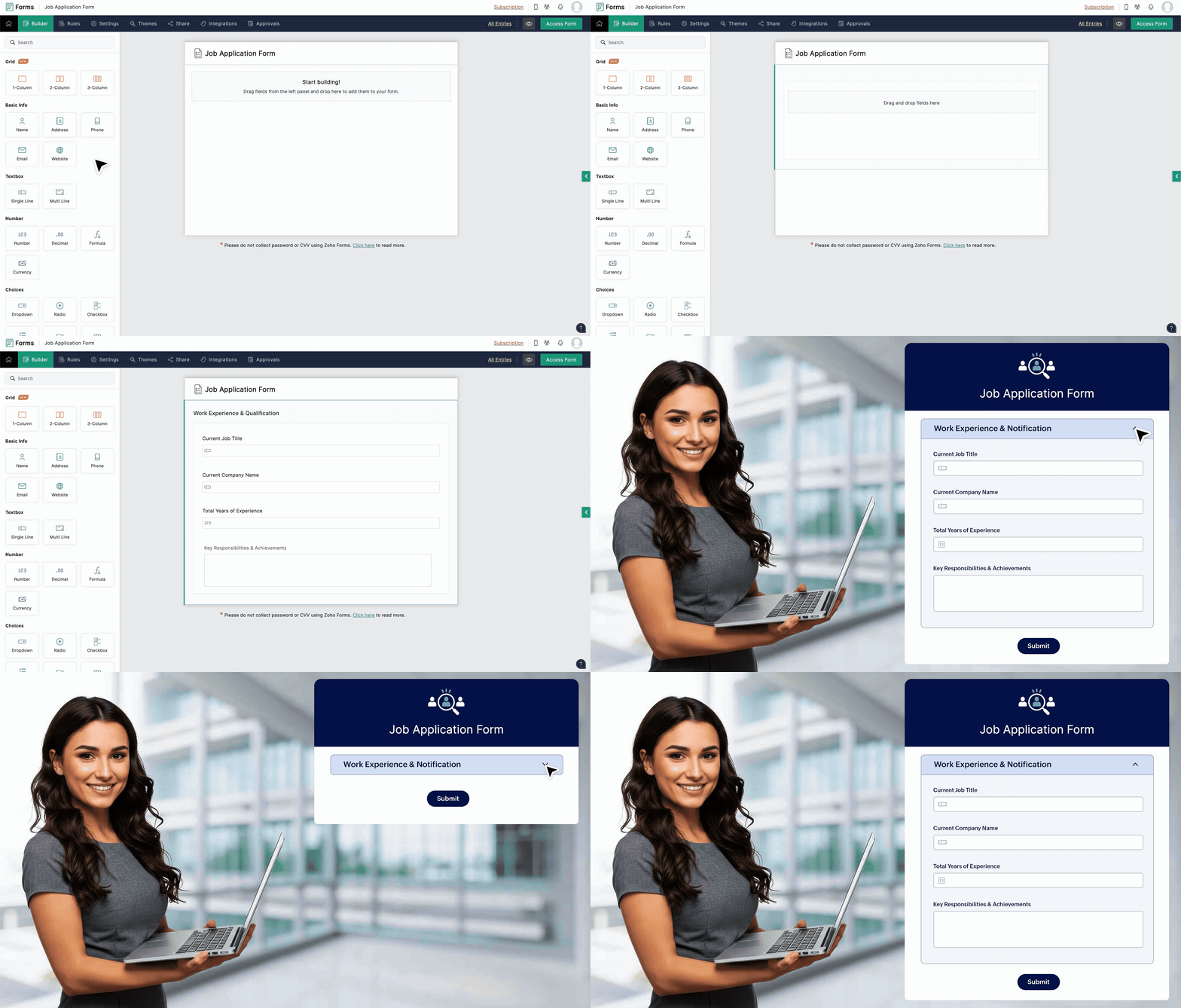
1-Column Layout
The classic stacked layout for a clean, straightforward form where fields appear one below the other.
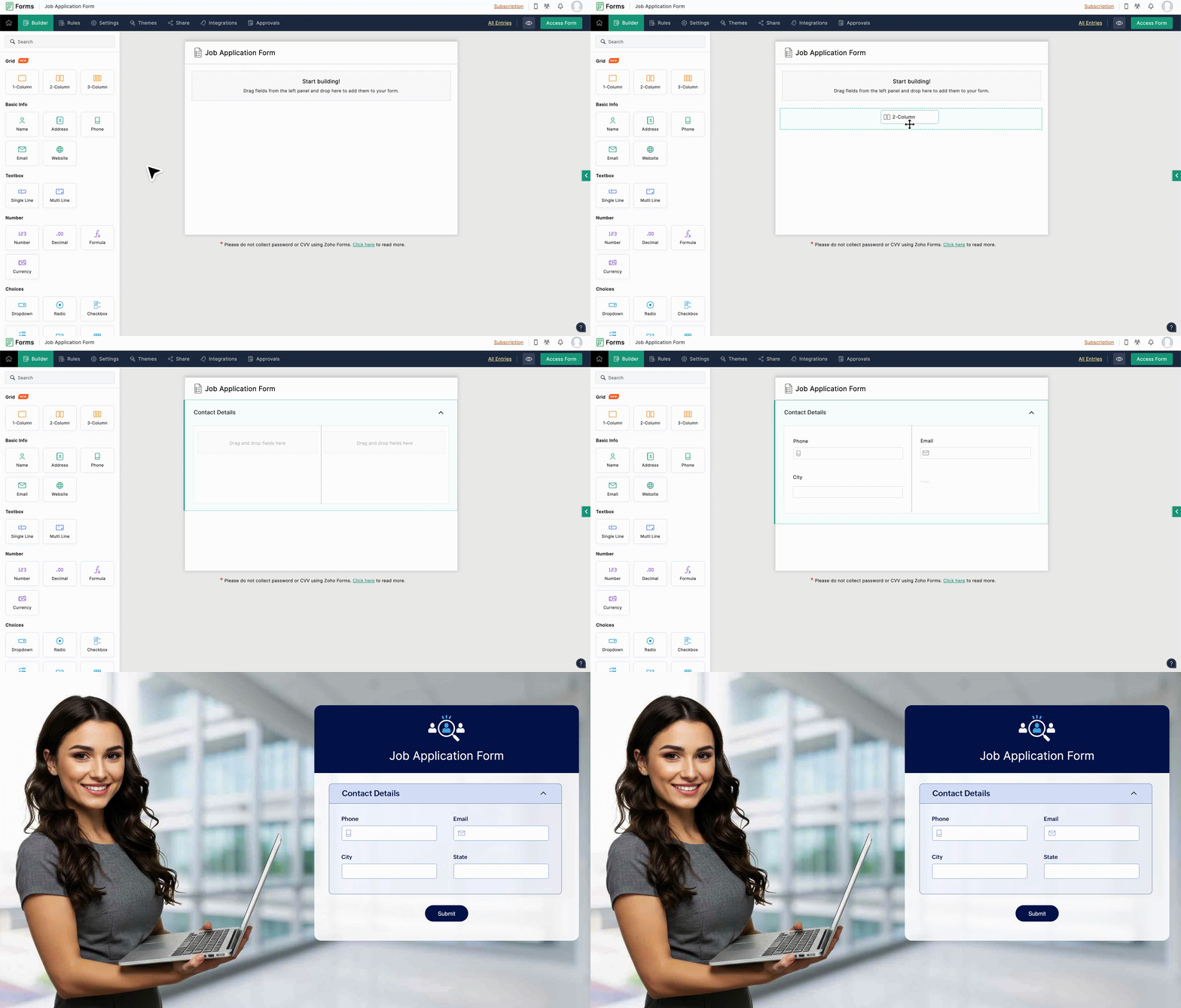
2-Column Layout
Ideal for pairs of related fields, such as contact information like phone and email, placed side by side for quick access.
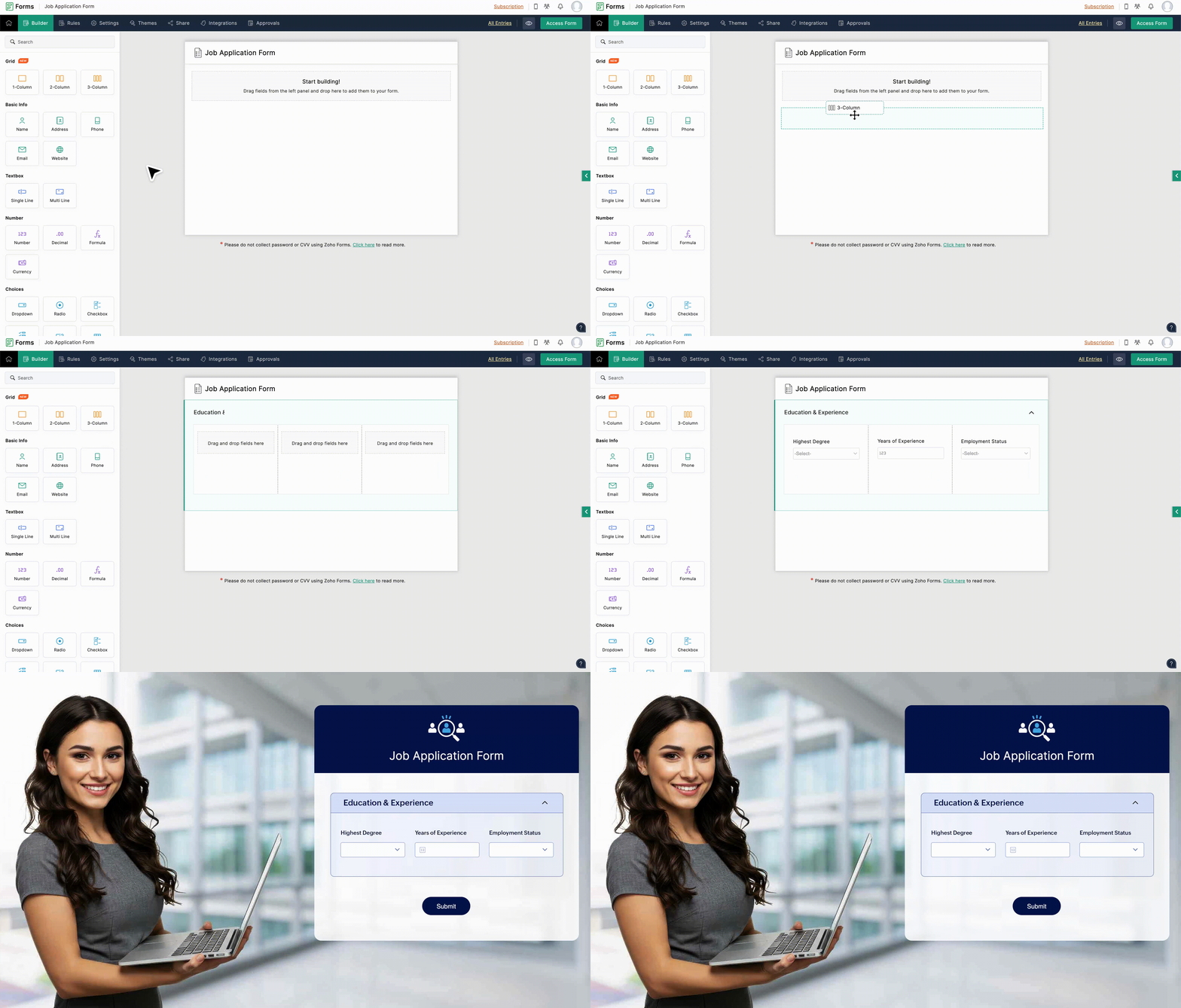
3-Column Layout
Perfect for compact sections where multiple short fields appear in a single row, like education and employment details.
Grids in Zoho Forms: Key features
Add up to 50 Grid fields per form
Each grid has a maximum of 30 fields (regardless of the column count)
In 2- and 3-column layouts, field size adjusts automatically for consistent spacing
Optional headers allow rich text support and dynamic content
Enable users to expand and collapse sections for a clean form interface. Note: Some field types like Matrix Choice, Unique ID, Payment are not supported inside Grids.
Why use grids in your forms?
Improved user experience
Group related fields (like Name, Email, and Phone Number) side by side, making it easier for respondents to follow along.
Visual clarity
Present your form in digestible chunks rather than a long vertical list, guiding users through a logical flow.
Flexible and adaptive
Easily rearrange fields within your Grid anytime, even after your form is live, without losing data or structure.
Compact design
Use 2 or 3 columns to fit more fields in less space without overwhelming your users.
Expandable sections
Let users expand or collapse Grid sections for a cleaner, distraction-free form experience.
Why grids lead to better form design
Forms are often abandoned because users feel overwhelmed. Grids create a visual hierarchy that’s easier to follow and complete. By grouping related questions side by side, respondents stay in one zone visually, improving engagement and submission rates.
Frequently Asked Questions
1. In the Form Builder, find the Grid field section.
2. Select your preferred column layout: 1, 2, or 3 columns.
3. Drag and drop existing or new fields into the Grid. Visual indicators will help you place fields precisely.
4. Rearrange fields within the Grid or move them in and out of the Grid anytime without data loss.
Yes! You can rearrange fields or change grid styles anytime without affecting user data.
No, some fields like Matrix Choice, Payment, and Subform are currently not supported inside Grids.
Up to 30 fields per grid regardless of the number of columns.
Yes! You can delete the grid while retaining your fields. There are two delete options available:
Delete Grid Only: Removes the container but keeps all fields intact, reverting them to a standard vertical layout.
Delete Grid with Fields: Deletes the grid and all contained fields after CAPTCHA validation for safety.