Show the fields that matter
Pay attention to minute details and make your form even more responsive to every individual's needs by configuring rules for form fields in your form builder. Field rules let you give respondents a personalized experience by skipping irrelevant questions based on their previous answers. With this, you can eliminate the chances of your respondents tiring halfway through your forms and abandoning them.
Easily configure rules for an intuitive form
It's easy to set up rules with our user-friendly rules builder. You can set up rules based on conditional logic to create a truly intuitive form. Define conditions with just a few clicks, without writing any code or creating flowcharts. Configure multiple combinations of these rules that the form automatically executes, providing a personalized form-filling experience for every respondent.

Flip forward to relevant pages
When dealing with multi-page forms, you can set up page rules so respondents can avoid the pages that don't concern them. Configure page rules to skip forward to a particular page in your form based on conditions met in the respondent's answers or choices on a previous page.
Manage form submissions with conditional submission denial
Streamline your form submission process by implementing conditional denial rules tailored to your specific criteria. Avoid the hassle of sorting through irrelevant submissions by automatically rejecting entries that don't meet your conditions. Furthermore, enhance user experience by providing clear denial messages to respondents, explaining why their submission cannot be accepted.
Create a dynamic form experience with conditional choice filtering
Enhance your form experience by making fields smart and responsive with conditional option filtering in choice fields like Radio and Dropdown. Show only the relevant options based on what the user selected earlier instead of overwhelming users with a long list of choices.
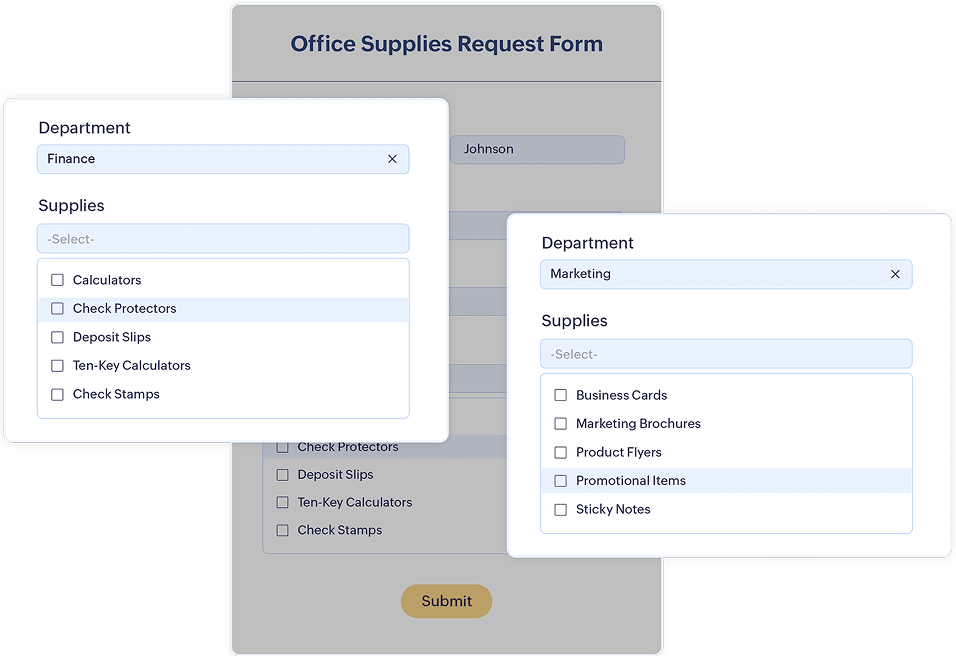
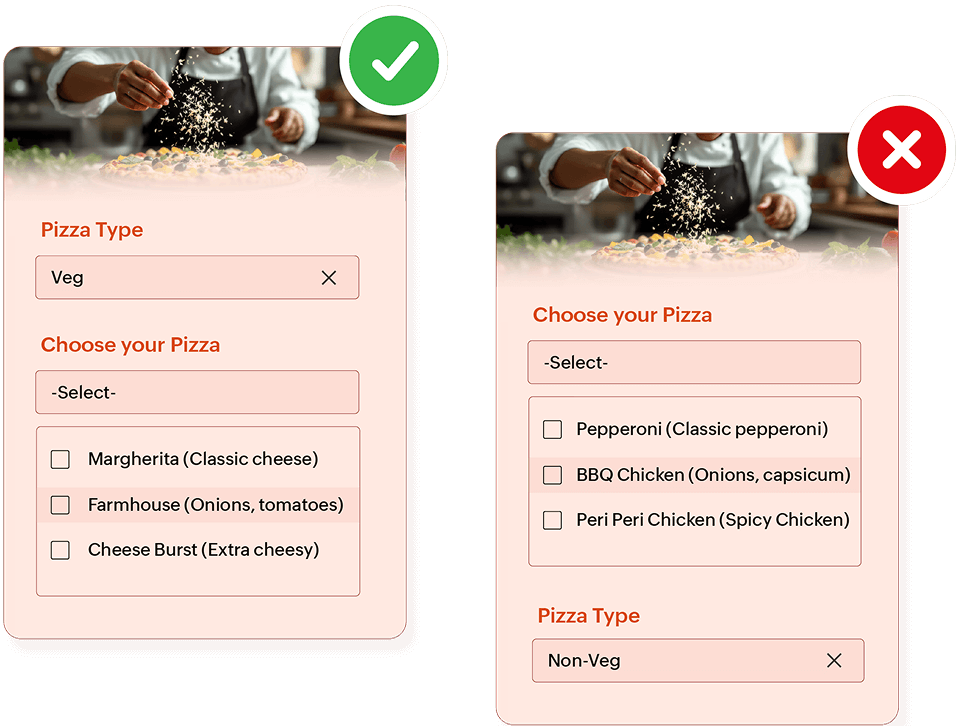
Place the condition field before the action field in your form
To make your conditional logic work seamlessly, always position the field that triggers the condition before the field that performs the action.
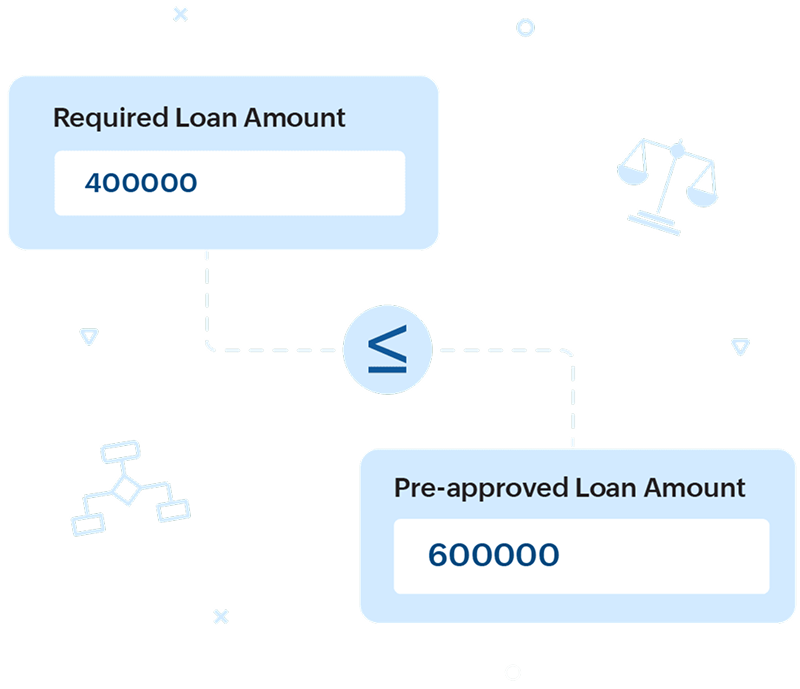
Compare form fields with advanced rules
Compare the values of two fields dynamically while the user is filling out the form. Instead of relying on fixed values, you can build rules that react to how one field relates to another, giving you greater flexibility and precision in shaping your form’s logic and user experience.
How to add conditional logic to your form?
Before you jump to configuring rules for your form, put down your logic on a paper. Structuring the logic down or breaking it to a flowchart can help you reduce complex logic to simple rules.

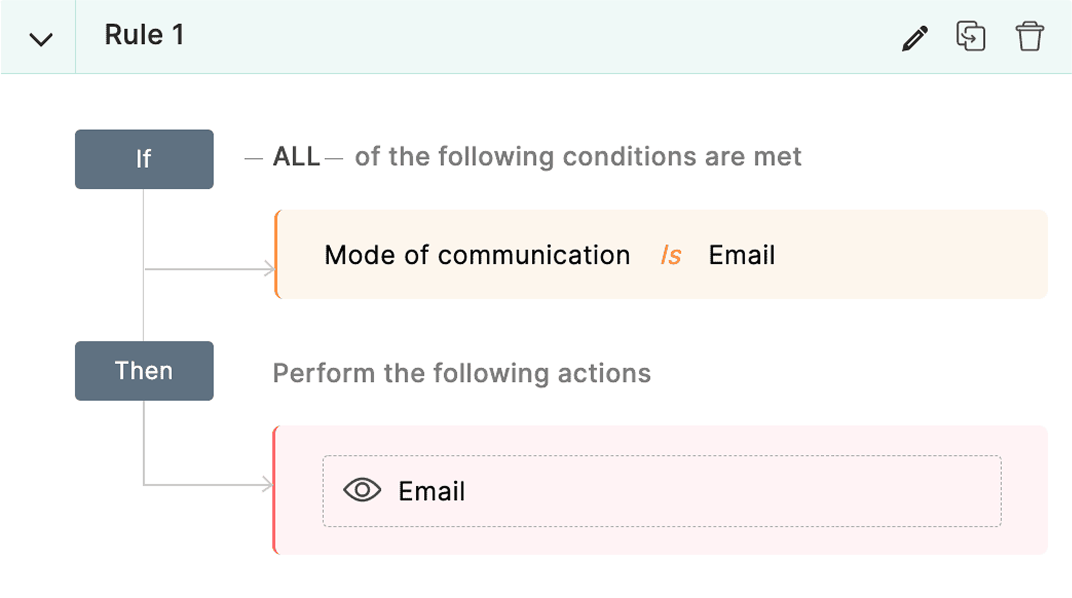
Configure rules
The choice of operators in your rules play the most important role in deciding how your form functions. Check out the Rule Expression while configuring a rule that provides a summary of the criteria you have created.
Frequently Asked Questions
A conditional logic form is a smart form that shows or hides fields, skip pages based on the user’s input. Instead of presenting every question to every respondent, the form adapts in real time by displaying only the fields that are relevant to each user.
Conditional logic improves user experience and completion rates by reducing confusion and unnecessary steps. It keeps forms clean and efficient, removes irrelevant choices, and guides users smoothly from one question to the next, resulting in faster submissions and higher accuracy.
Conditional logic works by creating rules that connect one field to another. When a user selects or enters a value, the form checks if a condition is met and then performs an action, such as showing a field, hiding a field, filtering dropdown options, or redirecting the user.
Common types include:
Show/Hide logic – Display or hide fields based on inputs.
Field-to-field comparison – Compare values between form fields.
Filtered choices – Show relevant dropdown, radio, or multiple-choice options.
Page navigation – Move users to different pages based on their answers.
Email & notification triggers – Send alerts when specific criteria are met.
Conditional logic is used in forms such as:
Order and booking forms
egistration and onboarding forms
Service request and support forms
Multi-step forms where responses need to guide the next steps
Build a multi-page form and group similar questions together on each page so users progress naturally through sections. Then use conditional page rules to show only the relevant pages and follow-up questions based on the user’s input. This keeps long forms simple, reduces drop-offs, and creates a personalized flow where every user sees only what is relevant to them.