


E-Invoicing
The Tax Administration Service (SAT) introduced e-invoicing to standardise how businesses issue invoices. Businesses generate invoices as Comprobante Fiscal Digital por Internet (CFDI), which comply with SAT invoicing requirements and serve as legally valid tax documents.
Zoho Inventory simplifies the e-invoicing process by helping you generate CFDI that comply with SAT requirements. It partners with an Authorised Certification Provider (PAC) to certify your invoices before they are submitted to the SAT. If needed, you can also cancel CFDI directly from Zoho Inventory.
Enable E-Invoicing
To enable e-invoicing:
Prerequisite: Before you can generate CFDI, you must connect your Zoho Inventory organisation with an Authorised Certification Provider (PAC).
- Go to Settings.
- Select Electronic Invoicing under Taxes and Compliance.
- Enable the Electronic Invoicing in Zoho Inventory option. E-invoicing is now enabled for your organisation. Next, connect your organisation with the PAC by uploading your Digital Seal Certificate. Here is how you can do it:
- On the E-Invoicing page, select I agree to share the above-mentioned details with the PAC.
- In the Digital Seal Certificate pop-up:
- Upload your CSD certificate file and your private key file.
- Enter your digital seal password.
- Accept the declaration by selecting the checkbox.
- Click Save. Your Zoho Inventory organisation is now connected to the PAC.
Note: Each file must be less than 5 MB.
Configure User Permissions
After connecting your organisation to the PAC, you can decide which users can stamp and cancel CFDI. For example, if only your sales team should submit invoices to the SAT and cancel them when needed, you can grant these permissions only to those users. Here is how you can do it:
- Go to Settings.
- Select Roles under Users and Roles.
- Create a new role or edit an existing one.
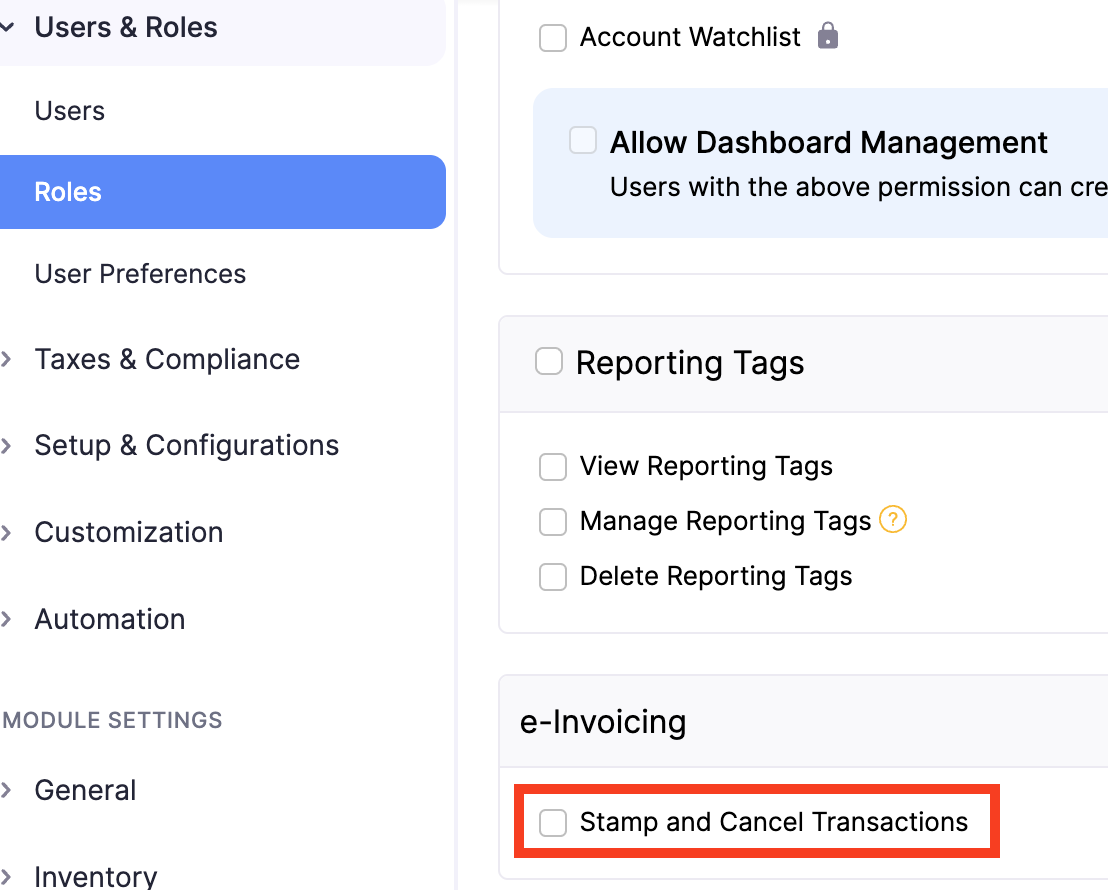
- Go to the e-Invoicing section.
- Select the Stamp and Cancel Transactions option.
- Click Save.
Note: The Stamp and Cancel Transactions permission is enabled by default for administrators.
CFDI Status
CFDI go through different statuses as they are stamped and processed by the SAT.
| Status | Description |
|---|---|
| Yet to be Stamped | The transaction has been created but has not yet been stamped by the PAC. A CFDI has not yet been generated for the invoice. |
| Stamped | The transaction has been successfully stamped by the PAC and the SAT has assigned a UUID to it. |
| Failed | An error occurred during the stamping of the transaction, so the invoice could not be stamped. |
| Cancellation Requested | A request to cancel the stamped transaction has been sent to the SAT and is pending processing. |
| Cancelled | The stamped transaction has been cancelled in both Zoho Inventory and the SAT. The UUID associated with the CFDI is no longer valid. |
Mandatory Fields for CFDI
The SAT (Mexican Tax Administration Service) requires certain fields to generate CFDI. Some of these fields must be entered when creating transactions in Zoho Inventory, while others are filled in automatically based on the information available in your organisation.
| Module | Required Fields |
|---|---|
| Item Creation | SAT Item Code, SAT Unit Code |
| Customer Creation | Tax regime, legal business name |
| Invoice Creation | CFDI Reference Type, CFDI Use |
| Record Payment for Invoices | Payment Form |
| Payment Received | Payment Form |
| Recurring Invoices | CFDI Mode, Payment Form |
| Credit Notes | CFDI Reference Type, CFDI Use |
Stamp CFDI
After creating invoices, credit notes, customer payments, or withholding invoices, stamp the transaction through the PAC to generate valid CFDI. Once the transaction is stamped, the SAT assigns a unique UUID to the CFDI.
Note: Zoho Inventory only supports CFDI 4.0, which is the latest version of the Digital Internet Tax Complement in Mexico as of 1 January 2022.
To stamp a transaction:
- Go to Sales on the left sidebar and select a module (for example, Invoices).
- Select the transaction you want to stamp.
- On the transaction details page, click Stamp Invoice.
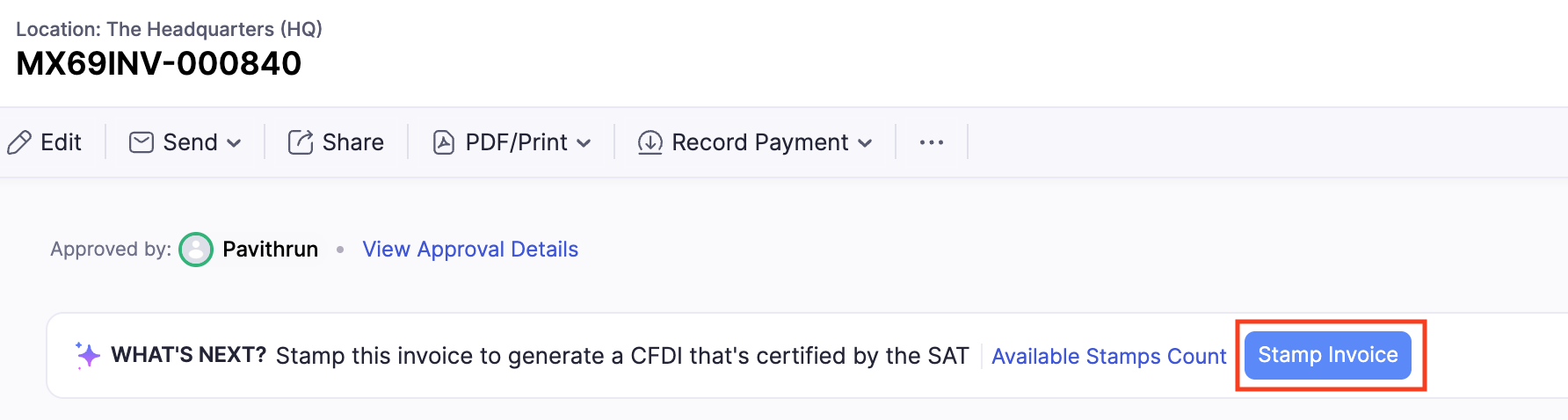
- In the confirmation pop-up, click Yes, Stamp Invoice.
The transaction is submitted to the PAC for stamping. Once it has been successfully stamped, its CFDI status changes from Yet to be Validated to Validated. The SAT then assigns a unique UUID and generates a QR code for the CFDI. The UUID uniquely identifies the CFDI and is used for tax purposes.
Note: To download a CFDI in PDF or XML format, go to Sales > select a module and select the stamped transaction you want to download. Click the PDF/Print dropdown and then select the required option. The PDF also includes the SAT Digital Seal, the CFDI Digital Seal, and the Original Chain at the bottom of the document.
Cancel CFDI
You can cancel a CFDI if it contains incorrect information. If the CFDI invoice is not associated with any other CFDI transaction, such as a credit note or a customer payment, you can cancel it directly. If it has associated transactions, complete the required actions for the corresponding scenario before requesting cancellation.
| Scenario | Required Action |
|---|---|
| CFDI invoice with associated transactions | If the associated transactions, such as a credit note or a customer payment, are not stamped, you must first mark them as voided or delete them before you can cancel the CFDI invoice. |
| CFDI invoice with stamped associated transactions | If the associated transactions, such as a credit note or a customer payment, are stamped, you must first cancel their stamped CFDI before you can cancel the CFDI invoice. |
Note: Selecting Mark as Cancelled for a CFDI does not cancel the CFDI in the SAT portal. Select this option only if you have already manually cancelled the CFDI through the SAT portal and need to update its CFDI status in Zoho Inventory to Cancelled.
To request the cancellation of a CFDI:
- Go to Sales on the left sidebar and select a module (for example, Invoices).
- Select the transaction you want to cancel.
- On the transaction details page, click Request Cancellation.
- In the Request Cancellation pop-up, click the Reason dropdown and select an option:
- Select the Invoice issued with related errors option and enter the Reissued UUID, if the invoice contains incorrect information and needs to be replaced by a new CFDI.
Note: The Reissued UUID is the UUID of the new stamped transaction created with the corrected information. Before requesting cancellation, create and stamp the new transaction, then use its UUID as the Reissued UUID.
- Select the Invoice issued with unrelated errors option if the invoice contains incorrect information and does not need to be related to another CFDI.
- Select the Transaction not carried out option if the electronic invoice transaction was not completed.
- Select Nominative transaction related to the global invoice when a sale is included in the global invoice for transactions with the general public and the customer subsequently requests a nominative invoice, which involves cancelling and reissuing the global invoice and generating the nominative invoice.
- Click Request Cancellation.
After submitting the cancellation request, the CFDI status of the transaction changes from Stamped to Cancellation Requested.
The cancellation process depends on the Cancellation Type determined by the SAT:
- Cancellation without acceptance: The cancellation request is processed directly by the SAT. Once the cancellation is complete, click Sync Status from SAT on the transaction details page to update the CFDI status in Zoho Inventory to Cancelled.
- Cancellation with acceptance: A cancellation request is sent to the e-invoice recipient.
| Scenario | Result |
|---|---|
| The recipient accepts the cancellation request | If the cancellation request is accepted within three business days, the SAT processes the cancellation. Click Sync Status from SAT on the transaction details page to update the latest CFDI status in Zoho Inventory. After the status is synced, the CFDI status changes to Cancelled, the cancellation details are recorded in the Activity tab, and the transaction is marked as Voided. |
| The recipient rejects the cancellation request | If the cancellation request is rejected within three business days, the SAT does not cancel the CFDI. Click Sync Status from SAT to retrieve the latest status from the SAT. The rejection is recorded in the Activity tab, the CFDI status reverts to Stamped, and you can submit another cancellation request if needed. |
| The recipient does not respond to the first cancellation request | If the recipient does not respond within three business days, the SAT considers the request accepted and cancels the CFDI. Click Sync Status from SAT to update the latest CFDI status in Zoho Inventory. After the status is synced, the CFDI status changes to Cancelled, the cancellation is recorded in the Activity tab, and the transaction is marked as Voided. |
| The recipient does not respond to a subsequent cancellation request | If the recipient does not respond within three business days to a subsequent cancellation request, the SAT does not process the cancellation automatically. Click Sync Status from SAT to retrieve the latest status from the SAT. If there are no changes, the CFDI status remains Stamped until the recipient accepts the cancellation request. |
Note: Each CFDI must be cancelled individually. The cancellation of a CFDI cannot be undone.