


Transaction Rules

Using transaction rules, you can automate the categorization of bank feeds. These rules help identify and categorize bank transactions based on the criteria you’ve set.
Note: We’re migrating transaction rules to a new centralized flow. You can now create and manage transaction rules from the Banking Overview page in the Banking module instead of configuring them separately for individual bank accounts. All bank transaction rules across accounts will be displayed under Banking > Manage Transaction Rules, ordered based on the previously set rule order and the rule creation time.
Note: After migrating to the new flow, if identical rules were previously configured separately for different accounts, you must delete the duplicate rules. To do this, go to Banking > Manage Transaction Rules and select the rule you want to retain. In the Edit Rule page, enter the necessary details, choose all required accounts in the Associated Accounts field, and click Save. By selecting the appropriate accounts in this field, you specify which accounts the transaction rule should apply to across the Banking module, instead of it being applied to a single bank account as in the previous setup. Then, select the duplicate rules that you want to delete and click Delete. Click Delete in the confirmation pop-up that appears.
Create Transaction Rule
To create a transaction rule:
- Go to Banking on the left sidebar.
- Click Manage Transaction Rules.
- Click New Rule in the top right corner of the page.
- In the New Rules page, enter a Rule Name for the transaction rule.
- Select whether the transaction rule applies to Deposits or Withdrawals next to the Apply To field.
- In the Add Transactions in This Rule To field, select whether transactions should be added to Recognized Transactions or Categorized Transactions.
- Click Categorize the transactions when dropdown and select an option to choose when the transactions should be categorized:
- Select All the following criteria matches if you want to categorize transactions only when the bank statement matches all the criteria you’ve specified.
- Select Any one of the following criteria matches if you want to categorize transactions when the bank statement matches any one of the criteria you’ve specified.
- Select the criteria you want to use to categorize transactions. In the first dropdown, select the option by which you want to categorize the transaction.
| Options | Descriptions |
|---|---|
| Payee | The name of the person or organization with whom the transaction would happen. This should match with the name that appears in the feeds. |
| Description | Description can be a note or info about the transaction that is to be recorded. |
| Reference Number | The number with which a transaction is referred. It can either be an automatically generated sequence or manually recorded. |
| Amount | The amount involved in the transaction. |
- In the second dropdown, select the comparator you want to use to categorize the transaction, and in the third dropdown, enter the value you want to use for categorization.
- Click + Add Criterion to add a new criteria.
- Click the Record As dropdown to select how transactions should be recorded, depending on whether Apply To is set to Deposits or Withdrawals.
- Click the Account dropdown and select the account where the transactions should be recorded.
- Click the Paid Via dropdown and select the payment mode.
- Click the Reference Number dropdown and select Use Value from Bank Statement to automatically detect the reference number from your bank statement, or select Enter Manually to enter the reference number manually.
- In the Associate Accounts field, select whether you want to apply the rule to All Accounts, All Banks, or All Cards. You can also choose the Custom option and select the specific accounts to which you want to apply the rule.
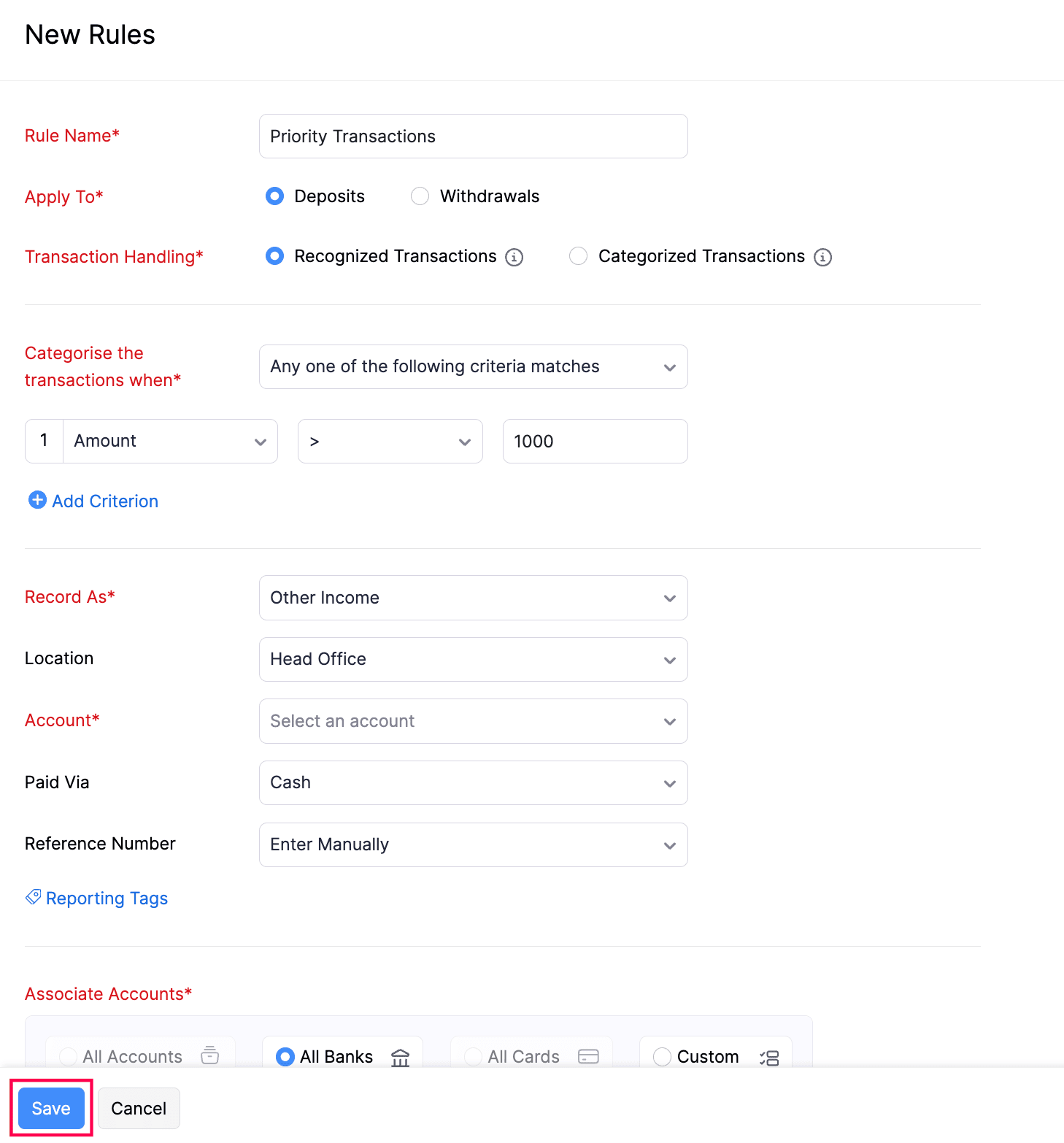
- Click Save.
The transaction rule will be created.
Edit Transaction Rule
To edit a transaction rule:
- Go to Banking on the left sidebar.
- Click Manage Transaction Rules.
- Click the More icon next to the transaction rule you want to edit and select Edit from the dropdown.
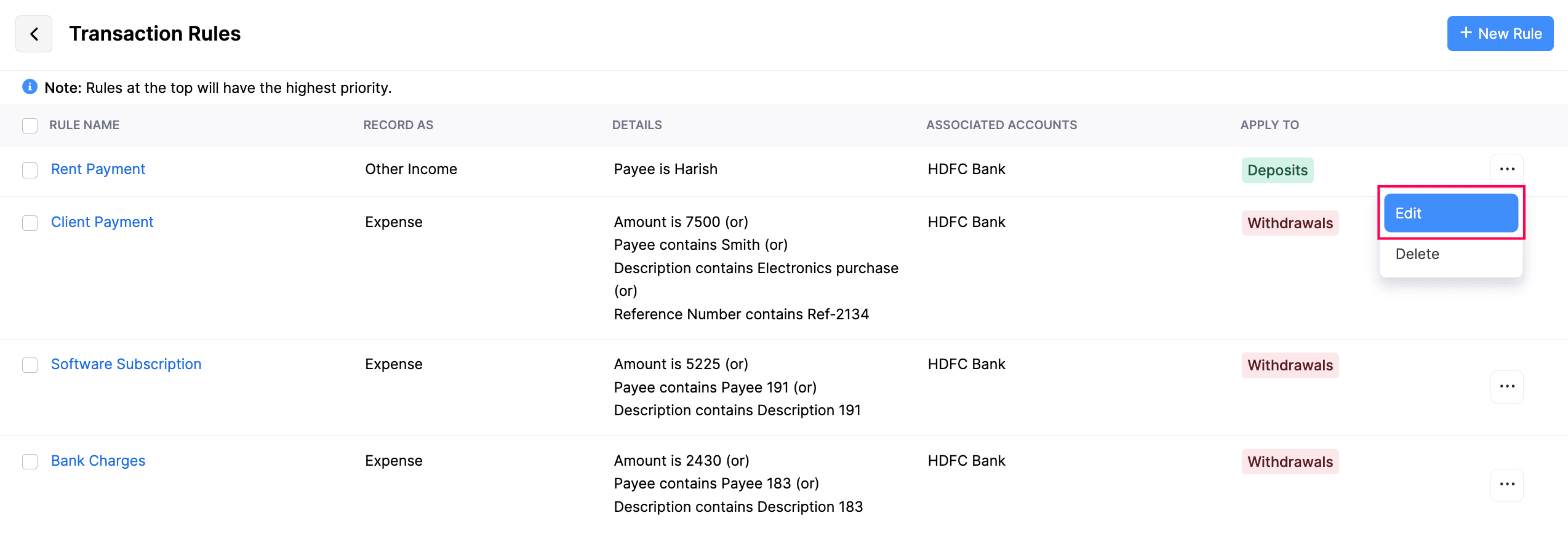
- Click Save.
The transaction rule will be updated.
Delete Transaction Rule
To delete a transaction rule,
- Go to Banking on the left sidebar.
- Click Manage Transaction Rules.
- Click the More icon next to the transaction rule you want to delete and select Delete from the dropdown.
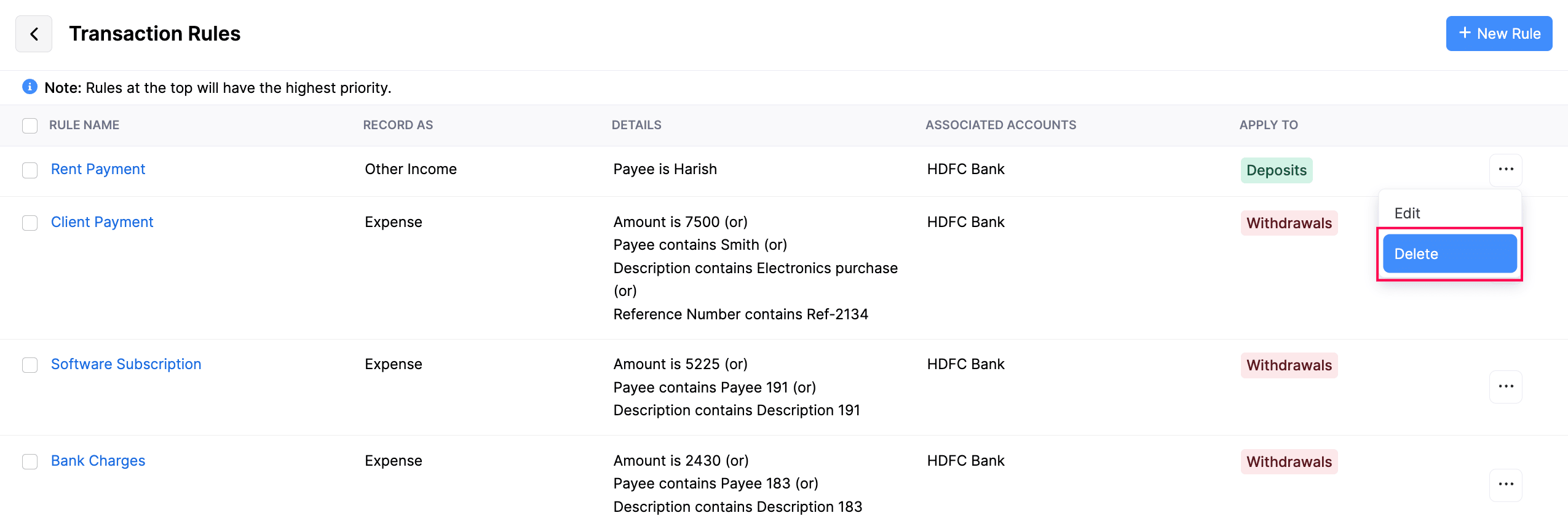
- Click OK in the confirmation pop-up that appears.
The transaction rule will be deleted.
 Yes
Yes