Logs
In Zoho eProtect, you can assign multiple administrators to manage your organization's archival and email protection needs. In such cases, one or more admins can create users, rules, alerts, etc. Most regulatory bodies require businesses to track and monitor the activities done by admins for compliance and audit purposes. The Logs section in Zoho eProtect records the actions done by all the organization's administrators and helps you to stay compliant with the industry norms.
Audit logs
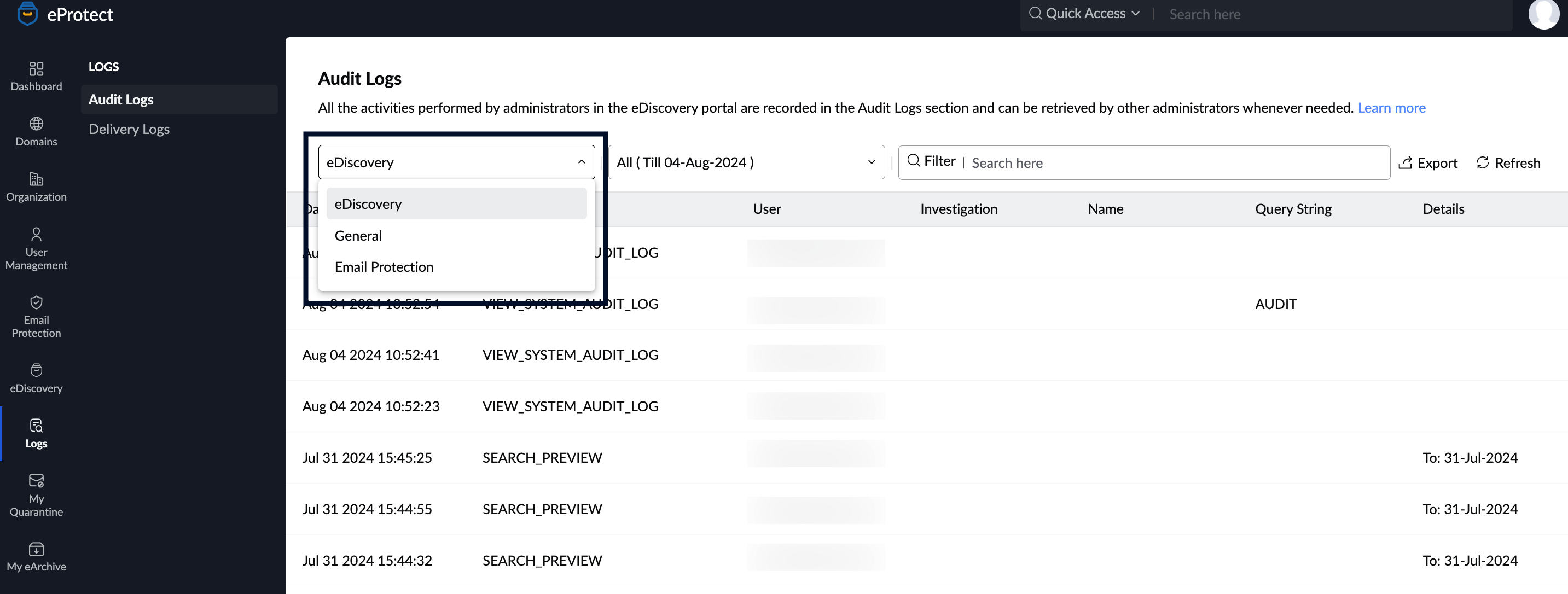
The Audit Logs section records the admin actions and categorizes them as General, eDiscovery, and Email Protection. You can search and view the actions performed by an admin based on a wide range of filter options.
Accessing audit logs
To view the audit logs, follow the below steps:
- Log in to Zoho eProtect and select Logs in the left menu.
- Select Audit Logs.
- Choose the appropriate Category in the Filters drop-down:
- eDiscovery
- General
- Email Protection
Filtering audit logs
You can quickly narrow down logs using filters and search options.
- Time range filter- Use the time selector at the top (for example, This week, Last 7 days, or a custom range) to view logs for a specific period.
- Search filter - Click the Search field to filter logs using specific event category. Available filters include:
- Organization
- Retentions
- Investigations
- Holds
- Saved search
- Tags
- Exports
- Audits
- Search
- Click Refresh to view recent data.

Exporting audit logs
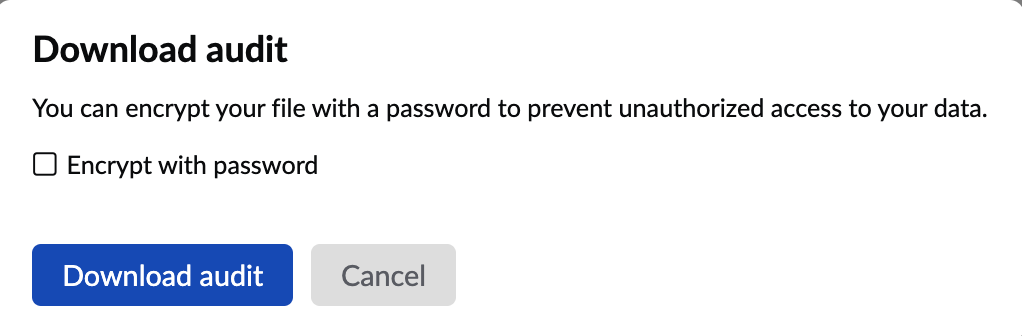
- You can export and download the audit logs to your local device. Click on the Export button.

- If you wish to password protect the logs, you can enter a suitable password and select Download audit.
- The files will be downloaded.
Delivery logs
This section gives you the details of all the emails that are processed in Zoho eProtect and sent to the email service provider. Delivery Logs display the below information:
- From - Displays the sender's email address
- Recipient - Displays the recipient's email address
- Sent time - Displays the message sent time
- Email size - Displays the email size
- Status - Displays the message delivery status
- Sender IP - Displays the senders IP address.
Accessing delivery logs
To view the delivery logs, follow these steps :
- Log in to Zoho eProtect and select Logs in the left menu.
- Navigate to Delivery logs.
Filtering delivery logs
You can quickly narrow down logs using filters and search options.
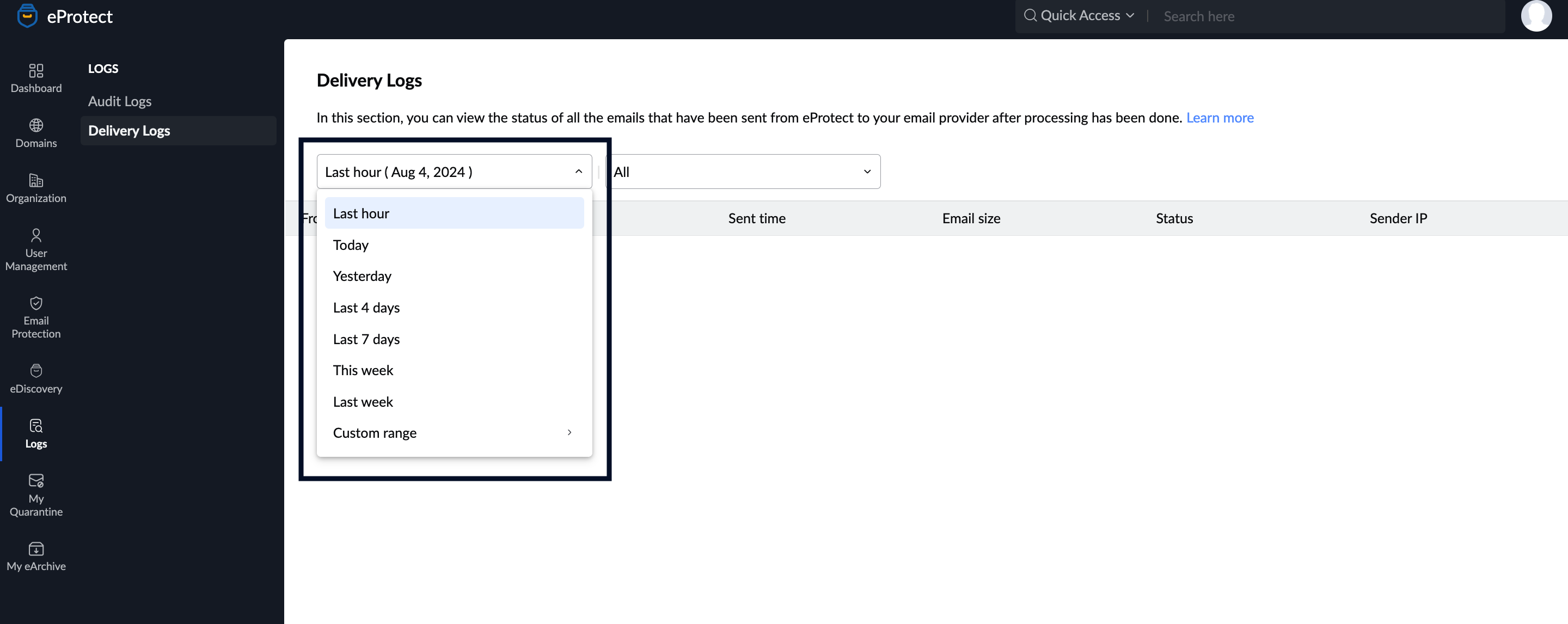
- Time range filter - Use the time selector at the top (for example, This week, Last 7 days, or a custom range) to view logs for a specific period.
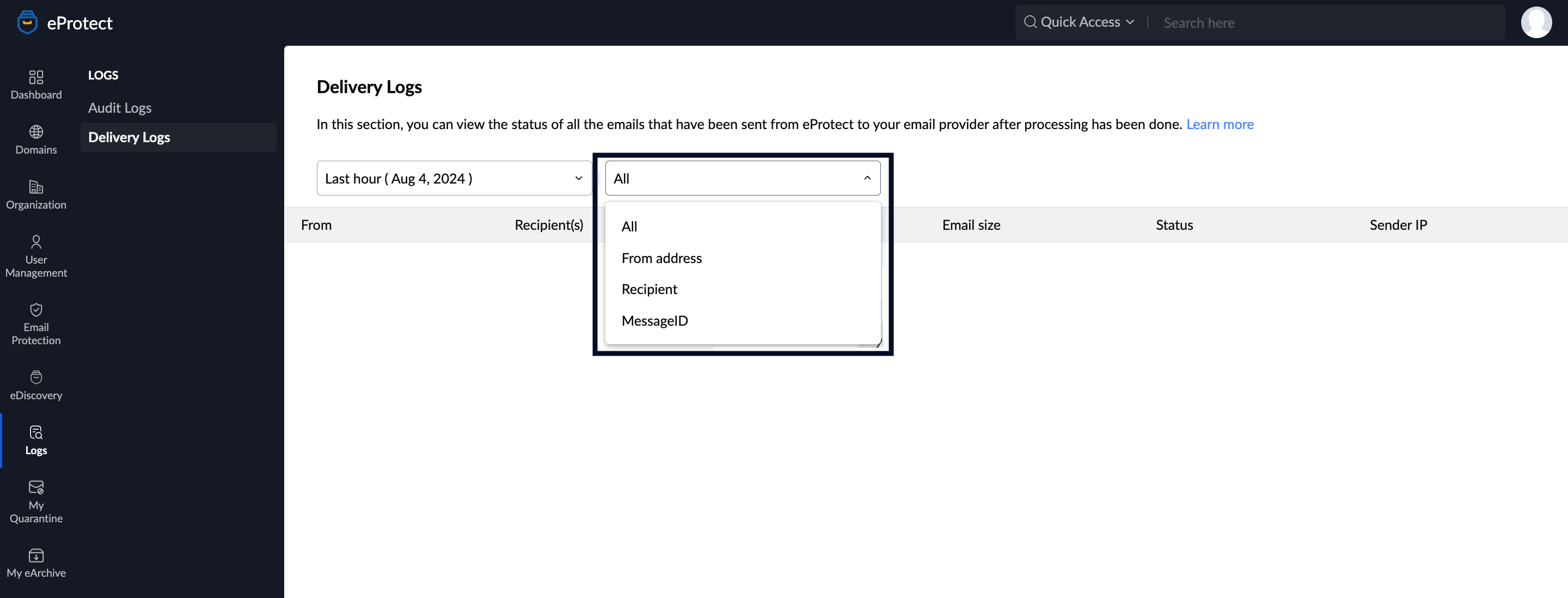
- Search filter - The Search filter helps you quickly locate specific delivery log entries based on From address, recipient, message ID or all of the mentioned fields.
Viewing individual log details
Click a log to view delivery details that include:
- Delivery status – Whether the email was successfully delivered.
- Email classification – How the email was categorized (for example, spam).
- Authentication status – Confirms whether the email was authenticated.
- Email metadata – Sender, recipient, subject, Message ID, sent time, sender IP, and size.
- Routing details – Delivery method, relay server, delivery time, and classification reason
Use the Previous and Next arrows to navigate to other available reports or click the back arrow to return to the Logs page.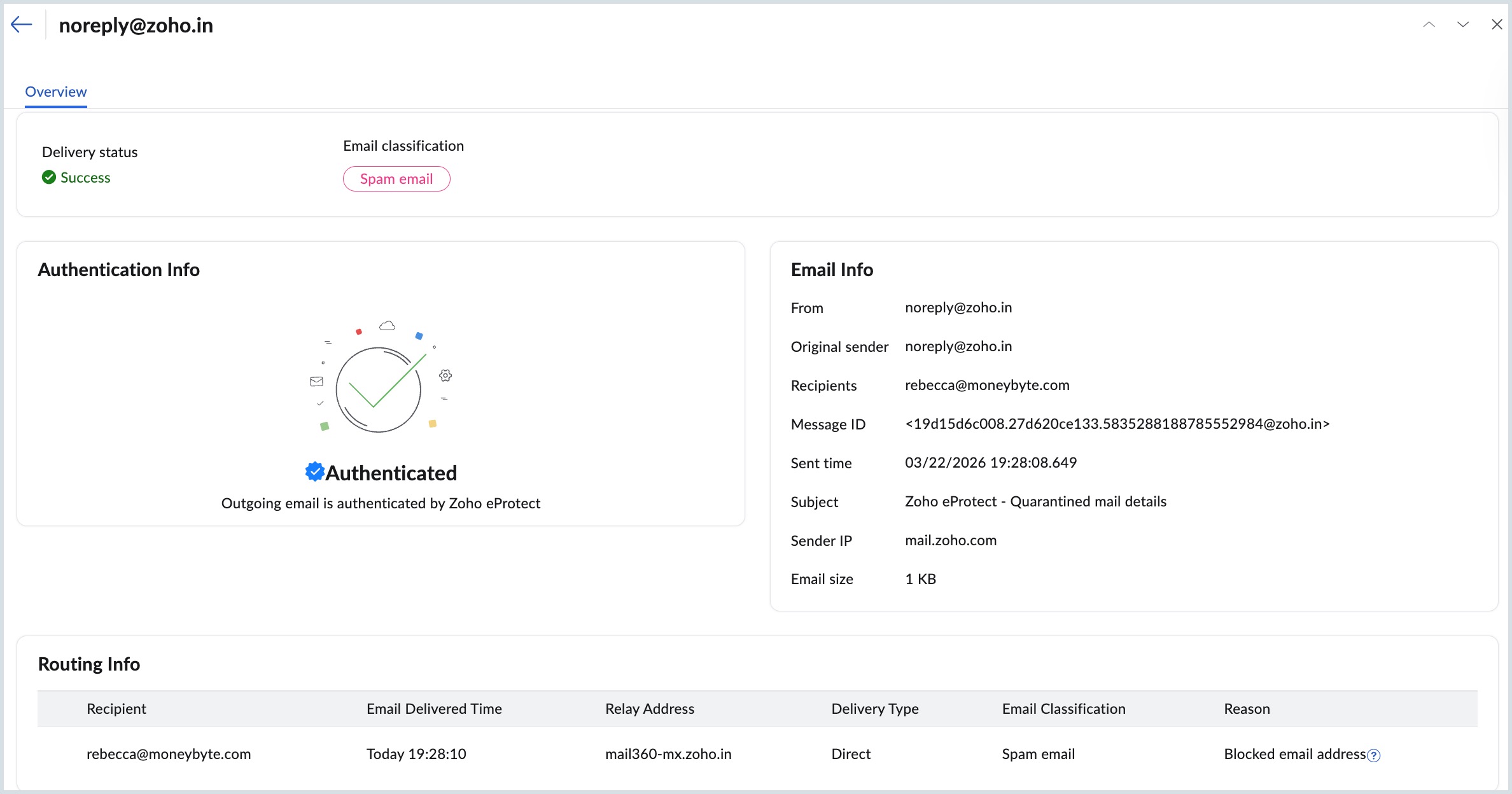
Advanced delivery logs
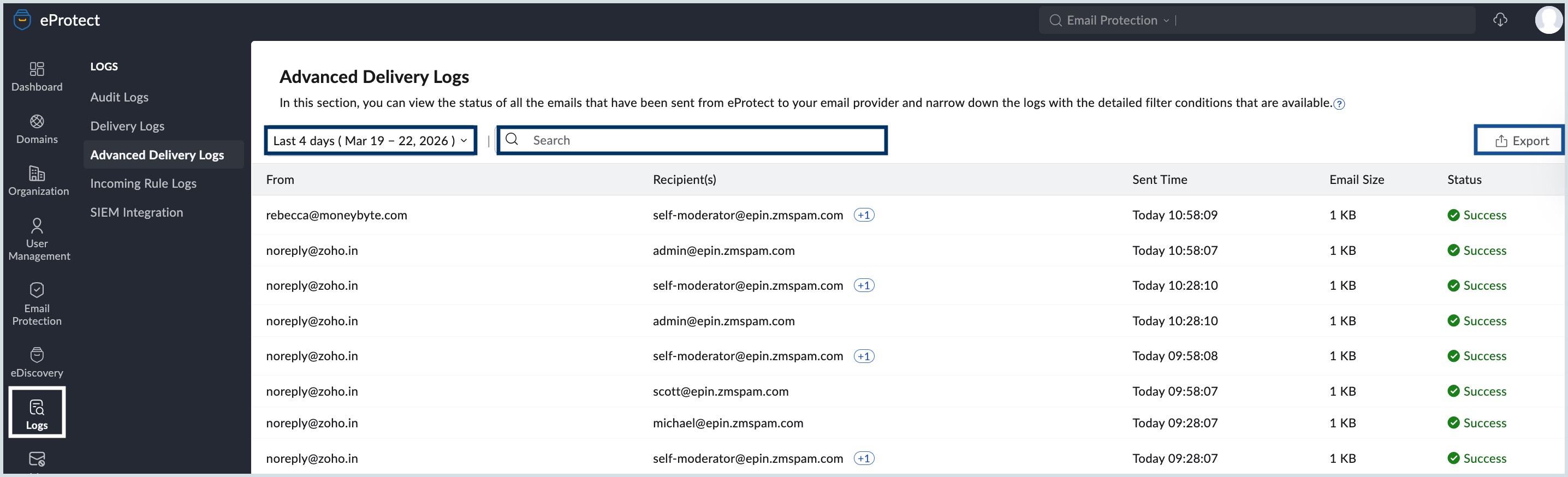
Zoho eProtect's Advanced Delivery Logs feature allows you to filter your organization's email delivery logs with extensive filter parameters when compared to the Delivery Logs. These additional attributes allows you to refine the email delivery logs to the finest detail. You can view the status of all emails sent from eProtect to your email provider and narrow down the logs.
Note:
- The Advanced delivery logs feature is being rolled out in a phased manner and is currently available only in select regions.
- Logs will be available only from the date the feature was enabled for your organization. To view the logs for the previous time period, follow the steps in the Delivery Logs section.
- For more details about the feature reach us at presales@zohoeprotect.com.
Accessing advanced delivery logs
To view advanced delivery logs, follow these steps :
- Log in to Zoho eProtect and select Logs in the left menu.
- Navigate to Advanced Delivery logs.
Filtering advanced delivery logs
- Time range filter - Use the time selector at the top (for example, This week, Last 7 days, or a custom range) to view logs for a specific period.
- Search filter - The Search filter helps you quickly locate specific delivery log entries based on
- from
- to/cc
- from does not contain
- to/cc does not contain
- subject
- message ID
- original sender
- original receiver
- sender IP
- failure reason
- email size
- protocol
- recipient count
- delivery type
- mail type
- relay address
- encryption
- retry
- spam
- bounce
Exporting advanced delivery logs
- Click the Export icon in the top-right corner of the page to download the incoming rule logs to your local device.
- In the export window, click Export to begin the download. The logs are downloaded as a .zip file, which contains the data in CSV format when extracted.
- To secure the exported logs, enable the option to password-protect the file before clicking Export.
Viewing individual log details
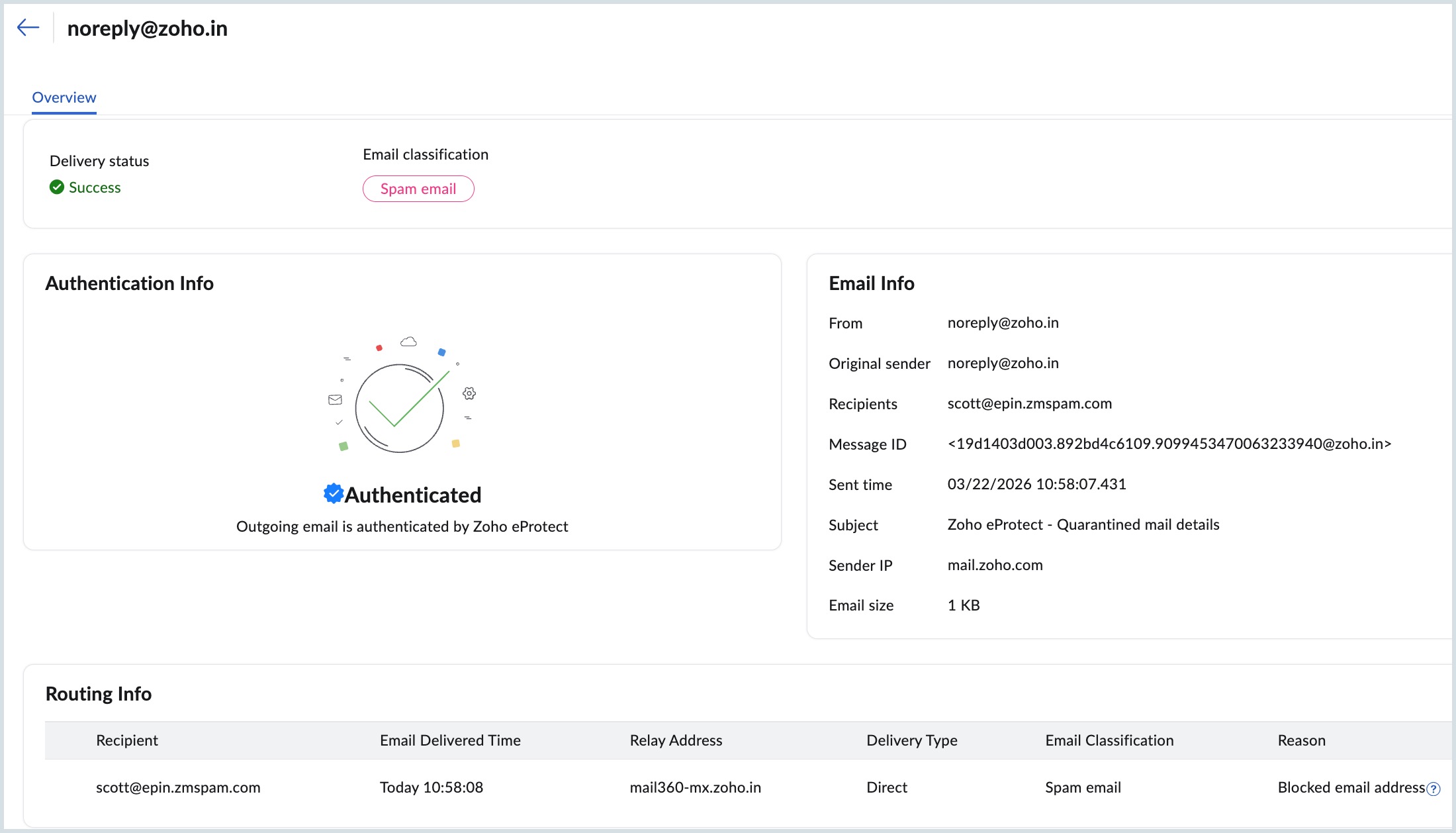
Click a log to view advanced delivery details that include:
- Recipient email address - Specifies the recipient's email address.
- Email delivered time - Mentions the date and time of email delivery
- Relay address - Specifies the relay address used to route the email.
- Delivery type (Direct / Route) - Specifies the status of email received by eProtect (Direct) and routed to your organization's email provider (Routed).
- Email classification - Emails are categorized as Legitimate, Spam, Rejected, Rejected without bounce, and Quarantine.
- Reason - Provides a brief description for each email classification.
- Use the Previous and Next arrows to navigate to other available reports or click the back arrow to return to the Logs page.
Incoming rule logs
The Incoming Rule Logs section in eProtect provides a comprehensive audit trail of all emails that have been matched against the incoming rules defined for your organization. This feature allows administrators to monitor rule execution, verify if emails are being processed as intended, and troubleshoot any rule-based delivery failures.
Each log entry has the below information:
- From - The sender's email address
- Recipient - The recipient's email address
- Sent Time - The email's processed time
- Email Size - The size of the processed email
- Status - Result of rule execution (Success or Failure)
Note:
- The Incoming Rule Logs feature is available only for Email Protection. The feature is being rolled out in a phased manner and is currently available only in select regions.
- Logs will be available only from the date the feature was enabled for your organization. To view the logs for the previous time period, follow the steps in the Delivery Logs section.
- For more details about the feature reach us at presales@zohoeprotect.com.
Accessing incoming rule logs
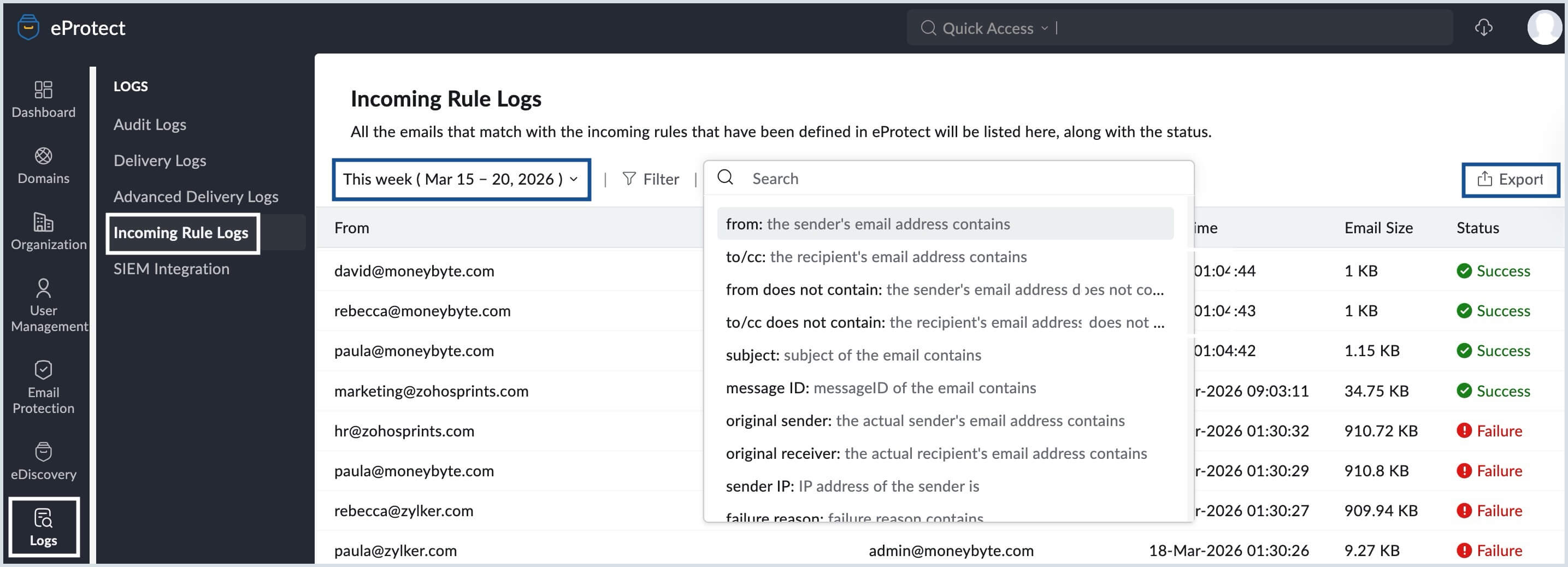
To access the incoming rule logs, follow the below steps:
- Log in to Zoho eProtect.
- Navigate to Logs from the left-hand menu.
- Click Incoming Rule Logs.
Filtering incoming rule logs
You can quickly narrow down logs using filters and search options.
- Time range filter- Use the time selector at the top (for example, This week, Last 7 days, or a custom range) to view logs for a specific period.
- Filter - Use this filter option to list emails based on the incoming rule name.
- Search filter - Click the Search field to filter logs using specific criteria. Available filters include:
- from
- to/cc
- from does not contain
- to/cc does not contain
- subject
- message ID
- original sender
- original receiver
- sender IP
- failure reason
- email size
- protocol
- recipient count
- delivery type
- mail type
- relay address
- encryption
- retry
- spam
- bounce
Exporting incoming rule logs
- Click the Export icon in the top-right corner of the page to download the incoming rule logs to your local device.
- In the export window, click Export to begin the download. The logs are downloaded as a .zip file, which contains the data in CSV format when extracted.
- To secure the exported logs, enable the option to password-protect the file before clicking Export.
Viewing individual log details
Clicking an email entry in Incoming Rule Logs opens a detailed view that explains how the selected email was processed. This view helps administrators understand authentication results, routing behavior, and rule-based actions applied to the message.
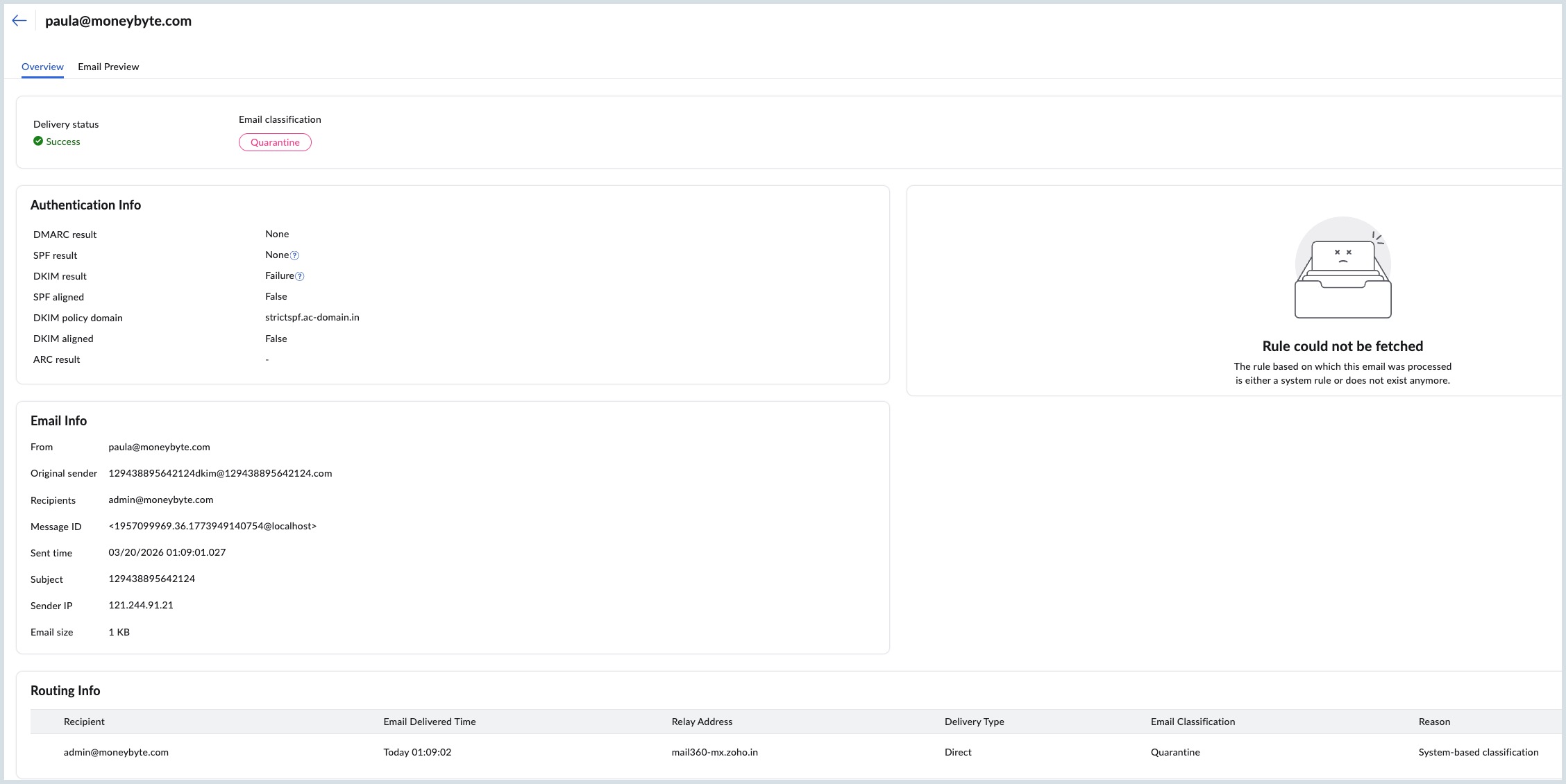
Individual log view
View detailed information about how a specific incoming email was processed, authenticated, classified, and delivered.
Overview tab
Shows a summary of the email’s processing outcome, including delivery status, authentication results, rule action, and routing details.
Includes:
Delivery status and email classification
Authentication Info (SPF, DKIM, DMARC, ARC)
Email Info (Sender, recipient, and header details)
Routing and delivery information
Reason for the applied action or classification
Email preview tab
Displays the email content as received, allowing safe inspection without opening the mailbox.