Import Emails
The Import Emails feature in Zoho eProtect allows administrators to upload previously existing email data in PST or ZIP format and archive it into eProtect. Once imported, these emails become fully searchable and manageable under Retention policies, Legal holds, and eDiscovery investigations.
eProtect supports the following formats for email import:
- PST (.pst) files - Microsoft Outlook Personal Storage Table files.
- ZIP (.zip) files - Compressed archives containing email data.
Prerequisites:
Before scheduling an import, ensure that:
- You have administrator privileges in Zoho eProtect.
- The eDiscovery feature is enabled for the target user.
- The target user mailbox already exists in Zoho eProtect.
- Adequate archival storage is available. Imports will be blocked when storage reaches 99% capacity. For additional storage, contact your administrator.
- The PST/ZIP file size does not exceed 500MB per file. For larger imports, contact your administrator.
- The PST/ZIP file is not corrupted or password-protected.
Schedule an import:
To schedule a new import, follow the steps below:
- Log in to Zoho eProtect.
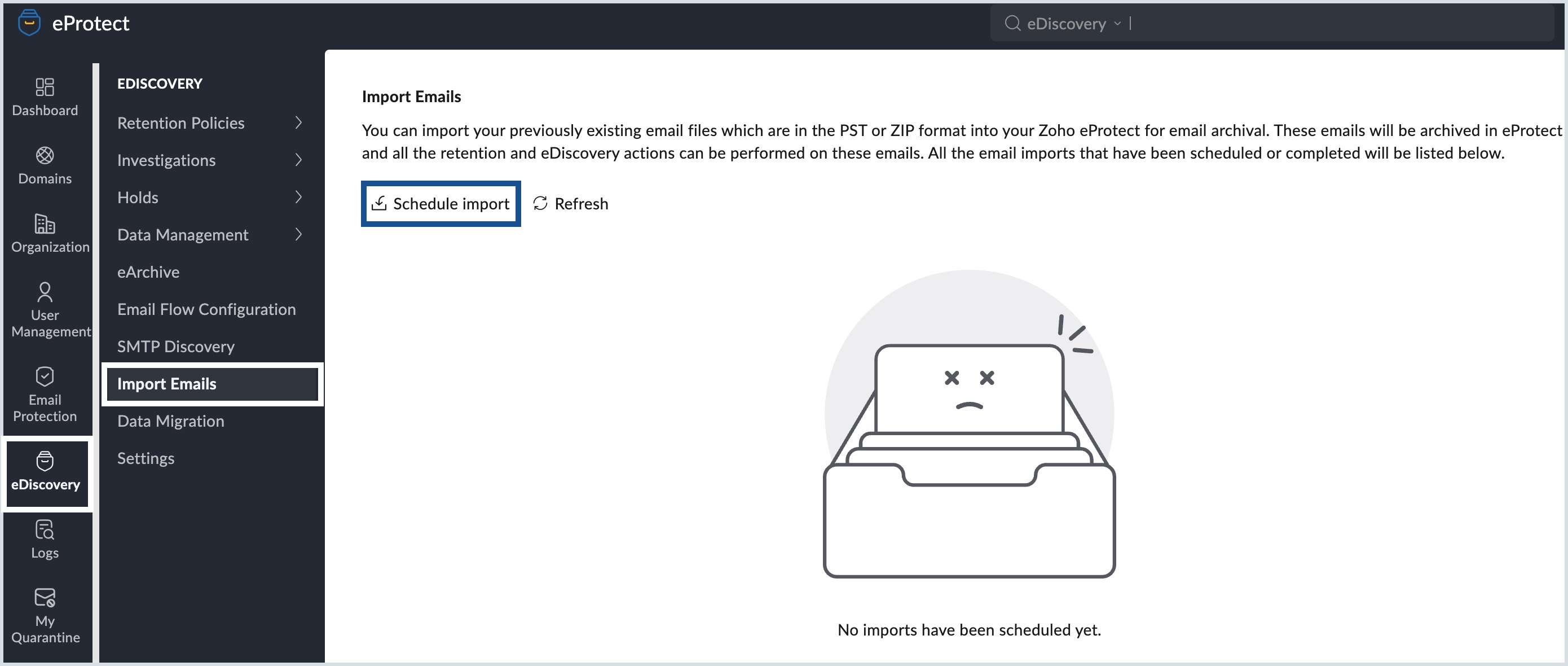
- From the left pane, navigate to eDiscovery and click Import Emails.
- Click Schedule import.
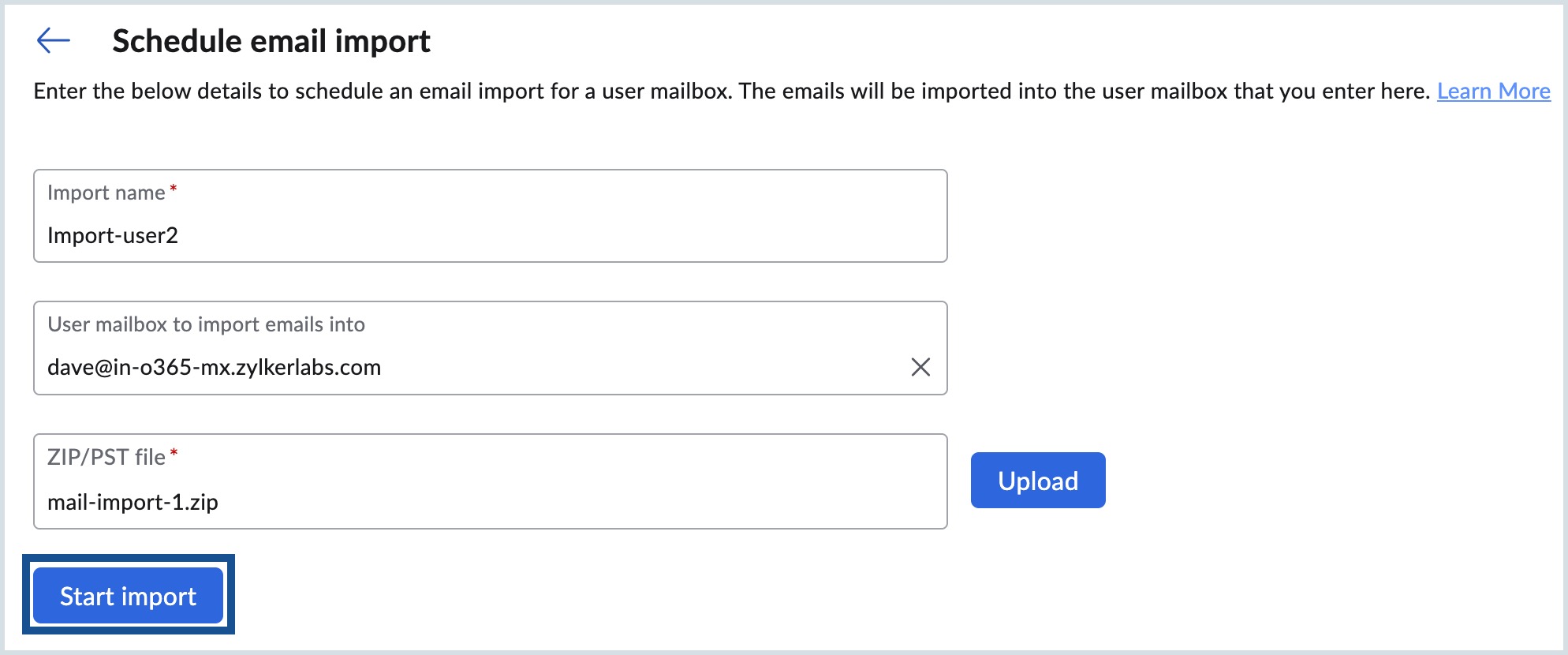
- Provide the following details:
- Import name – Used for identification and tracking.
- User mailbox to import emails into – The target mailbox.
- Click Upload and select the required PST or ZIP file.
- Click Start import to initiate the process.
View Import Status
- All imports are listed on the Import Emails page.
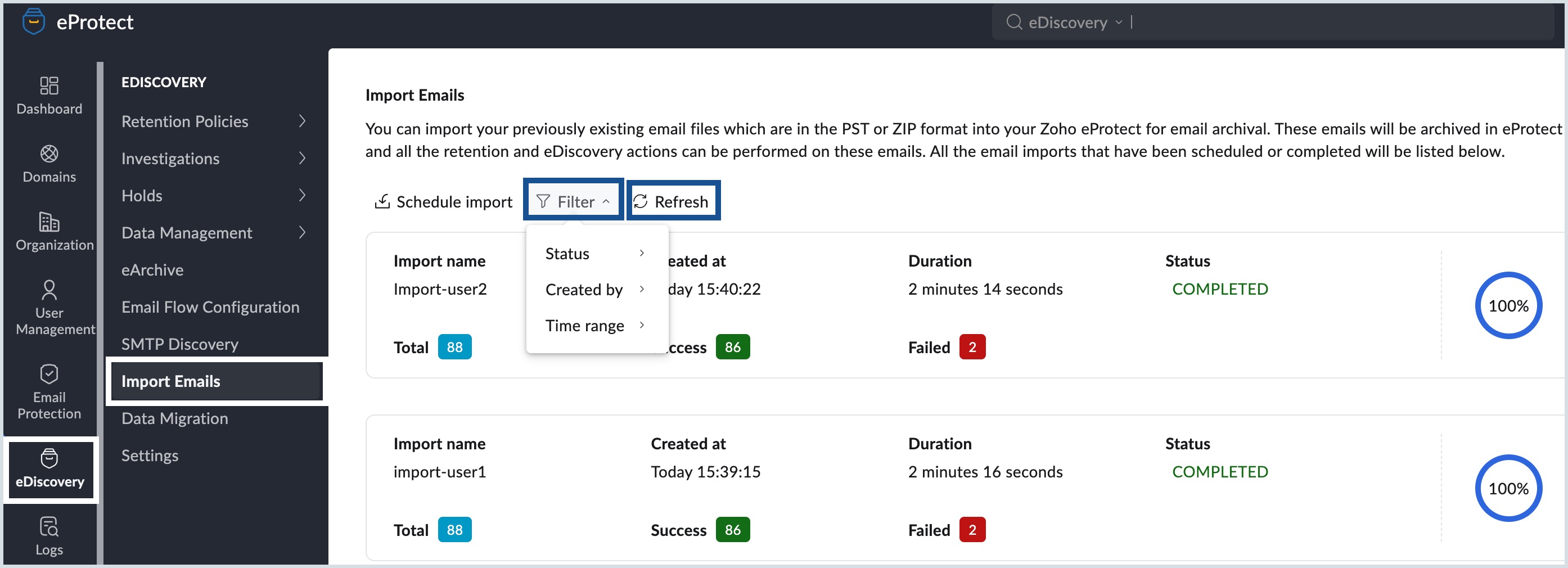
- For each import, you can view:
- Import name
- Created time
- Duration of the import
- Status: Not Started, In Progress, Rescheduled, Completed, or Failed.
- Managing the imports list:
- Click Filter to filter the list of imports based on Status (Not Started, In Progress, Failed, Completed), Created by, or Time range.
- Click Refresh to update the latest status.
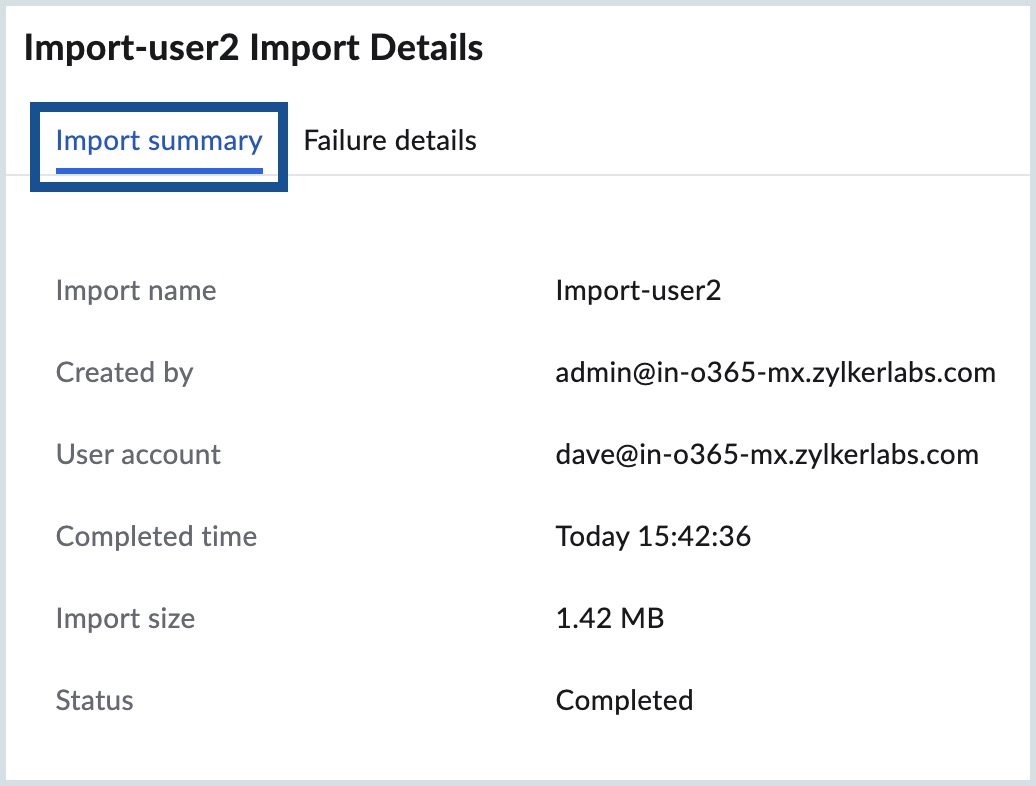
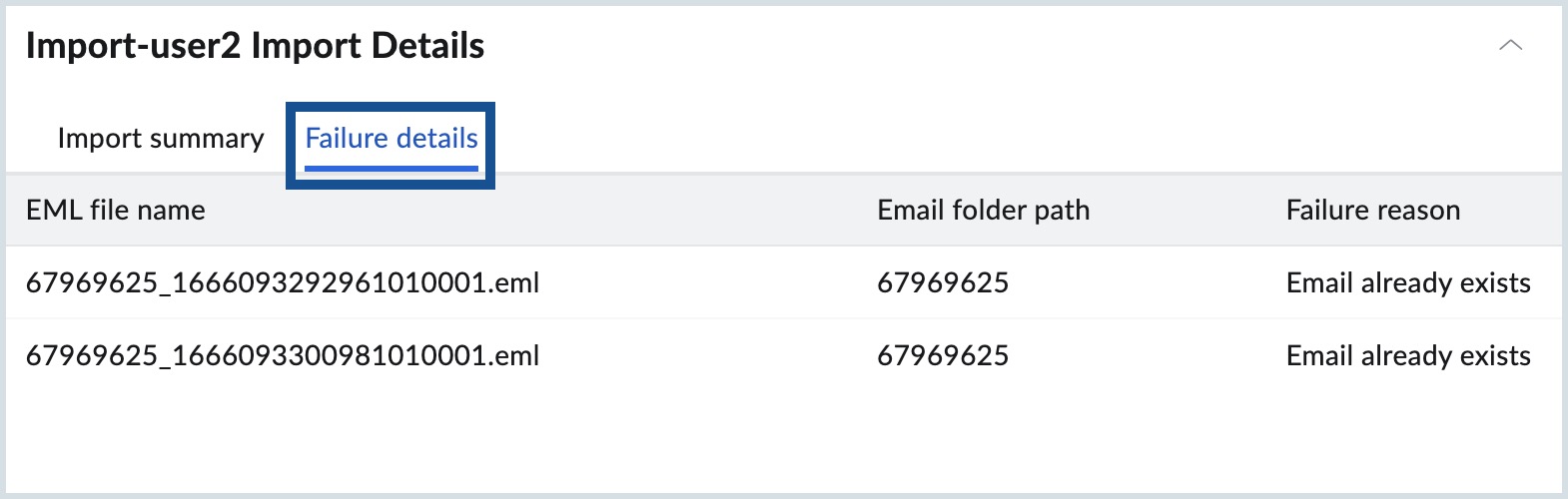
- Click on the specific import to view its summary and failure details.
After import completion
Once an import completes successfully:
- Emails appear in the target user's mailbox archive.
- Data becomes searchable in eDiscovery.
- Configured Retention Policies automatically apply.
- Emails can be placed under Legal Holds when needed
Note: Import processing time varies based on file size.