



Managing Reports
In this help document, you’ll learn how to manage your expense reports in the Zoho Expense web and iOS applications.
View History of a Report
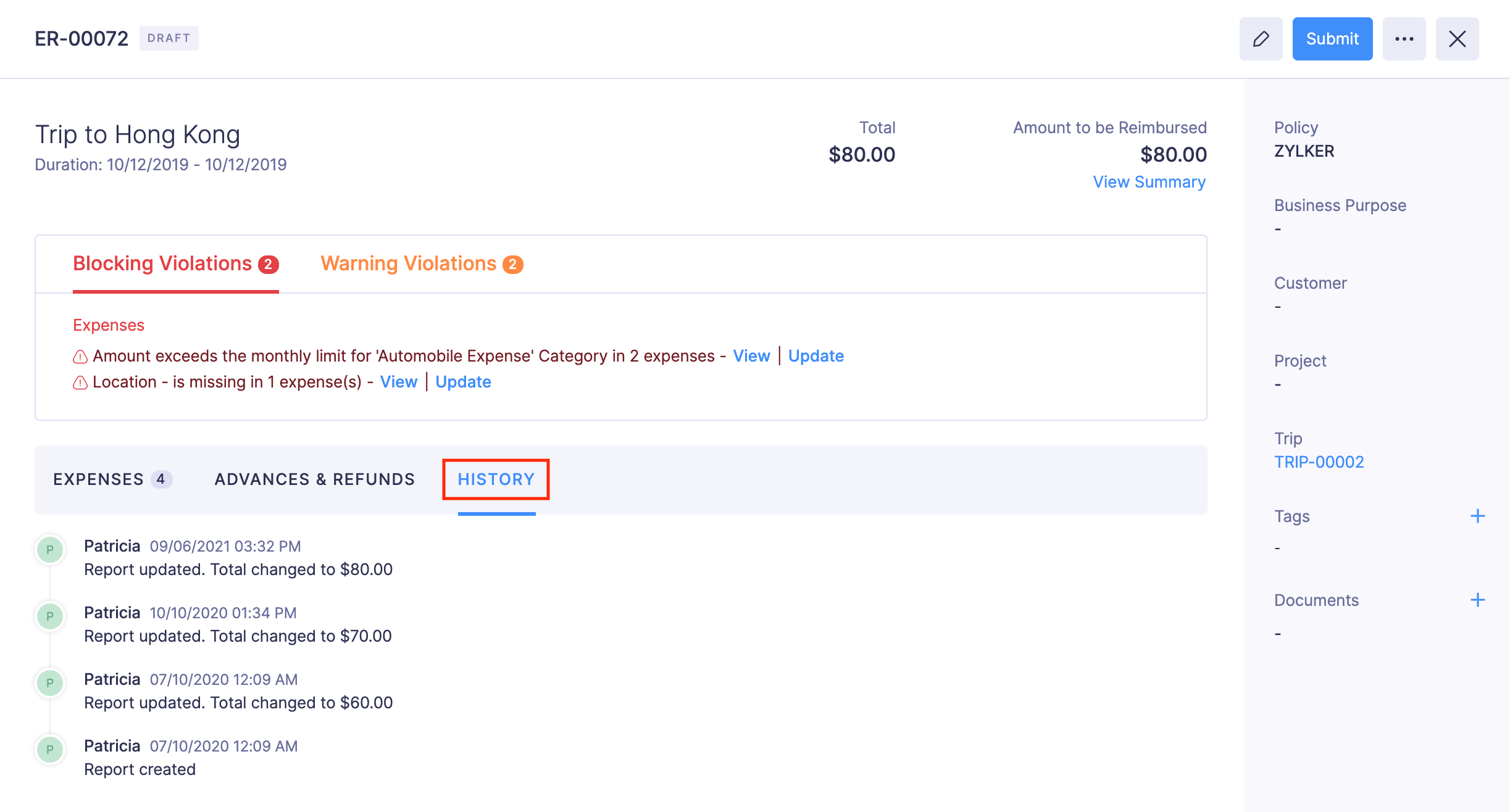
In the History tab of your report, you can clearly view the changes made to the report by you and your approvers at regular intervals. You can view the details of the changes made and the date and time at which the report was updated by the respective user.
Remove Advance from Report
If you’ve applied a wrong or an irrelevant advance to a report, you can remove that advance from the report.
Prerequisite: You can remove advances from reports that are in Draft, Recalled, or Rejected statuses.
To remove advances:
- Go to Reports.
- Click the report from which you want to remove the advance.
- Navigate to ADVANCES & REFUNDS tab.
- Click the More icon at the right corner of the advance you want to remove.
- Select Remove Advance.
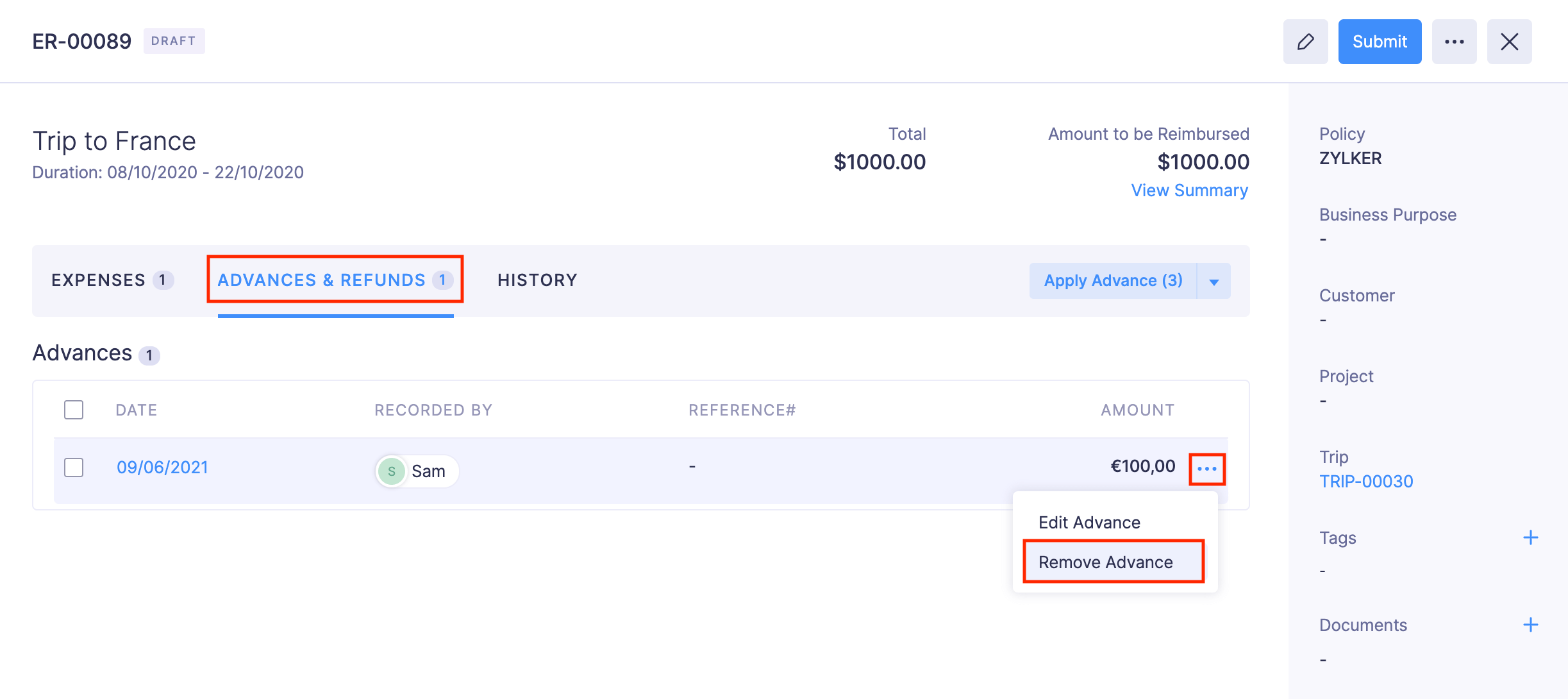
- Click Remove. The advance will be removed from the report and will be listed as an unreported advance.

Pro Tip: You can also remove advances in bulk. Mark the checkbox before the DATE column in the ADVANCES & REFUNDS tab and click Remove.
Remove Expense from Report
If you’ve added the expense to a report by mistake, you can remove it.
Prerequisite: You can remove expenses from reports that are in Draft, Recalled, or Rejected statuses.
To remove expenses from a report:
- Go to Reports.
- Click the report from which you want to remove the expense.
- Under the Expenses tab, click the More icon at the right corner of the expense you want to remove.
- Select Remove.
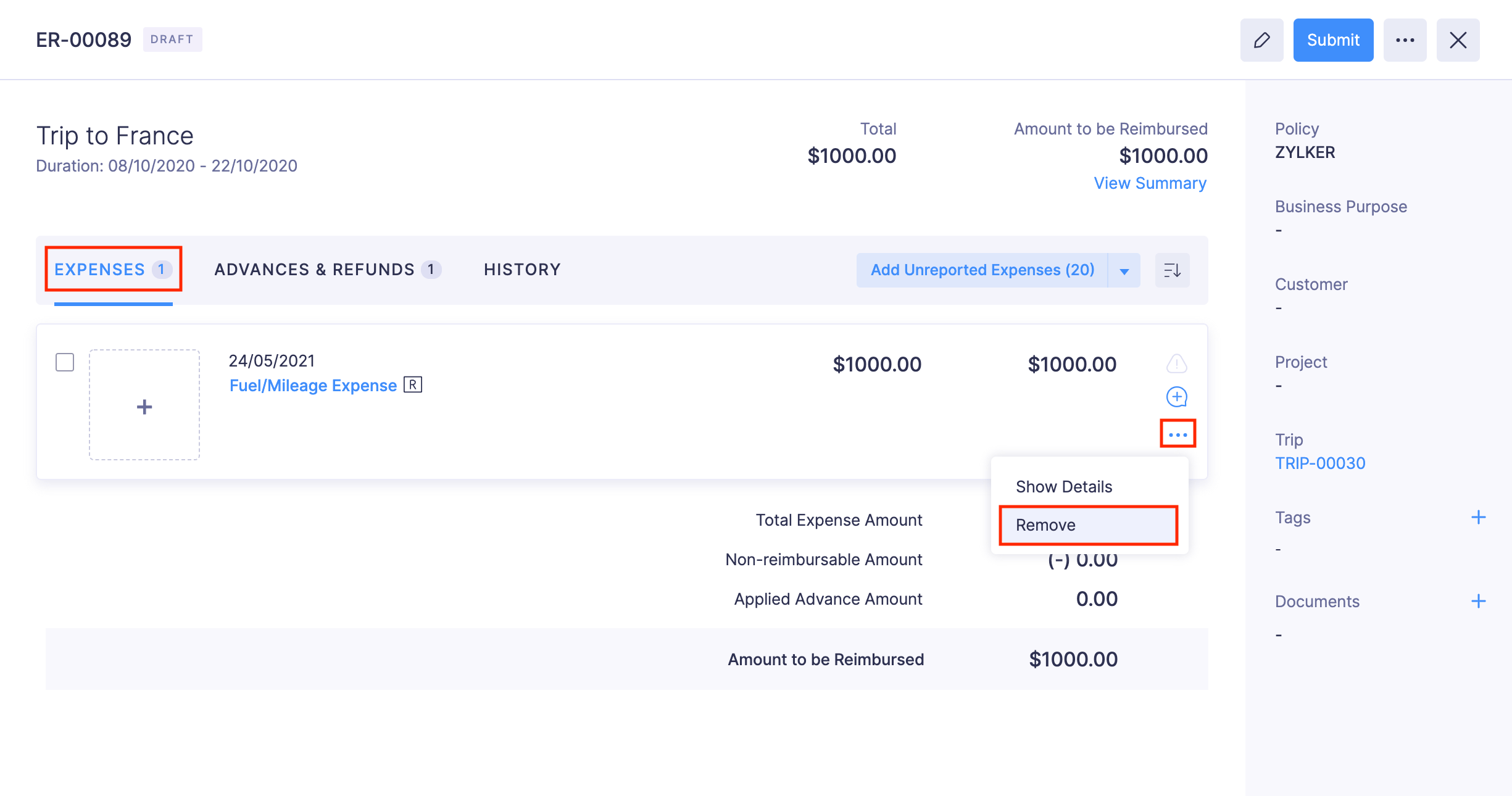
- In the pop-up that opens, click Confirm. The expense will be removed from the report and will be listed as an unreported expense.
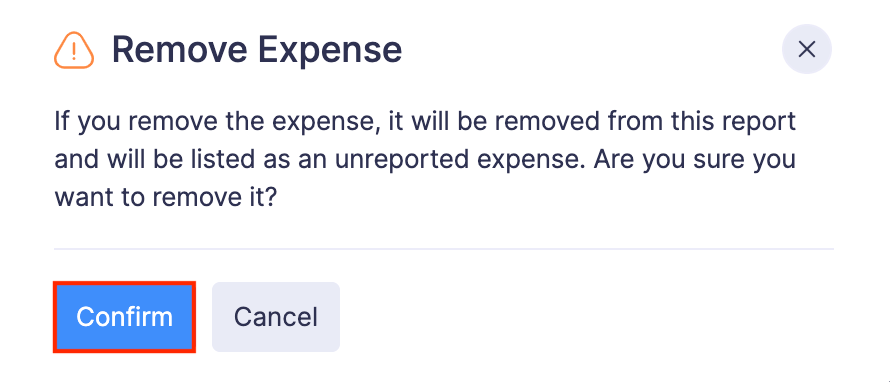
Pro Tip: You can also remove expenses in bulk. Mark the checkbox before the DATE column in the EXPENSES tab and click Remove.
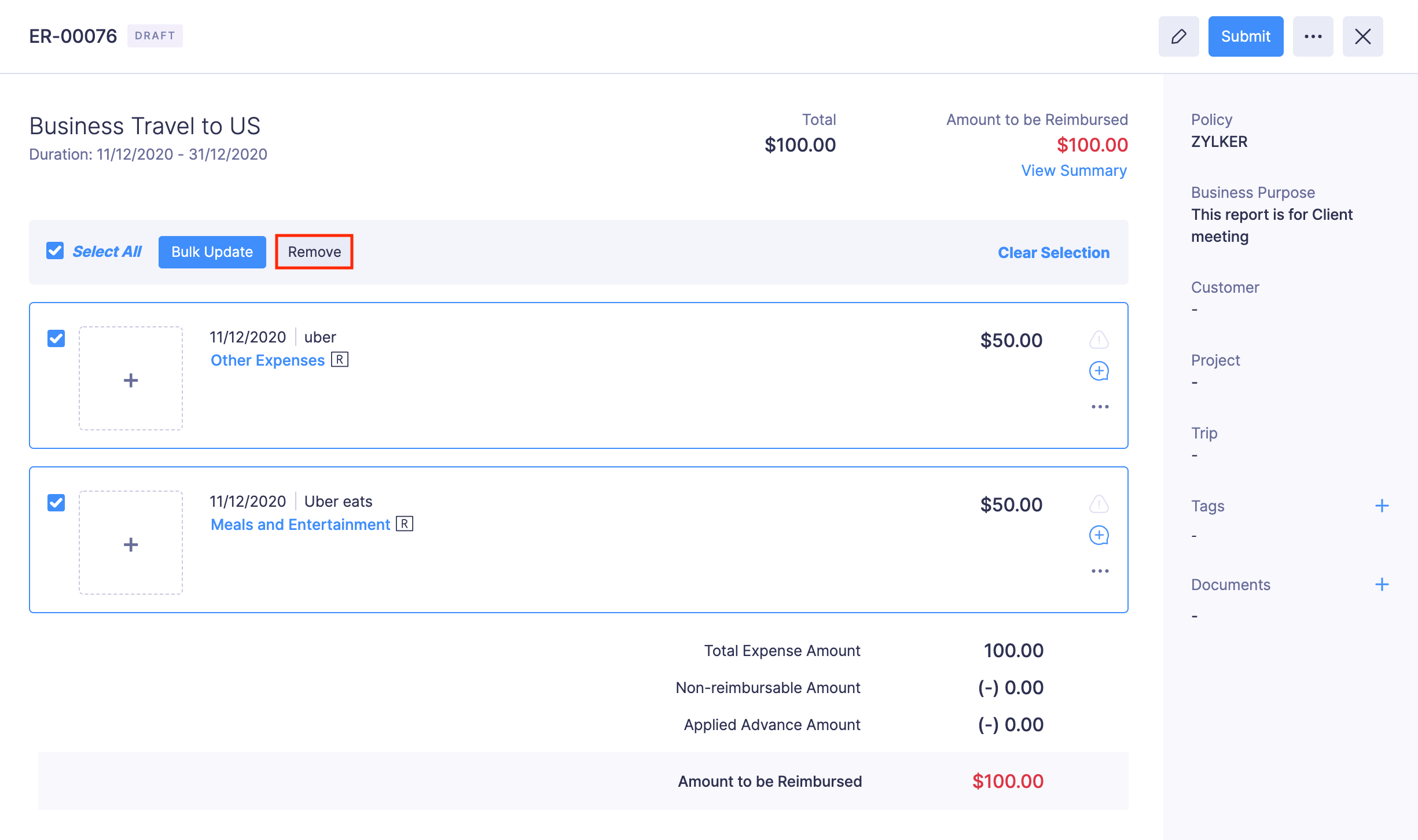
Update Reports in Bulk
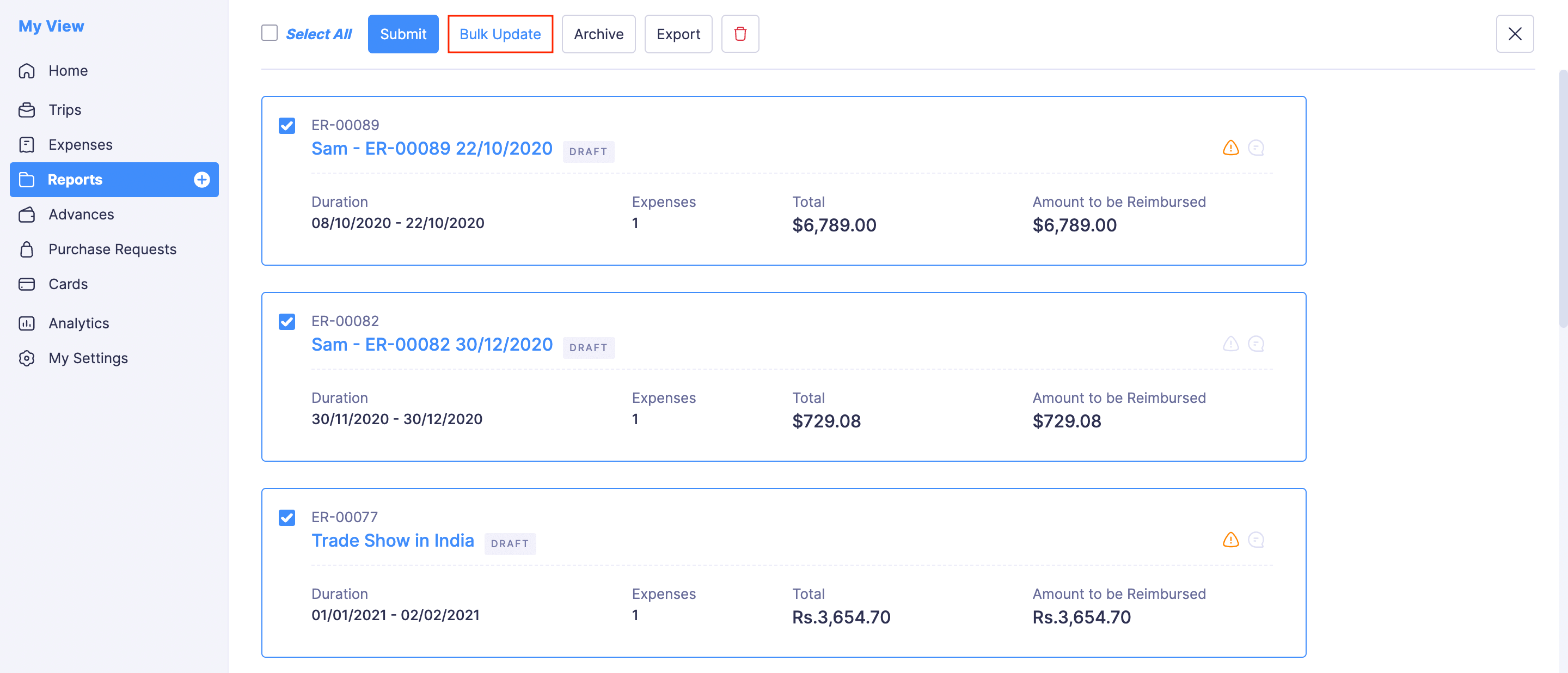
If you want to update a bunch of reports at a time, you can update them in bulk. To do this:
- Go to Reports.
- Select the reports you want to update in bulk.
- Click the Bulk Update button on the top of the page.
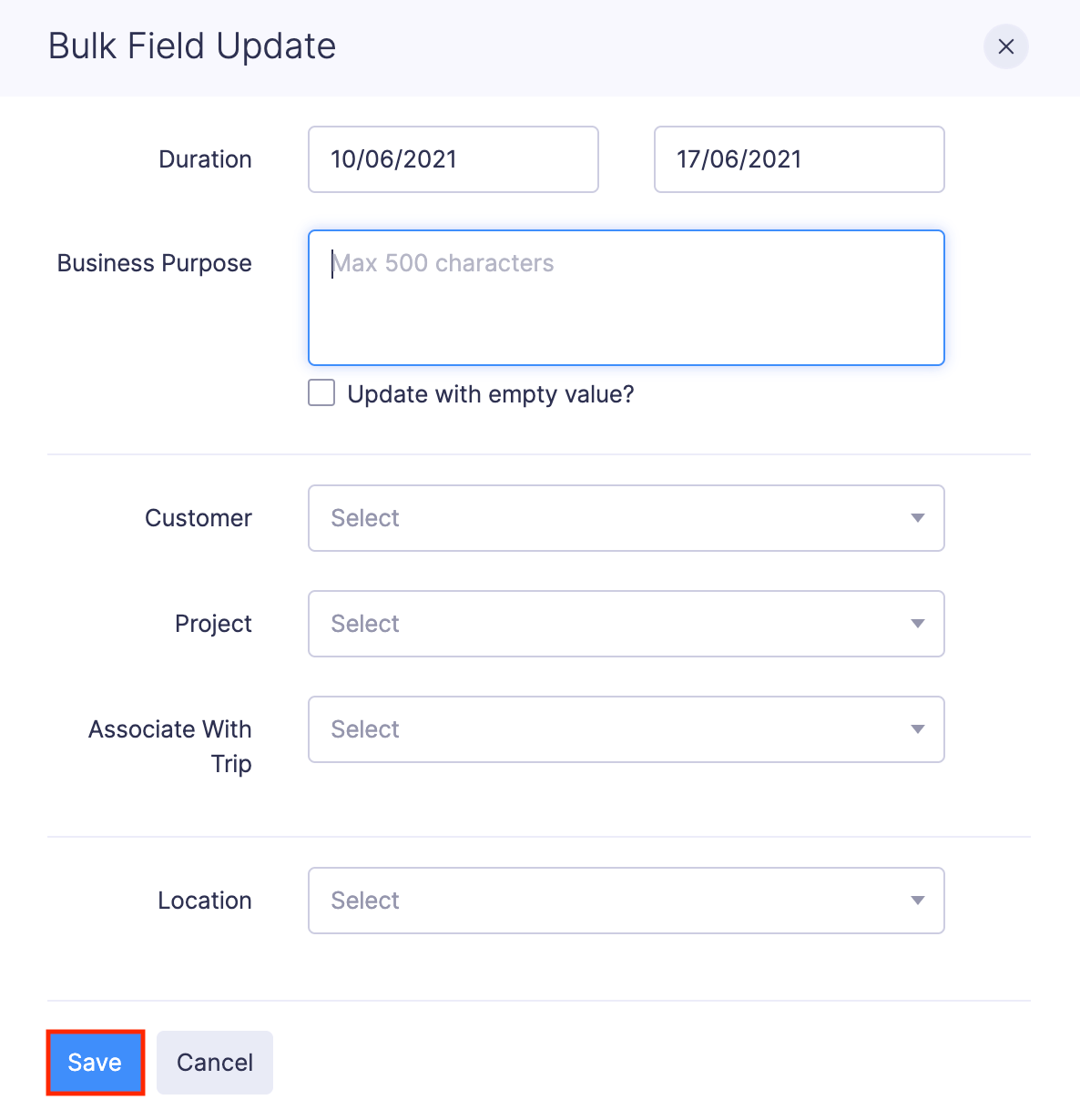
- The Bulk Field Update pop-up will open. Make changes to the required fields.
- Click Save.
Search a Report
If you want to locate a particular report from a group of reports, you can search for the report. Here’s how:
- Go to My View on the left sidebar.
- Click Reports on the left sidebar.
- Click the Search icon in the right corner.
- You can enter any field value of the particular report that you want to view.
- Click Search.

Edit and Delete a Report
Edit a Report
If you want to make changes to a report, you can edit it.
Prerequisite: You cannot edit the reports in Awaiting Approval, Approved or Reimbursed statuses.
To edit a report:
- Go to Reports.
- Click the report you want to edit.
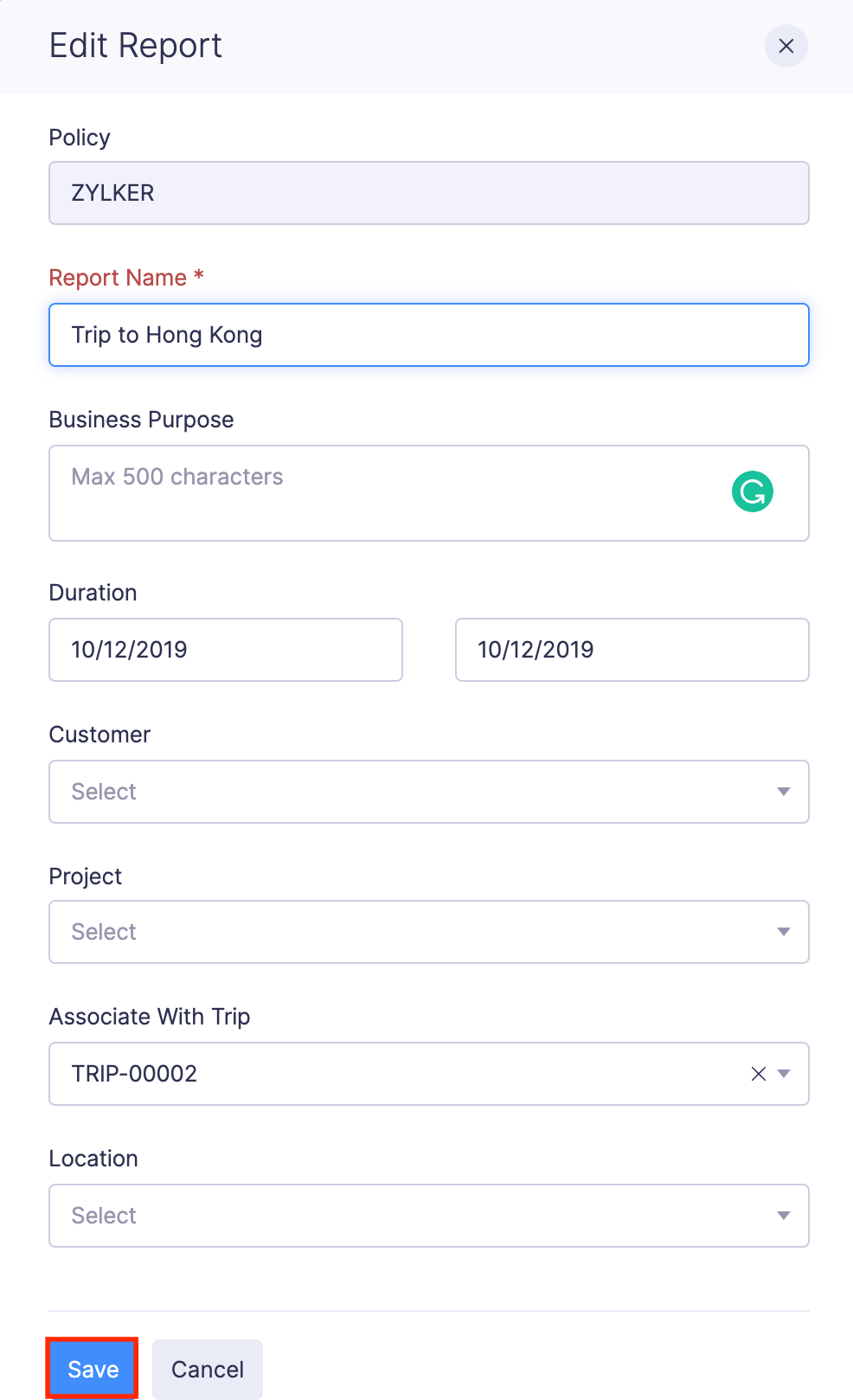
- If you want to edit the report details, click the Edit icon at the top right corner of the report.
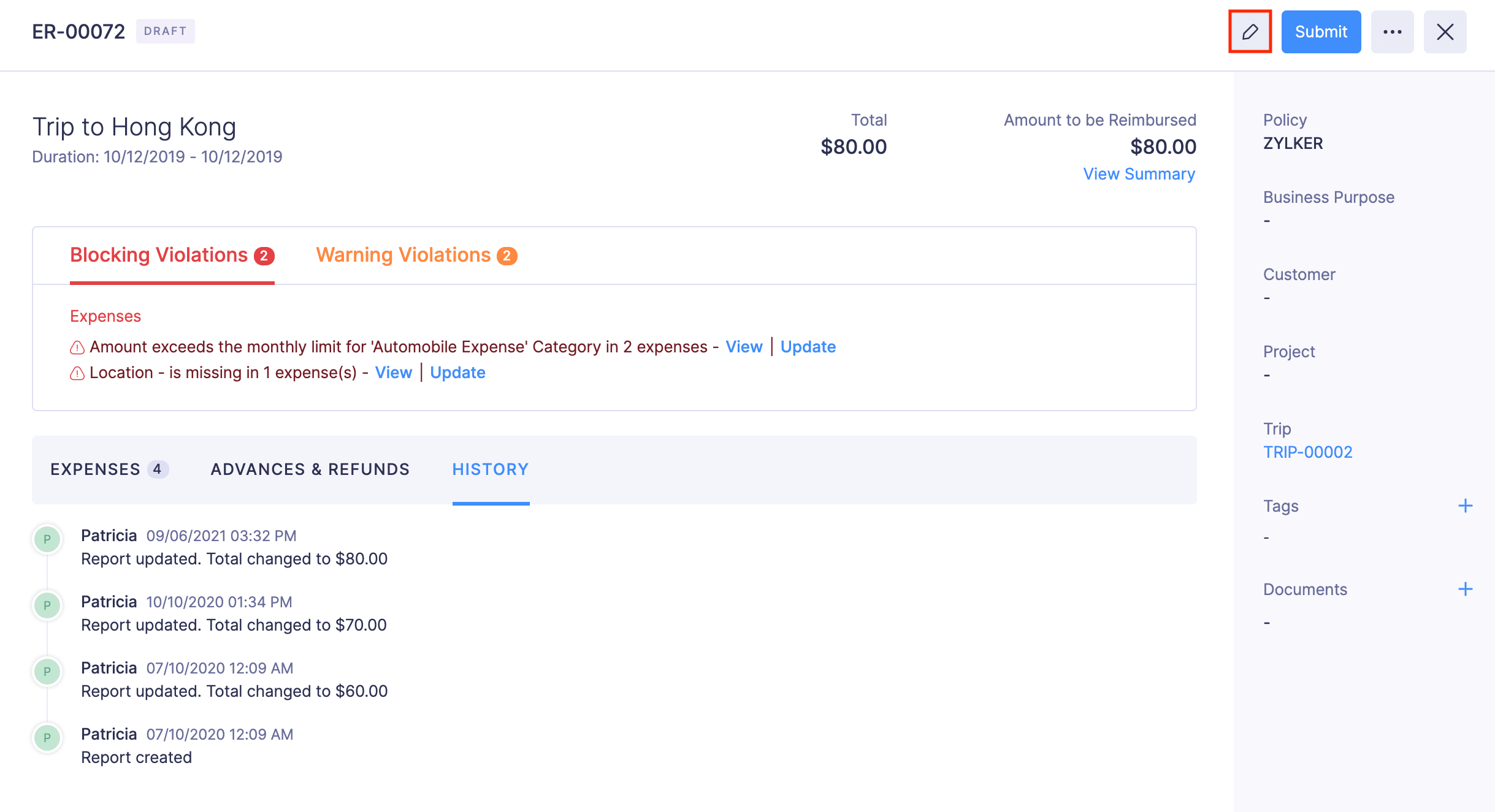
- Make the necessary changes and click Save.
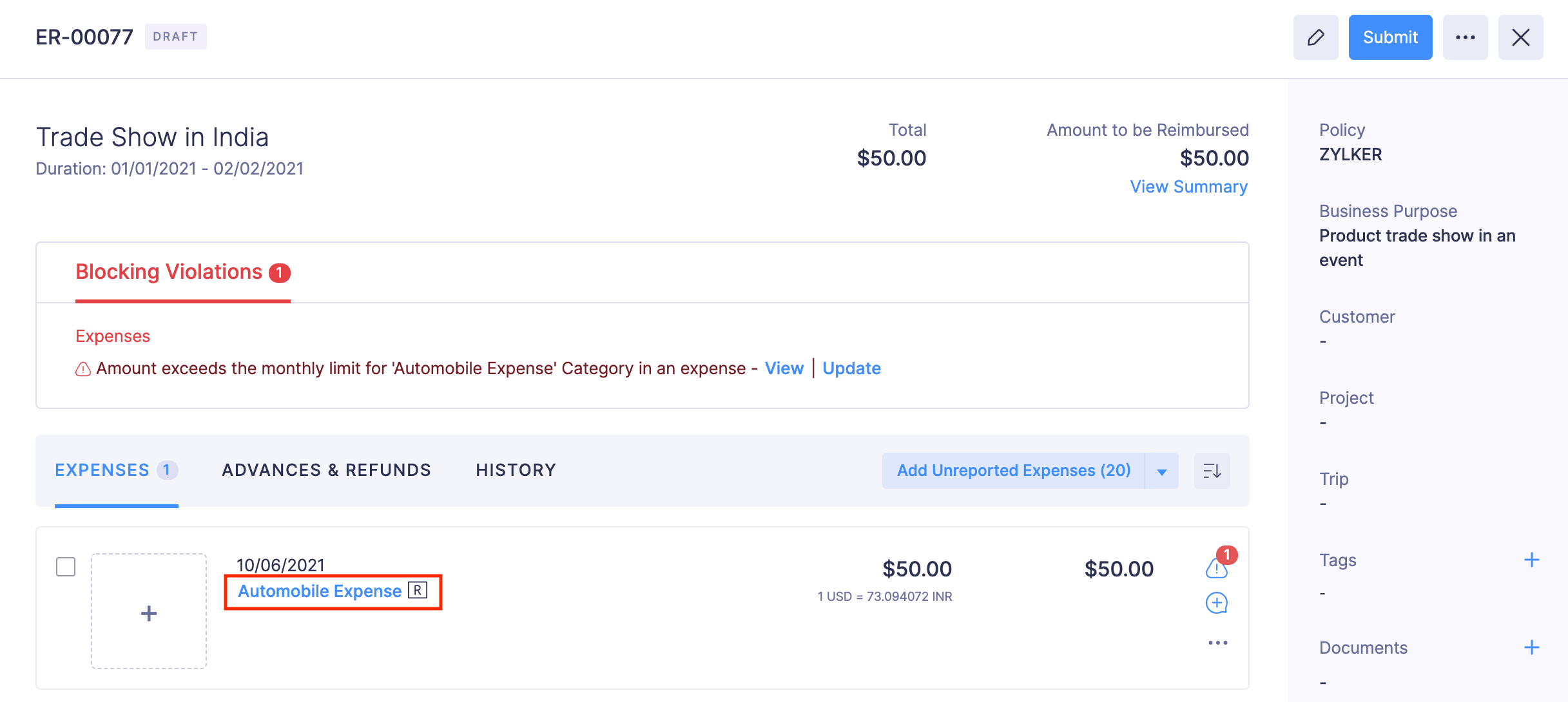
- If you want to edit the expenses in the report, click the expense you want to edit. Make the relevant changes and click Save and Close. You cannot edit the expense if you’ve submitted the report.
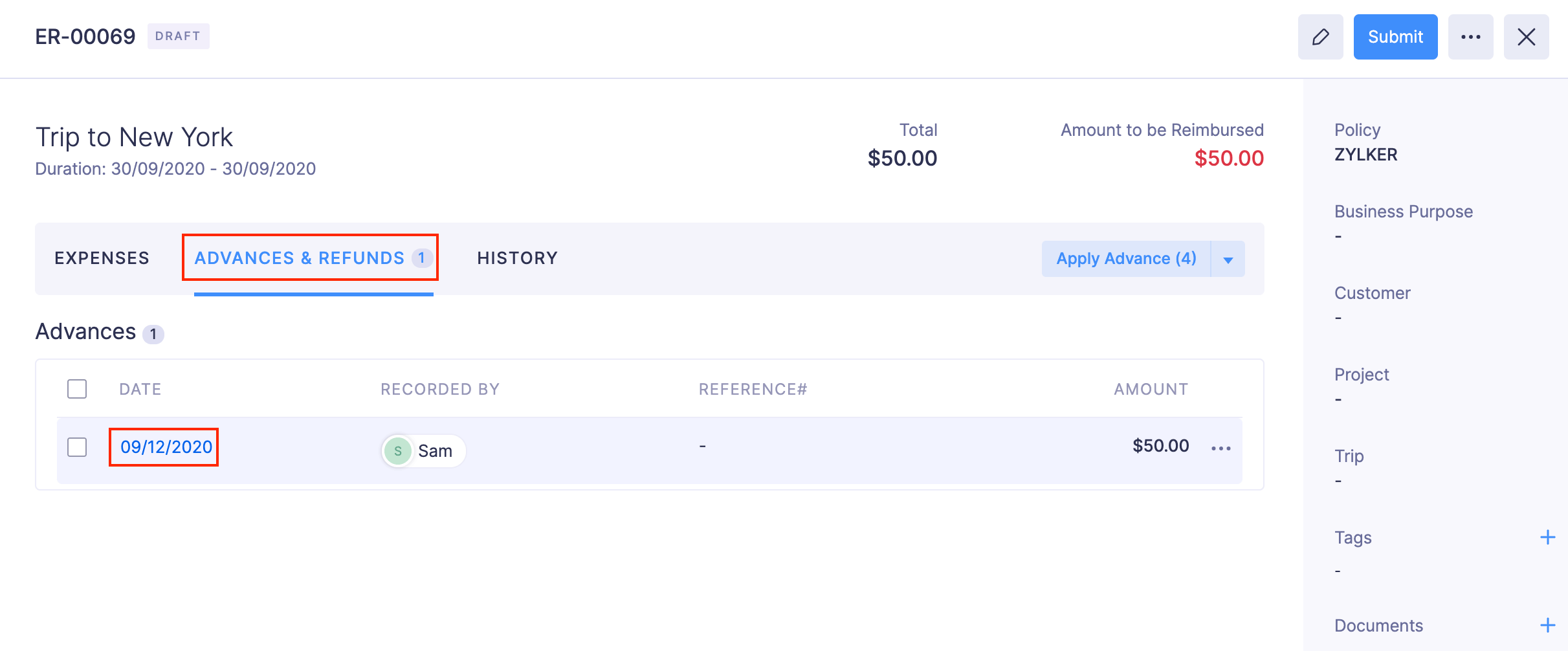
- If you want to edit the advances in the report, navigate to ADVANCES & REFUNDS tab, and click the advance you want to edit. Make the relevant changes and click Record Advance.
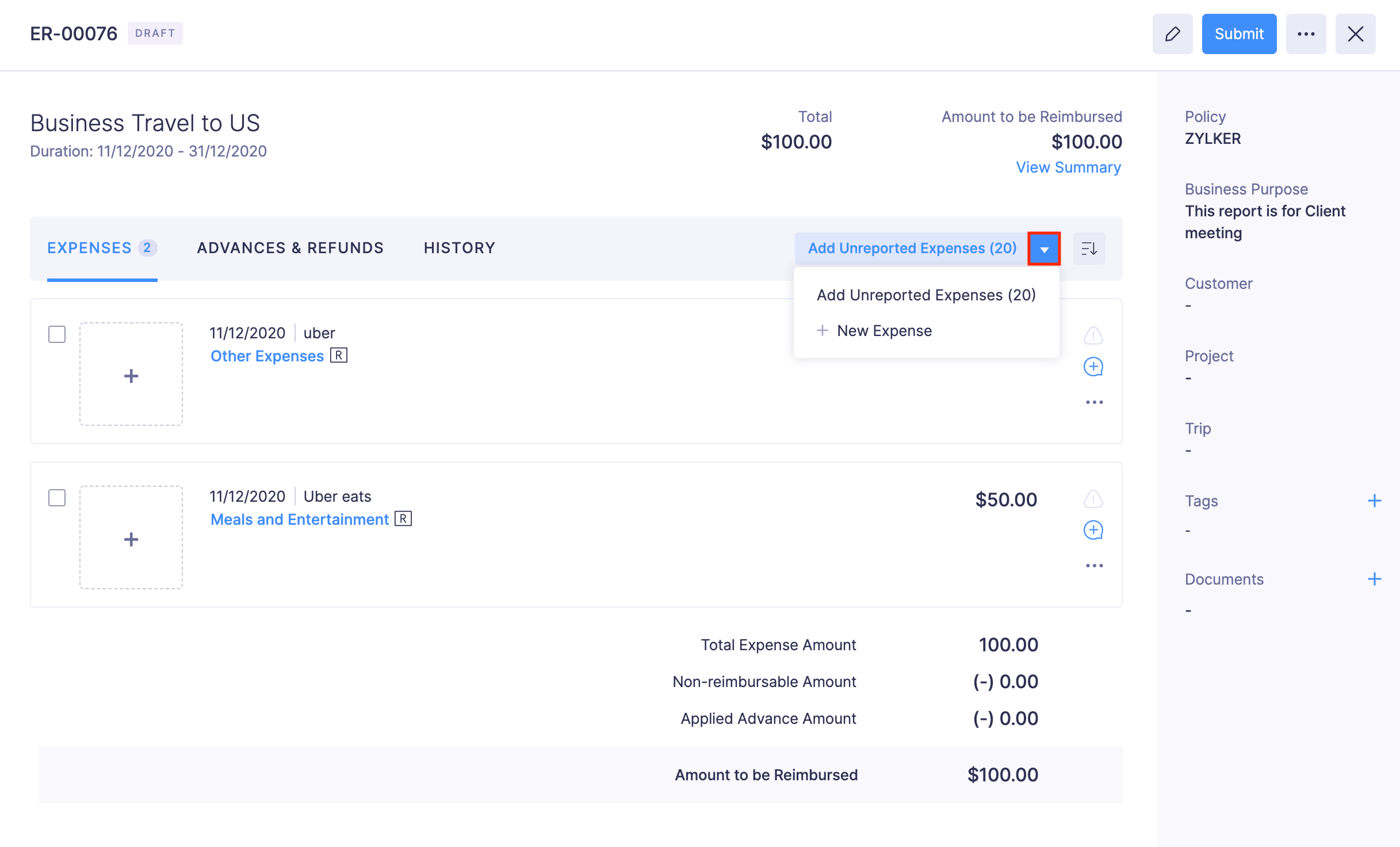
To add expenses to the report:
- Click the Add Unreported Expenses dropdown and select + New Expense.
(OR)
Click Add Unreported Expenses and add the required expenses.
Pro Tip:
- You can also edit the expenses in a report from the Expenses module. The changes will be reflected in the report immediately.
- You can edit the reports that are awaiting approval by recalling them.
Delete Report
Prerequisite: You cannot delete the reports in Awaiting Approval, Approved, and Reimbursed statuses.
Warning: Once a report is deleted, it cannot be retrieved. The expenses associated with the report will not be deleted and will revert to the Unreported status.
To delete a report:
- Go to Reports.
- Click the report you want to delete.
- Click the More icon at the top right corner of the report.
- Select Delete.

- A confirmation pop-up will open. Click Delete.
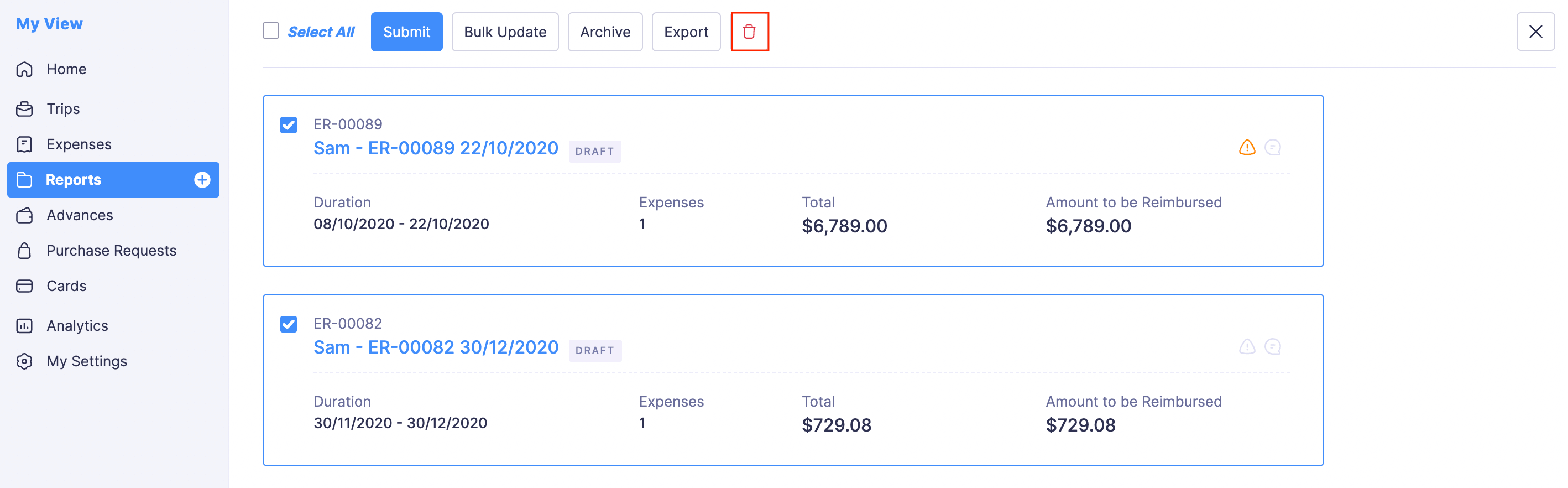
- If you want to delete the reports in bulk, select the reports and click the Delete icon at the top of the page.
- Click Delete.
Share, Print, and Archive Report
Besides the available options, you can do more in the Reports module. You can share, archive, download receipts, etc., in the Reports module.
Prerequisite: You cannot archive the reports in Awaiting Approval and Rejected statuses.
To do this:
- Go to Reports.
- Click a report.
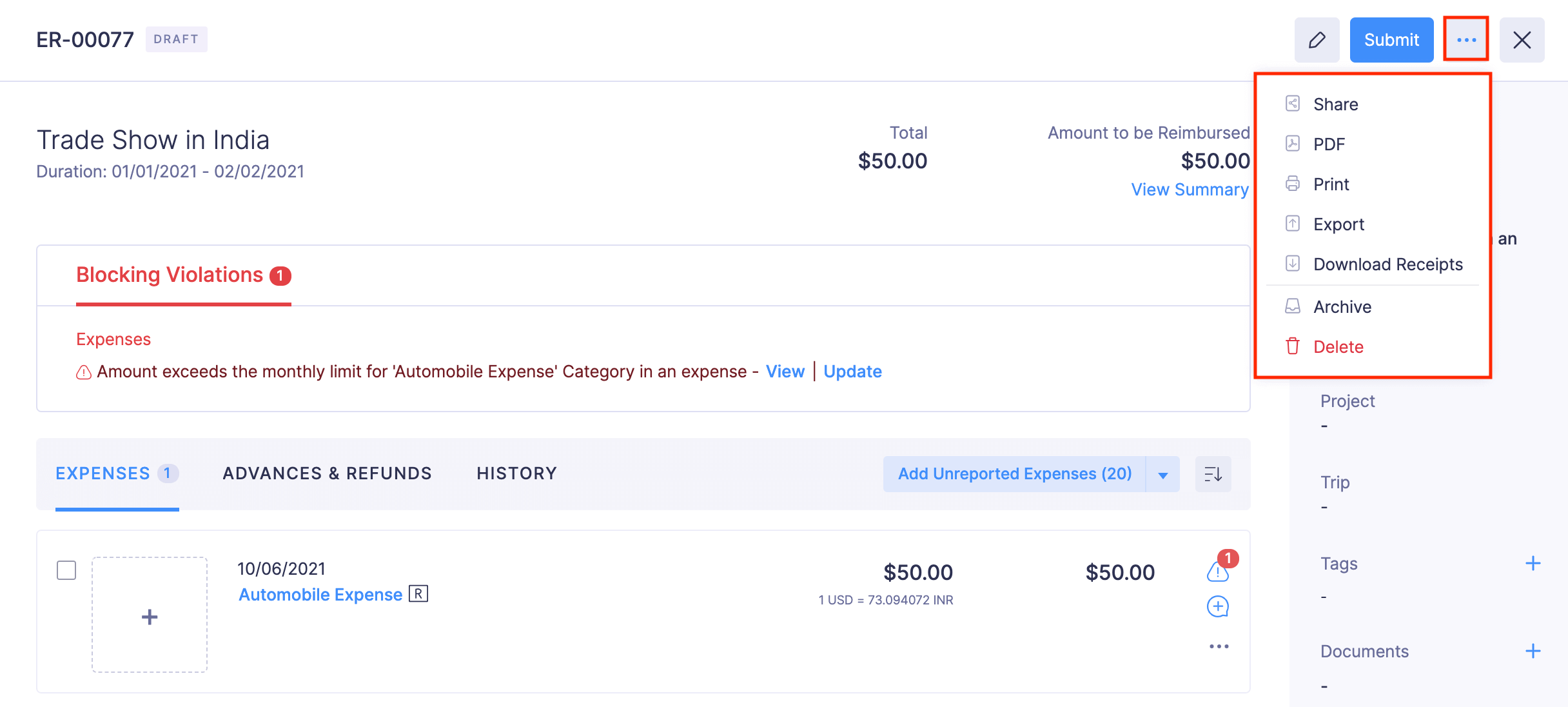
- Click the More icon at the top right corner of the report. You can find the following options:
- Share: Allows you to share your reports with the other users of the organization.
- PDF: You can export your report data as a PDF.
- Print: Allows you to print your reports. You can also preview the reports and download them, if required.
- Download receipts: You can download all the receipts in your reports as a ZIP file.
- Archive: Instead of deleting the completed and draft reports, you can archive them and use them for future reference.
Export Report
You can export a report in two formats:
- CSV - Comma Separated Values
- XLS (XLSX) - Microsoft Excel
To export a report:
- Go to Reports.
- Click the report you want to export.
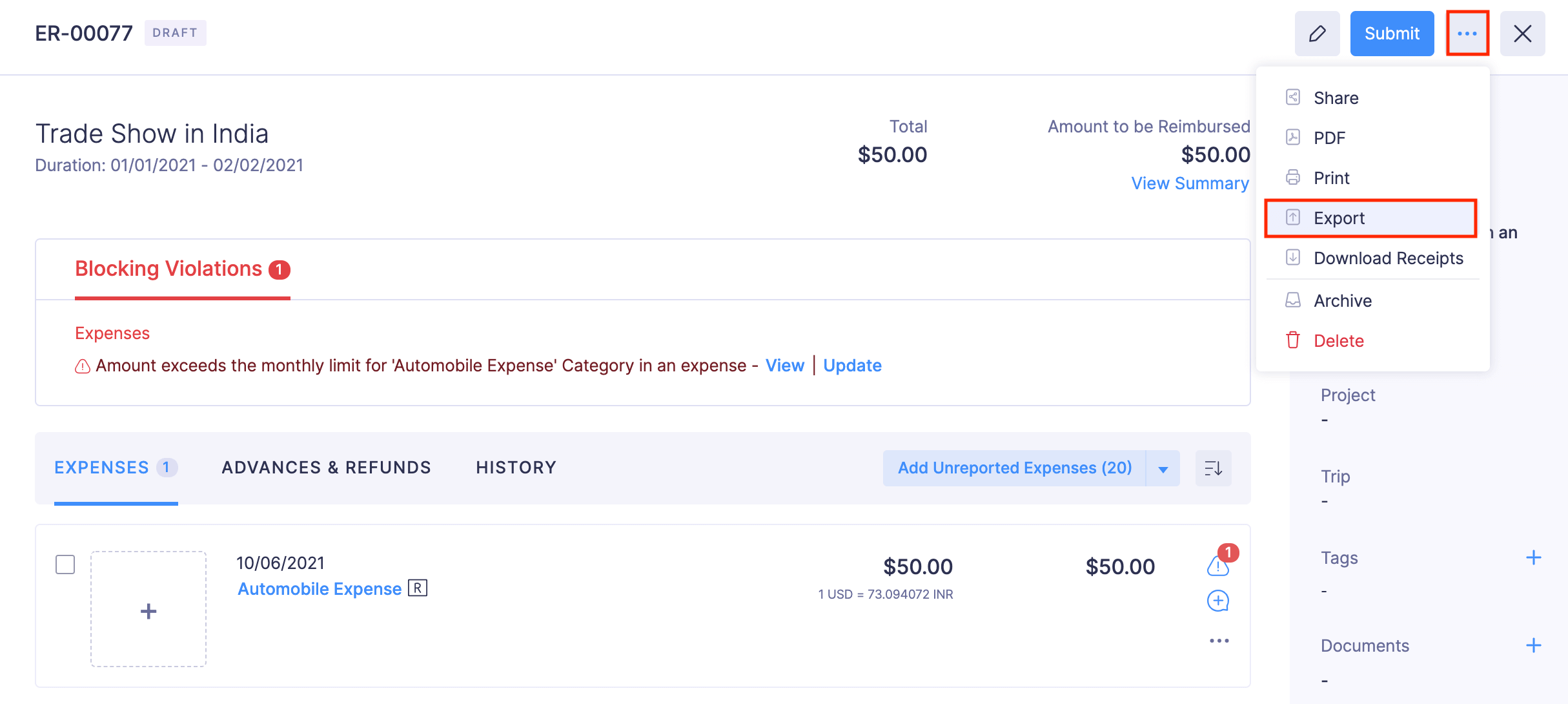
- Click the More icon at the top right corner and select Export.
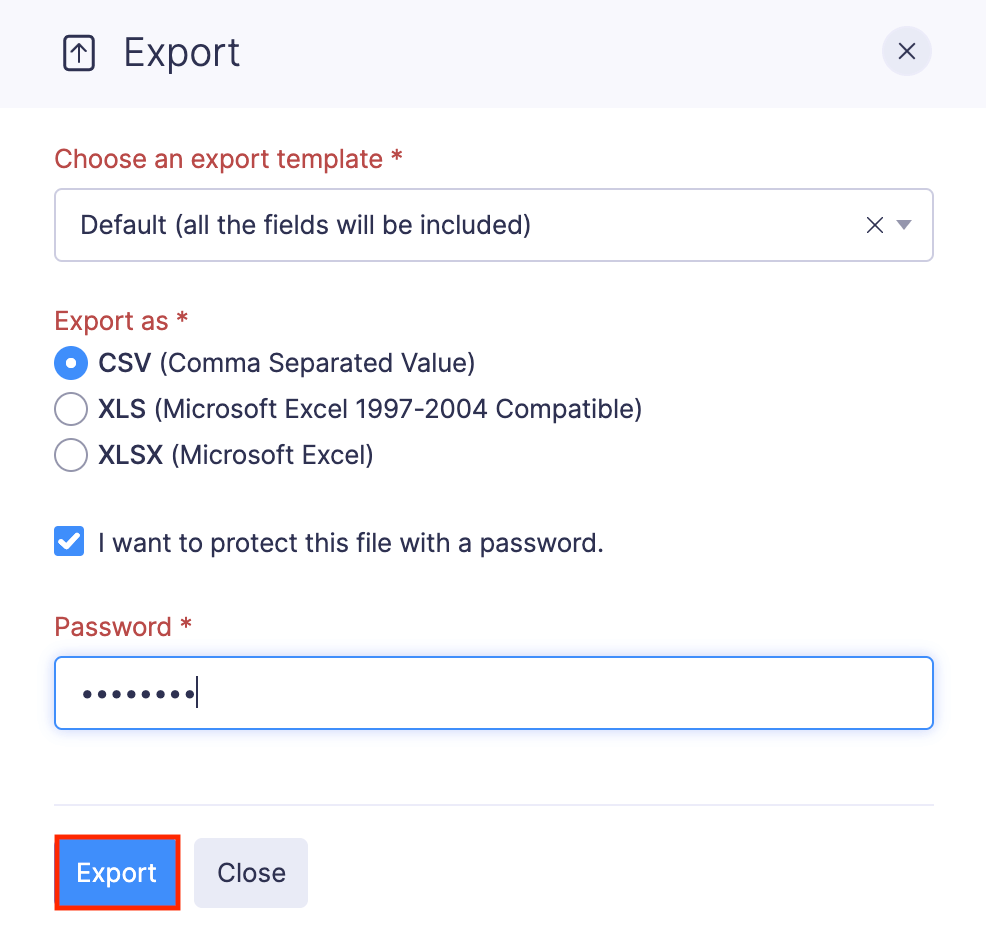
- Choose an export template from the dropdown.
- Select the format in which you want to export your report data. (CSV or XLS.)
- If you’re an Admin, you can decide if you want to include personally identifiable information like email address, contact number, etc., by marking the Include Sensitive Personally Identifiable Information (PII) while exporting option.
- If you want to secure the report with a password, mark the I want to protect this file with a password option and provide a password in the Password field.
- Click Export to download the file into your computer.
Note: Only admins can export reports in bulk.
Remove Advance from Report
If you’ve applied a wrong or irrelevant advance to a report, you can remove that advance from the report.
Note: You can remove advances from reports that are in Draft, Recalled, or Rejected statuses.
To remove an advance from a report:
- Open the Zoho Expense app on your device.
- Tap the Menu icon in the top left corner.
- Navigate to the Reports module and open the report from which you want to remove the advance.
- Go to the Advances tab.
- Tap the More icon at the right corner of the advance you want to remove.
- Tap Remove Advance or swipe left on the advance you want to remove and tap Remove.
Remove Expense from Report
If you’ve added the expense to a report by mistake, you can remove it.
Note: You can remove expenses from reports that are in Draft, Recalled, or Rejected statuses.
To remove expenses from a report:
- Open the Zoho Expense app on your device.
- Tap the Menu icon in the top left corner.
- Navigate to the Reports module and open the report from which you want to remove expenses.
- Under the Expenses tab, tap the expense you want to remove.
- Tap the More icon in the bottom right corner of the screen and select Remove or under the Expenses tab, swipe left on the expense you want to remove, and in the pop-up, tap Confirm.
Pro Tip: If you want to locate a particular report from a group of reports, you can search for the report by entering any report detail in the search bar at the top of the Reports module.
Record Advances in Reports
If approval is not configured in your organisation, the users can directly record the advances they’ve received inside reports.
Note: You can apply advances only to the reports in Draft, Recalled, or Rejected statuses.
To record advances in reports:
- Open the Zoho Expense app on your device.
- Tap the Menu icon in the top left corner.
- Navigate to the Reports module and open the report for which you want to record advance.
- Go to the Advances tab.
- Tap + Record Advance.
- Enter the advance amount and verify the date.
- Tap Record Advance.
Alternatively, you can record advances from the Advances module.
Edit a Report
If you want to make changes to a report, you can edit it.
Note: You cannot edit the reports in Awaiting Approval, Approved, or Reimbursed statuses.
To edit a report:
- Open the Zoho Expense app on your device.
- Tap the Menu icon in the top left corner.
- Navigate to the Reports module and open the report you want to edit.
- Tap Edit at the bottom of the screen.
- Make the required changes and tap Save Report.
- If you want to edit the expenses in the report, tap the expense you want to edit under the Expenses tab. Tap Edit at the bottom of the screen. Make the relevant changes and tap Save Expense.
Note: You cannot edit the expense if you’ve submitted the report.
Pro Tips:
- You can also edit the expenses in a report from the Expenses module. The changes will be reflected in the report immediately.
- You can edit the reports that are awaiting approval by recalling them.
Delete Report
If you want to remove the report, you can delete it.
Note: You cannot delete the reports in Awaiting Approval, Approved, and Reimbursed statuses.
Warning: Once a report is deleted, it cannot be retrieved. The expenses associated with the report will not be deleted and will revert to the Unreported status.
To delete a report:
- Open the Zoho Expense app on your device.
- Tap the Menu icon in the top left corner.
- Navigate to the Reports module and open the report you want to delete.
- Tap the More icon at the bottom right corner of the screen.
- Select Delete.
- In the pop-up, tap Confirm.
Share a Report
You can share the report with the others in your organization. Here’s how:
- Open the Zoho Expense app on your device.
- Tap the Menu icon in the top left corner.
- Navigate to the Reports module and open the report you want to share.
- Tap the More icon at the bottom right corner of the screen.
- Select Share.
- Select the user you want to share the report with and tap Done. Your report will be shared with the selected user.
Archive a Report
Instead of deleting the completed and draft reports, you can archive them and use them for future reference.
To archive a report:
- Open the Zoho Expense app on your device.
- Tap the Menu icon in the top left corner.
- Navigate to the Reports module and open the report you want to archive.
- Tap the More icon at the bottom right corner of the screen.
- Select Archive. Once you archive a report, you can view it only by applying the Archived filter.
Unarchive a Report
If you want to remove an expense report from the archive, you can unarchive it. Here’s how:
- Open the Zoho Expense app on your device.
- Tap the Menu icon in the top left corner.
- Navigate to the Reports module.
- Tap Filtered by at the top of the screen.
- Select Archived to view the archived reports.
- Open the report you want to unarchive.
- Tap the More icon at the bottom right corner of the screen and select Unarchive or swipe left on the report you want to unarchive and tap Unarchive.
View PDF of a Report
Using the view PDF option, you can share the PDF of the report with others, print, and save to files.
To do this:
- Open the Zoho Expense app on your device.
- Tap the Menu icon in the top left corner.
- Navigate to the Reports module and open the report for which you want to view the PDF.
- Tap the More icon at the bottom right corner of the screen.
- Select View PDF.
- Tap the Share icon at the bottom of the screen.
- You can share the report with others in your contact, print, save to files, and more by tapping the respective options.
 Yes
No
Yes
No
Thank you for your feedback!