

Email Templates
Email is considered one of the best channels to communicate with your employees. An email template allows you to create and send emails to your employees quickly.
For example, you might want to create email templates to notify your employees about trips, advances, purchase requests, etc. Instead of creating new emails every time you want to send out a notification, you can create and save templates for the emails that you send out to your employees on a regular basis. Zoho Expense also has a set of default templates that can be customized based on your business requirements.
Once you create the email templates in Zoho Expense, you can use these templates while sending email alerts to your employees.
Create Email Template
- Click Admin View.
- Go to Settings on the left sidebar.
(OR)
Click the Gear icon at the top right side. - Go to Modules under Customization.
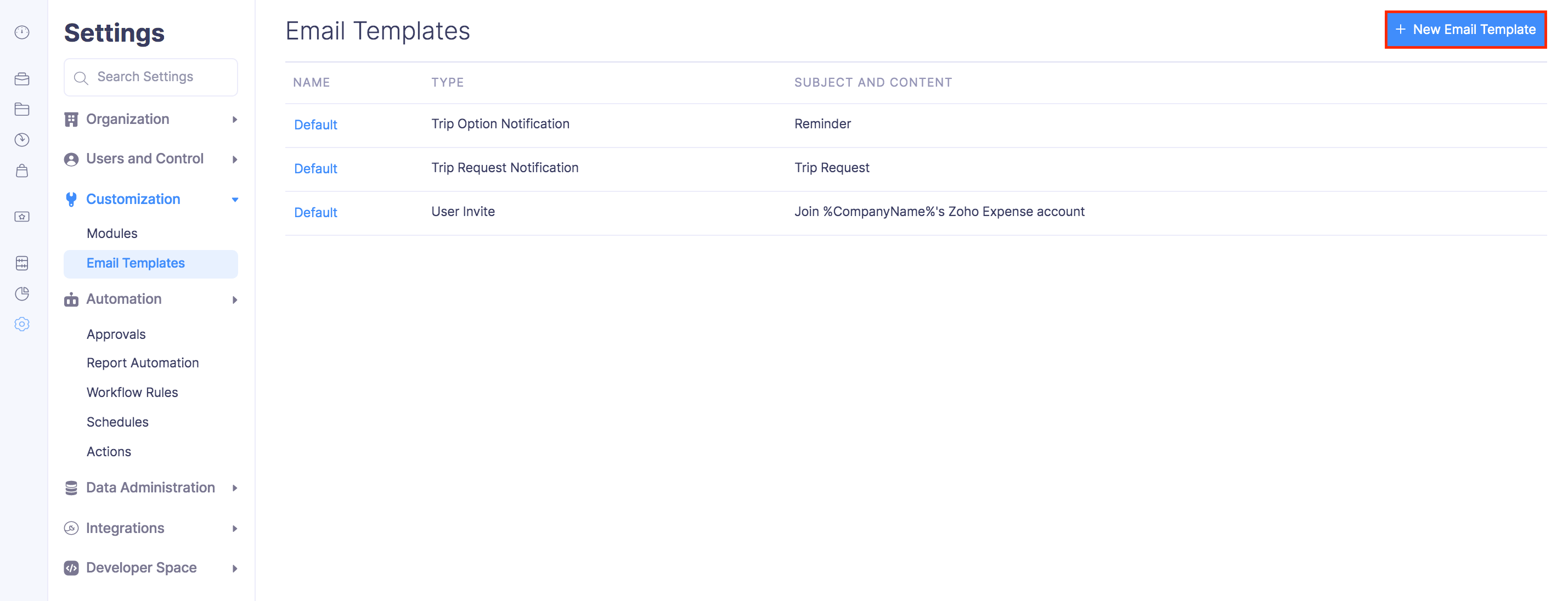
- Click the New Email Template button in the top-right corner of the page.
- Select the email type.
- Enter a name, subject, and content for the Email Template.
Pro Tip: Instead of writing the content manually, you can use Writing Assistant to generate it. Click the Generate With Zia icon in the toolbar, enter a prompt describing the email you want, and click Generate Content. Once Zia generates the content, you can select a Tone (Formal, Casual, or Friendly) or adjust the Content length (Shorten or Elaborate), click the Regenerate icon for a new version, and click Insert to add it to the template.
Scenario: You can enter a prompt asking Zia to write an email sharing the US visa checklist with employees planning an international trip. Zia generates a draft email listing the required documents, which you can refine and insert into the template.
- Click Save.
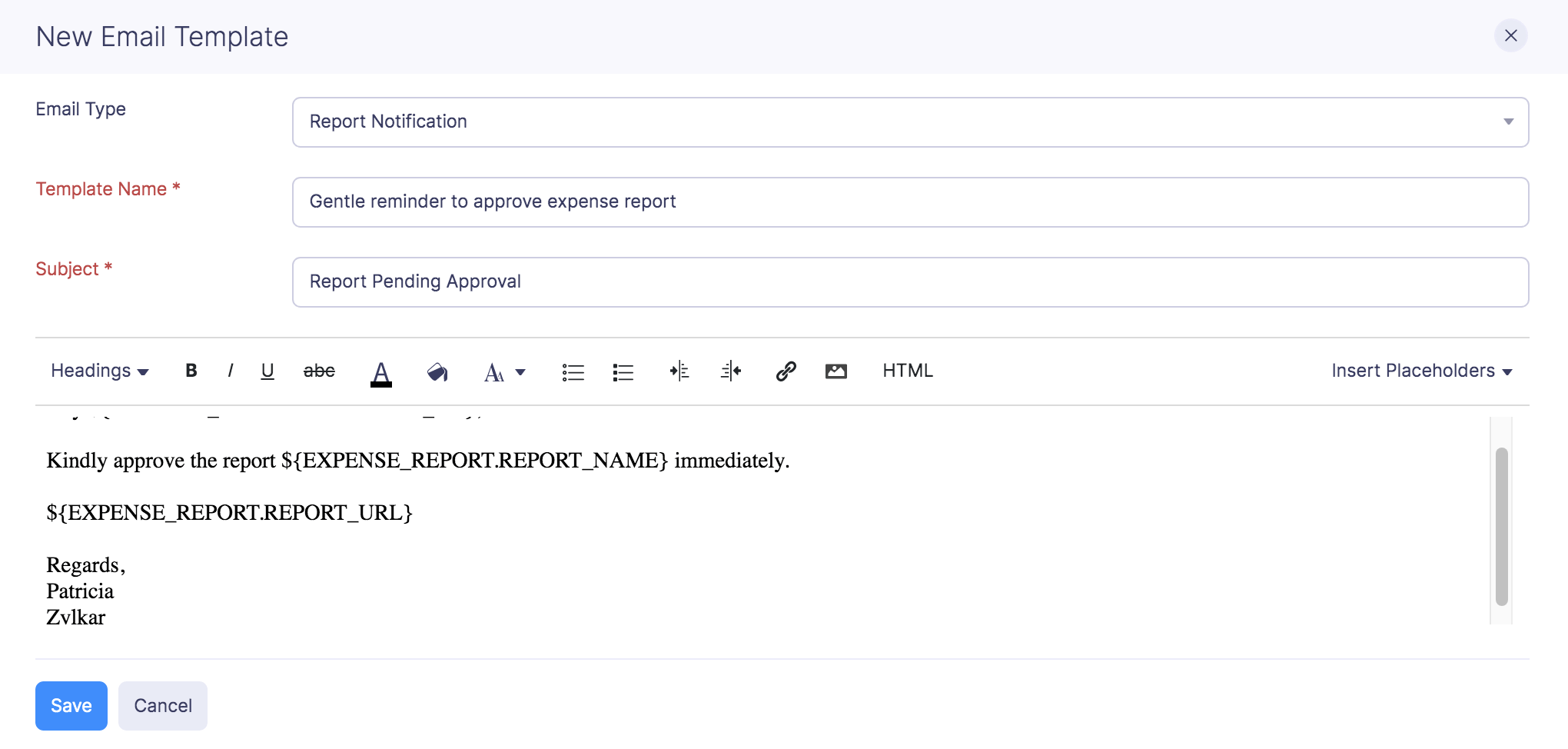
Pro Tip: You can format, edit, insert images, links, and placeholders and do a lot more in the template just like any other email.
Edit Email Template
To make changes to your existing email template:
- Click Admin View.
- Go to Settings on the left sidebar.
(OR)
Click the Gear icon at the top right side. - Go to Modules under Customization.
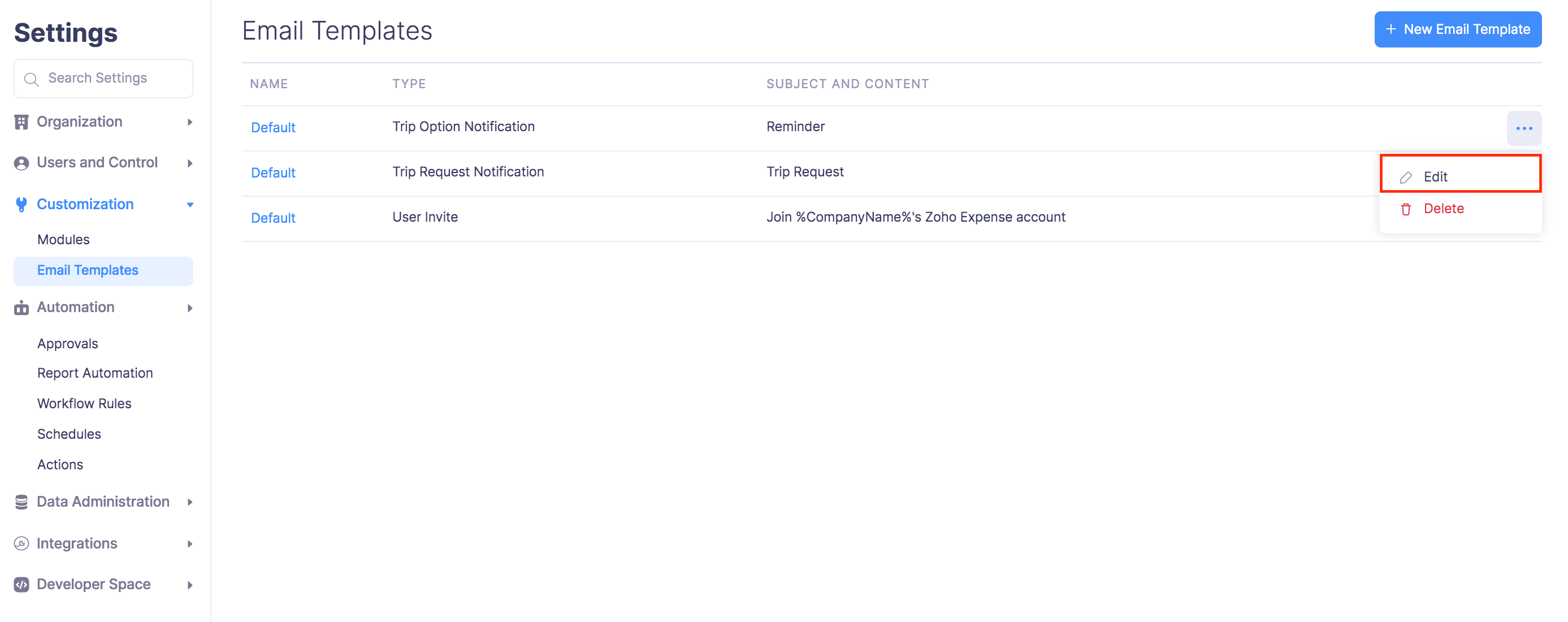
- Hover over the email template you want to edit and click the More icon next to the email alert.
- Click Edit and make the necessary changes.
- Click Save.
Delete Email Template
Warning: You will not be able to retrieve the email templates you’ve deleted.
Here’s how you can delete an email template permanently:
- Click Admin View.
- Go to Settings on the left sidebar.
(OR)
Click the Gear icon at the top right side. - Go to Modules under Customization.
- Hover over the email template you want to delete and click the More icon next to the email alert.
- Click Delete.
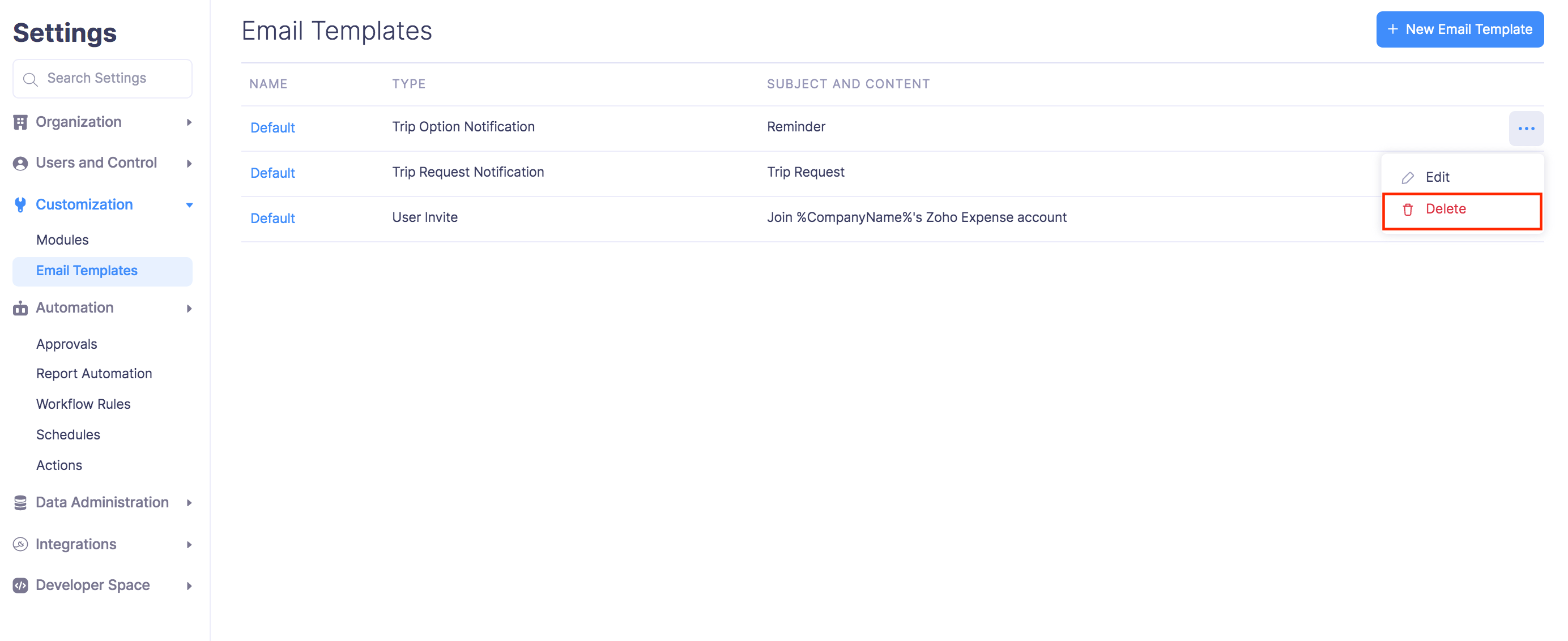
- In the popup that opens, click Delete again to delete the email template.