

E-Invoicing

The Inland Revenue Authority of Singapore (IRAS) has introduced electronic invoicing, known as InvoiceNow, to standardise how businesses send B2B invoices. InvoiceNow runs on the PEPPOL network, which ensures that all invoices are submitted in a common format across businesses.
How E-Invoicing Works
E-Invoicing in Zoho Books is a simple and straightforward process. Zoho Books has partnered with a PEPPOL-accredited access point provider to help you send and receive invoices directly through the PEPPOL network in a structured digital format.
Zoho Books helps you create invoices in the PEPPOL BIS format, including all the required fields specified by IRAS. You can submit these invoices directly to your customers through the PEPPOL network from your Zoho Books organisation.
Note:For E-Invoicing to work, both you and your customers must be registered on the PEPPOL network.
Configure E-Invoicing in Zoho Books
Enable E-Invoicing
To enable E-Invoicing in your Zoho Books organisation:
- Go to Settings.
- Under Organization Settings, select E-Invoicing under Taxes & Compliance.
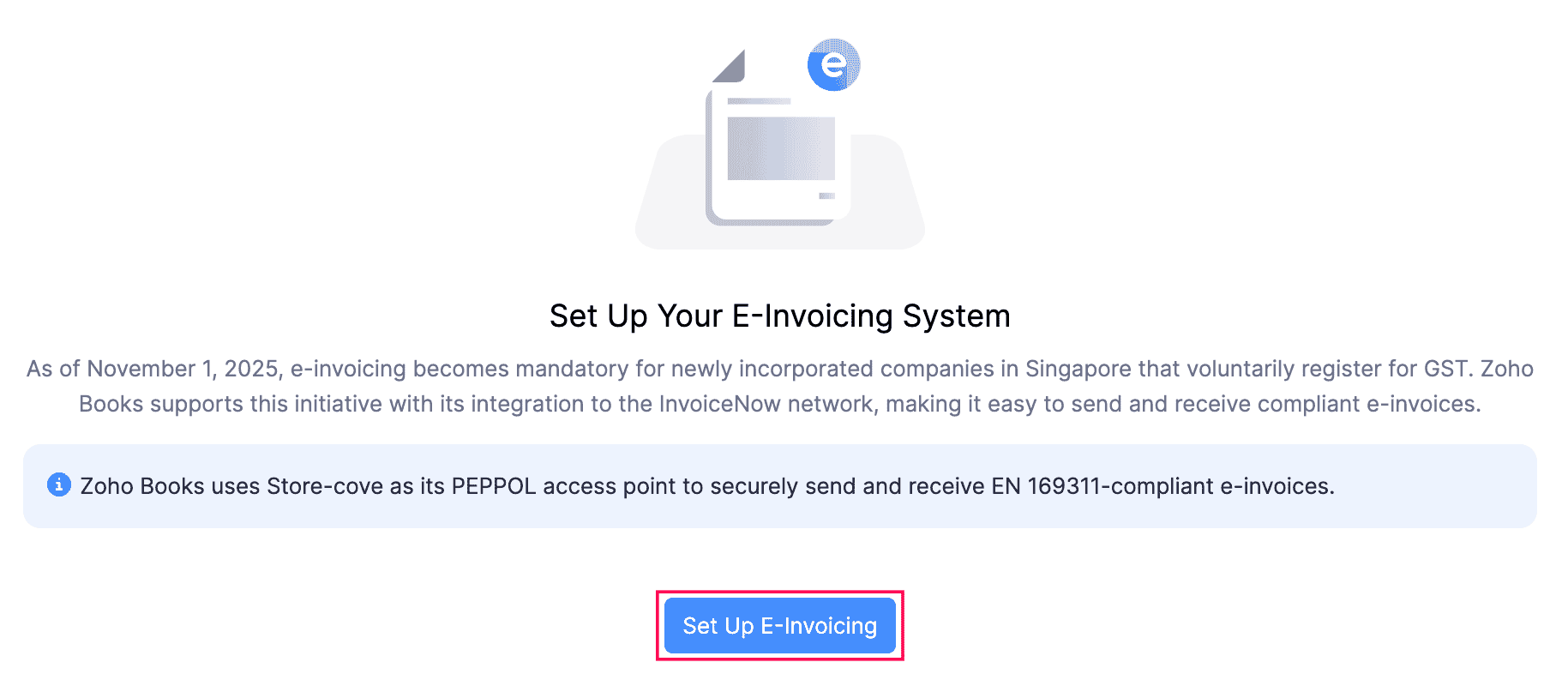
- Click Set Up E-Invoicing.
- In the Enable E-Invoicing pop-up, configure the required preferences, and click Enable E-Invoicing.
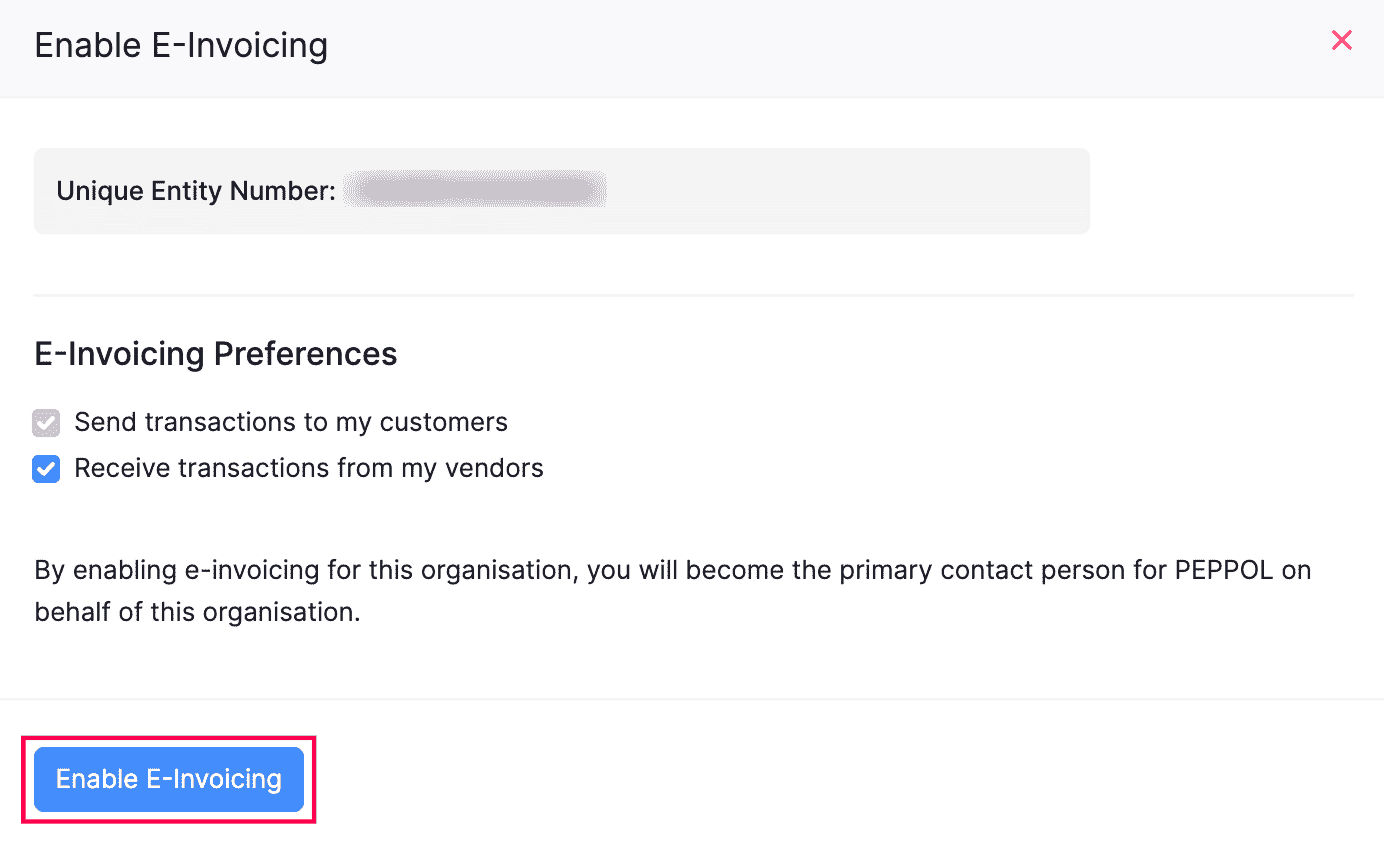
- In the following pop-up, read and agree to the terms, and click Enable E-Invoicing again.
E-Invoicing will be enabled in your organisation.
Connect Zoho Books With PEPPOL
You can connect your Zoho Books organisation with InvoiceNow, Singapore’s E-Invoicing network using CorpPass, and start sending e-Invoices to your customers. To do so:
- Go to Settings.
- Under Organization Settings, select E-Invoicing under Taxes & Compliance.
- Under Connect Zoho Books to PEPPOL, click Connect Via CorpPass/Sigpass.
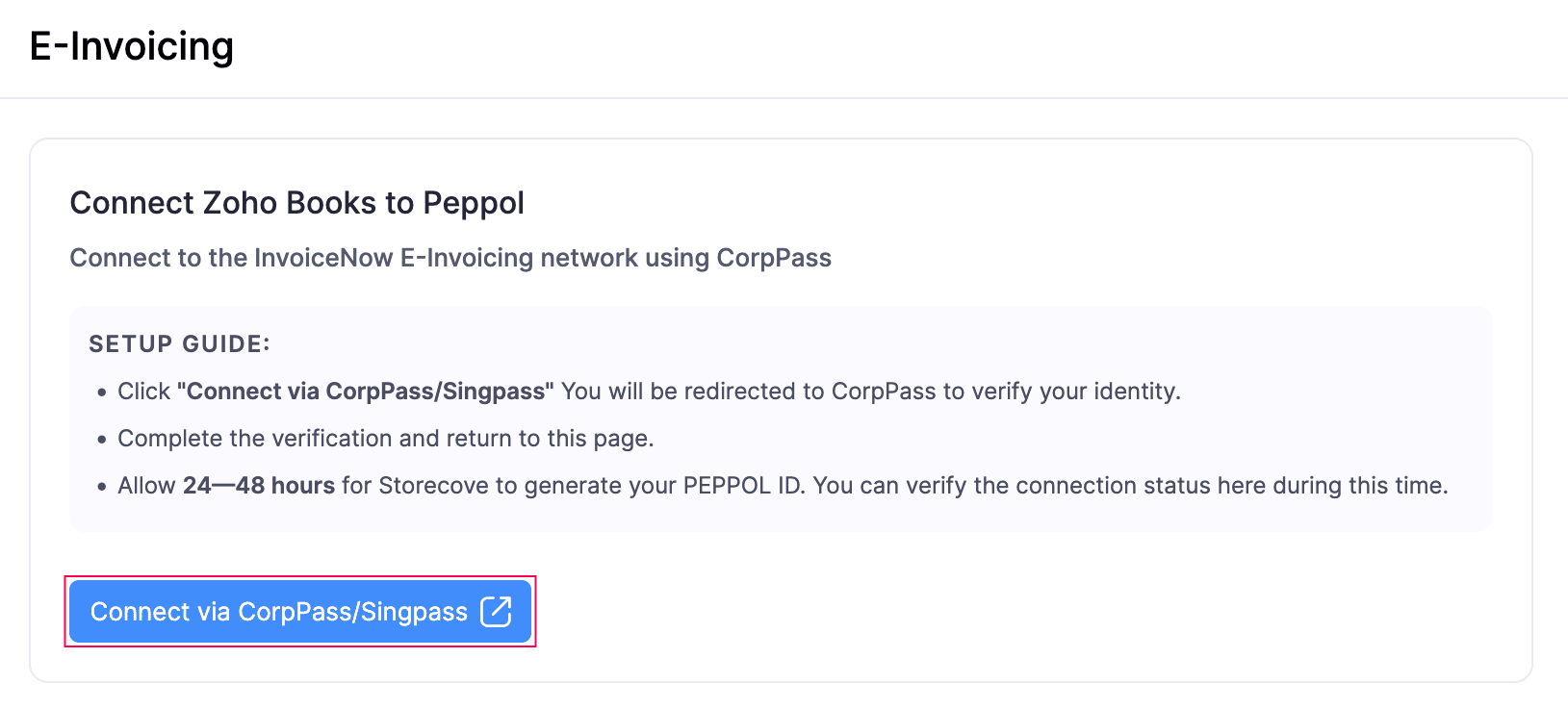
You’ll be redirected to the CorpPass website, where you’ll need to sign in using your CorpPass account. CorpPass authenticates your identity and authorises our access point to register your business on the PEPPOL network.
Once authorised, you’ll be redirected back to Zoho Books. Our access point will activate your PEPPOL ID within 24 to 48 hours. Meanwhile, click Check Connection Status in Zoho Books to check if your PEPPOL ID is activated. Once connected, you can create invoices in Zoho Books and send them to your customers through the PEPPOL network.
Note:If you’re unable to connect your Zoho Books organisation with PEPPOL, ensure that your organisation’s UEN and address is valid, and proceed with the steps again.
Functions in E-Invoicing
Statuses in E-Invoicing
These are the statuses supported for E-Invoicing in Zoho Books:
| Status | Description |
|---|---|
| Yet to be Pushed | The invoice is created in Zoho Books but not yet submitted to the PEPPOL network. Click Check Status to view the latest update on the submission. |
| Pushed | The invoice is successfully sent to your customer through the PEPPOL network. You can now mark it as Sent in Zoho Books. |
| Failed | The invoice isn’t sent to the PEPPOL network. Verify whether your customer’s UEN is registered in the PEPPOL network, and try again. |
Create Invoices
When you create an invoice in Zoho Books, you can choose how to send or submit it based on your customer’s registration status in the PEPPOL network. In the invoice’s details page, click:
- Send to Customer only via PEPPOL: Choose this option if your customer is registered on the PEPPOL network. The e-Invoice will be sent to the customer through the PEPPOL network. If your customer’s UEN is not registered in the PEPPOL network, click Validate Customer ID to check if your customer is registered in the PEPPOL network.
Note: Zoho Books supports sending e-Invoices through the PEPPOL network to your customers. However, submission of invoice data to IRAS is not currently supported.
Disable E-Invoicing
If you no longer want to push transactions to PEPPOL from Zoho Books, you can disable E-Invoicing in your organisation. Here’s how:
- Go to Settings.
- Under Organization Settings, select E-Invoicing under Taxes & Compliance.
- Click Disable in the top right corner.
- In the Disable E-Invoicing pop-up, click Disable to confirm.
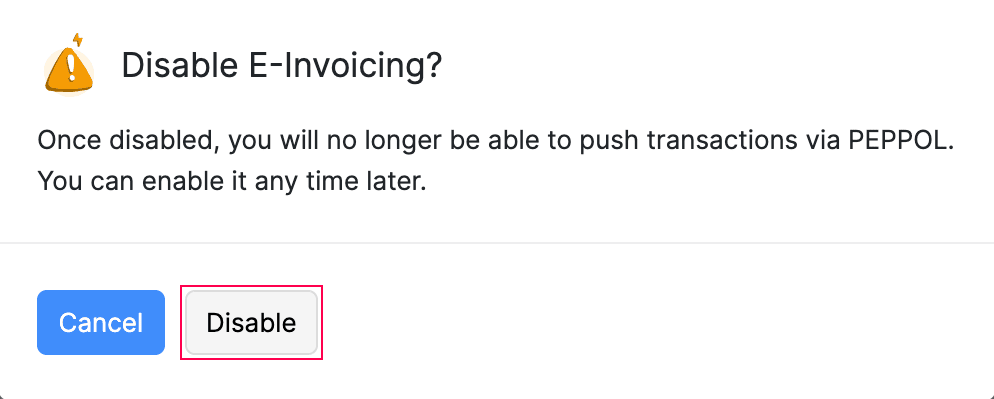
E-Invoicing will be disabled in your organisation.
 Yes
Yes