Withholding Tax

Withholding tax is a direct tax deducted at source by the payer on specific types of payments. The payer remits the withheld amount to the relevant tax authority on behalf of the payee.
In Zoho Books, you can enable withholding tax, apply it to invoices and bills at the line-item level, and record payments that account for the withheld amount.
Enable Withholding Tax
Before applying withholding tax to your transactions, you need to enable it.
Here’s how:
- Go to Settings.
- Select Withholding Tax under Taxes & Compliance.
- Navigate to Withholding Tax Settings.
- Enable the Withholding Tax toggle.
- In Enable Withholding Tax Settings For, choose Customers, Vendors, or Customers and Vendors.
- Click Save.
Withholding tax will now be enabled for your organisation.
Create a Withholding Tax Rate
To create a withholding tax rate:
- Go to Settings.
- Select Withholding Tax under Taxes & Compliance.
- Navigate to Withholding Tax Settings.
- Click + New Rate.
- In the pop-up, enter the Withholding Tax Name and Withholding Tax Rate.
- Select the Tax Type.
- Click Save.
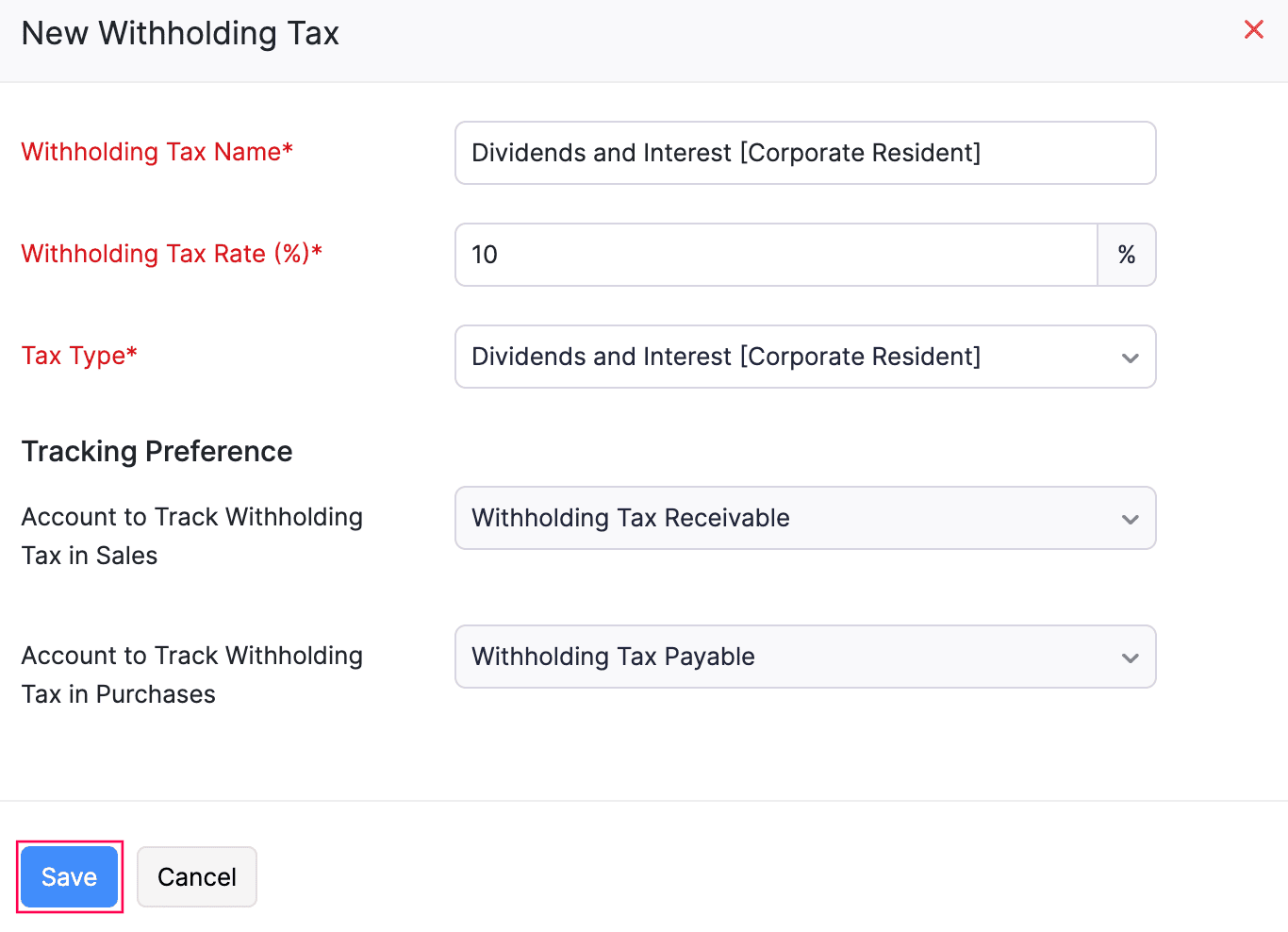
You can now use this withholding tax rate in transactions.
Enable Withholding Tax for Customers and Vendors
To enable withholding tax for a customer:
- Go to Sales on the left sidebar and select Customers.
- Create a new customer or edit an existing customer.
- In the Other Details section, check the Enable Withholding Tax for this Customer option.
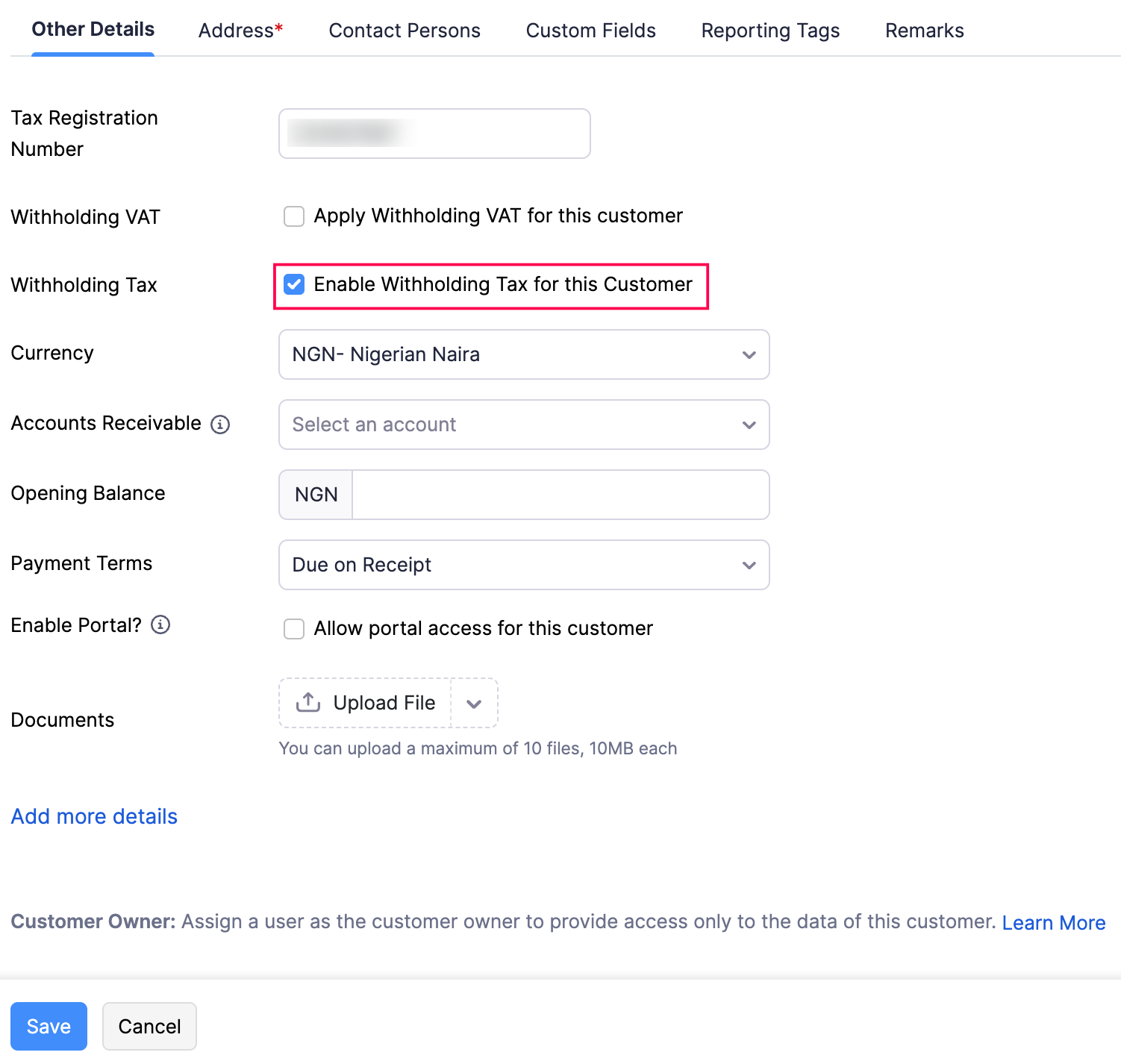
- Click Save.
To enable withholding tax for a vendor:
- Go to Purchases on the left sidebar and select Vendors.
- Create a new vendor or edit an existing vendor.
- In the Other Details section, check the Enable Withholding Tax for this Vendor option.
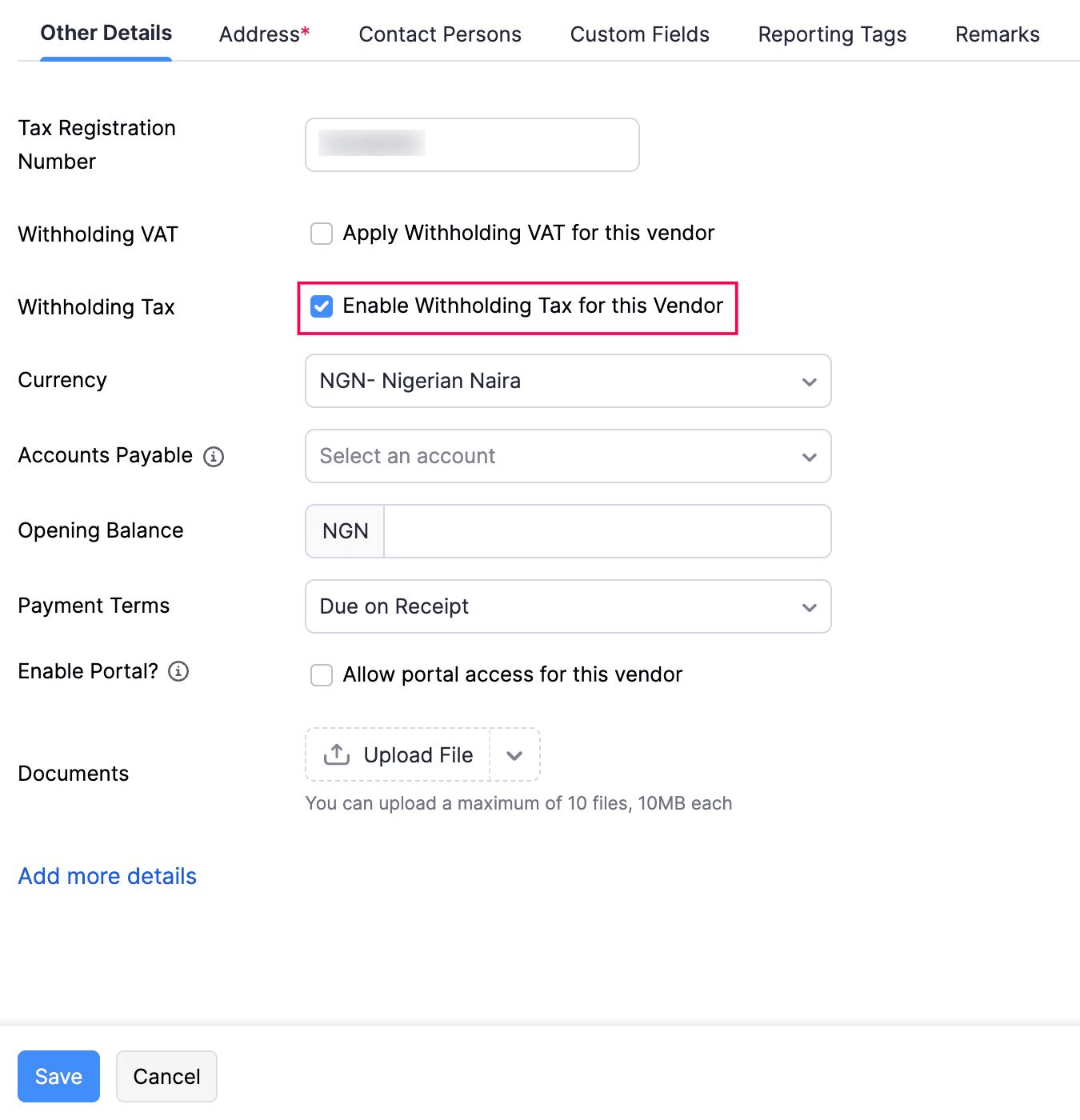
- Click Save.
Apply Withholding Tax to Invoices
When you create an invoice for a customer with withholding tax enabled, you can apply a withholding tax rate to each line item.
To apply withholding tax to invoices:
- Go to Sales on the left sidebar and select Invoices.
- Create a new invoice or edit an existing invoice.
- In the Items table, choose the applicable Withholding Tax for each line item in the TDS column.
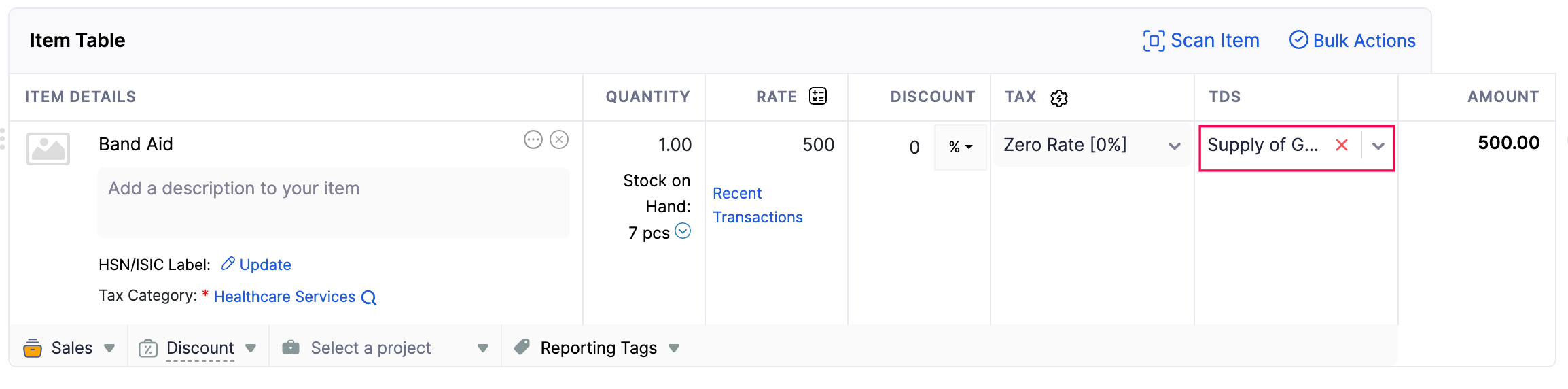
- Review the Withholding Tax section below the total.
- Click Save and Send or Save as Draft.
The invoice will be saved with withholding tax details.
Apply Withholding Tax to Bills
If you are a withholding agent, you can apply withholding tax to vendor bills.
To apply withholding tax to bills:
- Go to Purchases on the left sidebar and select Bills.
- Create a new bill or edit an existing bill.
- In the Items table, choose the applicable Withholding Tax for each line item in the TDS column.
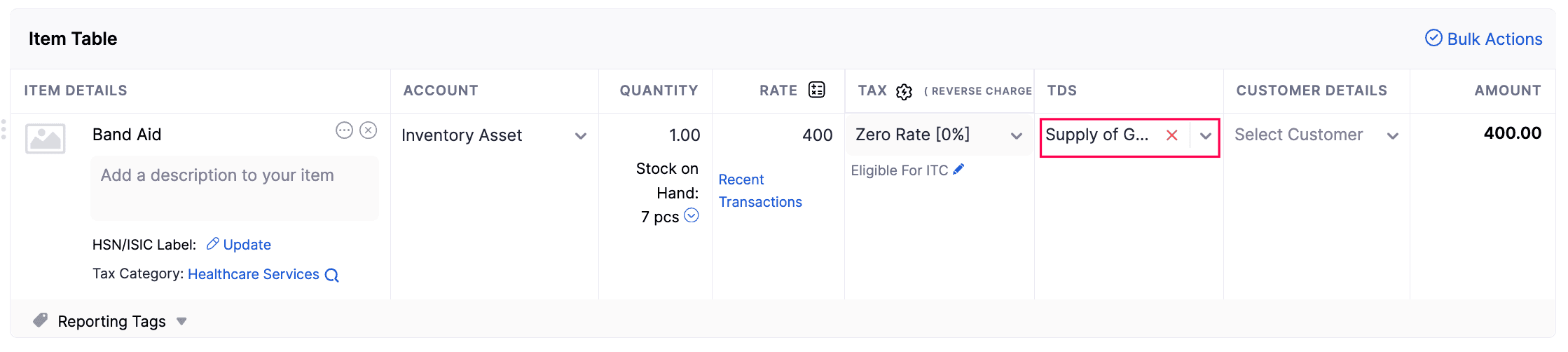
- Review the Withholding Tax section below the total.
- Click Save as Draft or Save as Open.
The bill will be saved with withholding tax details.
Note: Applying withholding tax to an invoice or bill does not alter the total transaction amount. The withholding amount is considered when you record payment.
Record Withholding Tax Payment
After applying withholding tax to invoices or bills, you can record the withheld amount while recording payment.
Record Invoice Payment with Withholding Tax
- Go to Sales on the left sidebar and select Invoices.
- Open the invoice for which you want to record payment.
- Click Record Payment.
- Enter the payment details.
- Select Yes next to Withholding Tax Deducted?.
- Verify the Withholding Tax Amount displayed.
- Click Save as Paid.
Record Bill Payment with Withholding Tax
- Go to Purchases on the left sidebar and select Bills.
- Open the bill for which you want to record payment.
- Click Record Payment.
- Enter the payment details.
- Select Yes next to Withholding Tax Deducted?.
- Verify the Withholding Tax Amount displayed.
- Click Save as Paid.
Apply Withholding Tax to Bulk Customer Payments
When a customer pays multiple invoices in one payment, you can apply withholding tax invoice-wise in the same payment.
- Go to Sales on the left sidebar and select Payments Received.
- Click + New or edit an existing payment.
- Enter the required details.
- Under Unpaid Invoices, review withholding tax due in the Withholding Tax column.
- Click Add Withholding Tax to include deductions.
- Enter payment amounts for the invoices.
- Click Save.
The payment will be recorded with withholding tax applied for the selected invoices.
 Yes
Yes