Taxes

Every business must pay taxes based on where it operates and what type of business it is. Zoho Books helps you manage all your taxes in one place. It includes taxes specific to your country, different tax rates for various products and services, and tax groups that you can set up to meet your business requirements.
Enable VAT
To enable VAT in your organisation:
- Go to Settings.
- Select Taxes under Taxes & Compliance.
- In the VAT Settings page, fill in the following fields:
- VAT Registration Number Label: Select TAX ID as the label that appears next to your VAT registration number on your transactions.
- VAT Registration Number: Enter the VAT registration number issued to you by FIRS.
- VAT Registration Date: Enter the date when FIRS registered your business for VAT.
- Click Save.
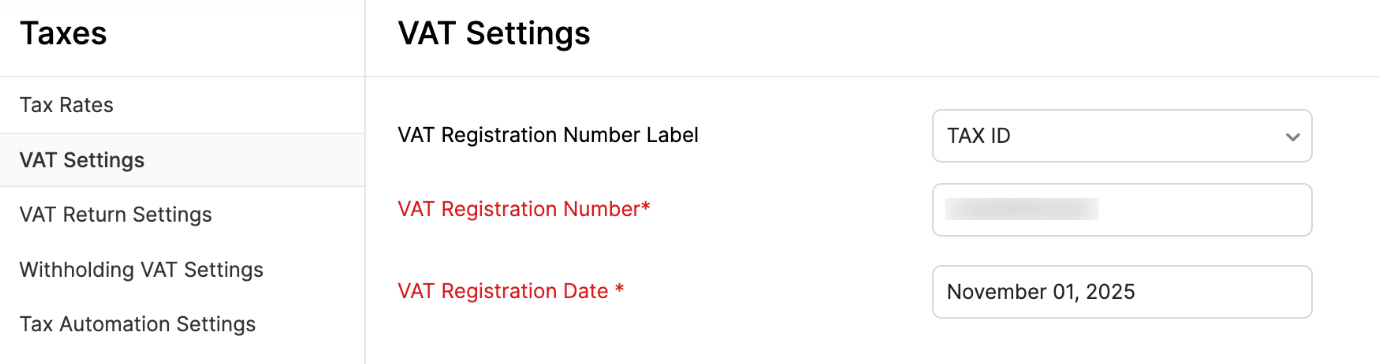
Your VAT settings will be configured.
VAT Rates
Default VAT Rates
The following VAT rates will be available by default in the Nigeria edition of Zoho Books. You cannot delete or mark these rates as inactive.
| VAT Name | Rate (%) |
|---|---|
| Standard Rate [SR] | 7.5 |
| Zero Rate [ZR] | 0 |
Create a New VAT Rate
Apart from the default VAT rates, you can create one additional VAT rate at 5% for use in transactions dated before February 1, 2020. Here’s how:
- Go to Settings.
- Select Taxes under Taxes & Compliance.
- Click Tax Rates in the left pane.
- Click + New Tax Rate in the top right corner.
- Enter the Tax Name and set the Rate as 5%.
- Click Save.
The 5% VAT rate will be created. Unlike the default VAT rates, you can edit or delete this rate.
Note: You can only create a VAT rate at 5%, restricted to transactions dated before February 1, 2020. Attempting to create and save any other rate will display an error.
How VAT Rates are Auto-Applied to Items in a Transaction
A tax rate is applied automatically to an item in a transaction using two key details:
- Item’s Tax Category: When you create an item, you select its tax category, such as hardware, services, and more. Based on the selected tax category, the VAT rate that’s applicable to the item is determined.
- Customer’s Country/Region in Billing Address: You select the customer’s country or region in the billing address. This helps identify whether the transaction is local or overseas and ensures the correct VAT rate is applied, such as 0% or 7.5%.
Based on these details, the correct VAT rate is automatically applied to each item in a transaction.
VAT Operations
View Details of a VAT Rate
You can only view the details of default tax rates in Zoho Books. Here’s how:
- Go to Settings.
- Select Taxes under Taxes & Compliance.
- Click Tax Rates in the left pane.
- Hover over the required default VAT rate, click the dropdown next to it, and select View.
The details of the VAT rate will be displayed.
View Associated Records
You can view the records, like sales and purchase transactions, tax groups, and more, associated with a VAT rate. Here’s how:
- Go to Settings.
- Select Taxes under Taxes & Compliance.
- Click Tax Rates in the left pane.
- Hover over the required VAT rate, click the dropdown next to it, and select View Associated Records.
The list of records will appear in the right pane.
Mark VAT Rates as Inactive
If you don’t want to use a VAT rate in your transactions, you can mark it as inactive. Here’s how:
- Go to Settings.
- Select Taxes under Taxes & Compliance.
- Click Tax Rates in the left pane.
- Hover over the required VAT rate, click the dropdown next to it, and select Mark as Inactive.
The VAT rate will be marked as inactive. To use it again in your organisation, follow the same steps and mark it as active again.
Tax Automation Settings
Configure Address Preferences for Tax Automation in Sales Transactions
Zoho Books lets you choose which address to use when you apply VAT to your sales transactions. To do so:
- Go to Settings.
- Select Taxes under Taxes & Compliance.
- Click Tax Automation Settings in the left pane.
- Under Address Preference for Sales Transactions, choose one of the following preferences:
- Billing Address: Apply VAT based on your customer’s billing address.
- Shipping Address: Apply VAT based on your customer’s shipping address.
- Click Save.
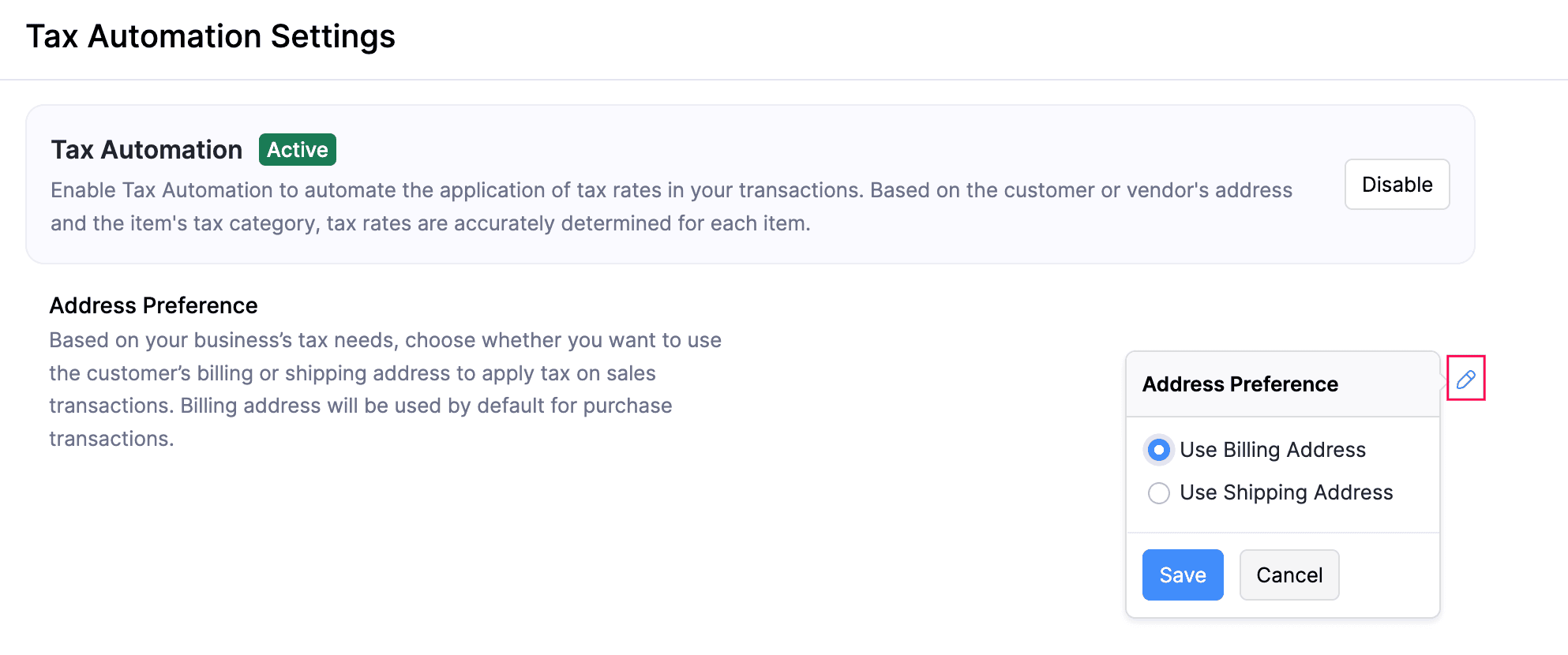
The VAT will now be applied to your sales transactions based on the address you selected.
 Yes
Yes