Tax Automation

Value Added Tax (VAT) is a consumption tax that businesses collect from customers on taxable goods and services and remit to the Nigeria Revenue Service (NRS). In Nigeria, the standard VAT rate is 7.5%, and all businesses with an annual turnover of NGN 25 million and above must register for VAT.
VAT calculations can get complex, especially when handling multiple transactions, different tax categories, and the Reverse Charge Mechanism. To simplify this, you can use Tax Automation in Zoho Books to automatically determine and apply the right VAT rate to your transactions, helping you stay compliant with FIRS.
Note: Tax Automation will be enabled by default in your Zoho Books organisation. Ensure that you’ve provided the right organisation address so that Tax Automation can calculate the right VAT rates for your transactions.
How Tax Automation Works
In Zoho Books, VAT is calculated based on:
- Your business’s VAT registration details
- Your customer’s billing or shipping address
- The tax category of goods or services
Choose the Right Tax Approach
Choose how you want to handle tax for your transactions in Zoho Books. You can automate it or manage it manually, depending on your business requirements. To get started:
- Go to Settings.
- Under Organisation Settings, select Taxes under Taxes & Compliance.
On the Taxes page, you can either complete setting up Tax Automation or calculate taxes manually.
Calculate Taxes Manually
If you already know which VAT applies to every transaction, you can disable Tax Automation in Zoho Books. Once disabled, you can create the required VAT rates and apply them to your transactions.
Set Up Tax Automation
If you want Zoho Books to automatically calculate VAT for your transactions, you can use Tax Automation in your organisation. This works best if you:
- Sell across multiple states where VAT rates differ.
- Offer goods and services with different VAT treatments, such as standard-rated, zero-rated, or exempt.
- Want VAT rates to be updated automatically when FIRS or state regulations change.
- Work with tax-exempt customers such as export businesses, non-profit organisations, or government entities.
The Tax Automation feature will be enabled by default in your organisation. However, if you’ve disabled it and want to enable it again for your organisation:
- Go to Settings.
- Under Organisation Settings, select Taxes under Taxes & Compliance.
- Navigate to Tax Automation Settings in the Taxes pane.
- Click Enable next to Tax Automation.
- In the confirmation pop-up, click Enable again.
Tax Automation will be enabled in your organisation.
Configure Address Preferences
When Tax Automation is enabled, Zoho Books calculates VAT using the customer’s billing address by default. You can also change this to use the shipping address instead. Here’s how:
- Go to Settings.
- Under Organisation Settings, select Taxes under Taxes & Compliance.
- Navigate to Tax Automation Settings in the Taxes pane.
- Click the Edit icon next to Address Preference.
- In the pop-up that appears, choose the address you want to use as the default preference.
- Click Save.
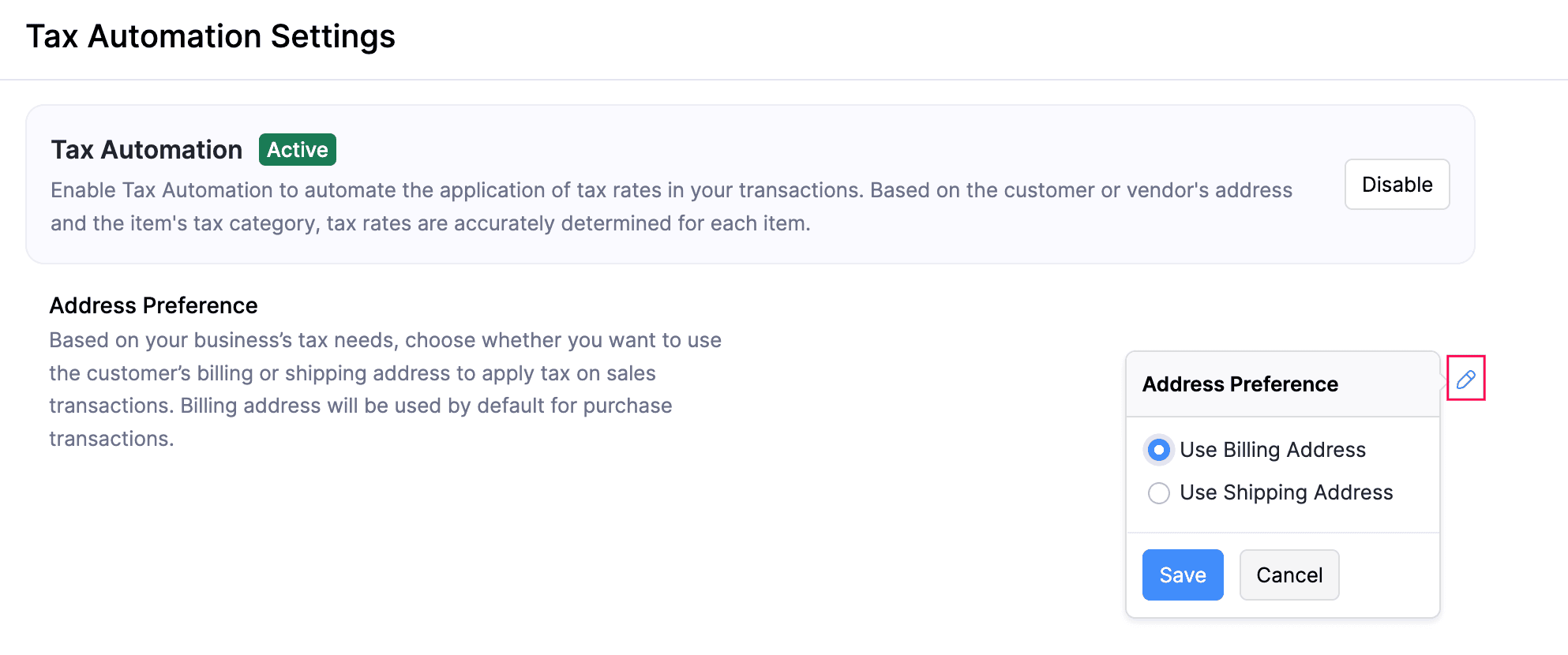
The address preference will be configured.
Automate Tax Calculation
Create Items
When you create an item, the Tax Category field lets you categorise the goods or services you sell. When you include an item in a transaction, the tax category determines the right VAT rate to be applied, based on your customer’s billing or shipping address.
To add a tax category for an item:
- Go to Items on the left sidebar and select Items.
- Click + New in the top right corner.
- In the New Item page, enter the required details.
- Click the Search icon next to the Tax Category field.
- In the pop-up that appears, search for and select the appropriate tax category based on the item type, such as Electronics.
- Enter the other required details.
- Click Save.
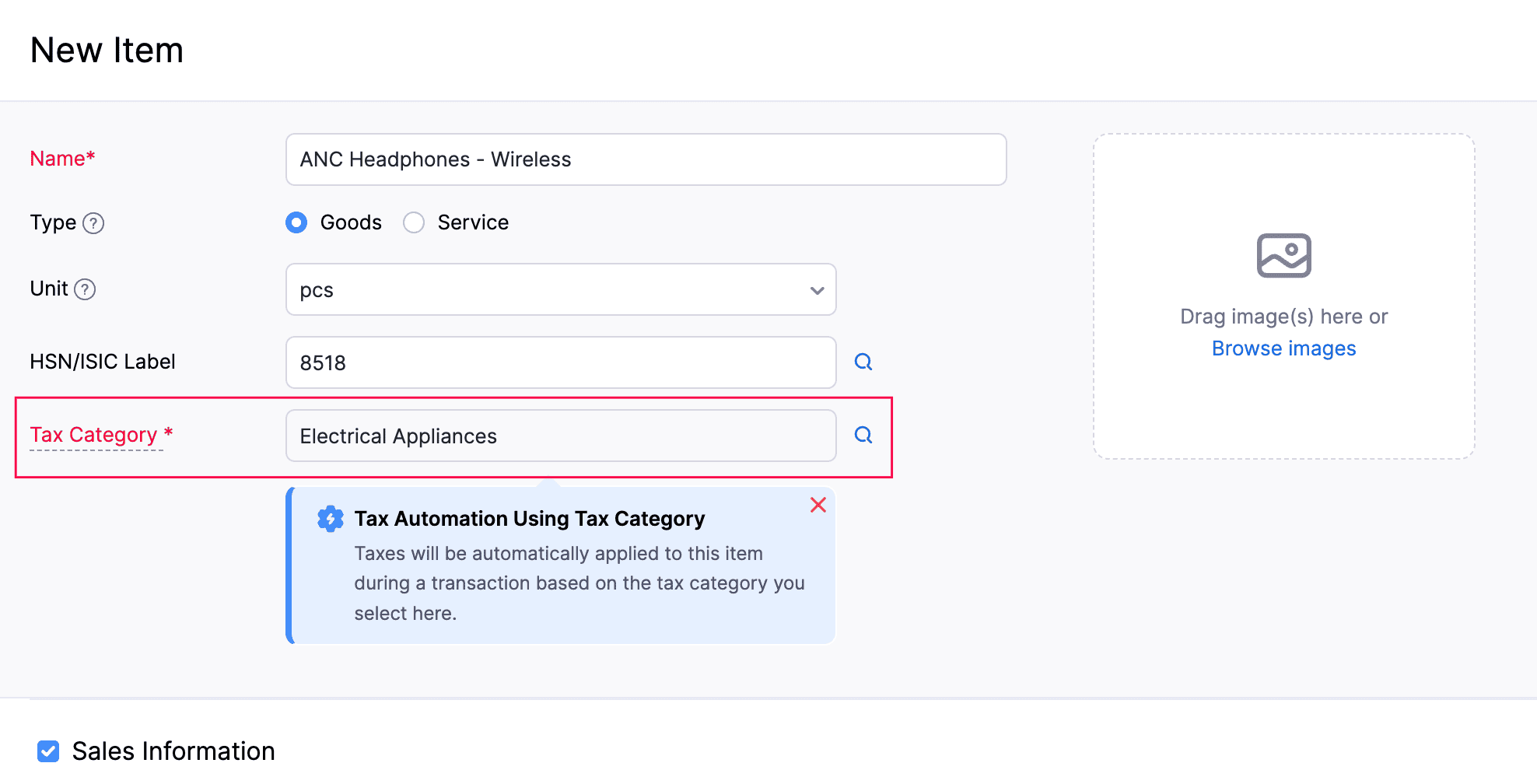
The item will be created with the tax category assigned.
Record Transactions
When you create a sales transaction in Zoho Books, VAT is automatically calculated based on your organisation’s address, the item’s tax category, and the customer’s billing or shipping address. Here’s how:
- Go to Sales on the left sidebar and select Invoices.
- Click + New in the top right corner.
- In the New Invoice page, select the required customer.
- In the Tax Mode field, choose if you want to automate VAT calculation or handle the VAT rates manually.
- In the Item Table, select the required items. If a line item already has a tax category and Automated is selected in the Tax Mode field, the VAT will be calculated automatically.
- If a selected item doesn’t have a tax category, add one. You can also update the tax category of a line item if required.
- Enter the other required details.
- Click Save and Send or Save as Draft and mark it as sent later.
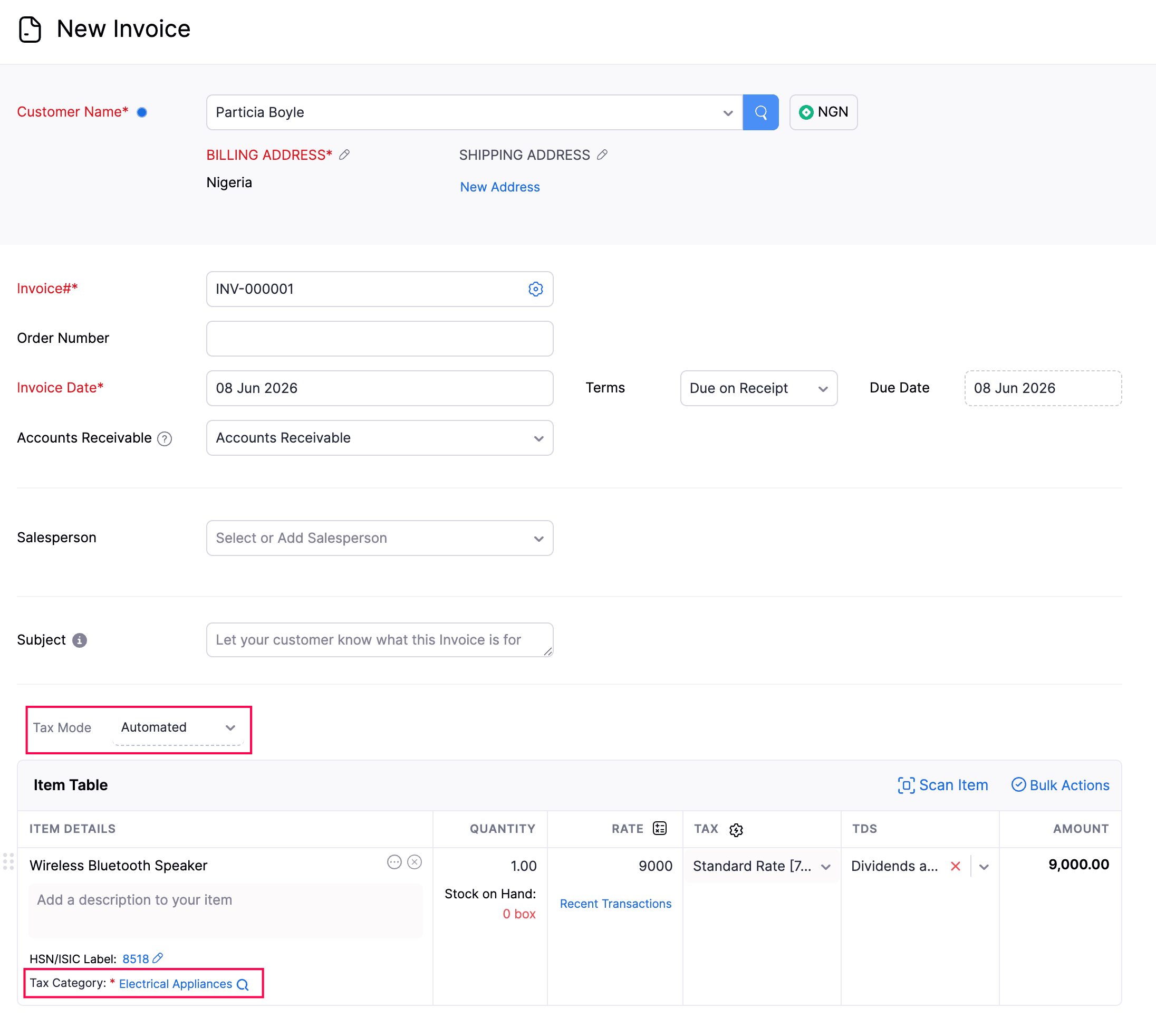
The invoice will be created and the right VAT rate will be applied using Tax Automation.
Disable Tax Automation
If you no longer want to use Tax Automation, you can disable it and manage taxes manually instead. Once disabled:
- Create the required VAT rates in the Taxes module, and apply them to your transactions.
- Ensure that the right VAT rates are applied to your transactions.
- For recurring transactions recorded before switching, ensure that the right VAT rate is applied to any child invoices generated.
To disable Tax Automation:
- Go to Settings.
- Under Organisation Settings, select Taxes under Taxes & Compliance.
- Navigate to Tax Automation Settings in the Taxes pane.
- Click Disable in the top right corner.
- In the confirmation pop-up, click Disable again.
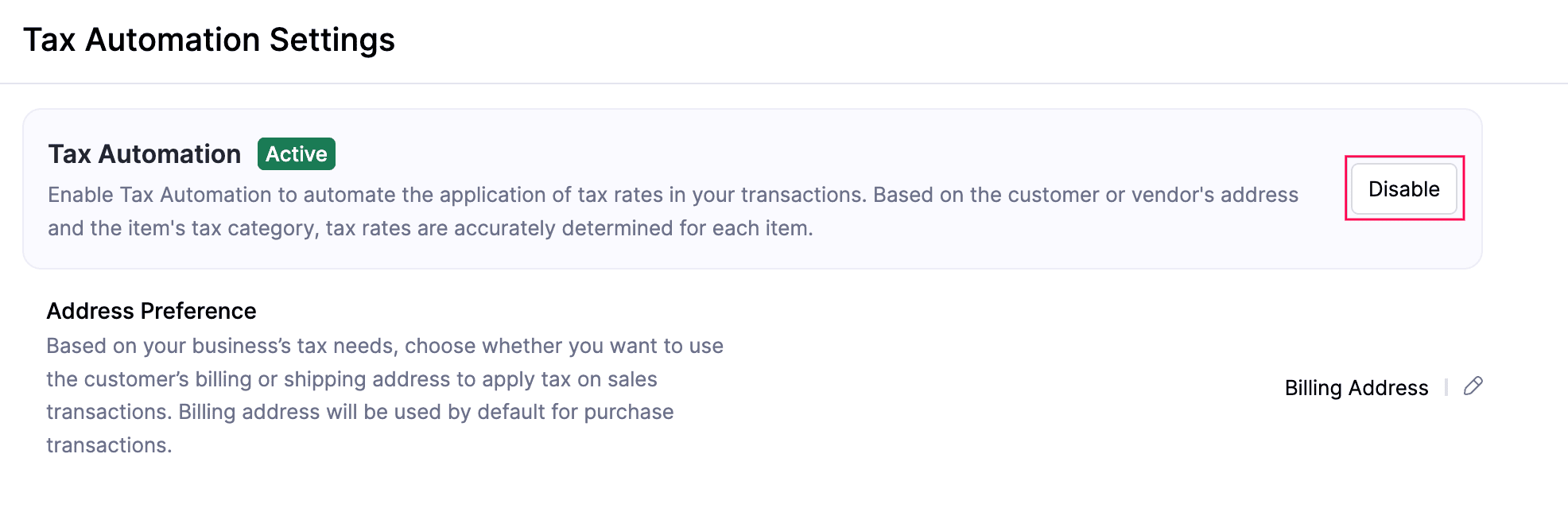
Tax Automation will be disabled in your organisation.
 Yes
Yes