
Items
The items in Zoho Books are the products and services that your business sells to customers or purchases from vendors. You can use Zoho Books to create and manage all your items in one place. Set default tax rates, track inventory, update prices, and add items directly to sales and purchase transactions. This helps you keep your records accurate, manage stocks easily, and follow tax rules.
Create Items
To create an item in Zoho Books:
- Go to Items on the left sidebar and select Items.
- Click + New in the top right corner.
- In the New Item page, fill in the following fields:
- Type: Choose if it’s a physical good or service.
- Name: Enter the item name.
- SKU: Provide the stock keeping unit.
- Unit: Choose the item’s measurement unit. For example, dozen, box, and more.
- HSN/ISIC Code: Enter the 8-digit HS code for the item if it’s a physical good, and enter the 4-digit code for the item if it’s a service.
- Tax Category: Click the Search icon next to this field. In the pop-up that appears, search for the item’s tax category and select the one that matches the item type. For example, if you’re creating an item named Bluetooth Wireless Earbuds, type Electronics and choose the tax category that applies to the product or service. The applicable tax will be automatically applied based on the selected category.
- Drag image(s) here or Browse images: Upload the item’s images, if required.
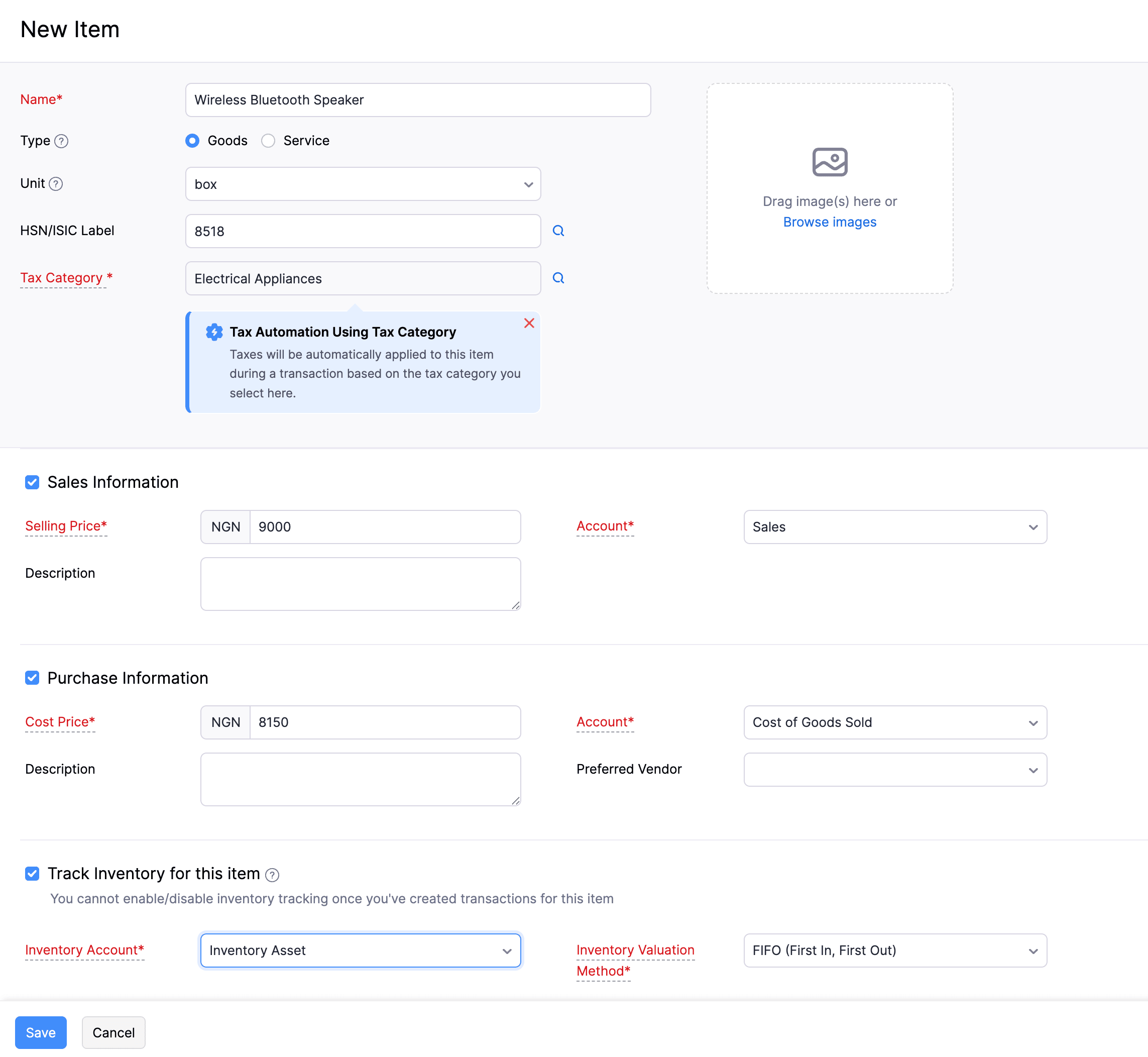
- Enable Sales Information and fill in the following fields:
- Selling Price: Enter the item’s selling price.
- Account: Select the sales account.
- Description: Add a brief description if necessary.
- Enable Purchase Information and fill in the following fields:
- Cost Price: Enter the item’s cost price.
- Account: Select the purchase account.
- Description: Add a brief description if necessary.
- Preferred Vendor: Select a preferred vendor for this item.
- Enable Track Inventory for this item and fill in the following fields:
- Inventory Account: Select the inventory account.
- Inventory Valuation Method: Choose FIFO (First In, First Out) to sell the oldest stock first, or select WAC (Weighted Average Costing) to calculate the cost of items based on the average cost of all available stocks in Zoho Books.
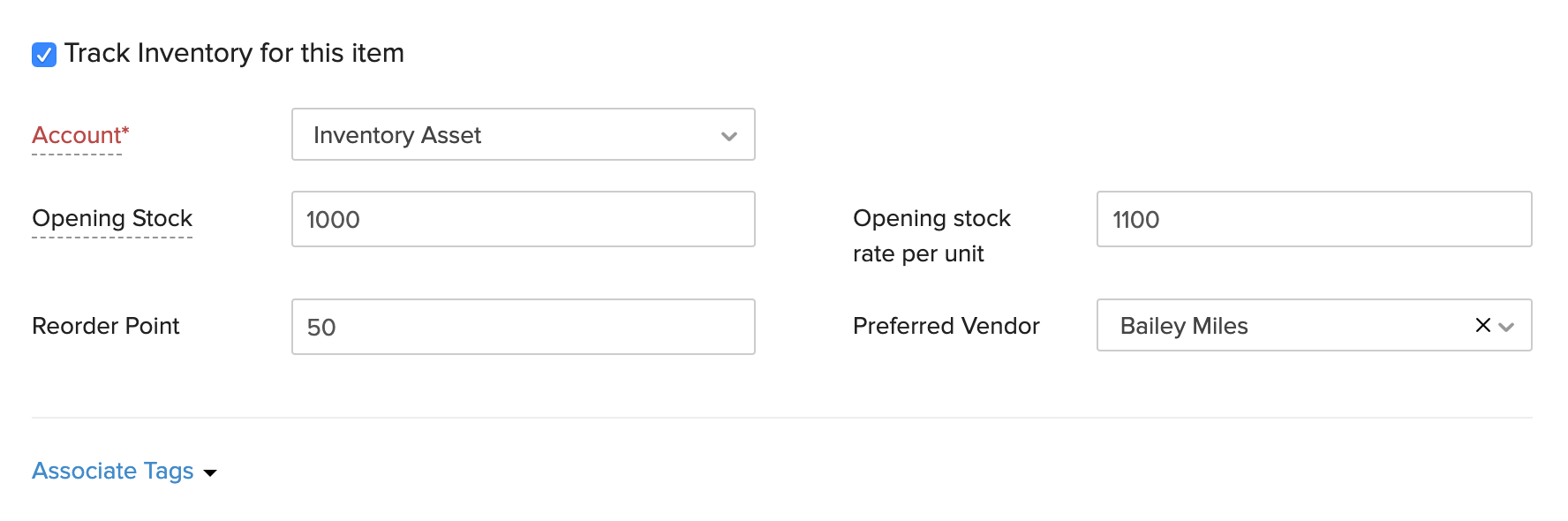
- Click Save.
The item will be created. You can now create transactions for the item.
Import Items
If you have existing items stored locally or you’re migrating to Zoho Books from another accounting system, you can easily import items. To import them:
- Go to Items on the left sidebar and select Items.
- Click the More icon in the top right corner, hover over Import, and select Import Items.
- In the Import page, click Choose File to select the file you want to import.
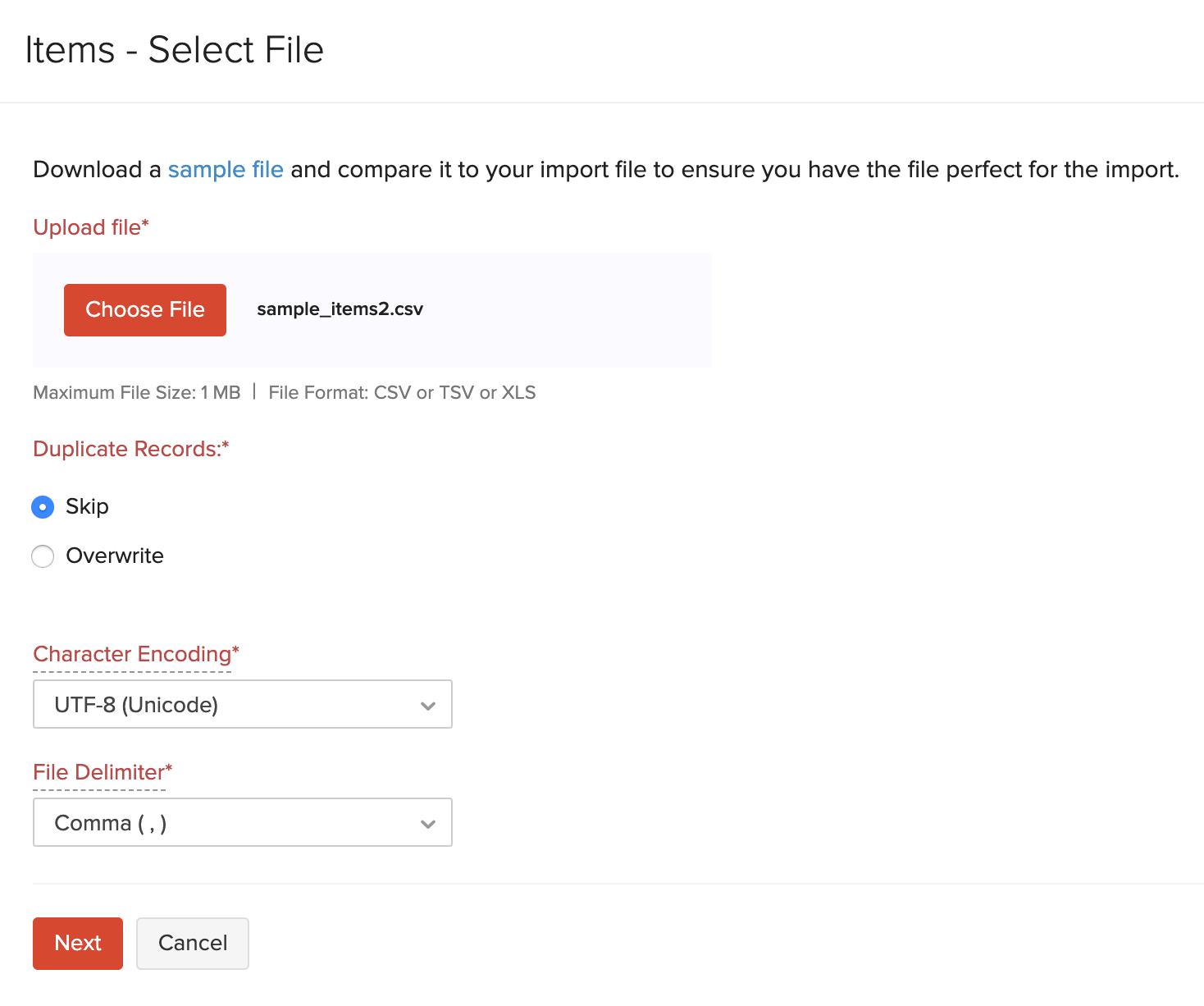
- After you select the file, under the Configure tab, complete the following fields:
- Duplicate Handling: Choose Skip Duplicates to ignore importing items that already exist in Zoho Books, or Overwrite to update existing items with details from the import file.
- Character Encoding: The default is UTF-8 (Unicode). Select a different encoding only if your file uses one.
- Field Delimiter: The default is Comma (,). Change it if your import file uses a different delimiter.
- Click Next.

- In the Map Fields page, check if all the fields are mapped to the right headers in the import file.
- Enable Save these selections for use during future imports if you want to reuse the mapped fields for future imports.
- Click Next.

- In the Preview page, click Import.
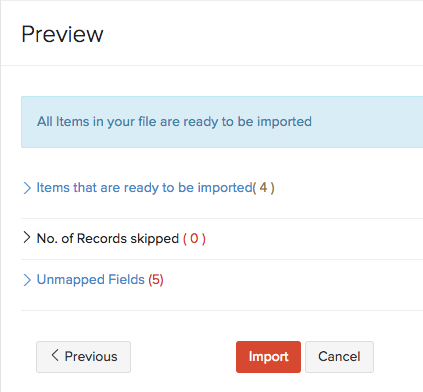
The items will be imported into your Zoho Books organisation.