


Other Actions
You can perform other actions on your PDF templates, such as edit, clone, delete, and so on.
Mark PDF Template as Default
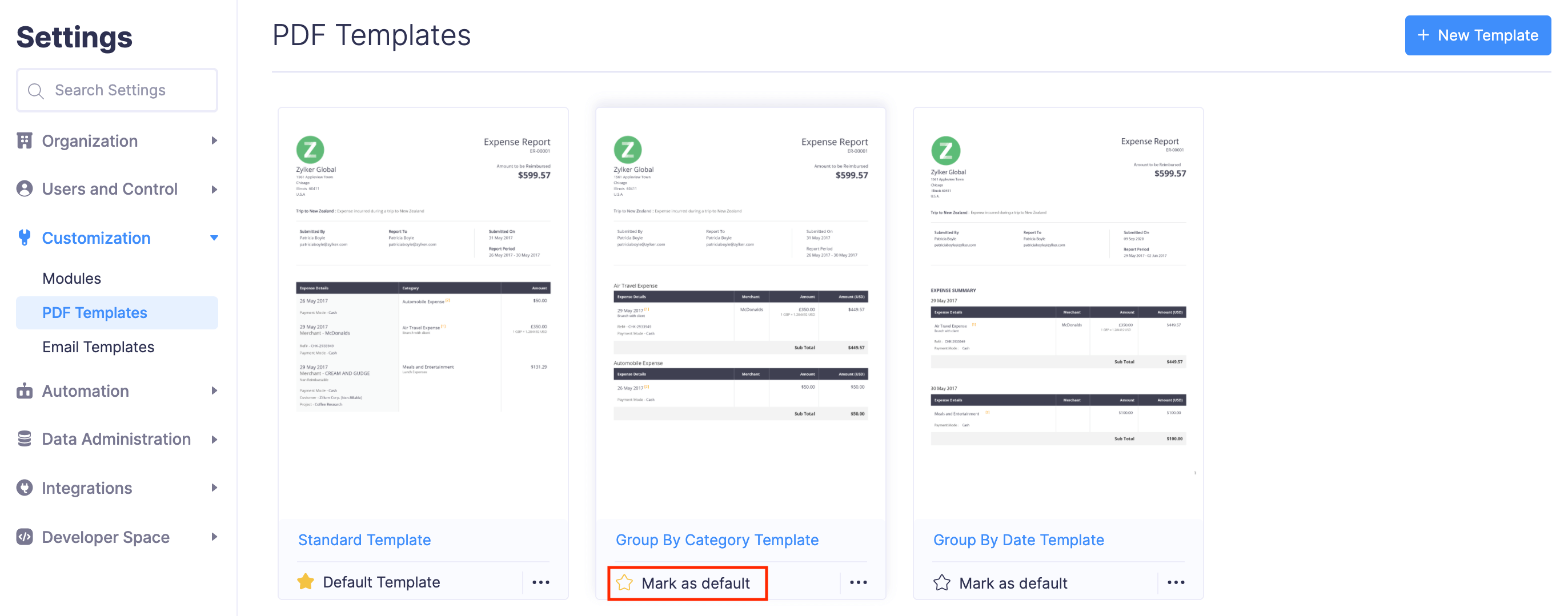
When you mark a template as default, all users except the admins will be able to download the reports only in the default template. This way, all the reports downloaded from your organization will have the same template, ensuring a regulated reporting format. However, the admins can choose to select another template while downloading a PDF report.
To mark a template as default:
- Navigate to Admin View.
- Go to Settings on the left sidebar.
- Go to PDF Templates under Customization.
- You can view the list of templates that are available.
- Click Mark as default in the template you want to mark as default. The selected template will be set as default.
Edit PDF Template
You can customize the properties of the template by editing it.
To edit a template:
- Navigate to Admin View.
- Go to Settings on the left sidebar.
- Go to PDF Templates under Customization.
- You can view the list of templates that are available.
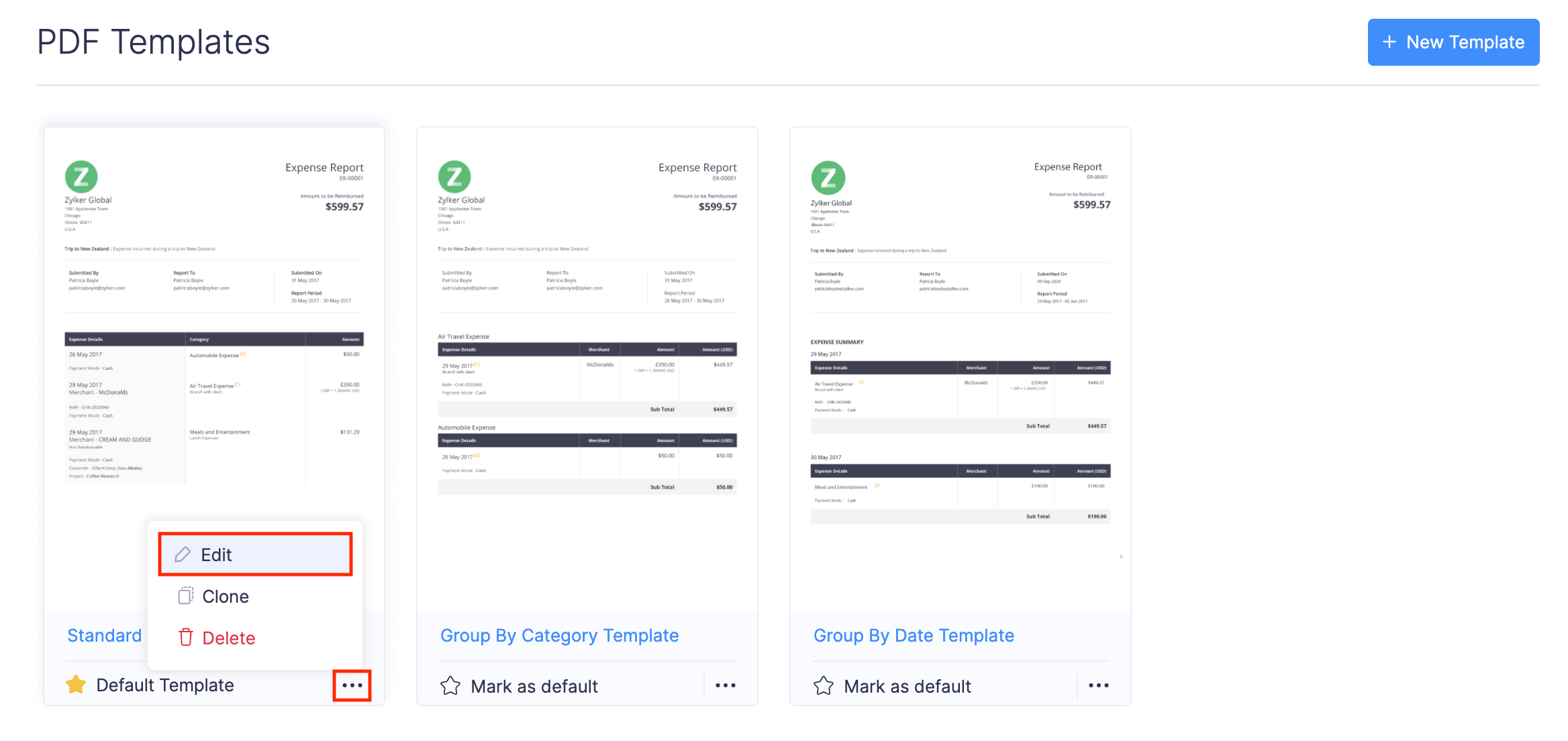
- Click the More icon at the bottom right corner of the template you want to edit.
- Click Edit.
- Make the necessary changes.
- Click Refresh on the right pane to preview the changes.
- Click Save.
Clone PDF Template
You can clone a template to duplicate the format of the template and customize it based on your business needs. Here’s how:
- Navigate to Admin View.
- Go to Settings on the left sidebar.
- Go to PDF Templates under Customization.
- You can view the list of templates that are available.
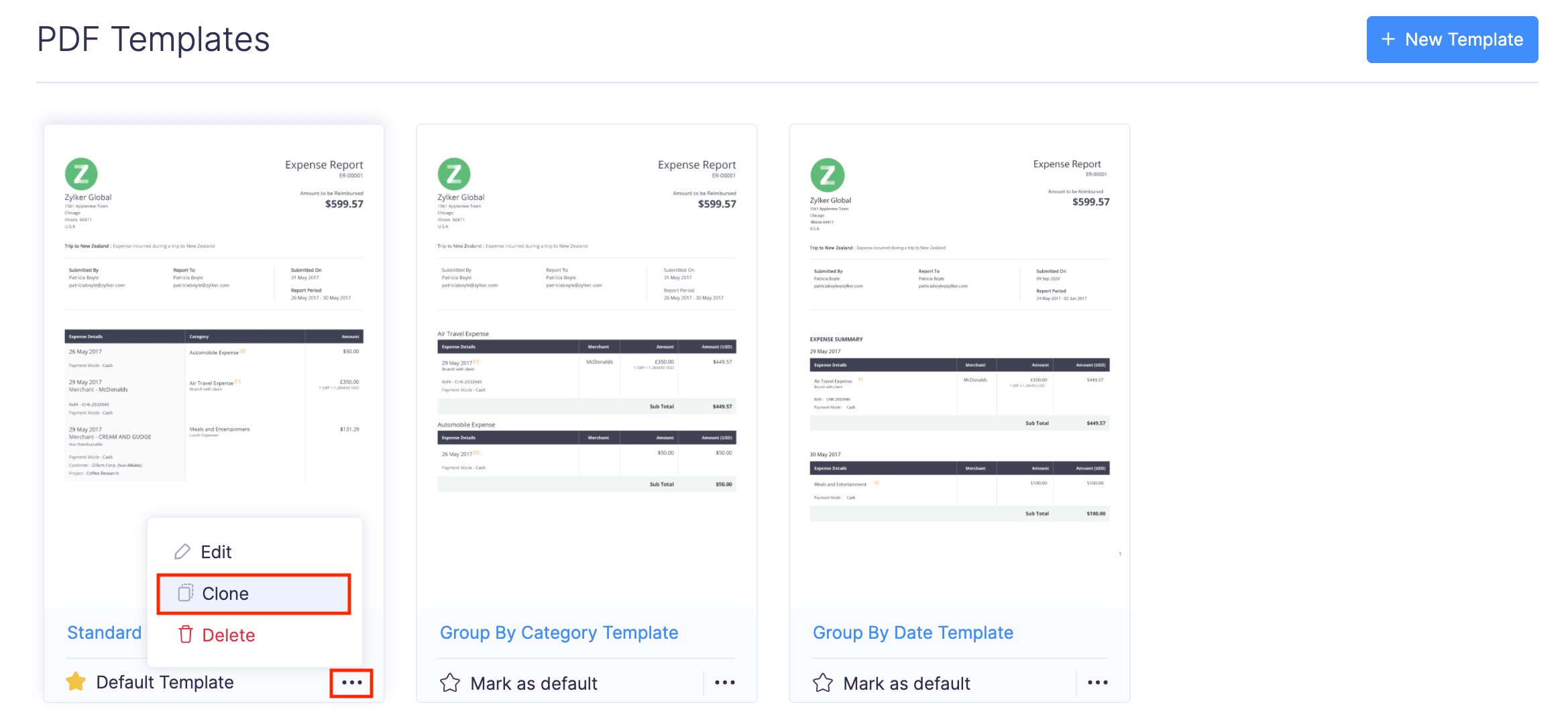
- Click the More icon at the bottom right corner of the template you want to clone.
- Click Clone.
- Enter the Template Name.
- Make the necessary changes. You can also make other changes to the template if required.
- Click Refresh on the right pane to preview the latest changes.
- Click Save.
Delete PDF Template
If you no longer use a template, you can delete it. To delete a template:
Note: You cannot delete the default template.
- Navigate to Admin View.
- Go to Settings on the left sidebar.
- Go to PDF Templates under Customization.
- You can view the list of templates that are available.
- Click the More icon at the bottom right corner of the template you want to delete.
- Click Delete.
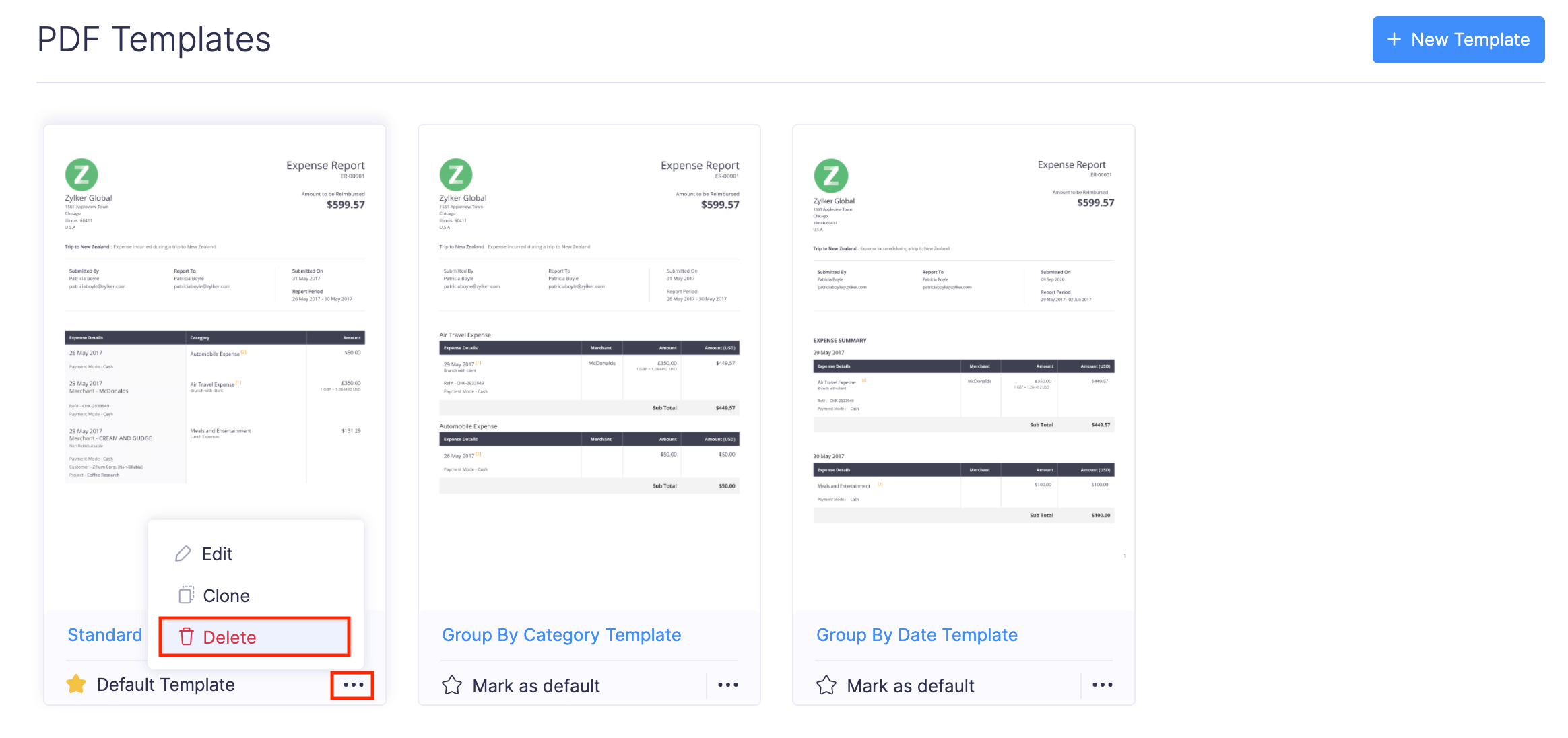
- In the pop-up that opens, click Delete again to delete the template.