


Connected Banking with Axis Bank
Zoho ERP has partnered with Axis Bank, one of India’s leading private sector banks, to connect your Zoho ERP organisation with your Axis Bank current account. This integration streamlines your banking and core business processes by allowing you to initiate vendor payments, automatically fetch bank feeds, reconcile, and view real-time account balances, all without switching platforms.
Prerequisites:
- An Axis Bank current account.
- Multi-Factor Authentication (MFA), excluding Security Key and Passkey, must be enabled for your Zoho account.
Note:
- This integration is available only for users of the India edition of Zoho ERP created under the zoho.in domain.
Connect to Axis Bank
Initiate the Integration
This is a user-level integration, and only the user who set it up can initiate payments with it. To initiate:
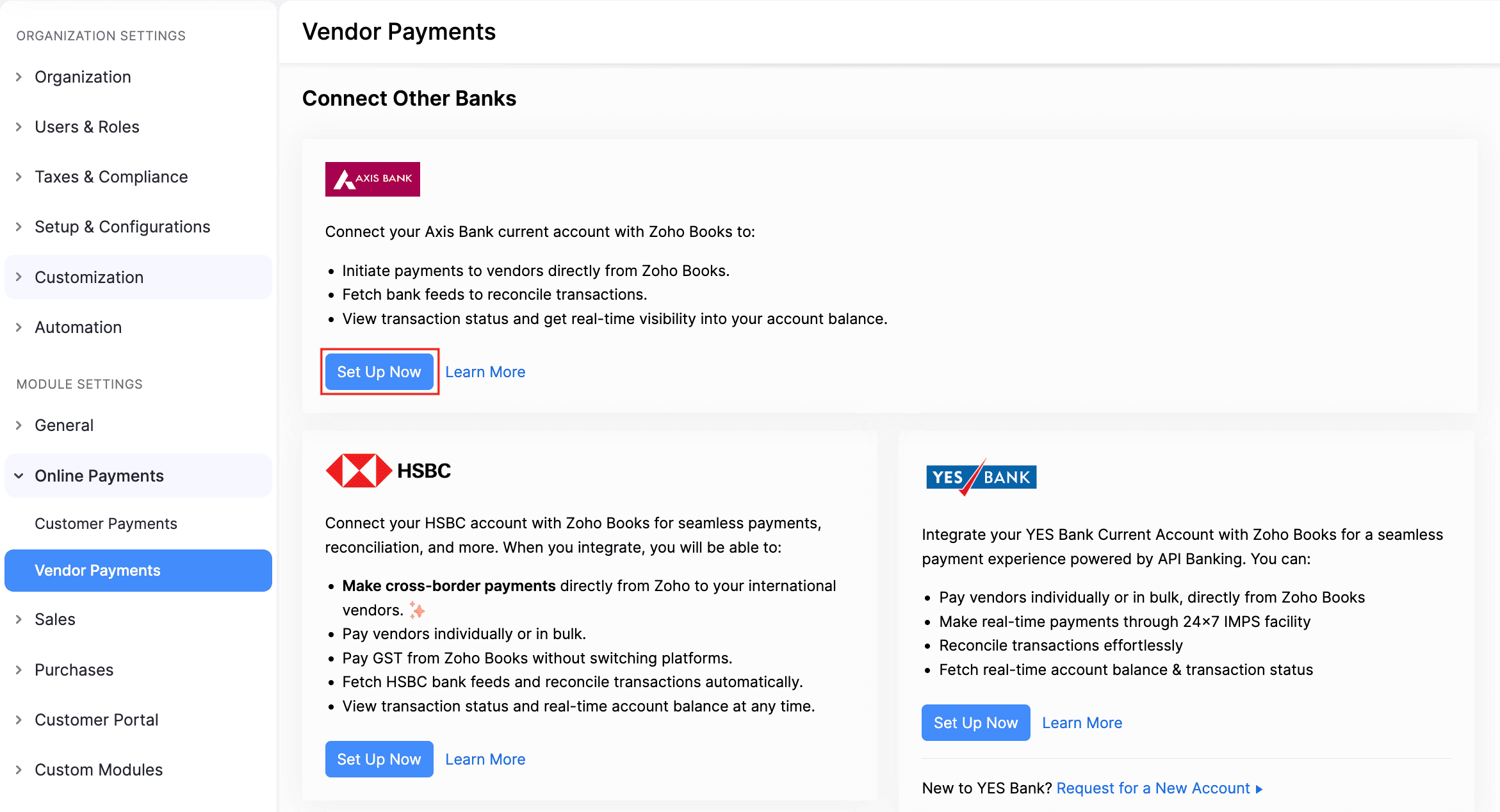
Go to Settings and click Vendor Payments under Online Payments.
Scroll down and click Set Up Now next to Axis Bank.
Check the box to accept the Terms and Conditions of this integration.
Click Proceed.
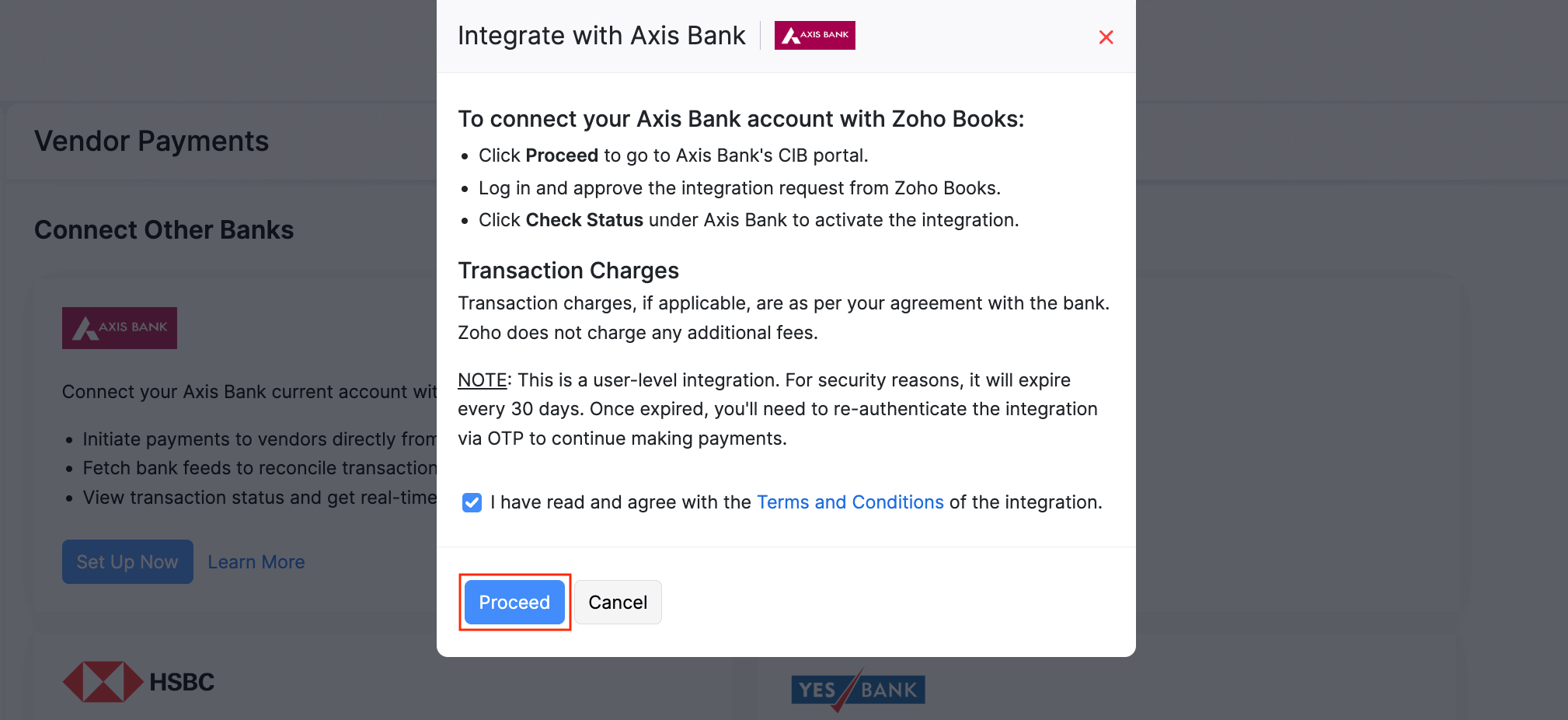
The integration status will be updated to Initiated, and you’ll be redirected to the Axis Bank’s portal for approval.
Note:
Your bank may reject the integration request in the following cases:
- You are using Corporate Internet Banking (CIB). In this case, contact your bank to migrate to the Neo for Corporates (NFC) flow and try initiating the integration again.
- You are using Retail Internet Banking (RIB). This type of banking is currently not supported, we’ll notify you once it becomes available.
Approve the Integration
The integration can be approved in the Neo for Corporates portal for single-user or multi-user access.
Approval for Single User Login:
Once the integration is initiated, log in to the redirected Axis Bank’s portal to authorise the connection. To log in:
Enter the Corporate ID, Login ID and Password.
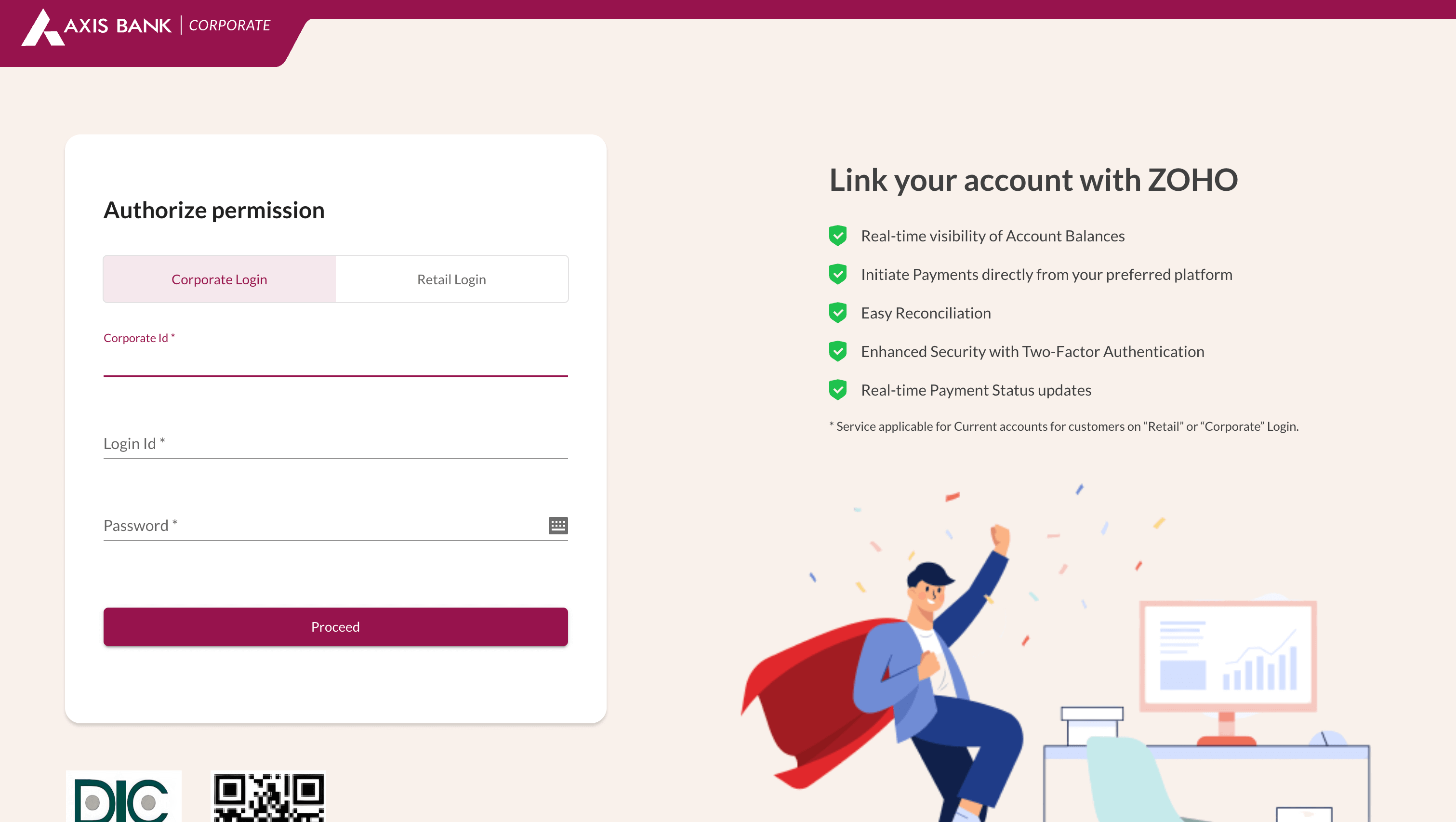
Click Proceed.
Enter the OTP received on your registered mobile number and click Submit.
You can return to Zoho ERP and click Check Status to fetch and update the integration status to Active.
Approval for Multiple Users Login:
For multiple users, a user can log in to the Axis Bank’s portal to authorise the connection and select an approver. The selected approver can then approve the integration request by logging in to the Neo for Corporates portal.
Note:
- For multiple users under a Neo for Corporates login, the user connecting to the bank from Zoho ERP needs Transaction Maker rights on the Axis Bank’s portal.
- Users with only Checker rights cannot set up this integration.
To log in:
Enter the Corporate ID, Login ID and Password.
Click Proceed.
Enter the OTP received on your registered mobile number and click Submit.
Select the Profile and Approver and click Proceed.
Check the box to accept the terms and conditions and click Proceed.
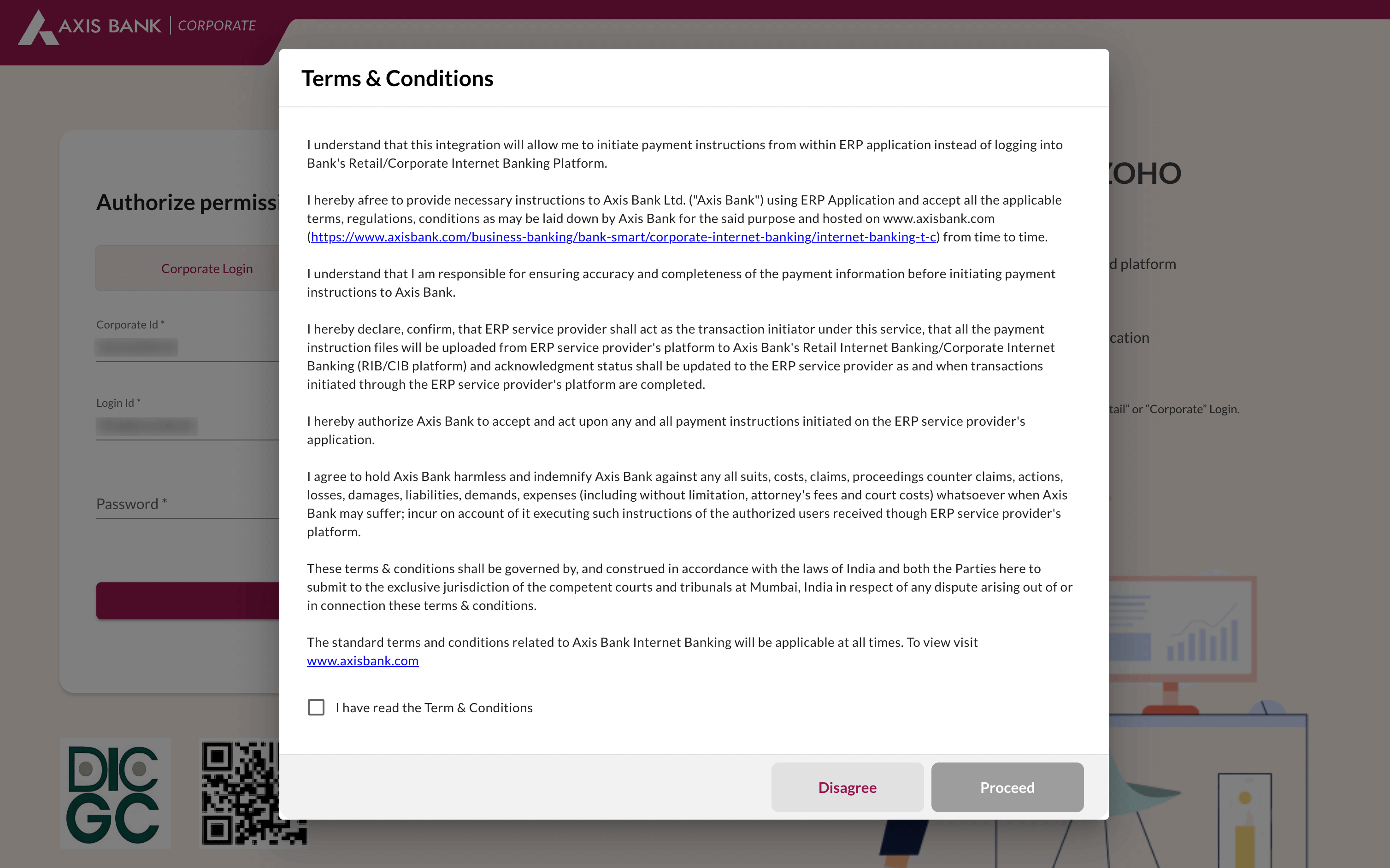
The selected approver has to log in to the Neo for Corporates (NFC) portal using their credentials to approve the bank connection. To approve:
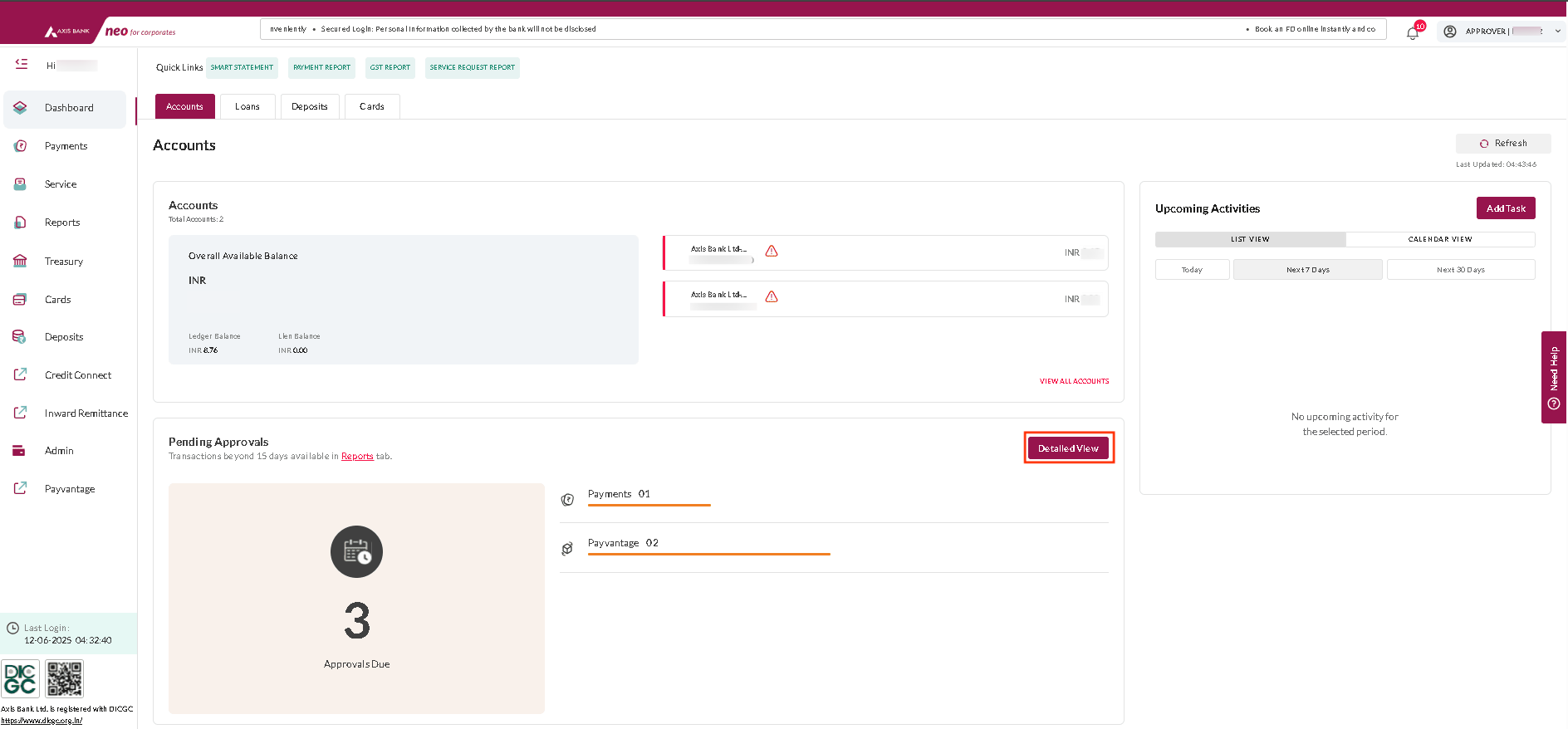
Click Detailed View next to Pending Approvals in the Dashboard.
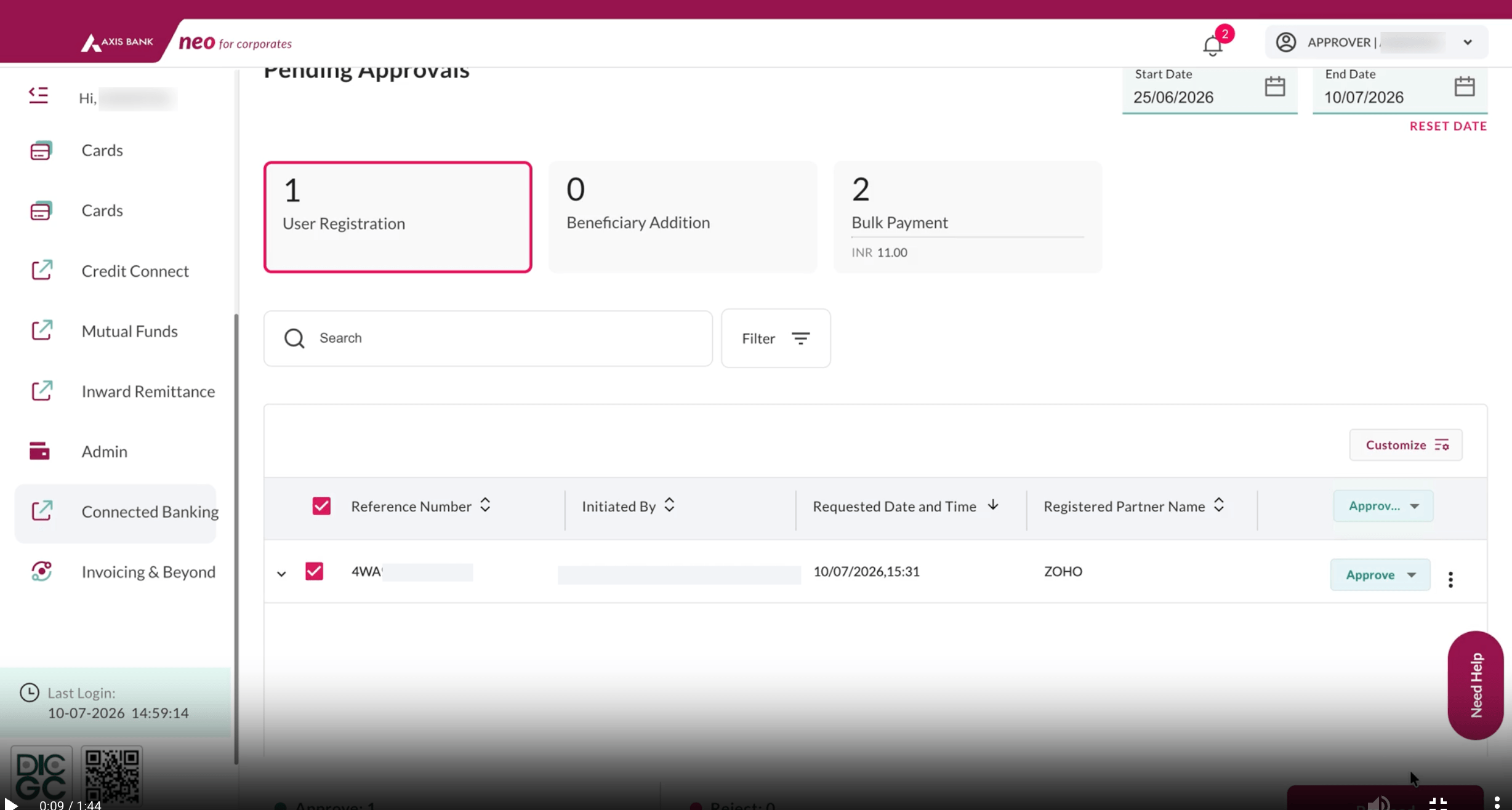
Select the User Registration tab.
Select the requests you want to approve and click Proceed.
Read and agree to the terms and conditions.
Click Proceed.
Enter the OTP received on your registered mobile number.
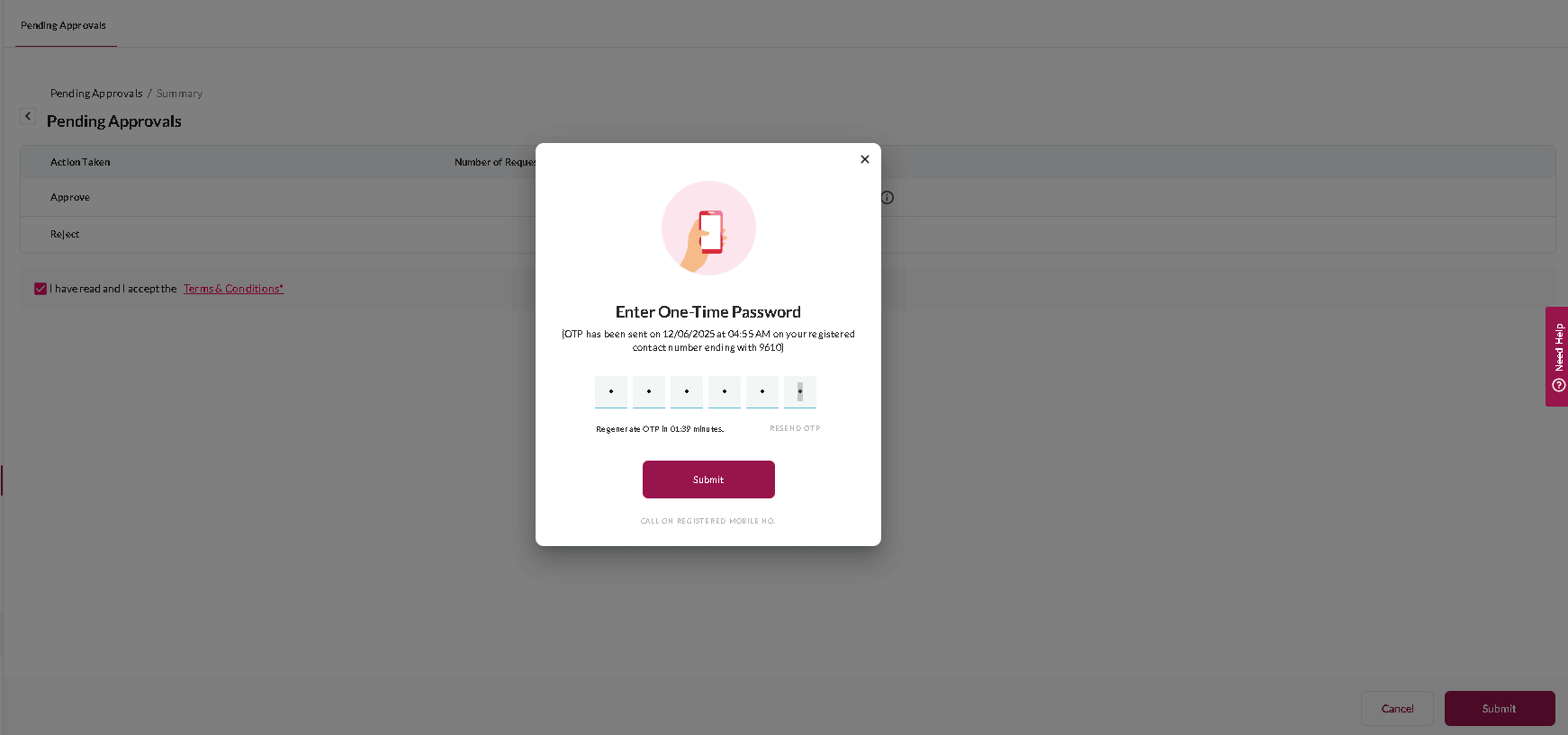
Click Submit.
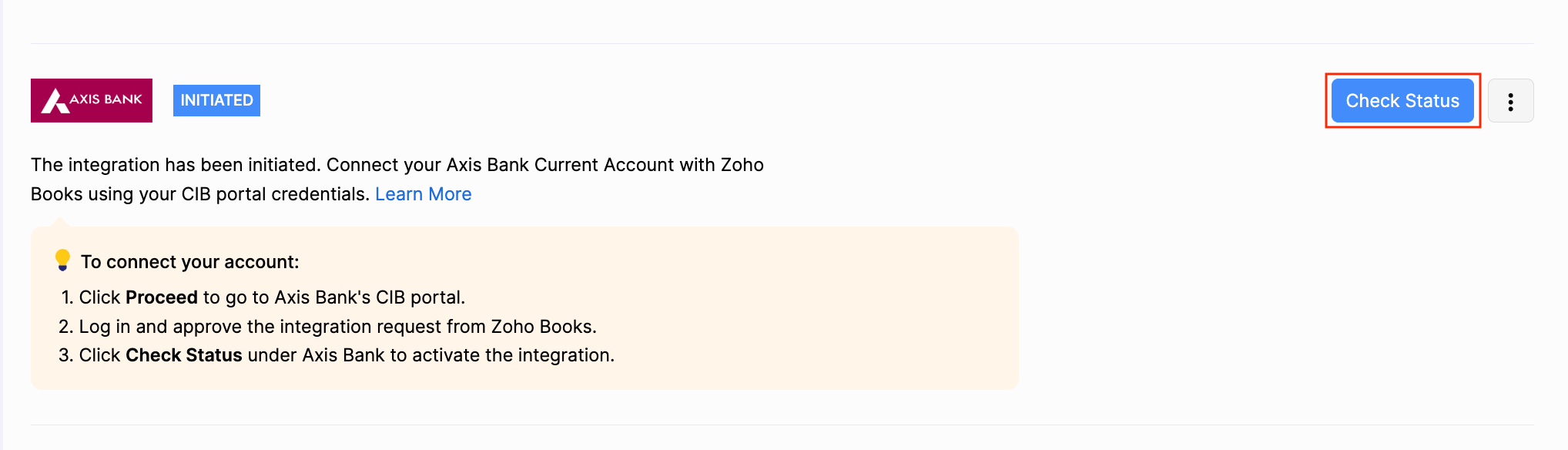
The integration request from Zoho ERP will be approved. After that, click Check Status in Zoho ERP to fetch and update the integration status to Active.
Add Vendor Bank Account
Before initiating vendor payments, you need to add the vendor’s bank account details. To add:
Go to Purchases and then Vendors.
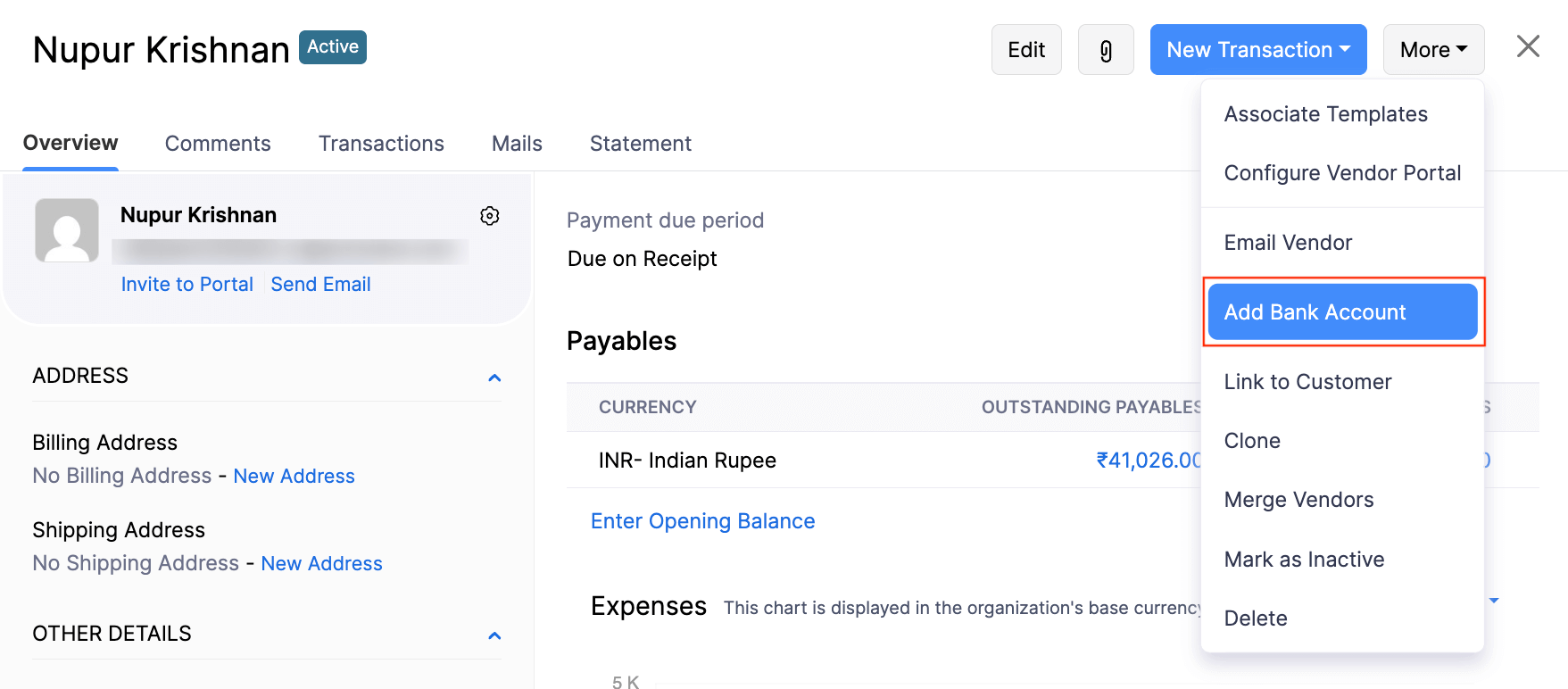
Select a particular vendor and click the More dropdown, then select Add Bank Account.
Enter the vendor’s bank account details in the pop-up.
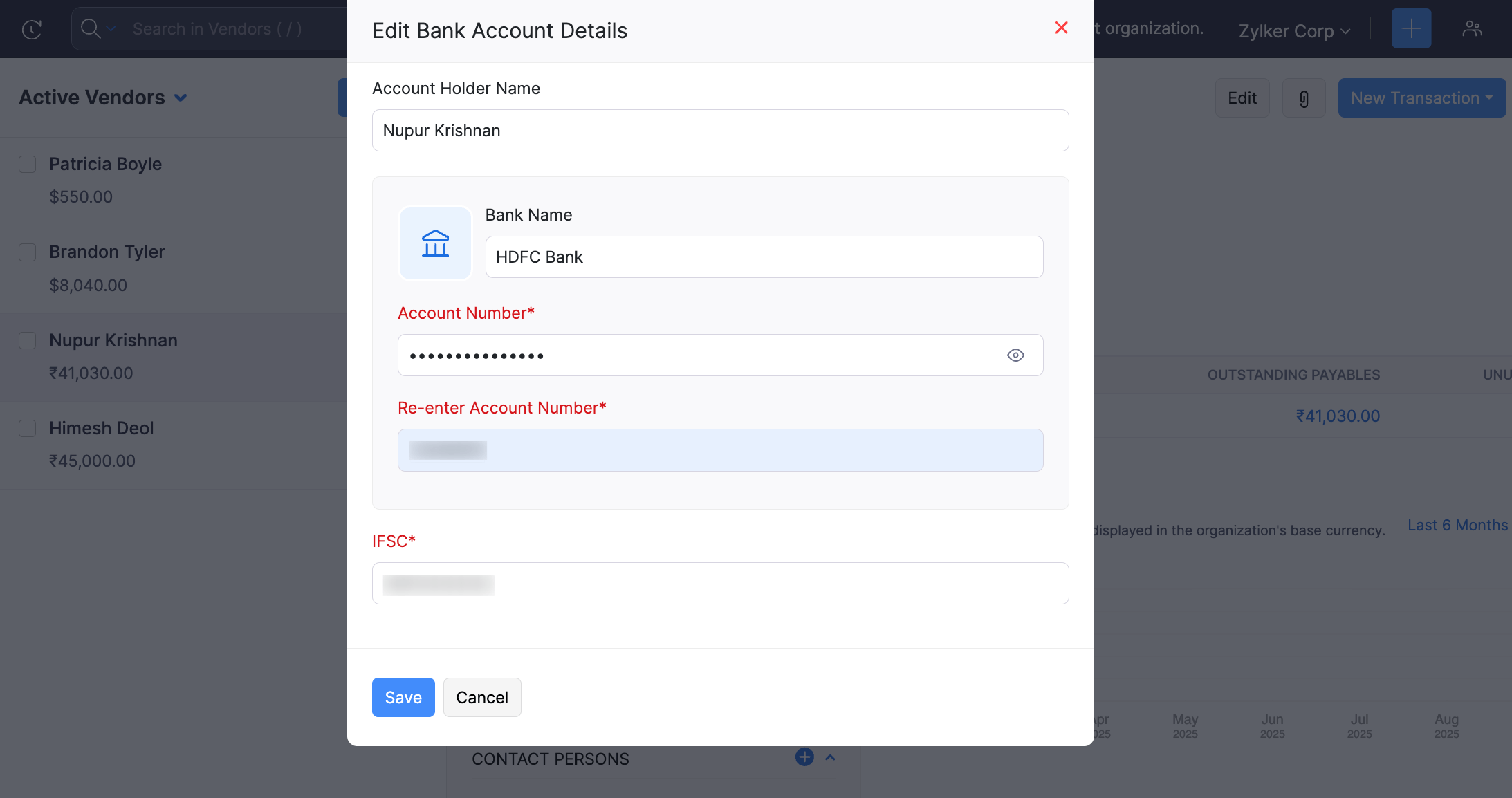
Click Save.
The vendor’s bank account will be added, and you can initiate payments to this account.
Initiate Payments
Once the vendor’s bank account is added, you can initiate payments from Zoho ERP in three ways:
Individual Bill Payment
You can initiate payment for an individual bill from Zoho ERP. To initiate:
- Go to the Purchases in the left sidebar and navigate to Bills.
- Select the bill for which you need to make the payment.
- Click the Pay via Axis Bank button in the top bar.
- Enter the payment details in the pop-up that appears.
| Fields | Description |
|---|---|
| Balance Due | The payment amount due for the particular bill. |
| Amount | Enter the payment amount. You can make complete or partial payments towards the bill. |
| From Account | Select the Axis Bank account from which you want to initiate the payment. |
| To Account | Select the account to which you want to make the payment. |
| Transaction Type | Select the transaction type from the available fund transfer options: IMPS, NEFT, RTGS, or Fund Transfer (Same Bank). |
The transfer types are:
IMPS: Transfers funds below ₹5 lakhs instantly to all bank accounts (24/7).
NEFT: Transfers funds to all bank accounts in batches during bank working hours.
RTGS: Transfers funds exceeding ₹2 lakhs instantly to all bank accounts during bank working hours.
Fund Transfer: Transfers funds immediately to other Axis Bank accounts (24/7).
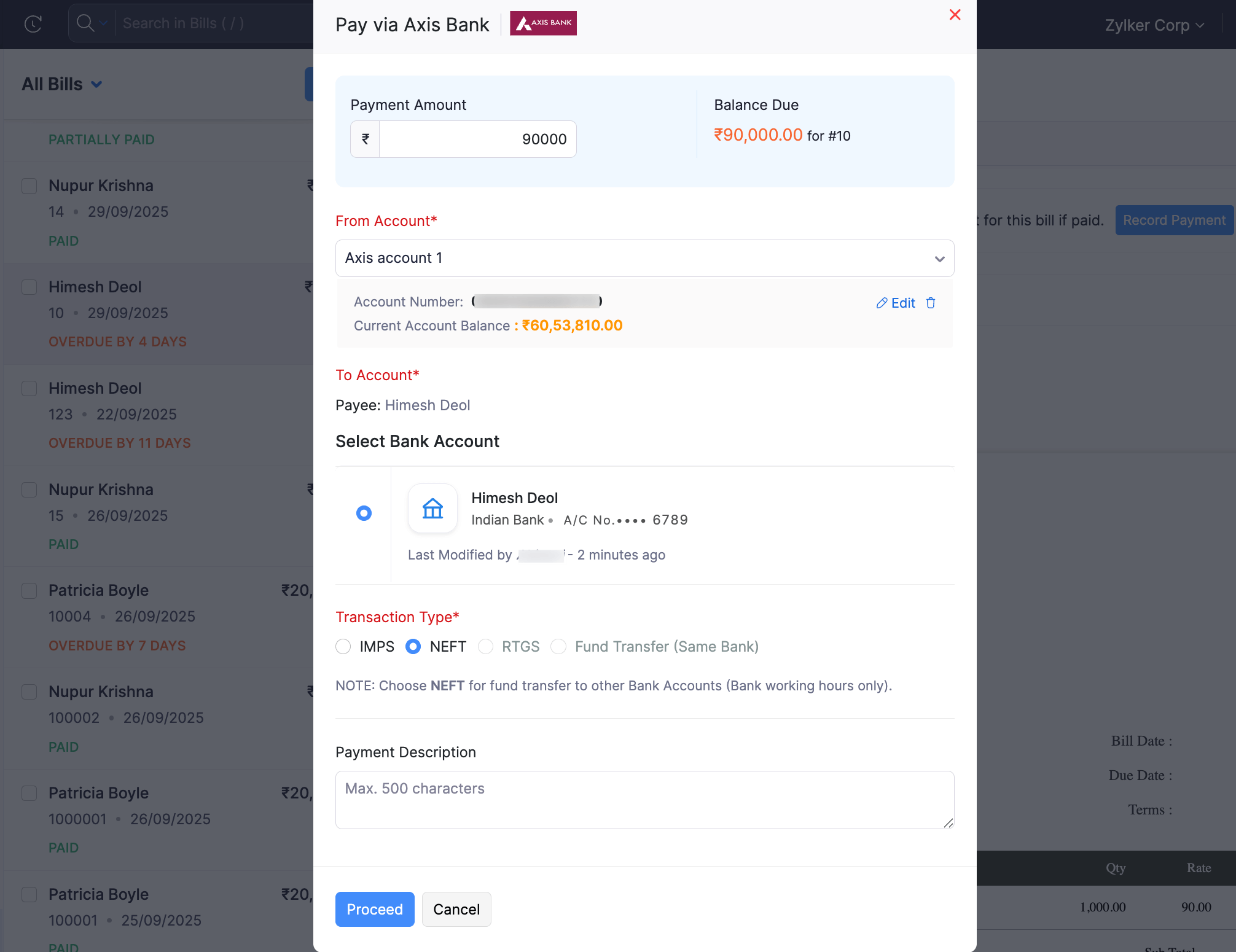
Click Proceed.
Enter the OTP sent to your registered mobile number.
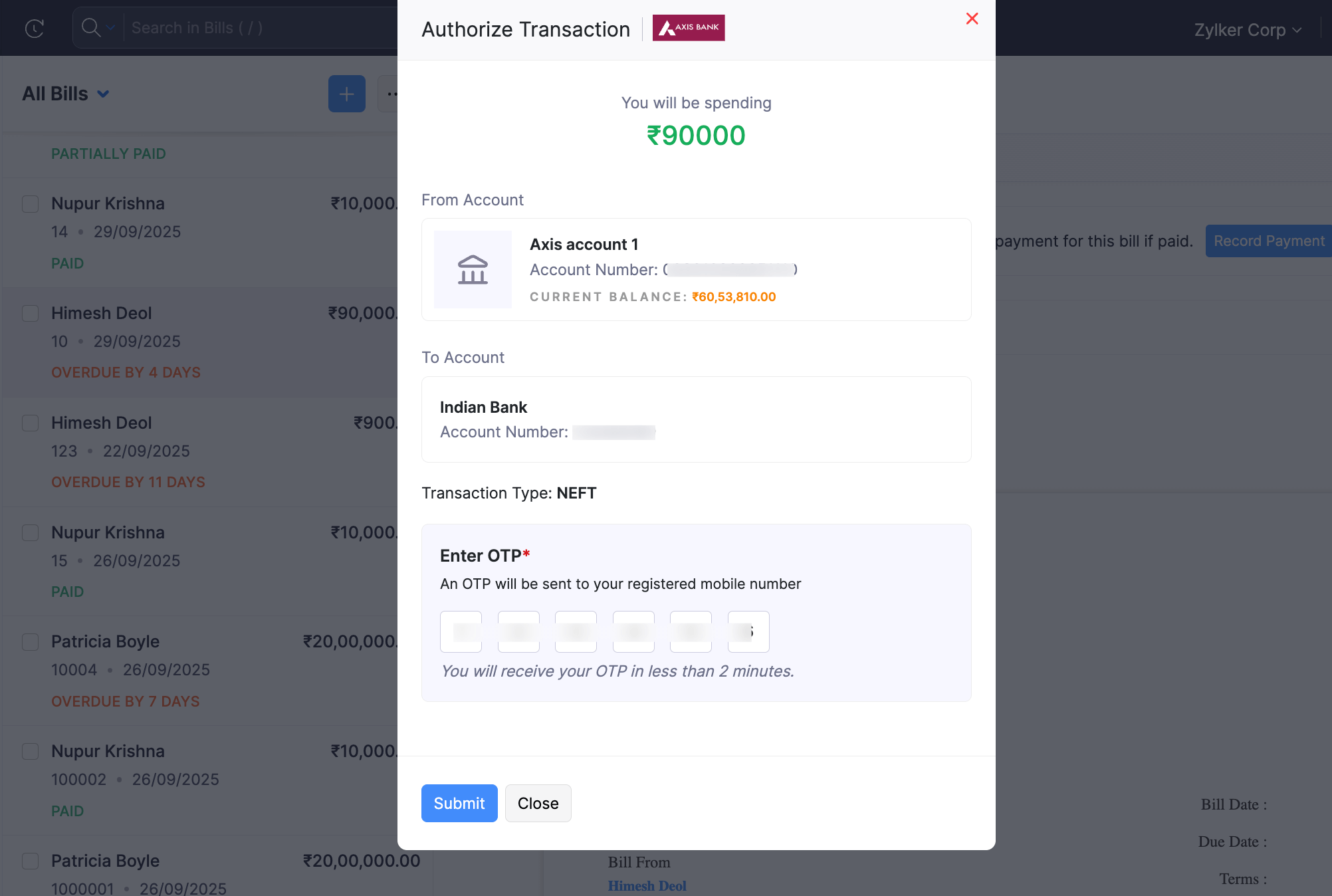
Click Submit.
The bill payment will be initiated from Zoho ERP.
Notes:
- In some cases, the payment may require additional verification. If a Payment Verification pop-up appears, click Approve in Bank’s Portal and follow the steps in the Consent for Suspicious Transactions section to complete the verification.
- You must authorise the payment in the Neo for Corporates portal before 11:59 PM on the day it is flagged. If you do not, the payment will fail.
Multiple Bill Payments
You can initiate payments for multiple bills in two ways:
1. Pay multiple bills of same vendor
You can initiate bulk payments for multiple bills from the same vendor. To initiate:
Go to the Purchases in the left sidebar and navigate to Payments Made.
Click + New at the top right corner.
Select the vendor whose bills you want to pay.
Select Initiate payment via Axis Bank.
Enter the payment details and click Initiate Payment.
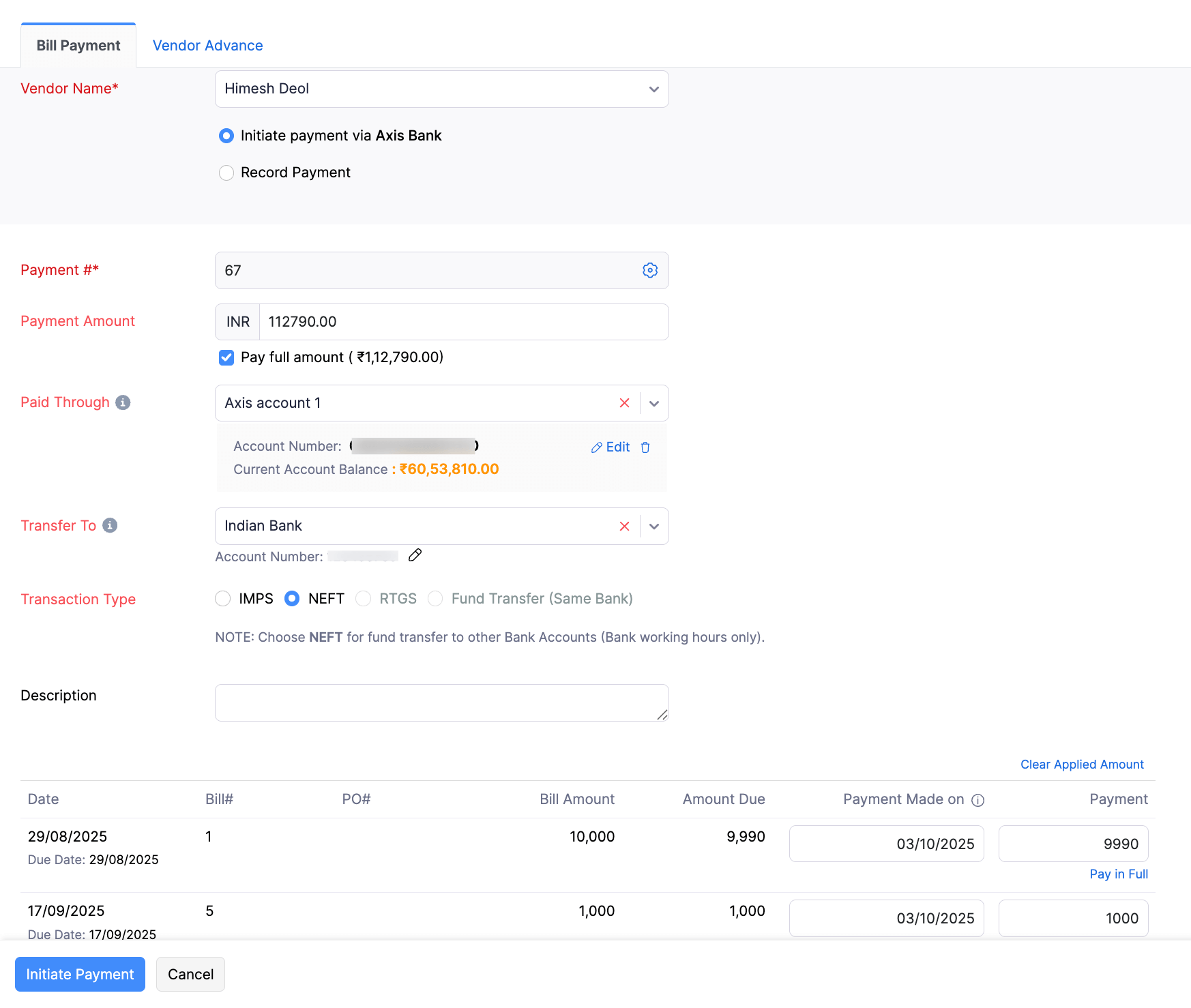
Enter the OTP sent to your registered mobile number.
Click Submit.
The payment for all the selected bills from the vendor will be initiated from Zoho ERP.
Notes:
- In some cases, the payment may require additional verification. If a Payment Verification pop-up appears, click Approve in Bank’s Portal and follow the steps in the Consent for Suspicious Transactions section to complete the verification.
- You must authorise the payment in the Neo for Corporates portal before 11:59 PM on the day it is flagged. If you do not, the payment will fail.
2. Pay multiple bills of different vendors
You can initiate bulk payments for multiple bills from different vendors. To initiate:
Go to the Purchases in the left sidebar and navigate to Bills.
Select the bills of different vendors for which you want to initiate payment.
Click the Pay via Axis Bank button at the top bar.
Enter the payment details and click Initiate Payment.
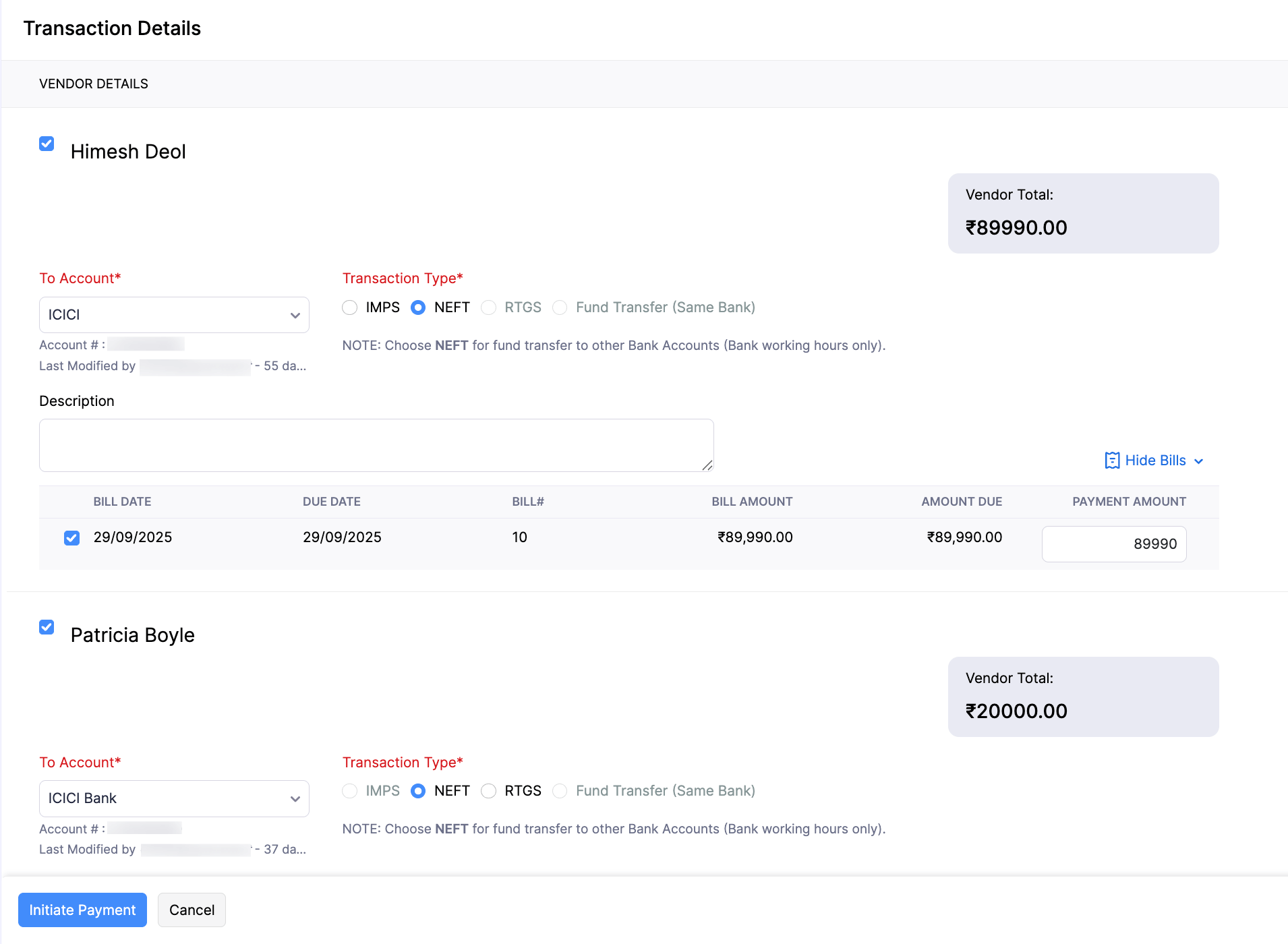
Enter the OTP sent to your registered mobile number.
Click Submit.
Payment for all selected bills will be initiated from Zoho ERP.
Notes:
- In some cases, the payment may require additional verification. If a Payment Verification pop-up appears, click Approve in Bank’s Portal and follow the steps in the Consent for Suspicious Transactions section to complete the verification.
- You must authorise the payment in the Neo for Corporates portal before 11:59 PM on the day it is flagged. If you do not, the payment will fail.
Advance Payments
You can make advance payments to vendors directly using Axis Bank. To initiate:
Go to the Purchases in the left sidebar and navigate to Payments Made.
Click + New at the top right corner.
Go to the Vendor Advance tab and select the vendor.
Select Initiate payment via Axis Bank.
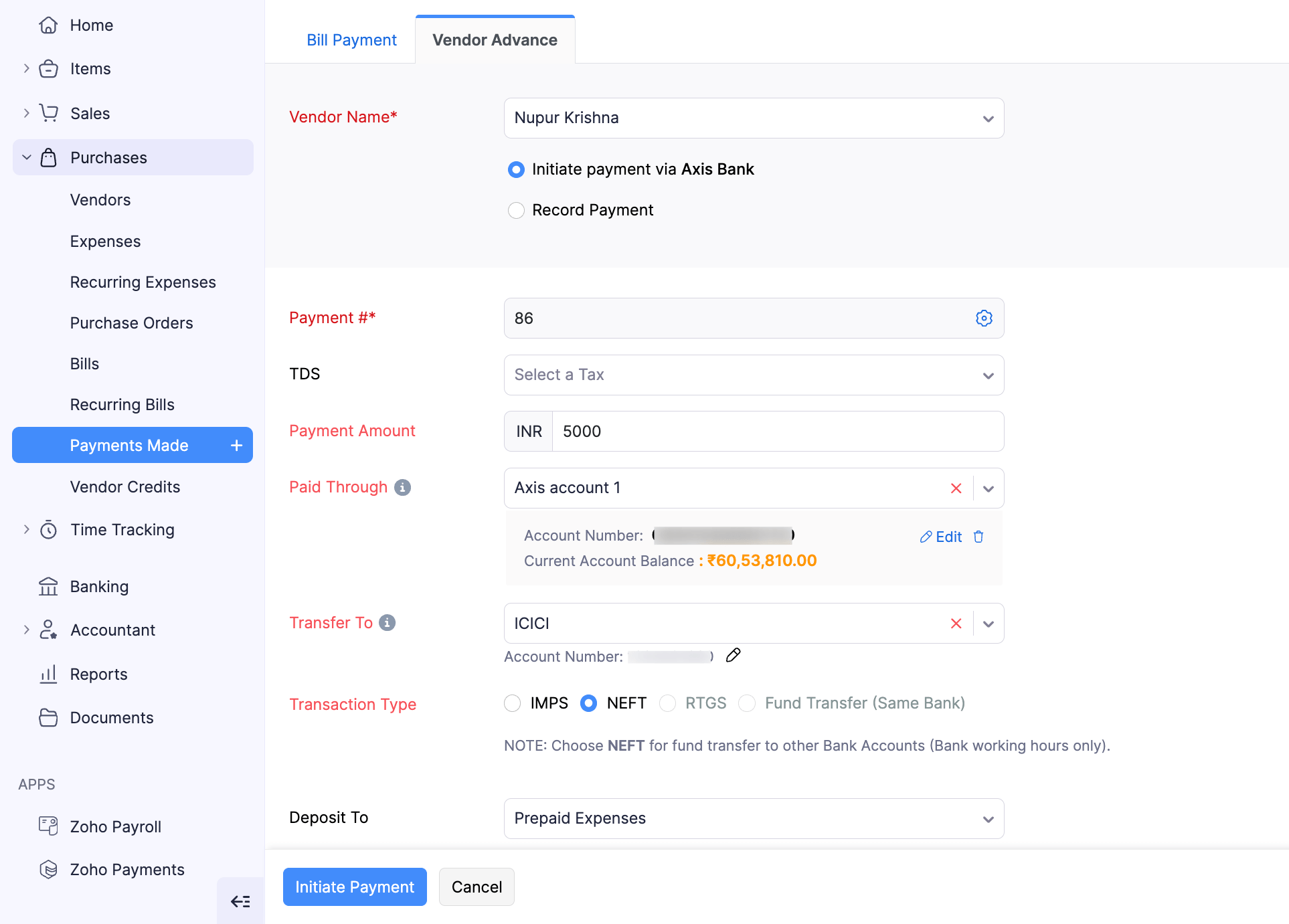
Enter the payment details and click Initiate Payment.
Enter the OTP sent to your registered mobile number.
Click Submit.
The payment will be initiated from Zoho ERP.
Approve Payments
Depending on your business’s payment approval settings in Axis Bank, payments initiated from Zoho ERP may require approval in the following two scenarios:
Payment Approval by Approver
When a payment is initiated and requires additional verification, an Approver must review and approve it in the Axis Bank NFC portal before it can be processed. To approve the payment:
Note: If you initiated the payment and do not have Approver access, reach out to a user with Approver access to complete the approval.
Log in to the Neo for Corporates portal with your Corporate ID, Login ID, and Password.
Click Proceed and enter the OTP received on your registered mobile number.
Go to the Connected Banking module on the left menu and click the Bulk Payments tab.
Click the checkboxes on the transactions you want to approve (single or multiple), select the Actions dropdown, and click Approve.
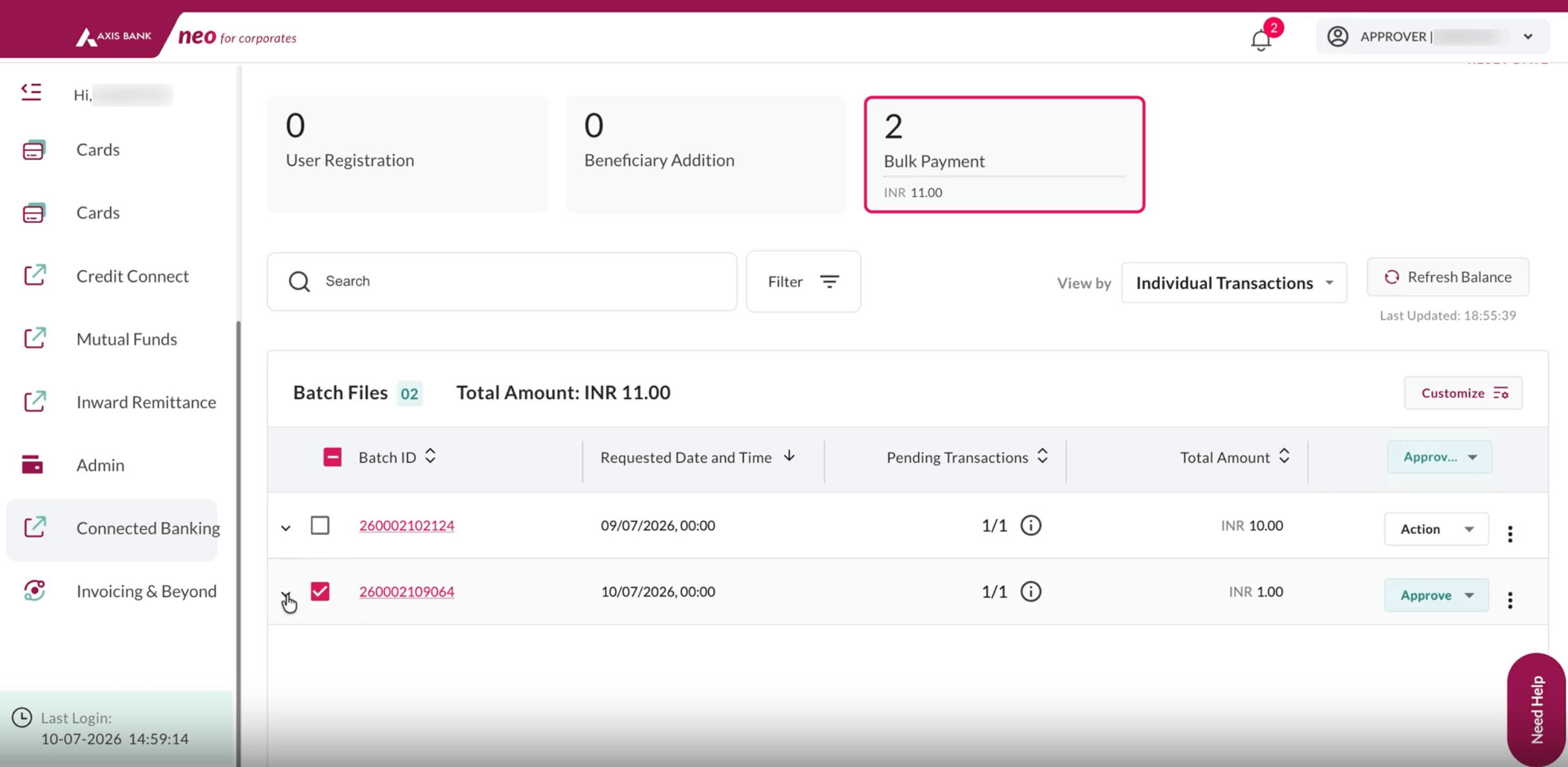
Click Add Remarks to add any comments if necessary.
Check the box to read and agree to the terms and conditions.
Enter the OTP received on your registered mobile number to approve the payment and click Submit.
Your transactions will be approved.
Consent for Suspicious Transactions
If Axis Bank flags a payment as suspicious based on a report from the National Cyber Crime Reporting Portal (NCRP) or the Department of Telecommunications (DoT), you must review the payment and provide your consent before it can be processed. To provide consent:
Log in to the Neo for Corporates portal.
Click Proceed and enter the OTP received on your registered mobile number.
Go to the Connected Banking module on the left menu, click the Bulk Payments tab, and select the Consent Required filter.
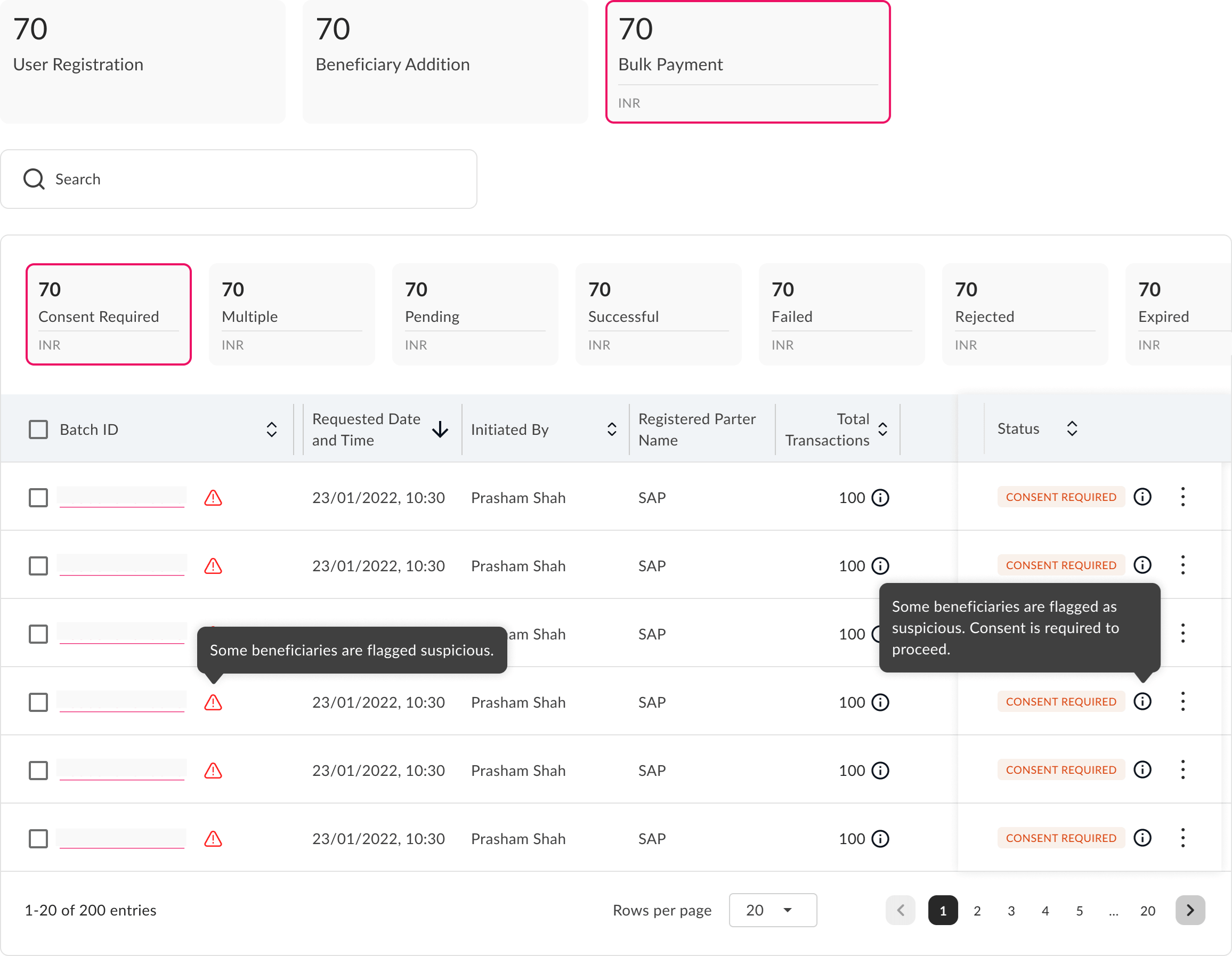
For a single transaction:
Click the batch with the Consent Required status to open the Transaction Details page.
Hover over the flag tag such as DoT or NCRP next to a transaction to view the reason for flagging.
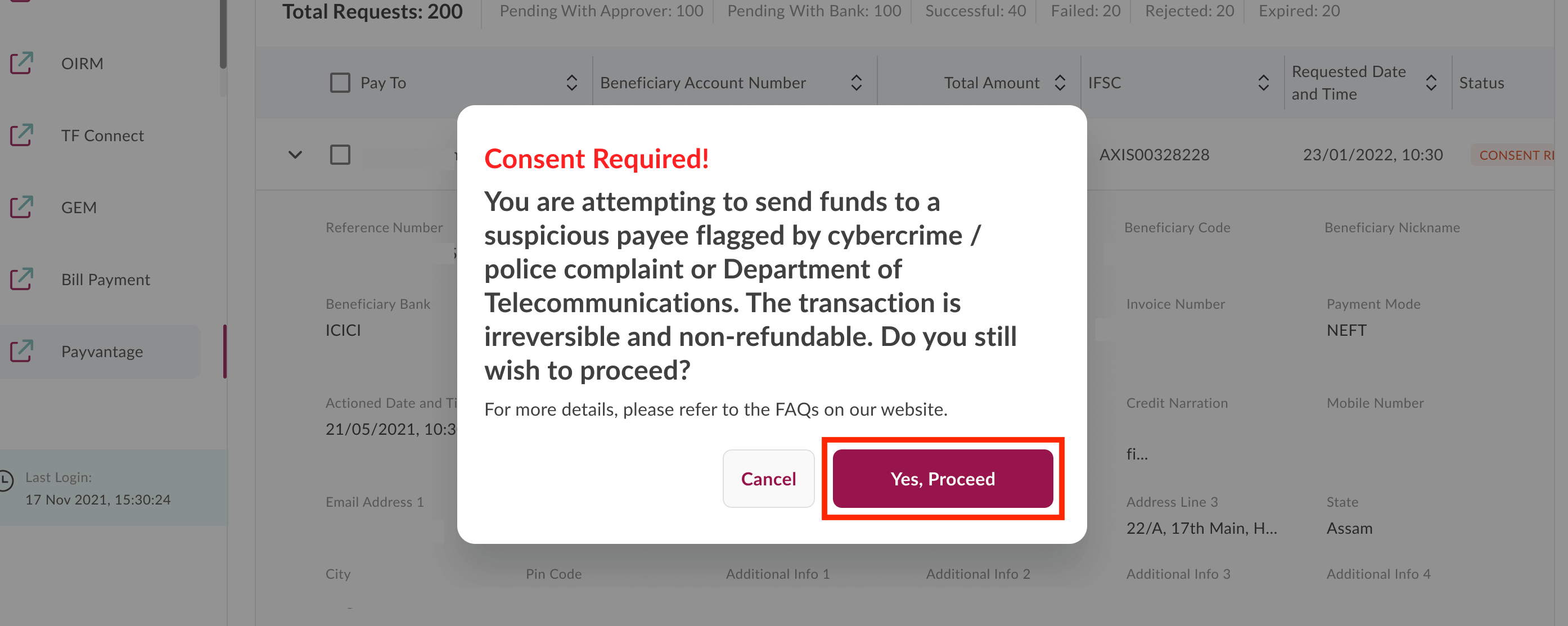
Click Proceed at the bottom of the page.
Read the warning in the Consent Required! pop-up and click Yes, Proceed to confirm your consent.
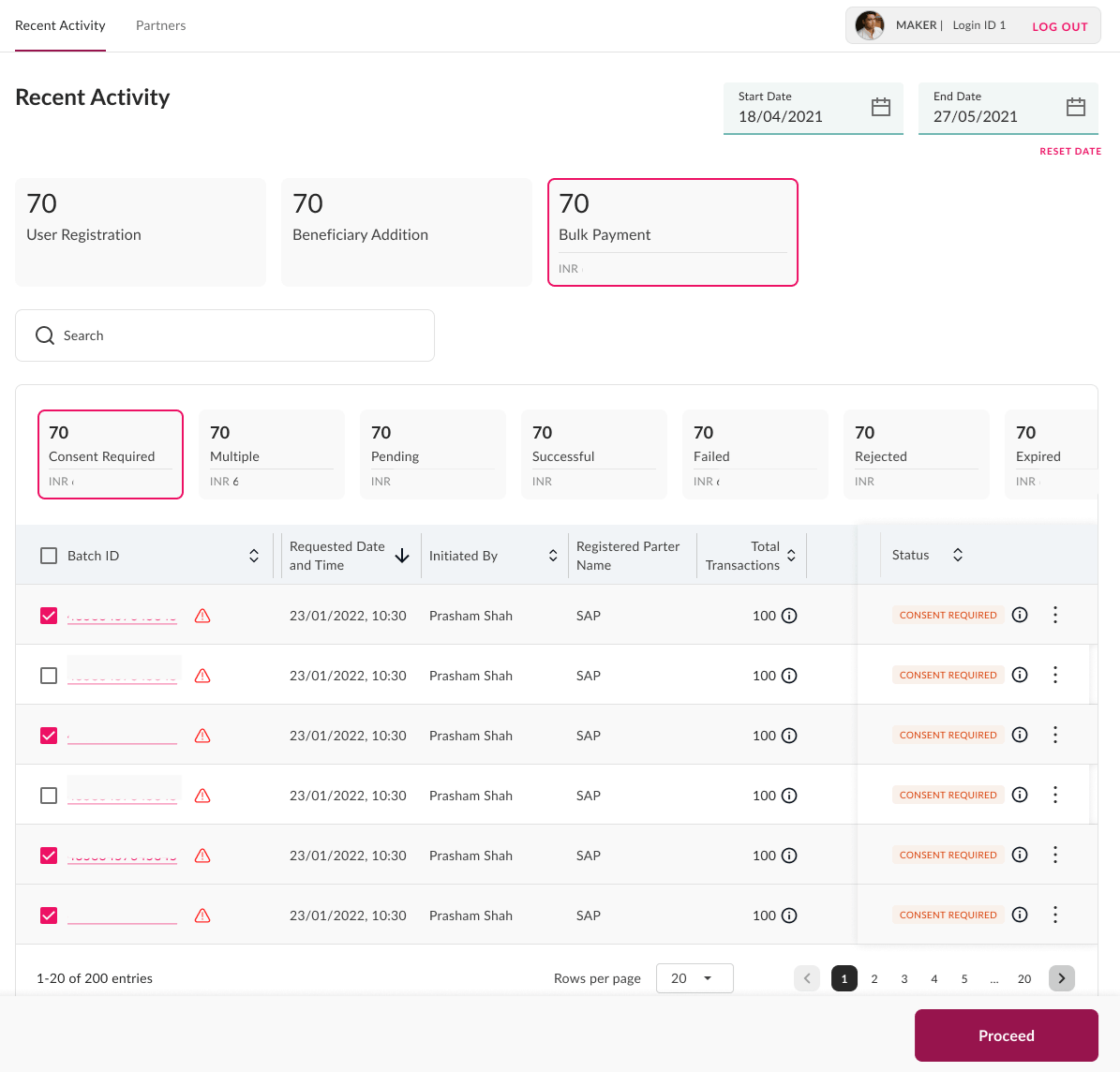
For multiple transactions:
Select the checkboxes on the batches you want to review and click Proceed at the bottom.
Review the flagged beneficiaries on the Accounts Reported by NCRP/DoT page. Each entry is tagged as NCRP or DoT, and a caution banner at the top indicates that the transactions are irreversible and non-refundable.
Hover over the Info ⓘ icon next to a beneficiary to view the specific reason for flagging.
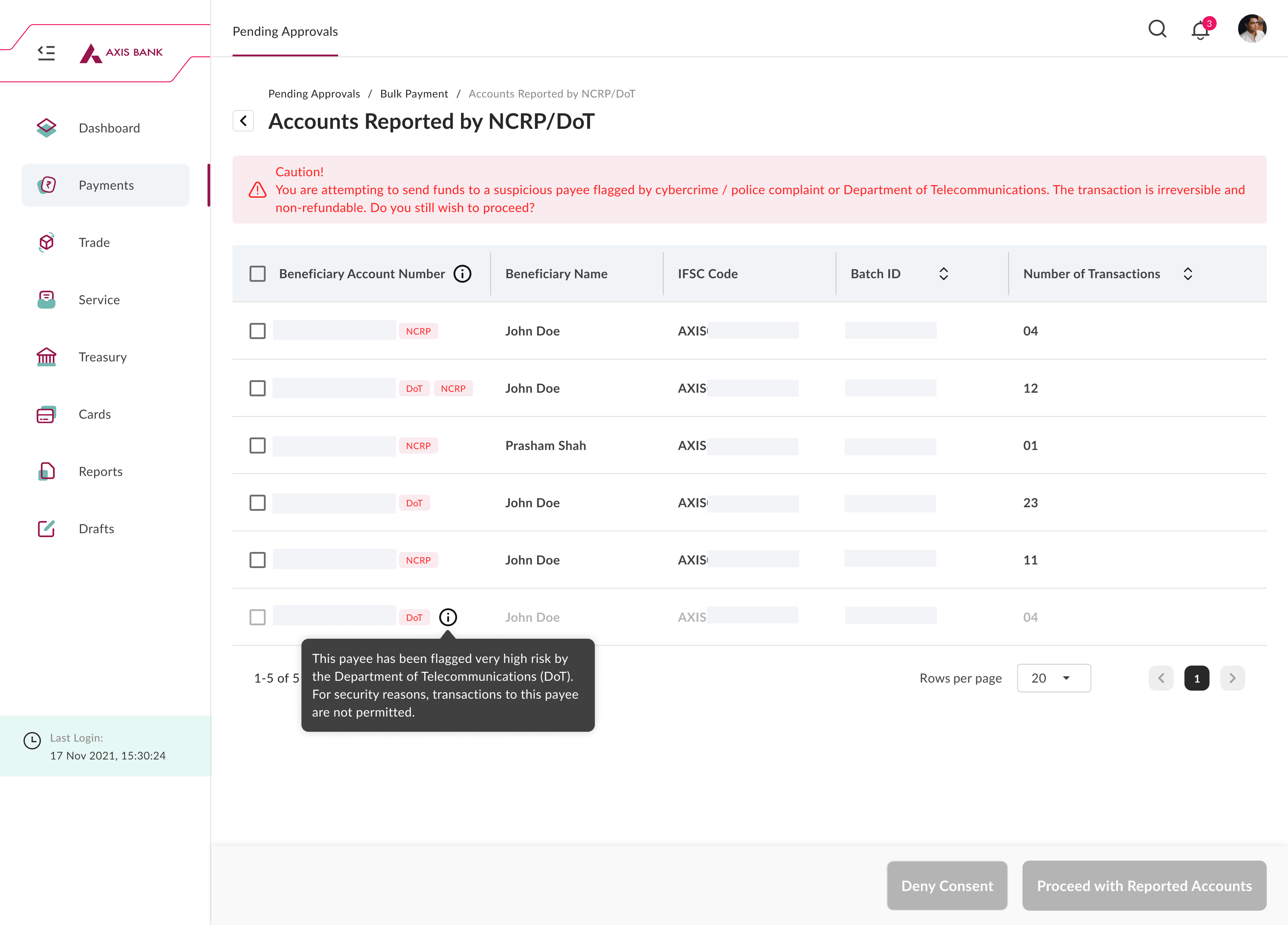
Select the checkboxes of the beneficiaries you want to proceed with and click Proceed with Reported Accounts.
Or
- Click Deny Consent to reject flagged beneficiaries.
The request will be submitted and the transactions will be processed by Axis Bank.
Configure Bank Feeds
You can add your bank account to automatically fetch the bank feeds into Zoho ERP. To add your Axis Bank account:
Go to Settings and click Vendor Payments under Online Payments.
Click Configure Bank Feeds next to Axis Bank.

Select the Axis Bank account approved in the NFC portal and the date from which you want to import the bank feeds.
Click Add to add the bank account and exit.
Or
Click Add and Next to add another Axis Bank current account.
Your bank account will be added, and you can view your bank feeds under Accounting > Banking > Axis Bank.
Insight: Zoho ERP will automatically fetch bank feeds once every 24 hours. You can also manually refresh the feeds and check your live account balance.
Reactivate Integration
The Axis Bank integration expires once every 30 days, and the status changes to Integration Expired.
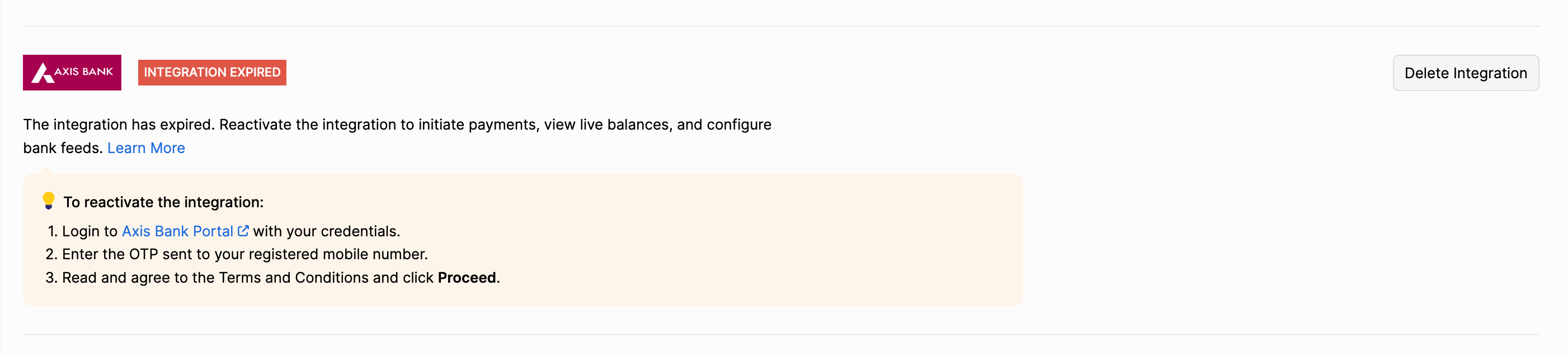
In that case, you need to reactivate the integration in the Axis Bank’s portal to initiate payments. To reactivate:
Enter the Corporate ID, Login ID and Password.
Click Proceed.
Enter the OTP received on your registered mobile number.
Click Submit.
The integration status will revert to Active, and you can initiate payments using Axis Bank.
Delete the Integration
If you don’t want your Zoho ERP account to be connected with Axis Bank, you can delete the integration.
Note: Only the user who sets up the integration can delete it. If that user is no longer part of the organisation, the integration will be deleted for them, while others can continue using it.
To delete:
Go to Settings and click Vendor Payments under Online Payments.
Click the More icon next to Axis Bank and select Delete Integration.

Read and agree to the note.
Click Delete Integration.
Enter the OTP sent to your registered mobile number and click Verify.
Note: The OTP is required to delete the integration only when the status is Active.
The Axis Bank integration will be deleted for you.