



Configure Package For Live Shipping Rates

You can configure either product dimensions or package dimensions to fetch live shipping rates. Before live shipping rates can be fetched at checkout, you must specify the product or package dimensions Zoho Commerce should use to calculate them.
- Go to Settings in the top right corner.
- Select Shipping under Integrations.
- Click Configure Package For Live Shipping Rates in the top right corner.
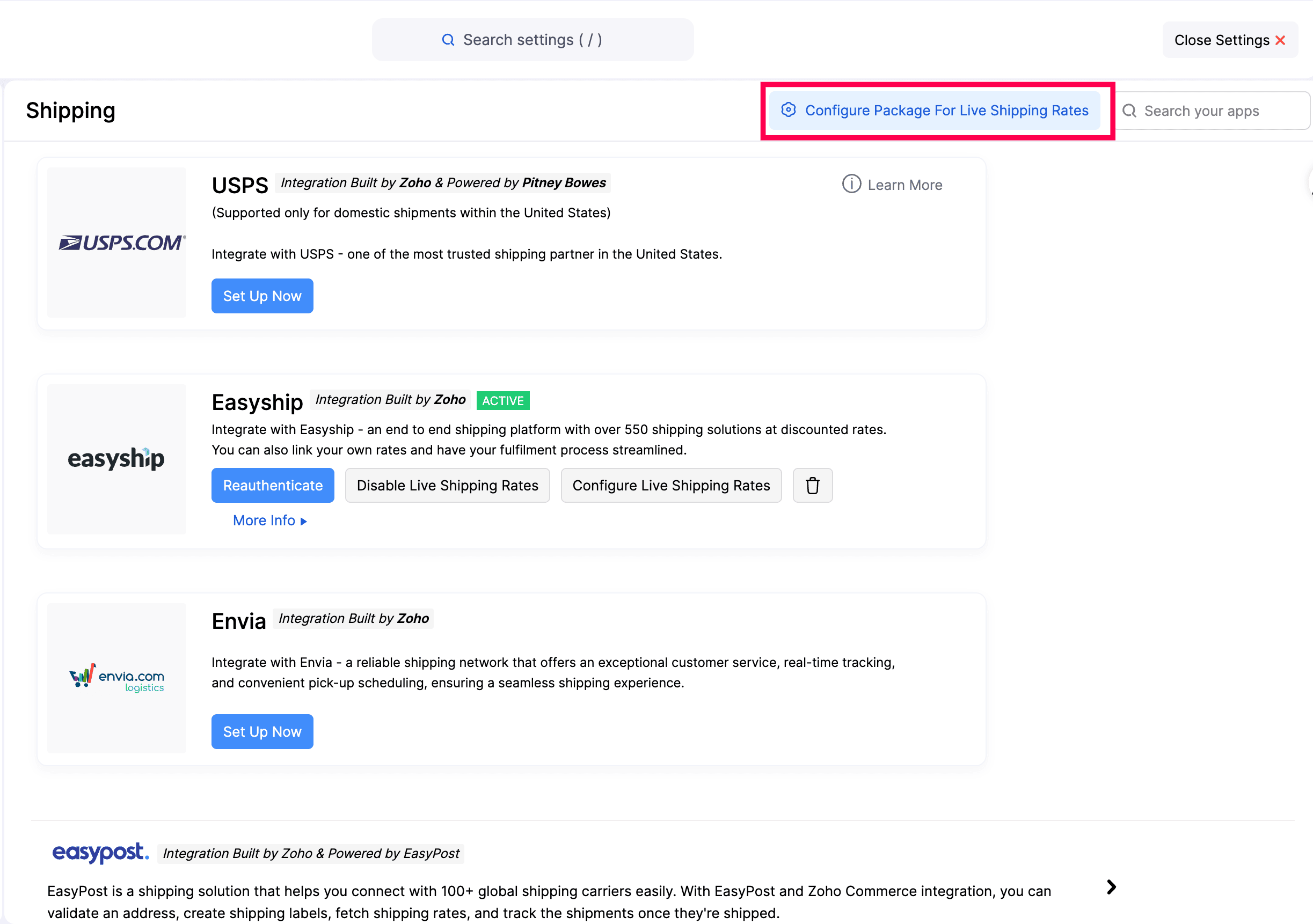
Calculate Live Shipping Rate Based On
Choose whether to calculate live shipping rates based on product dimensions or package dimensions. The selected option will be used to fetch live shipping rates at checkout.
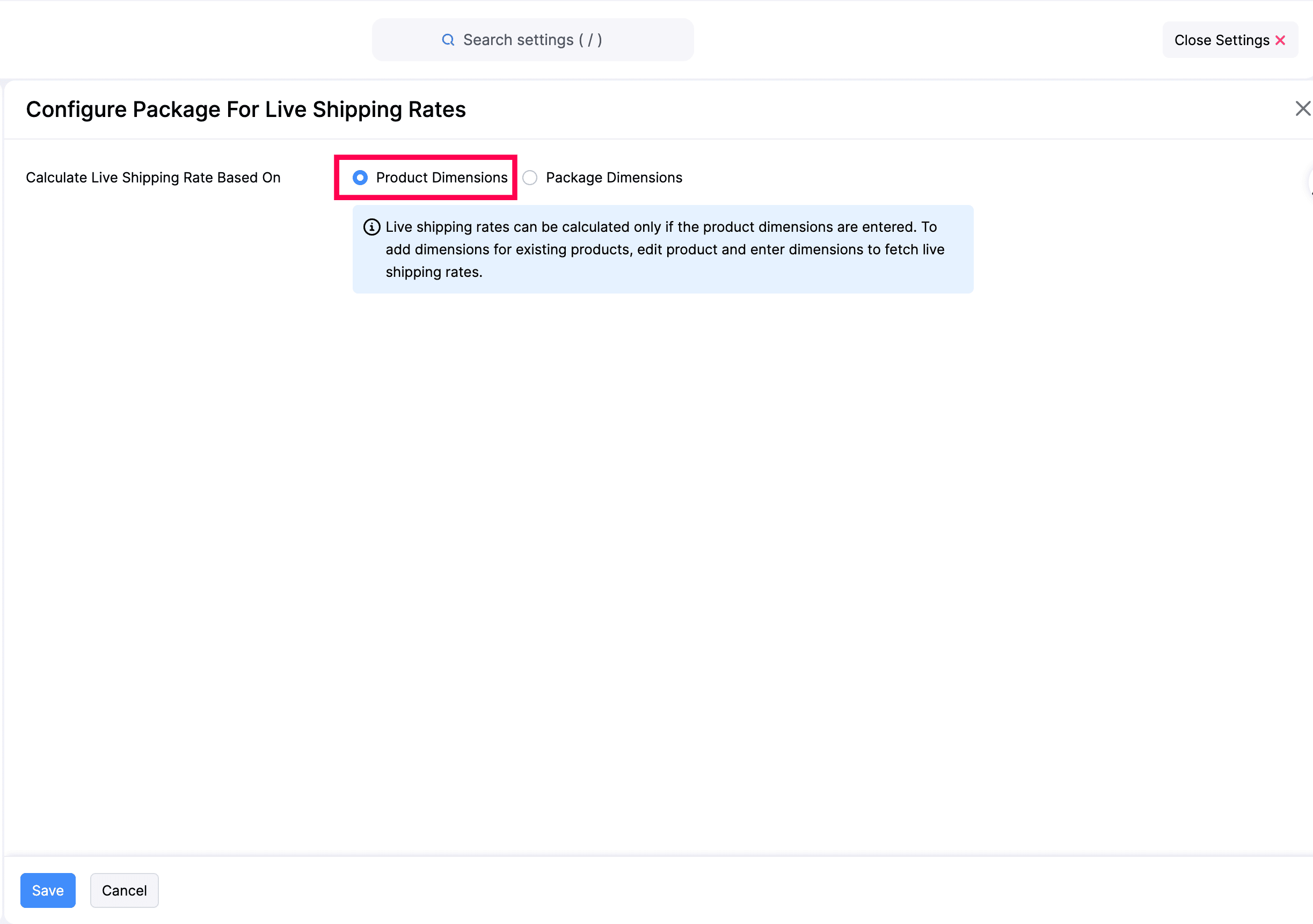
Product Dimensions
When you select Product Dimensions, the carrier calculates the shipping rate using the dimensions entered on each individual item.
Note: Live shipping rates can be calculated only if the item dimensions are entered. To add dimensions for existing items, edit the item and enter the dimensions to fetch live shipping rates.
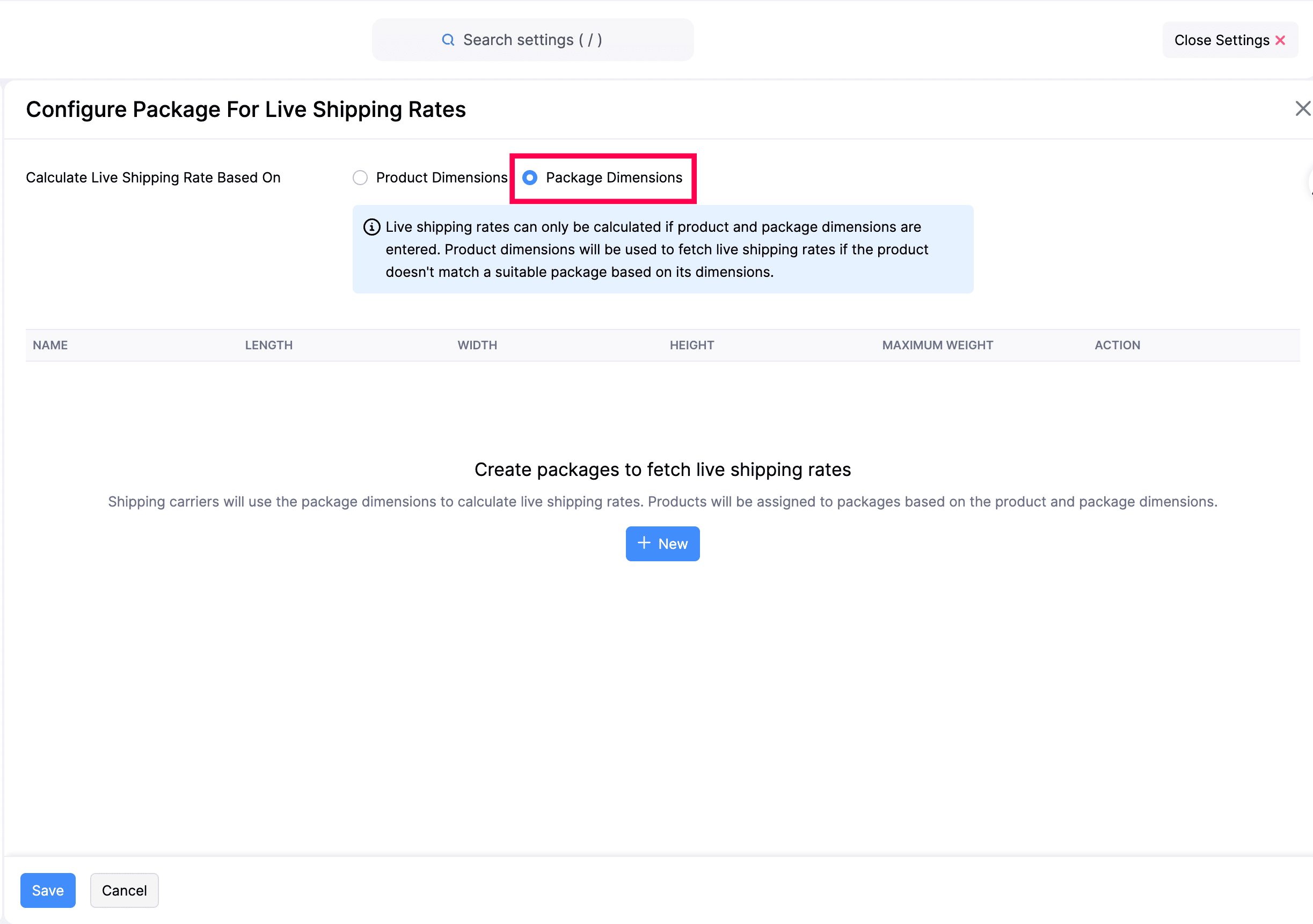
Package Dimensions
When you select Package Dimensions, Zoho Commerce calculates and matches each product to the most suitable predefined package based on the product’s dimensions, then sends the package dimensions to the carrier to fetch the rate.
Insight: Live shipping rates can only be calculated if both product and package dimensions are entered. If a product doesn’t match a suitable package based on its dimensions, product dimensions will be used to fetch the live shipping rate instead.
When Package Dimensions is selected, the packages list is displayed. You can create and manage packages here. Zoho Commerce calculates the matching package dimensions for each product and sends them to the shipping carrier to fetch live shipping rates.
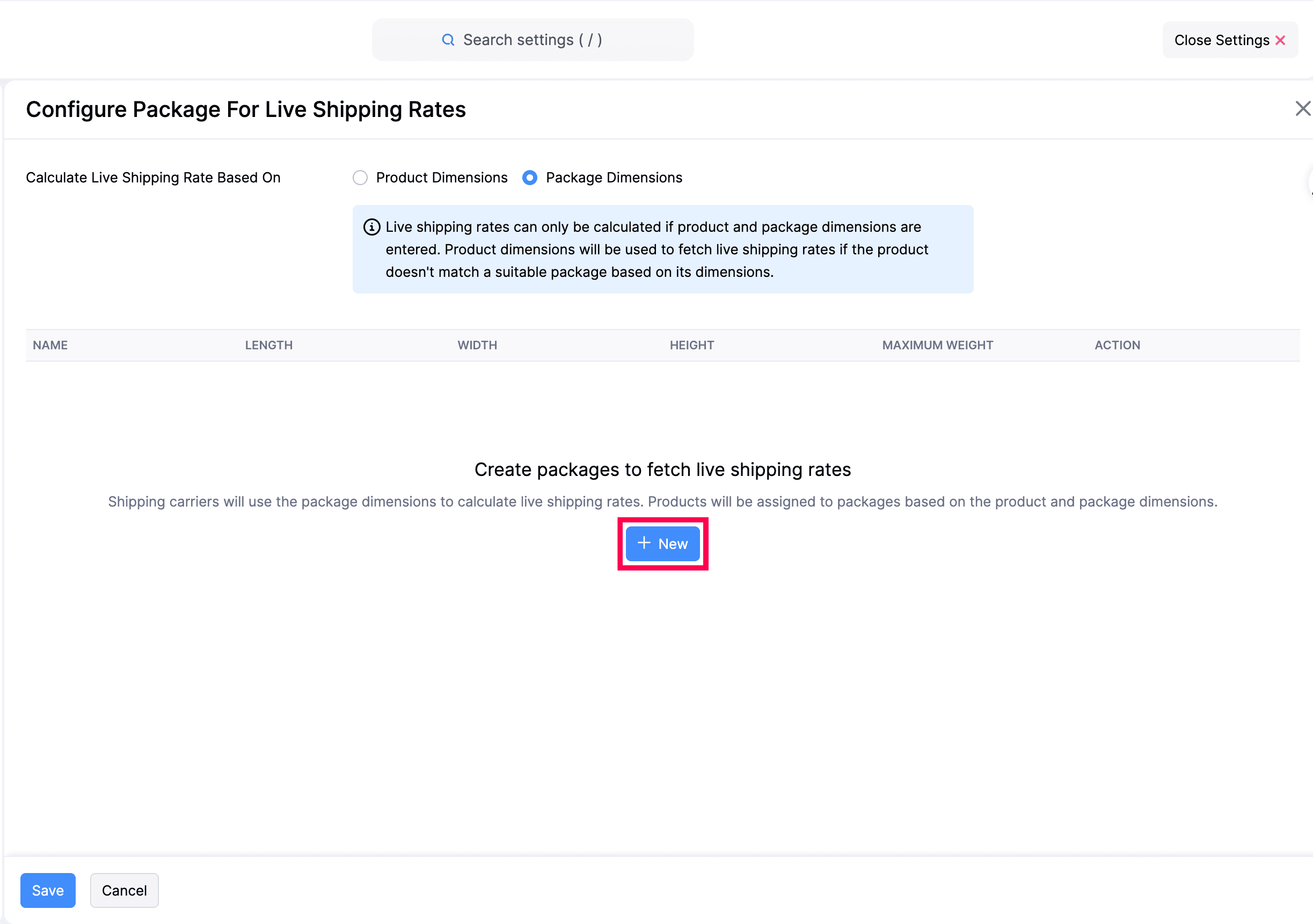
Add a Package
- Select Package Dimensions under Calculate Live Shipping Rate Based On.
- Click + New to add your first package, or + New Package to add another.
The Add Package dialog opens.
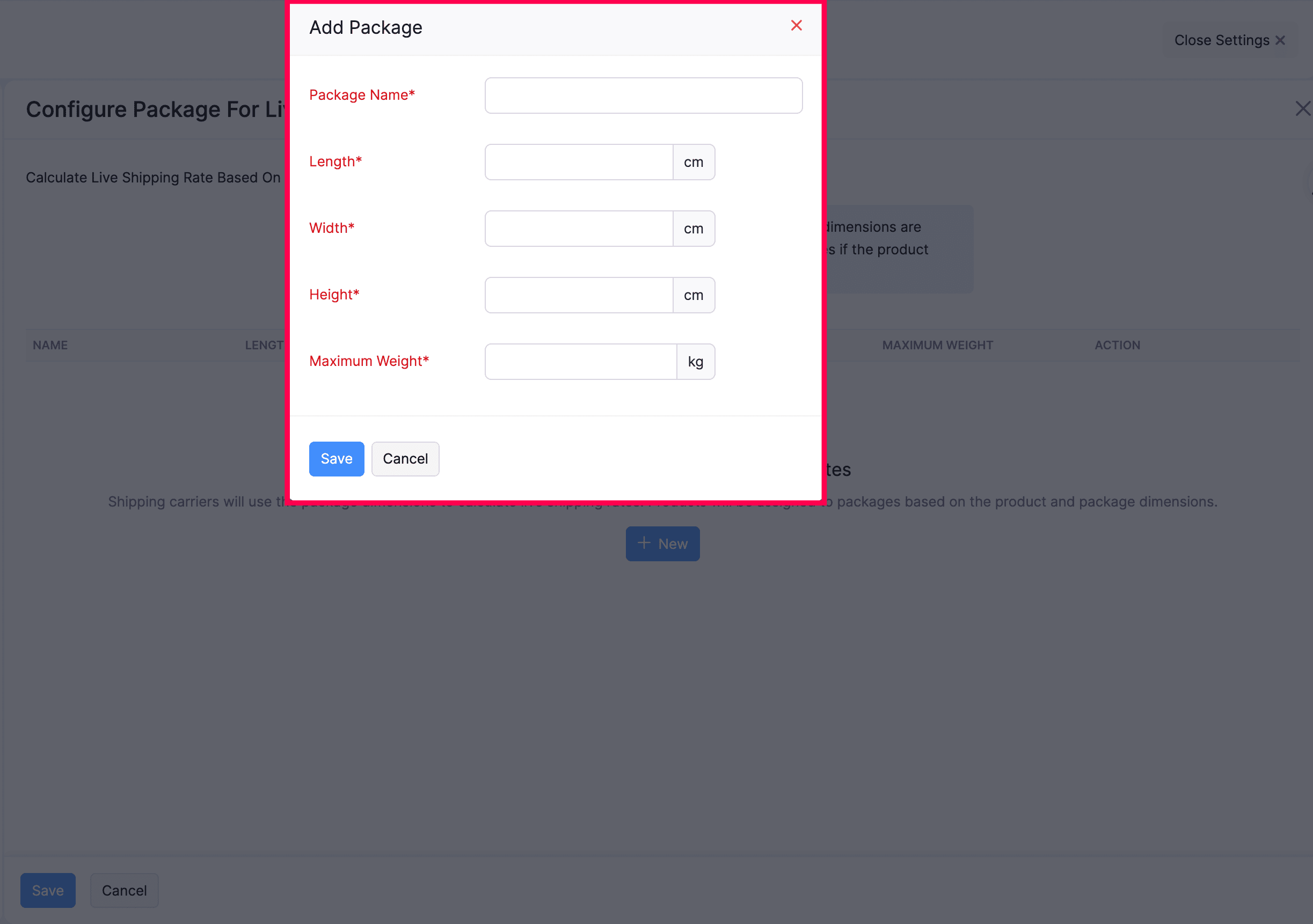
| Field | Description |
|---|---|
| Package Name | A name to identify the package (e.g., Bulk Package, Small Box). |
| Length | The length of the package in cm. |
| Width | The width of the package in cm. |
| Height | The height of the package in cm. |
| Maximum Weight | The maximum weight (in kg) the package can hold. |
- Click Save.
The package is added to the list and displayed with its name and dimensions.
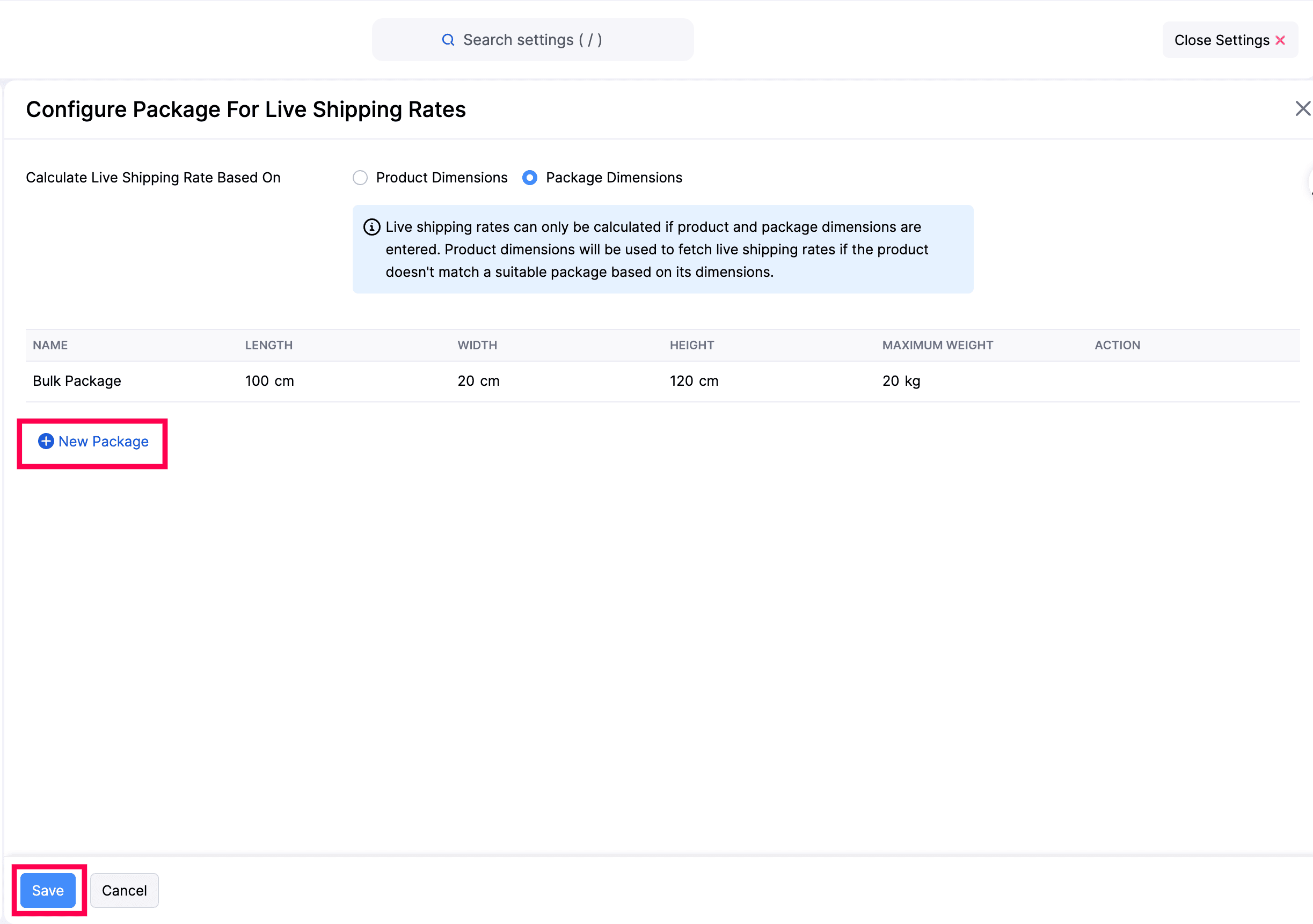
- Click Save on the Configure Package For Live Shipping Rates page to apply the changes.