
Taxes

Taxes are an integral part of any business. The taxes applicable to your business are determined by your business’s location and type. In Zoho Books, there are country specific taxes that you can configure according to your business’s needs.
Tax Rates
In this section, you can create the tax rates that are applicable for your business based on the goods and services that your business deals with.
Add Tax Rate
To create a new tax rate:
- Go to Settings in the top right corner of the page.
- Select Taxes under Taxes & Compliance.
- In the Taxes pane, select Tax Rates.
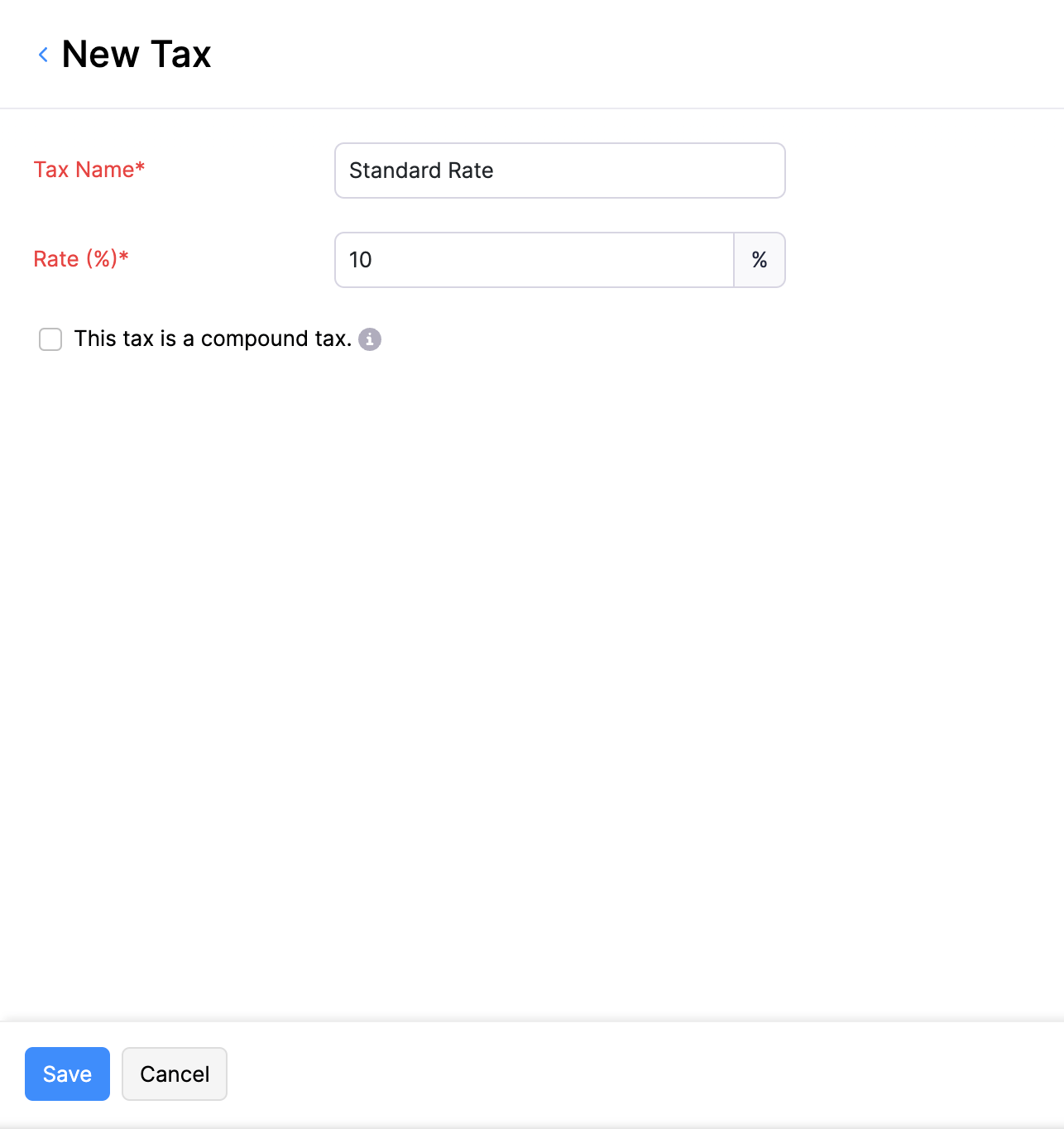
- Click + New Tax in the top right corner of the page.
- Fill in the Tax Name and the Rate (%) at which it’s levied.
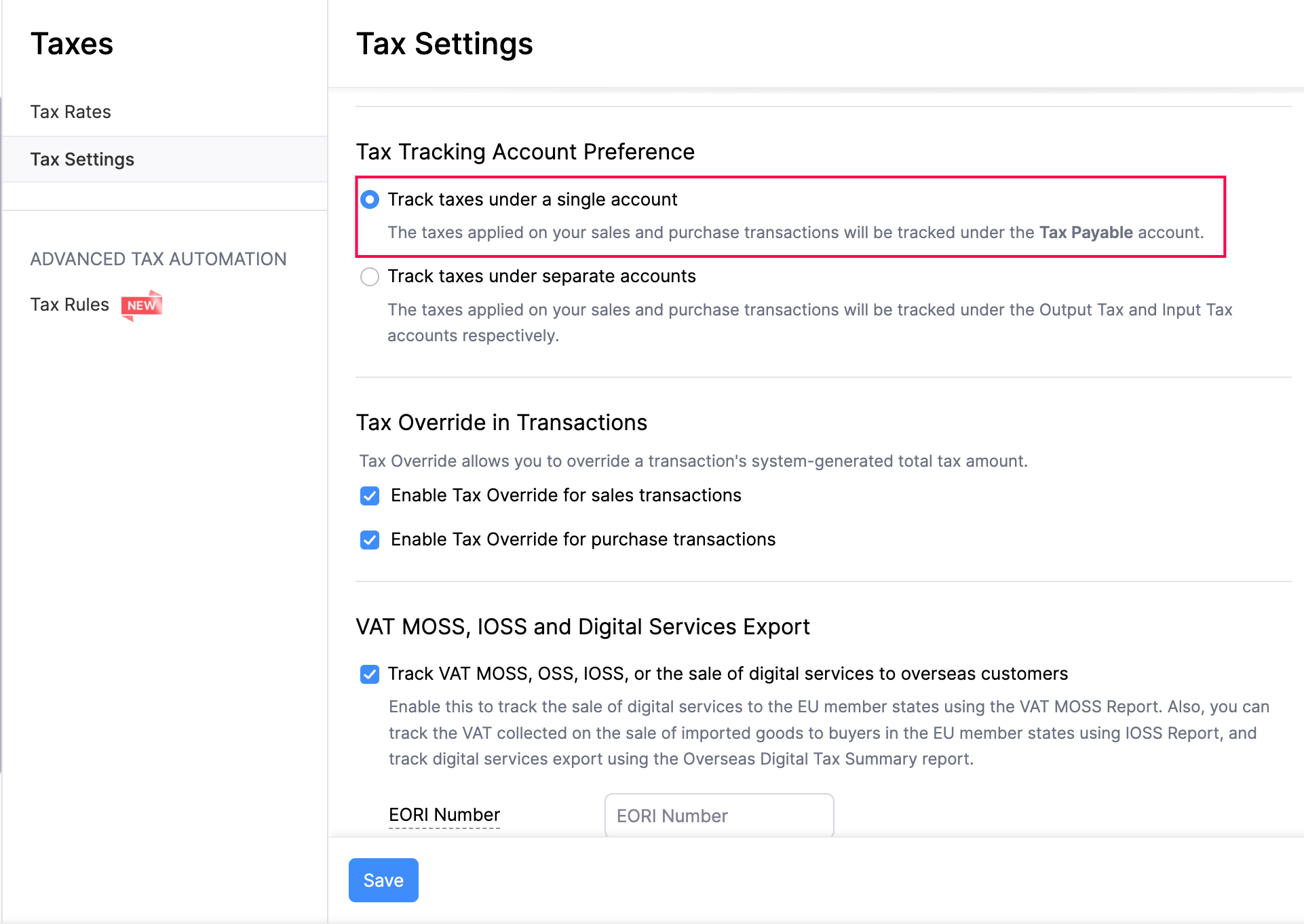
If you are currently tracking taxes under separate accounts, you can choose to track taxes under a single account. Here’s how:
Go to Settings in the top right corner of the page.
Select Taxes under Taxes & Compliance.
In the left sidebar, select Tax Settings.
In this page, scroll down and select Track taxes under a single account under Tax Tracking Account Preference.
Click Save.
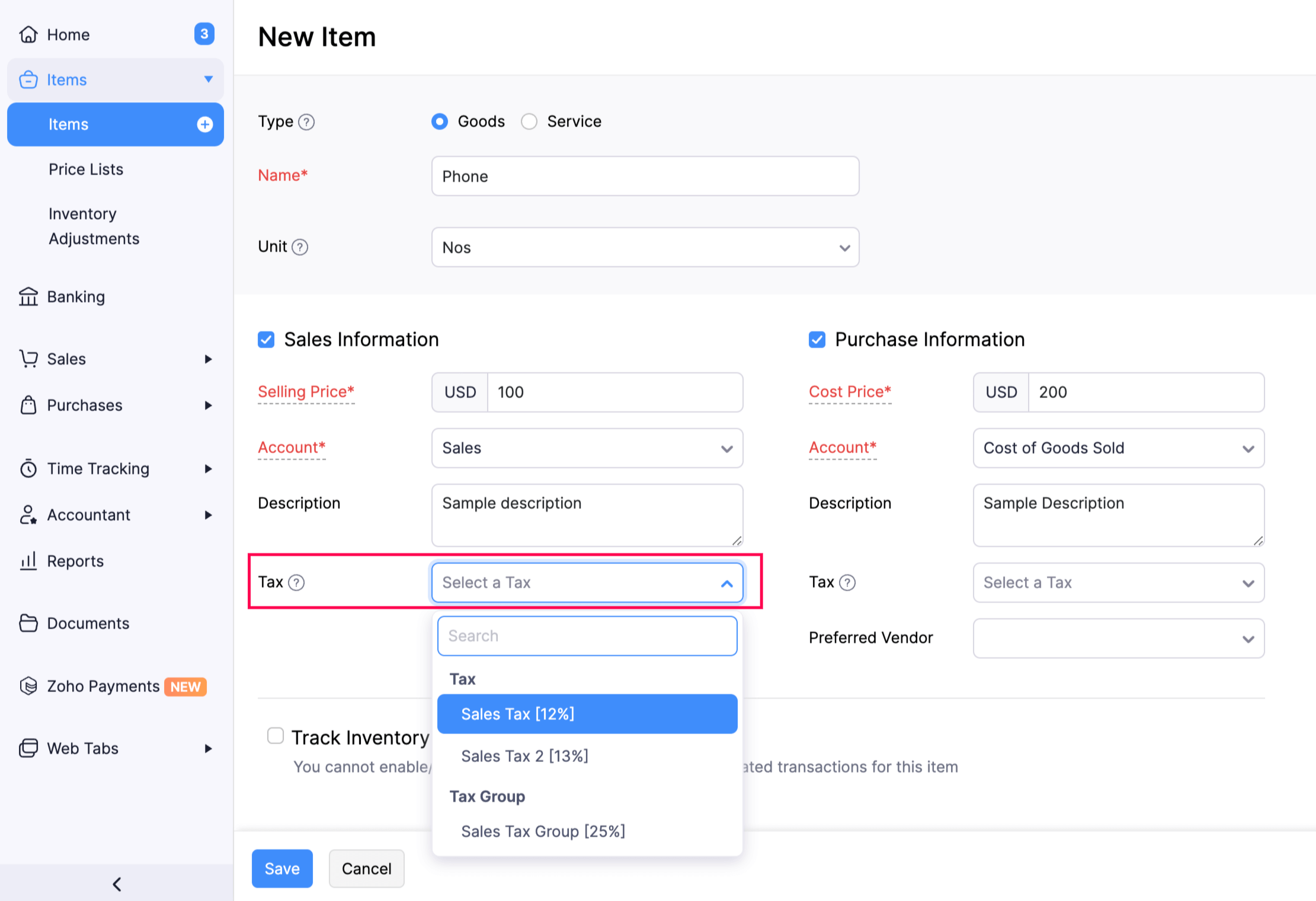
After you create a new tax, you can associate it to your items or apply it when creating a transaction.
Items
A default tax rate can be set for an item in Zoho Books. Doing so, the next time you create a transaction for this item, its set tax rate will be shown automatically.
Transactions
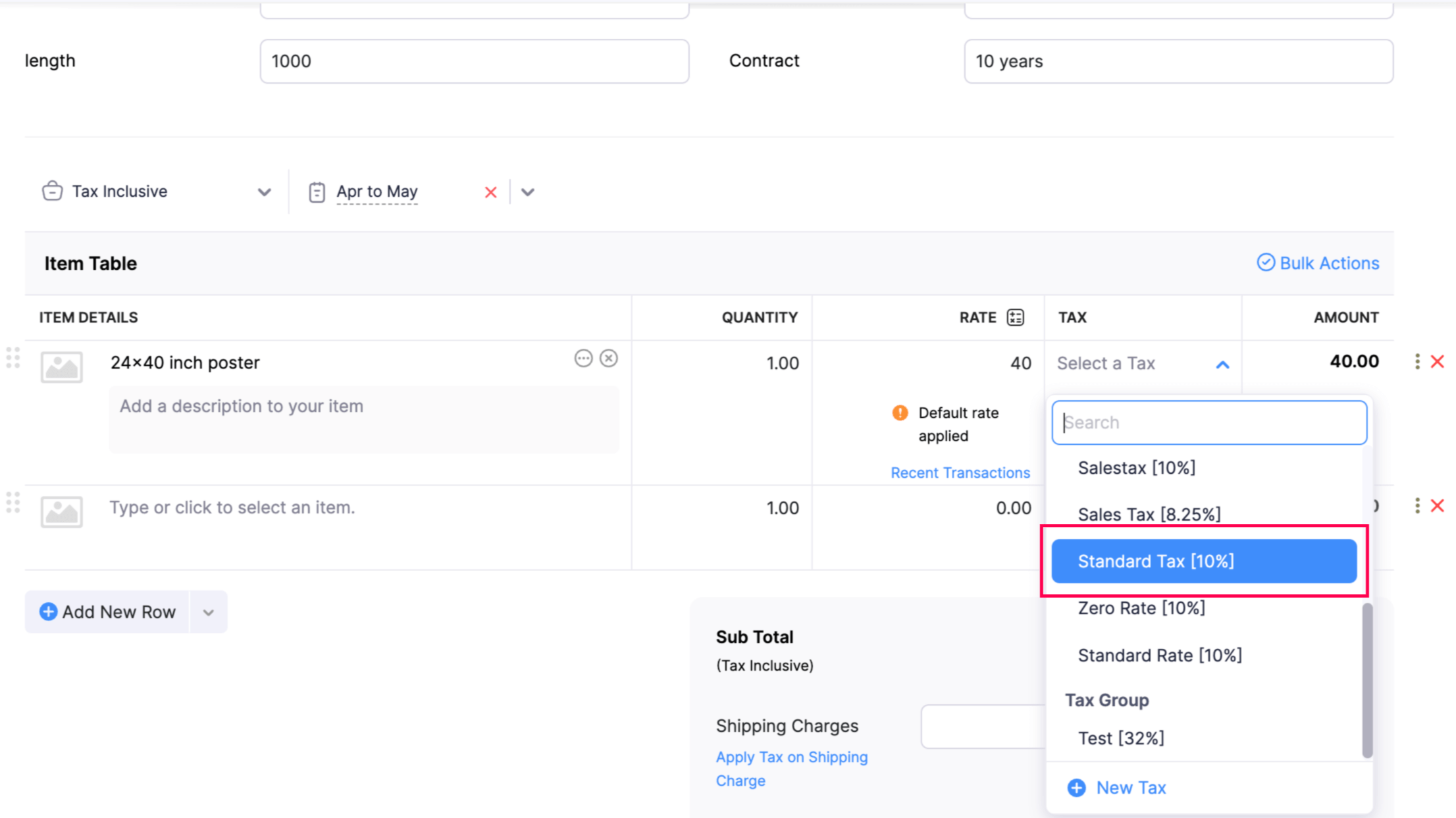
The tax rates for different items can be changed at the transaction level.
Edit Tax Rate
You can make changes to any tax rate that you have added in Zoho Books. Here’s how:
- Go to Settings in the top right corner of the page.
- Select Taxes under Taxes & Compliance.
- In the Taxes pane, select Tax Settings.
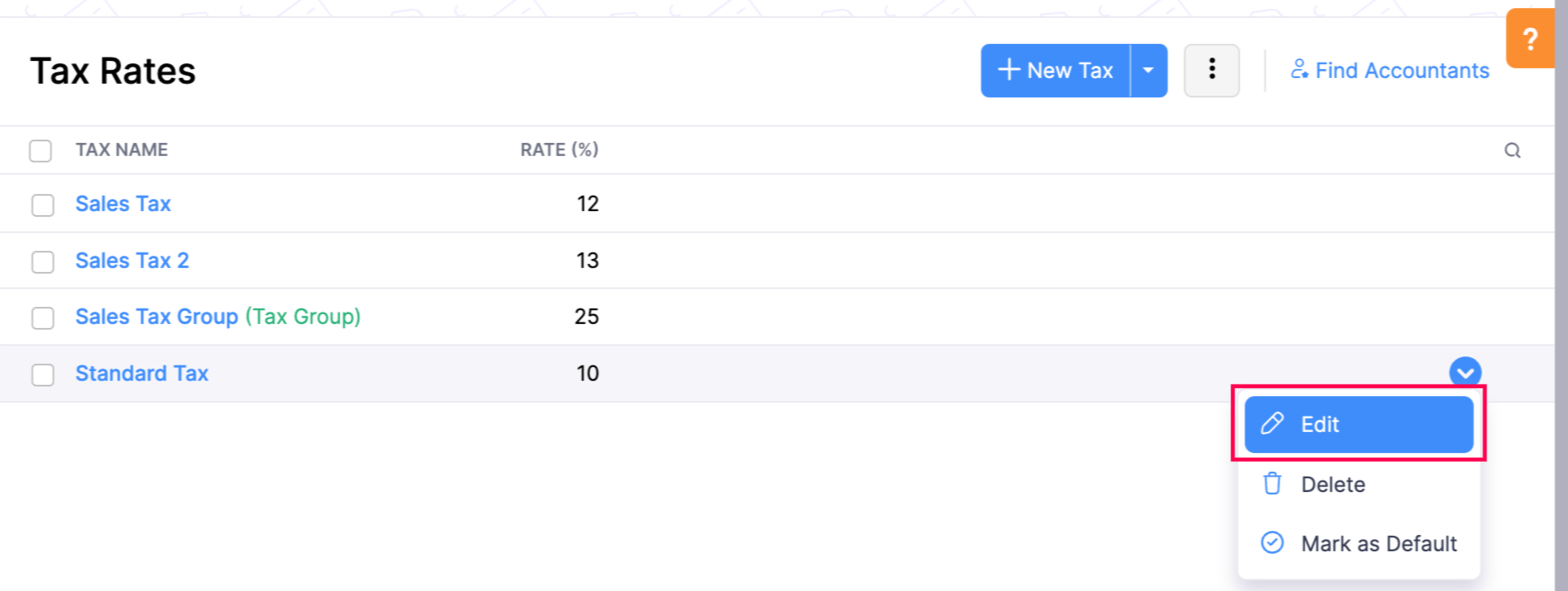
- Hover over the tax and click Edit.
- After making the necessary changes, click Save.
- If this tax has already been applied in some transactions, you will be asked to confirm if you wish to update the new tax rate in those transactions as well.
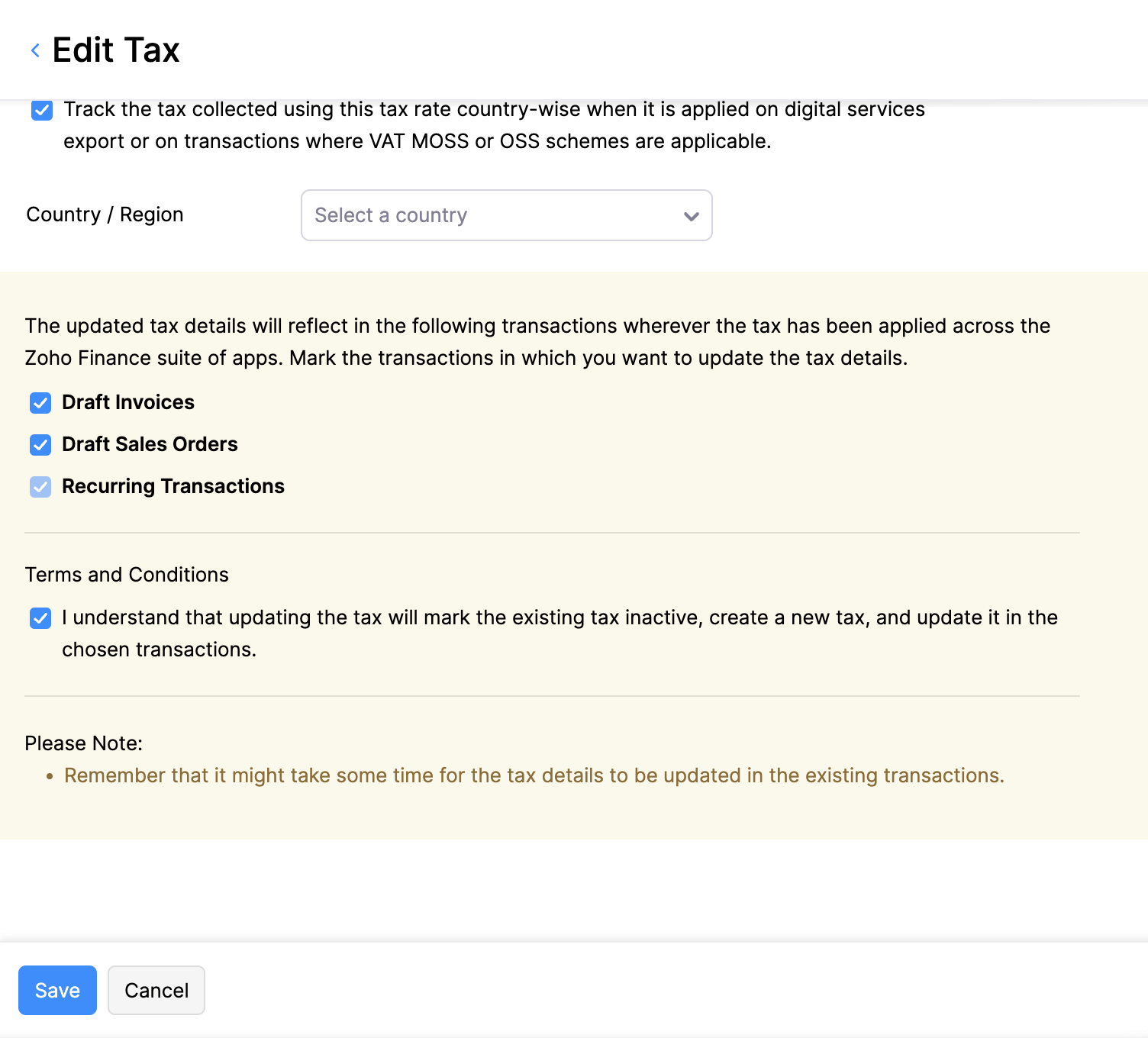
Warning: Editing the tax rates will update them in active recurring profiles you had created as well.
Delete Tax Rate
You can delete any tax rate that you have created in Zoho Books. Here’s how:
- Go to Settings in the top right corner of the page.
- Select Taxes under Taxes & Compliance.
- In the Taxes pane, select Tax Rates.
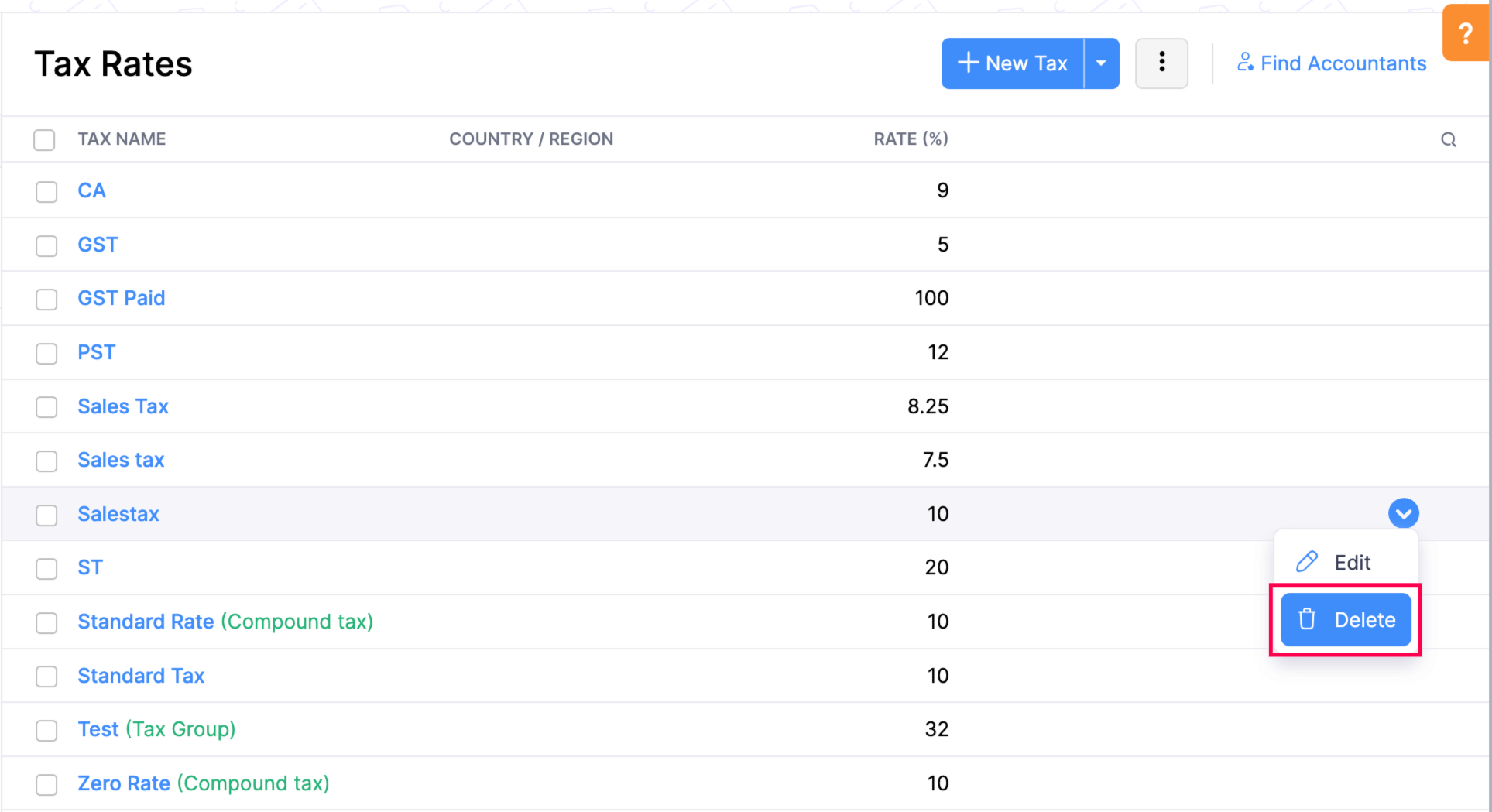
- Hover over the desired tax and click the Delete icon.
- Click OK to confirm.
Create Taxes in Bulk
To create taxes in bulk:
- Go to Settings in the top right corner of the page.
- Select Taxes under Taxes & Compliance.
- In the Taxes pane, select Tax Rates.
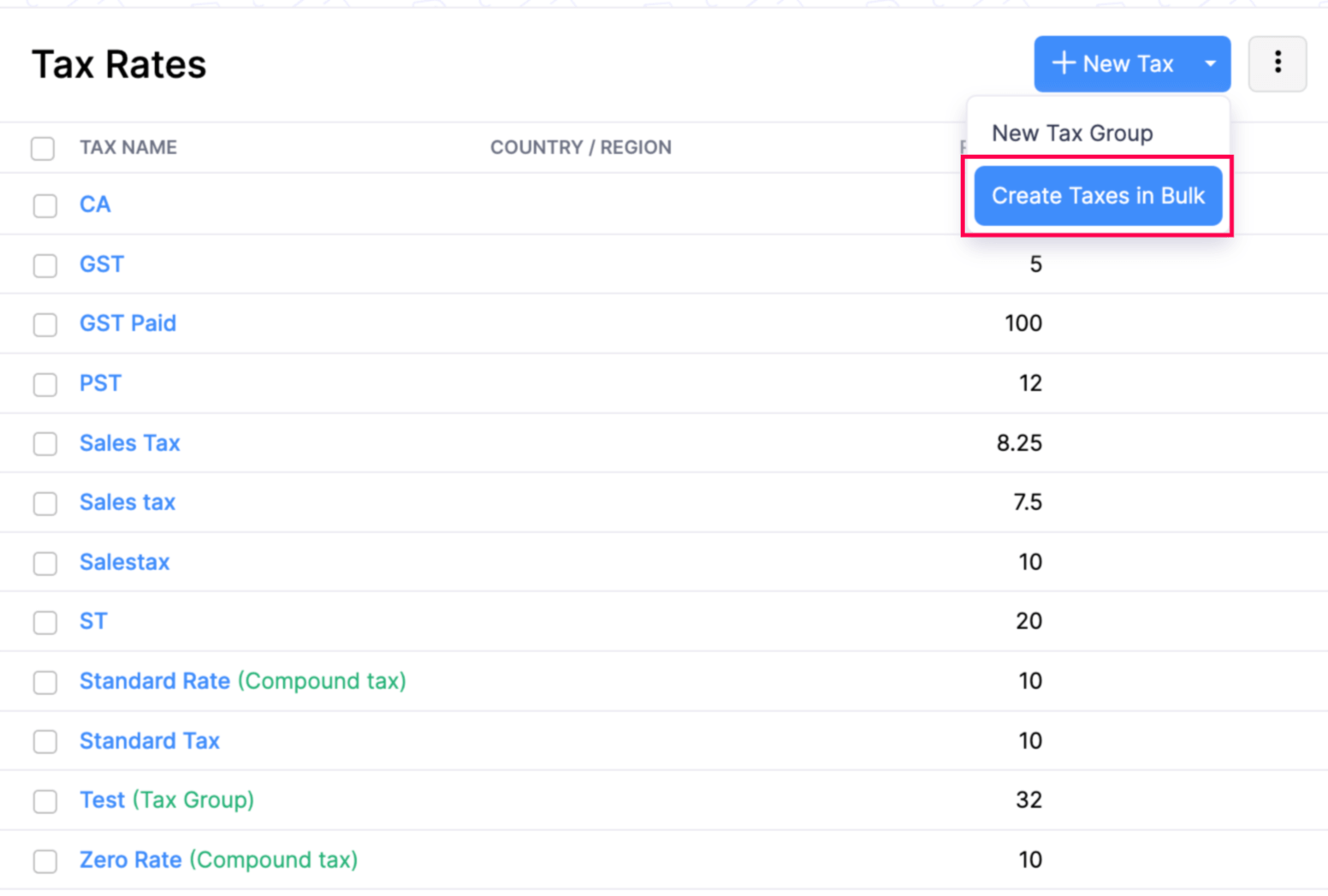
- Click the dropdown next to + New Tax on the top right corner of the page and select Create Taxes in Bulk.
- Enter the Tax Name and Rate (%).
- Click + Add Tax button to add more taxes.
- Choose a common Tracking Preference for all the taxes added and click Save.
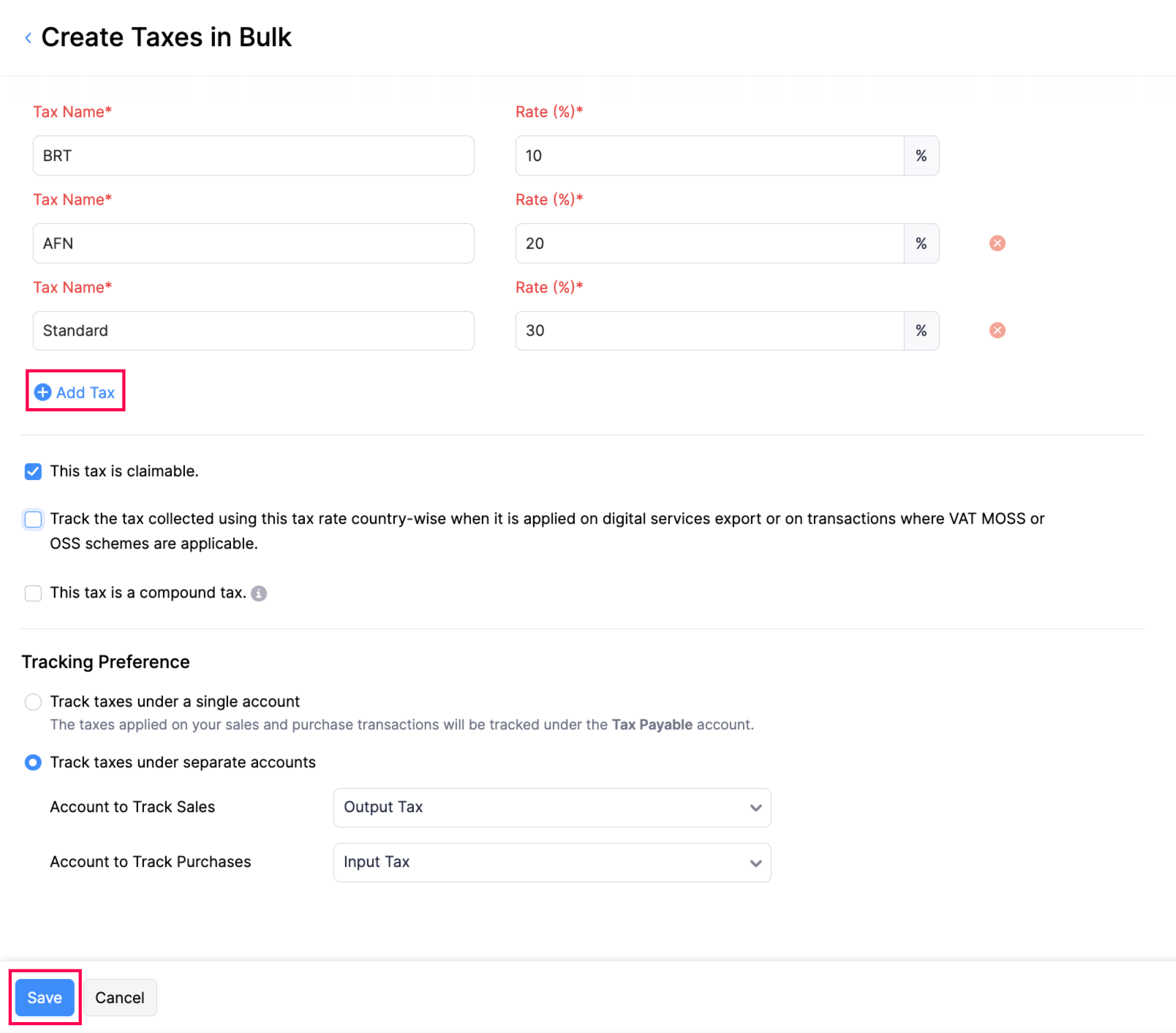
Zoho Books will create the specified taxes.
Configure VAT Basis for Services
For sales transactions that contain only services, you can select when VAT becomes due.
- VAT on Accrual: VAT is due on the invoice date.
- VAT on Cash: VAT is due when you receive the payment.
To configure this:
- Go to Settings.
- Select Taxes under Taxes & Compliance.
- In the Taxes pane, navigate to Tax Settings.
- Under VAT Basis for Services, select an option.
- Click Save.
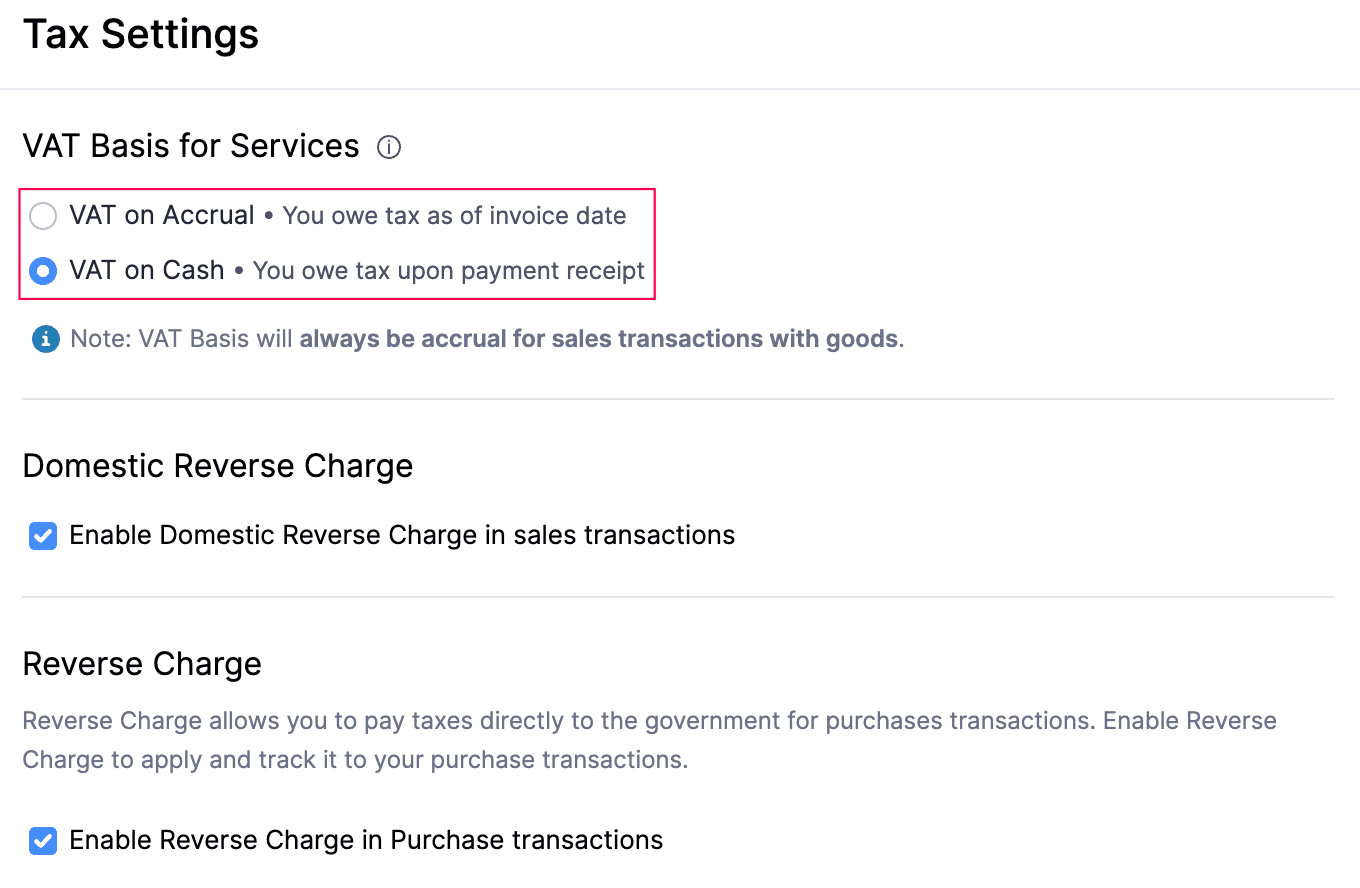
Note: The VAT basis is always Accrual for sales transactions that contain goods.
Reverse Charge
In Zoho Books, reverse charge can be applied to both sales and purchase transactions.
Reverse Charge in Sales Transactions
Under reverse charge, the customer accounts for the VAT instead of the supplier. There are two types of reverse charge for sales transactions:
- Domestic Reverse Charge (DRC): For sales to VAT-registered customers in France, mark the transaction as Domestic Reverse Charge and apply a 0% tax rate. Zoho Books automatically adds an auto-liquidation note to the transaction PDF.
- Reverse Charge for EU/Non-EU customers: For sales to customers outside France, apply a 0% tax rate. Zoho Books automatically adds the applicable legal exemption note to the transaction PDF based on the customer’s VAT treatment and product type.
Enable DRC for Sales Transactions
To enable Domestic Reverse Charge (DRC) for sales transactions:
- Go to Settings.
- Select Taxes under Taxes & Compliance.
- In the Taxes pane, navigate to Tax Settings.
- Check the Enable Domestic Reverse Charge in sales transactions option.
- Click Save.
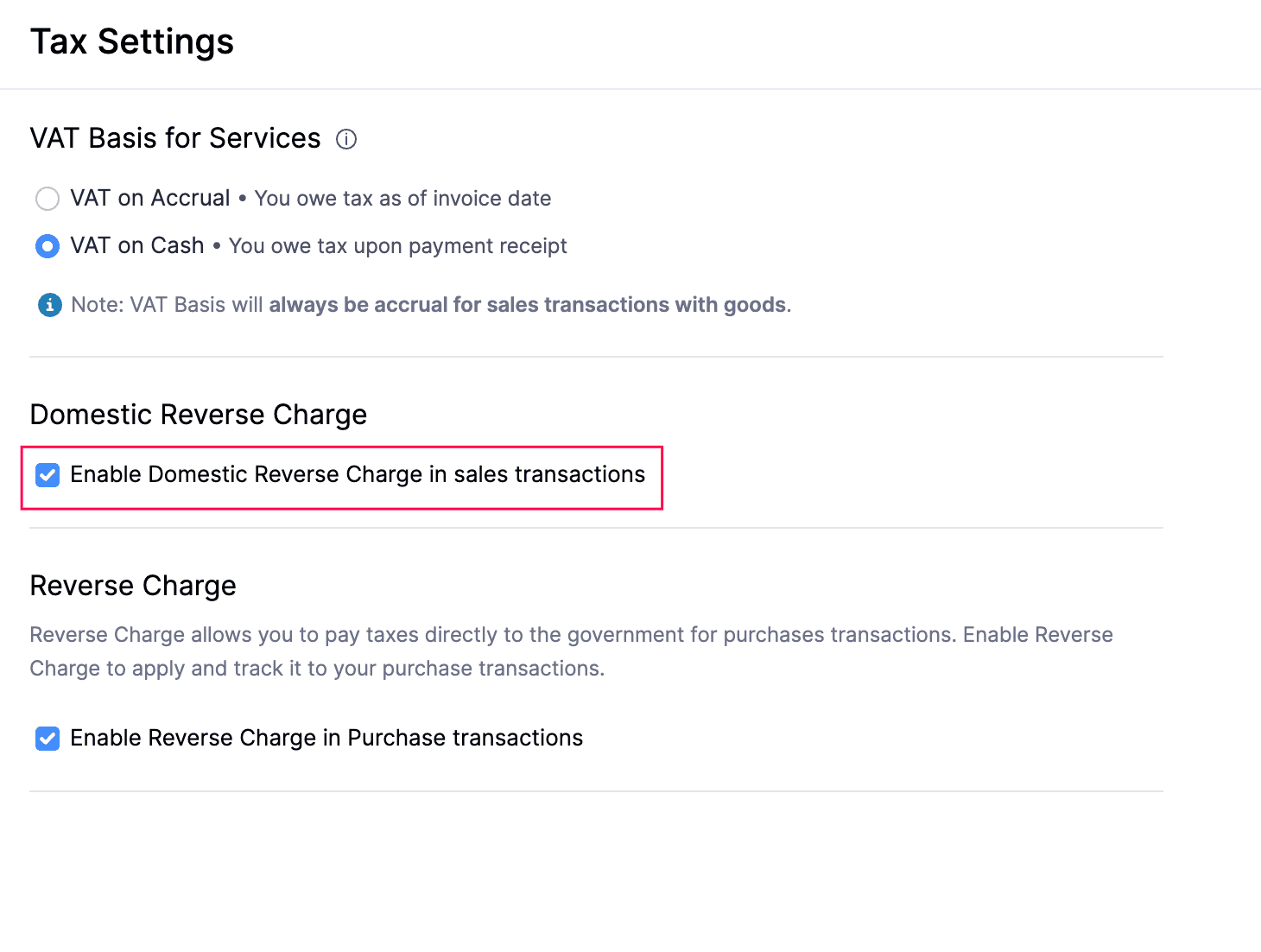
Once enabled, the Domestic Reverse Charge option will be available when you create sales transactions for customers in France.
Apply DRC for Sales Transactions in France
Domestic reverse charge can be applied only when the customer is located in France and is VAT-registered. You can apply it to the following sales transactions:
- Invoices
- Credit Notes
- Quotes
- Sales Orders
To apply domestic reverse charge:
- Create a sales transaction for an eligible customer.
- Check the This transaction is applicable for Domestic Reverse Charge (DRC) option.
- Apply a 0% tax rate to each line item. No other tax rate can be applied to a domestic reverse charge transaction.
- Enter the other necessary details.
- Click Save as Open or Save and Send.
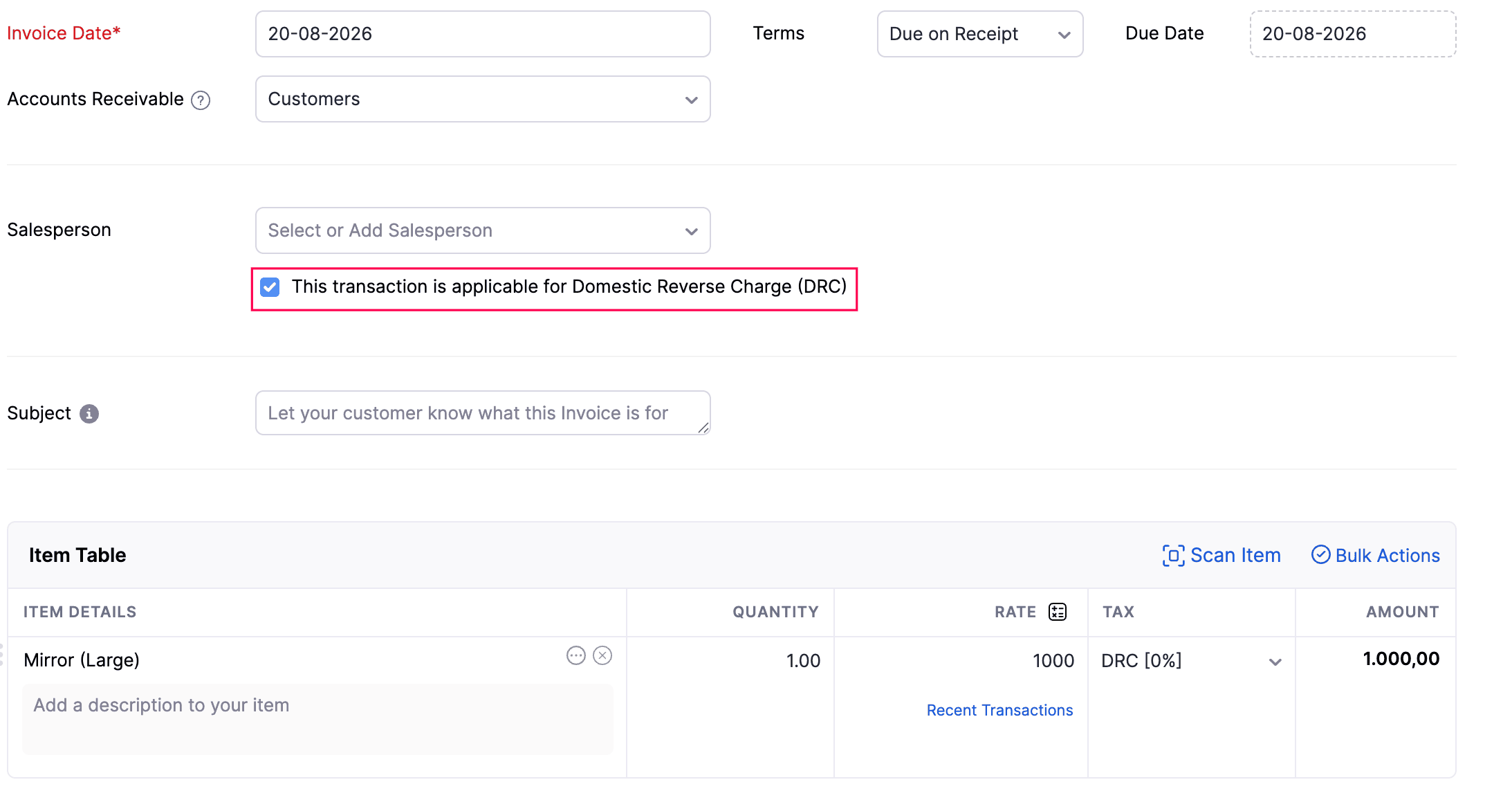
Zoho Books automatically includes an auto-liquidation note in the transaction PDF, indicating that VAT is payable by the recipient.
Apply Reverse Charge for Sales Transactions Outside France
To apply reverse charge for customers in another EU country or a non-EU country:
- Create a sales transaction for the customer.
- Apply a 0% tax rate to each line item.
- Enter the other necessary details.
- Click Save as Open or Save and Send.
Based on the customer’s VAT treatment and the product type, Zoho Books automatically includes the applicable legal exemption note in the transaction PDF.
Reverse Charge for Purchase Transactions
Under purchase reverse charge, your business accounts for VAT instead of the vendor.
Enable Reverse Charge for Purchase Transactions
To enable reverse charge for purchase transactions:
- Go to Settings.
- Select Taxes under Taxes & Compliance.
- In the Taxes pane, navigate to Tax Settings.
- Check the Enable Reverse Charge in Purchase transactions option.
- Click Save.
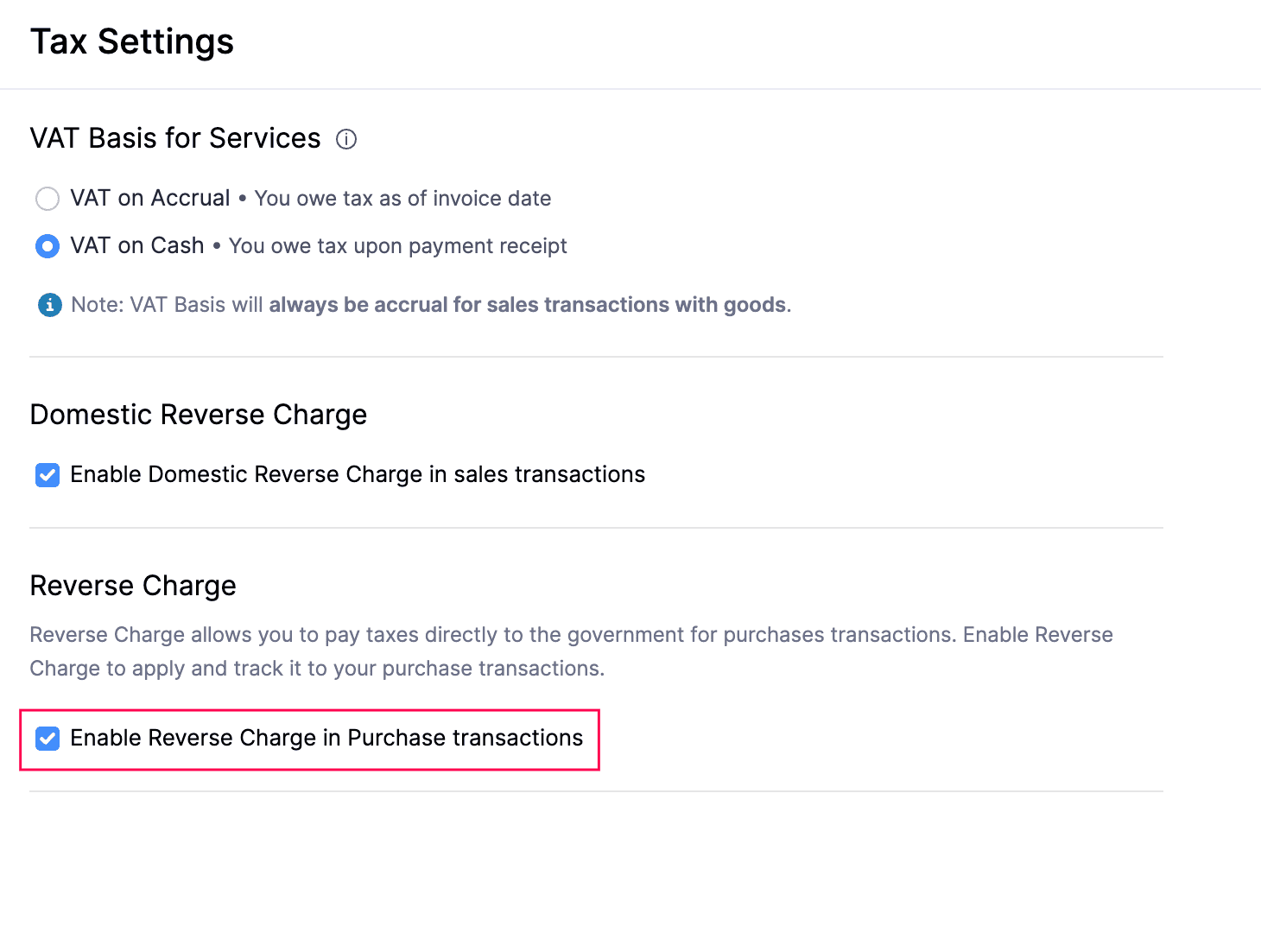
Once enabled, the Reverse Charge option will be available when you create purchase transactions.
Apply Reverse Charge for Purchase Transactions
Purchase reverse charge only applies when the vendor is one of the following:
- VAT-registered in France.
- VAT-registered in another EU country.
- Located outside the EU.
You can apply it for the following purchase transactions:
- Bills
- Vendor Credits
- Purchase Orders
- Expenses
To apply reverse charge:
- Create a purchase transaction for an eligible vendor.
- Check the This transaction is applicable for reverse charge option.
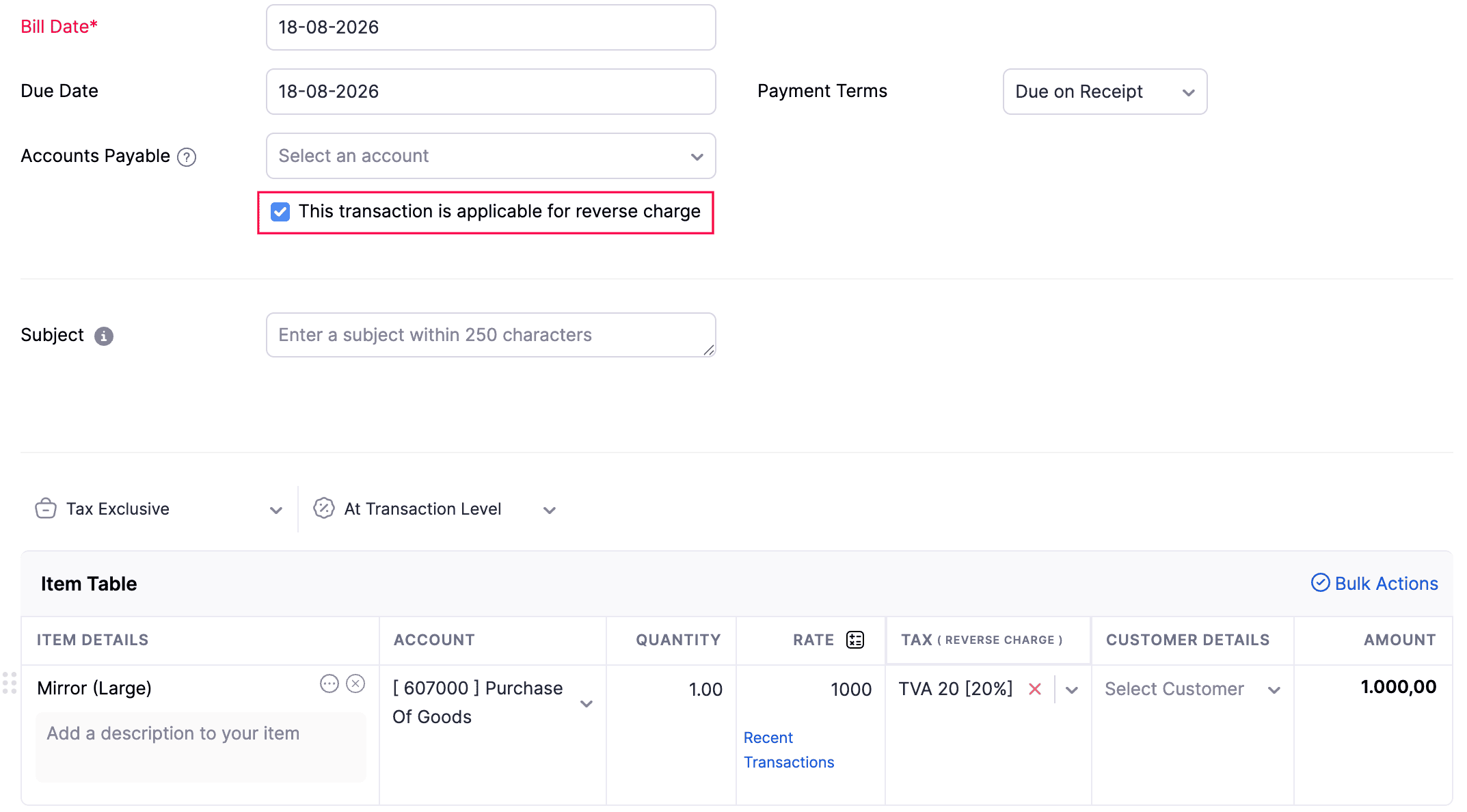
- Apply the required tax rate to the line items. The purchase reverse charge is not restricted to a 0% tax rate.
- Enter the other necessary details.
- Click Save as Open or Save and Send.
Track Tax Account
The taxes that are applied under your sales and purchase transactions can be tracked under:
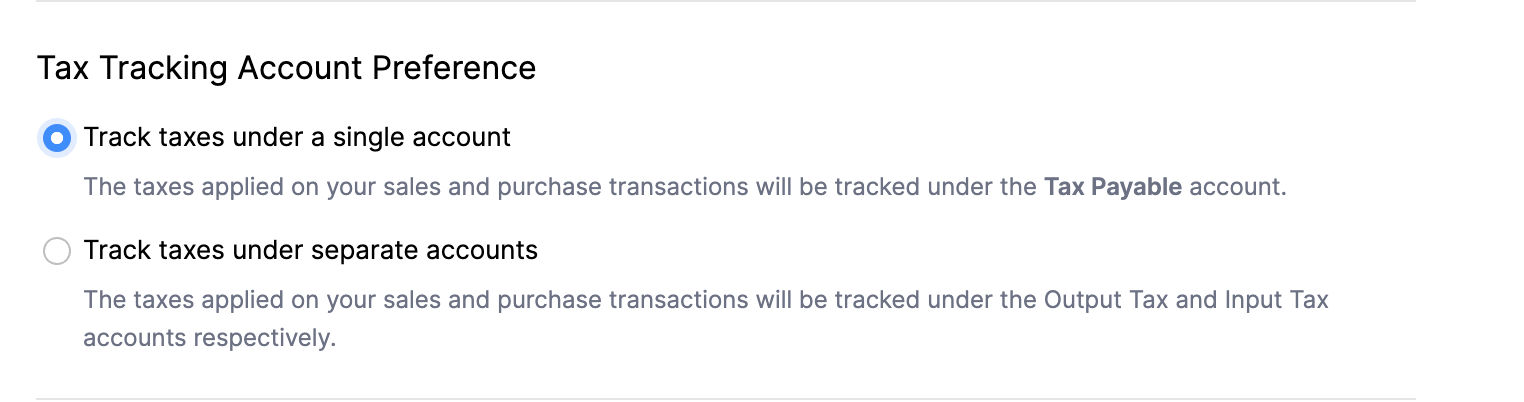
Track Taxes Under A Single Account
The taxes applied on your sales and purchase transactions will be tracked under a single account. By default, these taxes will be tracked under the Tax Payable account.
Track Taxes Under Separate Accounts
If you would like to track the taxes applied to your sales and purchase transactions under different accounts, you can do so. The taxes applied on the sales and purchase transactions will be tracked under the Output Tax and the Input Tax accounts respectively.
Insight: The setting will be applicable for other Zoho Finance applications as well.
To start tracking taxes under separate accounts:
- Go to Settings in the top right corner of the page.
- Select Taxes under Taxes & Compliance.
- In the Taxes pane, select Tax Settings.
- Select Track Taxes Under Separate Accounts.
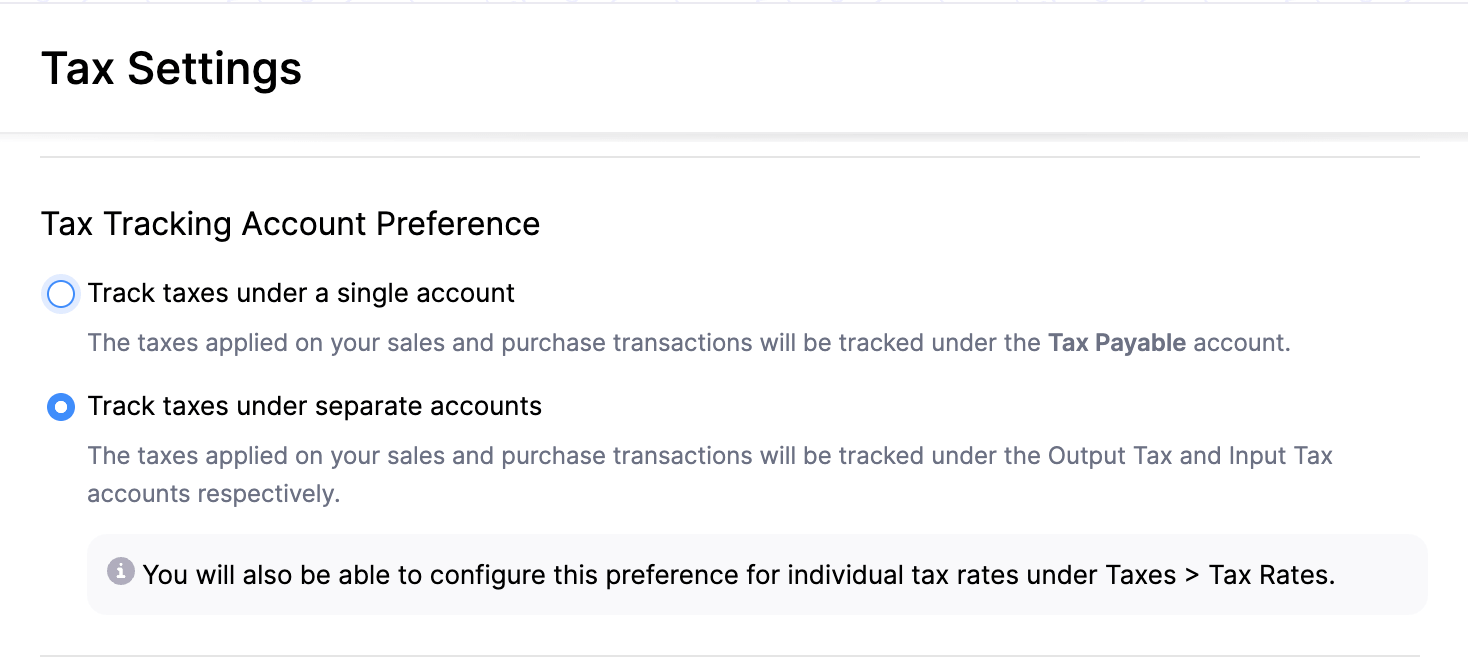
Insight: If you have chosen to track taxes under separate accounts, you can choose to track taxes under a single account while creating a new tax or editing an existing one.
 Yes
Yes