
Migrate from Global to the France Edition

If your business is based in France and you have been using the Global edition, you can now migrate to the France edition of Zoho Books. This France edition offers ISCA-compliant features to ensure your invoices meet France’s anti-fraud VAT requirements and regulatory standards.
This guide walks you through why you should migrate, what to prepare beforehand, what changes after migration and how to verify everything is in order.
Overview
Use this section to understand the main changes before you read the full guide.
- Migration to the France edition is permanent and cannot be reverted.
- Draft invoices and credit notes no longer receive a transaction number. The number is assigned only when the transaction is marked as Open.
- Open invoices and credit notes are locked for fiscal changes, and the final signed PDF is retained as the legal record.
- You can continue using custom PDF templates, but we recommend predefined templates because they are designed to include the required compliance fields.
- Retainer invoices, sales receipts, customer debit notes, self-billed invoices, progress invoicing, and retention payments are unavailable or restricted after migration.
Why Switch to the France Edition
The France edition is designed around four compliance principles required by Article 286 of the French General Tax Code (CGI). Here’s what each one means for you:
Immutability (Inalterability)
After you mark a transaction as Open, its essential details become locked and cannot be modified without a trace. If you later change non-fiscal fields such as assigning a salesperson or adding an internal note, the original PDF remains intact, ensuring your customer’s copy appears exactly as it did when you first issued.
Security
Every issued document is digitally signed, which means any tampering can be detected. This protects both you and your customers by proving that the document is authentic and has not been altered.
Conservation (Retention)
Your transaction data is kept for the legally required period of 7 years, so historical records are always available if you need them for an audit or review.
Archiving
Whenever requested by the authorities, you can generate ISCA-compliant tax archives. These archives contain all necessary information for an audit in one place including your transactions, detailed activity logs, and daily closing totals.
Prerequisites
- Your base currency must be set to Euro (€).
- Reimbursement Currency must be disabled in Zoho Expense if you use the Zoho Expense integration. Contact support if you need this feature.
- TDS must not be in use. If TDS is currently enabled or has been applied to transactions, contact support before proceeding.
- Reverse Charge must be disabled for both sales and purchases. Support for purchase reverse charge is planned for a future update.
Warning:
If any of the above requirements are not met, the Migrate to France Edition option will not appear in the left sidebar. Resolve these before proceeding.
Before You Migrate
Complete the following actions while you are still on the Global edition. These steps ensure a smooth transition and prevent issues after migration.
Review Your Transaction Series
After migration, the transaction series for invoices and credit notes cannot be edited once an Open transaction exists. A location or branch can be tied to only one series, and that series is locked once the branch has Open transactions.
- Review your existing invoice and credit note series.
- Enable yearly reset if needed.
- If branches or locations are enabled, confirm the default transaction series associated with each location. This cannot be modified after migration.
- Address any instances where series are changed often, where a branch’s series is swapped, or where several series map to one branch.
Review Draft Transaction Numbers
After migration, draft invoices and credit notes will no longer carry a transaction number. They display “Draft” instead. Any existing number in a draft will be ignored when the transaction is marked as Open, and sequential numbering will be used.
- Review all your invoice and credit note drafts before migrating, and delete or convert any unnecessary drafts. This will help ensure that when draft transaction numbers are cleared during migration, there will be no gaps or missing numbers in your finalised (Open) transactions.
- Review any workflow or automation that depends on a draft’s number or on emailing drafts. Drafts can no longer be emailed until they are marked as Open.
Enable Split Tax Amount On Write-Off
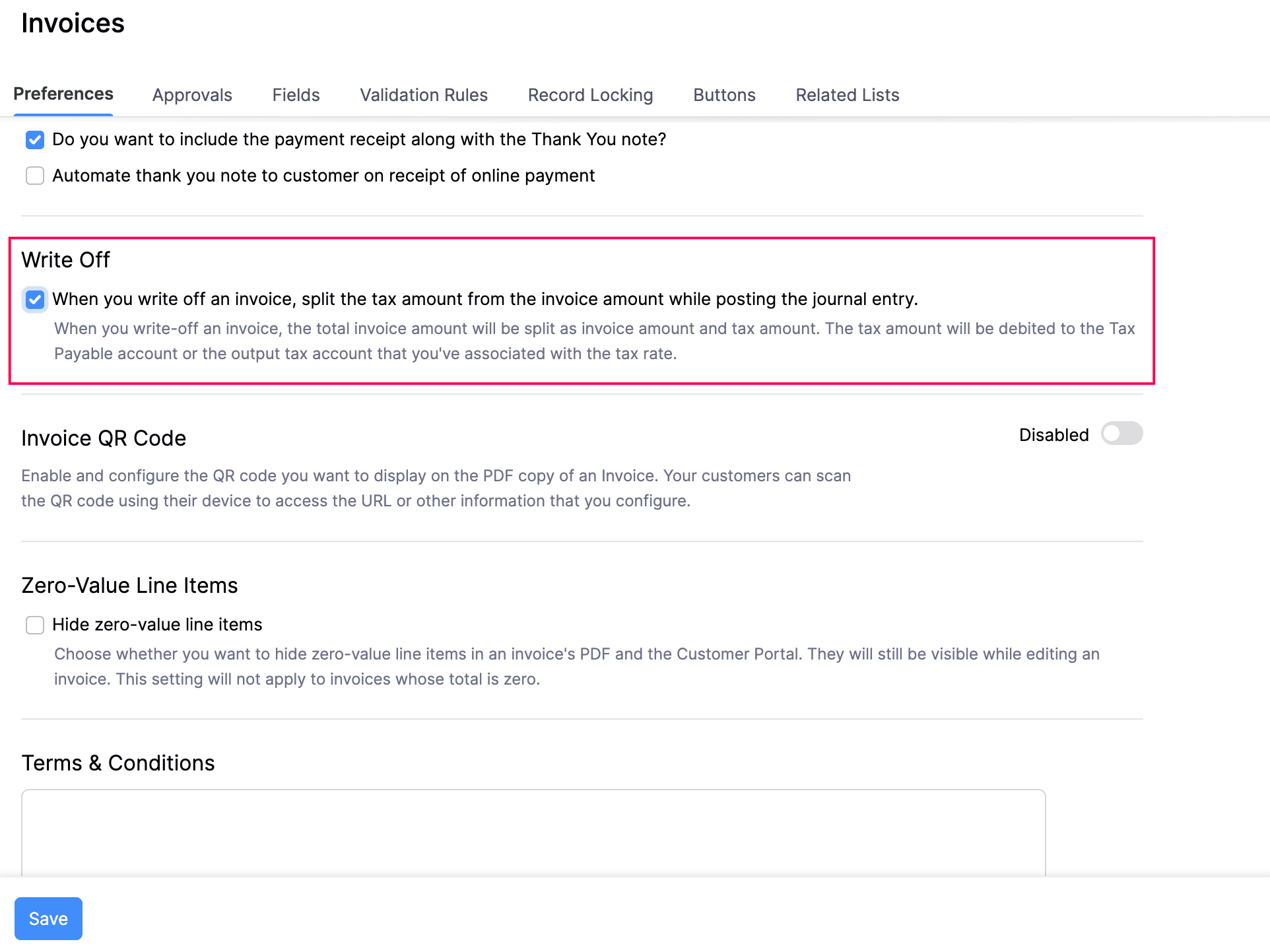
Enabling the Split Tax Amount On Write-Off option allows tax amounts and invoice amounts to be recorded separately in journal entries for write-offs. Ensure to enable this option before migrating, as it is required in the France edition. Here’s how:
- Go to Settings on the top right corner of the page.
- Select Invoices under Sales.
- In the General tab, check the When you write off an invoice, split the tax amount from the invoice amount while posting the journal entry option.
- Click Save.
Enable Separate Account Tracking for Taxes
Separate Account Tracking is mandatory for taxes in the France edition. Taxes created after migration use it by default. To enable this:
- Go to Settings on the top right corner of the page.
- Select Taxes under Taxes & Compliance.
- Select Tax Settings in the left pane.
- Under Tax Tracking Account Preference, select Track taxes under separate accounts.
- Click Save.
Review Your PDF Templates
Custom templates can still be used in the France edition, including templates used for different customers or countries. However, we strongly recommend using the predefined templates because they are designed to include the required legal and compliance fields.
If you continue using a custom template, you are responsible for ensuring that the template includes all mandatory fields and remains compliant. To set a predefined template as the default:
- Go to Settings on the top right corner of the page.
- Select Templates under Customisation.
- Set a default compliant template for invoices and credit notes.
Note: Retail templates such as POS Retail - Standard, Retail - Premium, POS Retail - Premium, and Retail - Standard are not compliant in the France edition and will be removed in a future update. Avoid using these templates.
Review Workflows and Automations
- Review and update any workflows or automations that rely on draft invoice numbers or require emailing of draft documents, as these actions will not be available after migration. Only Open invoices and credit notes can be referenced or sent.
- Check recurring invoices and subscriptions for missing mandatory details or discount-after-tax settings, as these may be affected after migration.
Fill in SIRET for Business Contacts
After migration, invoices cannot be opened for a business contact with an empty SIRET. Prepare your contacts now to avoid disruption. Here’s how:
- Go to Sales and select Customers in the left sidebar.
- Open each business contact and enter their SIRET (9 or 14 numeric digits) in the Company ID field.
- Check the default business type under Settings > General > Customers and Vendors so new contacts are categorised correctly.
Migrate to the France Edition
Once you have completed the preparation steps above, you can start the migration.
- Click Migrate to France Edition in the left sidebar.
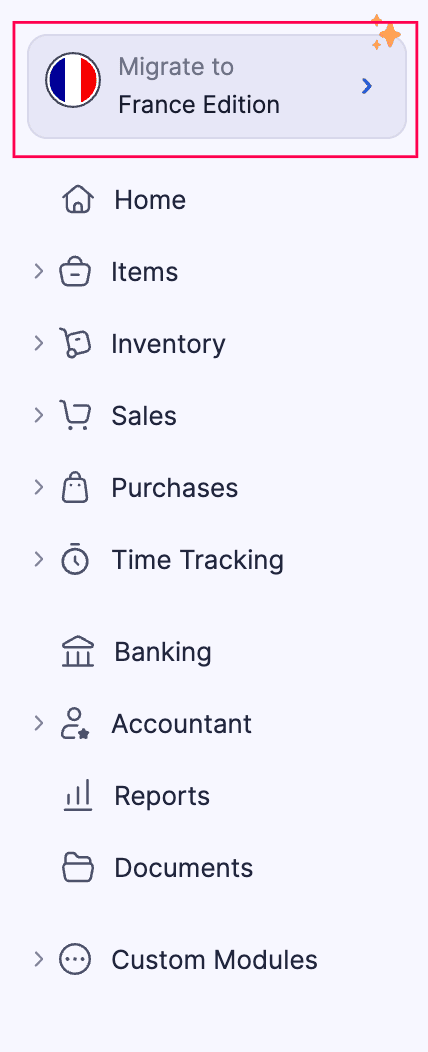
The migration page displays the reasons to switch and the points to note before migration. Review these, then scroll down to the Prerequisites section.
In the Prerequisites section, disable any unsupported features listed:
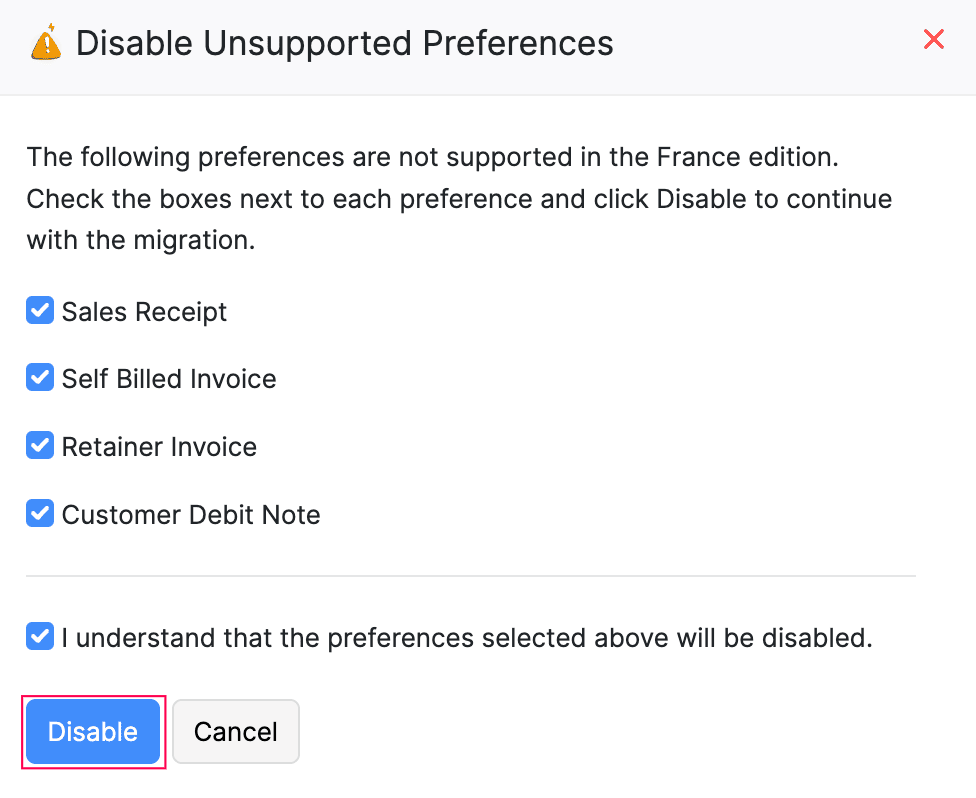
- If Unsupported Preferences are listed, click Proceed to Disable. In the popup, review the list of preferences (such as Sales Receipt, Self Billed Invoice, Retainer Invoice, Tax Inclusive Discount, and Customer Debit Note) and click Disable.
- If Split Tax Amount On Write-Off Disabled is listed, click Proceed to Enable. You will be redirected to the Invoices preferences page. Enable the write-off split setting and click Save.
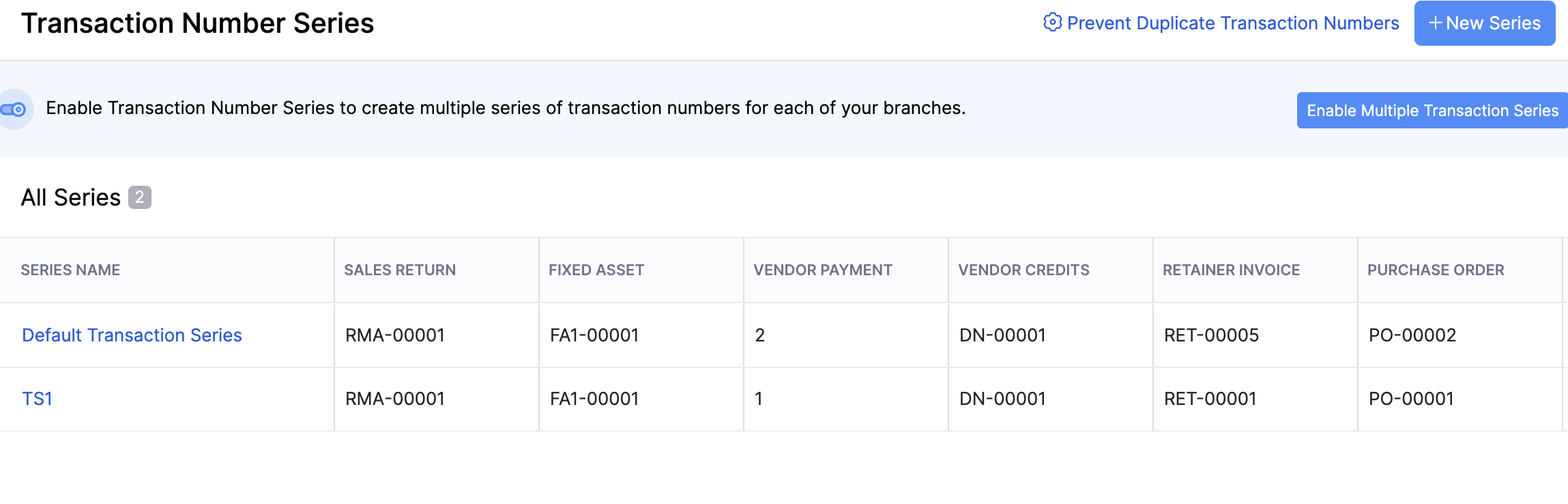
- Click Review next to Review Transaction Series. You will be redirected to the Transaction Number Series page under Customisation. Verify your series settings and return to the migration page.
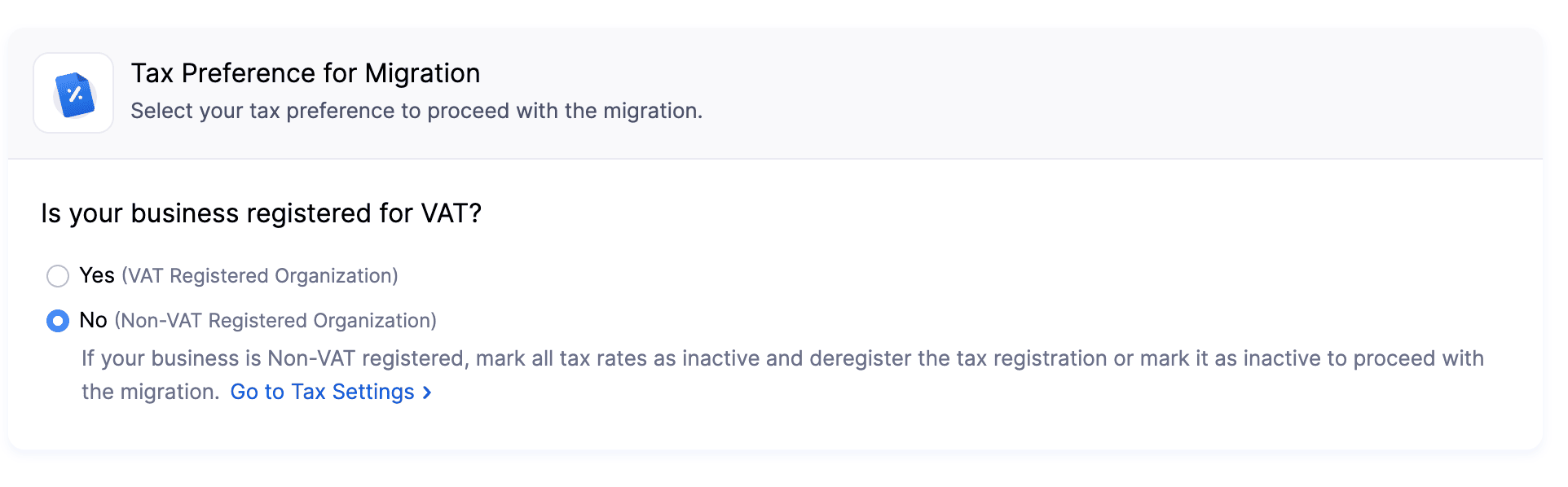
Under Tax Preference for Migration, select whether your business is registered for VAT:
Select Yes if your business is a VAT Registered Organisation.
Select No if your business is a Non-VAT Registered Organisation. If you select No, you will have to mark all tax rates as inactive and deregister the tax registration before you can proceed. You can click Go to Tax Settings to do this.
If you want to back up your data before migrating, click Backup Your Data to download all your organisational data as a single compressed file.
Once everything is in order, click Proceed.
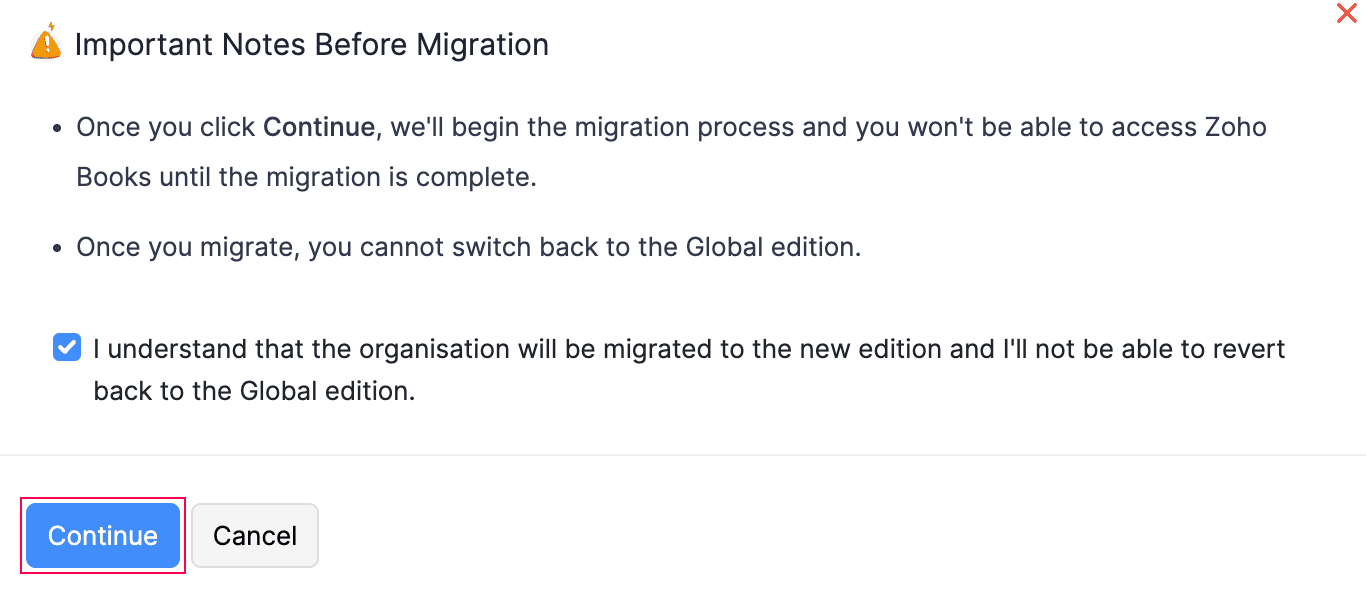
In the confirmation popup, review the important notes and click Continue to confirm.
If you selected Yes for VAT registration, you will be taken to the Configure VAT for France edition page. Enter your VAT Registration Number and Tax Registration Date, then click Save.
After the migration is complete, you will be redirected to your France edition organisation. You can continue using Zoho Books as usual while the system finalises the configuration. You will be notified once the process is complete.
Note: Invoices that were cancelled before the migration cannot be edited after migration.
What Changes After Migration
Below is a summary of what will change once you migrate to the France edition. Each section explains what changes, why and what action to take.
Modules No Longer Available
The following modules will not be available in the France edition. Your existing transactions in these modules become read-only. You can view them, but you will not be able to edit them or create new ones.
| Module | What Happens After Migration |
|---|---|
| Retainer Invoices | Existing entries become read-only. To record deposit payments, refer to this FAQ. |
| Customer Debit Notes | Existing entries become read-only. The module is removed. |
| Sales Receipts | Existing entries become read-only. You can raise an invoice instead. |
| Self-Billed Invoices | Existing entries become read-only. The module is removed. |
| Sales without invoice / Sales return (banking) | Past entries are carried over for viewing and editing, but you will not be able to categorise new bank transactions this way. |
Preference Changes
The following preferences will be disabled, fixed to specific values, or restricted. Your existing transactions are preserved, but some settings cannot be used for new transactions.
| Preference | State After Migration |
|---|---|
| Early payment discount | Disabled |
| Late fee | Disabled |
| Multiple transaction series | Available. Each location can be associated with only one series, and a series cannot be edited once an invoice or credit note exists for it. |
| VAT MOSS | Disabled |
| Tax Override | Disabled |
| Item-level discount | Fixed to Discount Exclusive of Tax |
| Reverse charge | Disabled |
| Transaction Posting Date | Disabled |
| Entity-level discount | Fixed to Discount Before Tax |
| Progress Invoicing | Disabled |
| Retention Payment | Disabled |
If you need to manage progress invoicing, refer to this FAQ.
Organisation Profile Changes
New regulatory fields
Your organisation profile will have new dedicated fields for SIRET, Legal Form, Share Capital, RCS, and NAF Code. If you were using custom fields for this information, you can now move the data to these dedicated fields instead.
Legal Form covers the recognised French structures (EI, EURL, SARL, SASU, SAS, SA, SNC, SCS, SCA). These values are printed on every invoice and credit note.
Company ID becomes SIREN
The existing Company ID field in the organisation profile is renamed SIREN. Your current value carries over under the new label.
Required elements in the organisation address
The organisation address layout must include Share Capital, SIRET, RCS number, and business classification type. These cannot be removed because, wherever the organisation address appears (including invoices and credit notes), it has to carry these legal identifiers.
Changes to Customer
SIRET required for business customers
The Company ID field on contacts is renamed SIRET. For business customers, SIRET is mandatory before a transaction can be opened. Values must be numeric, either 9 or 14 digits.
TRN label removed
The TRN Label field is removed from the contact create/edit form. Any stored value is no longer used. You can enter the full VAT number directly in the Tax Registration Number field instead.
Transaction Numbering
Drafts no longer carry a number
Draft invoices and credit notes will display “Draft” instead of a transaction number. The number is assigned only when you mark the transaction as Open.
Series locked after issuing
The number series cannot be changed once an Open transaction exists. If branches or locations are enabled, each location can have only one default transaction series. After migration, the default series for each location is applied automatically.
Imported invoices use the current numbering series in Zoho Books. If you need to keep the original invoice number from your previous system, add it in a custom field for reference.
Mark as Open Flow
Mark as Open replaces Mark as Sent
Invoices and credit notes are created as drafts. They receive their number and are signed when you mark them as Open. You can email a document to the customer only after it has been opened.
If your CRM or custom workflow currently emails invoices directly from draft status, update it to create the invoice as a draft, mark it as Open, and then send it.
Required details checked on open
When you mark a transaction as Open, the system checks that all mandatory details are filled in. You can only open the transaction once everything required is present.
Limited Editing After Open
Once an invoice or credit note is Open or Sent, most fields are locked and the record cannot be deleted. You can still edit non-fiscal details such as salesperson, contact person, email communication, and custom fields that do not appear on the PDF.
If a custom field has Show in All PDFs set to No, it does not appear on the invoice PDF and can still be edited after the invoice is Open or Sent.
Digital Signature and Fixed PDF
When you open a transaction, a final PDF and a data snapshot are captured and stored. This PDF locking applies to both predefined and custom templates. This is the version that will be shown and emailed from that point on, even if you edit non-fiscal fields later.
Documents opened after migration will display the software name, software version, NF525 certificate number, and selected characters of the digital signature (3rd, 5th, 17th, and 19th) on the PDF.
PDFs of transactions issued before migration remain unchanged. You will no longer be able to print multiple copies of an invoice (original/duplicate). The stored PDF serves as the single legal record.
Credit Note Changes
A credit note can be linked only to an invoice that is already Open. A dedicated Invoice Reference field is now available to hold the source invoice number on the credit note. You can use this field instead of any custom field you previously used.
Discount Calculation
Entity-level discounts (discounts applied to the entire transaction rather than to individual line items) are fixed to Discount Before Tax. The discount-after-tax option is no longer available at the entity level. If you have recurring invoices or subscriptions that currently apply a discount after tax, you should review and update them.
VAT Accounting Basis for Services
A new VAT Accounting preference is available that lets you choose the default basis (cash or accrual) for transactions involving services. Goods are always on an accrual basis.
| Product Type on Invoice | Transaction Type | VAT Basis |
|---|---|---|
| Goods | Goods | Accrual |
| Service | Service | Accrual or Cash (per the basis configured for services in tax settings) |
| Goods and Service | Goods | Accrual |
You can set your preferred default for services in Settings > Taxes after migration. If an invoice consists of both goods and services, consider issuing them separately for cleaner tax handling.
Tax Exemptions
Only the default exemptions are available in this edition. Exemption wording is applied automatically for common cases such as a foreign customer, 0% tax, or EU B2B transactions. If you apply an exemption manually, you will need to provide an exemption reason — this reason will appear on the PDF.
For intra-community invoices, create and apply a 0% tax rate. If the customer’s billing address is in another EU country such as Belgium and the selected tax rate is 0%, Zoho Books automatically identifies the applicable VAT exemption code, such as VATEX-EU-AE, and includes the required regulatory text in the generated PDF.
Other Tax Changes
- Tax Rules are no longer supported, including those configured through Commerce.
- Group Tax can no longer be created.
- Multiple Tax Registrations are no longer available.
- Split Account Tracking is on by default for taxes created after migration.
- Tax cannot be applied to purchase transactions until VAT registration is configured.
- The Tax Archive is located under Data Management in Settings.
Note: VAT cannot be applied to purchase transactions unless you are VAT registered. You can configure VAT registration under tax settings before applying tax on purchases.
PDF Template and Custom Field Restrictions
Invoice and credit note templates must always display the organisation name, organisation address, transaction number, date, and due date. Some template preferences can no longer be changed after migration.
Once a module has an Open transaction, the Show in PDF setting for its custom fields gets locked — you will not be able to change it after that. It’s a good idea to review any custom field with “Show in PDF” enabled before you migrate.
You can continue using multiple templates for different customer groups, including international customers. However, mandatory fields required for France edition invoices cannot be edited or deleted from the template.
Post-Migration Checklist
After you have migrated to the France edition, verify the following items to ensure your organisation is fully set up. You may see warnings on your dashboard indicating that organisation compliance details and address details are missing. Resolve these by completing the steps below:
| Area | Action |
|---|---|
| Organisation compliance details (SIRET, Legal Form, Share Capital, RCS, NAF) are required on compliant documents. | Enter the required compliance details in the Organisation Profile. |
| Organisation address must include mandatory legal identifiers. | Enter the required address details in the Organisation Profile. |
| Business contacts require a valid SIRET before transactions can be opened. | Populate SIRET for every business contact. |
| Customers without a SIRET must be categorised correctly. | Set the contact type as Individual where applicable. SIRET is mandatory only for business customers with a billing address in France. |
| Recurring invoices and subscriptions may fail to open if mandatory details are missing or discount-after-tax is configured. | Recheck recurring invoices and subscriptions. |
| Custom templates must include required legal fields. | Use a predefined template where possible, or review custom templates for compliance. |
| Draft invoices no longer carry a number and cannot be emailed until Open. | Update workflows and automations tied to draft invoice numbers or emailing drafts. |
| The TRN Label field is removed and its stored value is no longer used. | Remove the TRN label placeholder from address and custom field templates. |
| Tax cannot be applied to purchase transactions without VAT registration. | Configure VAT registration before applying tax on purchases. |
| Services need a defined VAT accounting basis (cash or accrual). | Set the VAT Accounting basis for services under Settings > Taxes. |
Note: Tax archives are retained for the legally required period of 7 years. The Tax Archive is available under Settings > Data Management.
If you have questions or need assistance with the migration, write to us at support.fr@eu.zohobooks.com.
Migration FAQs
For answers to common questions about custom templates, old invoice imports, CRM sync, SIRET and SIREN fields, deposit invoices, and e-invoicing setup, refer to the France edition migration FAQs and France e-invoicing FAQs.
 Yes
Yes