

Other Actions for Sales Receipts

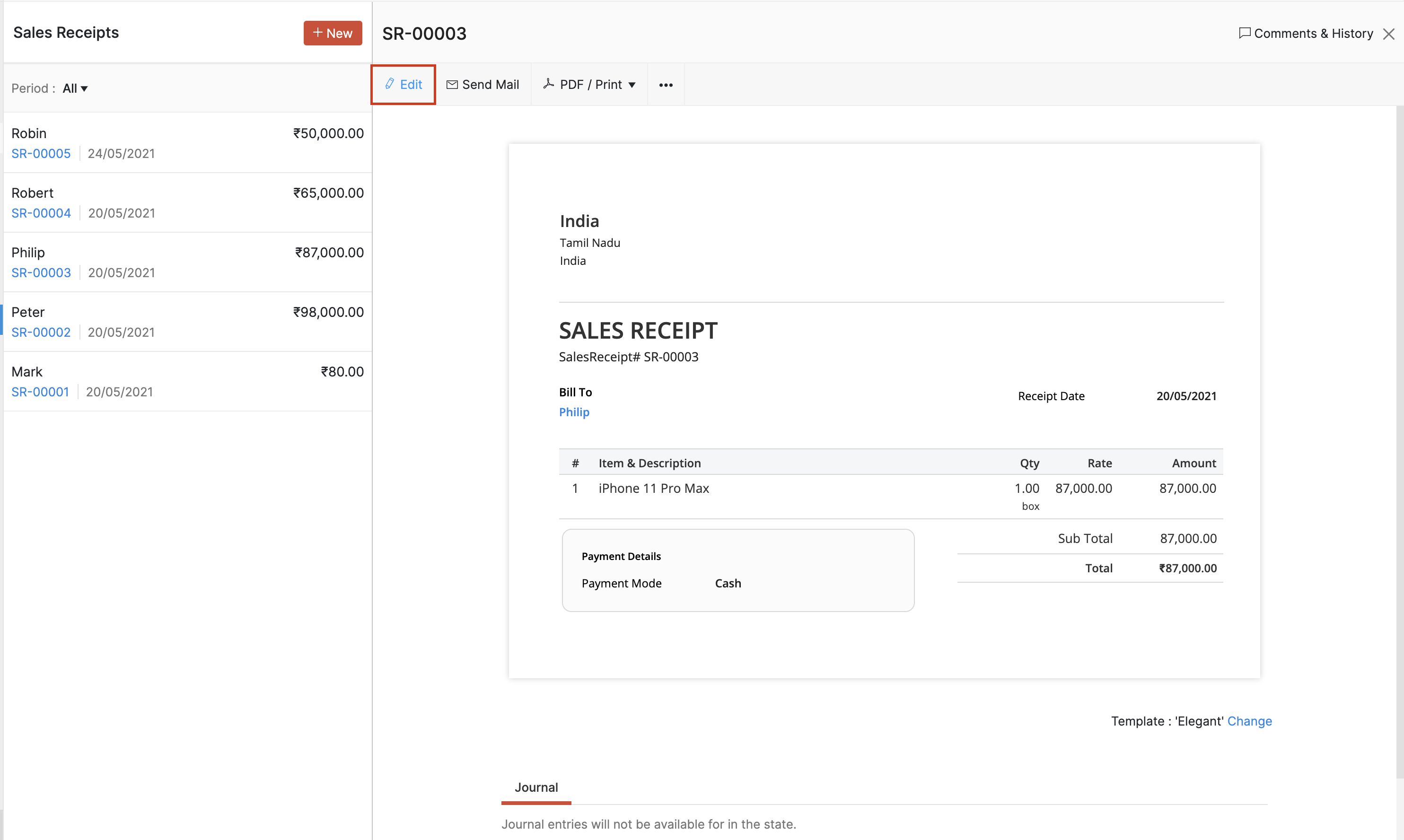
Edit Sales Receipt
- Go to Sales and select Sales Receipts.
- Select the sales receipt whose details you want to edit.
- Click Edit on top of the receipt.
- Make the necessary changes and click Save.
Insert Headers as Line Items
You can insert headers to group related line items in your sales receipt. When you have many line items, headers break the list into clear sections so your customers can scan the sales receipt more easily. For example, you can add a header such as Maintenance Services, Hardware Items, or a project name and group the related line items under it. You can also insert multiple headers to your sales receipt.
To insert a header row in your sales receipt:
- Go to Sales and select Sales Receipts.
- Click + New in the top right corner to create a sales receipt, or select an existing sales receipt and click Edit to modify an existing one.
- In the Item Table, click the More icon next to the required line item, and select Insert New Header. Alternatively, you can click the dropdown next to + New Row below the Item Table and select New Header.
- Type the title for the header.
- Fill in the required fields and click Save.
The header will be added as a row and the line items below it will remain unchanged. To remove a header, click the Remove icon to the right of it.
Insight: Removing a header does not remove the line items below it.
Insert Subtotals as Line Items
A subtotal row displays the total of the line items above it in your sales receipt. It includes all line items between the previous subtotal and the current subtotal, or all line items from the beginning of the sales receipt if no previous subtotal exists. It is calculated automatically and updates whenever line items are added, edited, or removed. For example, you can add a subtotal for a group of hardware items or a project. You can add multiple subtotals to a sales receipt.
To insert a subtotal row in your sales receipt:
- Go to Sales and select Sales Receipts.
- Click + New in the top right corner to create a sales receipt, or select an existing sales receipt and click Edit to modify an existing one.
- In the Item Table, click the More icon next to the required line item, and select Insert New Subtotal. Alternatively, you can click the dropdown next to + New Row below the Item Table and select New Subtotal.
- The subtotal row will be inserted.
- Fill in the required fields and click Save.
The subtotal will be added as a row and the line items below it will remain unchanged. To remove a subtotal, click the Remove icon to the right of it.
Insight: Removing a subtotal does not remove the line items below it. The line items remain in the sales receipt and are included in the final total.
Delete Sales Receipt
Warning: After you delete a Sales Receipt, you won’t be able to retrieve it.
- Go to Sales and select Sales Receipts.
- Select the sales receipt which you want to delete.
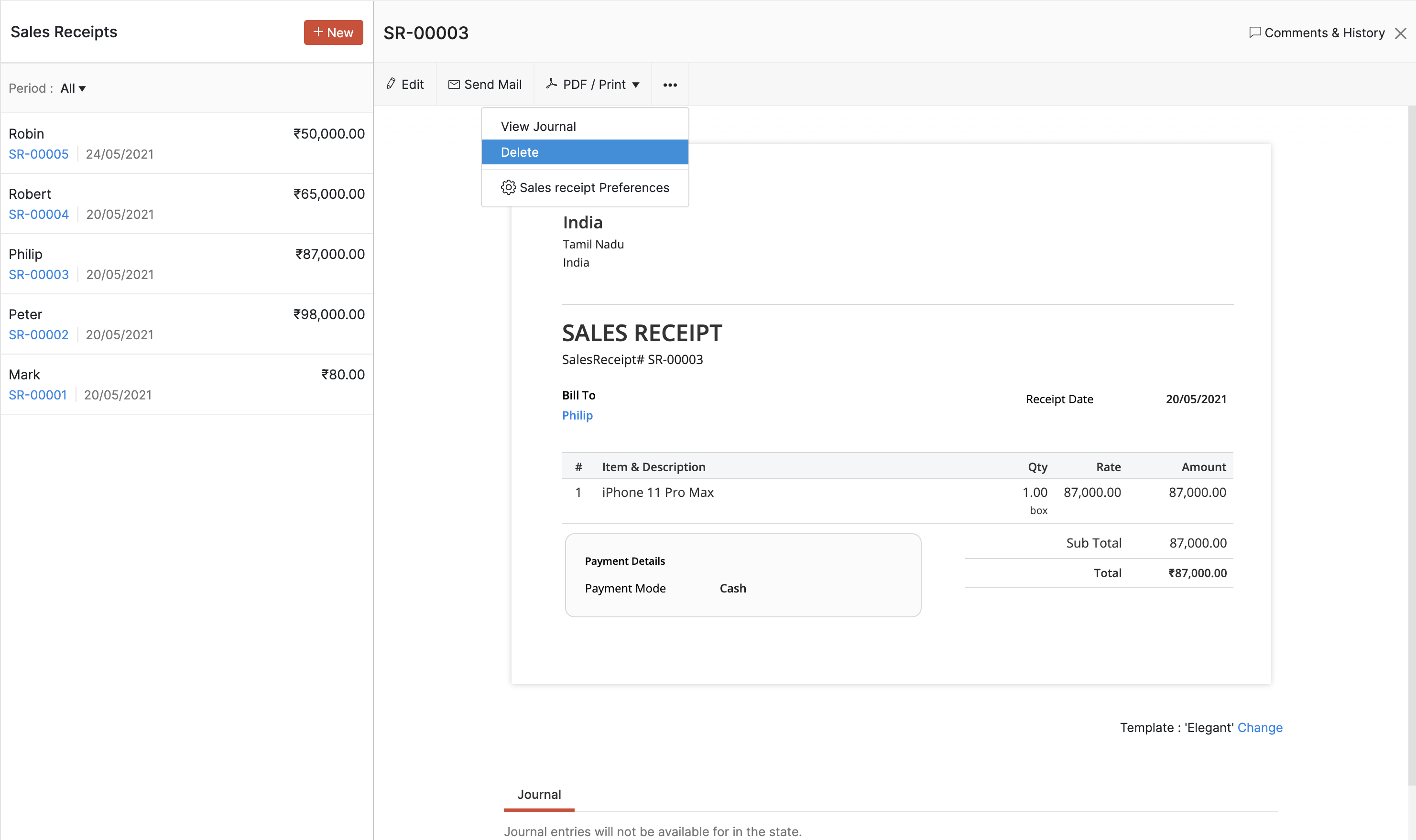
- Click the More button and select Delete from the dropdown.
- On the following page, click Delete.
Print Sales Receipt
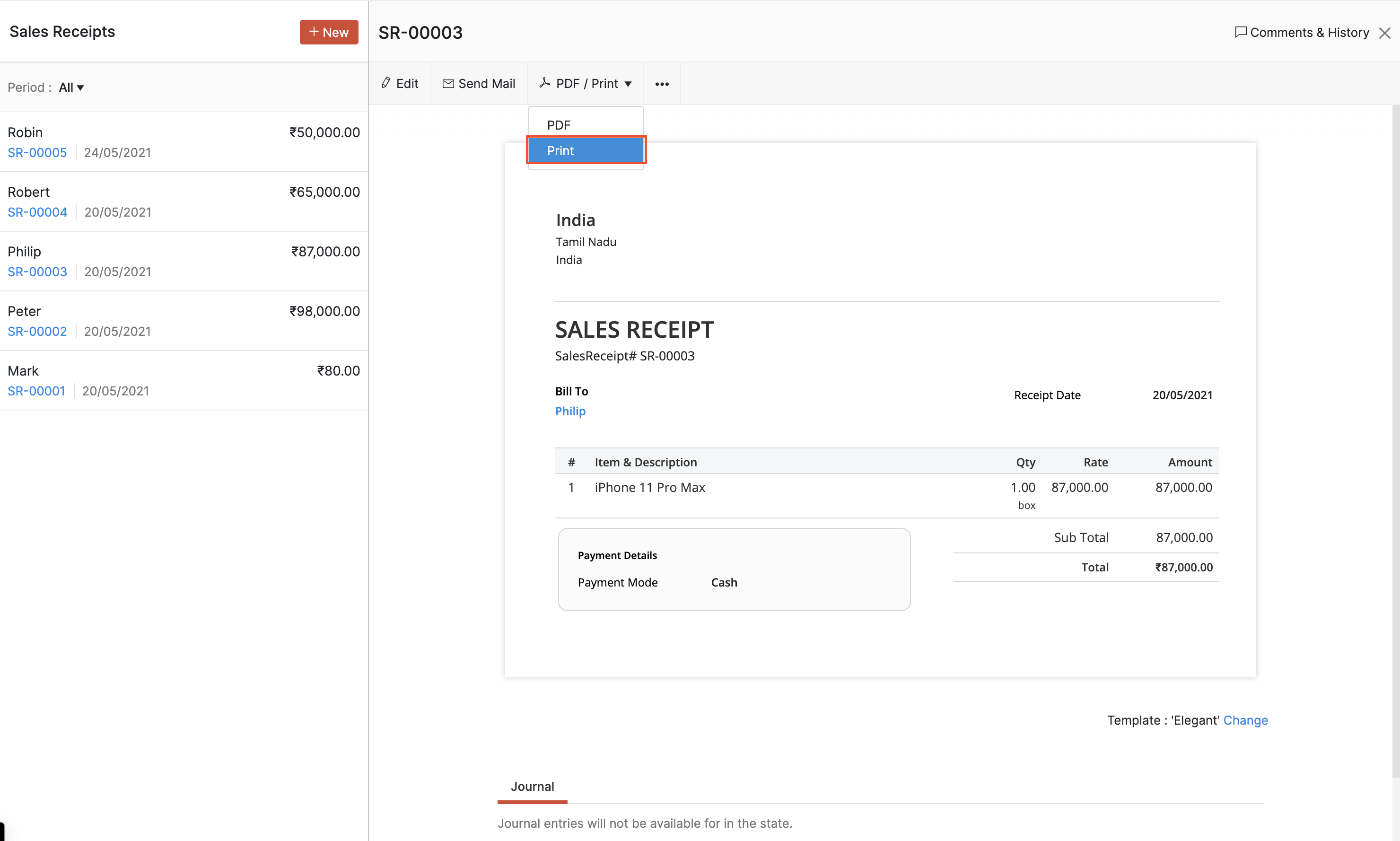
- Go to Sales and select Sales Receipts.
- Select the sales receipt which you want to print.
- Click the PDF/Print dropdown and select Print
- Check the sales receipt preview and select Print.
Download as PDF
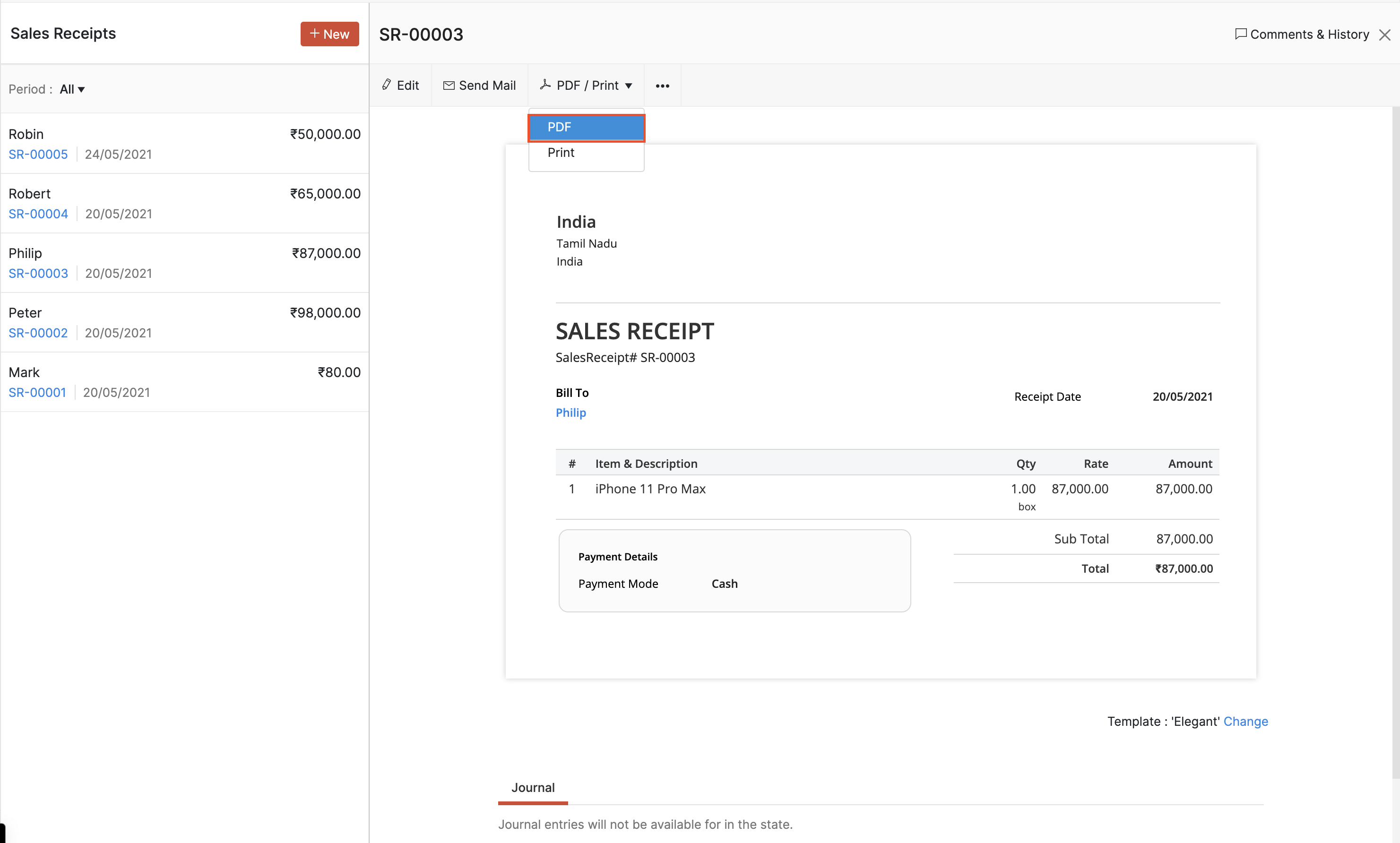
- Go to Sales and Sales Receipts.
- Select the sales receipt which you want to download as PDF.
- Click the PDF/Print dropdown and select PDF.
- The sales receipt will be downloaded as a PDF.
 Yes
Yes