

SEPA Direct Debit

SEPA or Single Euro Payments Area Direct Debit is a payment method that helps you collect euro payments directly from your customers’ bank accounts across Germany and other EU member states. Instead of waiting for customers to send payments, you can generate a SEPA Direct Debit file in Zoho Books and submit it to your bank to initiate the collection automatically.
Using Zoho Books, you can add the customer’s bank details, set up a signed mandate that authorises the debit, and generate an XML file (PAIN 008 format) for the invoices you want to collect. Once you submit this file to your bank, the bank processes it and transfers the funds from the customer’s account into your account.
Add Customer Bank Details
Before generating a SEPA Direct Debit file, ensure that you’ve added the customer’s bank account details in Zoho Books. You can add these details while creating a new customer or to an existing customer.
To add bank details for a new customer:
- Go to Sales on the left sidebar and select Customers.
- Click + New in the top-right corner.
- Enter the Customer Display Name and other necessary details.
- Navigate to the Bank Details tab and fill in the following fields:
| Field | Description |
|---|---|
| Account Holder Name | Enter the name of the customer as it appears in the bank account. |
| Bank Name | Enter the name of the bank where the account is held. |
| IBAN | Enter the International Bank Account Number used to identify the account for SEPA payments. |
| BIC | Enter the Bank Identifier Code used to identify the customer’s bank during international or SEPA transfers. |
- Click Save.
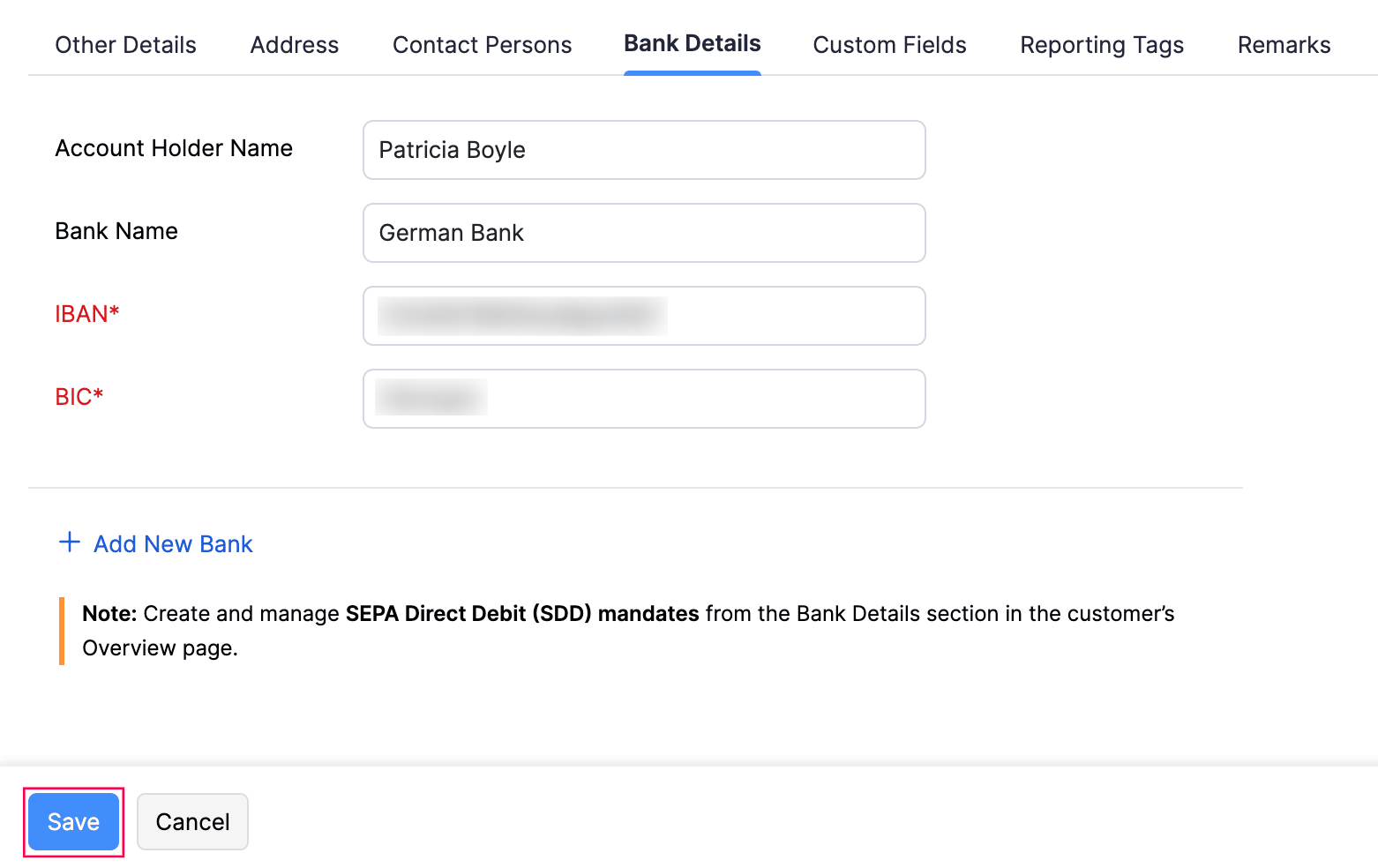
The customer’s bank account details will be saved and can be used for SEPA Direct Debit collections.
Note: You can also add bank details for an existing customer from the Overview tab by clicking the Plus icon next to Bank Account Details. To edit bank details later, click the Gear icon next to the bank name and select Edit.
Create an SDD Mandate
A SEPA Direct Debit (SDD) mandate is an authorisation given by the customer that allows you to collect payments from their bank account. You must create and activate a mandate before generating a SEPA Direct Debit file. Here’s how:
- Go to Sales on the left sidebar and select Customers.
- Select the customer for whom you want to create a mandate.
- In the Customer Details page, navigate to the Overview tab.
- Under Bank Account Details, click Create next to Mandate Status.
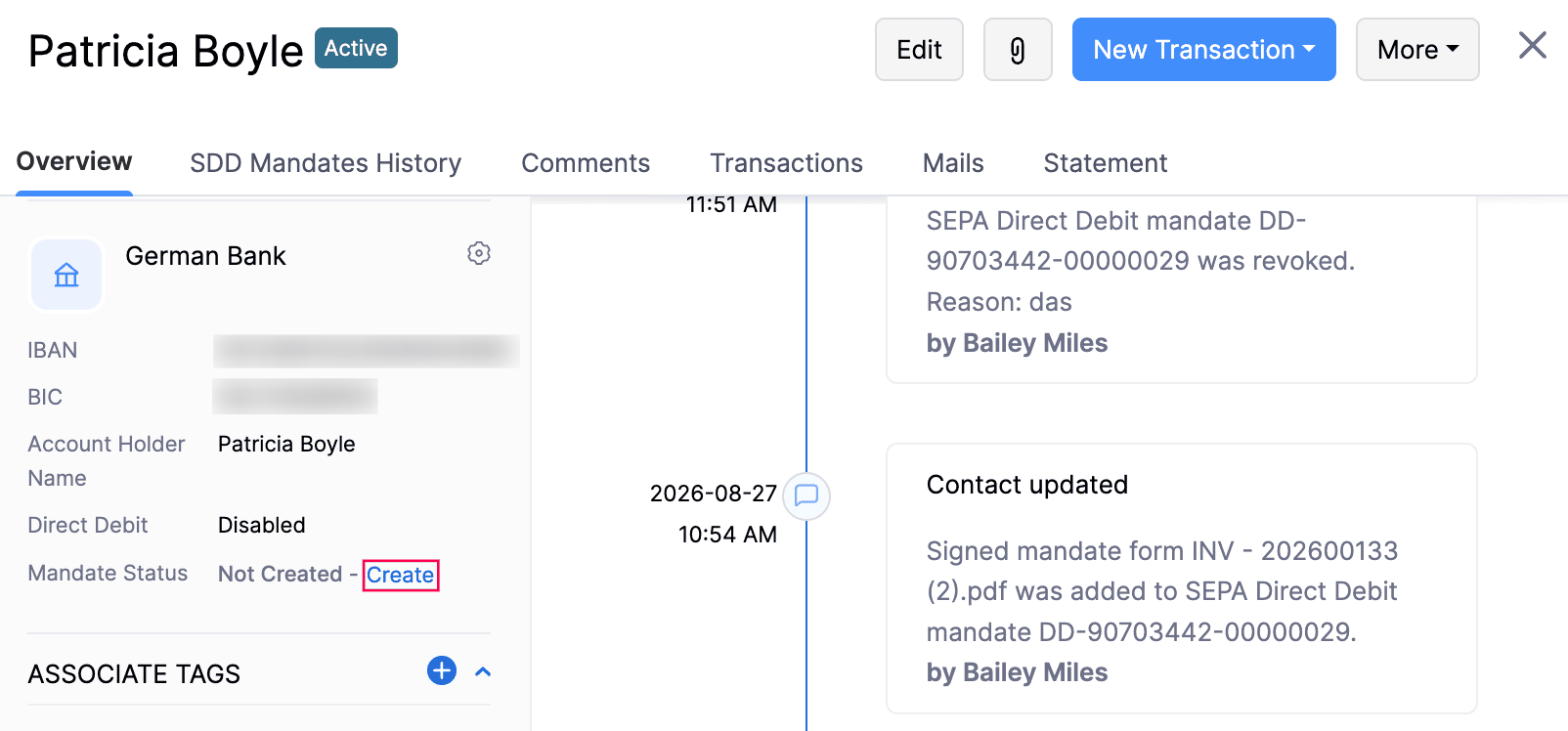
- In the Create Mandate pop-up, fill in the following fields:
| Field | Description |
|---|---|
| Mandate ID | Enter a unique mandate identifier, or select Auto Generate to have it created automatically. |
| Mandate Signing Date | Enter the date when the mandate was signed by the customer. |
| SDD Scheme | Select the scheme type - B2B (Business to Business) or CORE (Consumer). |
| Collection Type | Select Recurring (RCUR) for ongoing collections, or One-Off (OOFF) for a single collection. |
| Mandate Signed Form | Attach the signed mandate PDF form as a file. |
- Click Save & Mark as Active.
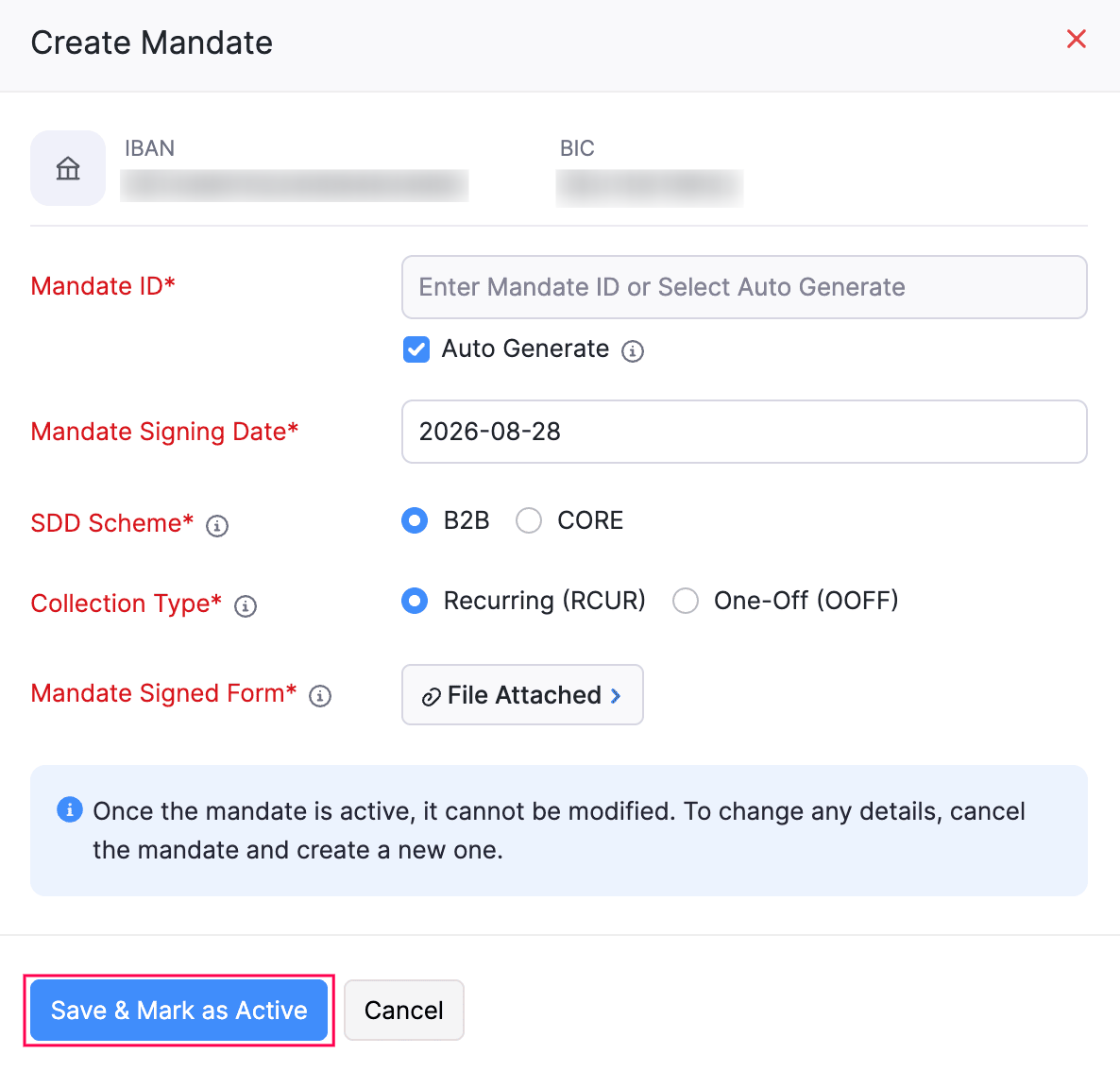
The mandate will be activated, and the customer’s bank account will be ready for SEPA Direct Debit collections.
Note: Once a mandate is active, it cannot be edited. If you want to change any details, you have to revoke the mandate and create a new one.
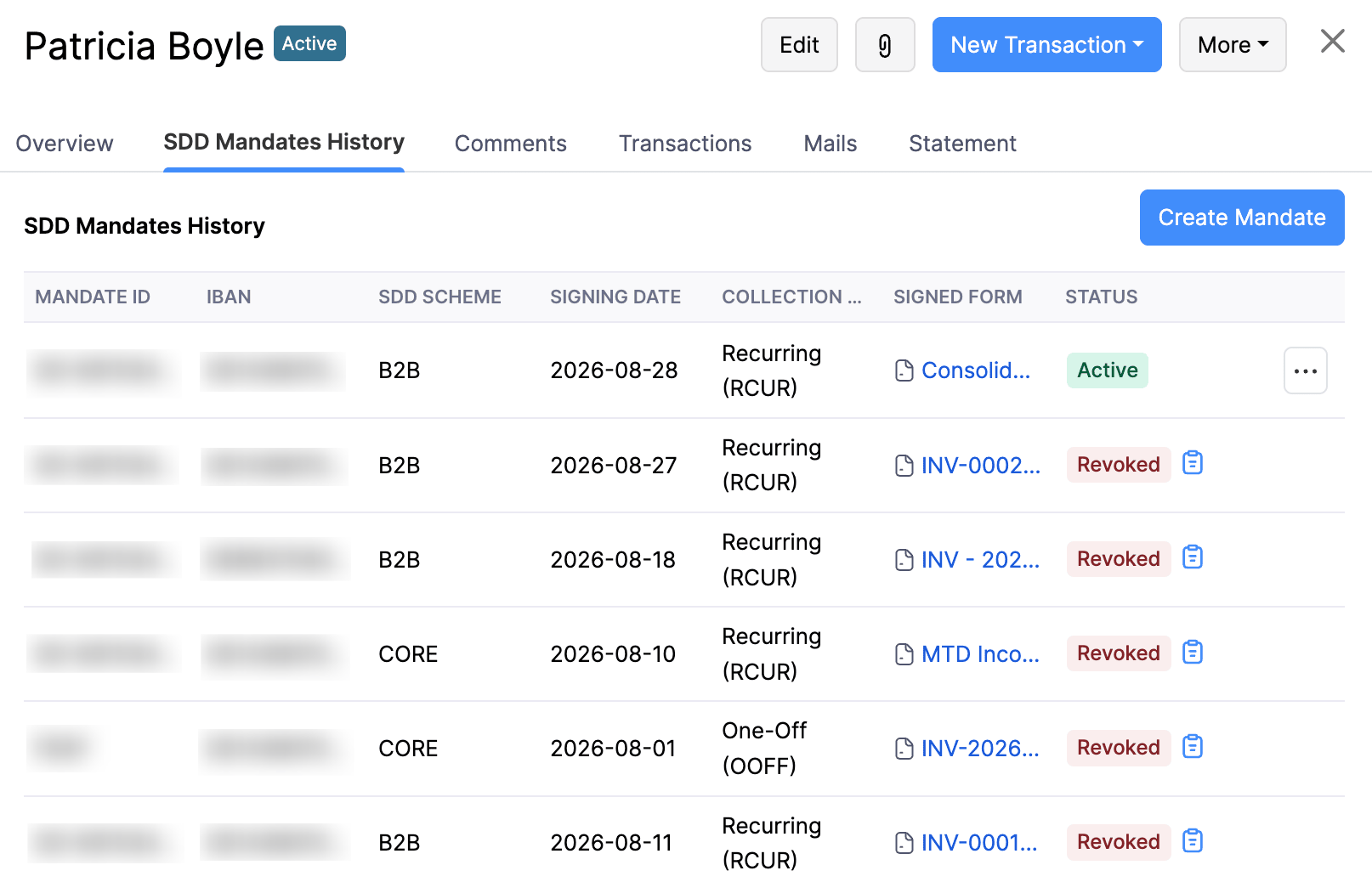
You can view all current and past mandates for a customer by navigating to the SDD Mandates History tab in the Customer Details page. This tab lists every mandate along with its IBAN, SDD Scheme, Signing Date, Collection Type, Signed Form, and Status (Active or Revoked).
Set the Expected Payment Mode
When creating or editing an invoice, select the expected payment mode as SEPA Direct Debit. This field is required for e-invoicing compliance, as the payment mode must be mentioned on the invoice.
To set the expected payment mode:
- Go to Sales on the left sidebar and select Invoices.
- Click + New to create a new invoice, or open an existing invoice and click Edit.
- In the New Invoice or Edit Invoice page, scroll down to the Expected Payment Mode field and select 59 SEPA Direct Debit.
- Select the customer’s Bank Account from the dropdown.
- If no active mandate is found for the selected bank account, click Create Mandate to set one up directly from the invoice page.
- Once the mandate is active, the Mandate ID will appear alongside the bank account details.
- Enter the other necessary details and click Save and Send or Save as Draft.
The invoice will now include SEPA Direct Debit as the expected payment mode, along with the associated bank account and mandate details.
Generate a SEPA Direct Debit File
Note: SEPA Direct Debit files can only be generated for invoices in Sent, Open, or Overdue status.
To generate a SEPA Direct Debit file in Zoho Books:
- Go to Sales on the left sidebar and select Invoices.
- Select the invoices for which you want to collect payment via SEPA Direct Debit.
- Click the More icon at the top of the page and select Generate SEPA Direct Debit File.
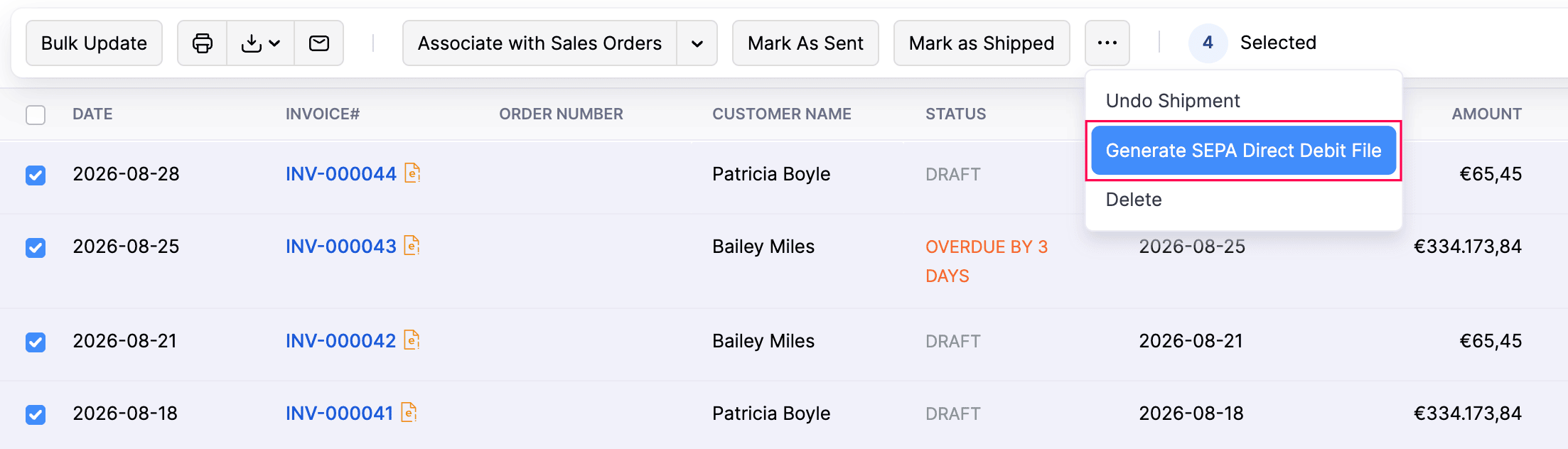
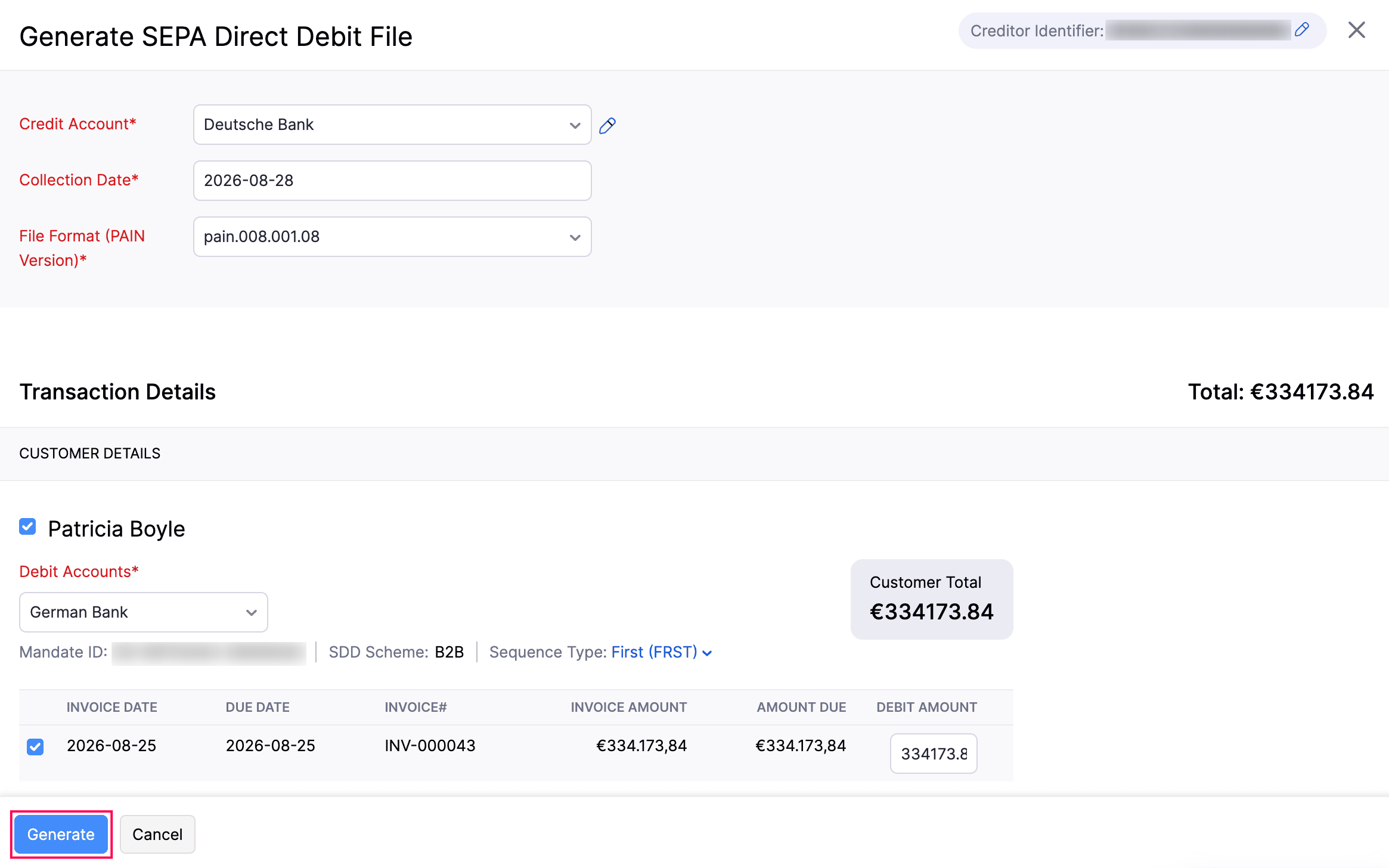
- In the Generate SEPA Direct Debit File page, fill in the following details:
| Field | Description |
|---|---|
| Credit Account | Select the bank account to which the collected payments should be credited. |
| Collection Date | Enter the date on which the debit collection should be initiated. |
| File Format (PAIN Version) | Choose the PAIN version compatible with your bank (e.g., pain.008.001.08). |
- In the Transaction Details section, review the selected customers and their invoices.
- Select the Debit Account for each customer.
- Verify the Mandate ID, SDD Scheme, and Sequence Type for each customer.
- Review the debit amounts for each invoice.
- Click Generate.
In the confirmation pop-up, review the details and click Download PAIN 008.XML to download the SEPA Direct Debit file.
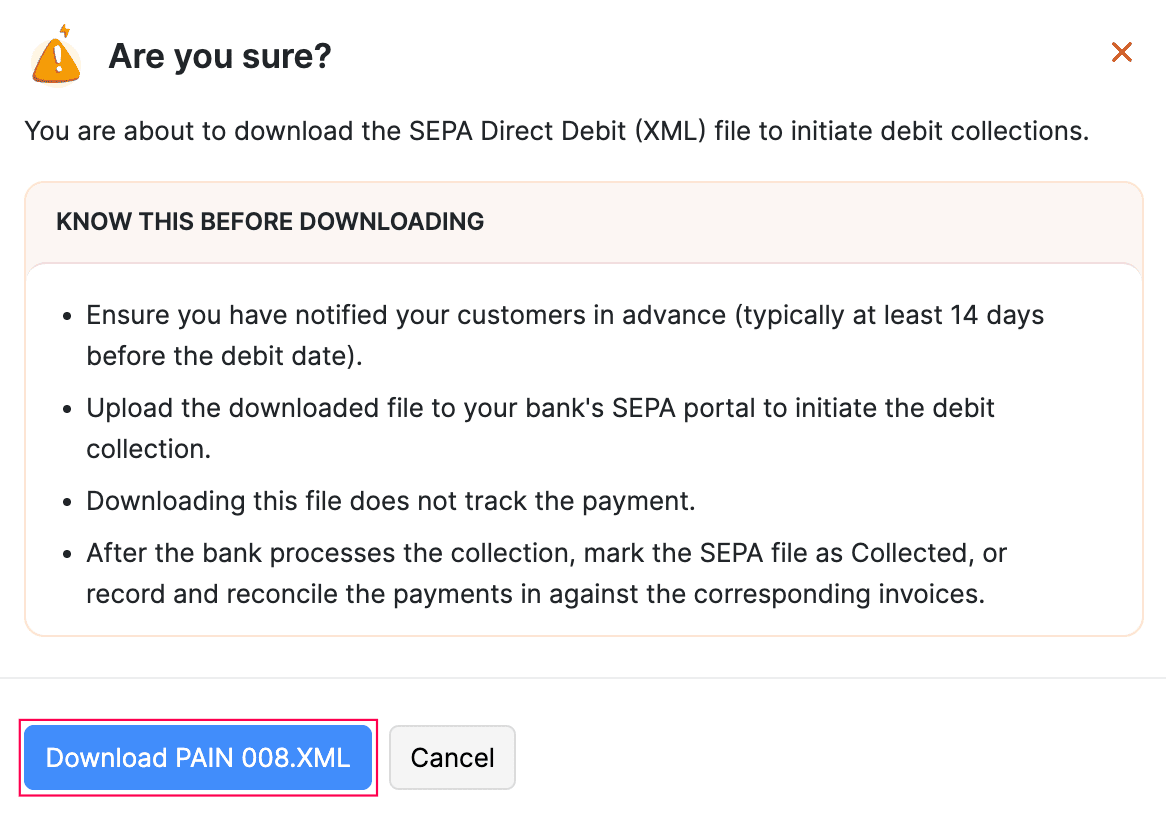
The downloaded file can now be uploaded to your bank’s SEPA portal to initiate the debit collection.
Warning: SEPA regulations require you to notify your customers about the upcoming debit at least 14 days before the collection date.
Insight: Downloading the file doesn’t record the payment in Zoho Books. Once your bank confirms the collection, mark the export as Collected, or record and reconcile the payment against the invoice manually.
View SEPA Exports
You can view all generated SEPA Direct Debit files and track their statuses from the SEPA Exports page. Here’s how:
- Go to Sales on the left sidebar and select Invoices.
- Click View SEPA Exports in the top-right corner of the page.
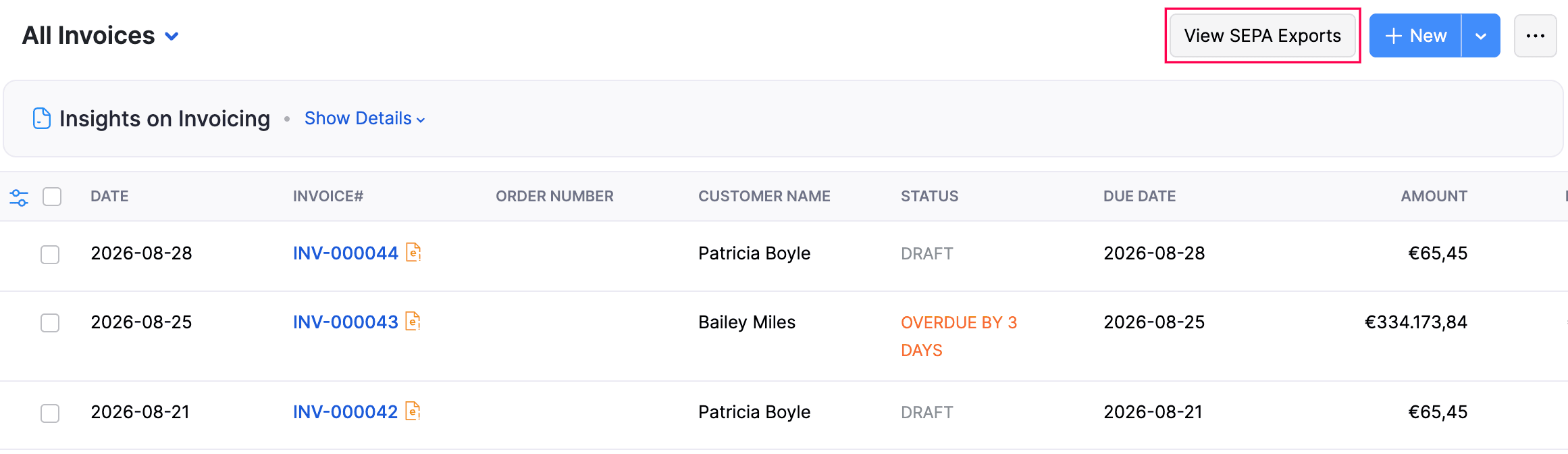
The All SEPA Exports page displays a list of all generated files with the following details:
| Column | Description |
|---|---|
| SEPA Export# | The unique identifier for each SEPA export. |
| Generated Date | The date when the file was generated. |
| Credit Bank Account | The bank account to which payments are credited. |
| Status | The status of the export - Generated, Collected, Partially Collected, or Failed. |
| Total Invoices | The number of invoices included in the export. |
| Total Amount | The total debit amount for the export. |
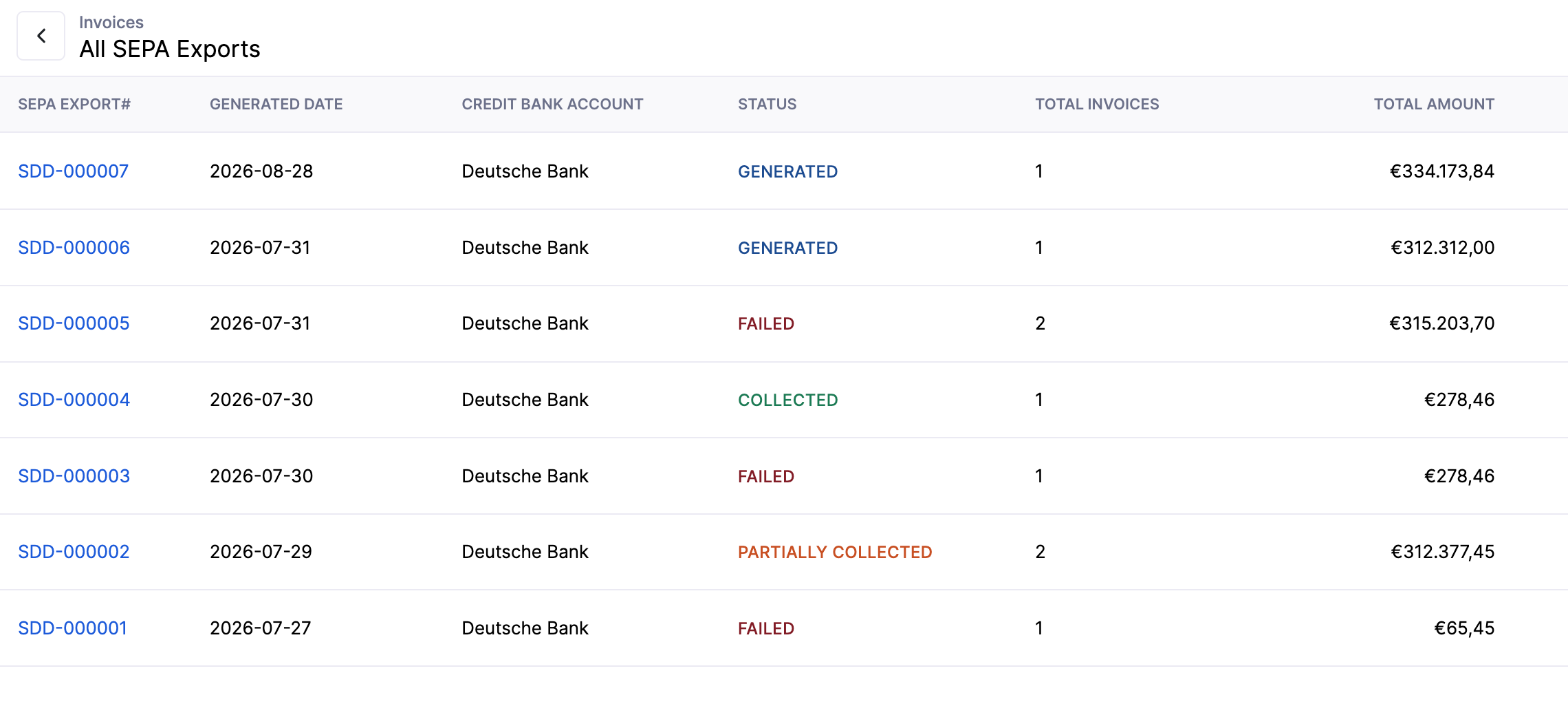
From this page, you can track the progress of each export and take further actions, such as downloading the file or marking it as collected.
Mark a SEPA Export as Collected
After your bank has processed the debit collection, you can update the status of the SEPA export in Zoho Books. Here’s how:
- In the All SEPA Exports page, click the More icon next to the export you want to update.
- Select Mark as Collected.
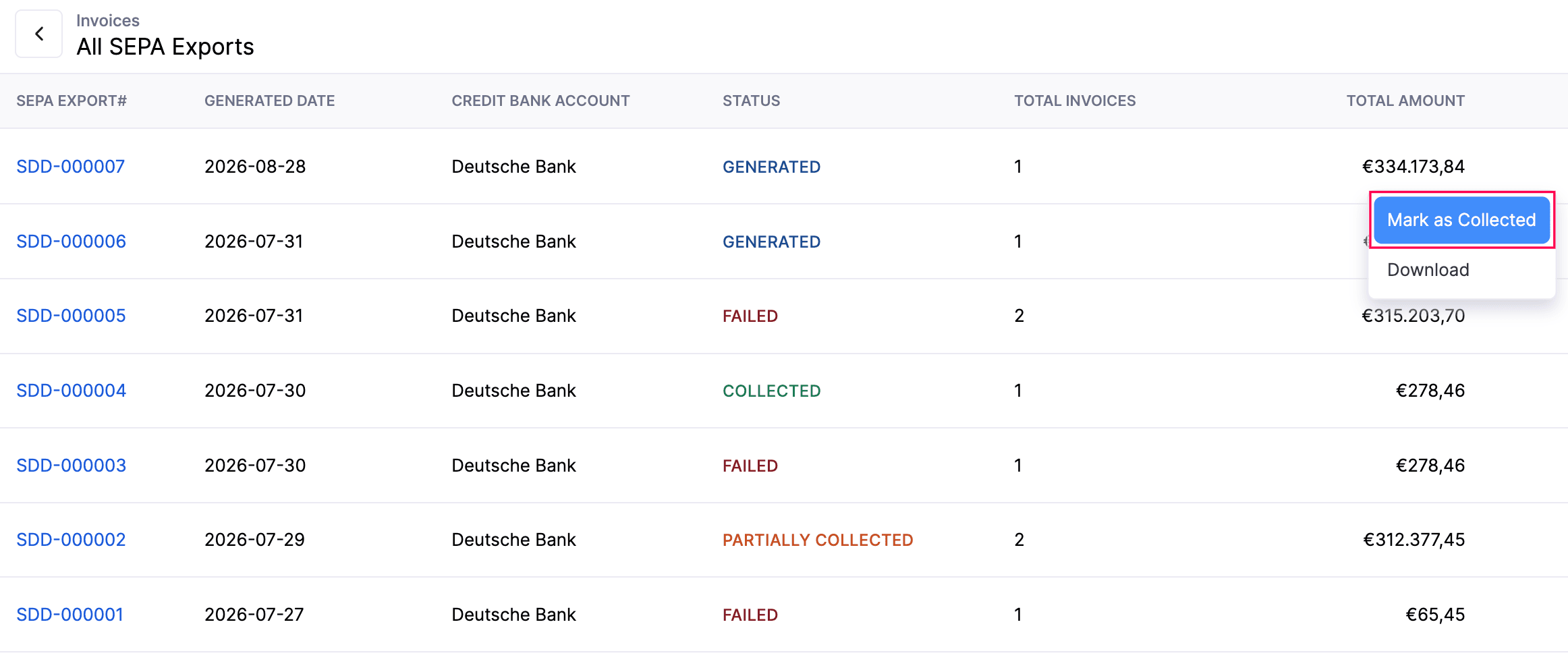
The export status will be updated, and the corresponding invoice payments will be recorded in Zoho Books. You can also click Download from the same menu to download the SEPA file again.
Revoke a Mandate
If a mandate is no longer needed, you can revoke it. Here’s how:
- Go to Sales on the left sidebar and select Customers.
- Select the customer whose mandate you want to revoke.
- In the Customer Details page, navigate to the Overview tab.
- Under Bank Account Details, click View next to Mandate Status.
- In the Mandate Details pop-up, click the More icon and select Revoke Mandate.
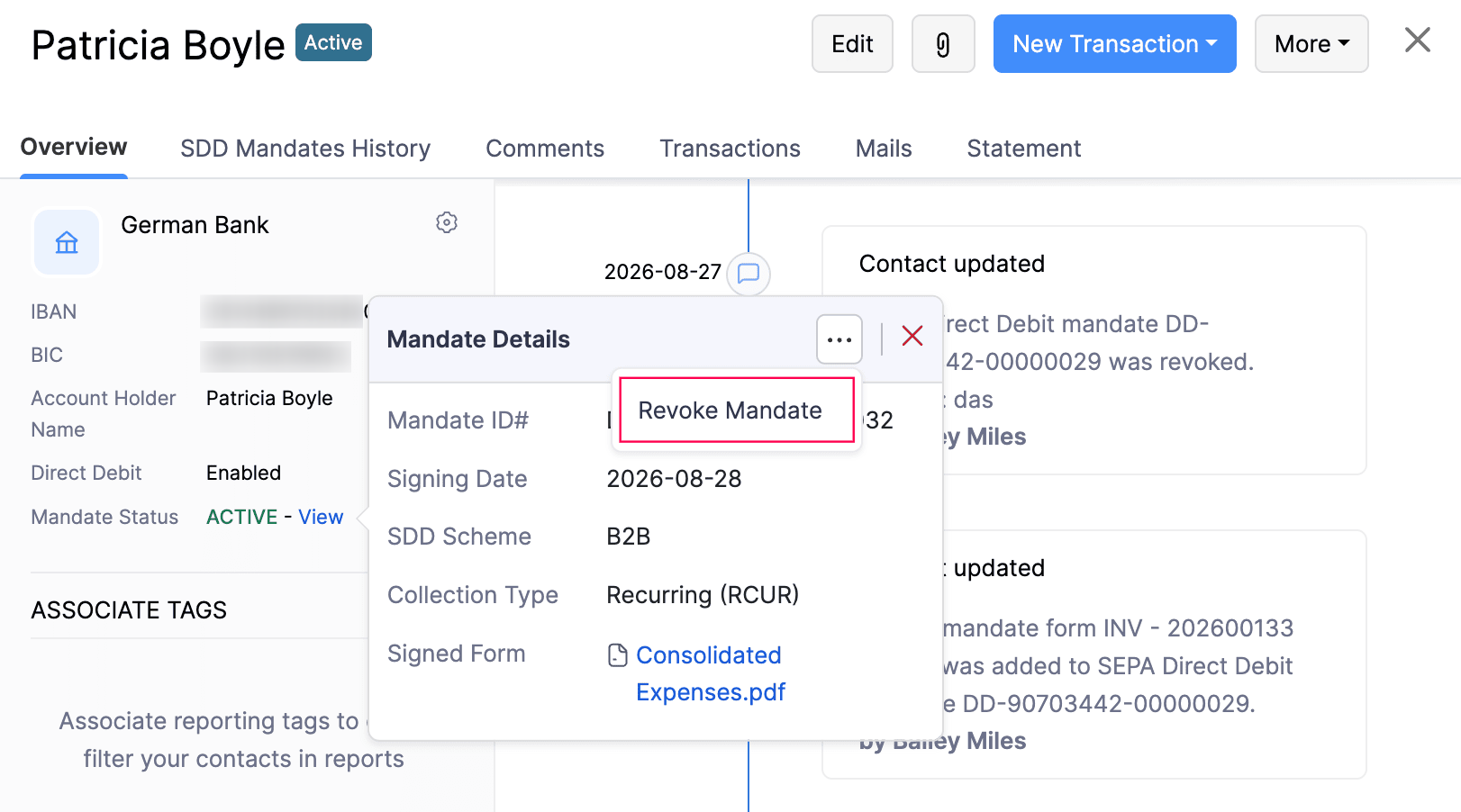
- Enter a Reason for Revoke.
- Click Revoke.
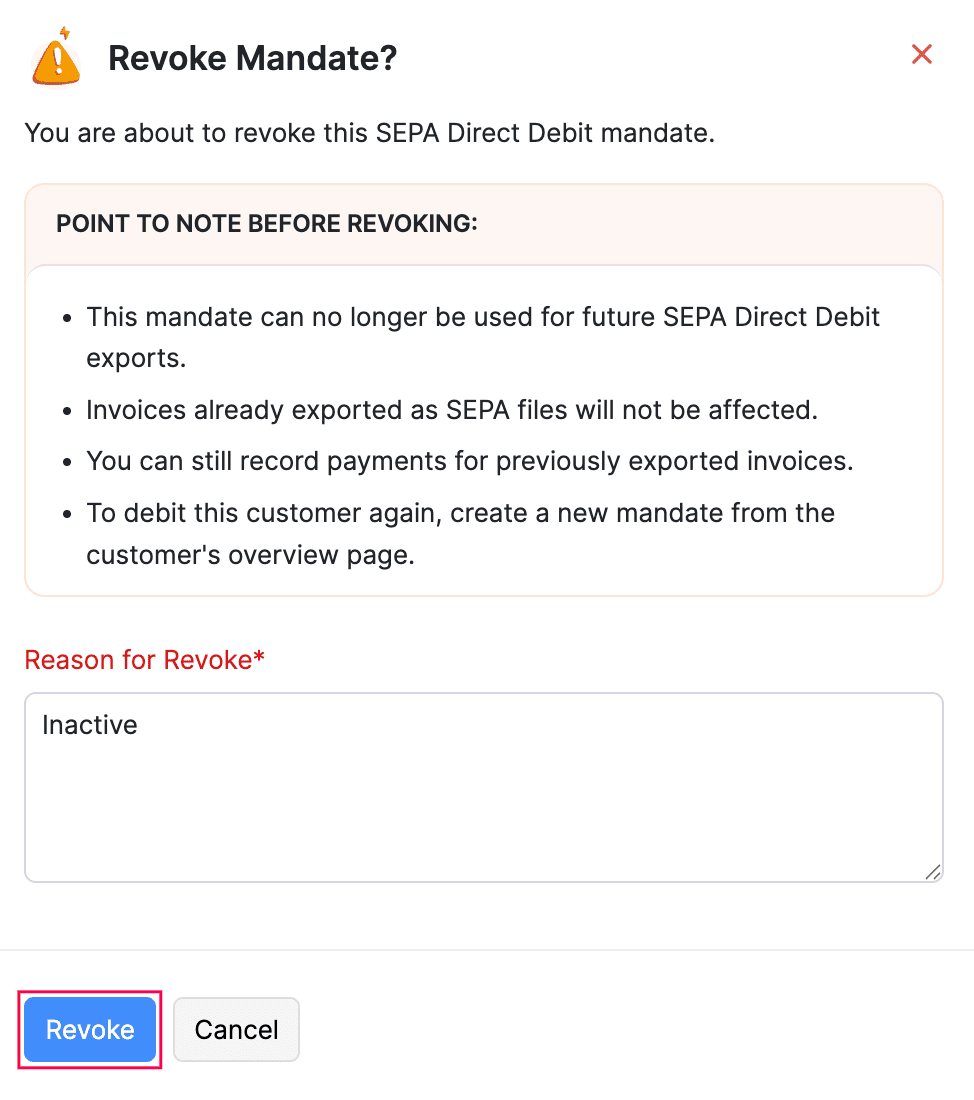
The mandate will be revoked and can no longer be used for future SEPA Direct Debit exports.
Note: A revoked mandate cannot be activated again. You can create a new mandate if you need to collect payments from the customer again. SEPA exports generated before the revocation remain unaffected, and you can still record payments for invoices in those exports.
 Yes
Yes