

E-Invoicing - Overview

Introduction
Germany is introducing mandatory electronic invoicing (e-invoicing) for B2B transactions. Starting 1 January 2025, all German tax payers must be able to receive e-invoices from their suppliers and all German businesses must be able to issue e-invoices from January 2028. Invoices sent or received via email in the PDF format will no longer be considered as an e-invoice from January 2025.
What is an e-invoice?
An e-invoice is a machine-readable invoice that is issued by a supplier in a structured data format that allows for its automatic processing. The buyer can then import it directly to their system instead of entering the details manually.
Who is required to send e-invoices?
Starting from January 2025, businesses established in Germany will have to make sure whether they fall under the mandatory e-invoicing rules. These are applicable for the following business:
- Businesses with their registered office or place of management in Germany.
- Businesses whose registered office is another country but operate in Germany.
If these conditions are met and a taxable supply is made in Germany to another business established in the country, an e-invoice must be issued. Exceptions to this will apply to small-value invoices (gross invoice amount not exceeding EUR 250) and travel tickets that serve as invoices.
Points to Note
- Starting from January 2025, taxpayers will be required to accept structured e-invoices. However, there is no obligation to issue structured e-invoices, nor will there be a need to obtain the recipient’s consent if invoices are sent in either paper form or an unstructured format till December 31, 2026.
- Starting from January 2027, companies with a turnover exceeding €800,000 will be required to issue structured e-invoices. However, companies with a turnover below €800,000 can still issue invoices in paper or unstructured electronic format if the recipient agrees.
- Until December 31, 2027, invoices for transactions made in 2026 and 2027 can still be issued using EDI formats if the recipient consents.
- Starting from January 2028, all German taxpayers must issue an e-invoice for every B2B transaction.
How does e-invoicing work in Zoho Books
PEPPOL (Pan-European Public Procurement Online) is an EU standard that facilitates the exchange of electronic documents like invoices, credit notes and so on. The transactions you create in Zoho Books are checked if the required fields are entered and sent via PEPPOL. Here’s how:
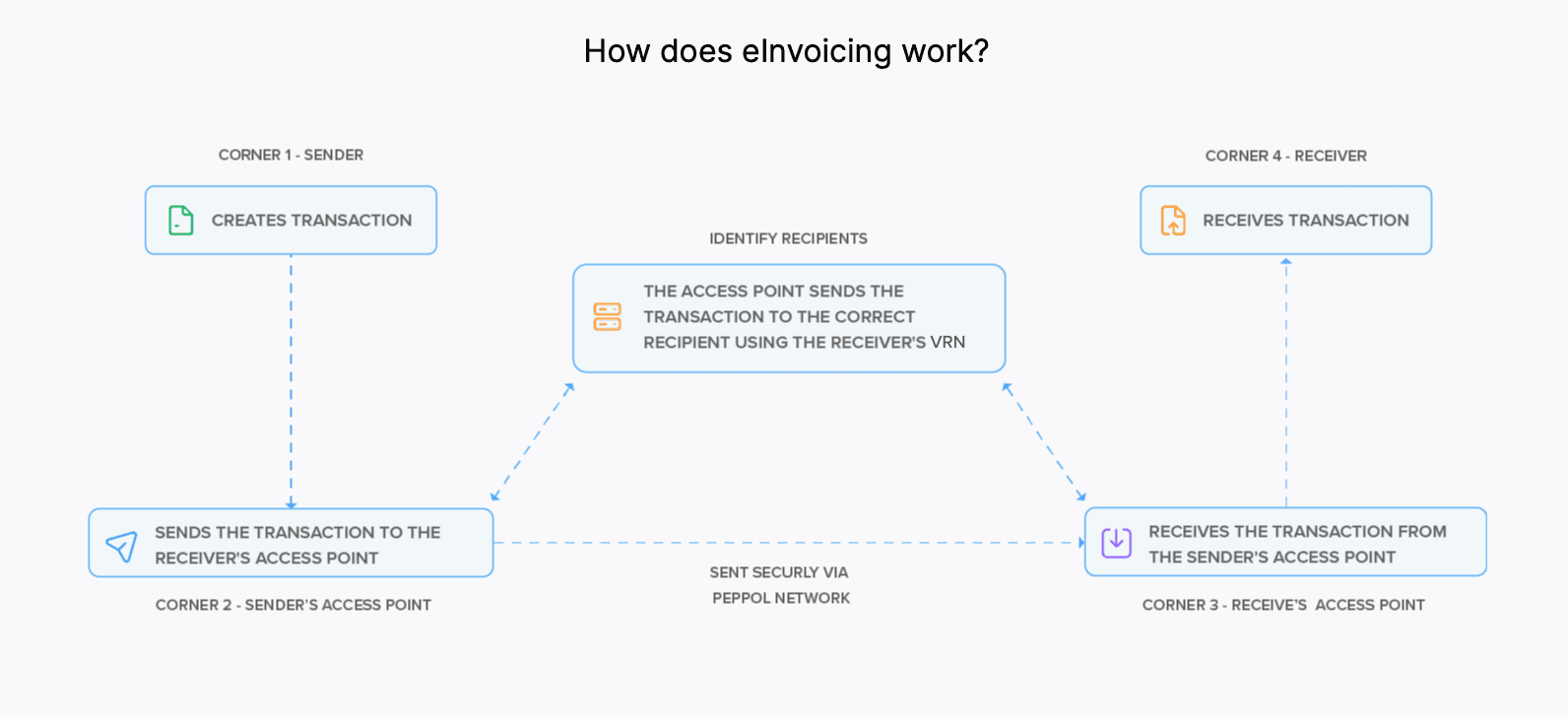
When you create and send an invoice from your organisation, the access point of your organisation identifies the recipient’s VRN and sends the transaction to the receiver’s access point via the PEPPOL network. After receiving the invoice in the receiver’s access point, the invoice gets converted to a bill in the receiver’s organisation.
Set Up E-Invoicing in Zoho Books
Setting up e-invoicing in Zoho Books is a one-time process. Let’s see how you can set up e-invoicing in Zoho Books.
Prerequisites: You can set up e-invoicing only if you’ve enabled taxes in your Zoho Books organisation.
Here’s how you can enable e-invoicing in Zoho Books:
Go to Settings.
Select E-Invoicing under Taxes & Compliance.
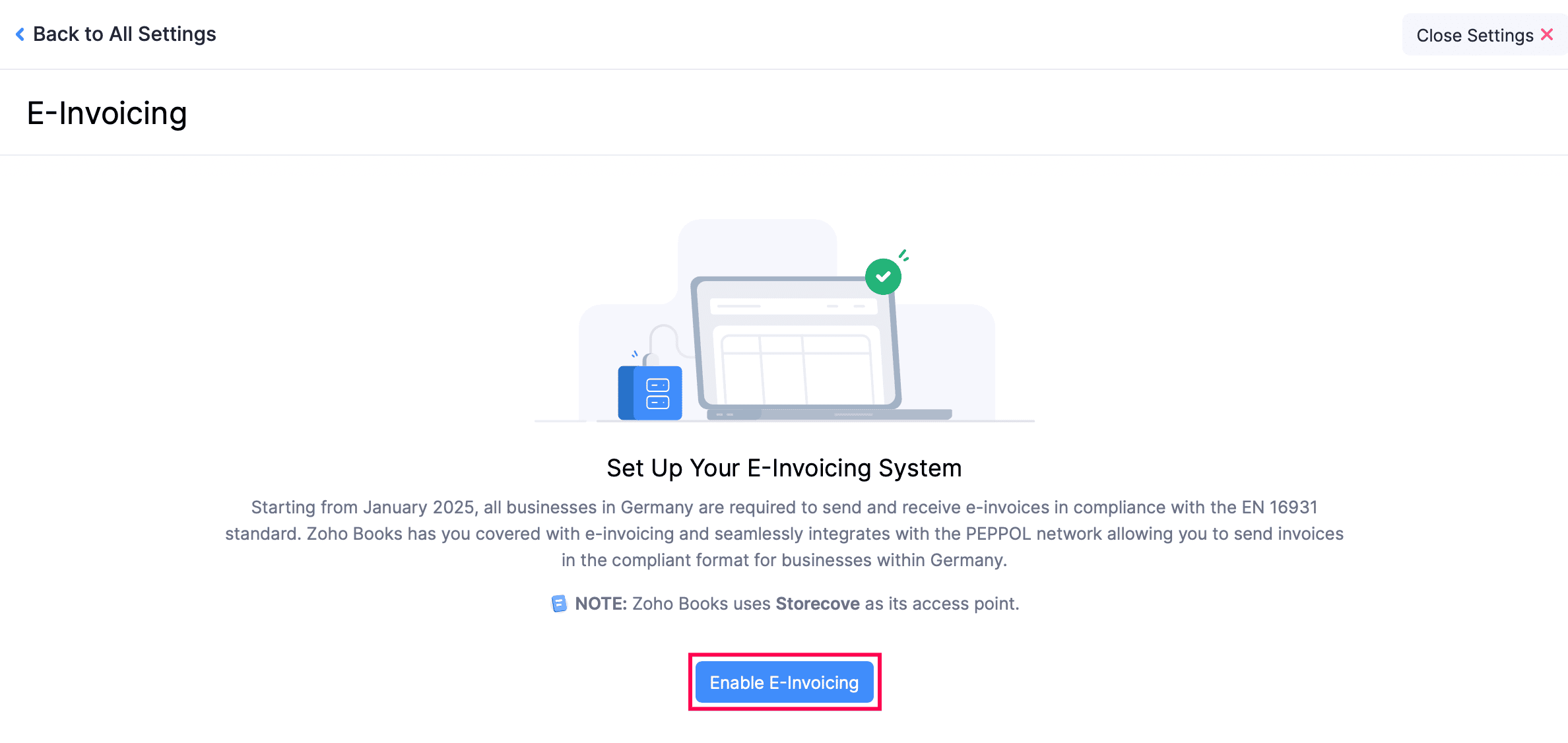
Click Enable E-Invoicing.
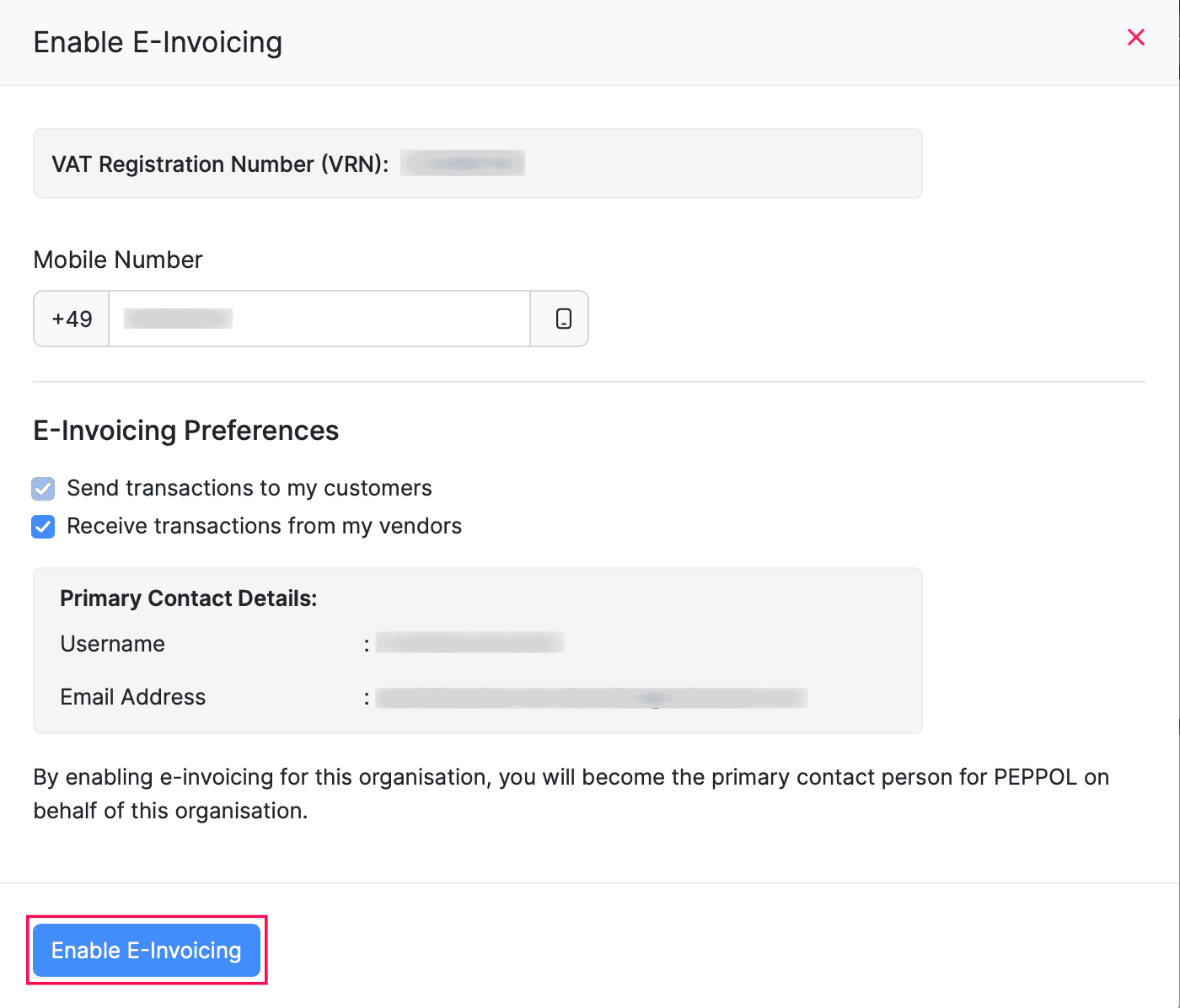
Enter your mobile number.
The Send transactions to my customers checkbox will be marked by default. So you can send transactions to your customers once you enable e-invoicing.
Check the Receive transactions from my vendors box under E-Invoicing Preferences if you want to receive transactions from your vendors as well.
Click Enable E-Invoicing.
Read and accept all the terms and conditions.
Click Enable E-Invoicing.
Configure E-Invoicing Fields
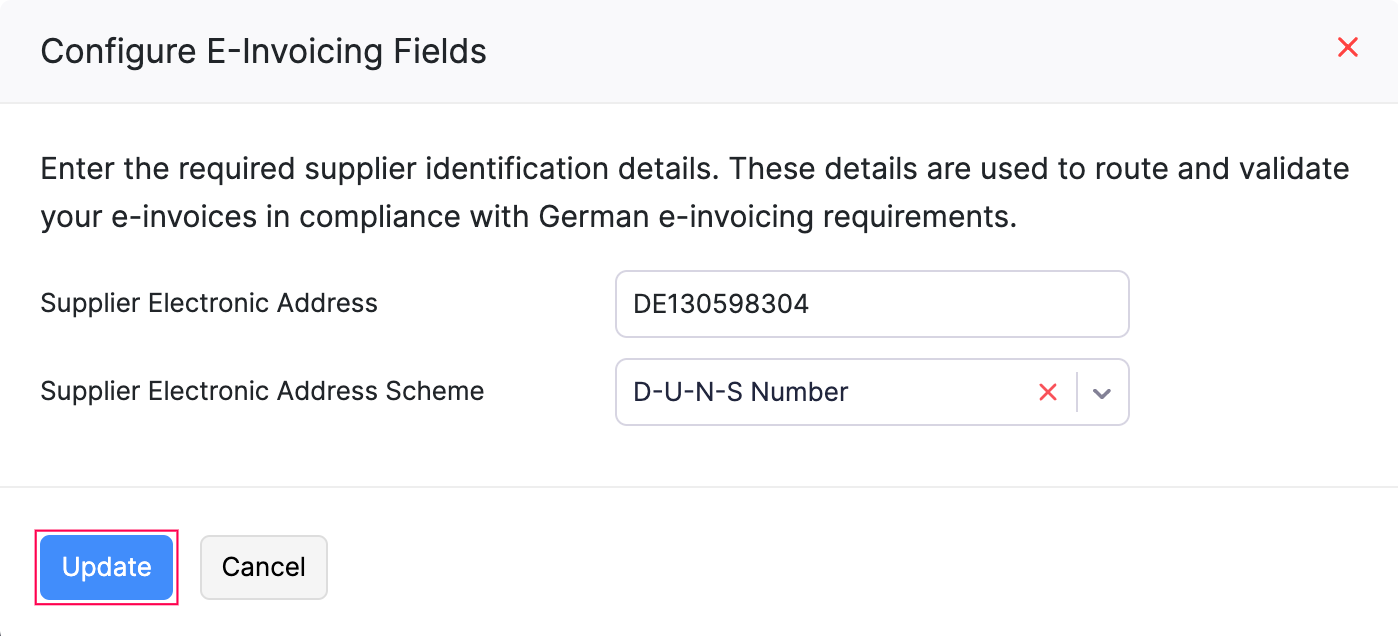
You can configure the supplier identification details required for routing and validating your e-invoices in compliance with German e-invoicing requirements. To do this, click Configure E-Invoicing Fields in the top-right corner of the E-Invoicing settings page.
In the Configure E-Invoicing Fields pop-up, enter the following supplier identification details:
| Field | Description |
|---|---|
| Supplier Electronic Address | Enter your organisation’s electronic address used to identify you as the supplier on the e-invoicing network. For example, DE130598304. |
| Supplier Electronic Address Scheme | Select the scheme that corresponds to your electronic address. This determines how your address is interpreted on the network. |
The following schemes are available for the Supplier Electronic Address Scheme:
- Accepted String Values – The text formats you can enter in the Supplier Electronic Address Scheme field. These are the recognised keywords or labels for each scheme (e.g.,
DUNS,GLN,IBAN). Enter one of these exactly as shown. - Accepted Integer Values – The numeric code that corresponds to each scheme. You can enter this code instead of a string value if your system uses numeric identifiers.
| Scheme | Description | Accepted String Values | Accepted Integer Values |
|---|---|---|---|
| D-U-N-S Number | A unique nine-digit identifier assigned by Dun & Bradstreet to identify your business location. | DUNS, D–U–N–S, D U N S, D–U–N–S Number, any value containing D, U, N, S in order | 0060 |
| Global Location Number (GLN) | A 13-digit identifier issued by GS1 to uniquely identify a legal entity or a physical location. | GLN, Global Location Number, any value containing GLN or GLOBALLOCATIONNUMBER after normalization | 0088 |
| Odette Identifier | An identifier issued by Odette International, commonly used in the automotive supply chain. | ODETTE, Odette Identifier, any value containing ODETTE | 0177 |
| Legal Entity Identifier (LEI) | A 20-character alphanumeric code used to uniquely identify legal entities involved in financial transactions. | LEI, Legal Entity Identifier, any value containing LEI or LEGALENTITYIDENTIFIER | 0199 |
| Leitweg-ID | A German routing identifier used specifically for e-invoicing in public procurement (B2G) transactions. | Leitweg–ID, Leitweg ID, Leitweg, LeitwegID, any value containing LEITWEG or LEITWEGID | 0204 |
| GS1 Identification Key | A GS1-issued key used to identify trade items, locations, or other supply chain entities. | GS1, GS1 Identification Key, any value containing GS1 | 0209 |
| German Electronic Business Address (GEBA) | An electronic business address registered in Germany for use in e-invoicing and digital business communication. | GEBA, German Electronic Business Address, any value containing GEBA or GERMANELECTRONICBUSINESSADDRESS | 0246 |
| IBAN | The International Bank Account Number used to identify your bank account for payment routing purposes. | IBAN, any value containing IBAN | 9918 |
| German VAT Identification Number (USt-IdNr.) | The German VAT identification number assigned to your business by the tax authority. | VAT, DE VAT, DEVAT, German VAT, any value containing VAT or DEVAT | 9930 |
Once you have entered the required details, click Update to save the supplier identification configuration.
Note: These supplier identification details are used to route and validate your e-invoices in compliance with German e-invoicing requirements. Ensure that the values you enter match your official registration details.
Configure Field Mapping
You can map your Zoho Books fields to the corresponding e-invoice fields to ensure your existing data is included correctly when e-invoices are generated or exported. To do this, click Configure Field Mapping in the top-right corner of the E-Invoicing settings page.
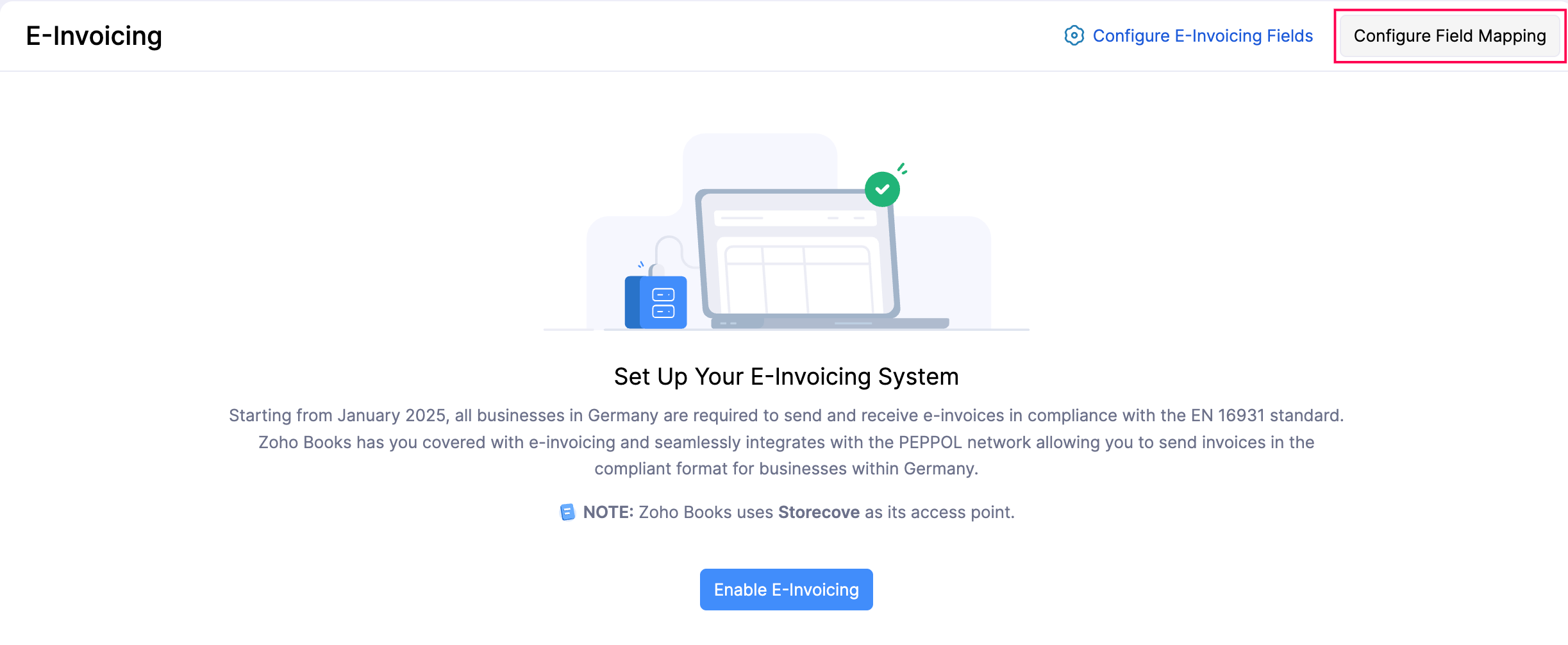
In the Configure E-Invoicing Fields pop-up, you can map the following:
Invoice Details
| E-Invoice Field | Description |
|---|---|
| Purchase Order Reference (BT-13) | The purchase order reference associated with the invoice. |
| Sales Order Reference (BT-14) | The sales order reference associated with the invoice. |
| Despatch Document Reference (BT-16) | The reference number of the despatch document associated with the invoice. |
| Delivery Location Scheme ID (BT-71) | The scheme used to identify the delivery location. |
| Delivery Location ID (BT-71) | The identifier of the delivery location. |
Credit Note Details
| E-Invoice Field | Description |
|---|---|
| Purchase Order Reference (BT-13) | The purchase order reference associated with the credit note. |
| Sales Order Reference (BT-14) | The sales order reference associated with the credit note. |
| Despatch Document Reference (BT-16) | The reference number of the despatch document associated with the credit note. |
| Delivery Location Scheme ID (BT-71) | The scheme used to identify the delivery location. |
| Delivery Location ID (BT-71) | The identifier of the delivery location. |
Organisation Details
| E-Invoice Field | Description |
|---|---|
| Seller Legal Entity Scheme ID (BT-30) | The scheme used to identify the seller’s legal entity. |
| Seller Legal Entity ID (BT-30) | The identifier of the seller’s legal entity. |
| Seller Legal Form (BT-33) | The legal form of the seller’s organisation (e.g., GmbH, AG). |
Customer Details
| E-Invoice Field | Description |
|---|---|
| Buyer Reference Number (BT-10) | A reference number provided by the buyer for their internal tracking. |
| Buyer Endpoint Scheme ID (BT-49) | The scheme used to identify the buyer’s electronic address. |
| Buyer Endpoint ID (BT-49) | The buyer’s electronic address used for routing in the e-invoice structured format. |
| Buyer Identifier Scheme ID (BT-46) | The scheme used to identify the buyer. |
| Buyer Identifier (BT-46) | The identifier assigned to the buyer. |
| Buyer Legal Registration Name (BT-44) | The official legal name under which the buyer is registered. |
| Buyer Legal Entity Scheme ID (BT-47) | The scheme used to identify the buyer’s legal entity. |
| Buyer Legal Entity ID (BT-47) | The identifier of the buyer’s legal entity. |
The dropdown for each e-invoice field includes system fields by default. To map additional data:
- For Invoice and Credit Note fields: Go to Settings > Invoices or Credit Notes > Fields and create the required custom fields for invoices or credit notes. Once created, they will appear in the dropdown.
- For Organisation Details fields: Go to Settings > Organisation Profile and add the required values under Additional Fields. Once added, they will appear in the dropdown.
- For Customer Details fields: Go to Settings > Customers > Fields and create the required custom fields for customers. Once created, they will appear in the dropdown.
Select the corresponding Zoho Books field from the dropdown for each e-invoice field, and click Map Fields to save the mapping.
Note: You can update this field mapping at any time. Ensure the Zoho Books field value matches the format expected by the e-invoice structured format, as incorrect formats may cause errors when generating or exporting e-invoices.
Push Transactions via PEPPOL
Note:
- You can send e-Invoices only to customers whose VAT Registration Number (VRN) is registered in PEPPOL. To check this, go to the customer’s Details page and click Check Status next to the e-Invoice’s status.
- e-Invoices can be created only for customers whose VAT Treatment is Home Country.
To send e-Invoices to a customer through PEPPOL:
- Go to Sales on the left sidebar and select Invoices or Credit Notes, based on your preference.
- Enter the required details.
Note: When you create an invoice, you can provide your customer’s Payment Mode if required to comply with e-Invoicing regulations. The available options are: Cash, Cheque, Bank Transfer, and Sepa Credit Transfer. If you choose Sepa Credit Transfer as the preferred Payment Mode, you must choose a Bank Account with an IBAN. This will appear in the exported e-Invoices XML file, but does not affect how your customer pays for your invoices.
Click Save as Draft.
Click Send to Customer at the top of the customer’s Details page.
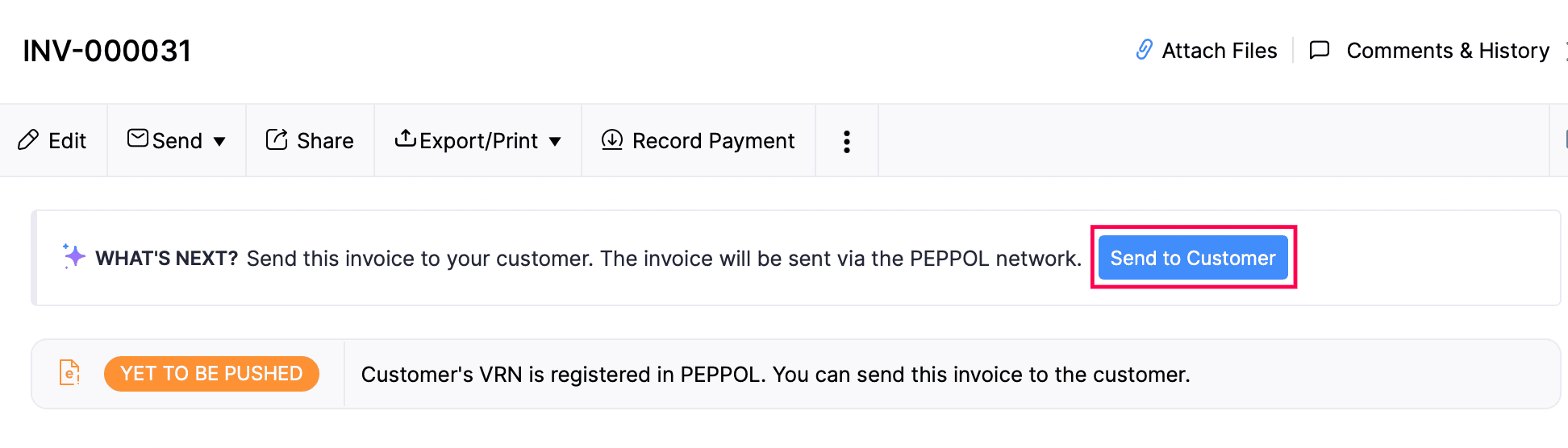
The invoice will be sent to your customer. A bill or vendor credit will be created for them, and a copy of the invoice will also be sent as an attachment.
Note: Once an invoice is pushed through PEPPOL, it cannot be edited or deleted. Instead, you can cancel or correct it.
Statuses of Transactions in E-Invoicing
The status of each transaction will be displayed in the transaction’s overview page. The statuses of the transactions in e-invoicing are:
| Status | Description |
|---|---|
| Yet To Be Pushed | When you create a transaction and save it as draft, the status of the transaction will be Yet To Be Pushed. |
| Pushed | When you send the transaction to your customer and there are no errors, then the status of the transaction will be changed to Pushed. |
| Failed | If there are any errors such as missing fields in the transaction, then the e-invoice will not be sent and the status will be changed to Failed. You can rectify the errors and try again. |
| Accepted | If your customer accepts the transaction, the status of the transaction will be changed to Accepted. |
| Rejected | If your customer rejects your transaction, then the status of your transaction will be changed to Rejected. |
Accept or Reject Transactions
When an invoice is sent, it will be received as a bill, while a credit note will be received as a vendor credit.
Here’s how to accept or reject transactions:
Go to Bills or Vendor Credits under Purchases.
Select the transaction and click Accept or Reject at the top.
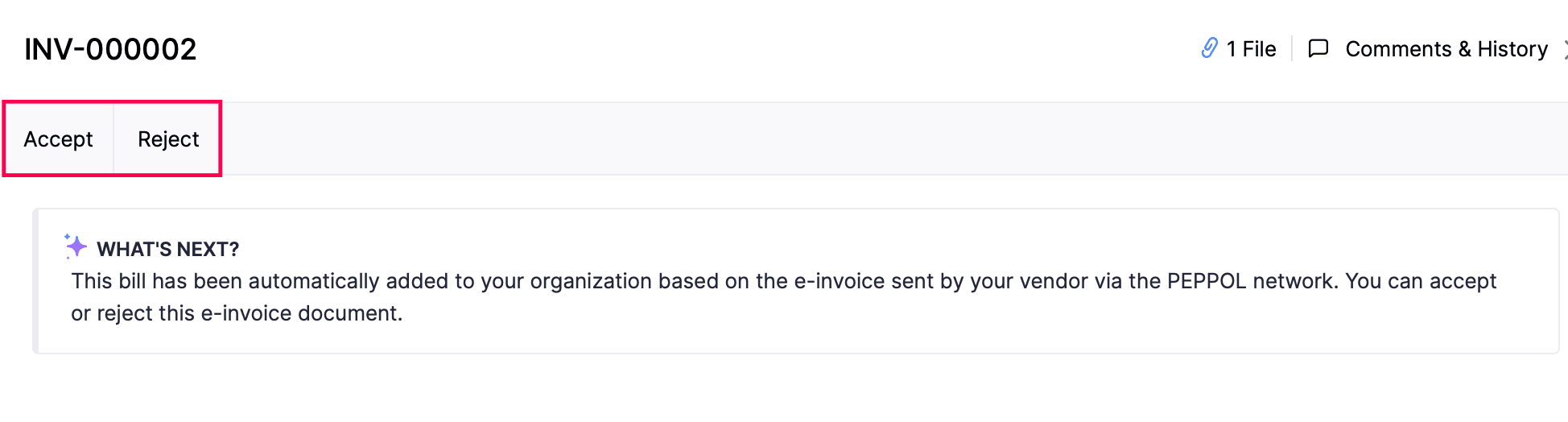
The status of the transaction will be changed to Accepted or Rejected.
Correction Invoices
When your customer rejects your transaction, the status of the transaction changes to Rejected. You can create a correction invoice for the same and send it again to the customer. Here’s how:
Go to Invoices under Sales on the left sidebar.
Select the rejected invoice for which you want to create a correction invoice.
Click the More icon and select Create Correction Invoice.
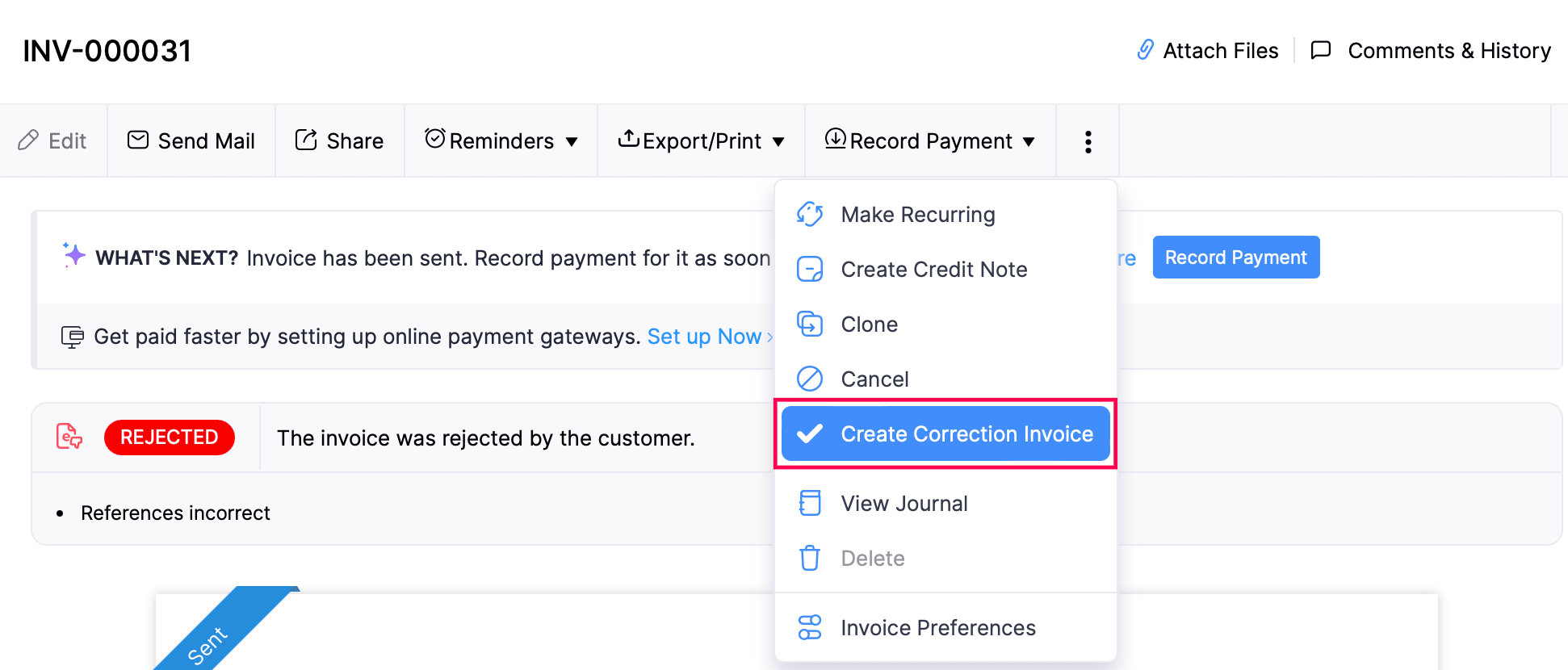
Make the necessary changes.
Click Save as Draft.
Now, a new invoice with the corrected details will be created. The invoice for which you created a correction invoice will be shown in the invoice PDF as Preceding Invoice#.
Cancel Invoices
After you create and send an invoice to your customer via PEPPOL, you may want to cancel the invoice due to reasons like order cancellation or incorrect entries. Here’s how you can cancel an e-invoice:
Go to Invoices under Sales on the left sidebar.
Select the invoice that you want to cancel.
Click the More icon and select Cancel.
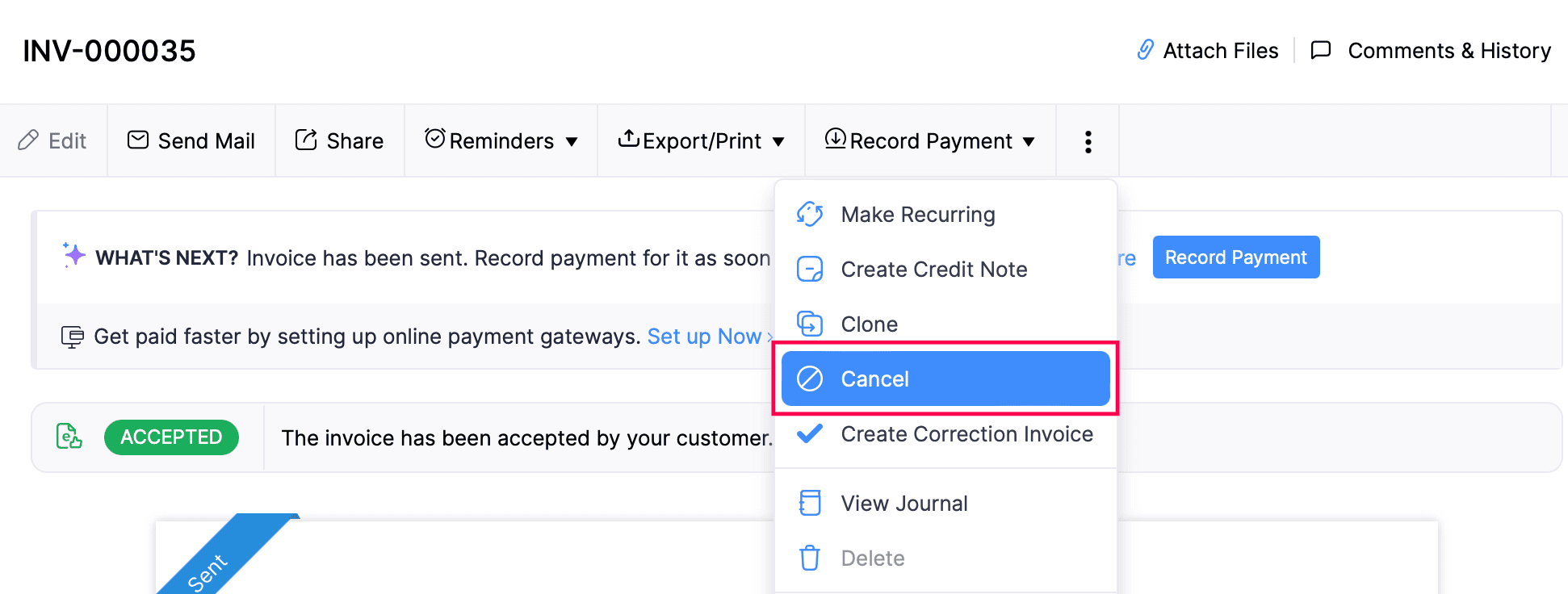
A cancellation invoice will now be created automatically in the Credit Notes module. You can send the cancellation invoice to your customer for approval. Then, you can create a correction invoice for the cancelled invoice.
Note: Once an invoice is cancelled, the action cannot be reversed. Any associated transactions will be dissociated and excluded from your organisation’s accounts and won’t be displayed in journals.
Disable E-Invoicing
Note: Once you disable e-invoicing, you will no longer be able to push transactions via PEPPOL.
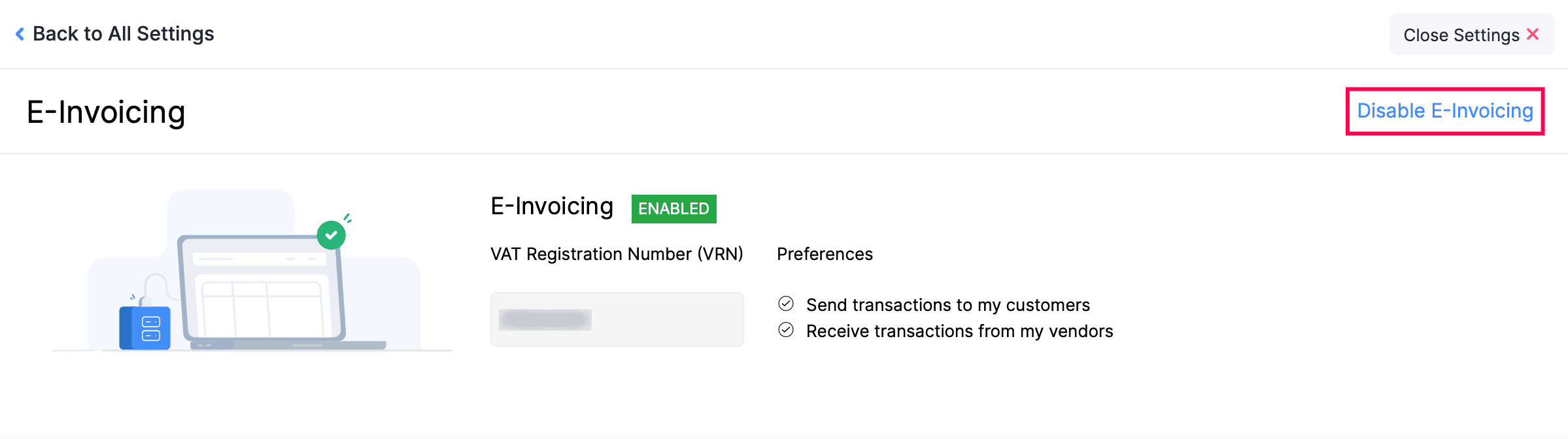
Here’s how you can disable e-invoicing in Zoho Books:
Go to Settings.
Select E-Invoicing under Taxes & Compliance.
Click Disable E-Invoicing in the top-right corner.
Click Disable in the popup that appears.
 Yes
Yes